
Shopify Payments Alternatives: Third-Party Providers
You do not have to use Shopify Payments. Here is how to take payments through a third-party provider or a manual method on Shopify, and still fulfill orders the normal way.
By AjayCodeWiz · July 29, 2026 · 8 min read
The problem
A merchant asked this on the Shopify Community. They wanted to know if they could build a store on Shopify, skip Shopify Payments, take payment through an outside provider, have that payment go through, and then ship the order.
It is a fair question, and a common one. Shopify Payments is pushed hard during setup, so it is easy to assume it is the only way to get paid. It is not.
The short answer is yes. You can take payment through an outside provider. Once the order shows as paid, you fulfill it the same way you would with any other order.
I checked the current setup on a test store so the steps below match what you will actually see. Here is where it all lives, and the three ways to do it.
Where payment settings live
Everything starts in one place. Go to Settings, then Payments.
That page has three parts that matter here:
- A section for Shopify Payments (or a test gateway on development stores).
- Additional payment providers, where outside gateways and PayPal plug in.
- Manual payment methods, further down the page.
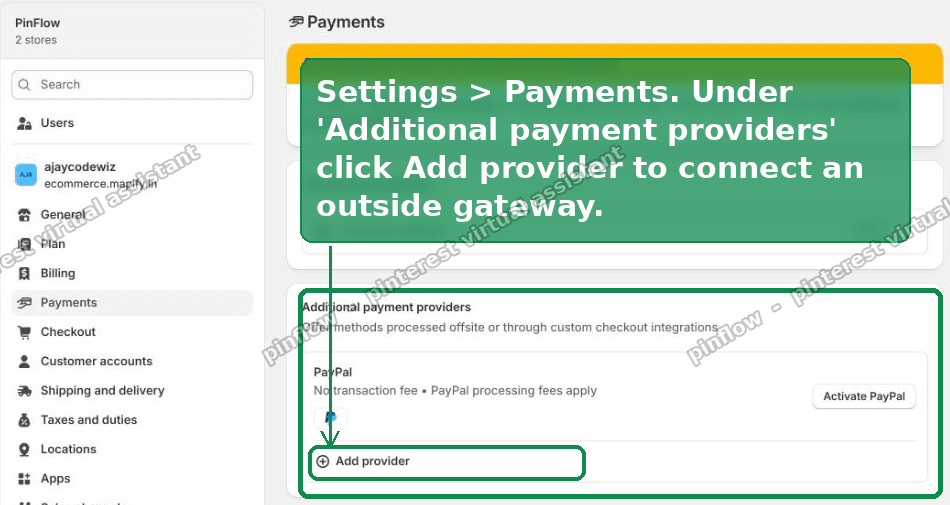 Settings, then Payments, then Add provider
You are never forced to activate Shopify Payments to use the rest of the page. You can leave it switched off and set up something else instead.
Route 1: A third-party payment provider
This is the route most merchants want. It keeps a normal checkout, and the whole thing is automatic.
Under Additional payment providers, click Add provider, then switch to the Search by provider tab.
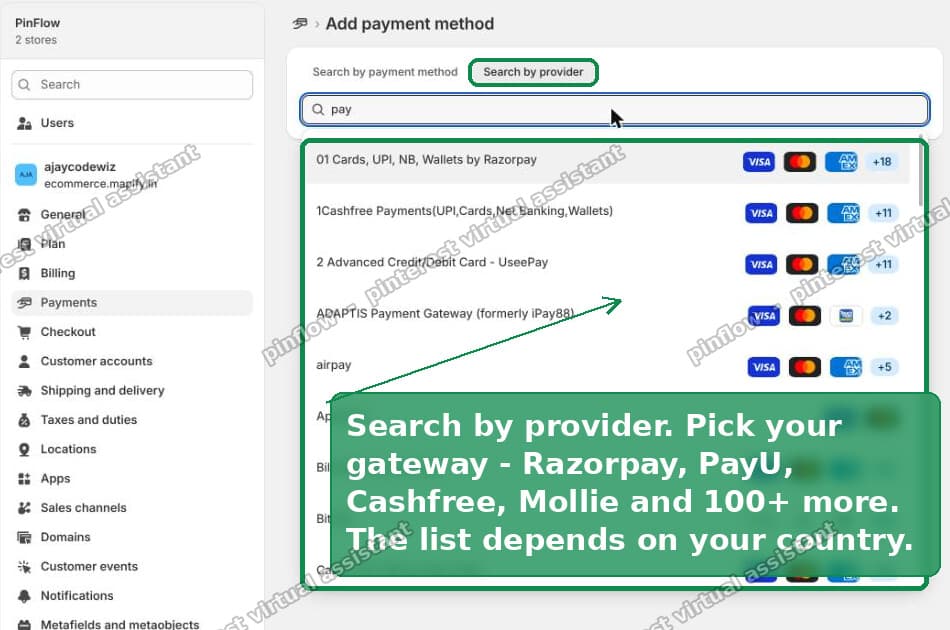 The third-party provider list in Shopify
Shopify supports more than a hundred outside gateways. The exact list depends on your country, but you will usually see names like Razorpay, PayU, Cashfree, Mollie, 2Checkout, and many more. Pick the one you have an account with, connect it, and you are done.
Here is what happens after that:
- The customer pays inside your normal Shopify checkout. They do not leave your store for most integrated gateways.
- When the payment succeeds, Shopify marks the order as Paid on its own.
- You fulfill the order the same way you always would.
No custom code. No app to build. The gateway does the talking to Shopify for you.
What "third-party provider" actually means
A third-party payment provider is any gateway that is not Shopify Payments. It processes the card or wallet payment, then tells Shopify the money came through.
The important part is that your checkout does not change. Shoppers still see the Shopify checkout they trust. The gateway just runs behind it. That is why this route feels invisible once it is set up, and why it is the one to reach for first.
Route 2: A manual payment method
Some merchants do not want a gateway at all. They take payment by bank transfer, cash on delivery, a QR code, or some other offline method. Shopify supports that too.
On the Payments page, open Manual payment methods and add one.
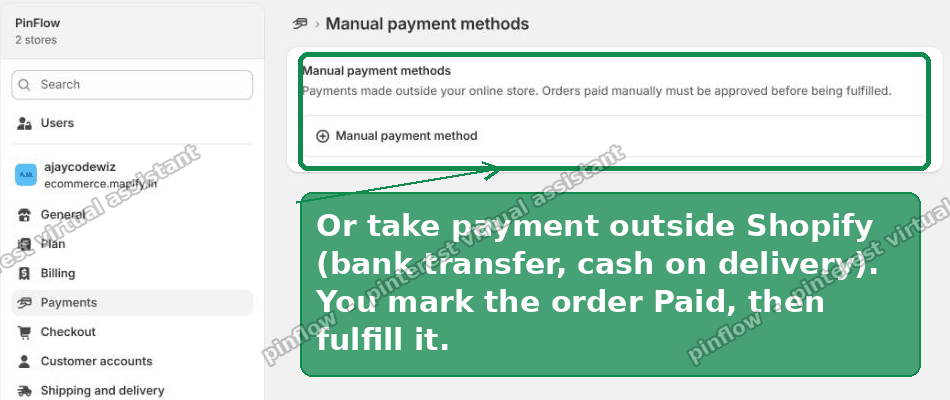 Manual payment methods in Shopify
Read the line Shopify shows on that screen, because it answers the original question exactly: payments made outside your online store, and orders paid manually must be approved before being fulfilled.
Here is the flow:
- The customer places the order and picks your manual method at checkout.
- The order comes in as pending, not paid.
- You confirm the money actually arrived, in your bank app, your wallet, wherever it landed.
- You mark the order as Paid in the Shopify admin.
- You fulfill it.
The one difference from Route 1 is that Shopify cannot know the payment succeeded, because it happened outside Shopify. So you tell it, by marking the order paid. That single manual step is the whole trade-off.
Use this when your provider is not in Shopify's list, or when you genuinely take money offline.
Route 3: A payment app
If your gateway is not in the built-in list, check the Shopify App Store before you give up. Many payment providers ship their own app that adds them to checkout as a proper payment option.
An app-based gateway usually behaves like Route 1 once installed. The customer pays in checkout, and the order marks itself paid. You get the automatic flow without the provider needing to be in Shopify's default list.
So the order of things to try is simple. Look for the provider in Settings, then look for its app, then fall back to a manual method.
How payment connects to fulfillment
This is the part the original question was really about, so it is worth stating plainly.
Fulfillment is not tied to your payment provider. Shopify does not care how the money arrived. It cares about one thing: is the order marked Paid.
With an integrated gateway or a payment app, that Paid status is set for you. With a manual method, you set it yourself. Either way, once the order reads Paid, fulfillment works exactly as normal. You print the label, mark it fulfilled, and the customer gets their tracking.
Nothing about shipping, tracking, or the customer's order status changes based on which gateway you picked. The gateway choice ends at "the order is paid." Everything after that is the same for every store.
The fee question: does Shopify charge extra?
Most merchants who ask about outside providers are really asking about cost, so here it is.
When you use a third-party provider instead of Shopify Payments, Shopify adds a small transaction fee on top of what the gateway charges you. It is usually between 0.5% and 2%, depending on your plan. Higher plans pay a smaller percentage.
There is one big exception. If Shopify Payments is not available in your country, Shopify does not charge that extra fee at all. Merchants in regions where Shopify Payments is not offered use third-party gateways with no Shopify surcharge, only the gateway's own fees.
PayPal is also treated gently here. When you add PayPal as an additional provider, Shopify does not take a transaction fee on it. You just pay PayPal's own processing fees.
So the fee is real, but it is small, and for a lot of merchants it does not apply at all.
Can I use PayPal without Shopify Payments?
Yes. PayPal sits in the same Additional payment providers section and does not depend on Shopify Payments being on.
Activate it there, and it appears at checkout as its own option. Customers who pick it are sent to PayPal to pay, then returned to your store, and the order marks itself paid. It is one of the easiest outside options to switch on.
Can I use Stripe on Shopify?
This one confuses people, so here is the honest version.
Shopify Payments is powered by Stripe under the hood. Because of that, Stripe is not usually offered as a separate gateway you can add on top of Shopify. In most countries you will not find Stripe in the provider list as its own entry.
If you want Stripe's processing, the practical route is Shopify Payments itself, which uses Stripe already. If you specifically need a standalone Stripe integration, that is a case where an app, or a different supported gateway, is the answer.
How to change or remove a payment provider
You are not locked in. Go back to Settings, then Payments, at any time.
Each active provider has a manage or deactivate control. You can turn one off, switch to another, or run more than one at once so customers get a choice at checkout. Removing a provider does not touch past orders. It only changes what future shoppers can pick.
If you set something up to test it and want it gone, deactivating it is safe and reversible.
Does an outside provider affect anything else?
No, and this is the reassuring part.
Your products, your theme, your shipping rates, and your customer accounts all work the same regardless of which gateway takes the money. The payment provider is a single setting. It decides how a customer pays, and nothing else.
The one thing to keep an eye on is the manual route. Because you approve those payments by hand, a busy store can end up with orders sitting in a pending state while you wait to confirm money landed. If that volume grows, an integrated gateway or a payment app saves you the manual check on every single order.
Can I fully bypass the Shopify checkout?
Worth clearing up, because "use an external payment method" sometimes means "use my own checkout."
On standard Shopify plans, you keep the Shopify checkout and plug a gateway into it. You cannot replace the checkout page itself with a fully custom external one. That level of control is a Shopify Plus or headless setup, and it is a much bigger project.
For most stores, that is fine. You do not need to replace the checkout. A third-party gateway drops straight into the checkout you already have, which is the whole point of the routes above.
The short version
You do not have to use Shopify Payments to run a Shopify store.
- For a normal, automatic checkout, add a third-party provider in Settings, then Payments. The order marks itself paid, and you fulfill as usual.
- For offline payment like bank transfer or cash on delivery, use a manual payment method, confirm the money yourself, mark the order paid, then fulfill.
- If your gateway is not listed, look for its app.
Every one of these ends the same way: a Paid order that you fulfill the normal way. The gateway you choose changes how the money comes in, and nothing else.
Spending too long on manual Shopify busywork?
PinFlow turns your Shopify catalog into Pinterest pins and posts them on a schedule, automatically. Let the system handle the repetitive part.
Get PinFlow on the Shopify App StoreMore Shopify fixes
More community-sourced Shopify guides, tested on a live store.
Shopify Admin
Shopify New Admin (2026): Where Search, Sidekick and Settings Went
Shopify's new admin moved search, alerts, the store switcher and Settings into the black sidebar, and Sidekick to a bar at the bottom. Where each one is now.
Shopify Admin
How to Use the New Shopify Admin (2026): Every Main Screen
A tour of the new Shopify admin: the black sidebar, search and Ctrl K, Home, Orders, Products, Settings and Sidekick, with where to click on each screen.
Shopify Admin
Schedule a Black Friday Sale in Shopify (Auto Start and End)
Give the discount its own start and end date and put the sale banner in an Event rollout with the same dates. Both start at midnight and end after Cyber Monday.