
How to Put Your Shopify Store in Vacation Mode
Pause Shopify sales while you are away without changing your plan. A free vacation mode you flip on and off, plus Pause and Build compared.
By AjayCodeWiz · August 8, 2026 · 11 min read
The problem
A merchant asked about this on the Shopify Community. She runs a one-person store and sells shungite jewelry, apothecary products, and supplements. She wanted a Shopify vacation mode.
Her ask was simple. She needs to step away for a week. She does not want to close the store. She wants people to keep browsing products and reading the blog. She just does not want new orders landing while she is gone.
Etsy has a built-in vacation mode. Shopify does not. There is no single switch in the admin that says "I am away, pause my sales." So merchants go looking for a workaround, and most of the advice online is either wrong or too heavy.
I reproduced her exact setup on a test store on the Dawn theme. Then I built a free vacation mode that turns on and off in seconds. This post walks through it, plus the other options and what each one really does.
The main search terms people use for this are "shopify vacation mode," "how to put shopify on vacation mode," and "shopify store vacation mode." They all mean the same thing: pause selling for a short break without deleting or closing anything.
Why it happens
Shopify was built as an always-on selling platform. The whole system assumes your store is open for business. So there is no native "holiday mode" toggle the way a marketplace like Etsy has one.
The closest official feature is the Pause and Build plan. It is a cheaper plan that keeps your store online but switches off checkout. The catch is that it is a full plan change. It follows your billing cycle, not your calendar. The merchant who asked about this had tried it two years ago and called it a disaster for a short break.
So there is a real gap. Shopify gives you two extremes:
- Keep the store fully open and take orders.
- Change your whole plan to shut checkout down.
There is nothing in between for a quick one-week pause. That is why people search for a Shopify pause store trick instead of a setting. The good news is you can build the in-between yourself, and it is not hard.
What "vacation mode" should actually do
Before the fix, it helps to define the goal. A useful vacation mode does three things:
- The store stays online and browsable. Products, collections, and blog posts all still load.
- No new orders can be placed. Add to cart, Buy it now, and the cart are all removed.
- A friendly banner tells visitors you are away and when you will be back.
You want to flip this on when you leave and off when you return. No plan change. No billing surprise. No app fee. That is the target.
The fix: a free vacation mode you control
This is the method I tested. It works on Dawn and on most themes built like Dawn. It hides every buy button and the cart, and it shows a "back soon" banner across the top. You turn it on and off yourself by changing one word.
Here is a normal Dawn product page first, so you can see what changes. The cart icon, Add to cart, and Buy it now all work as usual.
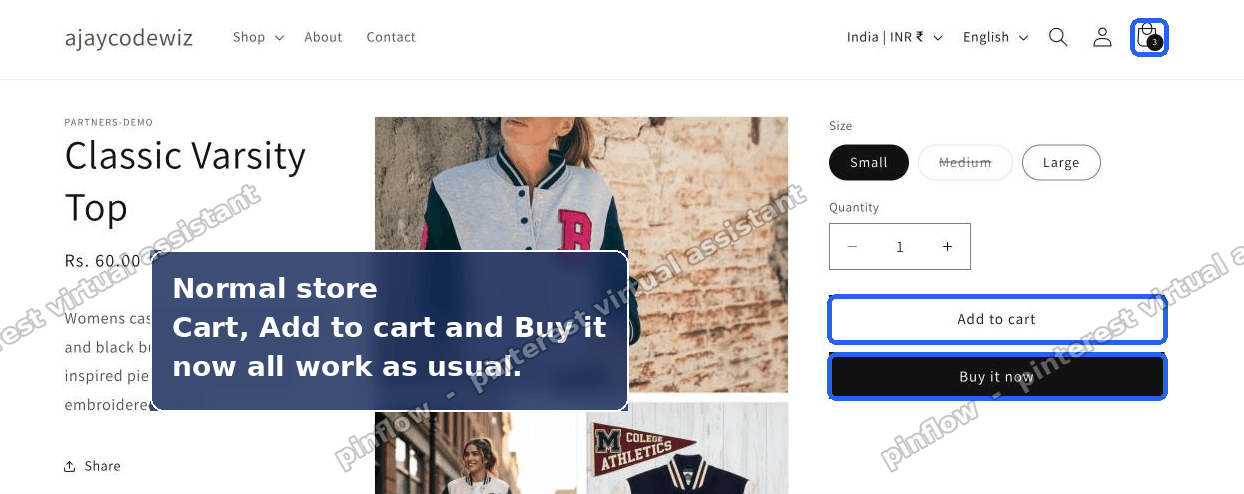 Normal Shopify Dawn product page with a working cart icon, Add to cart button, and Buy it now button
Step 1. Open your theme code.
Go to Online Store > Themes in your admin. On your live theme, click the ... (three dots) button, then Edit code. This opens the theme's files. It does not touch anything customers see yet.
Step 2. Find the layout file.
In the file list, open layout/theme.liquid. This is the wrapper that loads on every page of your store. Scroll to the very bottom and find the </body> tag. That tag marks the end of the page body.
Step 3. Paste the vacation block.
Paste this block just above </body>, then Save.
{%- comment -%} ===== VACATION MODE ===== turn on/off by changing false to true below {%- endcomment -%}
{%- assign vacation_mode = false -%}
{%- assign vacation_banner = "We're away and back on Monday, August 18. Browse freely - ordering is paused until we return." -%}
{%- if vacation_mode -%}
  <div class="vacation-banner" role="status">{{ vacation_banner }}</div>
  <style>
    .product-form__buttons,
    .product-form__submit,
    .shopify-payment-button,
    .quick-add,
    .quick-add-modal,
    #cart-icon-bubble,
    .cart-count-bubble,
    cart-drawer,
    #cart-notification,
    .cart-notification-wrapper,
    .cart__ctas,
    .cart__dynamic-checkout-buttons,
    [name="checkout"] { display: none !important; }
    .vacation-banner {
      background: #1f2d3d; color: #fff; text-align: center;
      padding: 12px 16px; font-size: 15px; line-height: 1.45;
    }
  </style>
  <script>document.body.insertAdjacentElement('afterbegin', document.querySelector('.vacation-banner'));</script>
{%- endif -%}
Here is what that looks like in the code editor. The word false on the vacation_mode line is the switch. The line below it holds your banner message and return date.
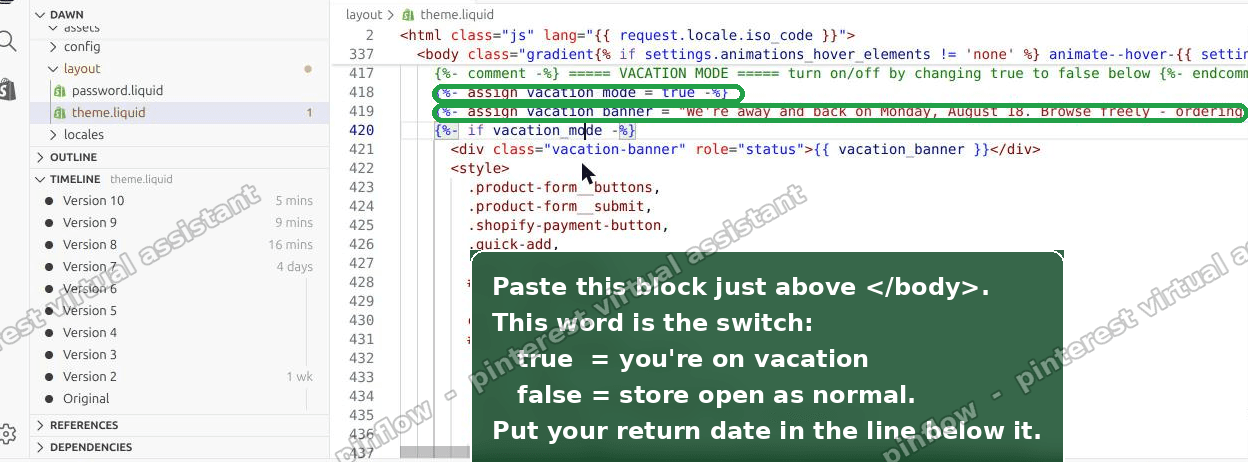 The vacation mode block pasted into theme.liquid in the Shopify code editor, with the true and false switch highlighted
A quick plain-English read of the block. The assign line sets the switch to false, which means "off." The if line says: only show the banner and hide the buttons when the switch is on. The style block hides the buy buttons and the cart. The banner is a single strip of text at the top of the page.
Step 4. When you leave, turn it on.
Open that block again. Change false to true. Put your real return date in the message line. Save. That is it. The store is now browse-only.
Here is the same product page with vacation mode on. The banner shows your message. Add to cart, Buy it now, and the cart icon are all gone.
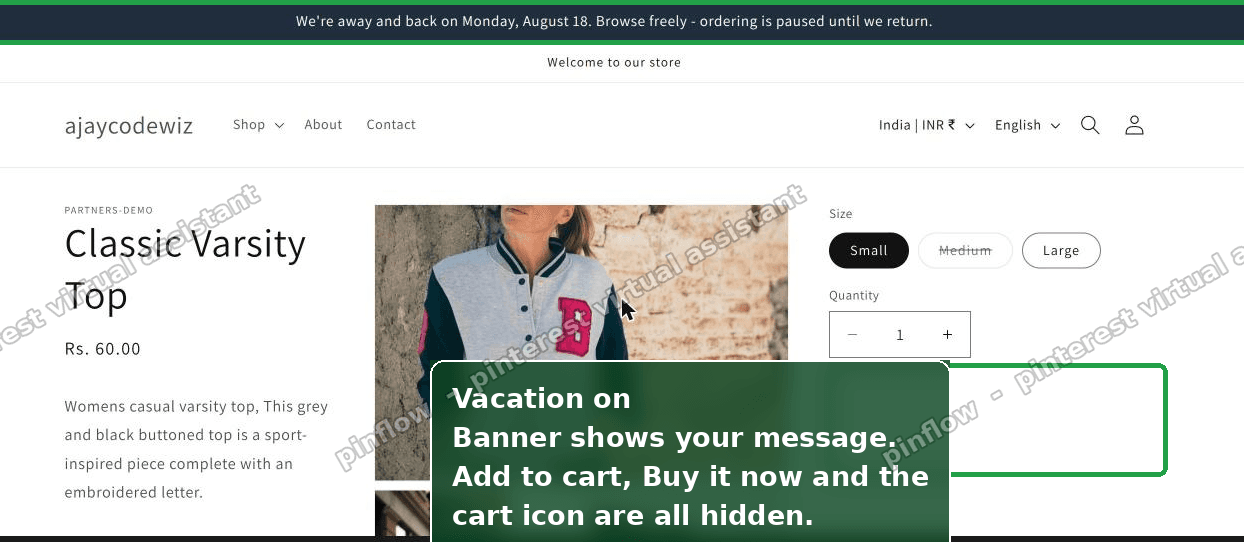 Shopify store in vacation mode with a back soon banner at the top and the buy buttons hidden
Step 5. When you return, turn it off.
Change true back to false. Save. Everything comes back to normal at once.
I tested this on a Dawn store. The buy buttons and the cart disappeared the moment I set the switch to true. They all came back when I set it to false. Customers could still browse every product and read the blog the whole time. Nothing was deleted and no plan changed.
One honest caveat. This hides the buy controls with styling. A very determined visitor could still reach a checkout URL by hand. For a normal one-week break that is fine. If you need a hard stop where no order can ever go through, use the Pause and Build plan instead, which is covered below.
An alternative: a one-click checkbox in the customizer
Editing code every trip is fine, but some people would rather flick a switch in the visual editor. You can turn the same fix into a checkbox under Theme settings. Then you never touch code again.
Two small edits do it.
First, in Edit code, open config/settings_schema.json. Scroll to the very bottom, and just before the final ], paste this. Keep the leading comma.
,
{
  "name": "Vacation mode",
  "settings": [
    { "type": "checkbox", "id": "vacation_mode", "label": "Vacation mode (browse-only)", "default": false },
    { "type": "text", "id": "vacation_banner", "label": "Banner message", "default": "We're away and back soon - ordering is paused until we return." }
  ]
}
Second, go back to the block you pasted in theme.liquid. Delete the two assign lines. Change {%- if vacation_mode -%} to {%- if settings.vacation_mode -%}. Change {{ vacation_banner }} to {{ settings.vacation_banner }}. Save.
Now open Customize > Theme settings > Vacation mode. Tick the box to pause the store. Untick it to reopen. You can edit the banner text right there too. No code editing after that.
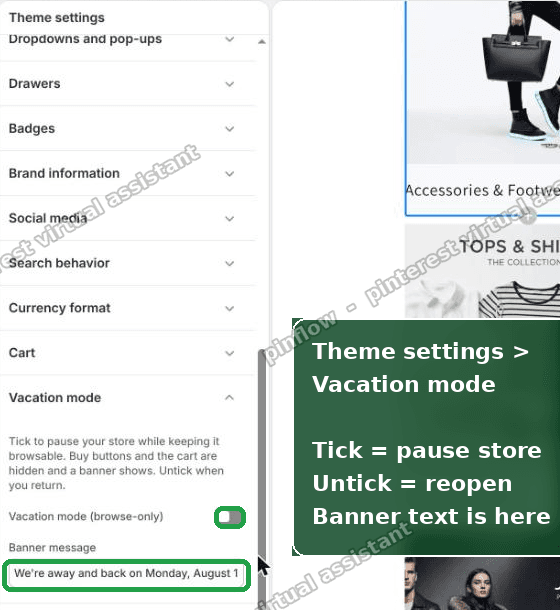 Shopify theme customizer showing the Vacation mode checkbox and banner message field
This is the version I would set up for anyone who takes breaks often. It puts a real vacation mode switch in the admin, which is the thing Shopify does not give you out of the box.
Should I use the Shopify Pause and Build plan instead?
Pause and Build is Shopify's official low-cost plan. It costs about $9 a month. Your store stays online, but checkout is switched off, and you cannot use most admin features.
It works, but it is heavy for a short break. Here is why the merchant on the thread said it did not fit:
- It is a full plan change, not a toggle. You switch plans to go on and switch back to come off.
- It is tied to your billing cycle, not your vacation week. Turning it on for a week does not line up with how billing works.
- She had tried it before and called it a disaster for a one-week pause.
So Pause and Build is the right tool for a long, indefinite break, like pausing a seasonal business for several months. It is the wrong tool for a week off. For that, the free code method above is faster and reversible in seconds.
How do I put my Shopify store on vacation without changing my plan?
Use the theme method in this post. It never touches your plan or your bill.
The short version:
- Add the vacation block to theme.liquid once.
- Flip the switch on when you leave.
- Flip it off when you return.
Your plan stays the same. Your billing stays the same. Your store stays online and searchable the entire time. This is the cleanest way to get a Shopify holiday mode without paying for anything.
Can customers still browse my store in vacation mode?
Yes, and that is the point. This method only hides the buying controls. It does not take the store offline.
While vacation mode is on:
- Every product page still loads.
- Collections and search still work.
- Blog posts still open and read normally.
- The banner tells visitors you are away and when you will be back.
Only Add to cart, Buy it now, and the cart are hidden. So you keep your traffic, your SEO, and your storefront. You just stop taking orders for a while.
Is this different from putting my store password page up?
Yes, and this trips a lot of people up. They are two different things.
A password page hides the whole storefront behind a login screen. Visitors see a single locked page and nothing else. No products, no blog, no browsing. That is a full lockout, not a vacation mode.
Vacation mode, the way this post builds it, keeps the store open and browsable and only removes the buy buttons. People can still look around, read, and remember you when you get back.
Use the password page when you want the store fully hidden, like before launch. Use vacation mode when you want the store visible but paused for orders. Most people asking about a Shopify pause store want the second one.
If it did not work
A few things to check if the buttons did not hide.
- Nothing changed at all. Make sure the switch is set to
trueand that you clicked Save. On the customizer version, make sure the box is ticked. - The block landed in the wrong spot. It has to be inside layout/theme.liquid, just above
</body>. If you pasted it into a different file it will not run. - Your theme is not Dawn. The button class names come from Dawn and Dawn-style themes. On a very different theme, one or two buy buttons might not use the same class, so they could stay visible. If that happens, right-click the leftover button, choose Inspect, read its class name, and add that class to the list inside the style block.
- A checkout link is still reachable. Remember this is a soft pause. It removes the buttons, not the checkout route itself. For a hard block on all orders, use Pause and Build.
Definitions people confuse
Vacation mode. Not a native Shopify feature. It is a pattern you build: store stays open, buy buttons hidden, banner up. Reversible in seconds.
Shopify holiday mode. Same idea as vacation mode. People use the words interchangeably. There is no separate holiday setting in Shopify.
Pause and Build plan. An official Shopify plan around $9 a month. Store stays online, checkout is off, most admin is locked. Good for long pauses, clumsy for short ones.
Pause your store fully. A stronger version of Pause and Build where the store goes offline entirely. This is a real plan action, not a toggle, and it is meant for stepping away for a long time.
Password page. A full lockout screen over the whole storefront. Hides everything, not just the cart. Not the same as a vacation mode.
theme.liquid. The layout file that wraps every page of your store. Editing it once is how the free vacation mode reaches every page at the same time.
The takeaway: Shopify has no one-click vacation mode, but you do not need one. A small block in your theme gives you a real Shopify vacation mode you control, for free, without a plan change or a billing surprise.
Spending too long on manual Shopify busywork?
PinFlow turns your Shopify catalog into Pinterest pins and posts them on a schedule, automatically. Same idea as the rule above, let the system handle the repetitive part.
Get PinFlow on the Shopify App StoreMore Shopify fixes
More community-sourced Shopify guides, tested on a live store.
Shopify Admin
How to Edit a Packing Slip on Shopify to Show Big Product Photos
Shopify's order page shows each item as a 40 pixel thumbnail with no way to enlarge it. Here is how to edit the packing slip template so every line prints that exact variant's photo at 1000 pixels, including the one-line fix Shopify's default template needs.
Shopify Admin
Shopify Shipping Zones: Fix Products Sold Out in One Country
Products show Sold out for customers in one country while your admin shows stock. The cause is a shipping profile with no zone for that country. How Shopify shipping zones and profiles decide what a customer can buy, and the six-click fix, with screenshots.
Shopify Admin
Shopify Translate: Fix Mixed Languages on Product Pages
A Swedish Shopify store showed English words on translated product pages. The titles were translated, so the English came from option names and theme text. How to fix each one in Translate & Adapt, with screenshots.