
Fix Shopify Variant Colors in Random Order
Shopify Horizon shows variant color options in random import order. A small script sorts them A to Z on the storefront and survives re-render.
By AjayCodeWiz · August 7, 2026 · 11 min read
The problem
A merchant asked about this on the Shopify Community. He sells hosiery and imports his products from eBay using an import app.
After every import, the color buttons on his product pages showed up in a random order. One product started with Fruits Rouges, the next started with Carmin. There was no pattern.
He had too many products to fix by hand. He wanted the colors to sort alphabetically on their own.
This is a common Horizon theme complaint. Horizon is Shopify's newer free theme, built on blocks and web components. It looks modern, but it has no button to sort variant options.
A "variant option" is a choice on a product page, like Color or Size. A "variant option value" is one choice inside it, like Red or Blue. When those values load in a messy order, the store looks unfinished.
I reproduced it on a test store on the Horizon theme. The color buttons landed in import order, not alphabetical order. Here is what that looks like.
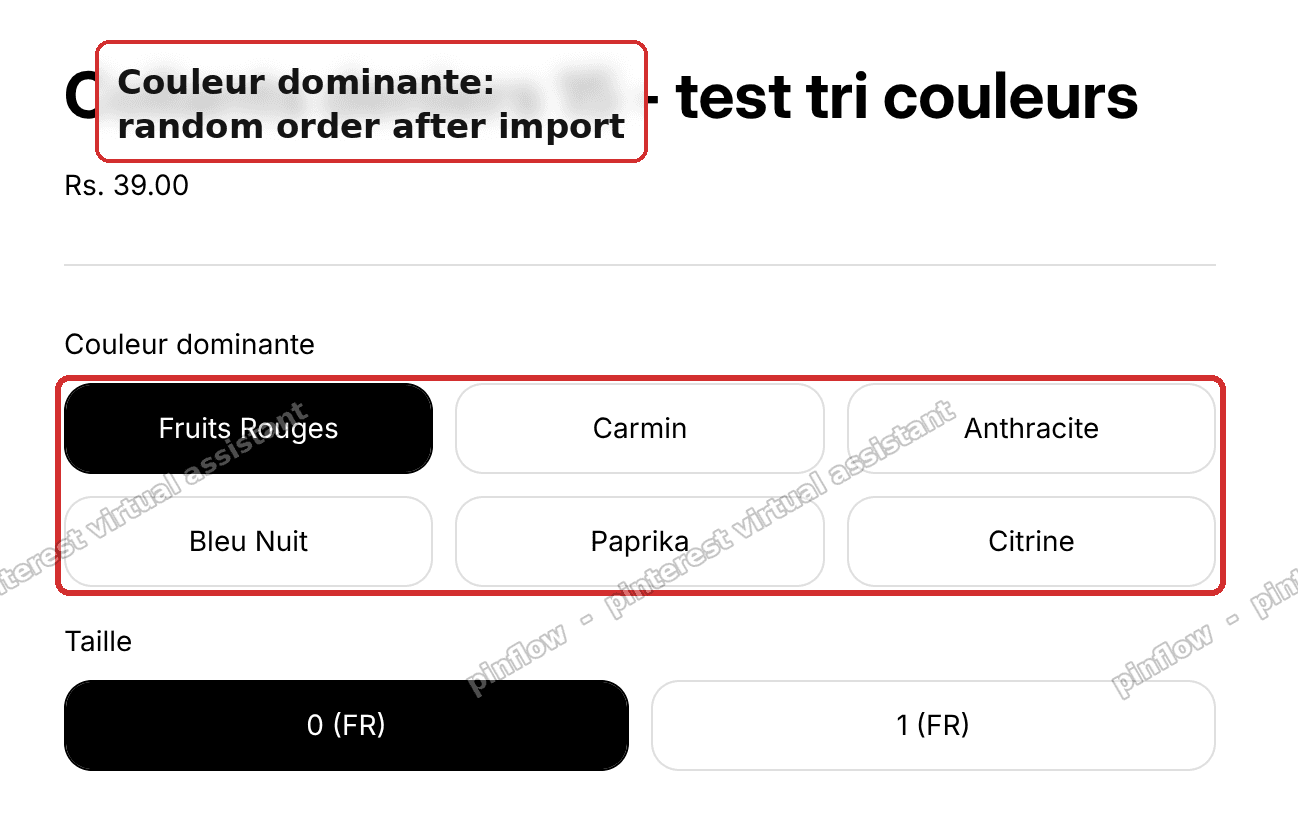 Couleur dominante color buttons in random import order on a Shopify Horizon product page
The red box is the color option. The values are scattered. The shopper has to hunt for the color they want.
If you are searching for how shopify variant options order works, or why your shopify variant colors show in random order, this is the exact case. It shows up most on Horizon, but the cause is the same on every theme.
Why it happens
Here is the part most forum answers skip.
Horizon is not the thing that shuffled your colors. Shopify is.
Shopify saves each product's option values in the order they were first created or imported. It keeps that saved order forever. It does not sort them.
Your import app sends the colors in whatever order the source gave it. eBay returns them in no set order. So each product gets its own random order baked in at import time.
Then Horizon just renders that saved order on the page. The theme is only showing what Shopify stored. There is no "sort alphabetically" setting anywhere in Horizon's theme editor. There is no such setting in Shopify admin either.
So there are only two honest ways to fix it.
One, change the stored order in Shopify. That means editing every product, or bulk editing them. It works, but you have to redo it after every import.
Two, sort the buttons on the storefront with a small script. The stored data stays the same. Only the display changes. This survives future imports because it runs on page load, every time.
For a large catalog that imports often, option two wins. You set it once and forget it.
One catch with Horizon you must respect
Horizon re-renders the variant picker when a shopper switches an option.
That is important. If a shopper clicks a size, Horizon rebuilds the color buttons from scratch. Any sort you did a moment ago gets wiped. The random order comes back.
So a script that sorts once on page load is not enough on Horizon. It has to watch the picker and re-sort every time Horizon rebuilds it. I will cover how below.
There is a second catch. Horizon ties each button to real variant data. If you naively swap the visible text and leave the wiring behind, the label can point at the wrong variant. A shopper clicks Blue and gets Red in the cart.
The safe method moves the whole button element, wiring and all. The label and its variant data travel together. Nothing gets mismatched.
The fix
This is a display-only fix. It sorts the color buttons A to Z on the storefront. It does not touch your admin. It does not change your variant data. The variant that gets added to cart stays correct. Your sizes are left alone.
You do this once and it covers every product on that product template. A "product template" is the shared layout Shopify uses to build all your product pages.
Step 1. Open the theme editor on a product page.
Go to Online Store, then Themes, then Customize. Open any product page inside the editor.
Step 2. Add a Custom Liquid block.
In the left sidebar, find the Product information section. Click Add block, then choose Custom Liquid. A "Custom Liquid block" is a spot where you can paste your own code into a theme without touching theme files.
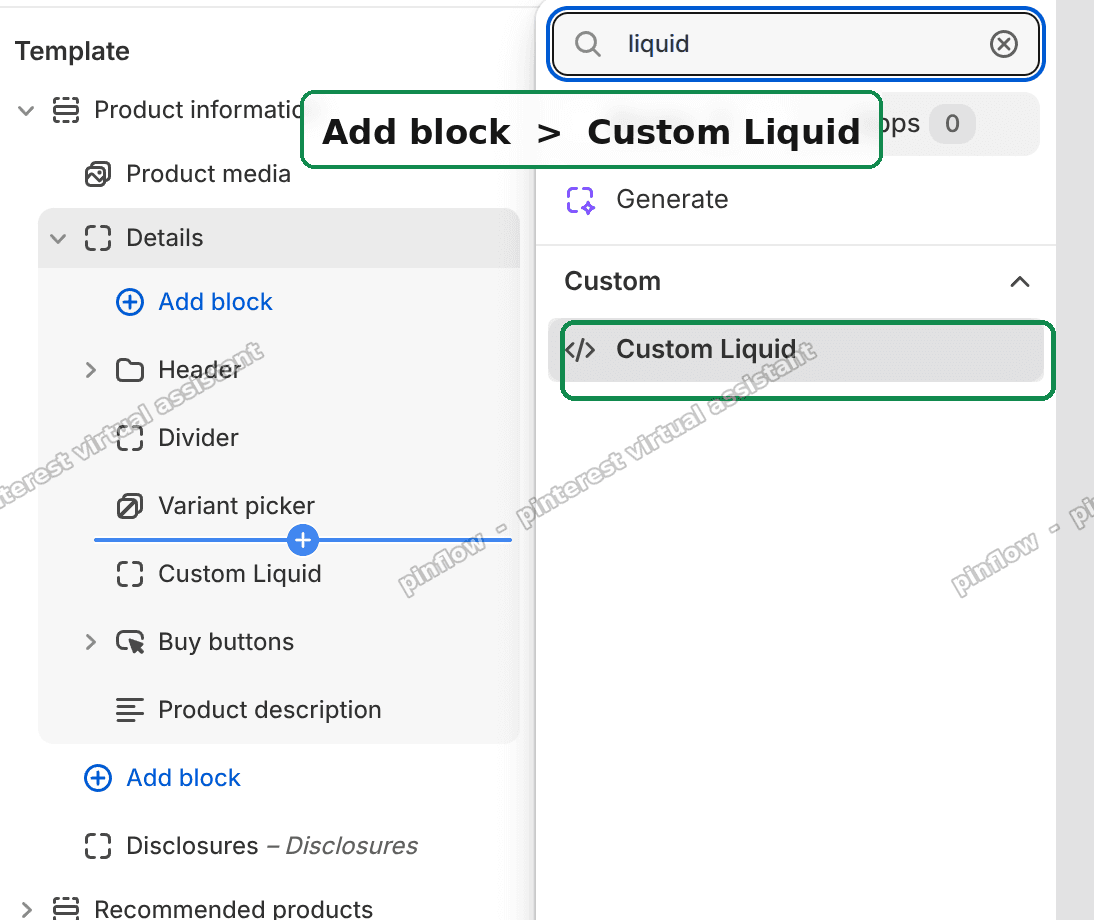 Add block then Custom Liquid under Product information in the Shopify Horizon theme editor
Step 3. Paste the code and Save.
Paste the script below into the Custom Liquid box. Then click Save.
<script>
document.addEventListener('DOMContentLoaded', function () {
  // Option names to sort A->Z. Add your exact option name / language here.
  var SORT_OPTIONS = ['color', 'colour', 'couleur'];

  function valueText(label) {
    var t = label.querySelector('.variant-option__button-label__text') || label;
    return (t.textContent || '').trim();
  }

  function sortOptions() {
    document.querySelectorAll('variant-picker fieldset.variant-option--buttons').forEach(function (fs) {
      var legend = fs.querySelector('legend');
      if (!legend) return;
      var name = legend.textContent.trim().toLowerCase();
      if (!SORT_OPTIONS.some(function (k) { return name.indexOf(k) !== -1; })) return;

      var items = Array.prototype.slice.call(fs.querySelectorAll('.variant-option__button-label'));
      if (items.length < 2) return;

      var sorted = items.slice().sort(function (a, b) {
        return valueText(a).localeCompare(valueText(b), undefined, { numeric: true, sensitivity: 'base' });
      });
      if (sorted.some(function (el, i) { return el !== items[i]; })) {
        sorted.forEach(function (el) { fs.appendChild(el); });
      }
    });
  }

  sortOptions();

  // Horizon re-renders the picker when a shopper switches an option, so re-apply.
  document.querySelectorAll('variant-picker').forEach(function (picker) {
    new MutationObserver(sortOptions).observe(picker, { childList: true, subtree: true });
  });
});
</script>
That is the whole fix. Here is the result on the same product.
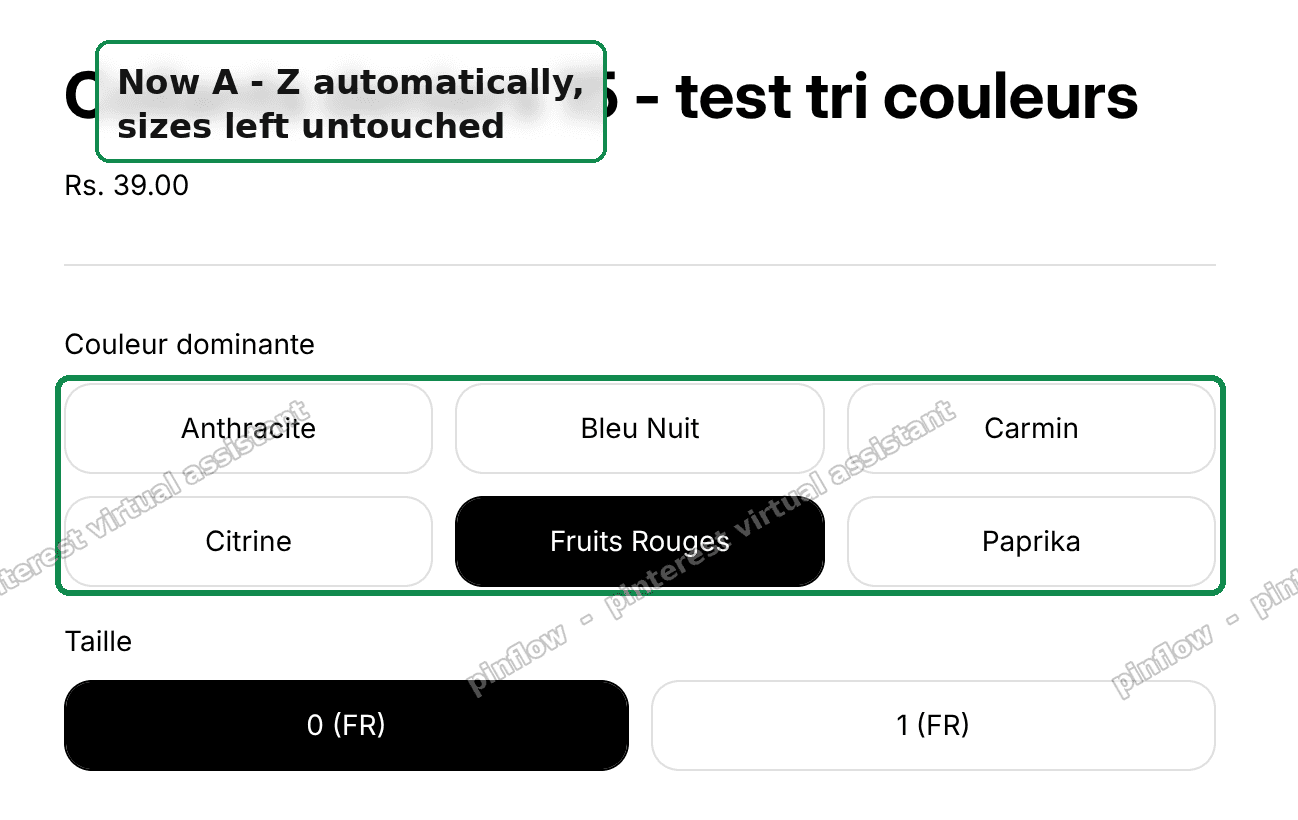 Color buttons now sorted A to Z with sizes untouched on Shopify Horizon
I tested this on a Horizon store. Colors that imported as Fruits Rouges, Carmin, Anthracite now show Anthracite, Bleu Nuit, Carmin, Citrine, Fruits Rouges, Paprika. The sizes stayed exactly as they were.
How the script works, in plain words
The script only touches options whose name matches your list. That list is the line var SORT_OPTIONS.
It reads the legend, which is the small label above each button group. If the legend says Color, Colour, or Couleur, it sorts that group. If the legend says Size or Taille, it leaves it alone.
The merchant's option was named "Couleur dominante." The word "couleur" is in the list, so it was already covered.
It sorts using localeCompare. That is a smart text sort that handles accents and numbers well. Citrine lands before Fruits Rouges, the way a shopper expects.
It only reorders when the order is actually wrong. This stops the script from looping on its own change.
The last part is the important one for Horizon. MutationObserver watches the picker. When Horizon rebuilds the buttons after a shopper picks a size, the observer fires and re-sorts. So the order never jumps back.
This is the whole point of a shopify horizon variant order fix that lasts. It is not a one-time sort. It re-applies forever.
An alternative: fix it at the source, no code
The script is great when you import often and want the display fixed for good. But it is not the only route.
If you would rather fix the real stored order, and you do not import very often, you can bulk edit instead.
A bulk editor tool lets you export all your products to a spreadsheet. You sort the color values alphabetically in the sheet. Then you re-import the sheet. Shopify saves the new order.
This changes the actual data, not just the display. It is the cleanest fix for a catalog you rarely touch.
The downside is real. Every future import can bring back messy order. So you have to run the bulk edit again after each import. For a store that imports weekly, that gets old fast. The script wins there.
There is a third option worth a look. Check your import app's own settings. Some import apps have a variant or option mapping setting that can hold a fixed order. If yours does, you fix it once at the source and never think about it again. Most eBay import apps do not offer this, but it is worth a two-minute check before you add code.
Can you sort Shopify variant options alphabetically by default?
No. There is no native setting for this. Not in the theme editor, not in Shopify admin.
Shopify shows variant option values in the saved order. On a new product you set that order by dragging the values when you create the variants. On an imported product you get whatever order the import sent.
So to shopify reorder variant options you either drag them by hand per product, bulk edit the data, or sort them on the storefront with the script above. Those are your only real choices today.
How do I reorder variant options in Shopify manually?
You can do it by hand for a few products.
Open the product in Shopify admin. Scroll to the Variants area. Find the option, like Color. Drag each value into the order you want using the handle on the left.
Save the product. The new order is now stored and every theme will show it.
This is fine for five products. It is not fine for five hundred. That is why the merchant asked for an automatic fix in the first place. Manual reordering does not scale, and it does not survive the next import.
Does the script change my variant data or cart?
No. It is display only.
The script never edits your product data. It never talks to your admin. It only moves the buttons around on the page after they load.
Each button keeps its own variant wiring because the script moves the whole button element, not just its text. So when a shopper clicks a sorted color, the correct variant goes into the cart. Price, image, and stock all stay tied to the right choice.
That is why it is safe to leave on for good. It cannot corrupt anything. Turn it off and your pages simply go back to import order.
Will this work on a shopify variant swatch order too?
It depends on how your colors are shown.
This script targets Horizon's button-style options, the ones inside fieldset.variant-option--buttons. Those are the tappable color or size buttons.
If your theme shows color as a swatch, which is a small colored circle instead of a text button, the markup is a bit different. The same idea still works. You match the option name, then move the swatch elements instead of the button labels. You would adjust the selector to match the swatch container.
On stock Horizon, buttons are the default for a color option, so the script above fits most stores as written.
If it did not work
A few things to check.
Nothing sorted at all. Your color option is probably named something not in the list. Open the script and look at var SORT_OPTIONS. Add your exact option name in lower case. If your option is "Farbe" or "Colore," add that word. The match is loose, so a partial word works too.
It sorted once, then jumped back after clicking a size. That means the observer part is missing or was trimmed. Make sure you pasted the whole script, including the MutationObserver block at the bottom. That block is what survives Horizon's re-render.
Sizes got sorted too. That should not happen with this script, because it only matches color names. If it did, your size option has a color word in its name. Rename the option, or tighten the match.
It works on one product but not another. Check the second product's option name. Imports can name the same idea two different ways, like Color on one and Couleur on another. Add both words to the list.
The wrong variant lands in the cart. You are likely running an older snippet that swapped only the text. Replace it with the script above, which moves the whole element and keeps the wiring intact.
Definitions people confuse
Variant vs option vs value. A variant is one buyable combination, like Red / Small. An option is a choice type, like Color. A value is one entry in that choice, like Red. This fix sorts values inside one option.
Display order vs stored order. Stored order lives in Shopify's database. Display order is what the shopper sees. The script changes display order only. The bulk edit changes stored order.
Custom Liquid block vs theme code. A Custom Liquid block is a safe box in the theme editor for small snippets. Editing theme code means opening the actual theme files. The block is safer and does not risk your layout.
Horizon vs older themes. Horizon re-renders its variant picker, which is why the observer matters. Older themes like Dawn often do not re-render the picker on selection, so a one-time sort can be enough there. The script above is safe on both because the observer simply does nothing extra if the picker never changes.
Sort your colors once with the script and the storefront stays tidy after every import, with no per-product work and no data risk.
Spending too long on manual Shopify busywork?
PinFlow turns your Shopify catalog into Pinterest pins and posts them on a schedule, automatically. Same idea as the rule above, let the system handle the repetitive part.
Get PinFlow on the Shopify App StorePart of a complete guide
Shopify Variants: The Complete Guide
Variants are one product sold in several forms. How they work, the 2,048 and 3-option limits, and where each variant fix lives - images, swatches, sorting, hiding and the theme-specific bugs.
More Shopify fixes
More community-sourced Shopify guides, tested on a live store.
Themes & Storefront
Remove the Variant ID From Your Shopify Product URL
Your product link keeps turning into /products/name?variant=43176780890281, before the customer has touched anything. One theme setting stops it, a second switch covers Dawn, and a short snippet cleans the links that already carry the ID.
Themes & Storefront
Hide Unavailable Variants in a Shopify Dropdown
Green has no 3XL, so Shopify prints "3XL - Unavailable" in the size dropdown anyway. How to remove combinations that do not exist, without the bug that kills the variant picker. Tested on Studio.
Shopify Admin
How to Hide a Variant in Shopify Without Deleting It
A colour is temporarily unavailable and you want it off every product page without deleting it and rebuilding it later. Shopify can now unpublish a single variant. The fast way to do it, tested on a live store.