
Show Shopify Variants as a Dropdown, Not Buttons
Turn Shopify Horizon variant buttons into a compact dropdown, then style it: sharp corners, smaller text, no grey hover. Tested, no-app CSS.
By AjayCodeWiz · August 4, 2026 · 11 min read
The problem
On the Horizon theme, product options show as buttons by default. Every size, colour, and finish gets its own tappable box.
That looks fine with two or three options. It gets ugly fast when you have many.
Ten sizes plus eight colours plus a few finishes turns into a wall of buttons. The product page grows very tall. The buy button gets pushed far down the screen.
A lot of merchants would rather show a shopify variant dropdown. One compact box per option. Pick from a list. Clean and short.
A merchant asked about this on the Shopify Community. They were on Horizon. They already had a dropdown, but it looked chunky. Rounded corners. Big text. And a grey box that flashed on hover and click.
They wanted three things. Sharp square corners. A smaller font inside the box. And no grey flash.
I reproduced the whole thing on a test store on the Horizon theme. Then I built and tested the fix. This post covers both jobs: how to switch variant buttons to a dropdown, and how to make that dropdown look right.
Here is the starting point on my test store. Rounded corners, large text, three option dropdowns stacked up.
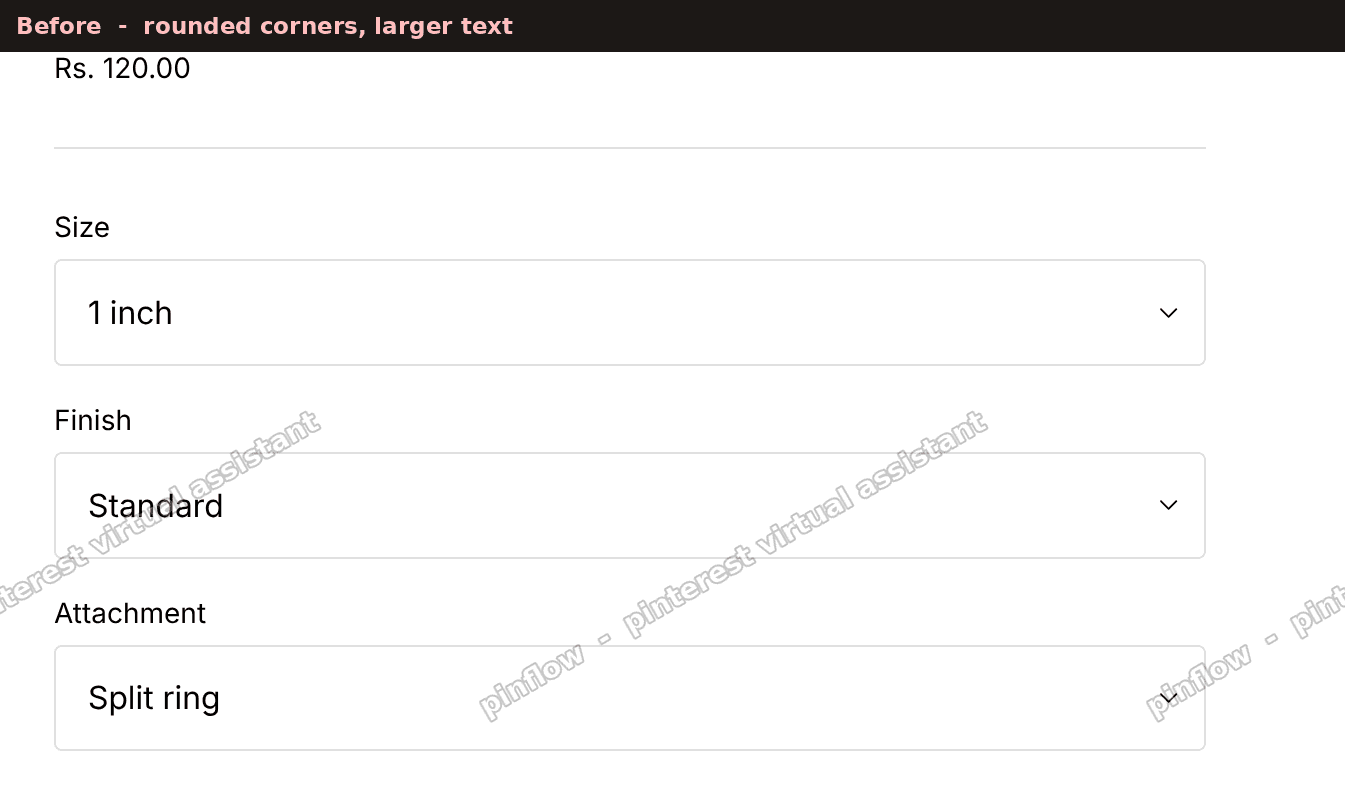 Horizon variant dropdowns before styling, with rounded corners and large text
Why Horizon shows buttons by default
Horizon has a setting that decides how variants render. It is called the variant style.
The block that draws this is the shopify horizon variant picker. It ships with two options: Buttons and Dropdowns. The default is Buttons.
So out of the box, every option value becomes a button. That is a design choice, not a bug. Buttons feel modern and are easy to tap on a phone.
The trade off is height. Each value takes a full box. Many values means many boxes. That is the classic shopify too many variant buttons problem.
A dropdown solves the height. It collapses a long list into one line. The list only opens when the shopper clicks it.
The good news: you do not need code to switch. Horizon has a built-in toggle for this. Let me show that first, then the styling.
Switch variant buttons to a dropdown
This is the no-code path. It is the fastest way to make shopify variants as dropdown on Horizon.
Do this to shopify change variant buttons to dropdown:
- Go to Online Store > Themes.
- Click Customize on your Horizon theme.
- Open a product page from the template dropdown at the top.
- In the left sidebar, click the Variant picker block. It sits under Product information.
- Find the Style setting.
- Change it from Buttons to Dropdowns.
- Click Save at the top right.
That is it. Your options now render as compact dropdown boxes instead of buttons.
One note on swatches. There is a Show swatches checkbox in the same block. Swatches are the little colour chips. Turn that off if you want a plain text list with no colour chip inside the box.
This built-in switch is enough for most stores. If a long list of options was your only worry, you can stop here.
But the dropdown Horizon gives you is rounded and roomy. The merchant on the Community wanted it tighter. That needs a few lines of CSS. CSS is the styling language themes use to control looks like size, colour, and corners.
The fix: sharp corners and a smaller font
Here is the tested styling. It makes the dropdown corners square and shrinks the text inside.
First, a quick theme check. This exact code targets Horizon. Horizon names its dropdown parts with special class names. A class name is just a label in the theme code that CSS can hook onto.
The two names that matter here:
.variant-option__select-wrapperis the outer box. It holds the border and the corners..variant-option__selectis the actual select element inside. It holds the text.
A select element is the real HTML dropdown control. It is what opens the list of options when clicked.
Now the steps. You paste the code into Horizon's Custom CSS box. That box lives on the Product information section.
- In the theme editor, open a product page.
- Click the Product information section in the left sidebar.
- Scroll the right panel down to Custom CSS.
- Paste both rules below.
- Click Save.
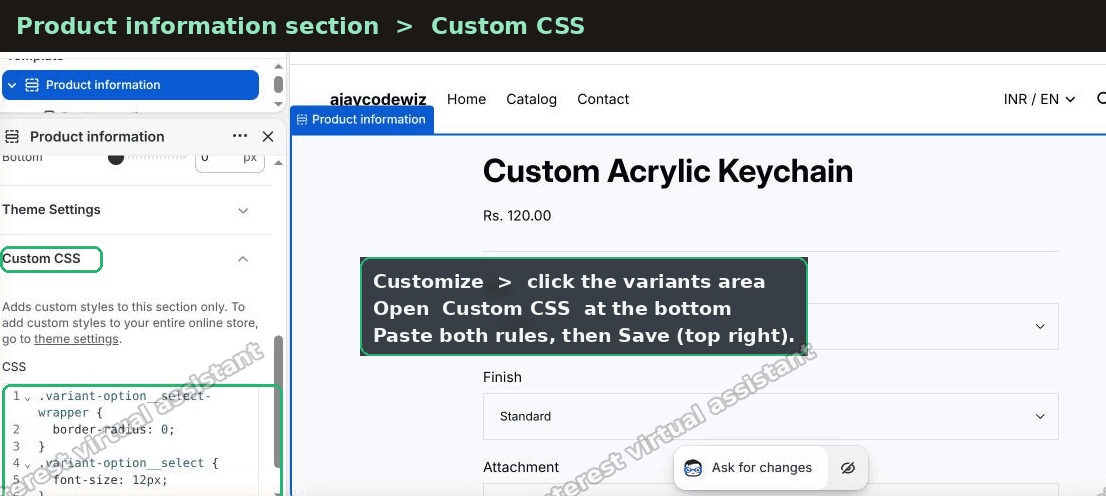 Where to paste custom CSS in the Horizon Product information section
Here is the CSS:
.variant-option__select-wrapper {
  border-radius: 0;
}

.variant-option__select {
  font-size: 12px;
}
The first rule sets the corner radius to zero. That gives you sharp square corners.
The second rule sets the text size to 12 pixels. Change 12px to any size you like. Try 13px or 14px if 12 feels too small.
I tested this on Horizon. The corners went square. The text got smaller. Here is the after.
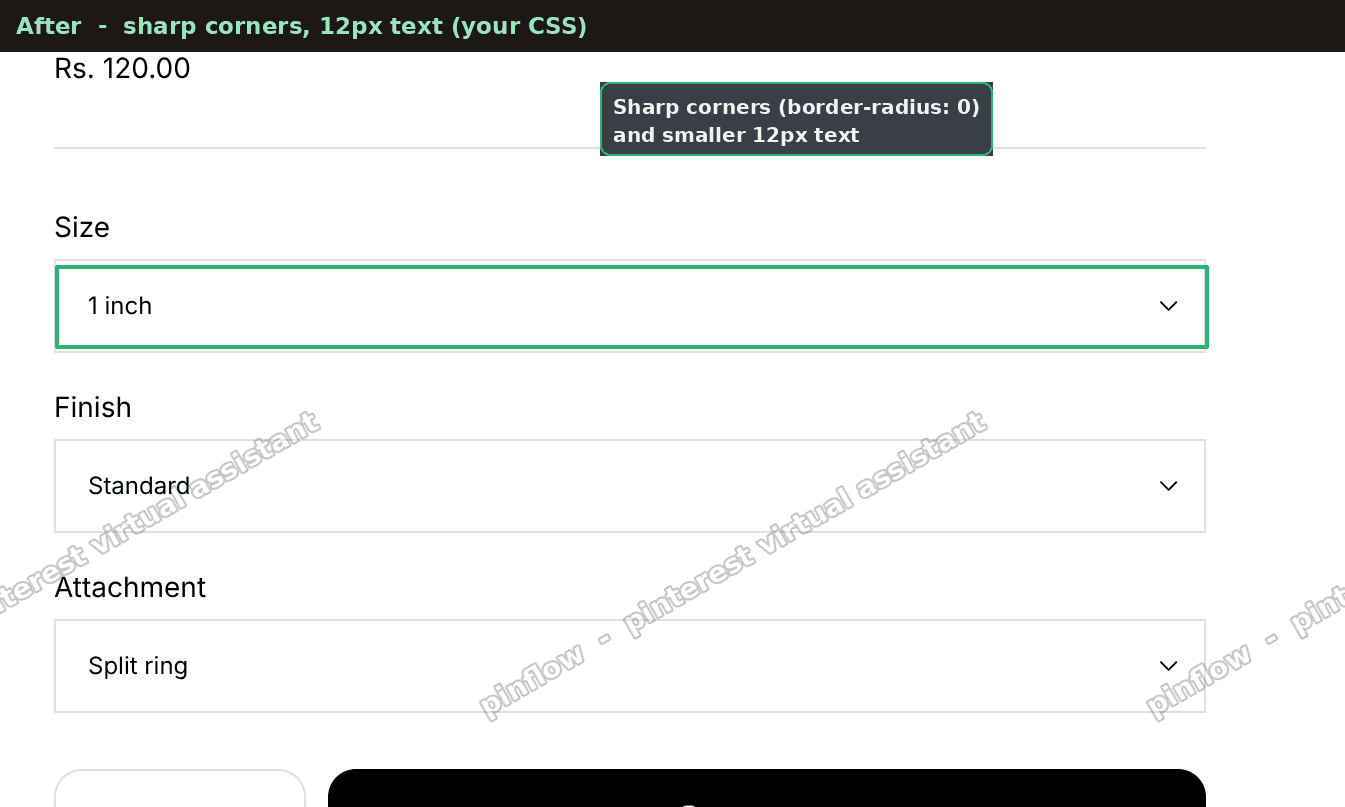 Horizon variant dropdowns after styling, with sharp corners and 12px text
One tip before you touch CSS at all. Horizon has a global corner setting under Theme settings > Inputs > Corner radius. Set that to 0 and every input goes square. Search boxes, quantity boxes, the lot.
Use the global setting if you want everything square. Use the CSS rule above if you only want the variant box square and want to leave other inputs alone.
Remove the grey hover on the dropdown
The merchant hit one more thing. When they hovered or clicked the dropdown, a grey box filled it.
That grey is Horizon's built-in hover state. The theme swaps the box to a light grey on hover and click. It uses a colour token called --color-variant-hover-background.
A colour token is a named colour the theme stores in one place. The theme reuses it in many spots.
To stop the grey flash, hold the box at its normal colour on hover. Add this in the same Custom CSS box:
.variant-option__select-wrapper:hover .variant-option__select {
  background-color: var(--color-variant-background);
}
This keeps the dropdown on your theme's normal colour on hover and on click. No grey flash. I tested it on Horizon.
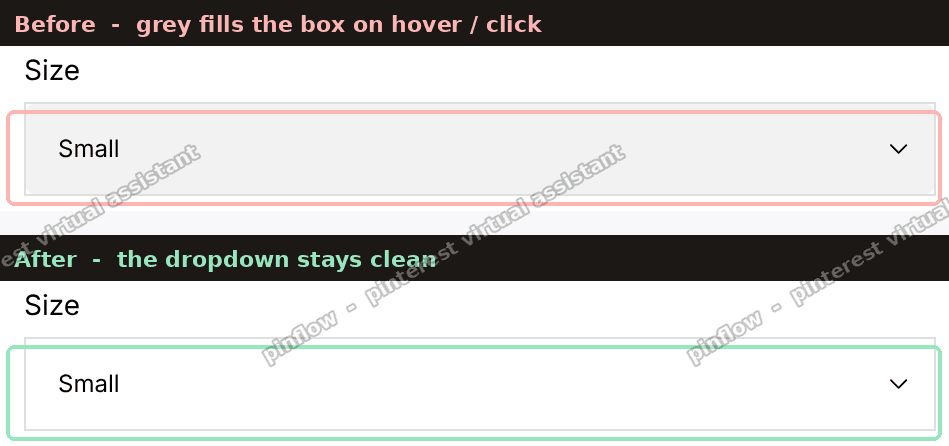 Horizon variant dropdown before and after removing the grey hover fill
The border also darkens on hover. If that bothers you, stop it too. Add this as well:
.variant-option__select-wrapper:hover {
  border-color: var(--color-variant-border);
}
You could use transparent in place of the token. But the token keeps the box matched to your theme if you ever change your colours later. That is why I use the token.
An alternative: keep buttons but make them compact
Maybe you like buttons but hate the height. You do not have to switch to a dropdown at all.
You can keep the button style and cap its height instead. This suits a picker with many colour swatches where the visual chips still help.
The idea is simple. Give the button group a max height and let it scroll inside. Add a small CSS block on the Product information section:
.variant-option {
  max-height: 180px;
  overflow-y: auto;
}
Now the button list never grows past 180 pixels. If there are more buttons, they scroll inside that box. The buy button stays high on the page.
So you have two clean routes. Dropdowns for a plain compact list. Capped scrolling buttons if you want to keep the visual chips. Both fix the tall page.
How do I change variant buttons to a dropdown in Shopify?
On Horizon, use the built-in setting. Open the theme editor, click the Variant picker block, and set Style to Dropdowns. Save.
You do not need an app or code for the switch itself. The code only comes in if you want to restyle the dropdown after.
On older themes like Dawn, there is no Buttons versus Dropdowns toggle in the same place. Dawn shows a dropdown by default for many products. More on Dawn below.
Why do I have too many variant buttons in Shopify?
Because your theme is set to the button style, and your product has many option values.
Each value becomes one button. A product with lots of sizes or colours creates a long list of boxes. That is the shopify too many variant buttons situation.
Two ways to shorten it. Switch to a dropdown, which collapses the list into one line. Or cap the button area with the scrolling CSS above.
If your options are colours, a swatch grid also helps. Swatches pack more choices into the same width than full text buttons.
Can I show Shopify variants as a dropdown on Dawn?
Yes, but the class names differ. Dawn does not use Horizon's .variant-option__select names.
Dawn uses a select inside .product-form__input. So target it like this:
.product-form__input select,
.select__select {
  border-radius: 0;
  font-size: 13px;
}
The idea is the same as Horizon. Only the class names change between themes.
This is worth stressing. Copying Horizon CSS onto Dawn will do nothing. Always check your own theme's class names first. Right click the dropdown in your browser and choose Inspect to see them.
How do I make the variant dropdown font smaller?
Set a font size on the select element. On Horizon that is .variant-option__select.
.variant-option__select {
  font-size: 12px;
}
Lower the number for smaller text. Raise it for bigger. There is no theme setting for this size, so CSS is the way.
The same rule works whether you switched to a dropdown or Horizon gave you one already.
If it did not work
A few common reasons the change does not show:
- Wrong theme. These class names are Horizon only. If you run Dawn, Prestige, or another theme, the names differ and nothing happens. Inspect your dropdown and use its real class names.
- Pasted in the wrong box. The Custom CSS must go on the Product information section, or in theme-wide Custom CSS under Theme settings. Pasting it into the wrong section box means it never loads on the product page.
- Forgot to save. The Save button sits at the top right of the theme editor. If it stays greyed after you paste, click into the box, press space, then backspace. That wakes the Save button.
- A cached page. Refresh with a hard reload, or open the product in a private window. Old CSS can linger in the browser.
- An app overrides it. Some variant or swatch apps draw their own picker. If you use one, the app has its own style settings and this theme CSS will not reach it.
Definitions and distinctions people confuse
Buttons versus dropdown versus swatches. Buttons are tappable boxes, one per value. A dropdown is one box that opens a list. Swatches are small colour or image chips. Horizon can do all three. Buttons and dropdowns are set by the Variant picker Style. Swatches are a separate checkbox.
Select element. This is the real HTML dropdown. When you switch to Dropdowns, Horizon renders a select. Its outer box is .variant-option__select-wrapper. Its text lives in .variant-option__select.
Custom CSS versus base.css. Custom CSS is a safe box in the theme editor. It never touches core files and is easy to undo. Editing base.css means opening theme code and changing a shared file. I use the Custom CSS box. It is safer and just as powerful for small styling like this.
Corner radius setting versus CSS. Horizon's Inputs corner radius is global. It squares every input at once. The CSS rule targets only the variant box. Pick the global setting for a whole-store look. Pick the CSS for a surgical change.
Colour token versus a fixed colour. A token like --color-variant-background follows your theme palette. A fixed colour like white stays white forever. Using the token means the dropdown keeps matching if you rebrand later.
That is the full picture. Switch the Style to Dropdowns for a compact list. Add the small CSS block for sharp corners and smaller text. Add one more rule to kill the grey hover. All tested on Horizon, all no-app, all reversible.
Spending too long on manual Shopify busywork?
PinFlow turns your Shopify catalog into Pinterest pins and posts them on a schedule, automatically. Same idea as the rule above, let the system handle the repetitive part.
Get PinFlow on the Shopify App StorePart of a complete guide
Shopify Variants: The Complete Guide
Variants are one product sold in several forms. How they work, the 2,048 and 3-option limits, and where each variant fix lives - images, swatches, sorting, hiding and the theme-specific bugs.
More Shopify fixes
More community-sourced Shopify guides, tested on a live store.
Themes & Storefront
Remove the Variant ID From Your Shopify Product URL
Your product link keeps turning into /products/name?variant=43176780890281, before the customer has touched anything. One theme setting stops it, a second switch covers Dawn, and a short snippet cleans the links that already carry the ID.
Themes & Storefront
Hide Unavailable Variants in a Shopify Dropdown
Green has no 3XL, so Shopify prints "3XL - Unavailable" in the size dropdown anyway. How to remove combinations that do not exist, without the bug that kills the variant picker. Tested on Studio.
Shopify Admin
How to Hide a Variant in Shopify Without Deleting It
A colour is temporarily unavailable and you want it off every product page without deleting it and rebuilding it later. Shopify can now unpublish a single variant. The fast way to do it, tested on a live store.