
Shopify Accordion: Different Details on Every Product
One accordion, but the same text on every product page. Here is the no-code way to make each product show its own Details and Care content, using metafields and a dynamic source.
By AjayCodeWiz · July 26, 2026 · 9 min read
The problem
A merchant asked this on the Shopify Community and the frustration in the post was real. She had spent about three hours on it before posting.
She was on Horizon, Shopify's newer free theme, using the default product template. She had built a clean accordion on her product page with two rows: Details and Care. Inside each row she added a Text block and typed the content.
Then she opened a second product and found the same text sitting there. She changed it on one product, and it changed on every product in the store.
Her words: "the Text block is shared across all products, so when I update the content for one product, it changes on every product page."
She had two hard constraints, and they are the right ones to have:
- No separate product template for every product.
- No theme code editing.
Both are achievable. Here is the finished result, two different products sharing one accordion, each showing its own text.
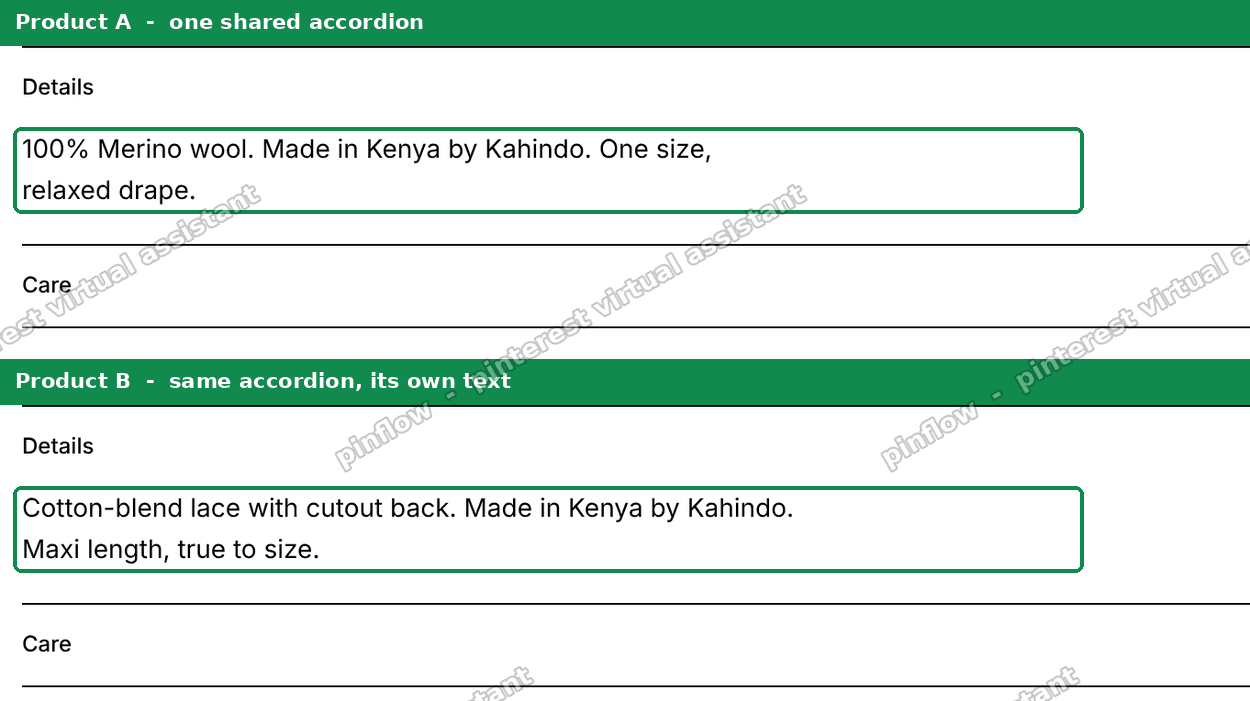 Two Shopify products sharing one accordion, each showing its own Details content
Same accordion. Built once. Different content per product.
Why the text is shared
This is the mechanism, and once you see it the rest is obvious.
When you type words into a Text block in the theme editor, that text is stored as a theme setting. It lives in the template file, not on the product.
A template is a layout, and one layout serves every product assigned to it. So anything you type into the layout is, by definition, the same for all of them. The theme is doing exactly what it was designed to do.
For content to change per product, it has to be stored on the product. Shopify's mechanism for that is a metafield, and the theme editor reads metafields through a feature called a dynamic source.
That is the whole idea: the block stays in the template, but instead of holding text it holds a pointer to a field on whichever product is being viewed.
The separate-template approach fails for the same reason, just more slowly. Fifty products would mean fifty templates, and every design change would need repeating fifty times.
The two things that were actually blocking her
Worth calling out, because they are the reason this looks impossible before it looks easy.
The dynamic source icon does not appear until a matching metafield exists. If you have not created a metafield of a compatible type yet, the theme editor shows no icon at all on the Text field. It looks like the theme does not support it. It does, there is just nothing to connect to yet. Create the metafield first and the icon appears.
"Add block" only offered "Accordion row". She was clicking Add block while the accordion itself was selected, and an accordion only accepts rows. The Text block sits one level deeper, inside a row. You have to expand the row first.
Neither of those is documented anywhere obvious. Both look like a missing feature.
Step 1: Create the two metafields
Go to Settings > Custom data > Products > Add definition.
- Make one called Details and one called Care.
- Set both to type Rich text.
- Leave Storefront access on. Without it the theme cannot read the value.
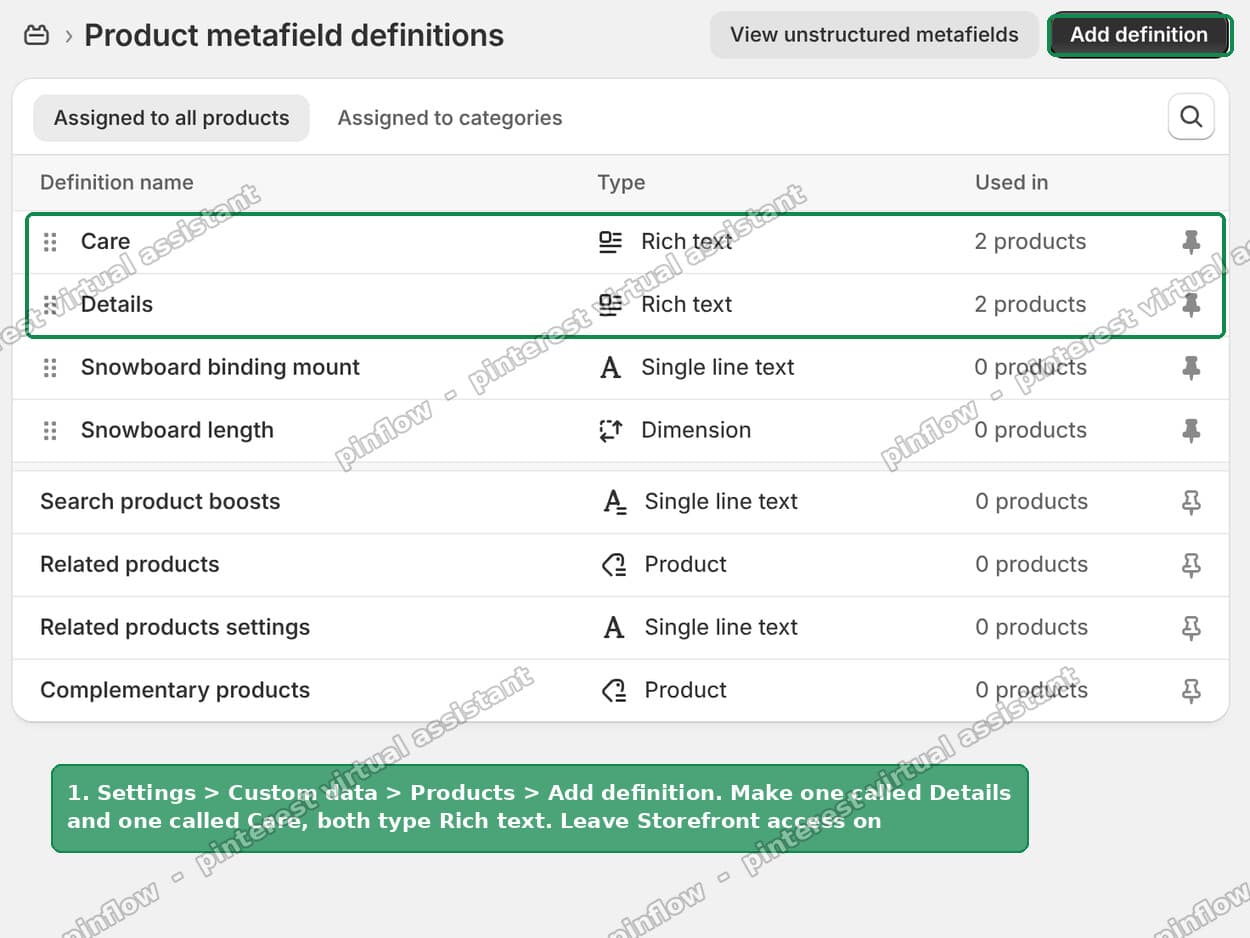 Creating Details and Care as Rich text product metafield definitions in Shopify admin
Rich text is the right type here because it supports paragraphs, bold, and bullet lists, which is what a Details or Care block usually needs. Single line text works too but strips all formatting.
If you want the longer walkthrough of metafields as a concept, I wrote one separately on how to add metafields in Shopify without an app.
Step 2: Fill in the content per product
Open a product, scroll to the bottom of the product page in admin, and you will find a Metafields card with your two new fields in it.
Fill in that product's own Details and Care.
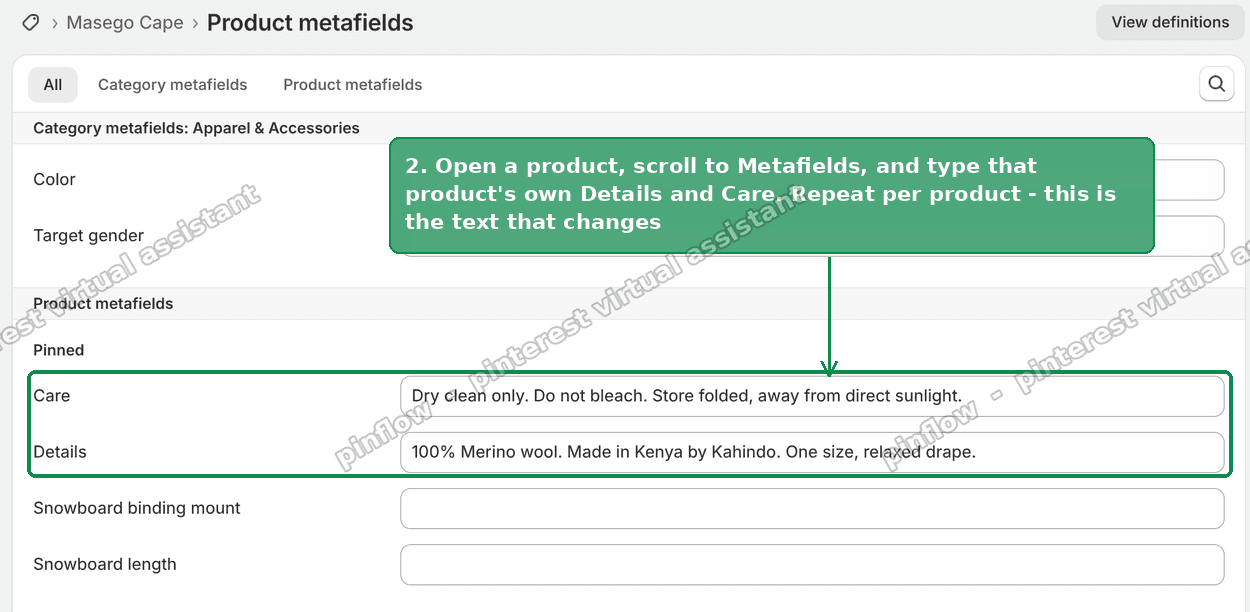 Filling in the Details and Care metafield values on a single Shopify product
Repeat per product. This is the part that changes, and it is the only part you repeat.
You do not have to do all of them before continuing. Do one or two, get the theme side working, then fill the rest in.
Step 3: Select the Text block inside the accordion row
Back in the theme editor, open your product page and find the accordion in the left sidebar.
- Expand the Accordion.
- Expand the Accordion row inside it.
- Click the Text block inside the row.
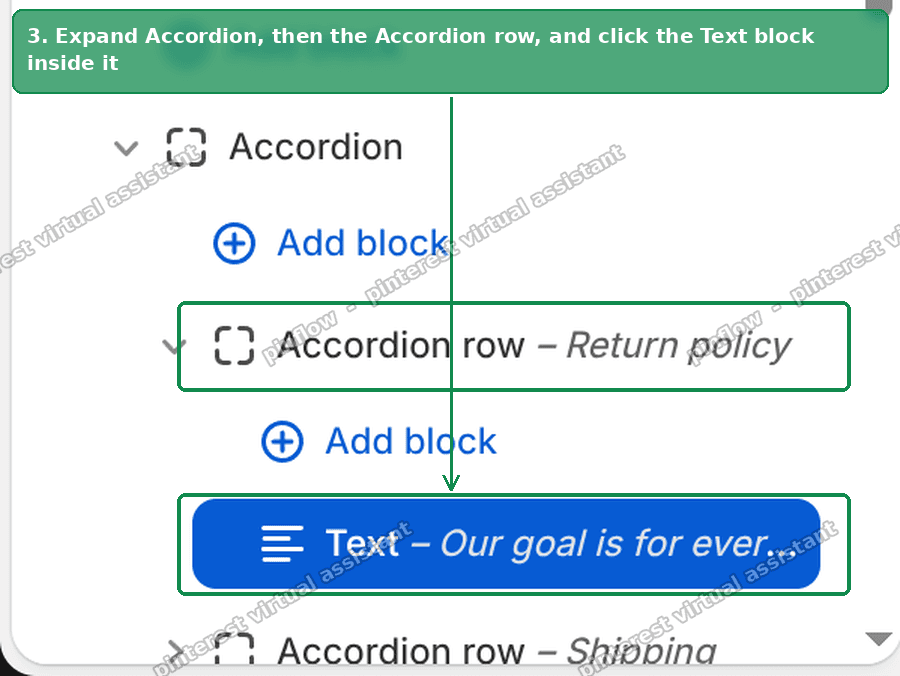 The Text block nested inside an accordion row in the Shopify theme editor sidebar
Two levels of expanding. That is the step that trips people up.
Step 4: Connect the dynamic source
With the Text block selected, look at the Text field in the settings panel. There is a small database icon next to it. That is Connect dynamic source.
- Click the icon.
- Pick Details.
- Delete any leftover placeholder text in the field, or the row will show both the old text and the metafield value.
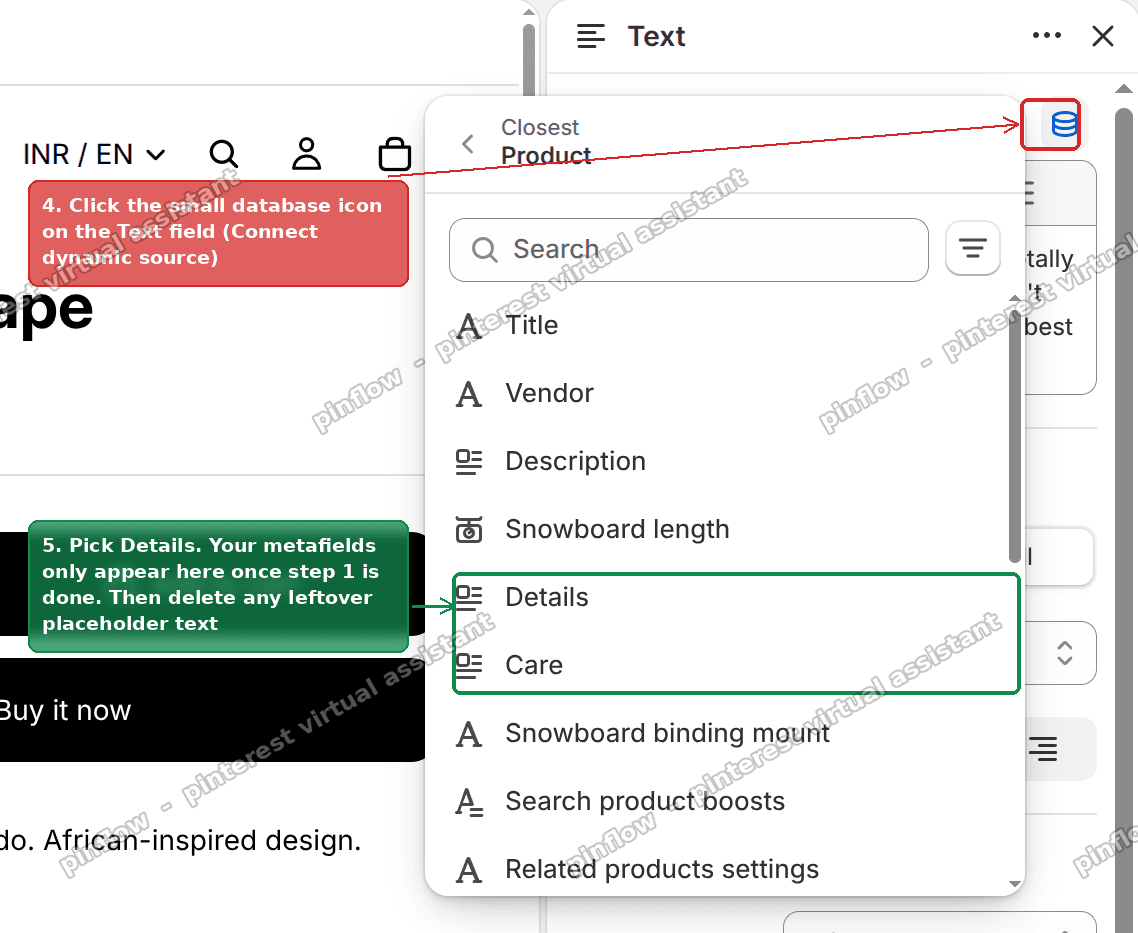 Connecting a dynamic source on a Text block and picking the Details metafield
Then repeat the whole of step 3 and 4 for the Care row, picking Care instead.
That is it. One accordion, built once. Every product now shows its own text.
Hiding a row when the product has no content
If a product has no Details value, the accordion row still renders. It just opens onto nothing, which looks broken.
Another merchant on the thread posted a neat fix for this, and it is worth including. If your metafield is Rich text, paste this into the Custom CSS setting of the Product information section:
accordion-custom:not(:has(.details-content *)) {
  display: none;
}
That hides any accordion whose content area has no child elements. Different metafield types render differently, so if you used something other than Rich text you may need to adjust the selector.
The simpler answer, if you only have a handful of products, is to fill in every metafield and not worry about it.
How to add an accordion to a Shopify product page
If you do not have an accordion yet, here is the step before all of this.
The block is not always called an accordion. Theme names vary, and that is the main reason people cannot find it:
- Horizon, Fabric, Studio and the other 2024+ themes: it is called Accordion, added as a block inside the Product information section.
- Dawn: it is called Collapsible row, added as a block on the product, or Collapsible content as a full section.
- Many paid themes: it is called Tabs, FAQ, or Product tabs, and often sits in a dedicated section.
In every case the route is the same. Theme editor, open a product page, find the product information section, Add block, and pick the collapsible one. Then add rows for each heading you want.
You do not need an app for this on any modern theme.
Can I use this for an FAQ accordion?
Yes, and it is the same pattern with one decision to make first.
If the FAQ is the same across the whole store, do not use metafields at all. Type it straight into the theme, because shared text is exactly what a theme setting is for. That is the one case where the "problem" in this article is the desired behaviour.
If the FAQ differs per product, create a Rich text metafield called something like faq, and connect it the same way as Details above.
If the FAQ is a long list of question and answer pairs that you want to reuse across groups of products, metafields get clumsy. That is the point where a metaobject makes more sense, because you can define one FAQ entry and reference it from many products.
What to check if the metafield does not appear
This is the failure most people hit, and the merchant in the thread hit it too. She scrolled the whole dynamic source list and her Rich text metafield was not in it.
Work down this list.
Type mismatch. The dynamic source picker only lists metafields whose type the field can render. A Text field lists text-like types. It will not list a File, a Product reference, or a Dimension. If your metafield does not appear, check the type before anything else.
Storefront access is off. In the definition, under access settings, storefront access must be enabled. If it is off the theme cannot read the field and the picker hides it.
You are on the wrong owner type. A Product metafield does not appear on a collection template, and a Collection metafield does not appear on a product page. Check that the definition was created under Products, not under something else.
The definition exists but has no value. The picker does still list empty metafields, but the storefront will render nothing, which looks identical to a broken connection. Fill a value on the product you are previewing before you judge it.
You are previewing a product with no value. The theme editor previews one specific product. If that product has no Details, you see an empty row even though everything is wired correctly. Switch the preview to a product you have filled in.
Placeholder text is still in the field. If you connected the dynamic source but did not clear the old typed text, some themes render both. Clear the field.
Metafield, metaobject, or theme setting
Three storage locations, and picking the wrong one is what causes this whole problem. Here is the distinction in one line each.
A theme setting is text typed into the theme editor. It is stored in the template and shared by every product using that template. Correct for a shipping notice or a store-wide guarantee.
A metafield is a custom field on one specific product. Different value per product, one definition. Correct for Details, Care, materials, dimensions, ingredients.
A metaobject is a reusable record you define once and point many products at. Correct for a size chart shared by all your dresses, or a care guide shared by everything made of merino.
The rough rule: if the text is the same everywhere, use a theme setting. If it is different per product, use a metafield. If it is shared by groups of products and you would hate to update it in twenty places, use a metaobject.
The takeaway
An accordion that shows the same text on every product is not a bug and not a theme limitation. It is a theme setting doing its job.
Move the content onto the product with a Rich text metafield, connect the Text block to it with the dynamic source icon, and one accordion serves the whole catalogue.
I reproduced the merchant's exact setup on a Horizon store with no code and no app. Two products, one accordion, two accordion rows. One product shows its merino wool description, the other shows its cotton-blend lace description, each pulling from its own metafield. No extra product templates, no theme code.
You wrote the product details. Who is reading them?
PinFlow turns your Shopify catalog into Pinterest pins and posts them on a schedule, automatically. Same idea as the metafield above, set it up once and let it run per product.
Get PinFlow on the Shopify App StoreMore Shopify fixes
More community-sourced Shopify guides, tested on a live store.
Themes & Storefront
Shopify Anchor Link: Button That Scrolls to a Section
Link a Shopify button to a section lower on the same page with an anchor link. Steps for the theme editor, no code files, plus the fix for a title hidden under the header.
Themes & Storefront
Shopify Social Media Icons: Add a Custom Icon and Link
Set your social links in Shopify theme settings, see why icons do not show, and swap in your own icon for a network the theme does not list.
Themes & Storefront
Sticky Add to Cart Button in Shopify Dawn, No App
Pin the Add to cart button and its delivery line to the bottom of the screen in Shopify Dawn. One free Custom Liquid block, no app, phone and desktop.