
Shopify International Pricing: Set It and Stop Editing
Type a price for another country by hand and it never follows your base price again. The difference between a market price adjustment and a price override, and what Shopify will and will not round for you.
By AjayCodeWiz · September 11, 2026 · 9 min read
The problem
You sell in one currency and you want sensible prices in another.
So you work out the rate, do the sum, and type the result onto the product. It looks right. Then a month later you change the base price, and the other country's price is still the old one. You go back in and retype it. Every product, every time.
A merchant in Macau described this exactly on the Shopify Community. They price in Hong Kong dollars and sell in patacas at roughly 1.03. They had typed a fixed pataca price onto every product, and every base price change meant doing it all again. Their words for it translate as "extremely troublesome".
They also wanted the result rounded up to a clean ten: 6800 x 1.03 gives 7004, and they wanted 7010.
Two different problems live in that one request. One of them Shopify solves properly. The other it does not solve at all. It is worth knowing which is which before you spend an evening in the product list.
There are two ways to price a market, and they behave nothing alike
This is the distinction that explains the whole thing.
A price adjustment is a percentage applied to your base price for a whole market. You set it once. Every product in that market derives its price from the base price, live. Change the base price and the market price moves with it.
A price override is a number you type onto one product for that market. It is fixed. It has no relationship to the base price any more. Change the base price and the override sits there, unchanged, now wrong.
Most people who end up retyping prices have unknowingly chosen the second one, because typing a number into a field feels like the obvious way to set a price.
Where the adjustment lives
In your admin, go to Markets, open the market, and find its catalog. The pricing block has two controls.
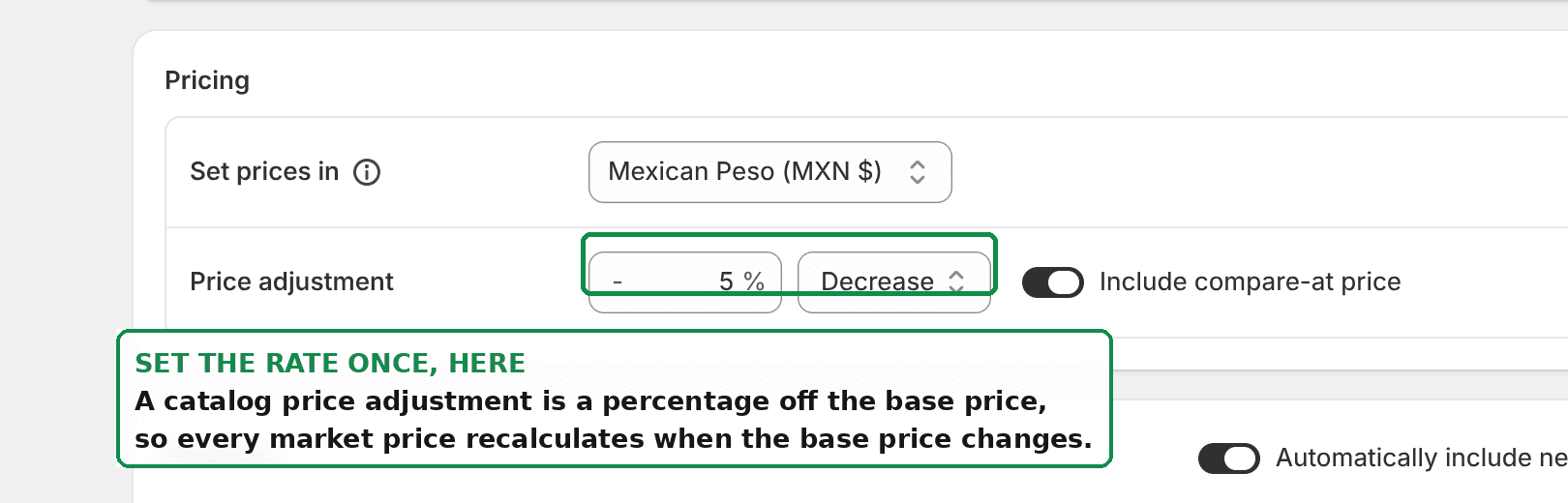 The Shopify market catalog pricing block, with the currency selector and the price adjustment percentage
Set prices in picks the currency for that market.
Price adjustment is a percentage with an Increase or Decrease toggle. For the Macau case, 1.03 is simply 3% Increase.
That single field is the whole exchange rate. It applies to every product in the catalog, and it keeps applying as your base prices change.
Why a typed price never updates
Scroll down in the same catalog and you will see every product with a price field for that market.
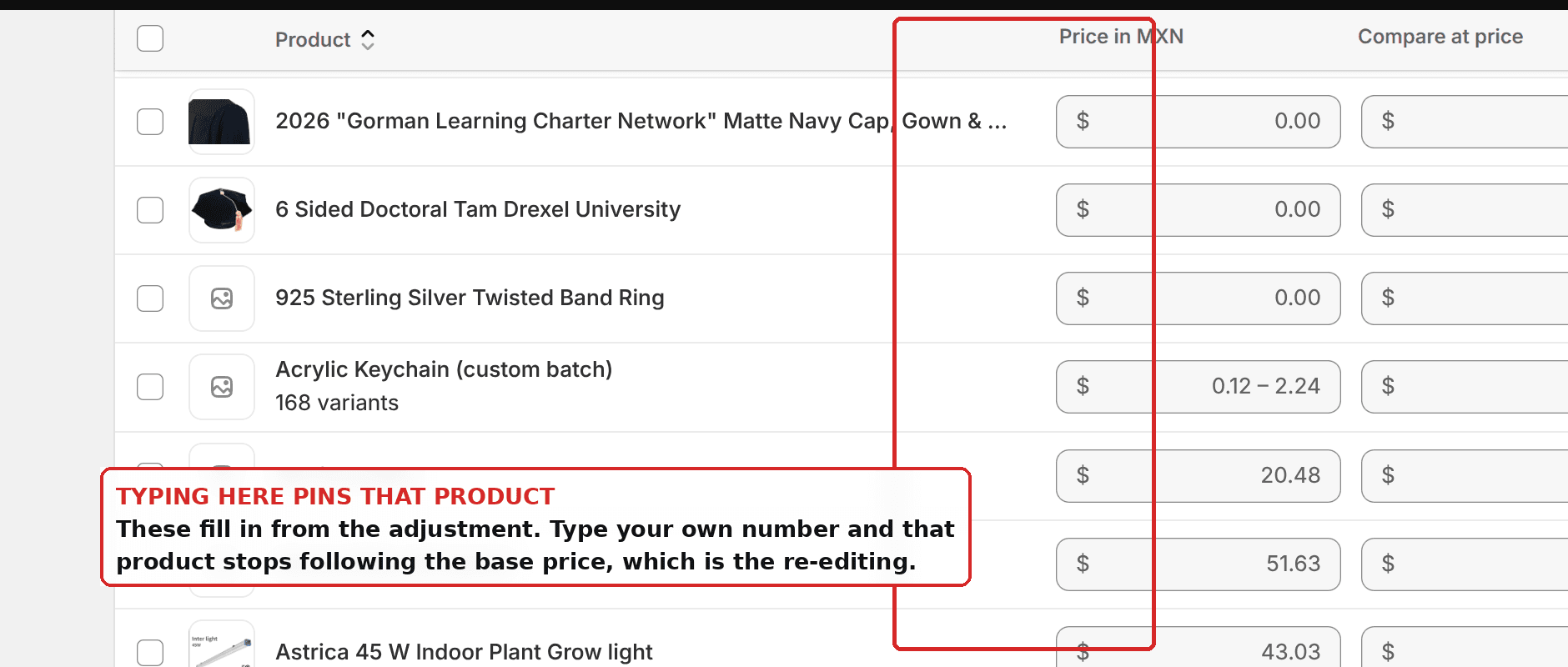 Per product price fields in a Shopify market catalog
Here is the part worth slowing down for. Those fields are not empty waiting for you. They are already filled in, calculated from the adjustment you set above.
The moment you type your own number into one, that product is pinned. It stops deriving from the base price and starts being a fixed value you now own forever.
Nothing warns you. The field looked editable, so you edited it, and you took on a maintenance job.
So if your international prices keep going stale, the fix is usually subtraction rather than addition: clear the numbers you typed, and let the adjustment do its job.
How to move from typed prices to an adjustment
- Go to Markets and open the market.
- Open its catalog.
- Confirm Set prices in is the currency you want.
- Set Price adjustment to your rate. A rate of 1.03 is 3% Increase. A rate of 0.9 is 10% Decrease.
- Clear the prices you previously typed into individual products, so they fall back to the calculated value.
- Change one base price and check that the market price moves.
Step 6 is the one people skip, and it is the only proof that you are actually done.
What Shopify will round, and what it will not
Now the half that has no fix.
Shopify does round converted prices, so you do not show customers a price like 7004.31. But the rounding rules are presets chosen per currency, and the documentation is blunt about it:
"You can't customize your rounding rules to anything different from these defaults."
You cannot ask for "always round up to the nearest ten". You cannot ask for prices ending in 9, or 95, or 00, unless that happens to be the preset for that currency. There is no field for it because there is no setting behind it.
For the Macau merchant, that is the answer to the part they most wanted: 7004 can become whatever MOP's preset produces, but it will not become 7010 by configuration.
So which do you give up
That leaves a genuine choice, and it is worth making deliberately rather than drifting into one.
Take the adjustment. Prices maintain themselves forever. You accept whatever ending the rounding preset gives you. For most stores this is the right trade, because customers care far less about a price ending than merchants imagine.
Keep typed prices. You get the exact number you want, on every product, and you own the upkeep permanently. This only makes sense for a short list of products, or for prices that genuinely are not a function of the base price.
What you cannot have natively is both: a price that recalculates itself and lands on an ending you chose. That needs something writing prices for you on a schedule, which means an app or a script, and there is no well-established app for it. When I searched the App Store catalogue for price rounding tools, only a handful existed and the rounding-specific ones had almost no reviews between them.
Is this the same as a currency converter app?
No, and the difference matters.
A currency converter app is a storefront widget. It shows an approximate converted figure next to your price so a visitor can get a sense of the cost. The customer still pays in your currency at checkout, and the converted number is a display convenience.
A market price adjustment is real pricing. The price is set in that currency, the customer is charged in it, and it appears in your orders and reports in it.
If a shopper has ever told you the price changed between the product page and the checkout, a converter widget is usually the reason. The market adjustment does not have that problem, because there is nothing to convert at the end.
When a fixed price is actually right
Overrides are not a mistake in every case. They are correct when the price genuinely is not derived from your base price.
Psychological price points in a specific market, where 990 sells and 1013 does not. Products priced to match a local competitor. Items where local duty or shipping makes a proportional markup wrong. A small set of hero products you want to control precisely.
The mistake is not using overrides. It is using them for the whole catalogue, by hand, as a substitute for an exchange rate.
Do you need Shopify Payments for this?
For selling in another currency, yes, in practice. Presenting prices in a local currency at checkout depends on Shopify Payments being available in your country, or an equivalent supported gateway.
If Shopify Payments is not available where you are, the currency selector for a market will not offer other currencies at all, and your options narrow considerably. We covered that situation separately in Shopify Multiple Currencies Without Shopify Payments.
If you are also changing wording per country rather than just prices, Shopify Translate & Adapt covers the content side of markets.
If the prices still look wrong
A product ignored the adjustment. It has an override. Clear the field for that product.
Everything ignored the adjustment. Check which catalog is attached to that market, since a market with no catalog has nothing to adjust.
The price moved but the ending is odd. That is the rounding preset for the currency. It is not adjustable.
The currency selector only offers your home currency. Shopify Payments is not enabled or not available in your country.
Compare-at prices did not follow. There is a separate toggle for including compare-at price in the adjustment. Check it is on.
Base price, market price, override, rounding
Four terms that get used interchangeably and should not be.
The base price is the price on the product itself, in your store's default currency. Everything else is derived from it.
The market price is what a customer in a given market sees. Normally calculated, not stored.
An override is a market price you typed in. Stored, fixed, and no longer connected to the base price.
Rounding is the final tidy-up Shopify applies to a calculated price so it does not display awkward decimals. It runs after the adjustment, and its rules are fixed per currency.
Get those four straight and international pricing stops being mysterious. Set the rate once, let it calculate, and only reach for an override when you truly mean to.
Spending too long on manual Shopify busywork?
PinFlow turns your Shopify catalog into Pinterest pins and posts them on a schedule, automatically. Same idea as the rule above, let the system handle the repetitive part.
Get PinFlow on the Shopify App StoreMore Shopify fixes
More community-sourced Shopify guides, tested on a live store.
Shopify Admin
Shopify New Admin (2026): Where Search, Sidekick and Settings Went
Shopify's new admin moved search, alerts, the store switcher and Settings into the black sidebar, and Sidekick to a bar at the bottom. Where each one is now.
Shopify Admin
How to Use the New Shopify Admin (2026): Every Main Screen
A tour of the new Shopify admin: the black sidebar, search and Ctrl K, Home, Orders, Products, Settings and Sidekick, with where to click on each screen.
Shopify Admin
Schedule a Black Friday Sale in Shopify (Auto Start and End)
Give the discount its own start and end date and put the sale banner in an Event rollout with the same dates. Both start at midnight and end after Cyber Monday.