
Shopify Managed Markets: Shipping Not Available Fix
Overseas customers hit Shipping not available while your rates look correct. If the product comes from a print on demand app, Managed Markets is refusing it. How to confirm that at checkout, switch it off for one market, and fix the two rate settings that bring the same error back.
By AjayCodeWiz · September 18, 2026 · 9 min read
The problem
A customer in Australia adds three items to the cart, fills in a real address, and the Shipping method section says Shipping not available. Domestic orders quote a price without any trouble.
You check your shipping settings and they look right. The zone covers Australia. The rates are active. The product has a weight on it. Nothing explains the error.
I hit this while answering a merchant on the Shopify Community. They sell wall calendars printed and posted by Gelato, a print on demand app, and every Australian and New Zealand checkout ended the same way.
 Checkout shows Global-e as merchant of record, then Shipping not available
The cause was not in the shipping settings at all.
Why it happens
Two things have to be true at once.
One: your overseas market is running Shopify Managed Markets. Managed Markets is Shopify's paid international service, previously called Markets Pro. It hands your overseas orders to a company called Global-e, which becomes the merchant of record, collects duties and import tax up front, and arranges the carrier. In exchange, Global-e decides which products it will and will not ship.
Two: the product is fulfilled from an app location. A fulfillment location is the place Shopify thinks the item ships from. Most stores have one or two real ones, a warehouse or a shop. When you install a print on demand app like Gelato, Printful or Printify, the app adds a location of its own, and Shopify labels it App.
Managed Markets will not ship those. Shopify's own documentation says it in one line:
Managed Markets doesn't support products that are fulfilled from app locations or custom fulfillment locations. These locations are commonly used by dropshipping or print-on-demand apps.
You can still sell the same product at home. Only the Managed Markets countries are closed off.
This is easy to miss because Shopify lets you switch Managed Markets on anyway. Stores with app locations became eligible for the service in April 2023, but the products stocked at those locations were excluded from international fulfillment at the same time. The store qualifies. The calendar does not.
So at checkout Managed Markets is asked for a rate, it has nothing to offer for that item, and your own rates are never consulted. The customer sees Shipping not available.
Confirm it in two places before you change anything
Both checks take under a minute.
At checkout. Look at the small print above the contact fields. If it reads "you agree to purchase from Global-e as the merchant of record", Managed Markets is running that checkout. A normal Shopify checkout names your store, not Global-e.
In the admin. Go to Markets and open the market that covers the failing countries. A store on Managed Markets shows a card headed Shopify Managed Markets, with a row called Product eligibility reading something like 8 of 25 supported. Click into it and hover Details on any unsupported product to see the reason. The merchant I was helping had 25 products and 17 of them were unsupported, all of them Gelato items.
While you are in the shipping profile, look at the Fulfillment location box at the top. If the only location listed is the app's name with App underneath it, that is the location Managed Markets refuses.
 Gelato app fulfillment location and the Australia only shipping zone
The fix: turn Managed Markets off for that market
Managed Markets is switched on per market, so you only turn it off where the print on demand products are sold.
- Go to Markets in the admin.
- Open the market that covers the failing countries.
- Find the Shopify Managed Markets card.
- Switch the toggle off.
 Turn off the Shopify Managed Markets toggle on the AUS NZ market
The market itself stays active. Only the Managed Markets layer is removed. Your own shipping profile, with its zones and rates, starts answering those checkouts straight away.
What you give up by switching it off
Managed Markets is doing real work, so be clear about what leaves with it.
- Merchant of record. Global-e was the seller of record for those orders. That returns to you, and so does the responsibility for any import registration your buyer's country expects.
- Prepaid duties and import tax. Managed Markets collects them at checkout so the parcel is not held for payment on arrival. Without it, the customer may be billed by the carrier before delivery.
- Global-e shipping labels and rates. You go back to your own rates and your own labels, or the app's.
For a print on demand store this is usually the right swap, because Gelato and Printful print in the destination region. A calendar ordered in Sydney is printed in Australia, so it never crosses a border and there are no duties to collect. Check where your app prints before you assume that applies to you.
Then check your default package weight
Once the rates start being used, a second cause of the same error shows up.
Shopify adds the weight of your store default package to the cart before it decides which weight based rate applies. A weight based rate is one you set as a range, such as 0.5 lb to 1.01 lb costs $8.00. Shopify's own name for that rate type is Package weight, which is the clue.
Every store starts with a default package called Shipping box 12 x 10 x 8, and it weighs 0.75 lb. If you never changed it, three quarters of a pound is being added to every cart you quote.
I tested this on a dev store set up the same way as the merchant's: one app fulfillment location, one calendar weighing 222 g, and weight rates running from 0.5-1.01 lb up to 2.49-2.97 lb.
- 222 g is 0.489 lb, which should match the $8.00 rate.
- With the 0.75 lb default box added it becomes 1.239 lb, and Shopify returned the $11.00 rate instead.
- To be certain of the arithmetic I added a throwaway rate covering 1.23 lb to 1.25 lb. The single calendar matched it. A second throwaway rate covering 0.48 lb to 0.50 lb, which is the calendar's real weight, matched nothing.
So the cart is being weighed as the product plus the box. Fix it here:
- Settings > Shipping and delivery.
- Open Packages.
- Edit the one marked Store default.
- Set its weight to the mailer or box you actually post a calendar in.
 Store default package weight in Settings Shipping and delivery Packages
There is more on how that setting interacts with per product packages in Shopify shipping rates wrong for multiple items.
Clear the maximum on your heaviest rate
Weight based rates only apply inside the range you gave them. If the cart weighs more than your highest maximum, no rate matches and the customer sees Shipping not available again.
The merchant's heaviest rate stopped at 2.97 lb. With the 0.75 lb box included, five calendars come to 3.20 lb, so a five calendar order returned nothing at all.
Open the heaviest rate and delete the value in Maximum. An empty maximum means no ceiling, and every heavier order falls into that rate.
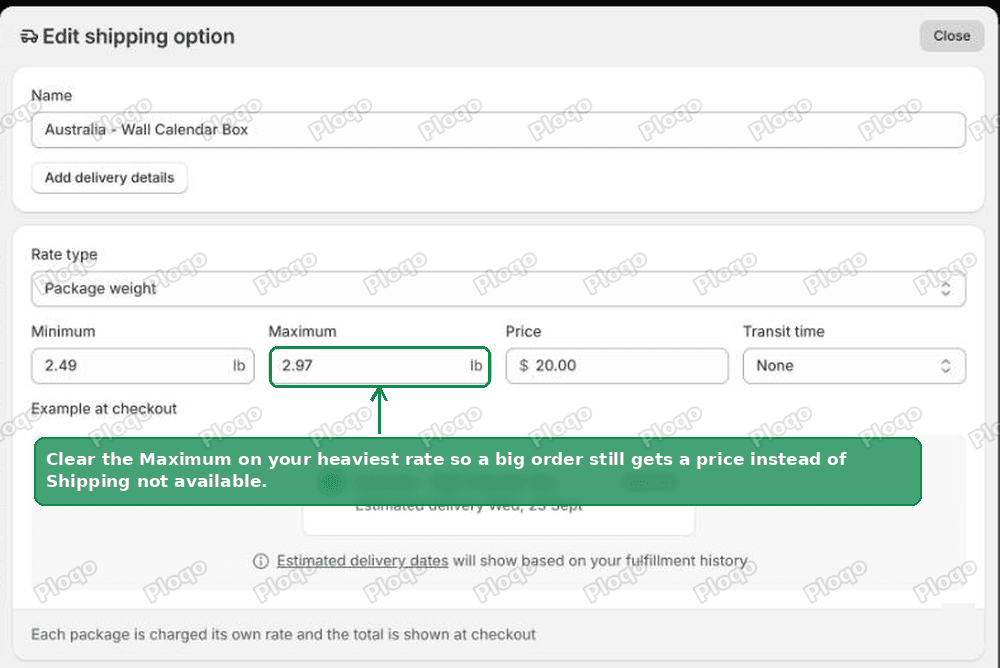 Clear the Maximum on the heaviest weight rate
Check the joins between your ranges too. A set that runs 0.5-1.01, then 1.02-1.5, leaves a sliver between 1.01 and 1.02 that belongs to neither. Make each range start where the last one ended.
Add every country you sell to into a zone
A shipping zone is the list of countries one set of rates applies to. Rates only work for countries that are actually in a zone in that profile.
The merchant's profile had a single zone called AU Zone containing Australia only, while the market sold to Australia and New Zealand. Even with Managed Markets off, New Zealand orders would still have failed.
Open the profile, click the ... menu on the zone, and add the missing countries. Give a country its own zone if its prices differ.
Can I keep Managed Markets for the products it does support?
Yes, and this is worth thinking about if only part of your catalog is print on demand.
Managed Markets is set per market, not per product, so you cannot keep it for eight products and drop it for seventeen inside one market. What you can do is split the market. Create one market for the countries where your own stocked products sell, leave Managed Markets on there, and keep the print on demand countries in a market with it switched off.
That does mean two sets of shipping rates to maintain. For most small stores, switching Managed Markets off entirely is less work than running both.
If the rate still does not appear
Work down this list. Each one produces the same Shipping not available message.
- The country is not in a zone in the profile that holds the product. Products in a custom profile ignore the General profile's zones.
- The fulfillment location is not in the profile. A profile quotes from the locations listed in its Fulfillment location box. If the app location was removed, nothing can ship.
- The cart weight is outside every range, once the default package weight is added.
- The rate is switched off. Rates can be deactivated without being deleted.
- The product has no weight. A variant left at 0 still matches ranges, but your prices will be wrong.
- The market is inactive. An inactive market cannot check out at all.
- The app has region limits of its own. Gelato, Printful and Printify each publish the countries they print and post to. If the destination is not on that list, no Shopify setting will help.
Managed Markets, markets and shipping profiles: which does what
These three get blamed for each other constantly.
- A market decides which countries can check out, in what currency, at what prices. It does not create shipping rates.
- A shipping profile decides which products ship from which locations, to which zones, at which prices. This is where rates live.
- Managed Markets sits on top of a market and replaces the international parts of it: merchant of record, duties, carrier and rates. While it is on, your own rates are not used for its countries.
So when overseas checkout has no rate and domestic does, check Managed Markets before you touch a single rate.
What to do
- Look at your checkout small print. Global-e as merchant of record means Managed Markets is on.
- Open Markets, check Product eligibility, and confirm the print on demand products are listed as unsupported.
- Switch the Shopify Managed Markets toggle off for that market.
- Set your store default package to the weight you really post in.
- Clear the Maximum on your heaviest weight rate.
- Put every country you sell to into a zone in the profile that holds the product.
Spending too long on manual Shopify busywork?
PinFlow turns your Shopify catalog into Pinterest pins and posts them on a schedule, automatically. Same idea as the rule above, let the system handle the repetitive part.
Get PinFlow on the Shopify App StoreMore Shopify fixes
More community-sourced Shopify guides, tested on a live store.
Shopify Admin
Shopify Checkout Customization: Change Checkout Text
Change the text on your Shopify checkout, like the Email me with news and offers checkbox, without code or Plus. Why the pop-up in checkout settings will not save, and the route that does.
Shopify Admin
Avalara Shopify Integration vs Shopify Tax: Which to Use
Moving to Shopify with Avalara? Shopify Tax already calculates US sales tax to the street address. What the Avalara Shopify integration adds, what filing costs, and how to decide.
Shopify Admin
Shopify Discount Limit: One Code for More Than 100 Products
Shopify stops you at 100 items when a discount applies to specific products. There is no setting to raise it, but you do not need one. Point the discount at a collection and one code covers thousands of products. Tested on a store, with the B2B route too.