
How to Partially Fulfill an Order on Shopify (Tested)
Ship part of an order now and the rest later. The admin steps, plus the two catches that follow, what the customer's page actually shows and the email you cannot switch off.
By AjayCodeWiz · September 13, 2026 · 9 min read
The problem
Half an order is ready. The other half is on back order, or waiting on a supplier, or sitting in a box that is not full yet.
You do not want to hold the whole thing. You want to send what you have.
Shopify calls this a partial fulfillment, and it is built in. It takes about four clicks. The catch is what happens afterward, on the customer's side, and that part causes more support tickets than the fulfillment itself.
I ran the whole thing on a test store. Here is the process, then the two catches.
How to partially fulfill an order
Open the order from Orders. Anything not shipped yet sits in one block marked Unfulfilled, with a count next to it.
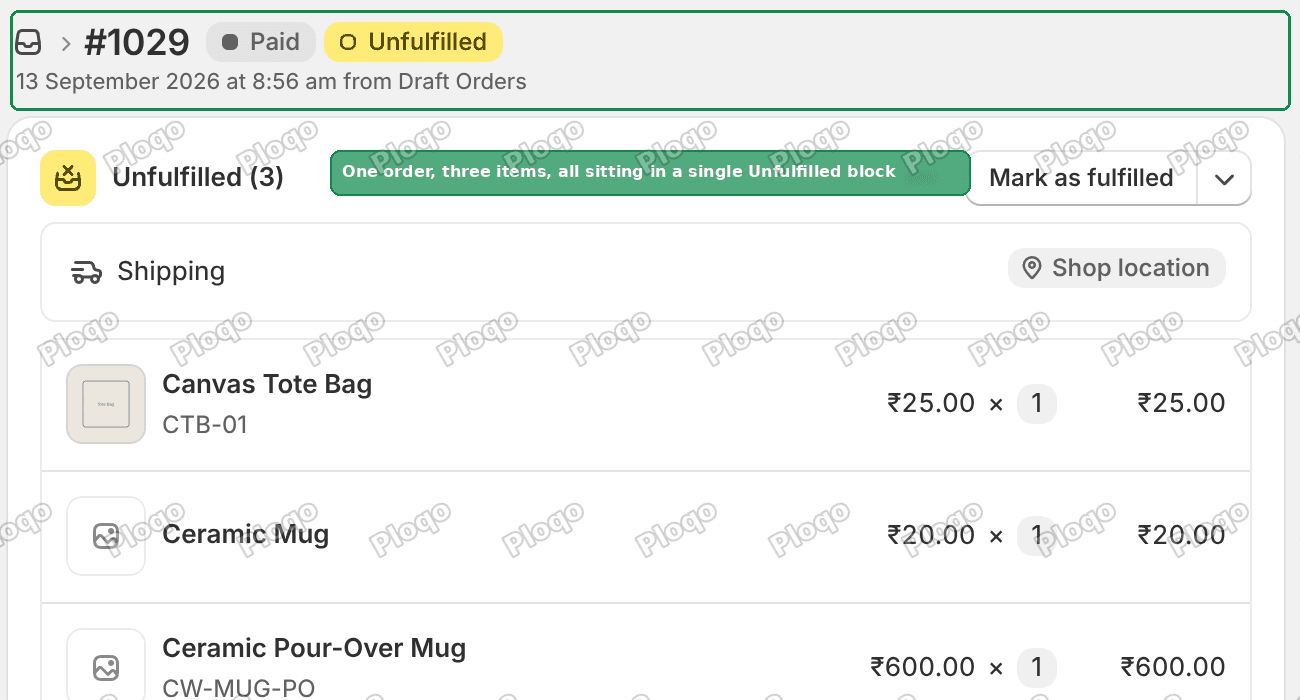 Shopify order page showing three items in a single Unfulfilled block
Click Mark as fulfilled. Every item arrives ticked by default, which is the step people miss. Shopify assumes you are sending the lot.
Untick everything that is not going out today. In the shot below only the tote is still ticked, so only the tote gets fulfilled.
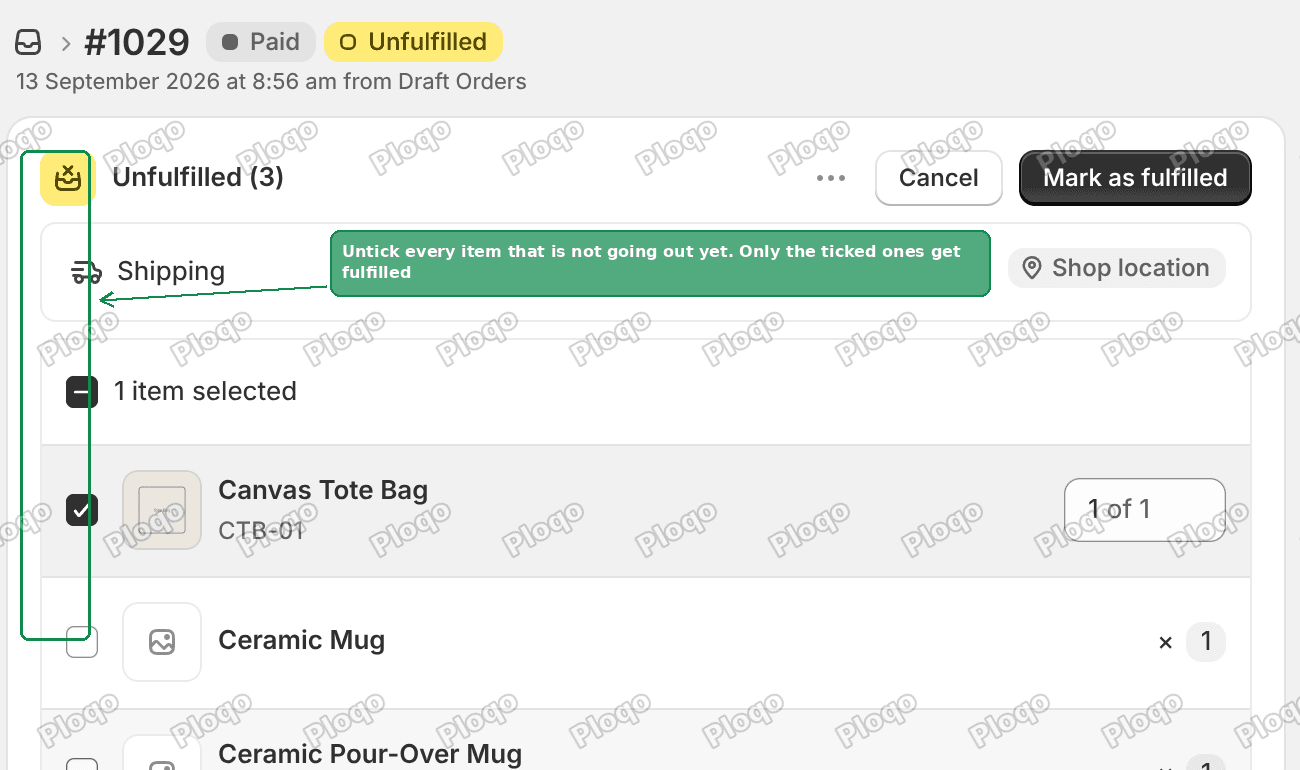 The fulfillment screen with two of three items unticked
You can also send part of a line. If a line says 5 and only 2 are ready, drop the quantity box to 2 and the other 3 stay open.
Click Mark as fulfilled to confirm. That is the whole job.
What the order looks like afterward
The order now carries a Partially fulfilled badge, and the items split into two labelled blocks.
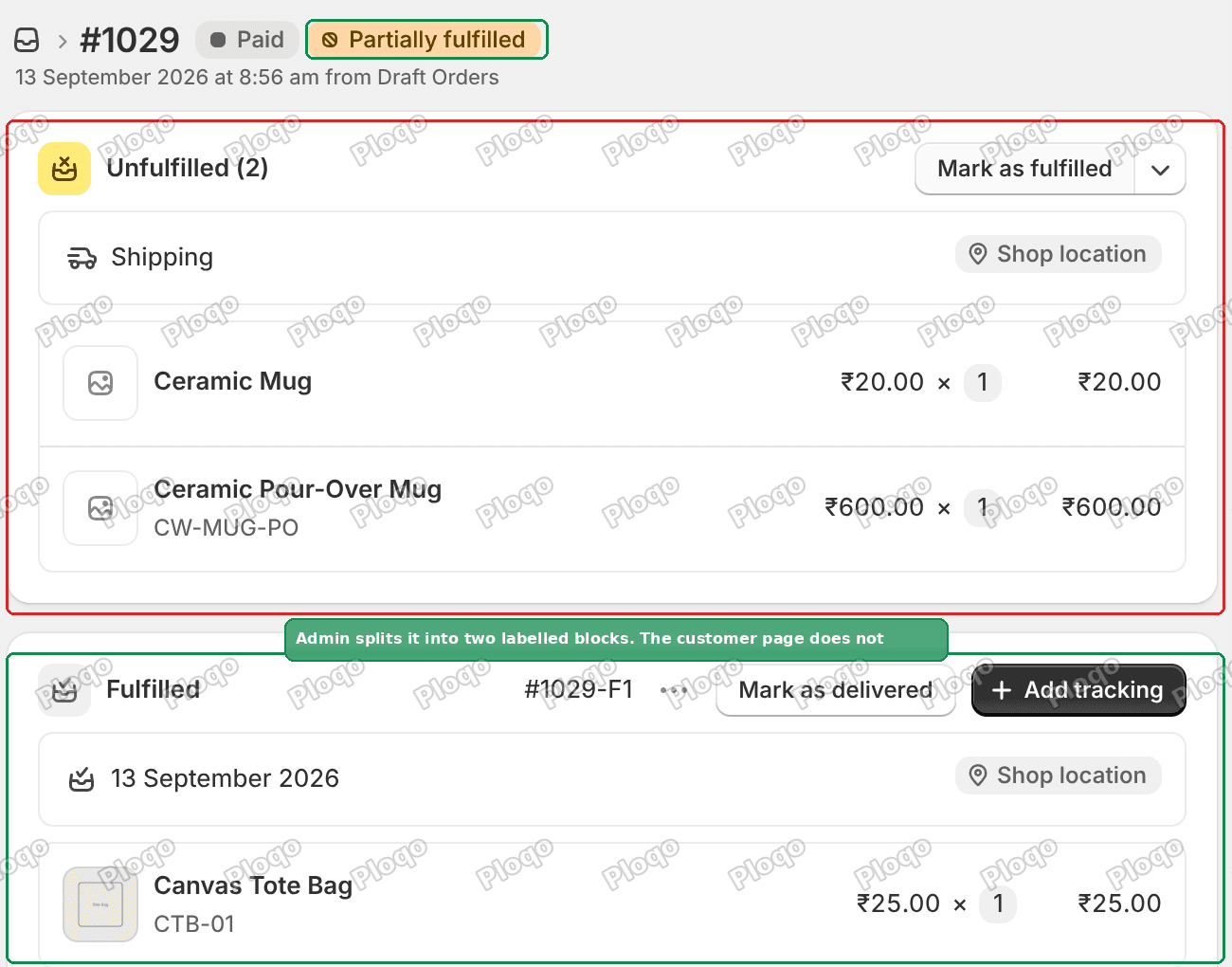 The order after partial fulfillment, showing an Unfulfilled block of two items and a Fulfilled block
The fulfilled block gets its own number. Mine came out as #1029-F1, and the next one on the same order would be #1029-F2. Each block carries its own tracking, its own Mark as delivered button, and its own status.
When the rest arrives you repeat the process on what is left. An order can hold as many of these blocks as you need.
So far so good. This is where it stops being tidy.
Catch one: the customer does not see that split
The two labelled blocks above are the admin view. They are for you.
The page the customer lands on reads an order level status instead. Once any one part of the order is fulfilled, that status is what the whole order wears, and the item list underneath is still every item they bought, with nothing marking which ones actually shipped.
A merchant running local pickup described exactly what that costs, in a thread I answered on the Shopify Community. Their customers get an email listing the 2 items that are ready, click through, and land on a page that reads as though all 5 are waiting. Some of those customers drive three hours each way to collect.
Their words: it "creates real confusion and erodes trust, and our staff end up doing damage control at pickup."
There is no setting that splits that list. Changing what the customer's order page prints per line means building a customer account UI extension, which is a piece of code you add to that page, and the order data available to it is summary level, so it needs a service of your own behind it to get the per-fulfillment detail. That is a build, not a checkbox.
Catch two: the email lists everything too
This is the one that surprised me, and it is worth knowing before you write any clarifying wording.
Shopify's pickup and shipping notifications are scoped to the fulfillment, so the top of the email correctly lists only what is ready. But the template also carries a second list further down, and that one prints the whole order.
Here is the pickup template, read out of a live admin:
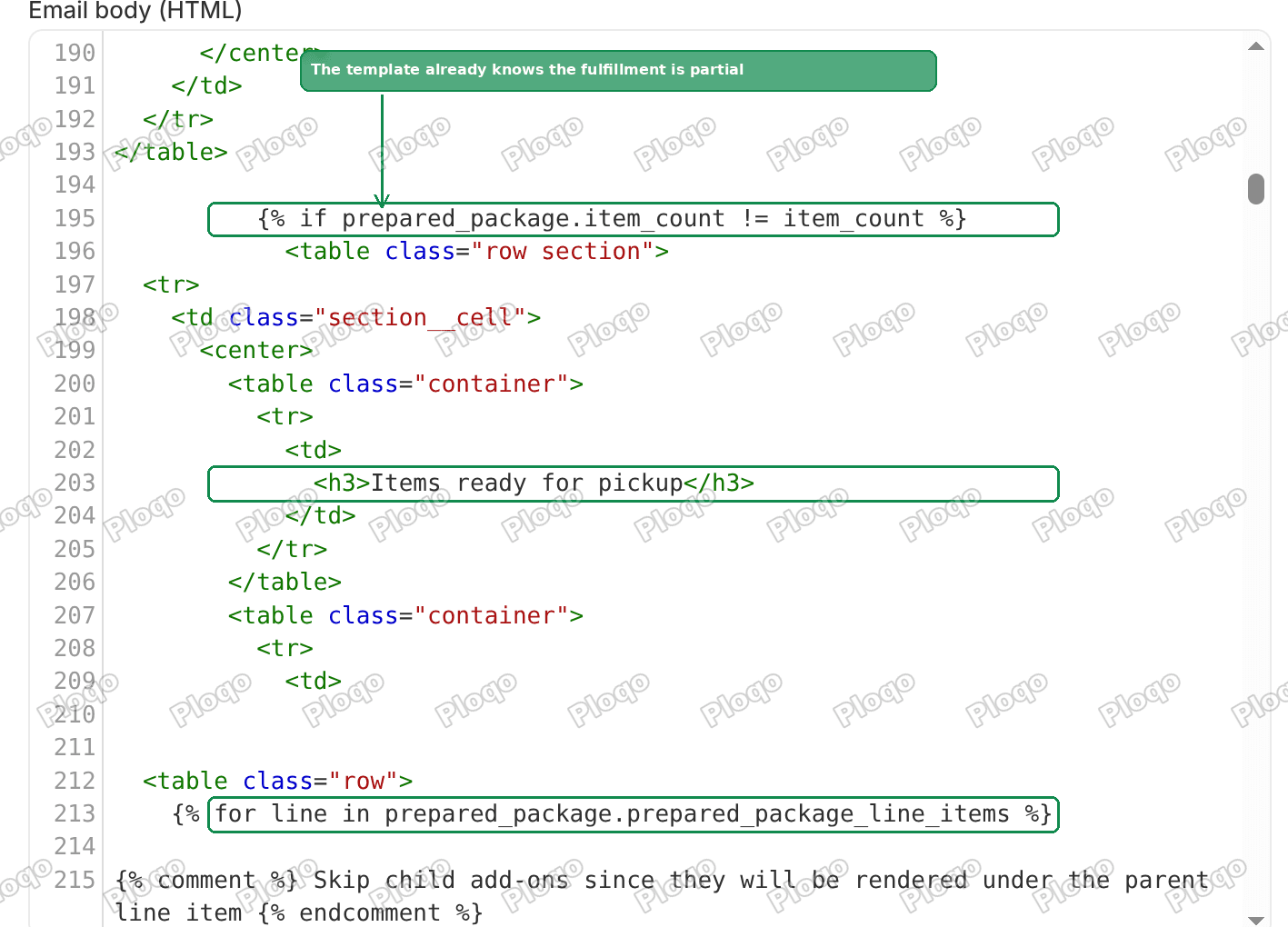 The Ready for local pickup email template showing a partial check and a ready items loop
Two things are going on in that file.
{% if prepared_package.item_count != item_count %} means the template already knows the fulfillment is partial. When it is, it prints an Items ready for pickup heading and loops through only the ready ones.
Then further down it prints an Order summary heading and loops through subtotal_line_items, which is everything.
So a customer who scrolls past the first block sees the full list anyway. If you have added a note saying "only the items above are ready", it is competing with a complete item list a few hundred pixels below it.
Can I stop the notification going out on every partial fulfillment?
No, and I checked this one carefully because it gets asked a lot.
Every time you fulfill part of an order, Shopify emails the customer. Fulfill three separate times and they get three emails before the order is complete.
I counted every customer notification in a live admin. There are 46. Exactly 5 of them carry an on/off switch:
- Order out for local delivery
- Order locally delivered
- Order missed local delivery
- Out for delivery
- Delivered
Shipping confirmation is not one of them. Neither is Ready for local pickup. Here are the two groups sitting next to each other in the same settings page, one with switches and one without.
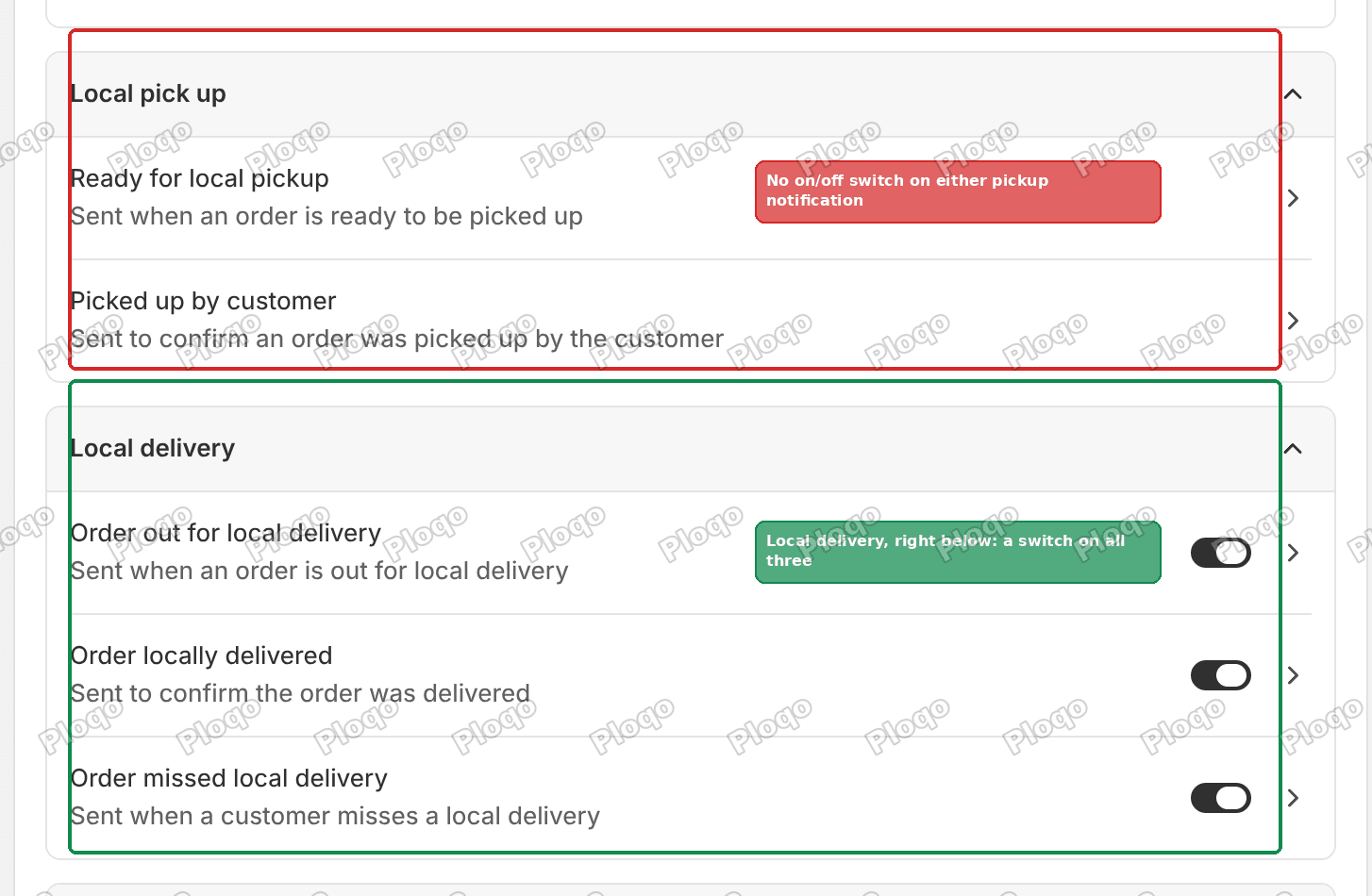 Shopify notification settings with Local pick up showing no switches and Local delivery showing three
The plumbing for a per notification switch clearly exists. It has just not been extended to these. If this matters to your store, that side by side is worth quoting when you ask Shopify for it.
Labelling each line in the email
You can fix the email, even though you cannot fix the page. From the notification list in the screenshot above, open the one you want and scroll to the Email body box.
Just above the Order summary loop, build a list of the ids that are actually ready:
{% assign ready_ids = "" %}
{% for l in prepared_package.prepared_package_line_items %}
  {% assign ready_ids = ready_ids | append: l.line_item.id | append: "," %}
{% endfor %}
Then inside {% for line in subtotal_line_items %}, next to the product title:
{% if ready_ids contains line.id %}
  <span style="color:#1e6f50;font-weight:600">Ready today</span>
{% else %}
  <span style="color:#9a6b00;font-weight:600">Still being prepared</span>
{% endif %}
Now every line in the summary says which group it belongs to, rather than sitting in one undifferentiated list.
Two things to watch. Copy the template into a text file first, because Revert to default is all or nothing and there is no undo. And a line that is partly ready, 2 of 3 of the same product, will read as Ready today under that rule, so if you split by quantity rather than by product you want to compare quantities instead of matching ids.
Sending one notification instead of three
If the repeat emails are the actual problem, the way out is to stop treating Shopify's automatic email as the one that matters.
Fulfill the parts as they are ready, so your records stay accurate. Then use Shopify Flow, which is Shopify's free automation app, to watch for the order becoming fully fulfilled and send your own email at that point.
For a pickup business that is the difference between a customer driving over for a part order and driving over once, for everything. Better wording does not prevent that trip. Not sending the signal until the order is complete does.
Does partial fulfillment split the order?
No. It stays one order, with one order number and one payment.
What splits is the fulfillment. Each batch you send becomes its own record hanging off that order, numbered -F1, -F2 and so on.
That matters for reporting. Your order count does not go up when you ship in two batches, and refunds still work against the single order.
Can I use a different tracking number for each part?
Yes, and this is one of the better reasons to fulfill in parts deliberately. Each fulfillment block has its own Add tracking button and holds its own carrier and number.
If you are shipping one order in two boxes with two different carriers, partial fulfillment is the mechanism that lets you do it. That case has its own walkthrough in adding multiple tracking numbers to one Shopify order.
What if I fulfilled the wrong items?
Open the fulfillment block, use the ... menu on it, and cancel that fulfillment. The items drop back into the Unfulfilled block and you can start again.
Cancelling does not un-send the email the customer already received. If you fulfilled the wrong line, assume they have been told about it.
Partial fulfillment versus splitting the order
These sound similar and are not.
Partial fulfillment keeps one order and ships it in batches. The customer keeps one order number.
Splitting an order creates separate orders from the original. Each new order gets its own number, its own status page and its own emails. It costs you an extra order in reporting, and it changes what the customer sees, which is sometimes exactly what you want when two halves of an order are weeks apart.
For most stores shipping a back ordered item a few days later, partial fulfillment is the right tool. For a pickup order where one half is weeks behind the other, the second is worth considering.
What to check on your own store
Fulfill part of a test order and read your own notification as the customer gets it, all the way to the bottom. Most merchants have never scrolled past the first block.
Then open the order page the way a customer sees it and ask whether someone skim reading it would know which items are actually on the way.
If the answer is no, the email is the surface you can fix today. The page needs a developer.
Spending too long on manual Shopify busywork?
PinFlow turns your Shopify catalog into Pinterest pins and posts them on a schedule, automatically. Same idea as the bar above, let the system handle the repetitive part.
Get PinFlow on the Shopify App StoreMore Shopify fixes
More community-sourced Shopify guides, tested on a live store.
Shopify Admin
Shopify New Admin (2026): Where Search, Sidekick and Settings Went
Shopify's new admin moved search, alerts, the store switcher and Settings into the black sidebar, and Sidekick to a bar at the bottom. Where each one is now.
Shopify Admin
How to Use the New Shopify Admin (2026): Every Main Screen
A tour of the new Shopify admin: the black sidebar, search and Ctrl K, Home, Orders, Products, Settings and Sidekick, with where to click on each screen.
Shopify Admin
Schedule a Black Friday Sale in Shopify (Auto Start and End)
Give the discount its own start and end date and put the sale banner in an Event rollout with the same dates. Both start at midnight and end after Cyber Monday.