
Shopify Policy Pages: Fix Invisible Links in the Footer
Shopify writes your refund, privacy and shipping policies into their own pages and links them from the footer. If that footer link opens an empty white box, one theme colour setting is the cause. Here is where the pages live and how to fix the box.
By AjayCodeWiz · September 4, 2026 · 8 min read
The problem
A merchant asked about this on the Shopify Community. The link at the bottom of their store said "Terms and policies". Clicking it opened a white box with nothing in it.
The links were not missing. Highlighting the box with the mouse revealed them, sitting there as white text on a white panel. They could not change the text colour and they could not change the box colour either.
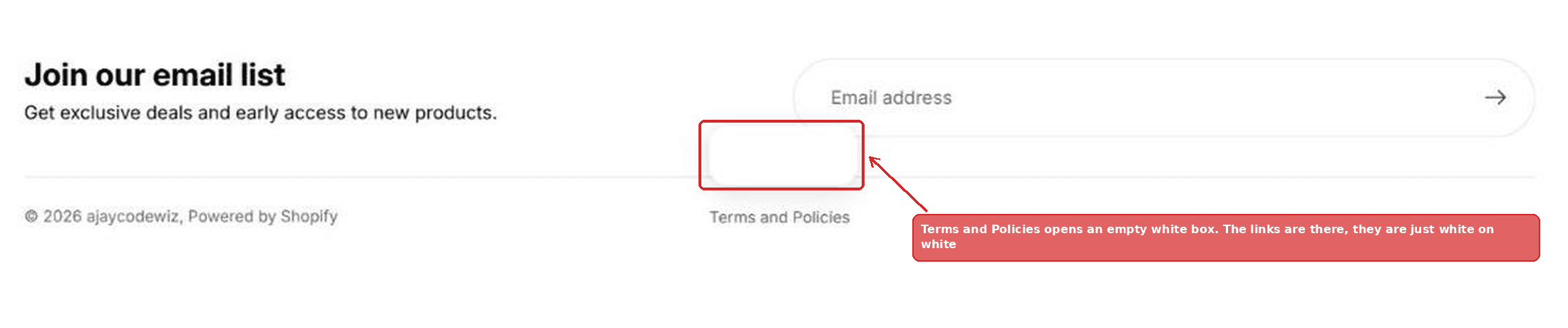 A footer policies link opening an empty white box
That is one theme setting, in a place few merchants look. But before the fix, it is worth knowing how Shopify handles policies at all, because the reason this is confusing is that policy pages are not normal pages.
Where Shopify policy pages actually live
Shopify gives every store a set of built-in legal pages. They are not in Online Store, Pages, where the rest of your content lives. They are in Settings, Policies.
There are eight of them:
- Refund policy
- Privacy policy
- Terms of service
- Shipping policy
- Terms of sale
- Legal notice
- Subscription policy
- Contact information
You will not see all eight on every store. Which ones appear depends on your region and what you sell. Subscription policy shows up once you sell subscriptions, for example.
Each one you fill in gets its own address automatically, in the form yourstore.com/policies/privacy-policy. You do not create the page and you cannot rename the URL.
Shopify also provides a starting template for several of them. There is a button to insert it. Treat it as a draft to give your lawyer, not a finished document, because it cannot know your business.
The important part for this article: a policy page only exists once you write something in it. An empty policy is not published, has no URL, and does not appear anywhere on your storefront.
How your theme finds them
You never link policy pages by hand, and you should not try.
Themes read the list of filled-in policies directly from your store and build the links themselves. In Liquid, the theme's templating language, that list is shop.policies.
This is why the links appear in the footer the moment you save a policy, and vanish if you clear one. It is also why the block often has no obvious settings. There is nothing to configure. It just prints whatever you have written.
Different themes present the same list differently. Some print them as plain links across the footer. Newer themes, including Shopify's Horizon, collapse them into a single "Terms and policies" link that opens a small popup holding the list. That popup is where this problem lives.
Why the box is empty
The popup is not styled by the footer. It is styled by a separate group of theme settings that covers every popup and modal on the store at once.
In Horizon that group sets a background colour and a text colour for all of them. If those two end up the same colour, the panel still opens, the links are still there, and you see nothing.
That is exactly what happened here. Background white, text white.
It usually happens by accident, and there are two normal routes to it. Either someone set the popup text colour to white on purpose while trying to fix a different popup. Or the store's colour palette was changed to a dark theme, which flipped the shared text colour to white, and the popup background stayed light.
Left blank, the setting is smart: the theme works out a readable colour against whatever background you chose. It only goes wrong once a specific colour is pinned there.
The fix, step by step
No code. Five clicks.
1. Open your theme editor. Online Store, Themes, then Edit theme, or Customize, on the theme you are actually using.
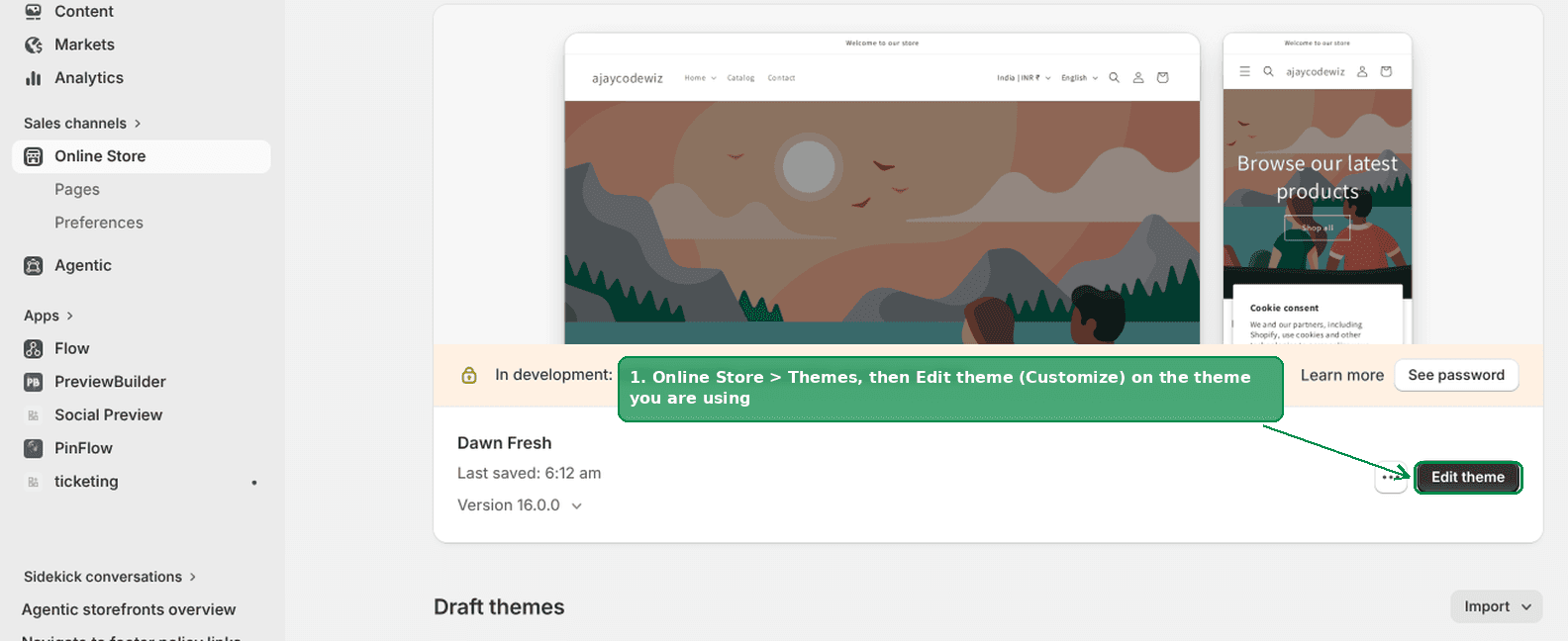 Online Store, Themes, then Edit theme
2. Click the gear icon in the top left of the editor. That is Theme settings, and it is separate from the section list you land on.
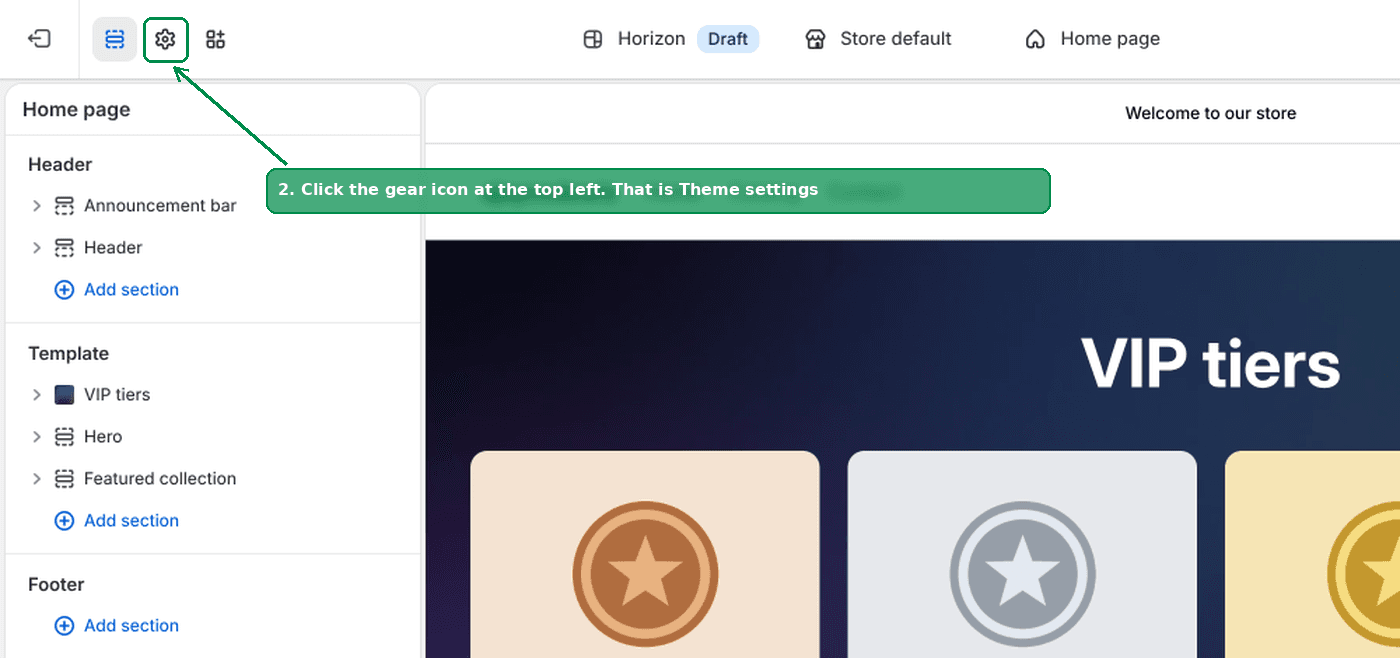 The gear icon at the top left of the theme editor
3. Scroll down the list and open Popovers and modals.
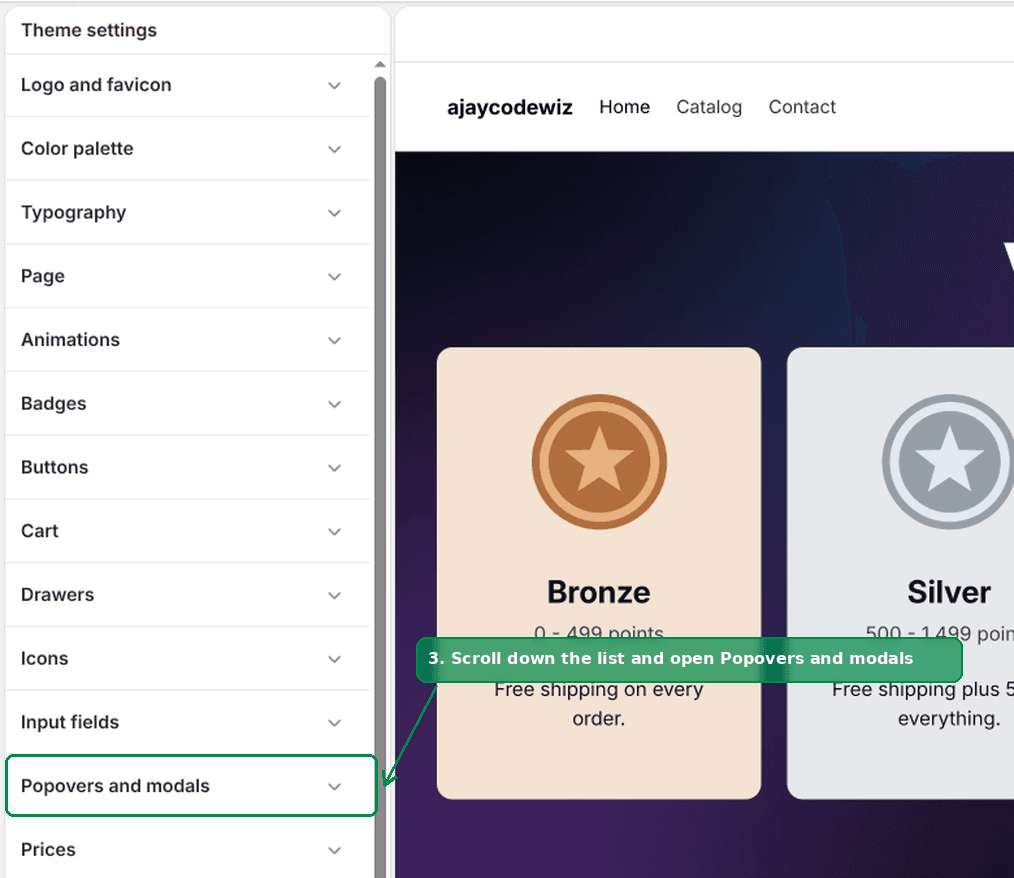 Popovers and modals in the theme settings list
4. Look at Text color. On a store with this problem it will be #FFFFFF, white.
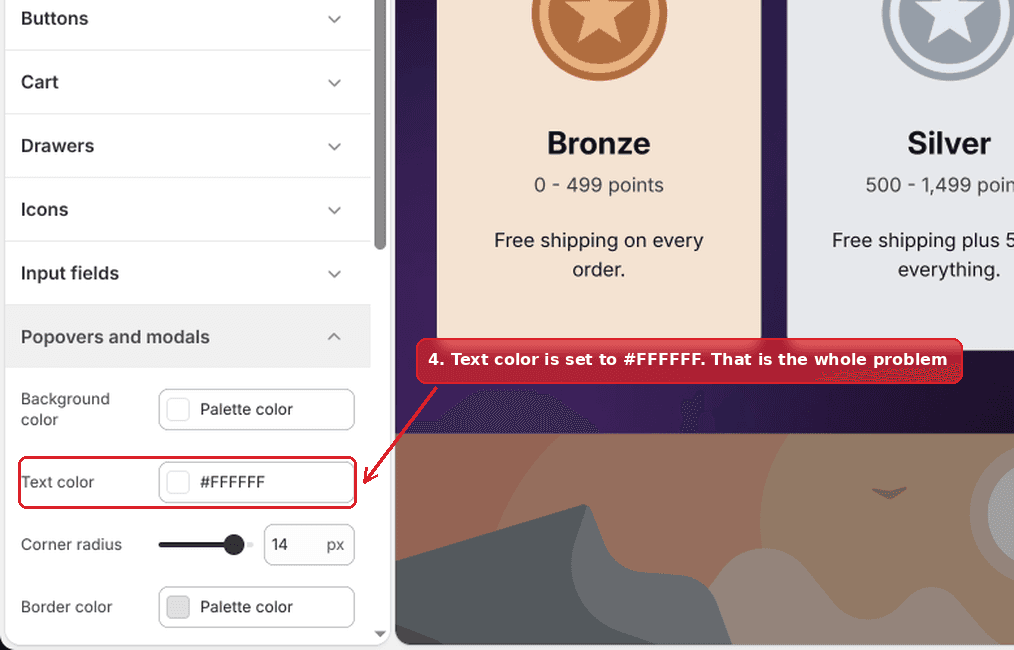 Text color set to FFFFFF
5. Click the swatch and set a dark colour, for example 000000. Then Save.
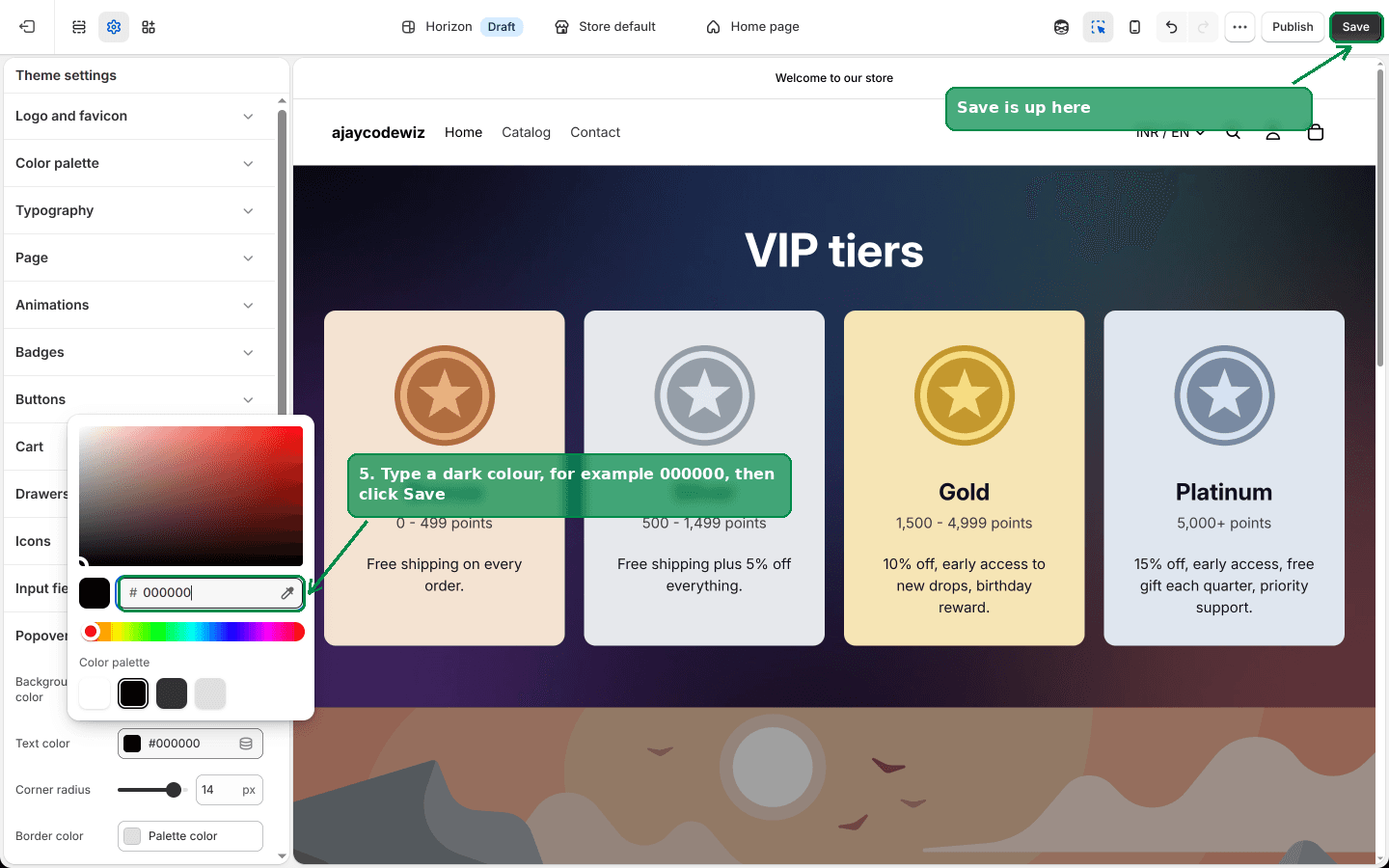 Setting the colour to 000000 and saving
Reload your storefront and the links are readable again.
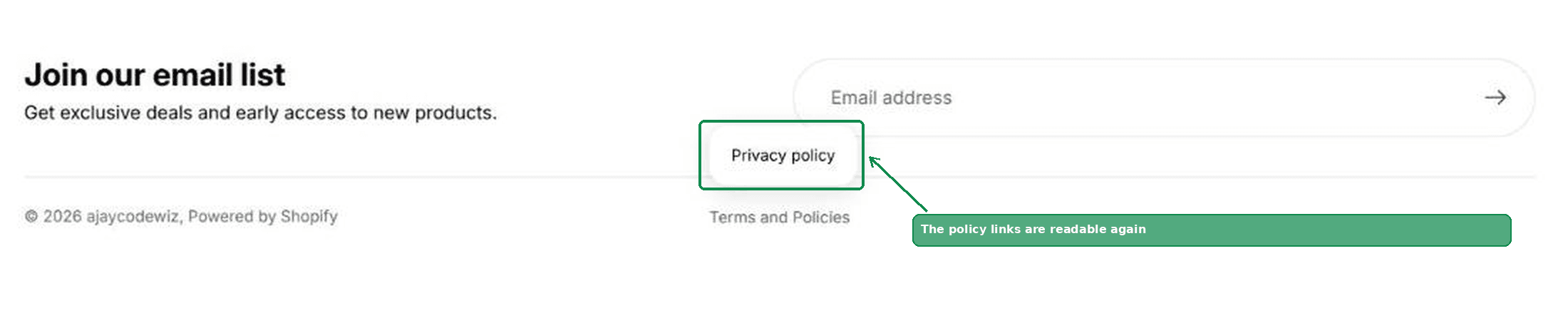 The policy links visible in the popup
I tested this on a Horizon store. With Text color at #FFFFFF the popup was an empty white box. Setting it to 000000 brought the links back immediately.
Two things to know before you save
Background color is right above it. That is the white box the merchant could not recolour. It is in the same panel, so if you want the popup to match your brand rather than be plain white, change it there.
This panel styles every popup in your theme, not just the policies box. Search results, cart tooltips, the country and language selector all read the same two colours. So after you save, click through those and check none of them has gone the other way and ended up dark text on a dark panel.
Clearing the field is often better than picking a colour. Leave Text color blank and Horizon calculates a readable colour against your chosen background automatically. That keeps working if you change your palette later. Pinning a specific colour does not.
If your theme does not have this setting
Older and third-party themes often print the policy links straight into the footer rather than in a popup, so there is nothing to fix. If yours does use a popup and there is no Popovers and modals group, the colour is coming from your general theme colour settings instead.
The reliable way to find it on any theme:
- Right-click the invisible text and choose Inspect.
- Find the highlighted link element in the panel that opens.
- Look at Computed styles, find
color, and compare it tobackground-coloron the panel around it.
If they match, you have the same problem, and the setting controlling that colour is the one to change. Themes with a Custom CSS box in Theme settings let you override it directly without hunting.
Why are my policy links not showing at all?
Different problem, and worth ruling out.
The policy is empty. Shopify only publishes and links a policy once it has content. A blank Refund policy simply does not exist.
The footer block was removed. In the theme editor, open the Footer section and check whether the policy block is still there. It can be deleted like any other block, and added back the same way.
They are there but they are white. That is this article. Highlight the area with your mouse and see whether text appears.
Can I add my policy pages to a menu?
Yes, and many stores do it instead of relying on the automatic block.
Go to Content, Menus, open your footer menu, and add a menu item. When you pick the link target, choose Policies, and the list of your filled-in policies appears. Pick one.
This gives you control over the wording and the order, which the automatic block does not. It also means the link is a normal menu item styled by your footer, so the popup colours in this article do not apply to it.
The trade-off is that it stops being automatic. Add a new policy later and you have to remember to add the menu item too. For the rest of what the footer can do, see How to Edit the Footer in Shopify.
Policy pages versus regular pages
These get mixed up constantly, so here is the distinction.
Policy pages live in Settings, Policies. They have fixed URLs under /policies/, they are created for you, and themes can find them automatically. You cannot change their handles, apply a page template to them, or add sections to them.
Regular pages live in Online Store, Pages. You create them, name them, choose their URL, and can assign them a template with whatever sections you like.
If you want a policy with real design on it, the usual approach is to write a normal page and link that from your footer menu instead. Be aware that some regions and some payment providers expect the standard policy URLs to exist, so most stores keep both.
What to check if it still looks wrong
- Check you edited the live theme. The theme editor happily opens a draft copy. If nothing changed on your storefront, confirm the theme you edited is the published one.
- Hard refresh. Theme settings are cached. Reload with the cache bypassed before concluding it did not work.
- Check the other popups. Search, cart tooltips and the language selector share the setting. Fixing one can break another if your palette is unusual.
- Check the border and shadow. If the box is still hard to see against your page, the same panel has Border color, Border thickness and Drop shadow. A one pixel border does more for a white popup on a white page than any text colour will.
The whole thing is one colour field. The reason it takes people so long to find is that the policies popup looks like part of the footer, and the setting that controls it sits in a completely different part of the theme editor, under a name that does not mention policies at all.
Spending too long on manual Shopify busywork?
PinFlow turns your Shopify catalog into Pinterest pins and posts them on a schedule, automatically. One less thing to remember to switch on.
Get PinFlow on the Shopify App StoreMore Shopify fixes
More community-sourced Shopify guides, tested on a live store.
Themes & Storefront
Shopify Payment Icons: Fix a Footer That Shows None
The payment icons in a Shopify footer come from your payment provider, not from the theme. When the provider sends none, the row stays empty. Here is how to add the icons yourself on Refresh, Dawn and similar themes.
Themes & Storefront
Shopify Order Notes: Turn On the Cart Note Box
Let customers leave order notes and special instructions on your Shopify cart page. Turn on the built-in cart note in Theme settings, rename its label, and find each note on the order. Tested on Dawn, no code.
Themes & Storefront
Shopify WhatsApp Integration: Add a Free Chat Button
How to add WhatsApp to Shopify with a floating chat button: shoppers tap it and WhatsApp opens a chat with you, the message already typed and naming the product.