
Hide Unavailable Variants in a Shopify Dropdown
Green has no 3XL, so Shopify prints "3XL - Unavailable" in the size dropdown anyway. How to remove combinations that do not exist, without the bug that kills the variant picker. Tested on Studio.
By AjayCodeWiz · September 8, 2026 · 9 min read
The problem, in the words a merchant would use
You sell a t-shirt in Green and Blue, sizes S to 3XL. Green never came in 3XL, so that variant does not exist in your catalogue.
Open the product page, choose Green, and the size dropdown still lists it:
3XL - Unavailable
The shopper has to read a dead option to work out it is dead. Pick it and the Add to cart button greys out and says "Unavailable".
A merchant running the Studio theme asked about this on the Shopify Community. Their wording was exact: "I'd prefer the theme not to show these variants at all."
There is no setting for it. Studio, Dawn, and every free theme built on the same code render every option value and label the impossible ones. This post is the code change that removes them, plus the mistake that catches most attempts at it.
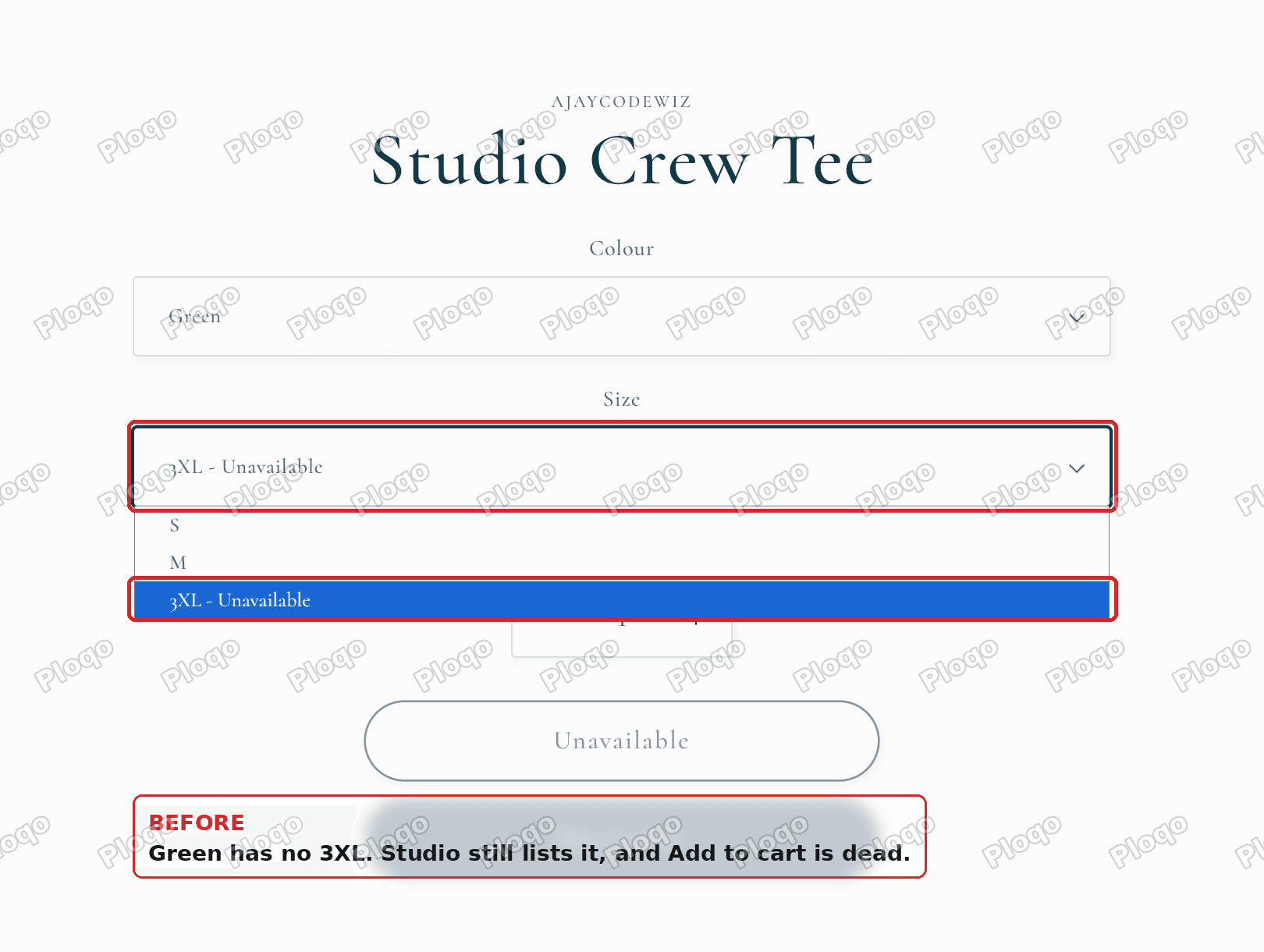 Green has no 3XL, but Studio lists it anyway
Two different things get called "unavailable"
This distinction is the whole reason the naive fix goes wrong, so it is worth thirty seconds.
Shopify shows the same "- Unavailable" label for two situations that are not the same:
- The combination does not exist. You never created a Green 3XL. There is no variant, no SKU, no price. Nothing will ever come back in stock, because there is nothing there.
- The variant exists but is sold out. Blue M is a real product with a real SKU that happens to be at zero.
Merchants almost always want the first one gone and the second one visible. A sold-out size is information a shopper wants: it tells them the size normally exists and might return. A combination that was never made is just noise.
Most advice you will find online hides both, because the obvious test in Liquid, value.available, is false in both cases.
There is a better test. Each option value can tell you whether a variant is attached to it. When I checked this on a live product, the difference was clean:
- Green + 3XL, the combination that does not exist: no variant attached at all.
- Blue + M, sold out: a real variant attached, marked as not available.
So the condition to skip on is "not available and no variant attached". That hides the impossible ones and leaves the sold-out ones alone.
Where the code lives
Two files, both in Online Store > Themes > your theme > ... > Edit code.
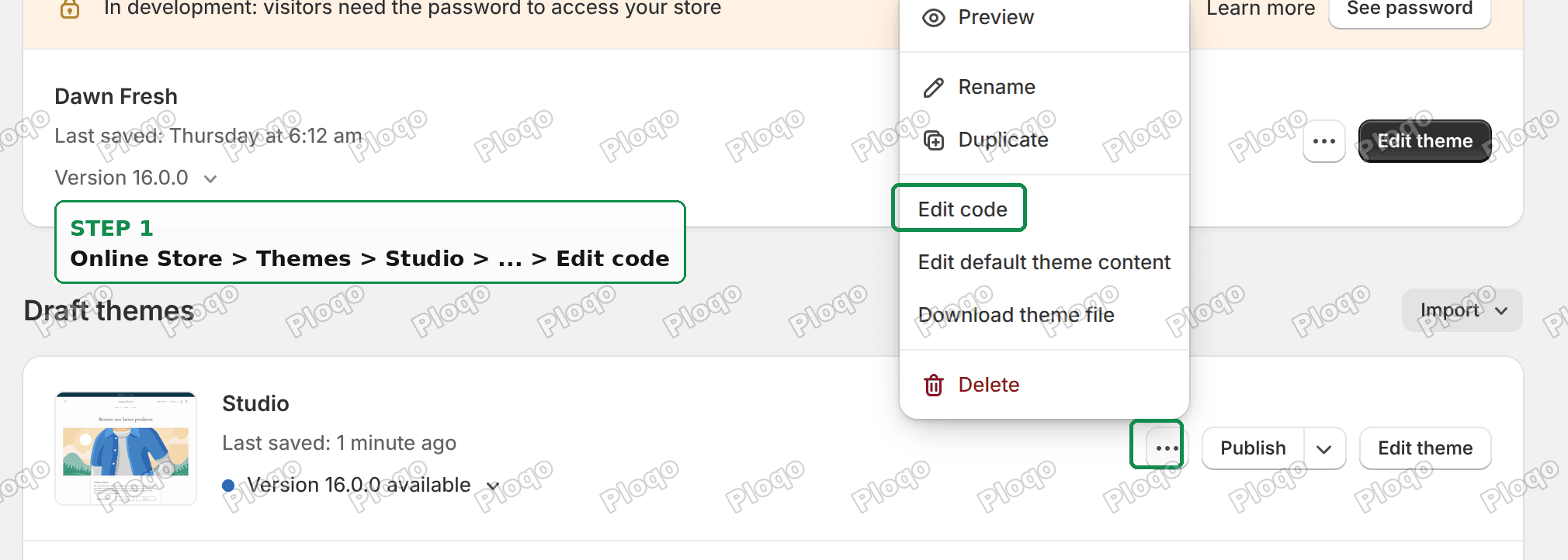 Online Store, Themes, the three dot menu, Edit code
snippets/product-variant-options.liquidrenders every option value, and is where the hiding happens.snippets/product-variant-picker.liquidwraps the whole picker, and is where a small script goes.
Duplicate the theme before you start. A theme version update replaces these files, so make a note to redo this after upgrading. Shopify documents that behaviour in updating themes.
Edit 1: keep track of the selected value
Near the top of product-variant-options.liquid there is a small Liquid block. Replace it with this:
{%- liquid
assign product_form_id = 'product-form-' | append: section.id
assign keep_selected = false
for v in option.values
if v.selected
if v.available or v.variant.id
assign keep_selected = true
endif
endif
endfor
assign forced_selected = false
-%}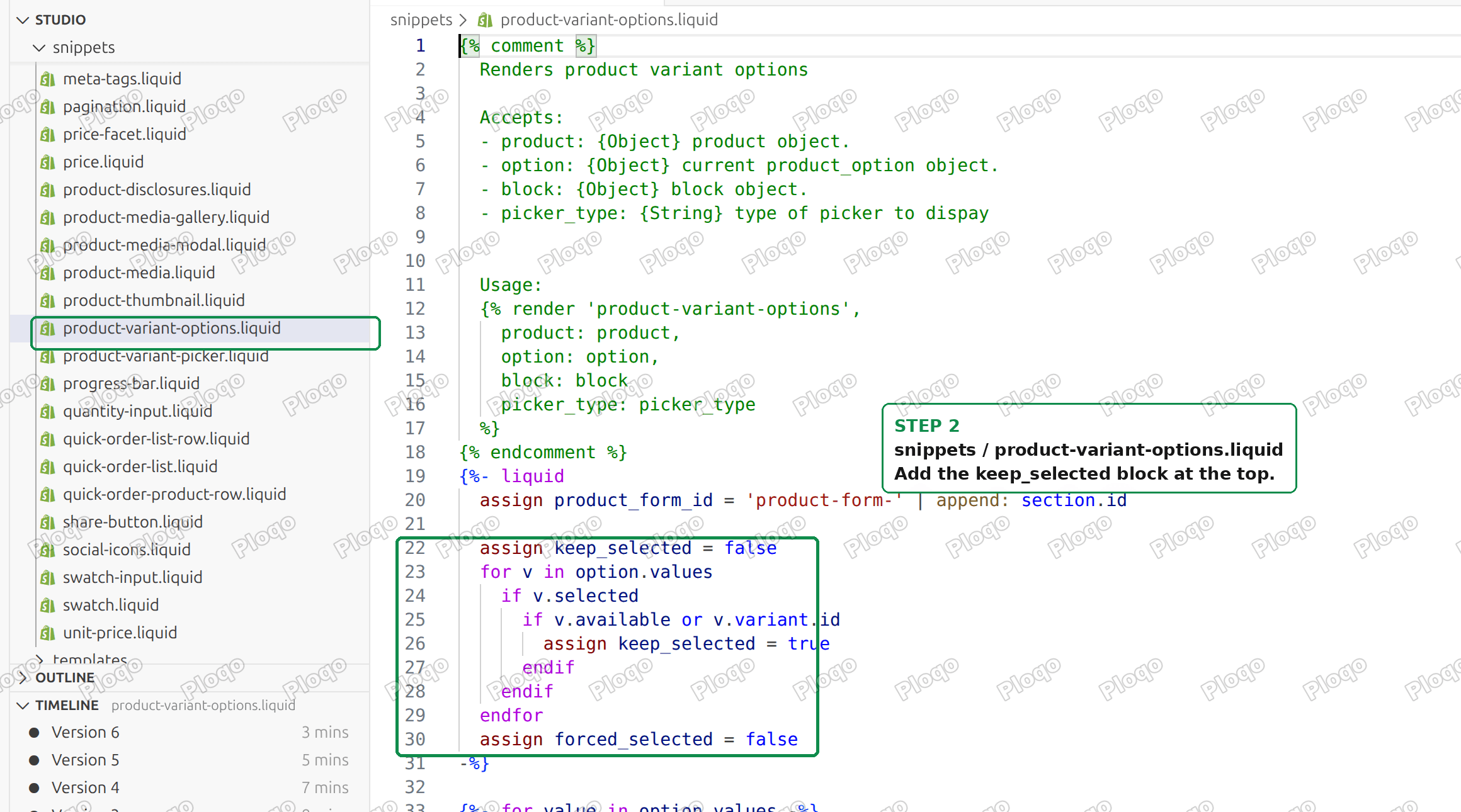 The keep_selected block added at the top of the file
This does not hide anything yet. It records whether the value currently selected is one you are about to keep. Skip this and you will hit the bug described below.
Edit 2: skip the values that do not exist
Further down the same file there is a branch that starts with elsif picker_type == 'dropdown'. Add the skip and the selection fallback just after it:
{%- elsif picker_type == 'dropdown' or picker_type == 'swatch_dropdown' -%}
  {%- unless value.available or value.variant.id -%}
    {%- continue -%}
  {%- endunless -%}
  {%- liquid
    assign is_selected = value.selected
    unless keep_selected
      unless forced_selected
        assign is_selected = true
        assign forced_selected = true
      endunless
    endunless
  -%}
Then change the line that marks the selected option so it uses is_selected instead of value.selected.
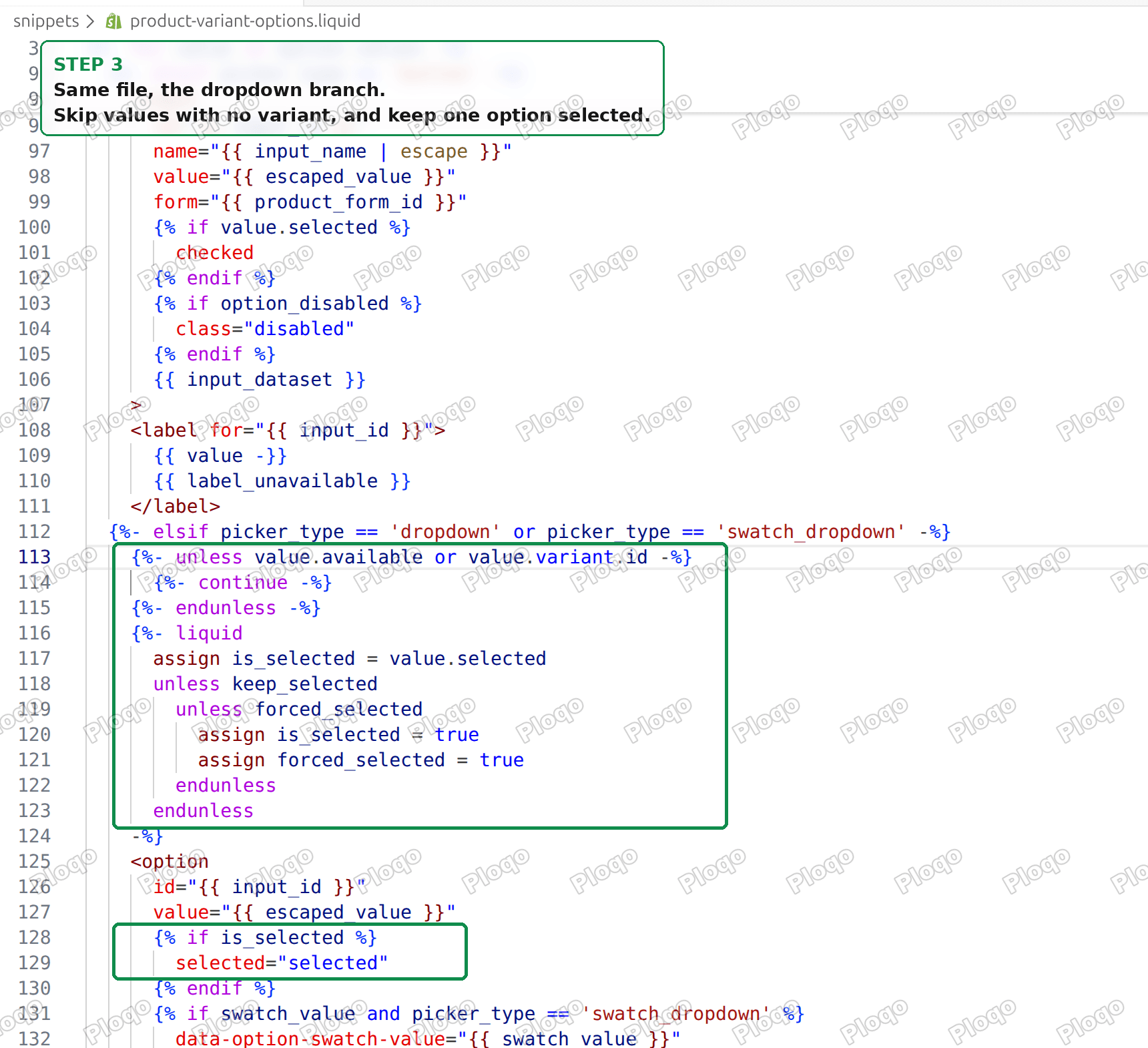 The dropdown branch with the skip added
Save.
The bug this avoids
Here is why the extra bookkeeping is not optional, and why the one line answer you will find elsewhere breaks stores.
The theme's own JavaScript, when you change a dropdown, does roughly this: find the option that currently carries the selected attribute, and remove that attribute from it.
There is no check for the option not being there.
If you hide the option that was selected, nothing carries selected any more. The script looks for it, gets nothing back, and throws an error on the next line. The whole change handler dies with it, which means the variant picker stops working completely. No price updates, no image changes, no add to cart.
That is what keep_selected and forced_selected prevent. If the value that was selected has been hidden, the first surviving option takes the selected attribute instead, so the script always finds one.
If you have tried hiding unavailable options before and your picker went dead, this is almost certainly why.
Edit 3: the colour switch problem
There is a second problem, and it is subtler. It is the reason a Liquid-only fix is incomplete.
Shopify evaluates option availability left to right. The first dropdown always lists every value. Only the later dropdowns are filtered against what you have already chosen.
Follow the consequence:
- Shopper picks Blue, then 3XL. Fine, Blue 3XL exists.
- Shopper changes the colour to Green.
- Green 3XL does not exist. The page reloads the picker, and now the size list has no 3XL in it.
The dropdown looks correct. It says Green and S. But the page underneath is still sitting on a combination with no variant, so the price is wrong and the button says "Unavailable".
The theme cannot recover on its own. When there is no matching variant it takes an early exit that skips the event other code listens for, so a normal event hook never fires.
A small script fixes it. Paste this into snippets/product-variant-picker.liquid, straight after the closing </variant-selects> tag and before the last line of the file:
<script>
document.addEventListener('DOMContentLoaded', function () {
if (window.variantAutoFix) return;
window.variantAutoFix = true;
var allow = true;
document.addEventListener('change', function (event) {
if (event.isTrusted) allow = true;
}, true);
new MutationObserver(function () {
if (!allow) return;
var picker = document.querySelector('variant-selects');
var data = picker && picker.querySelector('[data-selected-variant]');
if (!data) return;
var variant = null;
try { variant = JSON.parse(data.textContent); } catch (error) { return; }
if (variant) return;
allow = false;
var selects = picker.querySelectorAll('select.select__select');
if (selects.length) selects[selects.length - 1].dispatchEvent(new Event('change', { bubbles: true }));
});
});
</script>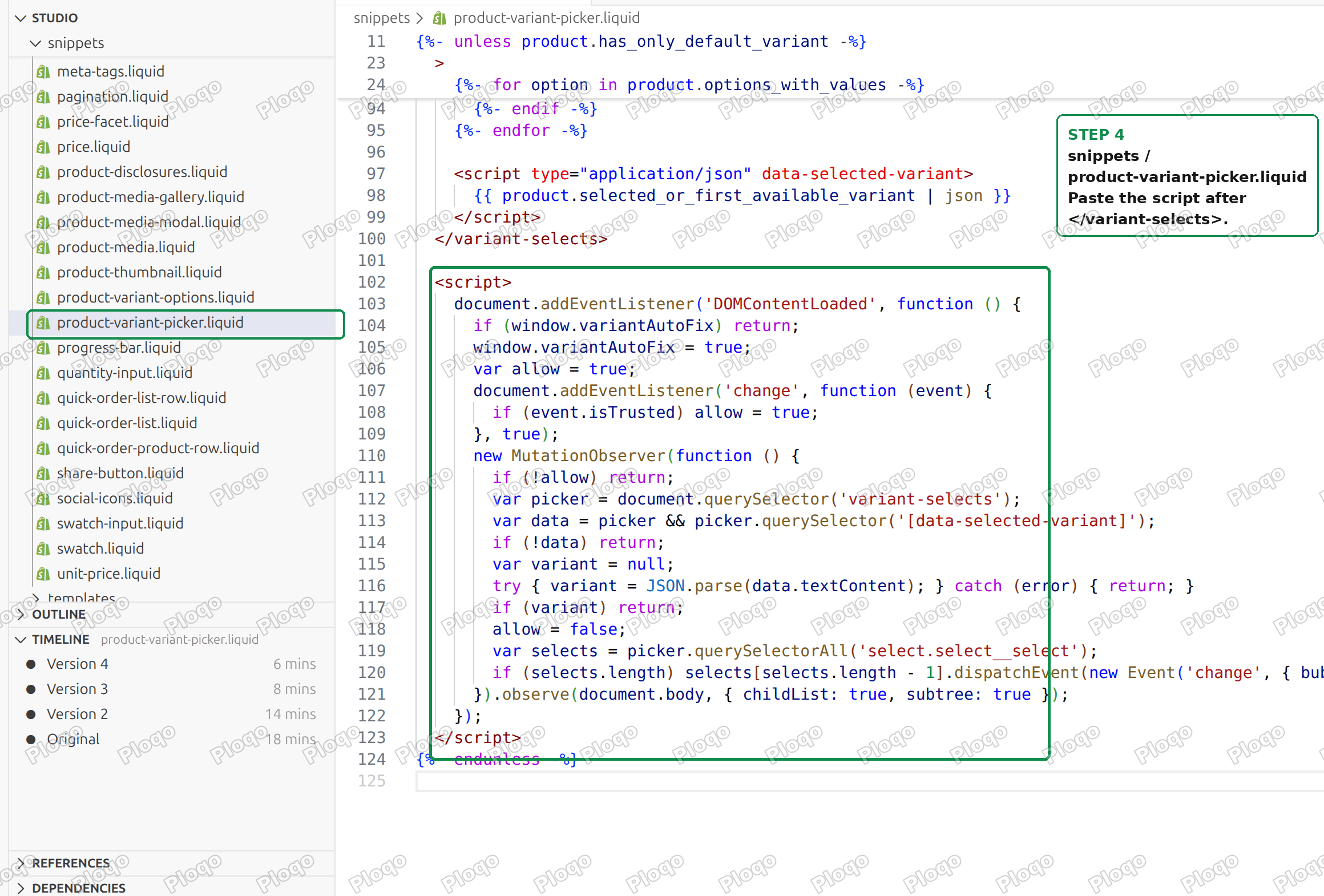 The script pasted into the variant picker snippet
In plain terms: it watches the picker, and when the page ends up on a combination with no variant, it re-selects the last dropdown so the theme fetches a real one. The isTrusted check makes sure it only corrects once per real click, so it cannot loop.
The result
Choose Green and the size list contains only the sizes Green actually has. Add to cart is live and the price is right.
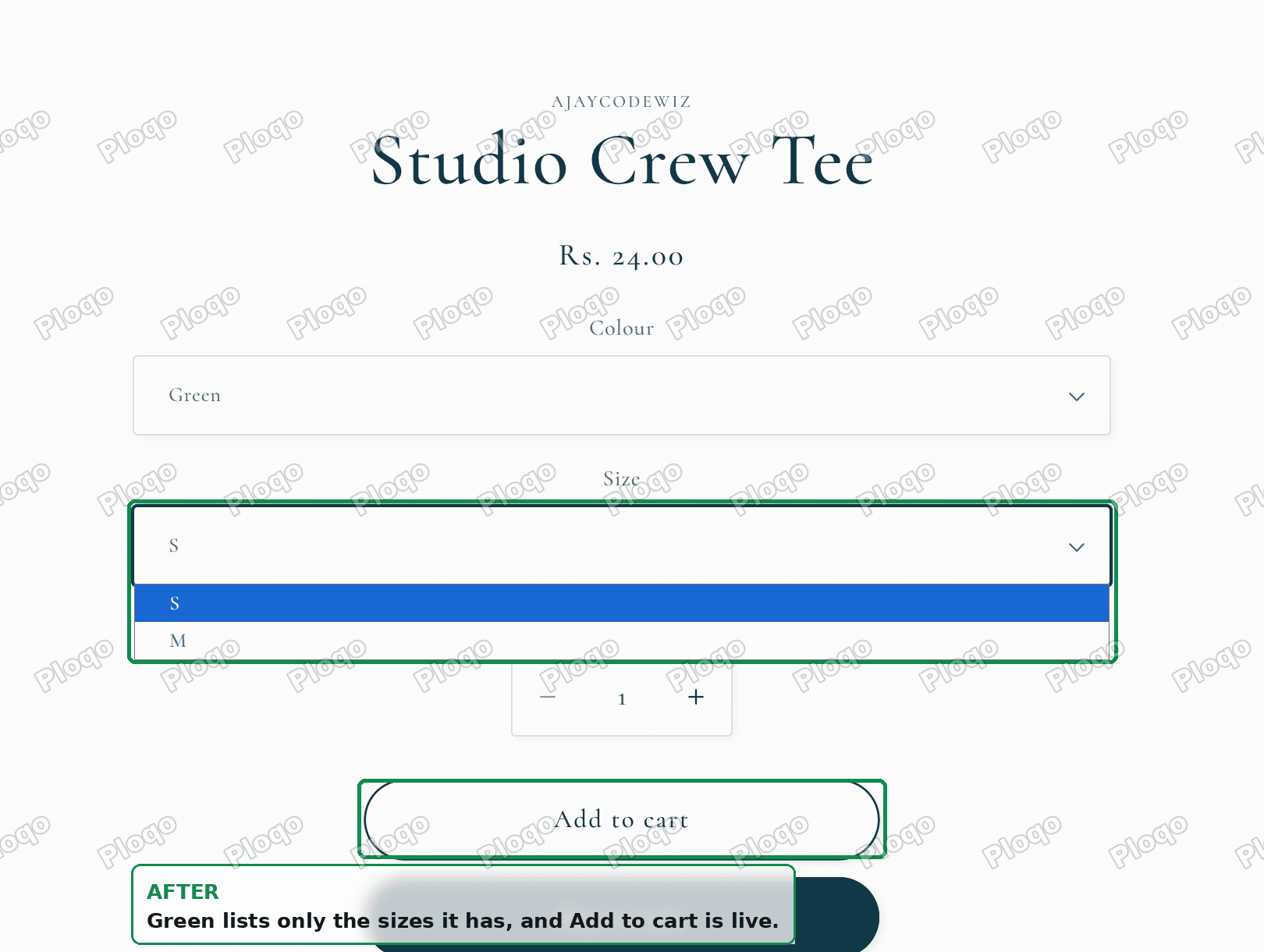 Green now lists only the sizes it has
Choose Blue and the sold-out M is still there, still labelled, because it is a real size that a shopper might want to know about.
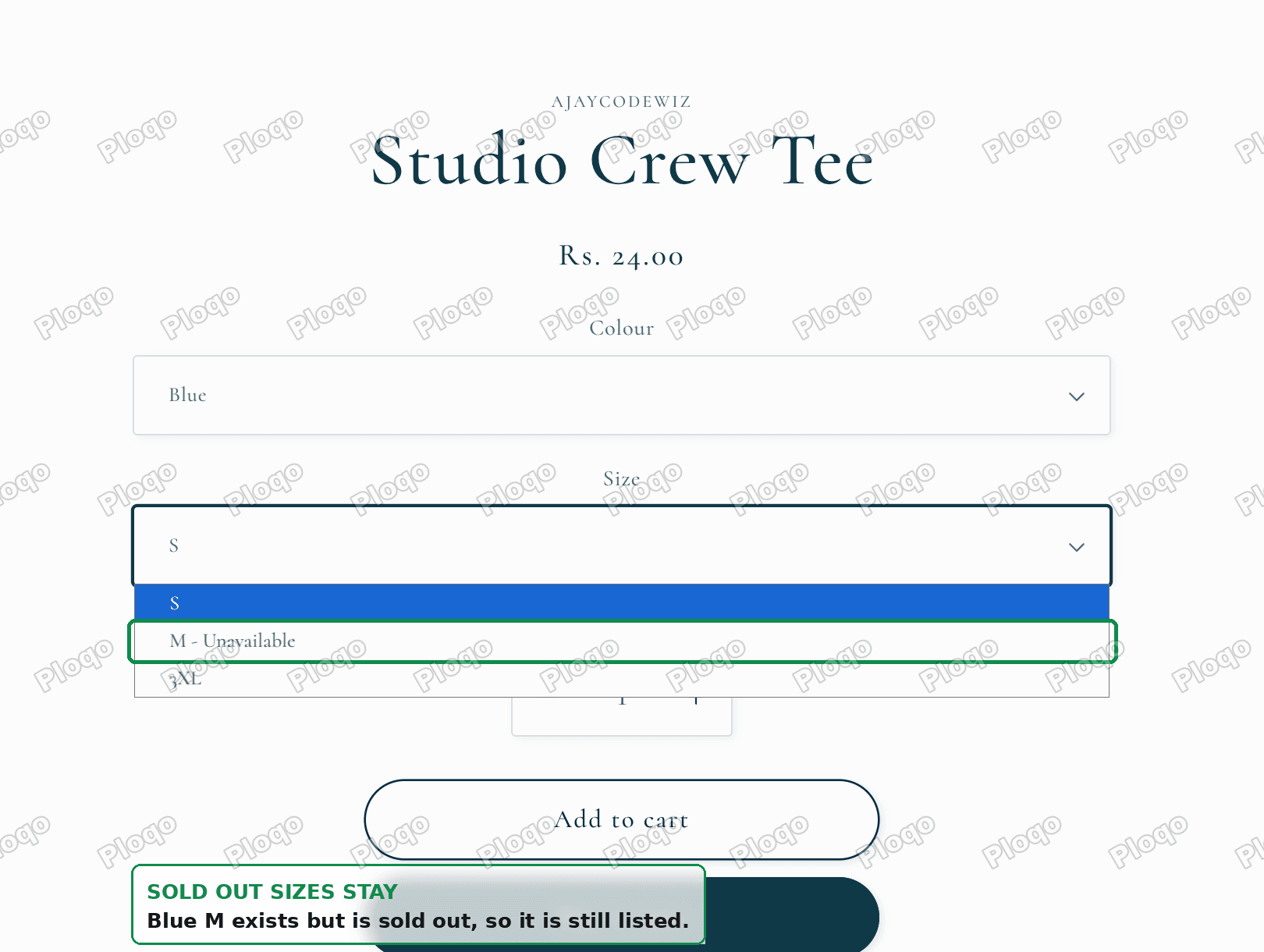 A sold out size is still listed
On the test store the sizes went from S, M, 3XL down to S, M under Green, and switching colour from a 3XL selection landed on Green S with Add to cart enabled instead of a dead button.
If you want sold-out sizes hidden too
Some merchants do want both gone. That is one word.
Change:
{%- unless value.available or value.variant.id -%}to:
{%- unless value.available -%}Everything else stays. Now anything the theme would label unavailable disappears, sold out included.
Think about it before you do it. A size that vanishes when it sells out and reappears later confuses returning shoppers, and you lose the chance to capture a back-in-stock signup. Shopify's own guidance on hiding out of stock products is worth reading first, because collection filters behave differently from the product page.
Buttons and swatches are not affected
Both edits sit inside the dropdown branch of the file. If your theme is set to buttons or swatches, nothing changes.
That is deliberate. Buttons behave differently: an unavailable size still occupies a slot in the row, and hiding it re-flows the layout, which merchants generally like less. If you want that too, the same test can be applied in the button branch, but check the spacing afterwards.
You can see which mode you are in under Theme editor > product template > Variant picker > Picker type. There is a separate post on switching from buttons to dropdowns if you want to change it.
What to check if it did not work
- The picker stopped responding entirely. You applied the skip without Edit 1. Add the
keep_selectedblock. - Nothing changed. Your picker is on buttons or swatches, not dropdowns. Check the Picker type setting.
- Sold-out sizes vanished too. You used
unless value.availablerather than the two-part test. - The size list is right but the button says Unavailable. Edit 3 is missing, or the script went in the wrong place. It has to sit outside
</variant-selects>, not inside it. - It worked, then stopped after a theme update. Expected. Theme updates replace these files. Reapply both edits.
Words that get used for different things
- Unavailable in the picker covers both "never existed" and "sold out". The point of this fix is to tell them apart.
- Sold out means a real variant at zero stock. It comes back.
- Option value is Green, or 3XL. Variant is the combination, Green 3XL, with its own price and SKU. A value can exist while the variant that would use it does not.
- Combination is what shoppers are actually picking. Shopify only creates the ones you tell it to.
What I tested
On a Studio 15.5.0 store, on a product with Colour (Green, Blue) and Size (S, M, 3XL), where Green 3XL was deliberately never created and Blue M was set to zero stock:
- Reproduced the exact "3XL - Unavailable" label under Green, with a disabled Add to cart button.
- Confirmed that the option value for a combination that does not exist has no variant attached, while a sold-out one does.
- Applied all three edits and confirmed Green then lists only S and M, and Blue still lists the sold-out M.
- Walked the failure path in a real browser: Blue, then 3XL, then back to Green, and confirmed it lands on Green S with the correct price and a live Add to cart button.
Spending too long on manual Shopify busywork?
PinFlow turns your Shopify catalog into Pinterest pins and posts them on a schedule, automatically. Set your storefront up once, then let the system handle the repetitive part.
Get PinFlow on the Shopify App StorePart of a complete guide
Shopify Variants: The Complete Guide
Variants are one product sold in several forms. How they work, the 2,048 and 3-option limits, and where each variant fix lives - images, swatches, sorting, hiding and the theme-specific bugs.
More Shopify fixes
More community-sourced Shopify guides, tested on a live store.
Collections & Products
Shopify Unit Pricing: Show a Price per Unit on Each Variant
Set a unit price on every variant and Dawn shows the price per 100 ml or per kg, and updates it when a shopper picks another size. No code needed.
Themes & Storefront
Square Size Buttons on Shopify Dawn (Custom CSS)
Dawn draws size options as round pills. Here is the Custom CSS that turns them into square boxes matching the Add to cart button, tested on Dawn 16.0.0.
Themes & Storefront
Remove the Variant ID From Your Shopify Product URL
Your product link keeps turning into /products/name?variant=43176780890281, before the customer has touched anything. One theme setting stops it, a second switch covers Dawn, and a short snippet cleans the links that already carry the ID.