
Shopify Sales Tax Report: Split Taxable and Non-Taxable
Shopify has no taxable or non-taxable field in reports. Here is the custom report that gives you gross, discounts, net and tax for each side, tested on a store.
By AjayCodeWiz · September 3, 2026 · 11 min read
The problem
A merchant raised this on the Shopify Community, and it is a real gap rather than a setting they missed.
They sell clothing. In their state clothing is not taxed. They also run bundle promotions, so orders carry a discount.
At tax time they need to know two things. How much of their revenue was taxable, and how much was not. And when a discount reduced a sale, which of those two buckets it came out of.
Their example is simple. A clothing item sells for $34. Clothing is not taxable. A $2 bundle discount applies. So non-taxable sales should report as $32, not $34.
That sounds like it should be a checkbox somewhere. It is not.
Shopify has no taxable or non-taxable field in reports
I checked this two ways before answering, because it is the kind of thing that is easy to assume.
First, in the admin. Open any report, click into the Dimensions list, and search for "taxable". Nothing comes back.
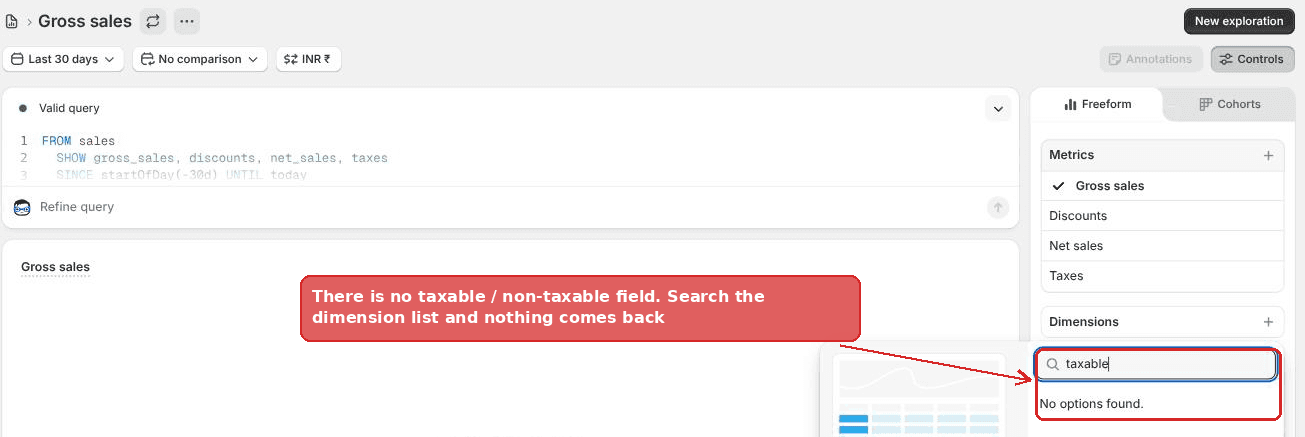 Searching the Shopify report dimension list for taxable returns no options found
Second, in Shopify's own reporting reference. The sales and sales_taxes data sets list every metric and dimension you can report on. Neither has a taxable flag.
What Shopify does give you is a Taxes figure, which is the tax you actually charged, and a tax breakdown by tax name, rate and region. Both describe the tax collected. Neither tells you the size of the sales base underneath it.
So the merchant is right. The field they want does not exist.
The good news: the numbers already exist
Here is the part that makes this solvable today, and it is the bit forum answers skip.
Shopify does not store a discount as one lump sum on the order. It allocates the discount down to each line item. Even a discount you apply to the whole order gets spread across the products in it.
That matters because of how Shopify defines Net sales:
Net sales = gross sales - discounts - sales reversals
Shopify shows you that formula right in the metric picker.
Put those two facts together. If a discount is already attached to individual products, then Net sales for any group of products is already gross minus the discount that hit those products.
So you do not need a taxable field. You need a field on your products that mirrors which ones are taxable, and then you group by that field.
How to pull a sales tax report from Shopify
This takes about five minutes to set up and then it is a saved report you reuse.
Step 1: give your non-taxable products a value you can group by
Product type is the easiest field to use, and most stores already have something sensible in it.
Open a non-taxable product. In the right column under Product organization, set Type. In this example the clothing items are set to Clothing.
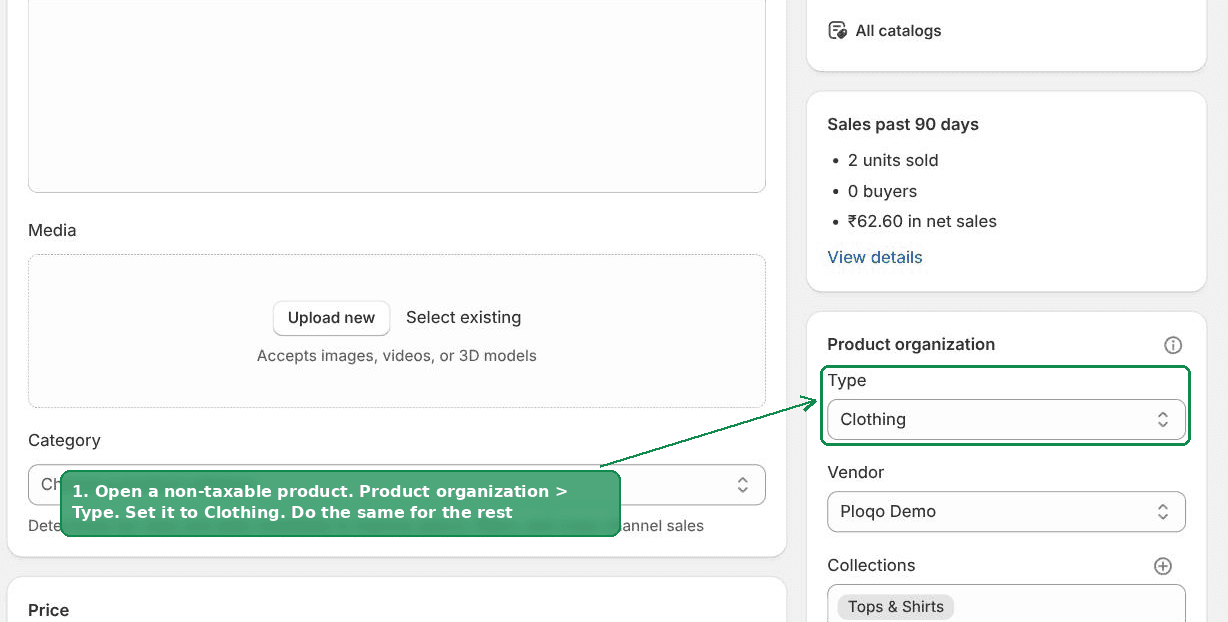 Setting Product type to Clothing on a non-taxable product in the Shopify admin
Do the same for the rest. You do not have to open them one at a time. From Products, tick the products, then use Bulk edit and add the Type column.
A product tag works exactly the same way if Product type is already used for something else in your store. So does a collection. Pick whichever one you are not already using for merchandising.
Step 2: start a new report
Go to Analytics > Reports, then click New exploration in the top right.
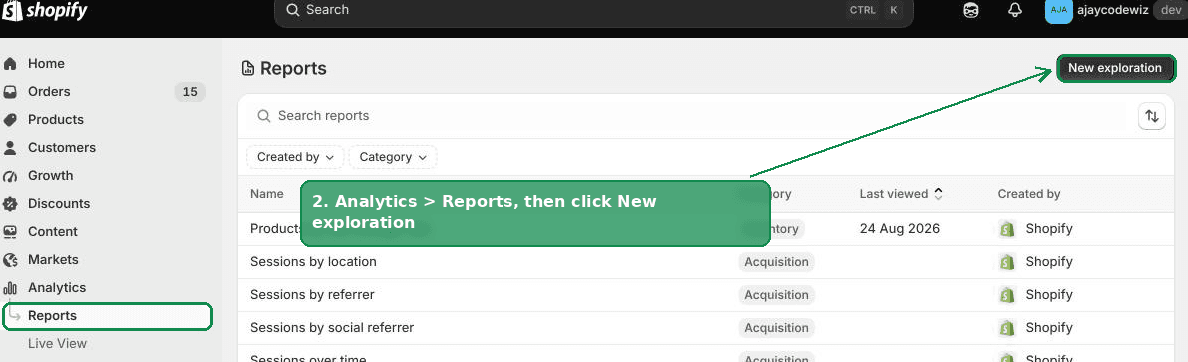 The Shopify Reports page with the New exploration button
Step 3: add the four numbers you need
In the Metrics panel on the right, add these four:
- Gross sales - revenue before discounts
- Discounts - the amount taken off
- Net sales - gross minus discounts and reversals
- Taxes - tax actually charged
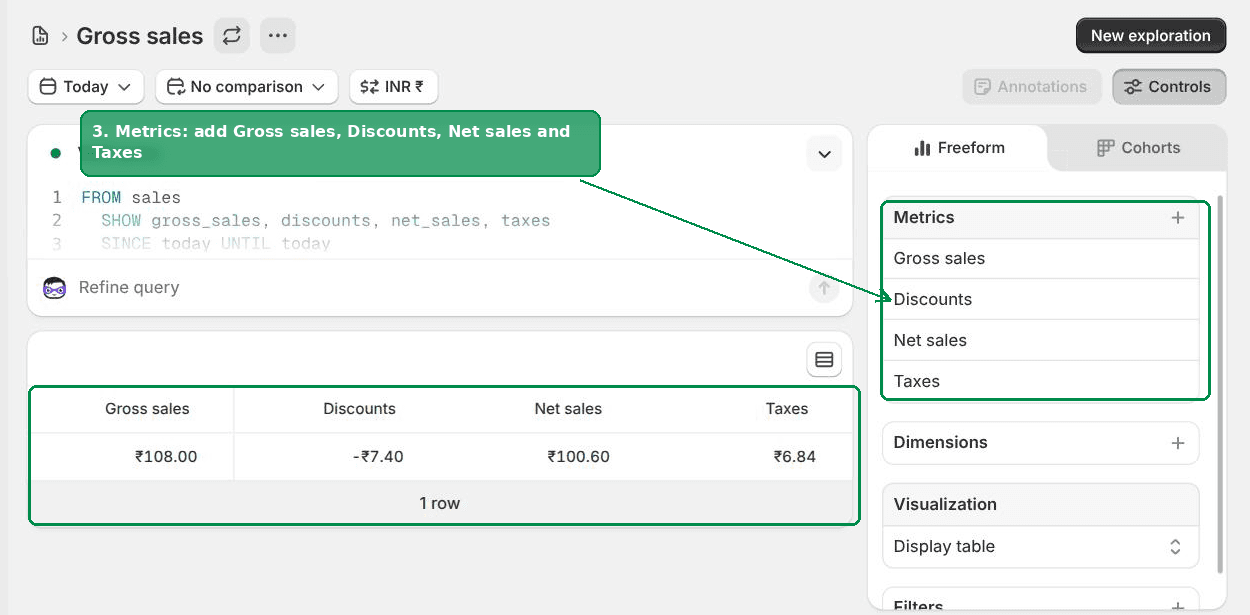 The Shopify report builder with Gross sales, Discounts, Net sales and Taxes selected
Step 4: group by your product field
In the Dimensions panel, add Product type. Use Product tag instead if that is what you flagged your products with.
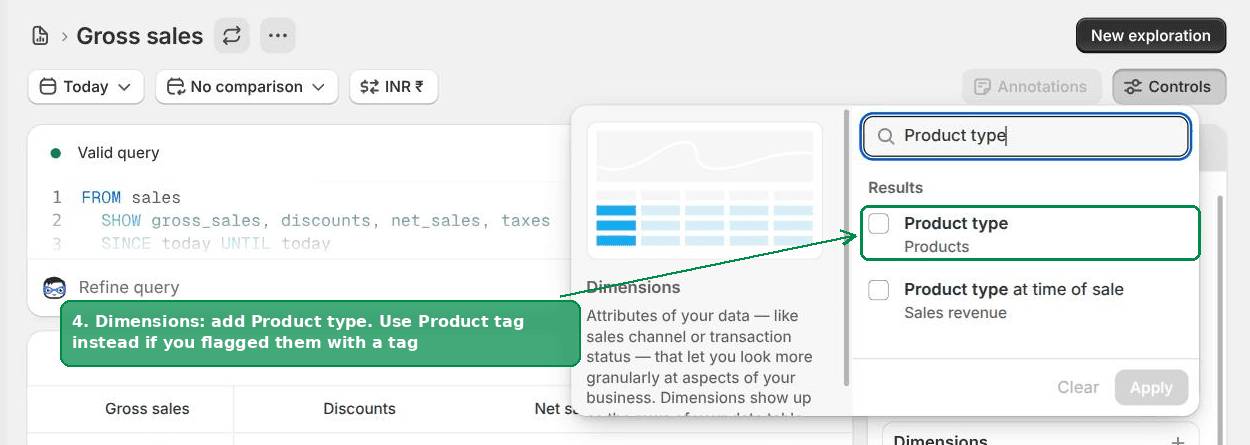 Adding the Product type dimension to a Shopify report
Step 5: read the report
That is it. One row per group, with all four numbers.
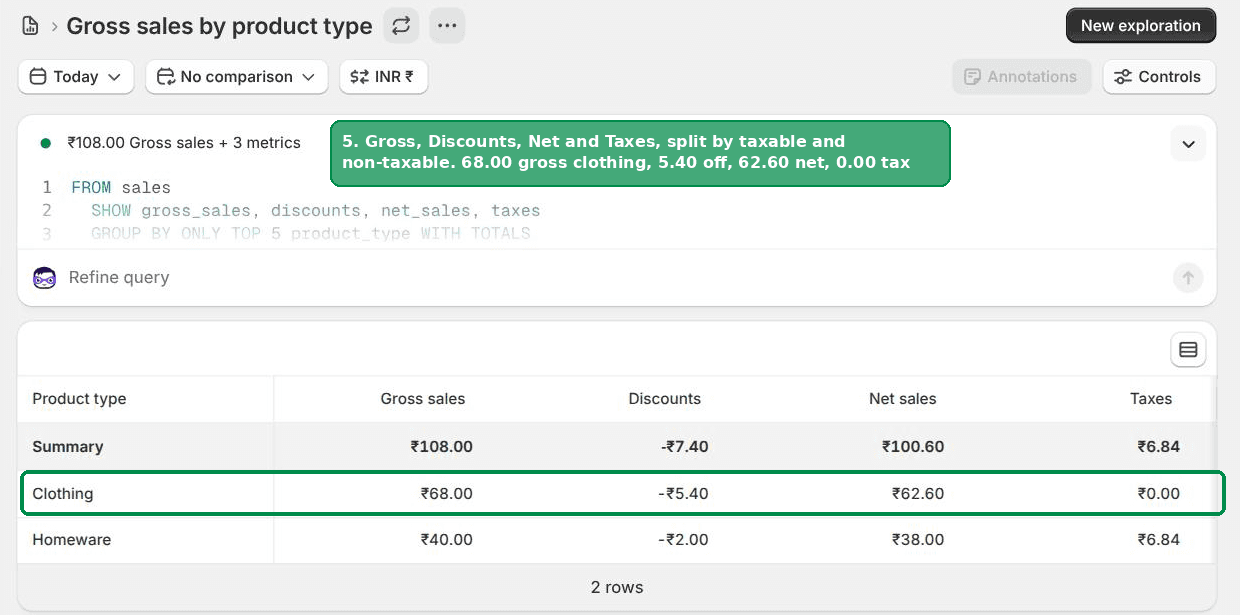 A Shopify sales tax report split by product type showing gross sales, discounts, net sales and taxes
On the test store that came out as:
| Product type | Gross sales | Discounts | Net sales | Taxes |
|---|---|---|---|---|
| Clothing (not taxed) | 68.00 | -5.40 | 62.60 | 0.00 |
| Homeware (taxed) | 40.00 | -2.00 | 38.00 | 6.84 |
Read across the two rows and you have every figure the merchant asked for:
- Gross taxable sales and gross non-taxable sales
- Discounts applied to each side
- Net taxable sales and net non-taxable sales
- Tax charged
The Taxes column is a useful sanity check on its own. Your non-taxable row should read 0.00. If it does not, something in that group is being taxed and you want to know about it before you file.
Step 6: export it, and save it
Use the ... menu beside the report name to export a CSV. Use Save so the report is one click next month instead of five minutes of rebuilding.
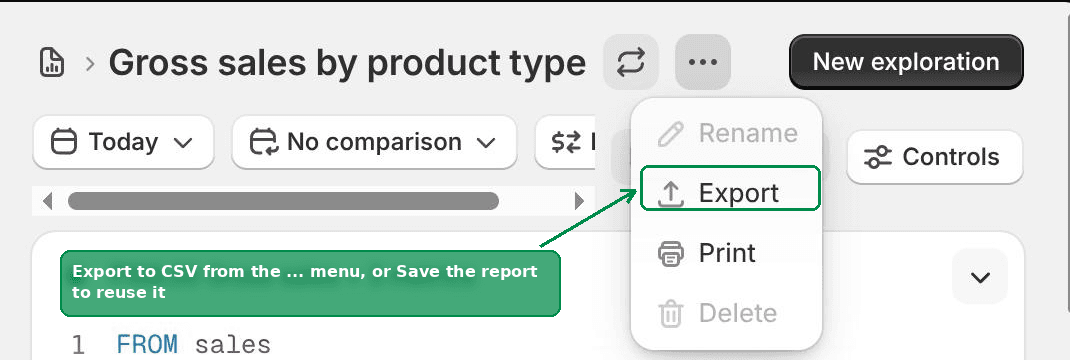 Exporting a Shopify report to CSV from the three dot menu
Do order-level discounts get split correctly?
This was the merchant's real worry, and it deserved a proper test rather than a guess.
If a discount applies to the whole order, and that order has both taxable and non-taxable items in it, does Shopify dump the whole discount on one side?
No. I built the case on a test store to be sure.
One order, two items:
- A $34 shirt, not taxable
- A $20 mug, taxable at 18%
- A $5.40 discount applied to the whole order, not to a line
If Shopify split that in proportion to price, the shirt should absorb $3.40 and the mug $2.00. The mug's taxable base would drop from $20.00 to $18.00, and the tax with it.
 A Shopify draft order showing a 5.40 order level discount and tax recalculated to 3.24
The tax landed on $3.24. That is 18% of $18.00 exactly.
So Shopify put $2.00 of the discount on the taxable item and the other $3.40 on the non-taxable one, in proportion to price, and recalculated the tax on the reduced amount. The allocation follows the real tax treatment of the sale.
That is worth knowing whichever way you report. Your discount is already being applied the way your accountant would expect.
Getting a per-order audit trail
A two-row summary is fine for filing. It is not enough when a number looks wrong and you need to find out why.
Add Order name as a second dimension. You now get one row per order, per product type.
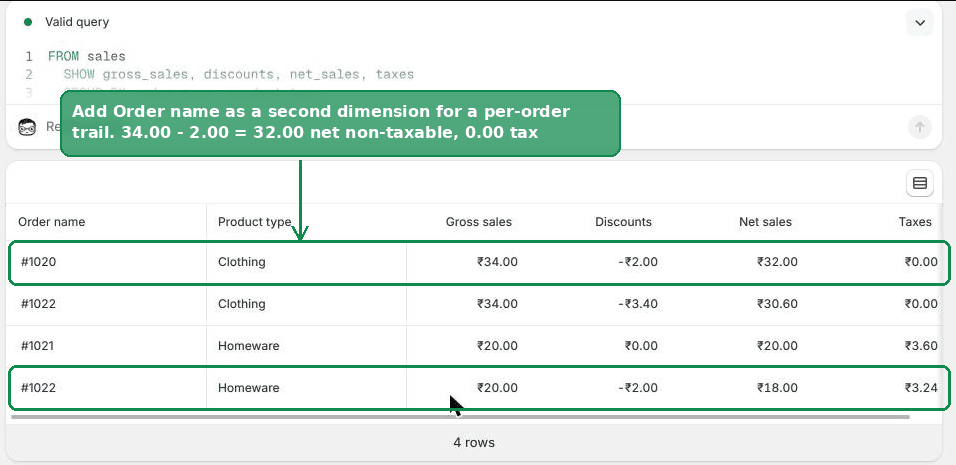 A Shopify report broken down by order name and product type
The first row is the merchant's exact example. Order #1020, Clothing, $34.00 gross, $2.00 discount, $32.00 net, $0.00 tax.
The last row is the split order from the test above. Same order number appears twice, once per product type, with the discount divided between them.
The difference: "Product type" and "Product type at time of sale"
Search the dimension list for Product type and you get two results. Pick the wrong one and it can put your history in the wrong bucket.
- Product type reads the value on the product record right now
- Product type at time of sale reads what the value was when the order was placed
I proved the difference by accident. I renamed a product's vendor after its orders had already been placed, then grouped by both vendor dimensions at once.
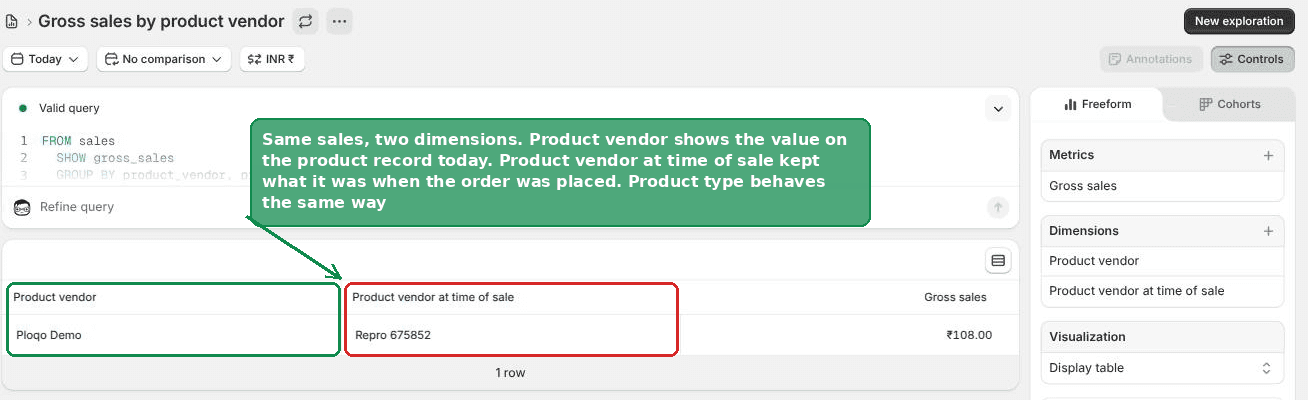 One row of sales showing a different value for Product vendor and Product vendor at time of sale
Same sales. Two different answers, side by side, on one row.
For this report you almost always want the plain Product type. You are setting these values today and running a report over sales that already happened. The "at time of sale" version recorded whatever was on the product back then, which for most stores is blank, so your rows will come back empty.
The exception is if a product genuinely changed its tax treatment partway through the year. Then "at time of sale" is the honest one, but only if the type was already set on the orders in question.
What Net sales includes that "gross minus discounts" does not
One caveat, because it will show up in your reconciliation.
Net sales is not only gross minus discounts. It also has returns and cancellations taken out of it. Shopify calls these sales reversals.
For filing that is usually exactly what you want. You should not be paying tax on a sale that came back. But it does mean the arithmetic will not always tie out if you check it by hand against the gross and discount columns.
If you want to see the returns separately, add Returns as a fifth metric.
Which product field should you group by?
All four of these work as report dimensions. The right one depends on your store.
Product type. One value per product, so your report comes back clean with no double counting. Best choice if you are not already using it, or if your types happen to line up with taxability.
Product tag. Easiest to bulk apply and easiest to add to a product later. The catch is that a product can carry many tags, so a report grouped by tag shows a row for every tag in your store, not just yours. Add a filter for your tag to keep it readable.
Collection. Good if you already keep a "non-taxable" collection, which many stores do because Shopify tax overrides need one. A product can sit in several collections, so the same double counting applies.
Metafield. The tidiest option for a large catalogue, and you can report on it the same way. More setup up front.
If you already keep a manual collection for a tax override, reuse it. There is a separate write up on keeping a Shopify tax override collection filled automatically that pairs well with this report.
Common questions
Does Shopify handle sales tax?
Shopify calculates and charges the tax at checkout based on your store's tax settings and the regions you have registered in. That part is automatic once configured.
Filing and paying is separate. Shopify does not submit your returns for you as standard. Its reports are there to give you the numbers you or your accountant file with.
Does Shopify report sales tax to states?
No. Shopify collects the tax on your behalf at checkout and hands it to you. Registering, filing and remitting to each state is yours to do.
That is exactly why a report like the one above matters. The figures have to come from your own store data.
Does Shopify report to the IRS?
That is a different question from sales tax, and the answer is yes for income reporting. If you use Shopify Payments and cross the reporting thresholds, Shopify issues a 1099-K. You will find it under Settings > Payments in your Shopify Payments account details.
How do I mark a product as tax exempt in Shopify?
On the product, open the variant pricing section and turn off Charge tax on this product. That stops tax being charged on it anywhere.
If the exemption only applies in some regions, do not use that checkbox. Use a tax override instead, under Settings > Taxes and duties, which applies a different rate to a collection of products in one region only.
There are also customer level exemptions for wholesale and resale buyers, set on the customer record rather than the product.
Where do I find Shopify tax documents?
Two different things get called tax documents.
For the tax you charged customers, use Analytics > Reports and the report above, or Shopify's built in tax reports.
For your own income documents such as the 1099-K, go to Settings > Payments, open your Shopify Payments account, and look under documents.
If your report looks wrong
A short checklist, in the order these actually go wrong.
A row labelled blank or "not set". Some products have no Product type. Find them from the Products list by filtering on an empty type, and fill them in.
Your rows are empty. You probably picked "Product type at time of sale" instead of "Product type". See the section above.
The totals do not match your payouts. They should not. Net sales is revenue. A payout is revenue minus refunds, fees and chargebacks, on a different date. Compare like with like.
The Taxes column is not zero on your non-taxable row. Something in that group is still charging tax. Check that each product in it has Charge tax turned off, or that your tax override actually covers it.
Yesterday's orders are missing. Check the date range on the report. It defaults to a window that may not include what you are looking for.
If you would rather not build it by hand
The report above is free and takes five minutes. If you want it scheduled, emailed, or shaped differently for an accountant, a few reporting apps do this well:
- Report Pundit - free plan available, very broad custom reporting
- Mipler Advanced Reports - free plan available
- Better Reports - from $19.90 a month
All three can build a tax split sales report and send it on a schedule. They are solving the delivery problem, not a missing data problem. The data is already in your store either way.
The feature request still stands
None of the above changes the fact that the merchant is asking for something reasonable.
A Taxable dimension in Shopify's sales reporting would collapse this whole article into one click. No product field to maintain, no risk of a product being missed, and no chance of grouping by the wrong version of the field.
Until that exists, the report above gets you the same numbers, and it is accurate today.
Spending too long on manual Shopify busywork?
PinFlow turns your Shopify catalog into Pinterest pins and posts them on a schedule, automatically. Same idea as the rule above, let the system handle the repetitive part.
Get PinFlow on the Shopify App StoreMore Shopify fixes
More community-sourced Shopify guides, tested on a live store.
Shopify Admin
How to Edit a Packing Slip on Shopify to Show Big Product Photos
Shopify's order page shows each item as a 40 pixel thumbnail with no way to enlarge it. Here is how to edit the packing slip template so every line prints that exact variant's photo at 1000 pixels, including the one-line fix Shopify's default template needs.
Shopify Admin
Shopify Shipping Zones: Fix Products Sold Out in One Country
Products show Sold out for customers in one country while your admin shows stock. The cause is a shipping profile with no zone for that country. How Shopify shipping zones and profiles decide what a customer can buy, and the six-click fix, with screenshots.
Shopify Admin
Shopify Translate: Fix Mixed Languages on Product Pages
A Swedish Shopify store showed English words on translated product pages. The titles were translated, so the English came from option names and theme text. How to fix each one in Translate & Adapt, with screenshots.