
Shopify Shows Sold Out but It's in Stock: The Fix
Your whole store shows Sold Out while the admin shows stock. The cause is a location setting, not your products: the location holding the stock is not set to fulfill online orders. Read the Available column, flip one switch, and check the theme and shipping profile if it persists.
By AjayCodeWiz · September 18, 2026 · 7 min read
Why your whole store went sold out at once
Your products show Sold Out on the storefront. Your admin shows stock sitting right there. Customers cannot buy, and you are losing sales while it looks fine from the back office.
A store owner posted this on the Shopify Community, worried they were losing sales by the hour. When every product goes sold out at the same moment, the cause is rarely the products. You did not set each one to zero by hand. The stock exists, it is just not counting toward online orders.
That points at one setting on a location, not at your catalog. A location in Shopify is a place that holds stock, such as your shop, a warehouse, or a supplier. Each location has a switch that decides whether its stock can be sold online. When that switch is off for the location holding everything, the whole store reads as sold out.
I reproduced this on a test store. A product with 25 units in stock flipped to Sold Out the moment its location stopped fulfilling online orders, and came straight back when I turned it on. Here is how to find and fix it.
First, read the Available column
Open your admin, go to Products, then Inventory.
There are several number columns here, and the difference between two of them is the whole answer. On hand is how many units physically sit at the location. Available is how many a customer can actually buy right now. Those are not the same number.
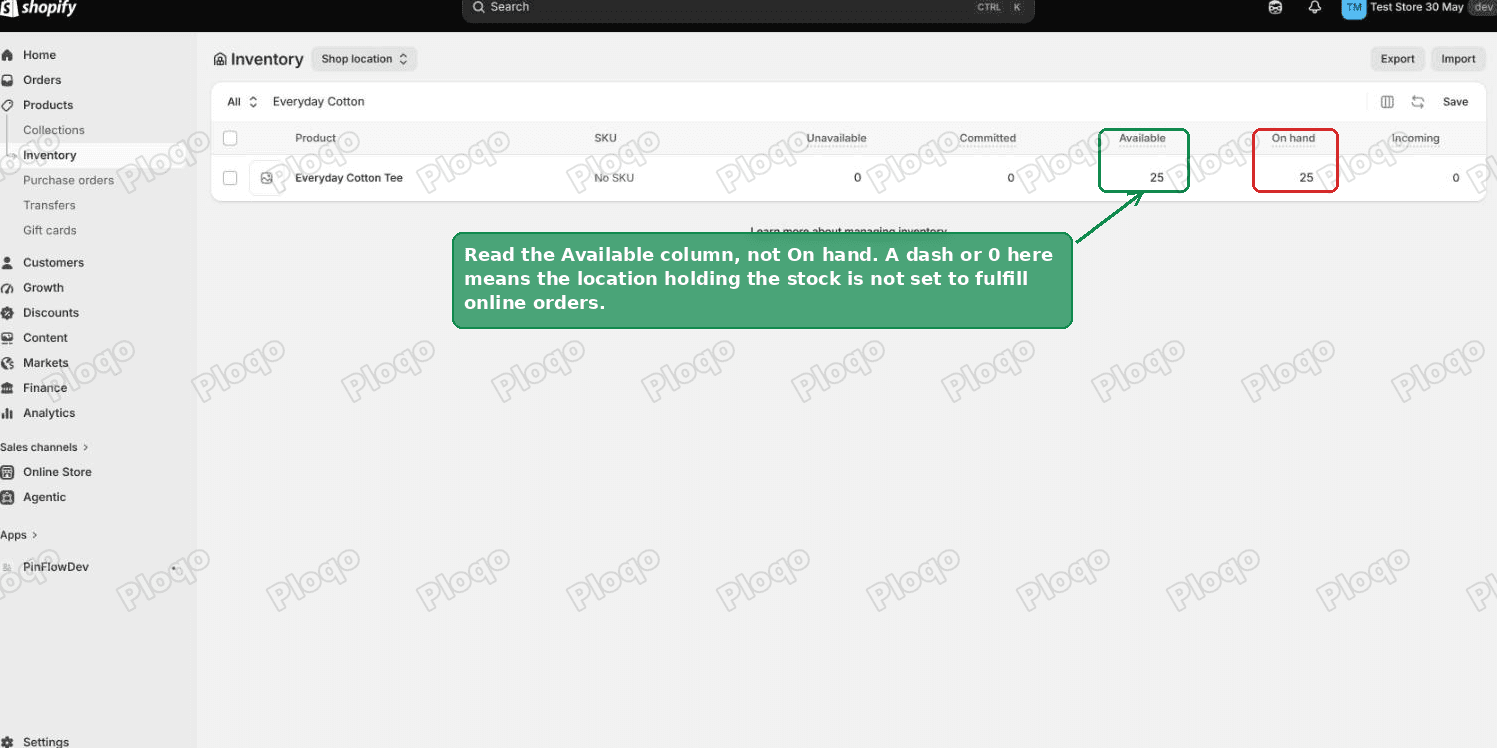 The Shopify inventory page, showing the Available column separate from the On hand column
Look at Available, not On hand. What it shows tells you which problem you have:
- Available shows a dash or 0, while On hand has units. Your stock is real, but it is at a location that is not selling online. This is the common case, and the fix is the next section.
- Available shows a positive number, yet the storefront still says Sold Out. Then it is not your inventory at all. It is your theme or an app, covered further down.
Reading this column first saves you from changing the wrong thing.
Turn on the location that holds your stock
Go to Settings, then Locations. Click the location that holds your inventory.
In the Fulfillment section there is a switch labelled "Use inventory at this location to fulfill online orders." If it is off, every product stocked there shows as sold out online. Turn it on and click Save.
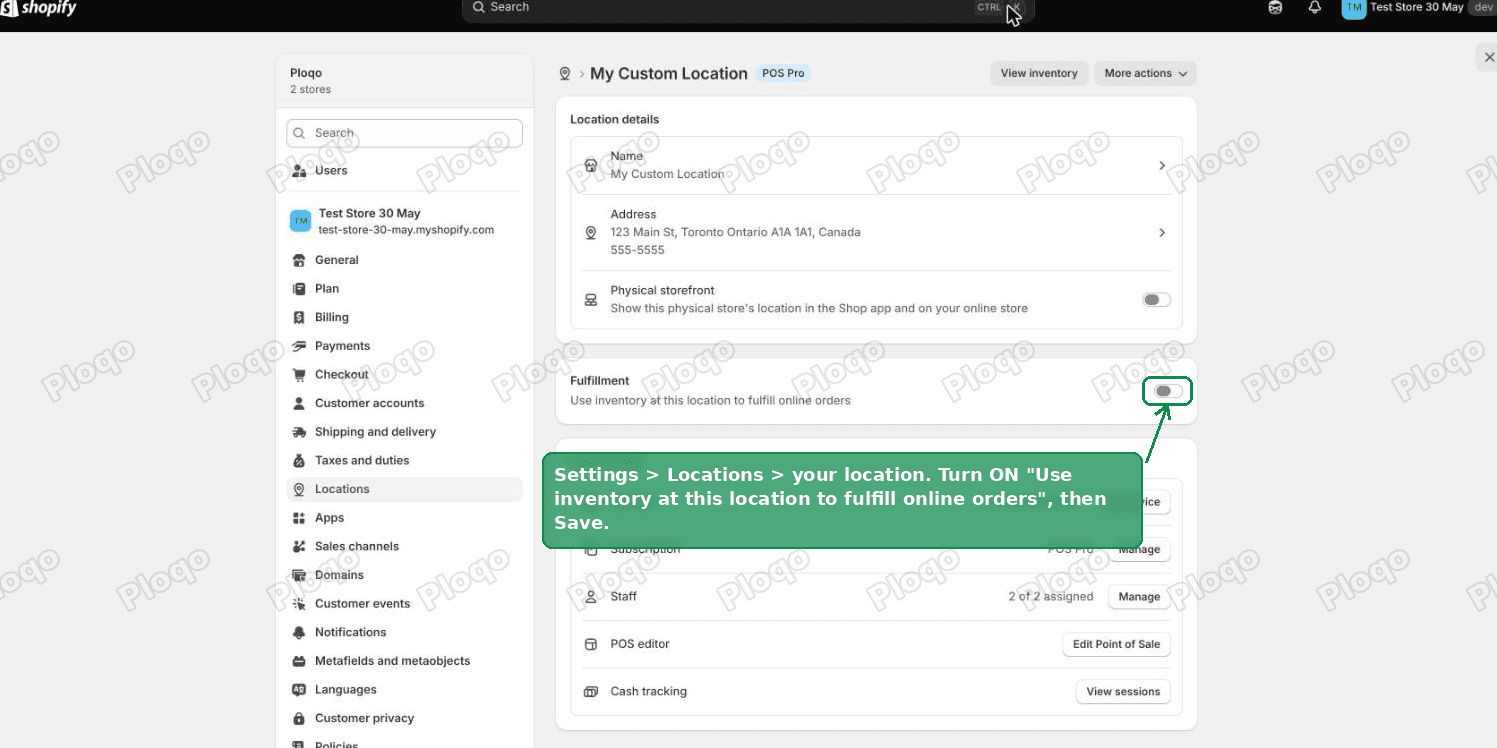 The location settings page with the fulfill online orders switch turned on
That single switch is the fix for most stores. Once it is on and saved, the storefront recalculates, and products with stock at that location become buyable again.
The default location is always on, so look at the others
There is a detail that decides which location to check. Your default location, the main one Shopify set up first, is always set to fulfill online orders and cannot be switched off. Shopify blocks it on purpose.
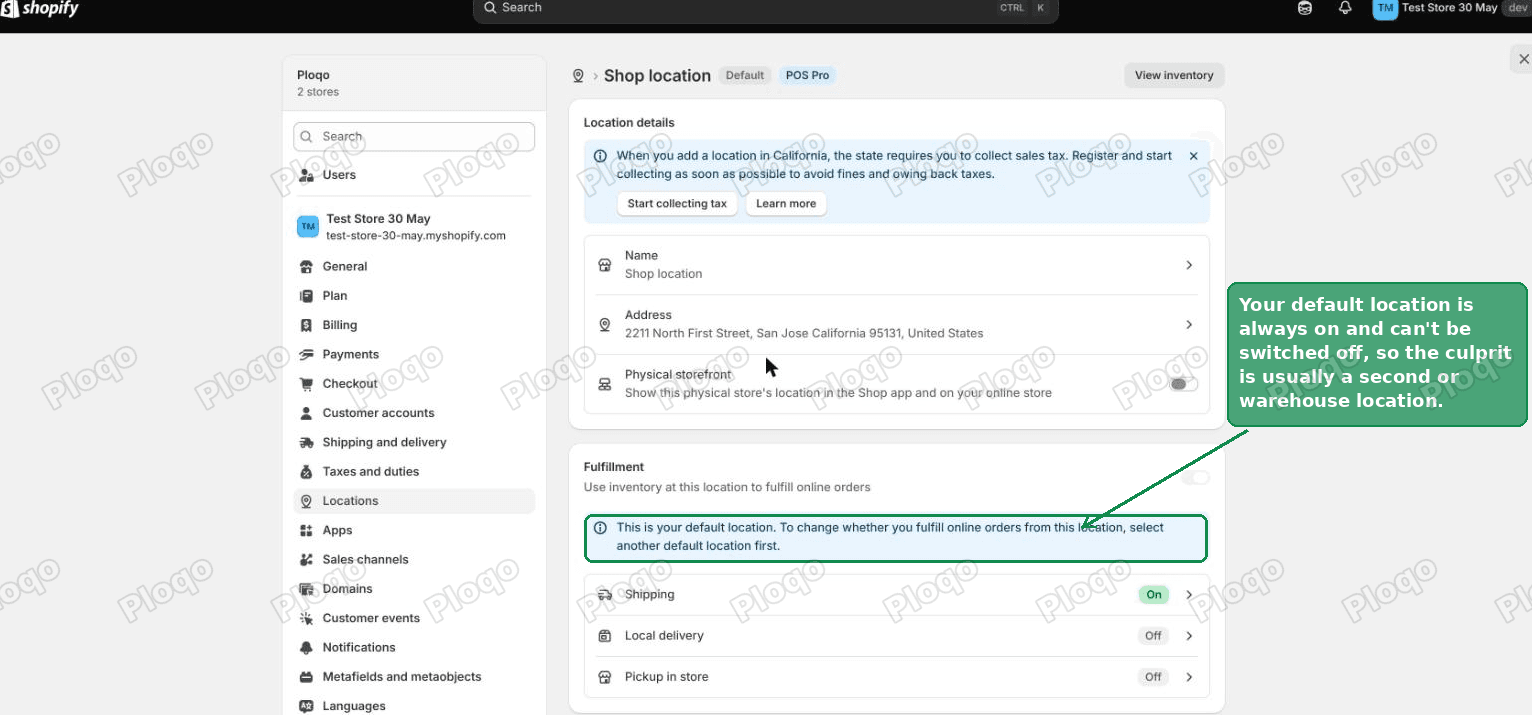 Shopify note explaining the default location always fulfills online orders
So if your stock is all at the default location, this switch is not your problem, and you should jump to the shipping and theme checks below.
The store-wide sold out usually happens when your inventory lives at a second location, such as a warehouse or a supplier's location, and that one has the switch off. Two ways to fix it: turn that second location on, or move the stock to your default location under Products, Inventory.
Check the shipping profile too
A location can be set to fulfill online orders and still not sell, if no shipping rate reaches it.
Your shipping rates live under Settings, Shipping and delivery. Shopify groups your locations into shipping profiles, which are the sets of rates that apply to them. Any location listed under "Not fulfilling from" has no rates attached, so customers cannot check out with its stock, and the product reads as unavailable.
Add that location into a shipping profile that has rates, and its stock becomes purchasable again.
When the stock is available but it still says sold out
If Available shows a real number and the storefront still says Sold Out, the inventory side is fine. The problem is in front of it, in your theme or an app.
Your theme is the design layer that decides what the product page shows. A theme can show Sold Out for its own reasons, especially after a recent change.
- Preview a fresh copy of Dawn, Shopify's free default theme. In Online Store, Themes, add Dawn, then use Preview. If the product sells on Dawn, your live theme is the cause, and the theme's developer or support can point to the setting.
- Turn off recently installed apps one at a time. Inventory-sync and dropshipping apps are the usual cause here. They connect an outside stock feed to your store, and when that feed drops or breaks, the app can push every product to zero or hide the buy button.
Work through those two and you will land on which layer is holding the button back.
How to confirm it is fixed
After you flip the setting, check the storefront rather than the theme editor preview, and check it the way a customer would.
Open your live product page in a private or incognito browser window. That skips your own cached version and any preview state, so you see what a real visitor sees. If the buy button is back, you are done.
The storefront can also hold the old sold out state for a short while after you save, because Shopify caches product pages. If the admin now shows Available with a number but the page still says Sold Out, give it a few minutes and reload the incognito window before assuming the fix did not work.
If it is sold out in one country only
If the store sells fine for you but shows sold out for buyers in one country, the cause moves from locations to markets. A market is a group of countries you sell to, each shipping from certain locations. When no fulfilling location serves that market, its buyers see sold out while other shoppers buy normally.
That is a separate setup with its own fix. It is worth ruling out here, but the full walkthrough is in our guide on Managed Markets showing shipping not available.
What the inventory columns actually mean
The Inventory page has four number columns, and mixing them up sends people fixing the wrong thing. Here is what each one is.
- On hand: the units physically at the location, whether or not they can be sold.
- Committed: units already promised to orders that are not fulfilled yet.
- Unavailable: units set aside, such as damaged stock or safety stock, that are not for sale.
- Available: what a customer can buy right now. This is On hand minus Committed and Unavailable.
So a product can read On hand 10 and Available 0 at the same time, if those 10 units are all committed or held back. Available is the number the storefront listens to.
If it is one product, not the whole store
Everything above is for a store-wide sold out. If only one product or one variant is affected, a variant being one version of a product, such as a size or a colour, the checks are narrower.
Open that product and scroll to its Inventory section. Confirm two things. First, that Track quantity is on and the count is above zero. Second, that the stock is assigned to a location that fulfills online orders. A single product often shows sold out because its stock sits only at a location the online store does not sell from, which is the same root cause as the store-wide version, just on one item.
Does turning off Track quantity fix it
It hides the symptom, and it is the wrong tool for this.
If you turn off Track quantity on a product, the buy button shows no matter what, because Shopify stops counting stock for it. That does get customers buying again. It also means you can oversell, since Shopify will keep taking orders after you run out.
Use it only for made-to-order items you never run out of. For normal stock, fix the location setting instead, so the count stays accurate.
What to do, in order
A Shopify store that shows sold out with stock in the admin has stock that is not counting toward online orders. Read the Available column first, not On hand. If Available is a dash or 0, turn on "Use inventory at this location to fulfill online orders" for the location holding your stock, the switch shown above under Settings, Locations. If Available shows a real number and it still says sold out, test on a fresh Dawn theme and pause any inventory-sync app.
I tested this on a Dawn store: 25 units in stock, Sold Out with the location's online fulfillment off, and available again the moment it was on.
Spending too long on manual Shopify busywork?
PinFlow turns your Shopify catalog into Pinterest pins and posts them on a schedule, automatically. Same idea as the rule above, let the system handle the repetitive part.
Get PinFlow on the Shopify App StoreMore Shopify fixes
More community-sourced Shopify guides, tested on a live store.
Shopify Admin
Shopify Checkout Customization: Change Checkout Text
Change the text on your Shopify checkout, like the Email me with news and offers checkbox, without code or Plus. Why the pop-up in checkout settings will not save, and the route that does.
Shopify Admin
Avalara Shopify Integration vs Shopify Tax: Which to Use
Moving to Shopify with Avalara? Shopify Tax already calculates US sales tax to the street address. What the Avalara Shopify integration adds, what filing costs, and how to decide.
Shopify Admin
Shopify Discount Limit: One Code for More Than 100 Products
Shopify stops you at 100 items when a discount applies to specific products. There is no setting to raise it, but you do not need one. Point the discount at a collection and one code covers thousands of products. Tested on a store, with the B2B route too.