
Shopify Storage Limit: Why Your Product Photos Fill It Up
Every Shopify plan has a file storage limit, and your product photos count toward it. Here is the limit on each plan, how to see what is really using the space, and the one upload habit that stops you hitting it again. Measured on a real store.
By AjayCodeWiz · September 4, 2026 · 9 min read
The problem
A merchant asked about this on the Shopify Community. They sell one-of-a-kind clothing. Every item is photographed, listed, sold once, and never restocked.
They are on the Advanced plan. They hit the storage limit. Support told them the only way to get more room was to move up to Plus, which takes the bill from $399 a month to $2,300 a month.
They had been deleting old product photos to buy time. That works for a while. It does not work forever when every product you have ever sold is unique and the photo is the only record of it.
They wanted to know if there was anything else to try.
There is. But the first thing to fix is a wrong assumption that keeps coming up in threads like this one.
Your product photos do count
The common belief is that images added to a product are unlimited, and only the files you upload under Content then Files count against your plan.
That is not right, and believing it sends you down a dead end.
Shopify's own help page says every file you upload through the file picker lands on the Files page, and the file picker is what you use when you add media to a product. So a product photo is a file like any other file.
You can see it yourself. Search your Files page for one of your product image names. It is there, with a size, and a References column telling you which product uses it.
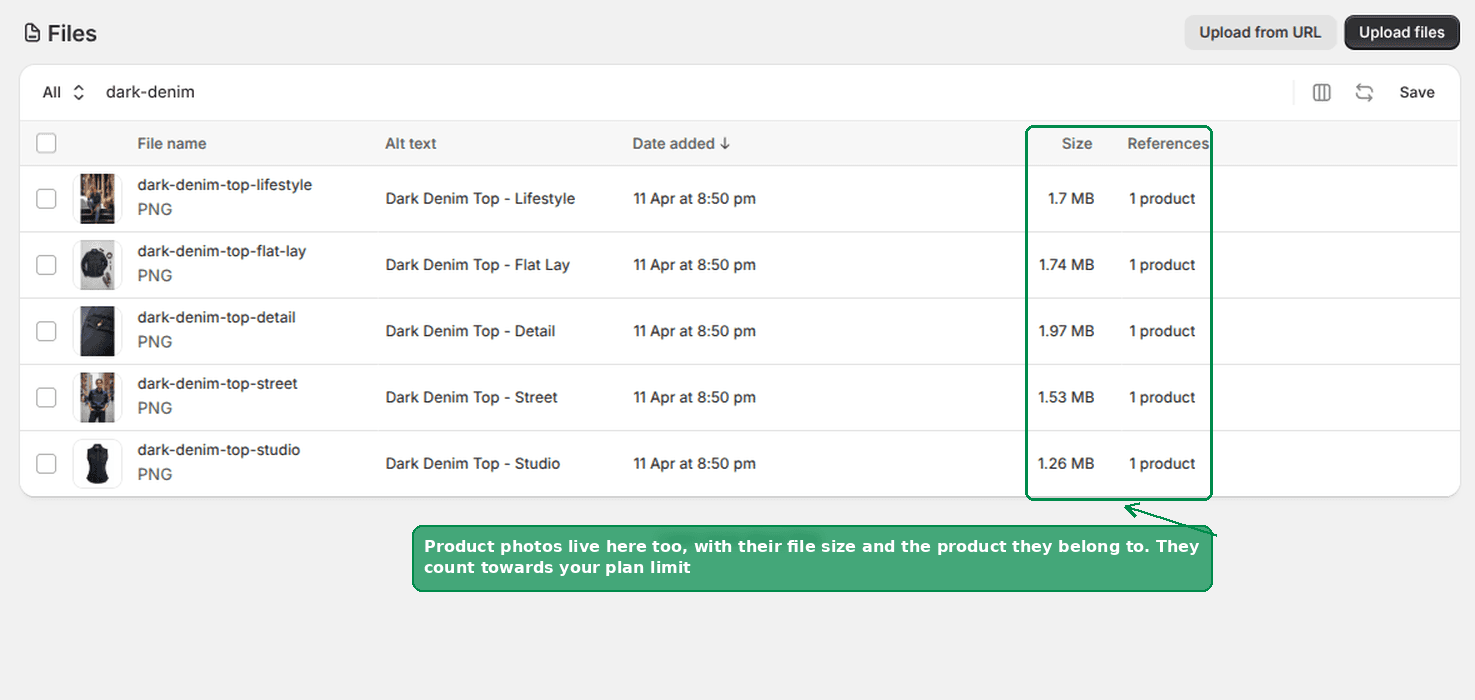 A product photo listed in Content then Files, with its size and the product it belongs to
I checked this a second way, through Shopify's admin API. Asking for the store's file list returns product media alongside everything else, with the same file size field. There is one pool, and product photos are in it.
So if your product galleries are what is filling the store, moving your Files page uploads to an outside host will not help you at all.
What the limit actually is on each plan
These are Shopify's published numbers, not estimates.
| Plan | File storage |
|---|---|
| Starter, Pause and Build, Retail, Basic | 100 GB |
| Grow | 300 GB |
| Advanced | 500 GB |
| Plus | 1 TB |
| Enterprise | 10 TB |
The paid storage add-on is real, and the merchant above was told correctly about it. It is $100 a month per extra 1 TB on Plus and $1,000 a month per extra 10 TB on Enterprise. It is in early access and it is available only on those two plans. There is no way to buy extra space on Advanced.
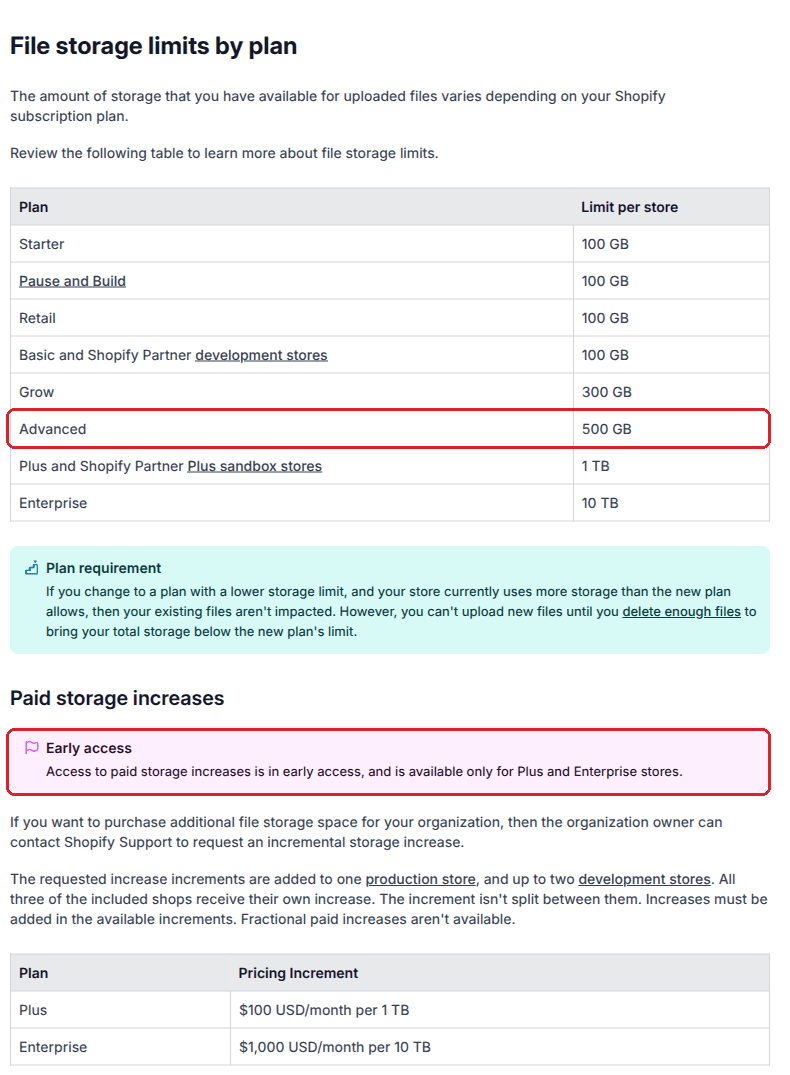 Shopify's storage limit table, with Advanced at 500 GB and the paid add-on limited to Plus and Enterprise
One more thing worth knowing before you panic about a downgrade. If you move to a smaller plan and you are already over its limit, your existing files are left alone. You just cannot upload anything new until you delete enough to get back under.
Video has its own separate pool
Check it before you start deleting photos.
Videos do not come out of your file storage. They have their own allowance:
| Plan | Video storage |
|---|---|
| Starter, Pause and Build, Retail, Basic | 50 GB |
| Grow | 500 GB |
| Advanced | 500 GB |
| Plus | 2 TB |
| Enterprise | 10 TB |
There is also a cap on how many videos and 3D models you can have at all: 250 on Basic, 1,000 on Grow, 5,000 on Advanced, 50,000 on Plus.
So if you have a handful of big product videos, they are not the reason your image space ran out.
Find what is actually using the space first
Before you change anything, go and look. Shopify does not show you a storage meter, but the Files page gives you enough.
Go to Content, then Files. Click the Size column heading to sort largest first.
Two columns matter here.
Size tells you which files are worth removing. Deleting a hundred 20 KB icons frees nothing. Deleting ten 8 MB photos frees more than all of them.
References tells you what uses each file. A blank References cell means nothing on your store points at that file. Old theme assets, abandoned banners, a PDF you uploaded once. Those are the safe deletions and most stores have plenty.
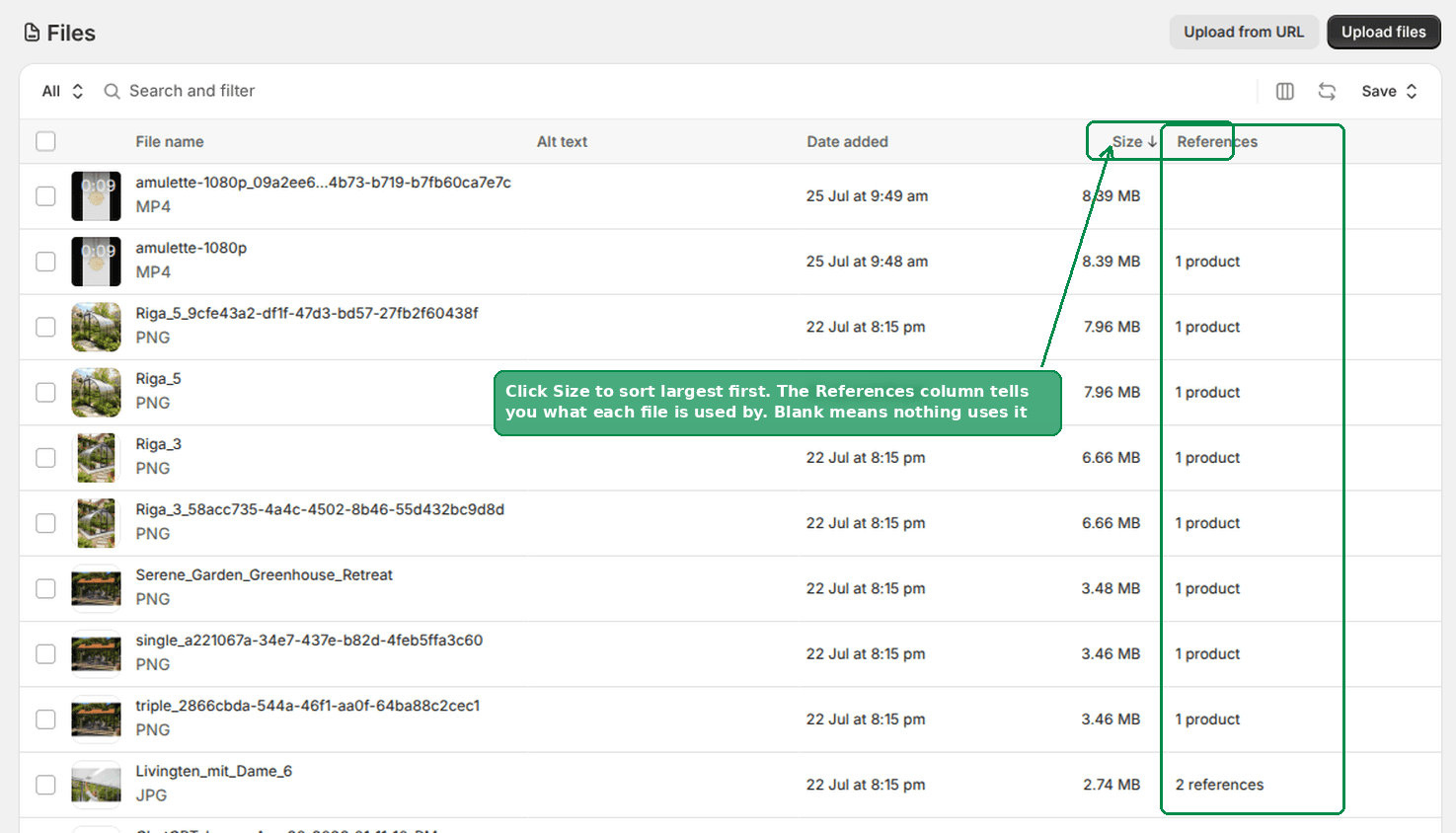 The Files page sorted by size, showing the References column
Sort by size, scroll the first page or two, and you will usually find the answer without touching a single product photo.
The real cause is file size, not photo count
500 GB is an enormous amount of room. You do not fill it by having a lot of products. You fill it by uploading files that are far bigger than they need to be.
Here is the part that rarely gets said.
Shopify keeps whatever you upload as the master copy. It then builds every smaller version from that master itself, and it converts those versions to WebP automatically for browsers that support it. Your storefront never sends the master to a shopper.
So a huge master costs you storage and delivers nothing.
I measured this on a real Shopify CDN image, 832 by 1248 pixels:
- Uploaded as a PNG: 1.70 MB. This is what counts against your plan.
- The same photo saved as a JPEG: 198 KB.
- What a shopper's browser actually downloads at 800 pixels wide: 163 KB of WebP, built by Shopify from the master.
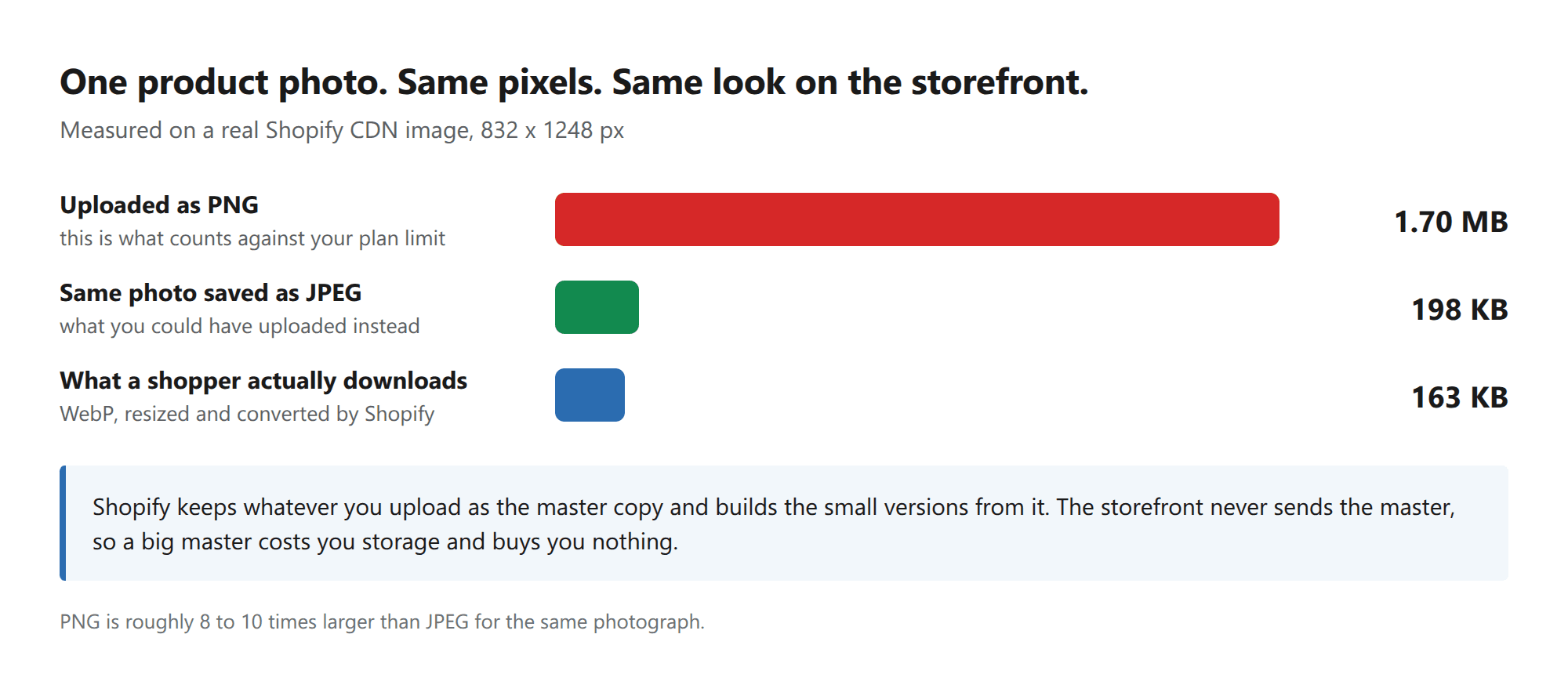 The same photo as a PNG, as a JPEG, and as the file a shopper actually receives
Same pixels. Same look on the page. Roughly nine times the storage.
Two upload habits that stop the problem growing
Save product photos as JPEG, not PNG. PNG is built for graphics with flat colour and sharp edges, like a logo. For a photograph it is typically eight to ten times larger than a JPEG at the same visible quality. If your camera or phone is producing PNGs, or your editor is exporting them, that alone can be most of your storage.
Keep PNG only where you genuinely need a transparent background.
Resize the long edge to about 2048 pixels before uploading. Nothing on a Shopify storefront displays an image bigger than that, even on a large monitor. A 6000 pixel original from a modern camera is carrying four times the pixels for no visible gain.
Do those two things for new uploads and the problem stops growing today, whatever you decide about the old files.
This is about the file you upload, not how large the photo looks on the page. If your images are displaying too big in the theme, that is a separate setting: see Shopify Product Image Size: Make It Smaller on the Page.
What to do about products you have already sold
This was the merchant's real worry. Every item is unique, so every photo is a record.
You do not have to choose between the record and the space.
- Go to Products and use Export to download a CSV. The export includes an image URL column with a link to every photo on every product.
- Open the CSV and download those images to your own drive, or a folder in Google Drive or Dropbox. They are ordinary links.
- Now delete the media from the sold products.
The product still exists. The orders still exist. The customer history still exists. Only the picture files go, and you have them.
If you have thousands of products, Matrixify handles the export and the bulk media removal in one pass and has a free tier.
Hosting images outside Shopify: what actually works
This gets suggested in every thread on the subject, and it is half true.
It works for images you place yourself. A banner in a theme section, an image referenced from a metafield, a picture inside a product description. Those can point at any URL you like, including your own S3 or Cloudflare R2 bucket, and Shopify never stores them.
It does not work for the product media gallery.
I tested this. I added an image to a product from an external link using Shopify's own API. Shopify fetched it, copied it onto its CDN, and recorded a file size against it. The finished product media was a cdn.shopify.com file, not a link to the original host.
So external hosting will not shrink your product galleries. It only helps with the decorative images around them.
Does Shopify compress images automatically?
Yes, on delivery. Not in storage.
Shopify's CDN resizes an image to the dimensions the theme asks for and converts it to WebP for browsers that accept it. That is why the numbers above show a shopper receiving 163 KB from a 1.70 MB master.
This is also why "convert your images to WebP" is not, on its own, a storage fix. Your visitors were already getting WebP. Converting only frees space if you re-upload the smaller file so it replaces the stored master.
Compression apps do exactly that, and it is worth checking which behaviour an app has before you install it. Crush: Speed & Image Optimizer (from $4.99 a month) and Tiny SEO Speed Image Optimizer (free to install) both replace the stored file, which is the part that frees space.
What is the maximum file size for one image?
Separate from your plan's total, each individual file has its own ceiling:
- Images: 20 MB, up to 25 megapixels, JPEG, PNG, WEBP, HEIC or GIF
- Videos: 1 GB, up to 10 minutes, MOV, MP4 or WEBM
- Other files: 20 MB, any type except HTML
Hitting the per-file limit gives you an upload error. Hitting your plan limit stops all uploads until you free space. They are different problems with the same symptom, so check which one you have.
Files page versus product media: the distinction that confuses people
Three terms get used as if they mean the same thing.
Product media is what you add in the Media box while editing a product. It shows in the gallery on the product page.
The Files page is Content then Files. It holds everything, including product media, though the default view is sorted by date so recent uploads dominate and older product photos are easy to miss.
Your storage limit counts all of it together.
The reason the "product images do not count" myth persists is that product media does not always look like it is on the Files page. It is. Search for it by name and it appears, with its size and its References.
What to check if you are still stuck
- Sort by Size and look at the top twenty files. If they are all several megabytes, you have a file size problem, not a quantity problem.
- Look for blank References. Unused files are free to delete and cost nothing to lose.
- Check whether your originals are PNGs. This is the single most common cause of a store using far more space than its catalogue size suggests.
- Ask support for the breakdown. Shopify can tell you what is counted. Ask specifically whether product media, theme assets, and app-uploaded files are included in the figure they quote you, so you know where to aim.
The merchant in the thread was told the truth about Plus and the add-on. What they were not told was that a 500 GB limit filled by product photos almost always means the photos are ten times bigger than they need to be, and that the storefront was never showing those big versions anyway.
Spending too long on manual Shopify busywork?
PinFlow turns your Shopify catalog into Pinterest pins and posts them on a schedule, automatically. One less thing to remember to switch on.
Get PinFlow on the Shopify App StoreMore Shopify fixes
More community-sourced Shopify guides, tested on a live store.
Shopify Admin
How to Edit a Packing Slip on Shopify to Show Big Product Photos
Shopify's order page shows each item as a 40 pixel thumbnail with no way to enlarge it. Here is how to edit the packing slip template so every line prints that exact variant's photo at 1000 pixels, including the one-line fix Shopify's default template needs.
Shopify Admin
Shopify Shipping Zones: Fix Products Sold Out in One Country
Products show Sold out for customers in one country while your admin shows stock. The cause is a shipping profile with no zone for that country. How Shopify shipping zones and profiles decide what a customer can buy, and the six-click fix, with screenshots.
Shopify Admin
Shopify Translate: Fix Mixed Languages on Product Pages
A Swedish Shopify store showed English words on translated product pages. The titles were translated, so the English came from option names and theme text. How to fix each one in Translate & Adapt, with screenshots.