
Shopify Variant Image Switching: Show One Image Per Color
In a Horizon Grid gallery, picking a color still shows extra images. Here is why unassigned images bleed through, and the small theme edit that shows only the selected variant's image.
By AjayCodeWiz · July 31, 2026 · 8 min read
The problem
A merchant asked about this on the Shopify Community, and it is a common one once you set up variant images.
They run the Horizon theme. Their product page uses a two-column media Grid. Every color variant has its own image mapped to it. Yet when a shopper picks a color, the gallery still shows more than one image side by side.
They had already turned on the theme setting that sounds like the fix, "Hide unselected variant media", and it was not enough.
I reproduced it on a test store. Here is a product where the selected color has its tee image mapped, plus one extra lifestyle image that is not mapped to any color. Pick the color, and the grid still shows both.
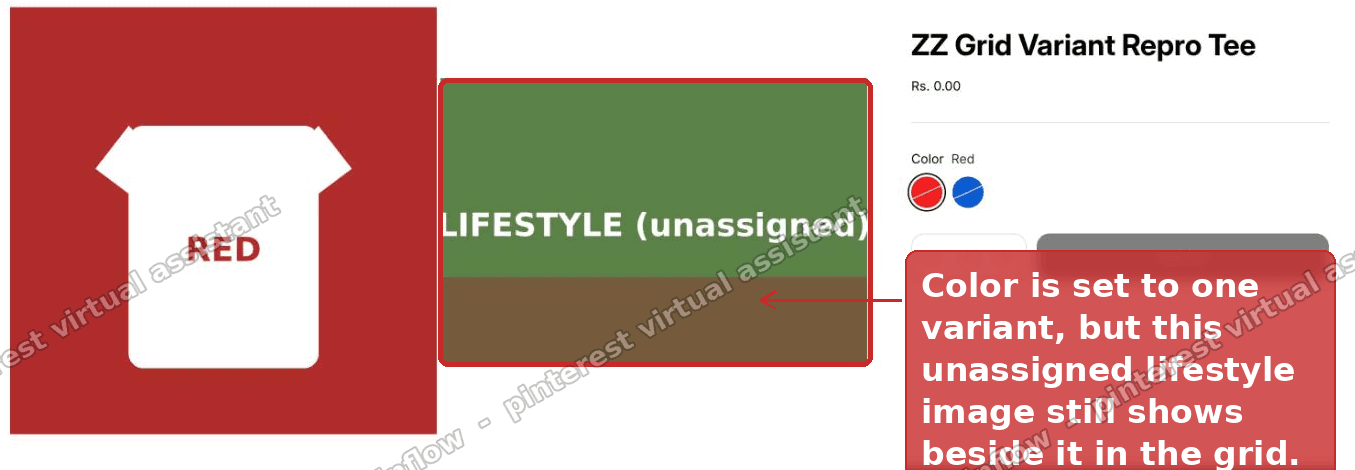 A Horizon Grid gallery showing the selected color's tee next to an unassigned lifestyle image
If that is your setup, you are not missing a setting. The behavior is working as Horizon designed it. You just need one small change to get true one-image-per-color switching in the Grid.
Why the extra image still shows
This is the part that forum answers skip, and it is the whole reason the fix works.
"Hide unselected variant media" does exactly what it says, and no more. It hides images that are attached to a different variant. So if you are viewing Red, it hides the image mapped to Blue.
The catch is any image you never mapped to a color. In Shopify, an unmapped image is treated as shared. It belongs to the product, not to one variant. Horizon shows shared images on every variant, all the time.
Lifestyle shots, size charts, packaging photos, anything you uploaded but did not assign to a specific color, all of it counts as shared. So even with the setting on, those images keep appearing next to the variant image.
That is why the merchant saw two. One image was the color's mapped image. The other was an unassigned lifestyle photo that Horizon treats as shared.
Once you see it that way, the goal is clear. You do not need Shopify to hide the other color's image. That already works. You need the Grid to show only the one image mapped to the color you are looking at, and ignore the shared ones.
Before you start: check three things
This fix targets one specific setup. Confirm all three before you touch code, or you will be changing the wrong thing.
- Your gallery is set to Grid. In the theme editor, open the Product media block and check that the layout type is Grid, not Carousel. A Carousel already shows one image at a time, so it does not have this problem.
- Hide unselected variant media is on. Same block. The fix reads this setting, so it should be enabled.
- Each color has an image mapped to it. Open the product, open a variant, and confirm it has a variant image. This is Shopify's native
variant.featured_media. If your colors have no mapped image, map them first, because there is nothing for the fix to isolate.
If any of those is not true, sort it out first. The code below assumes all three.
The fix: show only the selected variant's image
This is a small edit to one theme file. It uses Shopify's native variant image mapping, so there are no hardcoded image URLs, and it does not touch your product data or any app sync.
First, back up the theme. In your admin, go to Online Store, then Themes, open the three-dot menu on your live theme, and choose Duplicate. That gives you a copy to roll back to.
Now open the code editor. Online Store, Themes, three-dot menu, Edit code.
Open snippets/product-media-gallery-content.liquid.
Near the top of the file, inside the {% liquid %} block, find this piece:
  else
    assign sorted_media = selected_product.media
  endif
Paste these lines directly after that endif:
  # Grid: show only the selected variant's featured media
  if block_settings.hide_variants and selected_variant_media and media_presentation == 'grid'
    assign sorted_media = selected_product.media | where: 'id', selected_variant_media.id
  endif
Here is exactly where it goes.
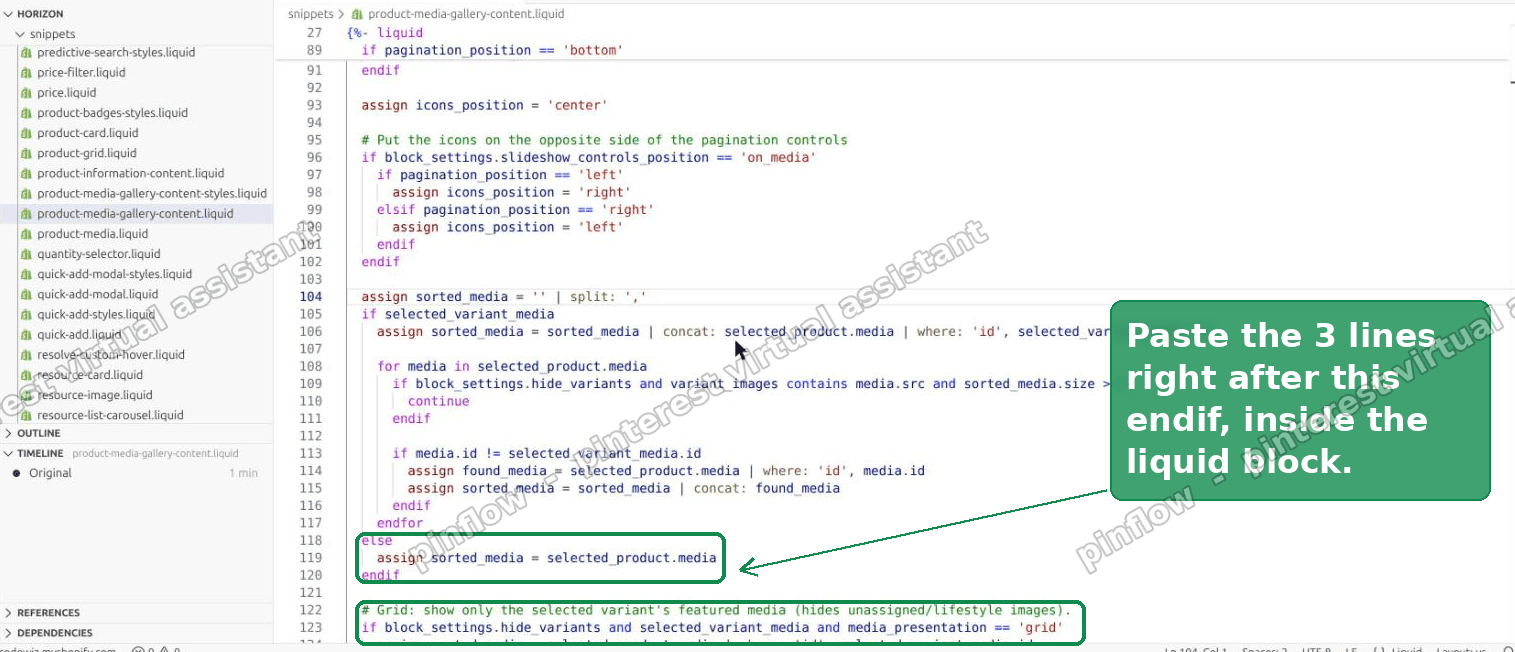 The three lines pasted right after the sorted_media block in product-media-gallery-content.liquid
Save. That is the whole change.
What the change does
In plain terms, it rebuilds the list of images the Grid renders. When a color is selected, it keeps only the one image mapped to that color and drops everything else for that view.
- The Grid renders only the single image mapped to the active color.
- It uses
variant.featured_media, Shopify's own variant image link, so no image URLs are hardcoded. - Size changes leave it alone. Each size keeps its color's image, so switching from Small to Medium does not swap anything.
- It only runs in Grid, and only while Hide unselected variant media is on. Turn that setting off and the theme goes back to its normal behavior.
Here is the same product after the edit. The color now shows only its own tee. The lifestyle image is gone from this view.
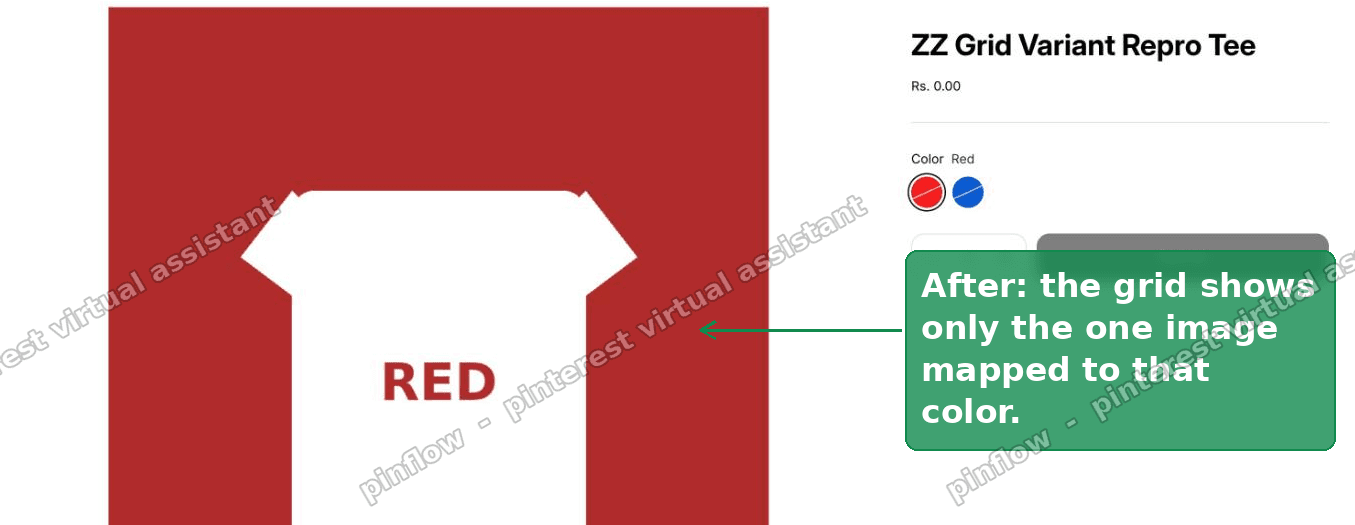 After the edit: the Grid shows only the image mapped to the selected color
And when the shopper switches color, the Grid swaps straight to that color's single image. On my test store I watched it drop from two images to one, then switch cleanly from the red image to the blue image as I changed the color.
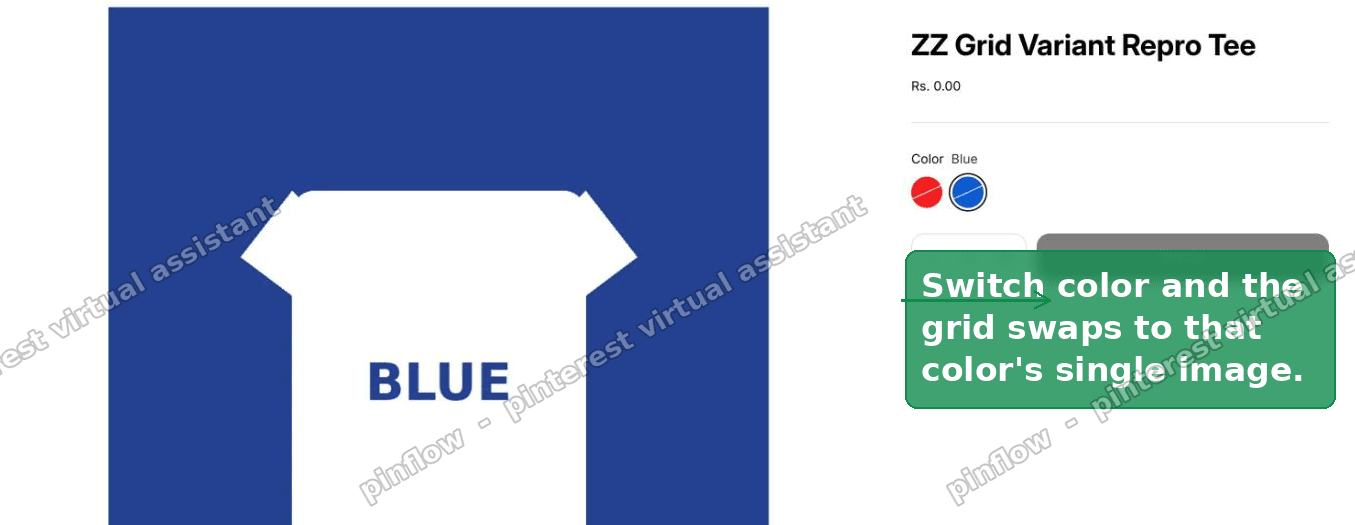 Switching color swaps the Grid to that color's single image
The no-code alternative, and why it falls short
If you do not want to edit theme code, there is one native lever, but it has a real limit worth knowing.
You can map every image to a color. If an image is attached to a variant, "Hide unselected variant media" will hide it on the other colors. So in theory, mapping everything makes the shared images disappear.
The problem is that an image can be mapped to only one color at a time. A lifestyle shot that you want on Red and Blue can only live on one of them. So you cannot keep a shared lifestyle image and hide it per color at the same time. You either give it to one color or you delete it.
The other no-code route is switching the gallery to Carousel, which shows one image at a time. That hides the side-by-side problem, but it changes your whole layout, and the merchant here specifically wanted to keep the Grid.
That is why the code edit is the clean answer. It keeps your Grid, keeps your shared images in the product, and just controls what the Grid shows per color.
If you would rather not edit theme code at all, I make Ploqo Variant & Cover Images, a free app on the Shopify App Store. On the product page in your admin you tick the photos for each colour, and the Horizon Grid shows only those plus the photos you keep for every colour. The setup is in the Ploqo Horizon guide.
How to show a variant image in Shopify at all
If you landed here because your variant images are not switching at all, start one step back.
Shopify links an image to a variant through the variant's image field. Open the product, open a variant, and set its image. That single image is the variant's featured_media. When a shopper selects that variant, the theme leads with that image.
Most modern themes, Horizon included, do this out of the box. If yours does not switch the main image on variant change, the usual cause is that the variants have no image mapped, so there is nothing to switch to.
How to assign an image to a product variant
Assigning is done per variant, not per image.
Open the product in your admin. Scroll to Variants and open the variant you want, for example Red. There is an image slot on the variant. Pick the image from the ones already uploaded to the product, or upload a new one. Save.
Repeat for each color. Once every color has its own image, variant switching has something to work with, and the fix above can isolate it in the Grid.
How to remove a variant image in Shopify
If a variant is showing the wrong image, the mapping is the thing to change, not the file.
Open the product, open the variant, and clear or replace the image in its image slot. Removing the mapping does not delete the image from the product. It just unlinks it from that variant, which turns it back into a shared image for the product.
Keep that in mind, because unlinking an image is exactly how an image becomes shared again, which is the behavior that started this whole article.
What about variant image swatches
Swatches are a separate feature that people often mix up with variant images.
A swatch is the small colored circle or chip a shopper clicks to pick a color. A variant image is the large photo in the gallery. Horizon can show color swatches driven by a color option, and it can switch the gallery image, and those are two different settings.
This fix is only about the gallery image. It does not change your swatches. If your swatches look wrong, that is a different setting in the variant picker block, not the media gallery.
If it still shows more than one image
A few things to check if the Grid is still showing extra images after the edit.
- The setting is off. The fix only runs while Hide unselected variant media is on. Confirm it is enabled in the Product media block.
- You are on a Carousel, not a Grid. The condition checks for Grid. If the block is set to Carousel, the fix does not apply, and you likely do not need it.
- The color has no mapped image. If the selected color has no
featured_media, there is nothing to isolate, so the theme falls back to showing the product's images. Map an image to that color. - You edited a duplicated theme that is not published. Make sure you are viewing, and eventually publishing, the theme you actually edited.
A note on theme updates
This is an edit to a core theme file, so treat it like one.
When Horizon ships an update and you take it, the update can overwrite this file and your three lines will be gone. That is normal for any theme-code edit. Keep the snippet somewhere safe, and re-apply it after an update. Duplicating the theme before you edit, as above, gives you a clean reference to compare against.
The short version
Horizon's "Hide unselected variant media" only hides images mapped to other colors. Unmapped images are shared, so they show on every color. To get true one-image-per-color switching in a Grid, add a three-line filter to product-media-gallery-content.liquid that keeps only the selected color's featured_media. It is native, it does not hardcode any URLs, and it leaves your product data and app syncs untouched.
Rather not edit a theme file?
The fix above lives in a core theme file, so a Horizon update can overwrite it. This free app does the same job from the product page in your admin: tick the photos for each colour, and the gallery shows only those, plus shared photos like a size chart. The setup is in the Horizon guide.
Get Ploqo on the Shopify App StorePart of a complete guide
Shopify Variants: The Complete Guide
Variants are one product sold in several forms. How they work, the 2,048 and 3-option limits, and where each variant fix lives - images, swatches, sorting, hiding and the theme-specific bugs.
More Shopify fixes
More community-sourced Shopify guides, tested on a live store.
Collections & Products
Shopify Unit Pricing: Show a Price per Unit on Each Variant
Set a unit price on every variant and Dawn shows the price per 100 ml or per kg, and updates it when a shopper picks another size. No code needed.
Themes & Storefront
Square Size Buttons on Shopify Dawn (Custom CSS)
Dawn draws size options as round pills. Here is the Custom CSS that turns them into square boxes matching the Add to cart button, tested on Dawn 16.0.0.
Themes & Storefront
Remove the Variant ID From Your Shopify Product URL
Your product link keeps turning into /products/name?variant=43176780890281, before the customer has touched anything. One theme setting stops it, a second switch covers Dawn, and a short snippet cleans the links that already carry the ID.