
Customize the Wishlist Icon, Floating Button and Wording
Every word and colour shoppers see is a setting in the theme editor: the icon, the saved colour, the floating button, the messages and the wishlist page's text.
By AjayCodeWiz · Updated October 23, 2026 · 5 min read
Where the settings are
Everything shoppers see from Ploqo Wishlist is set in your theme editor, in two places:
- The Wishlist hearts embed (an app embed is a piece an app adds that loads on every page): the hearts on product cards, the floating button, the messages and the wishlist page's words. Open Online Store > Themes > Customize, click the App embeds icon in the left bar, then click Wishlist hearts to open its settings.
- The Wishlist button block: the button on the product page. In the theme editor, open a product page, then click Wishlist button in the list of blocks.
Click Save at the top right after any change. Settings belong to a theme, so a copy of your theme you're preparing keeps its own settings until you publish it.
The app's admin pages have no style settings, so you change everything here.
The icon, its colour and its labels
The first group in the embed, Hearts on product cards, sets how the hearts look:
- Icon: a heart, a star or a bookmark.
- Saved color: the colour that fills the icon once a product is saved. Pink by default.
- Button label to save and Button label to remove: what screen readers announce, "Add to wishlist" and "Remove from wishlist" by default. The hearts on cards show no text, so these words matter for shoppers who use a screen reader.
- Guests can save: on by default. Turned off, a shopper who isn't logged in goes to your sign-in page when they tap a heart. See Guest wishlists and logged-in customer lists.
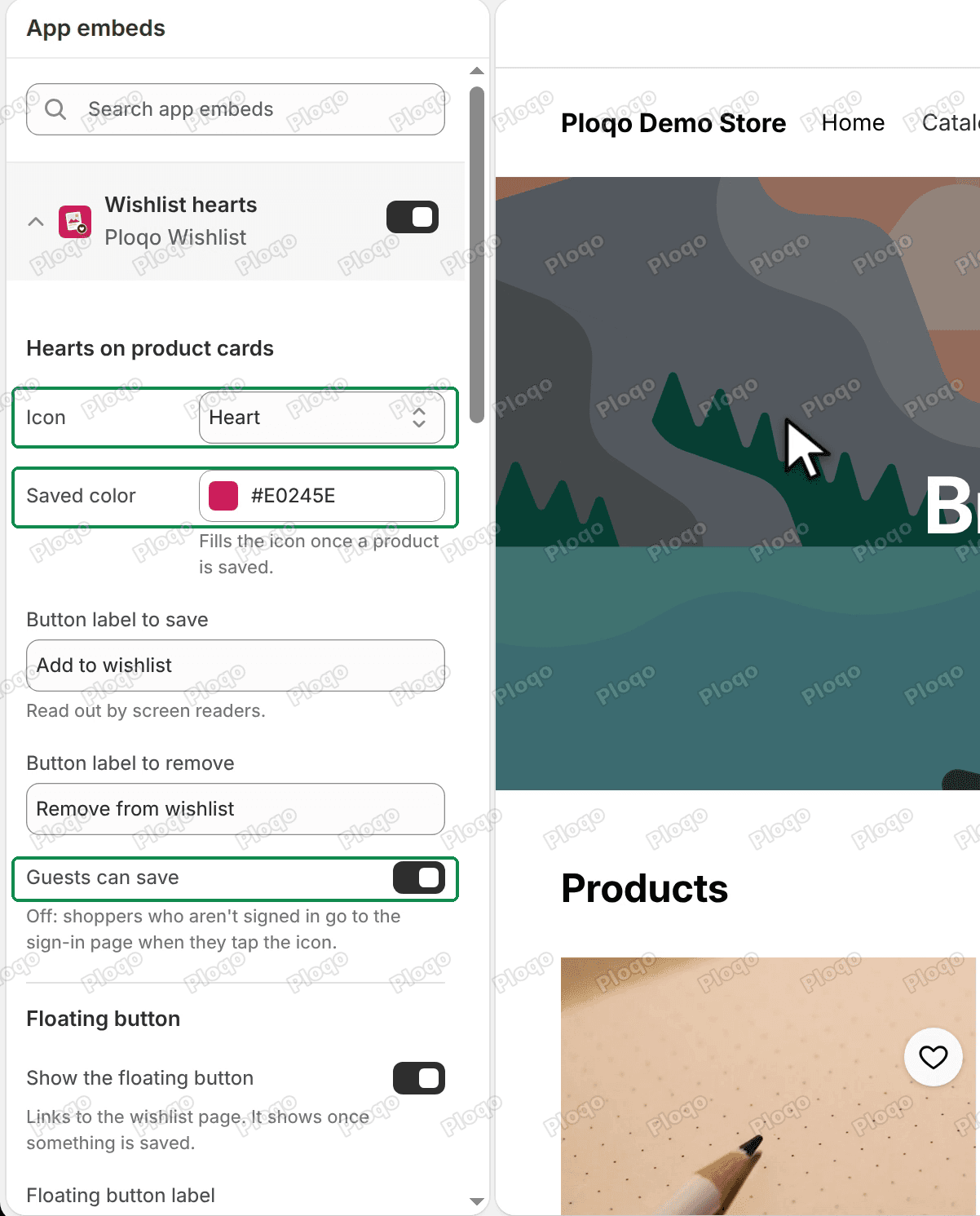 The Wishlist hearts embed settings with Icon, Saved color and Guests can save highlighted
The floating button
Under Floating button:
- Show the floating button: on by default. It links to the wishlist page and shows once a shopper has saved something.
- Floating button label: "Wishlist" by default.
- Position: Bottom right or Bottom left. Move it to the left if a chat button already sits at the bottom right of your store.
 The floating button label set to My list and the Position set to Bottom left
After saving, the button shows your label and sits where you put it, with the count next to the label.
 A collection page with the floating button reading My list 1 at the bottom left
Messages and product cards
Messages holds the two short messages shoppers see when something goes wrong: When a save fails ("Couldn't save. Try again.") and When the wishlist is full ("Your wishlist is full."). A list holds up to 100 products.
Product cards decides where the hearts go. Find product cards is set to Automatically, which works on Dawn, Horizon and themes built like them.
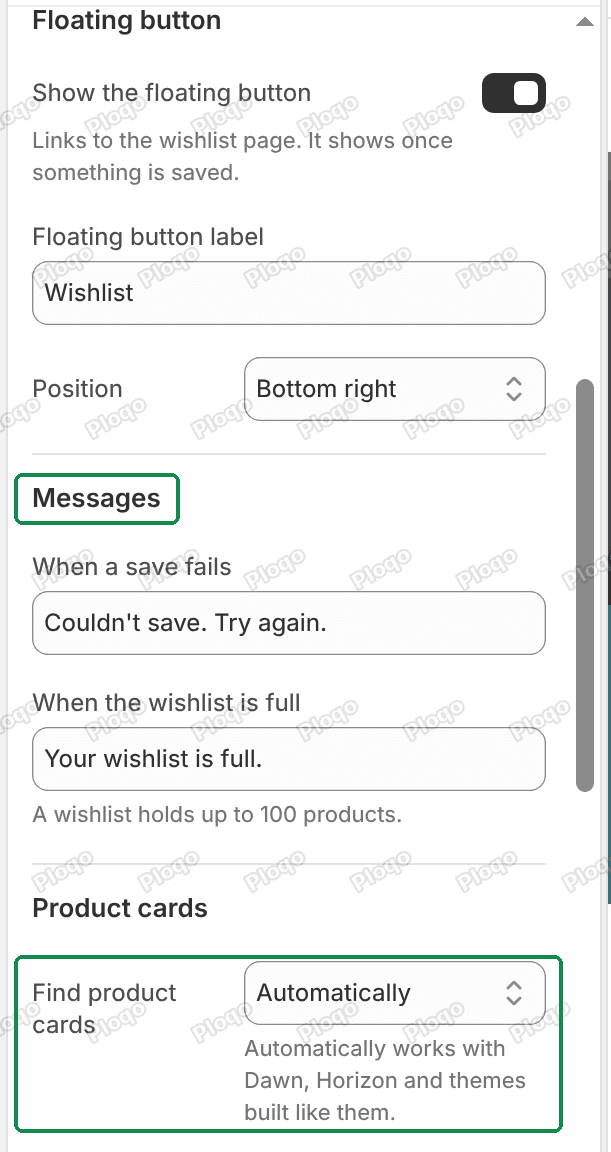 The Floating button, Messages and Product cards settings, with Messages and Find product cards highlighted
Hearts on another theme
If your theme's product cards get no hearts, switch Find product cards to With a custom selector and fill in Custom card selector. A selector is a short name that points at one product card in your theme's code, for example .card-wrapper on Dawn. If you don't know your theme's, send a message from the app's Chat button with your theme's name and the developer will look it up.
The wishlist page's words
The Wishlist page group holds every line of text on the wishlist page:
- Heading ("Wishlist"), which is also the start of the browser tab's title;
- Sign-in link and After the sign-in link, the line guests see: "Log in to keep your list on every device.";
- When the wishlist is empty and Link to browse products;
- When saved products can't be shown, for a list where every product is a draft or off your online store;
- When the wishlist fills up at sign-in, When the wishlist can't load and Button to load it again;
- Remove button and Sold out label.
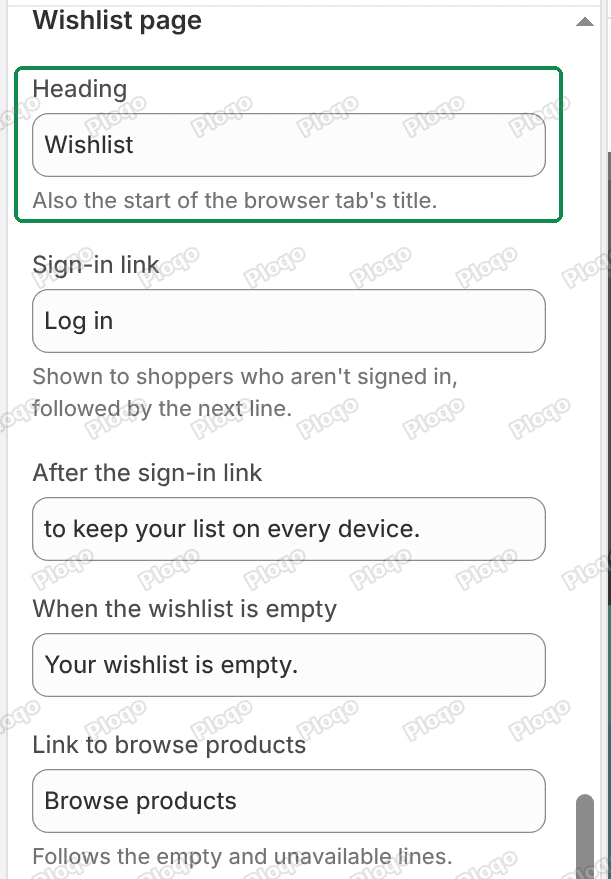 The Wishlist page settings, with the Heading field highlighted
This is also how you translate the page: type the words in your store's language. What each state looks like to a shopper is in The wishlist page.
The product page button
Click Wishlist button in the product page's block list to see its own settings. It has its own Icon, Saved color and two labels, so it can differ from the hearts on cards.
Show the label is on by default: the button shows the icon and the words "Add to wishlist". Turn it off for a round icon-only button.
 The Wishlist button block settings with Show the label turned off
 A product page with the icon-only heart button under the product photos
The label is still read out by screen readers when it is hidden.
Turning the hearts off
To keep only the product page button, switch Wishlist hearts off in App embeds and click Save. The hearts on cards and the floating button go away, and the product page button keeps working.
With the embed off, three other things stop: a guest's list no longer joins their account when they log in, the Guests can save setting no longer applies, and the wishlist page shows its default English words instead of yours. Leave the embed on if you need any of them, and untick Show the floating button if it's only the floating button you want gone.
All Ploqo Wishlist guides·What to look for in a Shopify wishlist app
A free wishlist for your Shopify store
Shoppers tap a heart to save products and come back to a wishlist page in your store to buy them. No theme code to edit, and nothing to pay.
Get Ploqo Wishlist on the Shopify App StoreMore Ploqo Wishlist guides
Getting Started
Set Up Ploqo Wishlist: Hearts, Button and Wishlist Page
Turn on the hearts, add the Wishlist button to your product page and link the wishlist page in your menu. Three steps, each checked on the app's Setup page.
What Shoppers See
Wishlist Hearts on Product Cards and the Product Page Button
Where the hearts show up in your store, what the Wishlist button on the product page does, and how the floating button takes shoppers to their list.
What Shoppers See
The Wishlist Page: Saved Products, Sold Out and Empty Lists
Your store's wishlist page lists each saved product with its price and a Remove button. Here is what shoppers see when a product sells out, goes to draft, or the list is empty.
What Shoppers See
Guest Wishlists and Lists That Follow Logged-In Customers
Guests save in their own browser. When they log in, what they saved joins the list on their customer record, which follows them to any device.