
The Wishlist Page: Saved Products, Sold Out and Empty Lists
Your store's wishlist page lists each saved product with its price and a Remove button. Here is what shoppers see when a product sells out, goes to draft, or the list is empty.
By AjayCodeWiz · Updated October 23, 2026 · 4 min read
Where the page lives
The wishlist page is part of your store at /apps/wishlist, for example yourstore.com/apps/wishlist. Shopify serves it inside your theme, so it has your header, menu and footer like any other page. Shoppers reach it three ways:
- the floating Wishlist button, once they have saved something;
- the menu link you added in setup;
- typing or bookmarking the address.
You don't create this page in Online Store > Pages. It exists as soon as the app is installed.
What a shopper sees
Each saved product shows its photo, its name, its price and a Remove button. The photo and the name link to the product page, so a shopper can pick a size and add it to the cart from there.
 The wishlist page with two saved products, each with its photo, name, price and a Remove button
The newest save is at the top. Prices come from your store when the page opens, so a product on sale shows its sale price, not the price it had when it was saved.
A shopper who isn't logged in also sees a line under the heading: Log in to keep your list on every device. The link opens your store's sign-in page. Why that matters is in Guest wishlists and logged-in customer lists.
Removing a product
Remove takes the product off the list straight away and a line at the top says which one, for example "Baseball Cap removed." The heart on that product's card and its product page button go back to empty too.
 The wishlist page after a remove, with the line Baseball Cap removed. above the products left
An empty list
With nothing saved, the page says Your wishlist is empty. and links to Browse products, which opens your catalog.
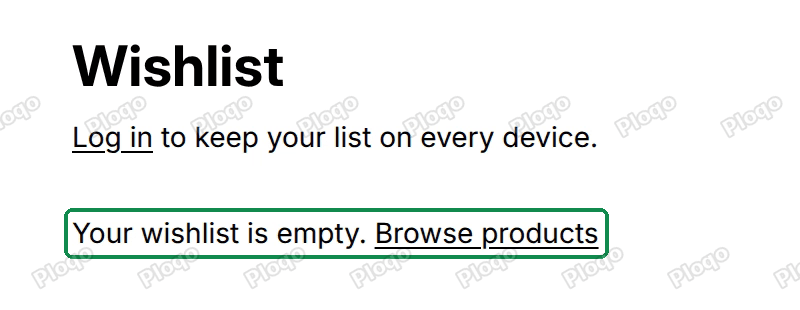 The empty wishlist page: Your wishlist is empty. Browse products
Sold out products
A saved product that is sold out stays on the list with a Sold out label under its price. The shopper can still open it, and can remove it. Once you restock, the label goes away by itself: the page reads stock each time it opens.
 A saved notebook on the wishlist page with the Sold out label and a Remove button
The app doesn't email shoppers when something is back in stock. It sends no email at all.
Products you set to draft or remove from your store
A product shoppers can't buy on your online store doesn't show on the wishlist page. That covers products set to Draft or Archived and products taken off the Online Store sales channel. They stay on the shopper's saved list, hidden, so if you make a product active again, it comes back on the page. A product you delete comes off the list for good.
When every product a shopper saved is unavailable, the page says The products you saved aren't available right now. with a link to browse products.
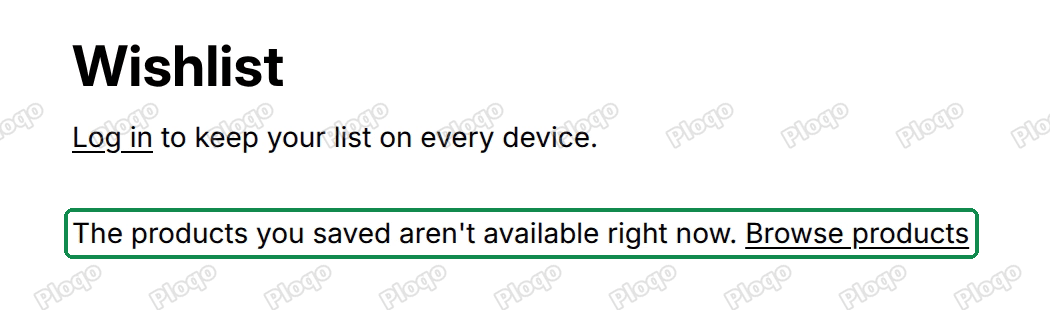 The wishlist page saying The products you saved aren't available right now. Browse products
Changing the words on the page
The heading, the sign-in line, the empty and unavailable lines, the Remove button and the Sold out label are all settings of the Wishlist hearts embed, in the Wishlist page group. Change them in the theme editor; see Customize the icon, floating button and wording. The heading is also the start of the browser tab's title.
All Ploqo Wishlist guides·What to look for in a Shopify wishlist app
A free wishlist for your Shopify store
Shoppers tap a heart to save products and come back to a wishlist page in your store to buy them. No theme code to edit, and nothing to pay.
Get Ploqo Wishlist on the Shopify App StoreMore Ploqo Wishlist guides
Getting Started
Set Up Ploqo Wishlist: Hearts, Button and Wishlist Page
Turn on the hearts, add the Wishlist button to your product page and link the wishlist page in your menu. Three steps, each checked on the app's Setup page.
What Shoppers See
Wishlist Hearts on Product Cards and the Product Page Button
Where the hearts show up in your store, what the Wishlist button on the product page does, and how the floating button takes shoppers to their list.
What Shoppers See
Guest Wishlists and Lists That Follow Logged-In Customers
Guests save in their own browser. When they log in, what they saved joins the list on their customer record, which follows them to any device.
Managing the App
Most Wishlisted Products and Each Customer's Saved List
See which products your logged-in customers save most, and open any customer in your Shopify admin to see what they saved.