
Dawn Theme Variant Images: Give Each Colour Its Own Photos
In Dawn, picking a colour still shows every other colour's photos, and the collection card shows whatever photo is first. Here is how to fix both with Ploqo.
By AjayCodeWiz · Updated October 4, 2026 · 9 min read
The problem with variant images in Dawn
Dawn is Shopify's default free theme, so it is the first place most merchants meet this. You upload a front and a back photo for each colour of a T-shirt. A shopper picks Red, and Dawn still shows the blue and yellow photos underneath the red ones.
I set this up on a fresh, unedited copy of Dawn on my test store. The product is a T-shirt in Red, Blue and Yellow with nine photos: a front and a back for each colour, a lookbook photo, a size guide and a fabric close-up. With Red picked, Dawn showed all nine, in the order they were uploaded.
The same product also looked wrong in two other places. The collection page card showed the red front photo, because it is the first photo on the product. The featured collection on the home page showed that same photo.
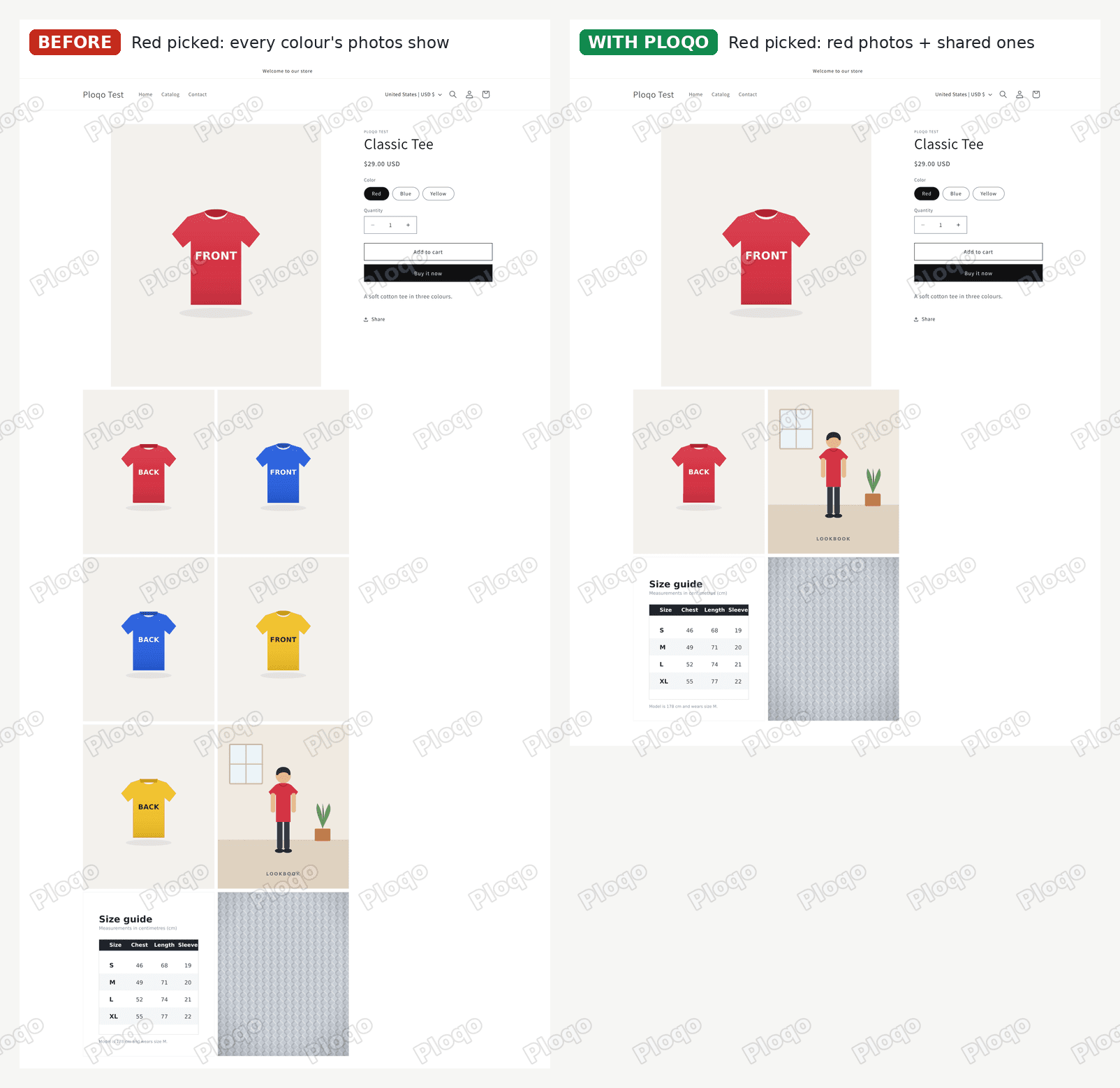 Dawn product page with Red picked: before, all nine photos including blue and yellow; with Ploqo, only the red photos plus the lookbook, size guide and fabric photos
Why Dawn shows every colour's photos
Shopify lets you link one image to each variant. A variant is one buyable version of a product, like the red T-shirt. That single link is called the variant image, and Shopify has no field for a second one.
On my test product no photo was linked to any colour, which is how products often look after a bulk upload. Dawn had no way to tell which photos were red, so it showed all of them for every colour. Linking a photo to each colour helps only partly: each colour can hold one photo, so the red back photo still belongs to no colour and still shows when a shopper picks Blue.
Three parts of your store read that one link:
- The product page. Dawn can move to the linked photo when a shopper picks a colour, but every photo that is not linked stays in place.
- The collection card. Dawn shows the product's first photo, which is often a plain front shot rather than the photo you want shoppers to see.
- Featured collections on the home page. They use the same card, so they show the same first photo.
Changing the first photo to fix the card changes which photo the product page opens on. Fixing one place moves the problem to another.
What Ploqo changes in Dawn
Ploqo is a Shopify app that stores two extra things on each product: which photos belong to which colour, and one cover photo.
In Dawn, after setup:
- Red picked: the red front, the red back, the lookbook photo, the size guide and the fabric close-up. Five photos instead of nine. The blue and yellow photos are hidden.
- Blue picked: the blue front and back, plus the same three shared photos.
- Collection card and home page: the lookbook photo, the one I locked as the cover.
Photos you do not tick for any colour stay visible for every colour. That is how the size guide and fabric close-up stay on the page whichever colour a shopper picks.
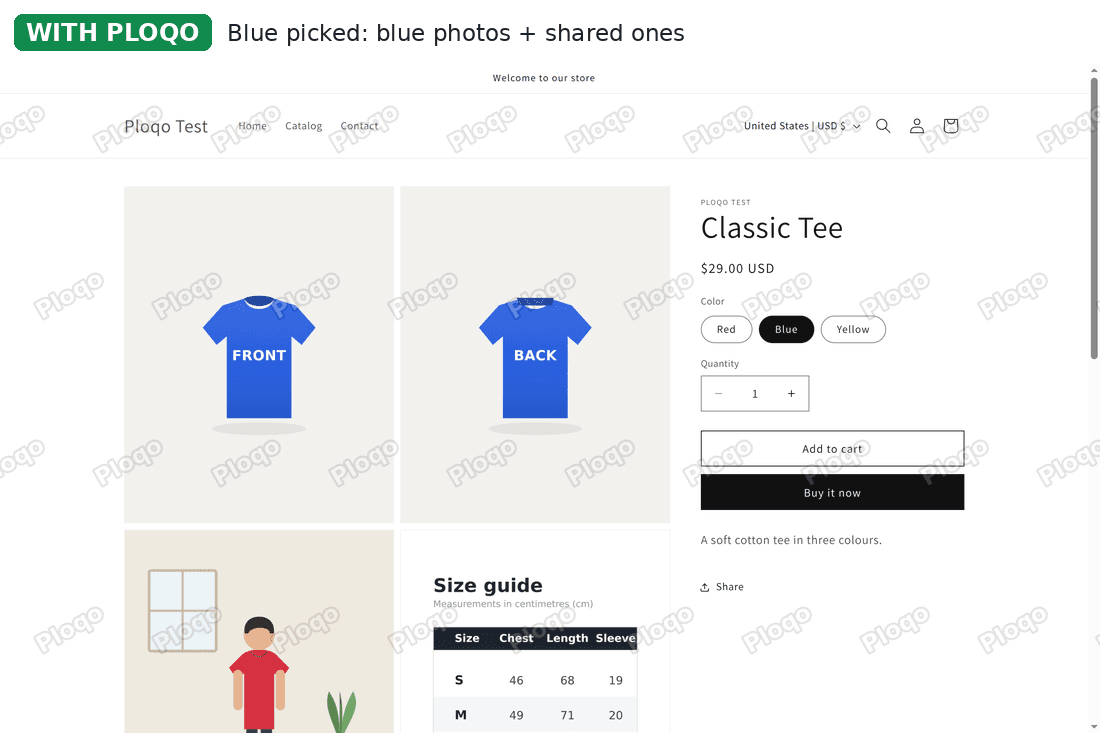 Dawn product page with Blue picked and Ploqo on: the blue front and back photos, then the shared photos
Step 1: Install Ploqo and add its card to your product pages
Install Ploqo from the Shopify App Store and open it once. Then open any product in your Shopify admin and scroll to the Blocks section near the bottom. Click + Block and choose Ploqo photos.
 The Blocks section on a Shopify product page, with the + Block button highlighted
The Ploqo card appears. Click the pin icon at its top right, so the card shows on every product page from now on, not only this one.
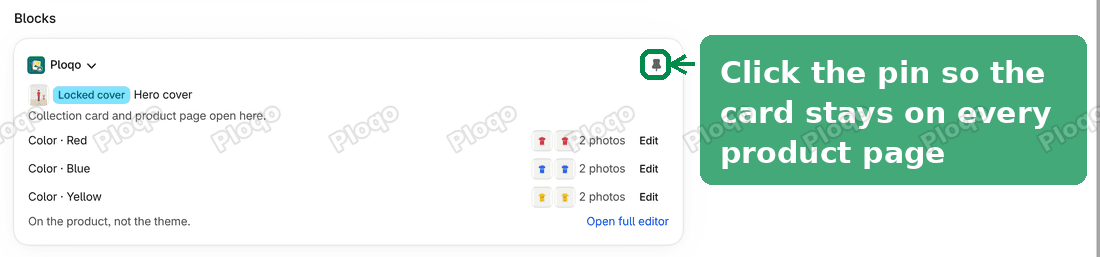 The Ploqo card on a product page, with the pin icon highlighted
Step 2: Pick each colour's photos
The card lists each colour of the product. Click Edit next to a colour.
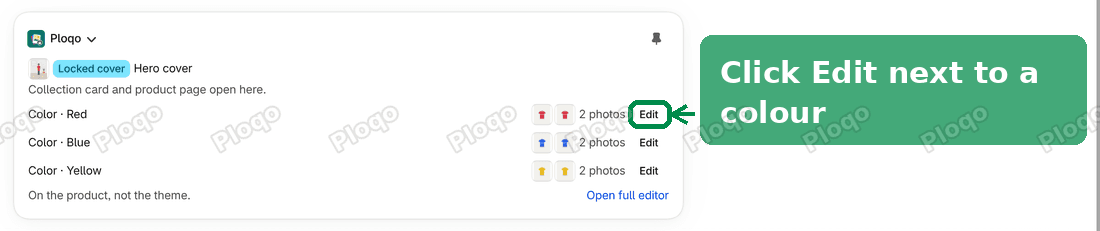 The Ploqo card listing Red, Blue and Yellow, each with two photos and an Edit button
A window opens with every photo on the product. Tick the photos that belong to this colour and click Save. Leave shared photos, like a size guide, unticked: the window marks them "On every variant", and the line at the bottom tells you what a shopper who picks this colour will see before you save.
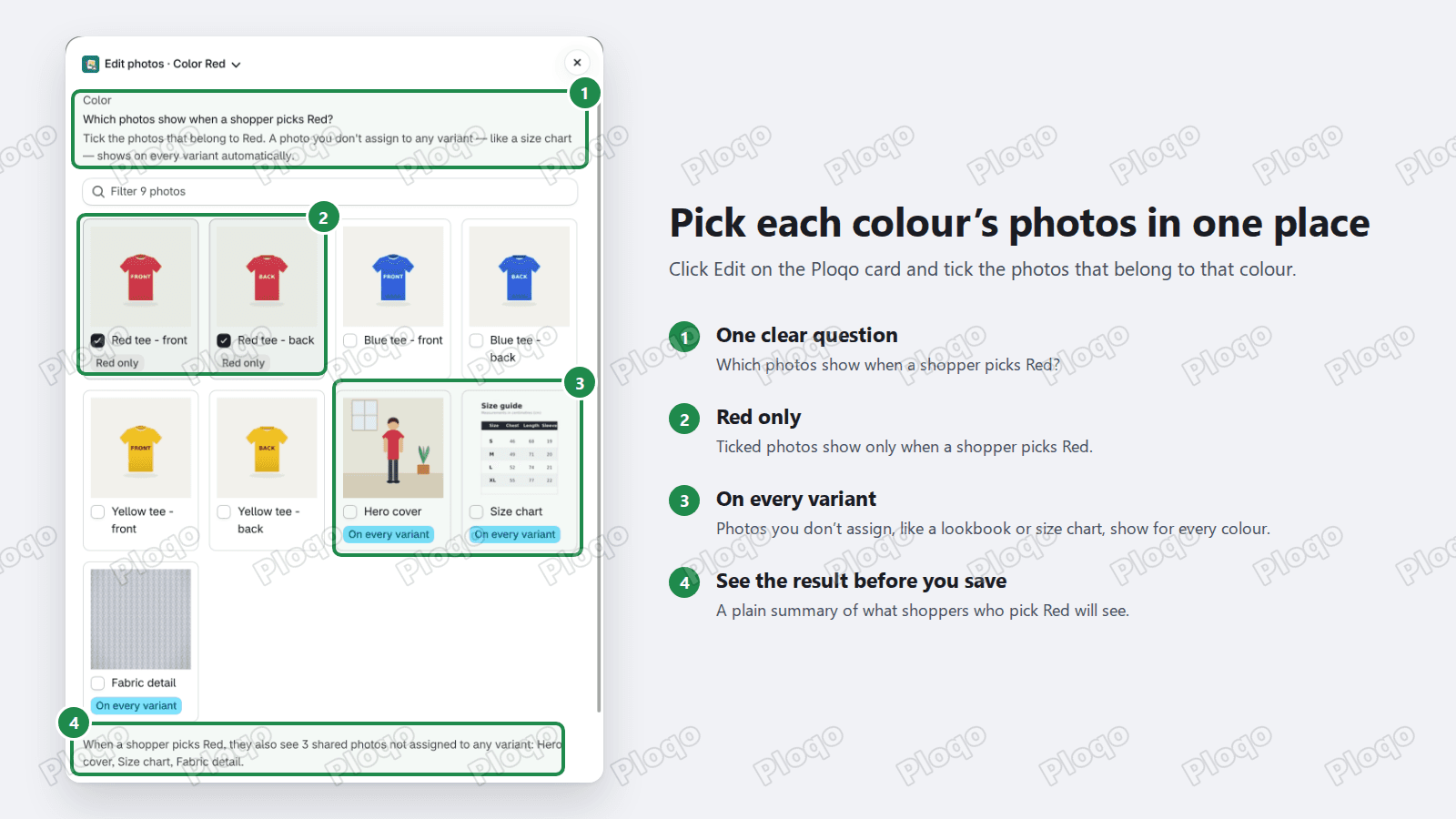 The Edit photos window for Red, with the red front and back ticked and the shared photos marked On every variant
Repeat for each colour. On my test product that was three colours, two photos each, about a minute in total.
Step 3: Lock the cover photo
The cover is the photo shoppers see on collection pages and in featured collections. On the Ploqo card, click Open full editor.
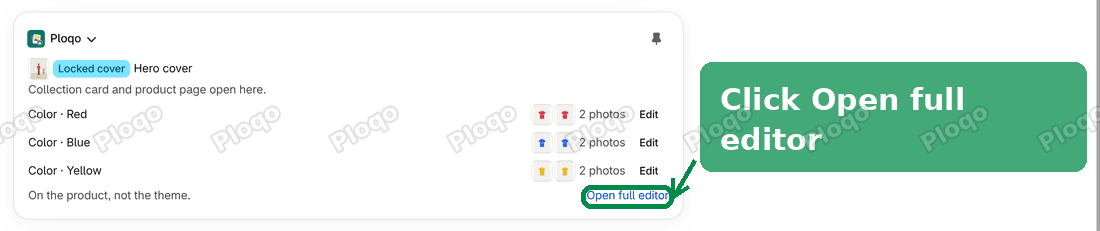 The Ploqo card with the Open full editor link highlighted
Under Card cover, click Choose.
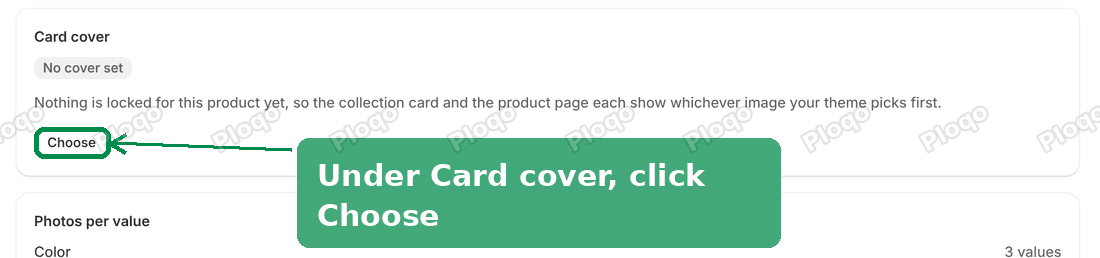 The Card cover section of the Ploqo editor, with the Choose button highlighted
Tick the photo you want as the cover and click Save cover. I picked the lookbook photo, a person wearing the T-shirt, because it sells the product better than a flat front shot.
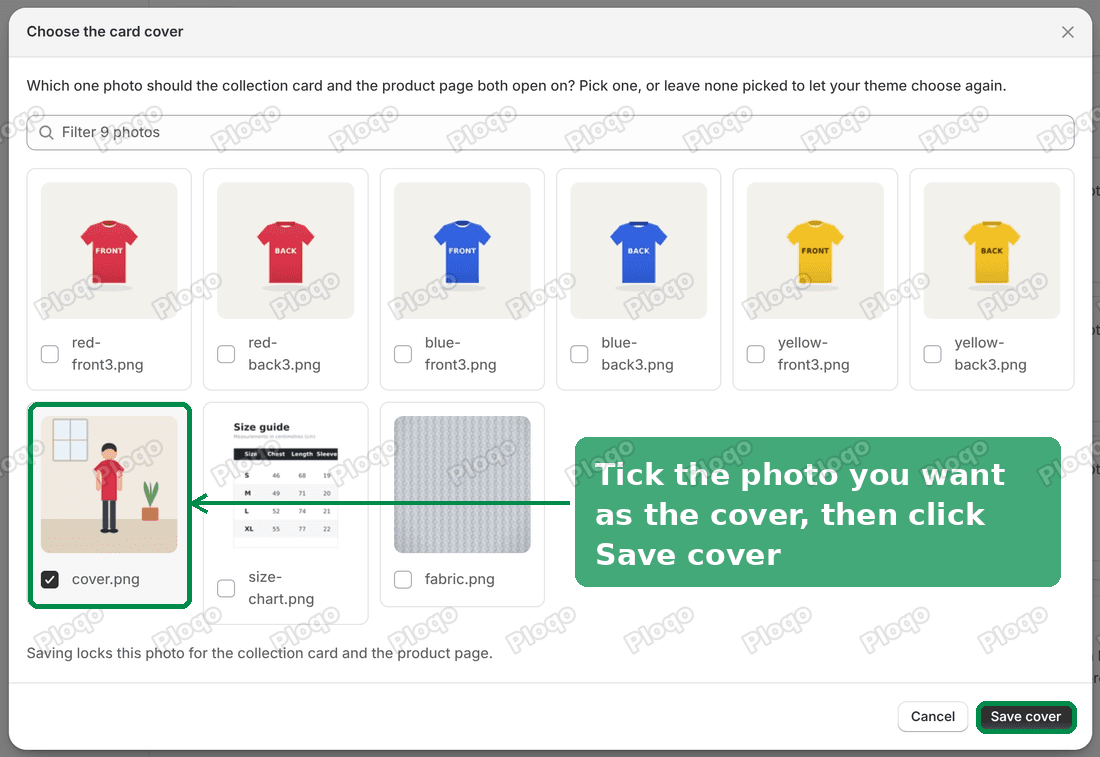 The Choose the card cover window, with the lookbook photo ticked and the Save cover button highlighted
Step 4: Turn on the gallery filter in Dawn
The colour filtering on the product page comes from an app block. An app block is a piece an installed app adds to your theme, placed from the theme editor. The theme editor is the page where you customise your theme: Online Store, then Themes, then Customize on Dawn.
In the theme editor, open the product page template from the page menu at the top (Products, then Default product). In the left sidebar, under Template, open Product information and click Add block. Switch to the Apps tab and choose Ploqo gallery filter. Click Save at the top right.
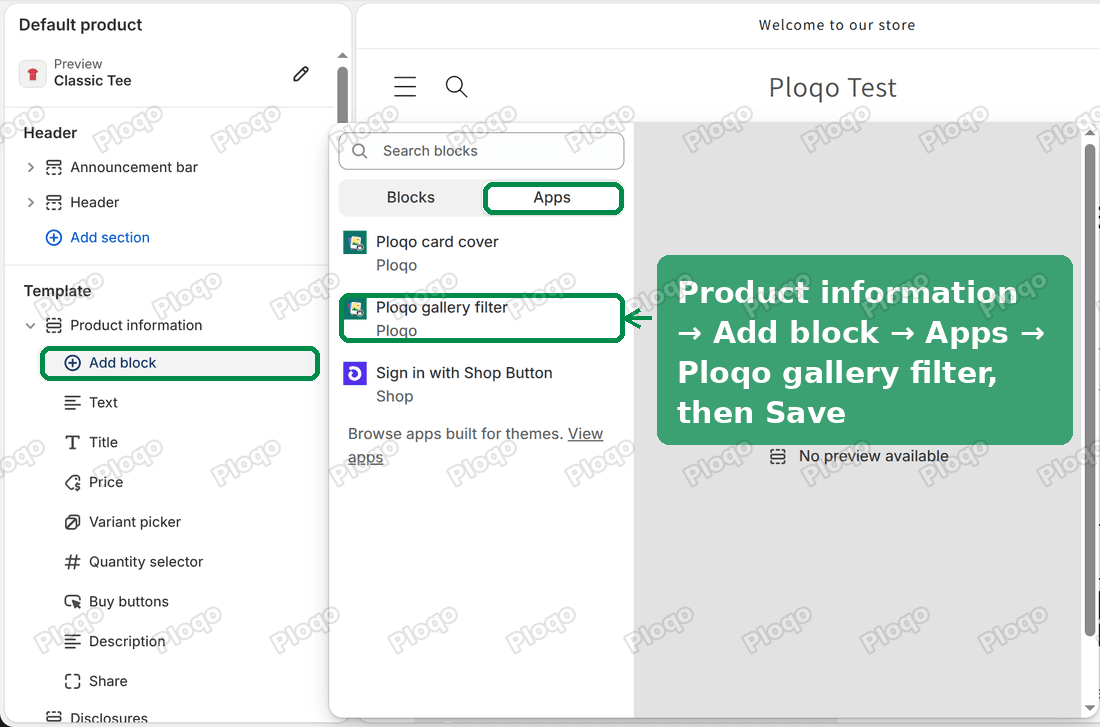 The Dawn theme editor on the product page: Product information, Add block, the Apps tab and Ploqo gallery filter highlighted
The block has no settings and shows nothing on its own. It works in the background, reading the colour each shopper picks.
Step 5: Show the cover on collection pages in Dawn
Open the collection template (Collections, then Default collection). Under Template, click Add section, switch to the Apps tab and choose Ploqo card cover. Click Save.
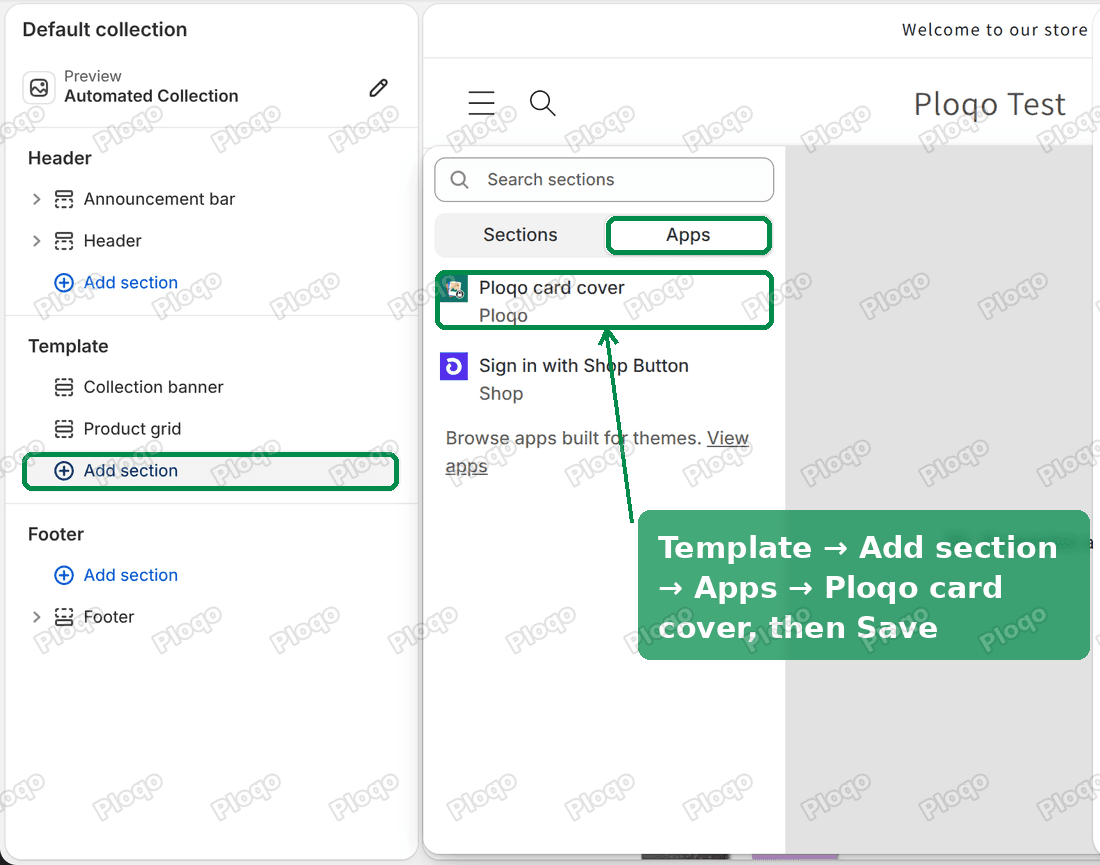 The Dawn theme editor on the collection page: Add section, the Apps tab and Ploqo card cover highlighted
In Dawn the block sits in its own small Apps section under the product grid. It takes up no space on the page. On my test store the T-shirt card switched from the red front photo to the lookbook photo as soon as I saved.
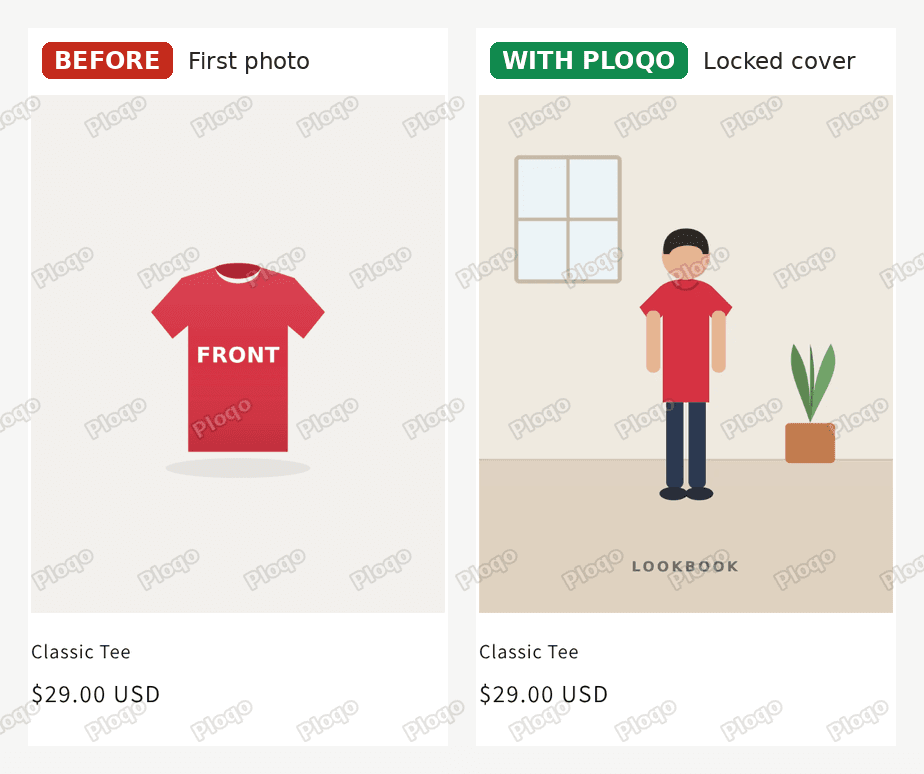 The Dawn collection card for the T-shirt: before, the red front photo; with Ploqo, the locked lookbook cover
Step 6: Show the cover in featured collections on the Dawn home page
Featured collections need one more setting, because the card cover block cannot guess which collection your home page shows. Open the home page template. Click Add section under Template, open the Apps tab and choose Ploqo card cover again.
Select the new block. Under Featured collections to cover, click Select and pick the collection your Featured collection section shows. Click Save.
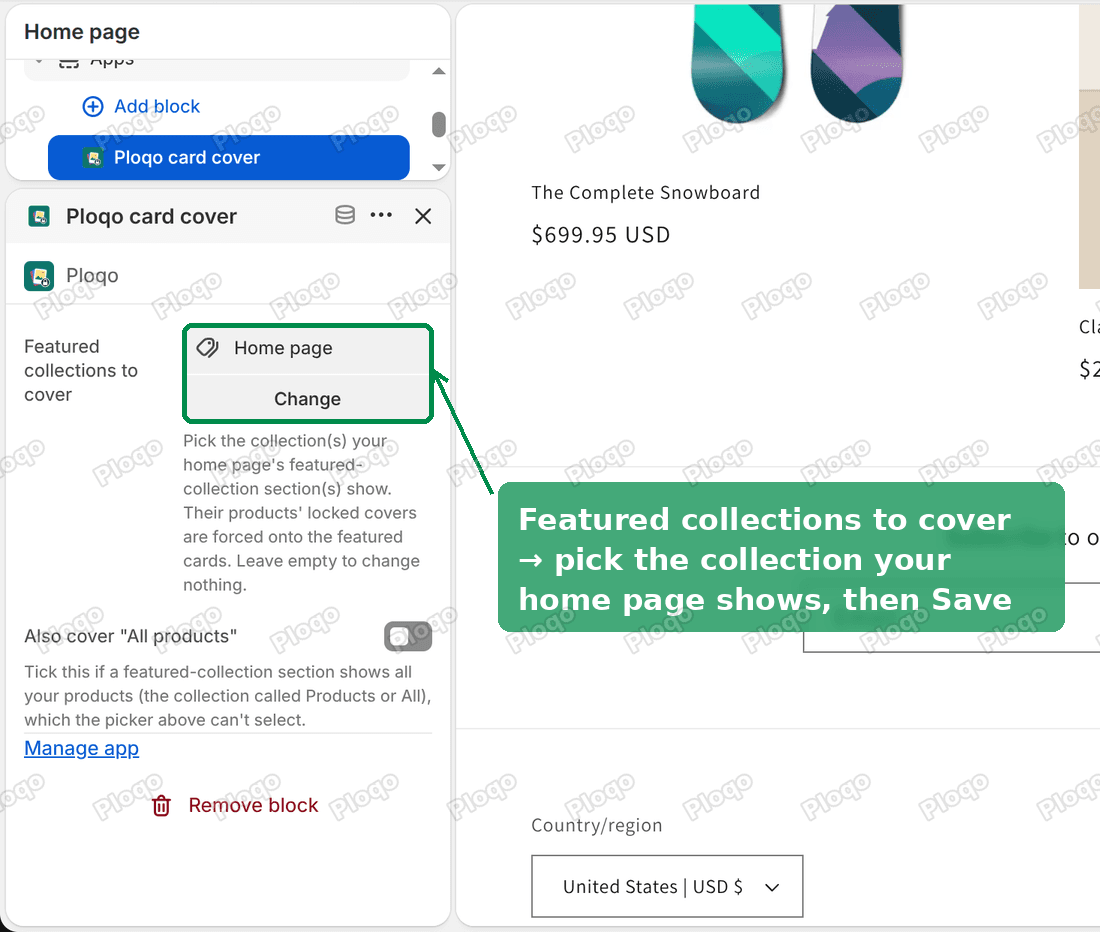 The Ploqo card cover settings in the Dawn theme editor, with Featured collections to cover set to Home page
A new Dawn store's Featured collection section shows a collection called Products, which is every product. The picker cannot select that one, so turn on Also cover "All products" instead. On my test store the section showed a collection called Home page, so I picked that.
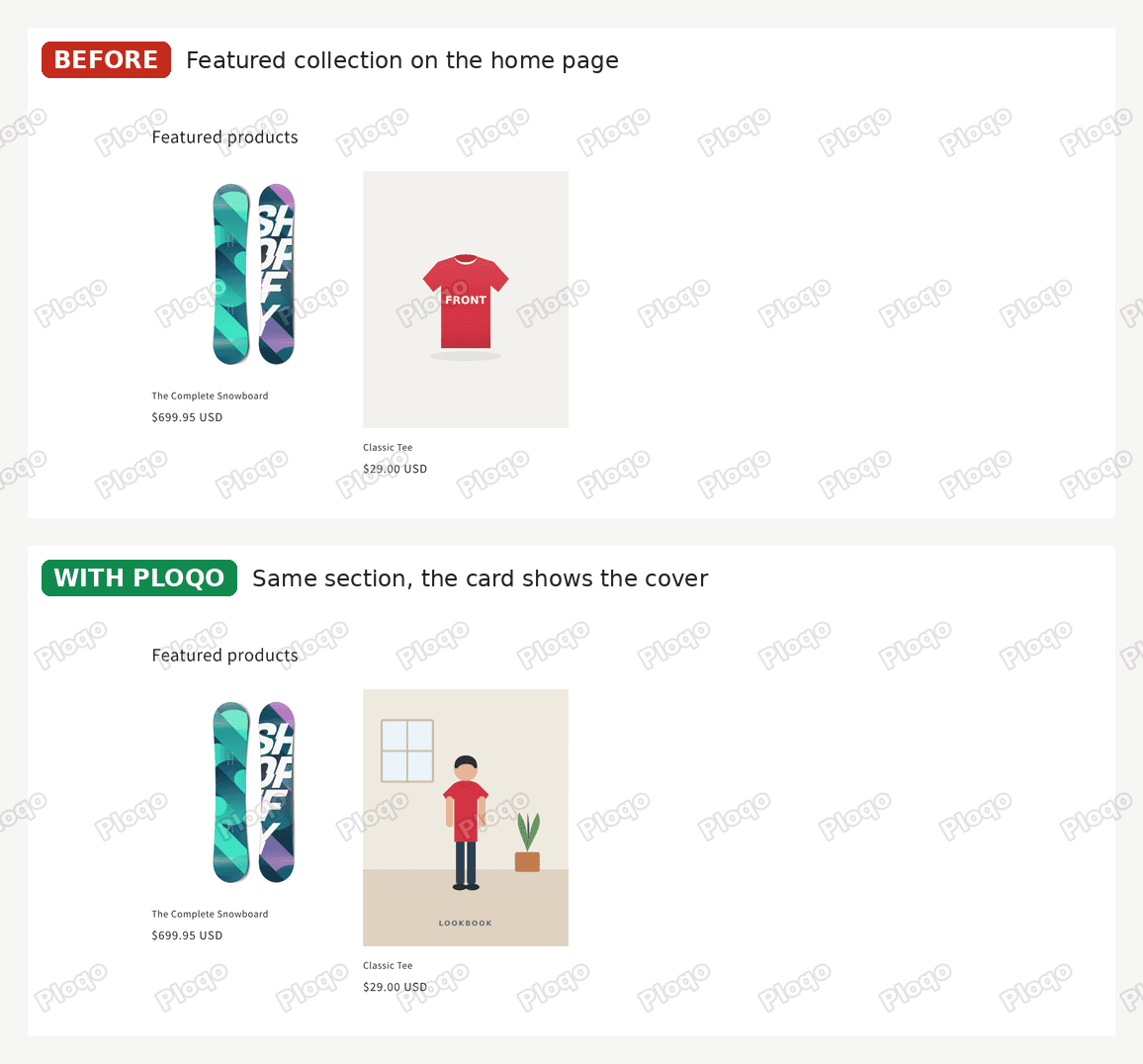 The Dawn home page Featured products section: before, the T-shirt shows the red front photo; with Ploqo, the lookbook cover
How the Dawn product page orders the photos
Dawn stacks product photos in a grid rather than a slider: one large photo, then two per row. Dawn also selects the first colour when the page loads, so a shopper lands on Red without clicking anything.
Ploqo hides photos; it does not reorder them. So the large first spot goes to the first photo left on the page. On my test product that was the red front photo with Red picked, and the blue front photo with Blue picked. The lookbook cover came after the chosen colour's photos, with the size guide and fabric close-up. In Dawn, the cover leads on the collection card and the home page, and on the product page a shopper sees the colour they are about to buy first.
Shopify Dawn theme product page settings that affect photos
Dawn's product page has its own media settings, under the Product information section in the theme editor. Two of them sit close to what Ploqo does:
- Layout. Dawn offers Stacked, 2 columns, Thumbnails and Thumbnail carousel. My screenshots use Stacked, the default, which shows every photo down the page.
- Hide other variant media after one is selected. Dawn turns this on by default. It hides the one photo linked to each other colour, and nothing else, so it cannot hide a second photo of a colour. On my test product no photos were linked, so it hid nothing and all nine showed. My Ploqo screenshots were taken with it on, as Dawn ships it.
A free way to do part of this in Dawn
If you only need the product page to switch photos and can live with the extra photos showing, Shopify's own variant images are free. The blog post on how to add variant images in Shopify walks through linking one image to each colour, and Shopify product variant image switching, explained covers why the wrong photo can show first.
That free route cannot give a colour more than one photo, and it cannot set a cover photo separate from the first photo. Those two are what Ploqo adds.
If it did not work
Still seeing other colours' photos? Check that Ploqo gallery filter is in the product template and that you clicked Save in the theme editor. Then check you are looking at the theme the block is in: a block added to an unpublished copy only shows in that copy's preview.
A colour shows no photos of its own? Open the Ploqo card on that product and check the colour has photos ticked. A colour with none ticked shows only the shared photos.
The collection card still shows the old photo? Check the product has a locked cover (the card shows a "Locked cover" badge), and that Ploqo card cover is saved on the collection template.
The home page card did not change? Open the Ploqo card cover block on the home page and check Featured collections to cover lists the collection your Featured collection section shows. If that section shows all products, turn on Also cover "All products".
Seeing a change in the editor but not on the live store? Hard-refresh the page (Ctrl+Shift+R, or Cmd+Shift+R on a Mac). Browsers keep an old copy of a page for a while.
Definitions
- Variant: one buyable version of a product, such as the red T-shirt in size M.
- Variant image: the single image Shopify links to a variant.
- Cover photo: the one photo Ploqo shows on collection cards and featured collections for that product.
- Shared photo: a photo you did not tick for any colour. It shows for every colour.
- App block: a piece an installed app adds to your theme, placed from the theme editor.
- Featured collection: a Dawn home page section that shows products from one collection you choose.
Ploqo saves your colour photos and cover on the product itself in Shopify, so they stay in place if you change themes. For the other free themes, see Ploqo's theme guides.
Give every colour its own photos
Ploqo groups your product photos by colour, locks one cover per product, and shows that cover on collection pages and the home page. No theme code to edit.
Get Ploqo on the Shopify App StoreMore Ploqo guides
Getting Started
Ploqo Theme Guides: Variant Photos on Every Free Theme
Ploqo gives each colour its own photos and locks one cover for the collection card and the home page. Pick your theme for a step-by-step guide with screenshots.
Theme Guides
Horizon Theme Variant Images: Photos and Covers per Colour
Horizon shows every colour's photos whichever colour a shopper picks, and the collection card shows the first photo. Here is how to fix both with Ploqo.
Theme Guides
Craft Theme Variant Images: Each Colour's Own Photos
Craft shows every photo for every colour and puts the first one on the collection card. Here is how to give each colour its own photos and lock a cover.
Theme Guides
Crave Theme Variant Images: Photos per Colour, Locked Cover
In Crave, the photo slider and the collection card ignore which photos belong to which colour. Here is how to show each colour's photos and keep your cover on the card.