
Ploqo Theme Guides: Variant Photos on Every Free Theme
Ploqo gives each colour its own photos and locks one cover for the collection card and the home page. Pick your theme for a step-by-step guide with screenshots.
By AjayCodeWiz · Updated October 4, 2026 · 5 min read
What Ploqo changes on your store
Ploqo is a Shopify app that fixes three things about product photos. It works the same way on every theme in the list below.
- Each colour gets its own photos. When a shopper picks Red on the product page, they see the red photos, plus any photo that belongs to no colour, like a size chart. The blue and yellow photos are hidden until someone picks Blue or Yellow.
- The collection card shows your cover photo. You pick one photo per product, and that photo is what shoppers see on collection pages, in search results and in related products.
- Featured collections on your home page show the same cover. The home page is often the first place a shopper sees a product, so the cover goes there too.
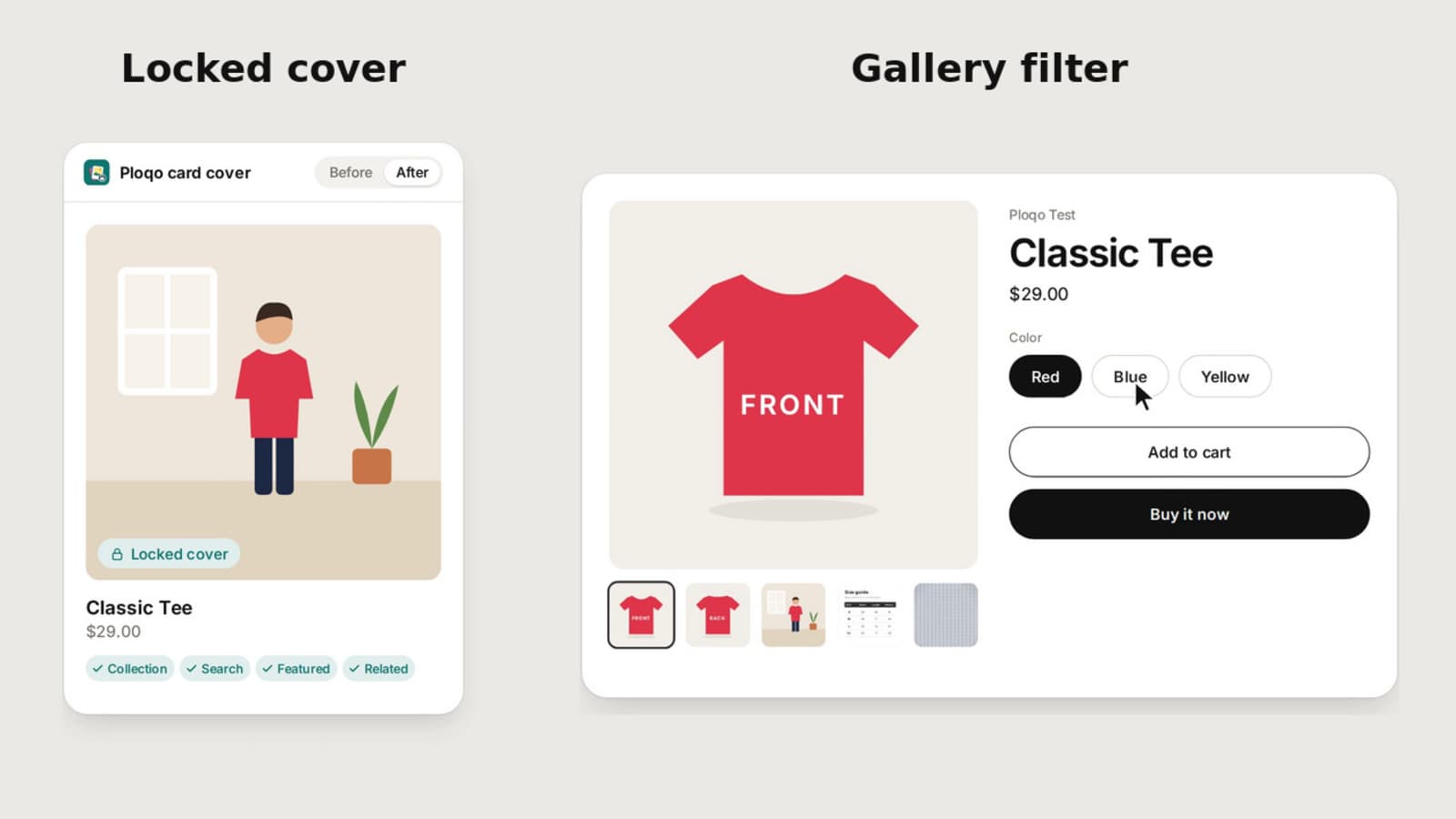 Ploqo on the product page and on the collection card, before and after
Pick your theme
I installed a fresh, unedited copy of each theme on my test store on 4 October 2026 and set Ploqo up on it. Each guide below walks through the setup in that theme and shows the product page, the collection card and the home page before and after, as screenshots from that theme.
| Theme | Product page layout | Product page opens on | Collection card cover | Home page cover | Guide |
|---|---|---|---|---|---|
| Dawn | Stacked grid | The picked colour's first photo | Yes | Yes | Dawn guide |
| Horizon | Stacked grid | The picked colour's first photo | Yes | Yes | Horizon guide |
| Craft | Stacked grid | The picked colour's first photo | Yes | Yes | Craft guide |
| Savor | Stacked grid | The picked colour's first photo | Yes | Yes | Savor guide |
| Fabric | Stacked grid | The picked colour's first photo | Yes | Yes | Fabric guide |
| Crave | Slider with thumbnails | The cover photo | Yes | Yes | Crave guide |
| Refresh | Slider with thumbnails | The cover photo | Yes | Yes | Refresh guide |
In every theme, picking a colour shows that colour's photos plus the shared ones, and hides the other colours' photos. The one difference is the first view of the product page. A slider opens on the cover photo. A stacked grid keeps the photos in your product's order, so on my test product, where the colour photos come before the cover, the picked colour's first photo led.
If your theme is not in the table, Ploqo may still work on it. Every theme built on Shopify's current theme system (Online Store 2.0) accepts app blocks, which is how Ploqo adds itself. The guides above are the themes I have checked screen by screen.
Why every theme shows the wrong photos without an app
Shopify lets you link exactly one image to each variant. A variant is one buyable version of a product, like the red T-shirt in size M. That one link is called the variant image, and Shopify has no field for a second one.
So when you have six photos of a red shirt, only one of them is the red variant's image. The other five belong to no colour at all. The theme cannot tell they are red photos, so it shows them for every colour.
Three parts of the storefront read that single link:
- The product page gallery jumps to the variant image when a shopper picks a colour, then shows every other photo too.
- The collection card shows the product's first photo, which is often not the photo you want shoppers to see first.
- Featured collections on the home page use the same card, so they show the same first photo.
Changing the variant image to fix one of these changes the other two. That is why so many merchants on the Shopify Community report that linking one photo to a colour "broke" their collection page.
If you would rather fix the product page without an app, the blog post on how to add variant images in Shopify covers the free route and its limits.
How setup works on any theme
The steps are the same on every theme. Only the name of the section you add the block to changes, and each theme guide shows the exact place.
- Install Ploqo from the Shopify App Store and open it once.
- Add the Ploqo photos card to your product page in the Shopify admin, and pin it.
- Pick each colour's photos. Click Edit next to a colour and tick the photos that belong to it.
- Lock a cover photo for the product.
- Add two app blocks in the theme editor. The theme editor is the page where you customise your theme. You add the Ploqo gallery filter block to the product page and the Ploqo card cover block to the collection page.
- For the home page, add the Ploqo card cover block there too and pick the collections your featured section shows.
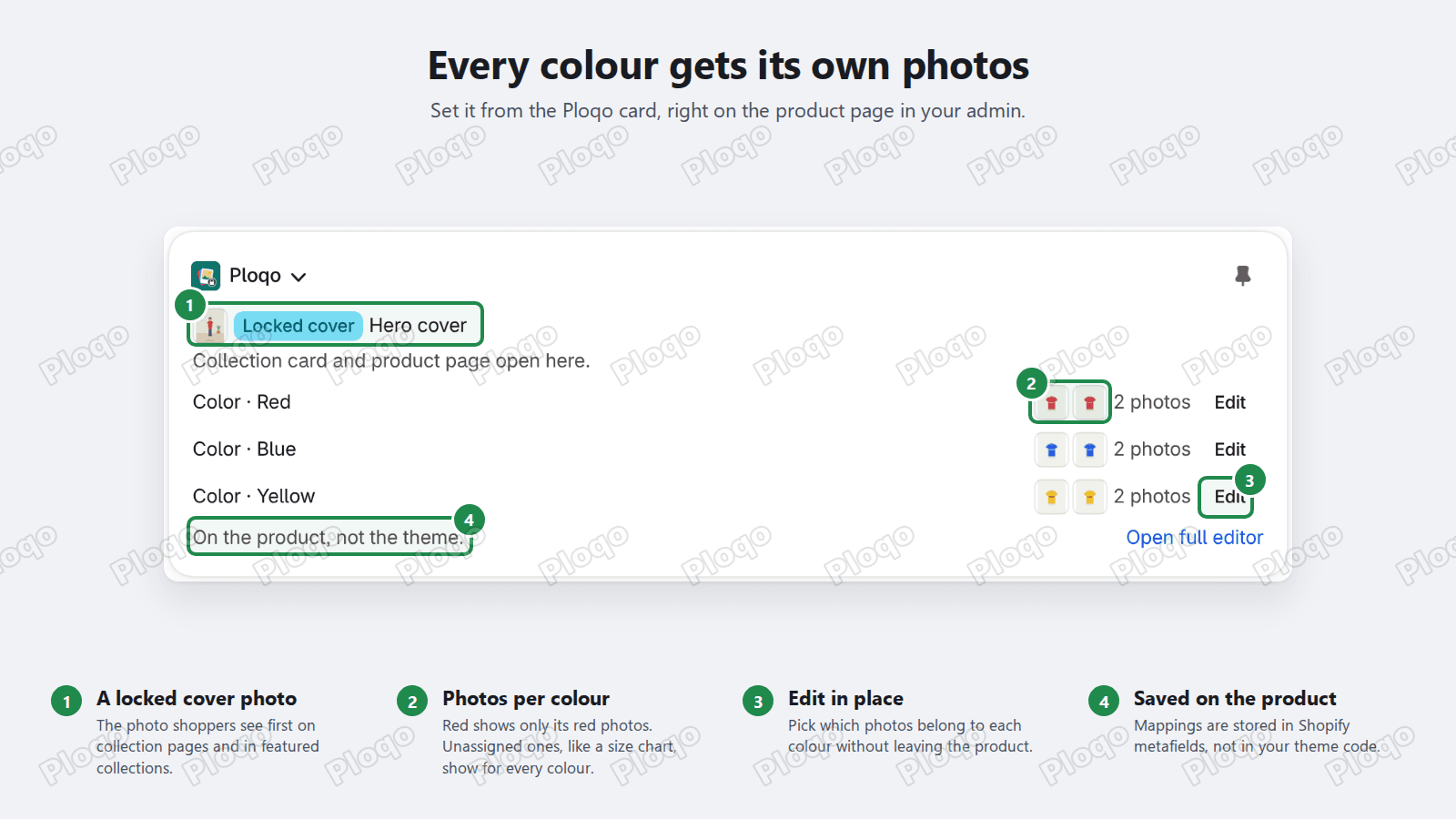 The Ploqo card on a product in the Shopify admin, with a locked cover and photos for each colour
An app block is a piece an installed app adds to your theme. You add it from the theme editor and you can remove it the same way. Ploqo does not edit your theme's code files.
Where Ploqo keeps your settings
Ploqo saves which photos belong to which colour, and which photo is the cover, on the product itself in Shopify. It uses metafields for this. A metafield is an extra field on a product that holds information Shopify does not have a field for.
Because the settings live on the product, they stay in place when you switch themes. You add the two app blocks to the new theme and the photos are grouped the same way, with no need to map every product again.
Definitions
- Variant: one buyable version of a product, such as Red / M.
- Variant image: the single image Shopify links to a variant.
- Cover photo: the one photo Ploqo shows first on the product page and on every card for that product.
- Shared photo: a photo you did not tick for any colour. It shows for every colour, which suits size charts and fabric close-ups.
- App block: a piece an installed app adds to your theme, placed from the theme editor.
- Featured collection: a home page section that shows products from one collection you choose.
Give every colour its own photos
Ploqo groups your product photos by colour, locks one cover per product, and shows that cover on collection pages and the home page. No theme code to edit.
Get Ploqo on the Shopify App StoreMore Ploqo guides
Theme Guides
Dawn Theme Variant Images: Give Each Colour Its Own Photos
In Dawn, picking a colour still shows every other colour's photos, and the collection card shows whatever photo is first. Here is how to fix both with Ploqo.
Theme Guides
Horizon Theme Variant Images: Photos and Covers per Colour
Horizon shows every colour's photos whichever colour a shopper picks, and the collection card shows the first photo. Here is how to fix both with Ploqo.
Theme Guides
Craft Theme Variant Images: Each Colour's Own Photos
Craft shows every photo for every colour and puts the first one on the collection card. Here is how to give each colour its own photos and lock a cover.
Theme Guides
Crave Theme Variant Images: Photos per Colour, Locked Cover
In Crave, the photo slider and the collection card ignore which photos belong to which colour. Here is how to show each colour's photos and keep your cover on the card.