
Dawn Theme Shopify Customization: Price Next to the Title
Put the price on the right of the product name on Dawn collection pages, at the same font size. One Custom CSS block, no app, tested on Dawn 16.0.0.
By AjayCodeWiz · October 23, 2026 · 9 min read
The problem
On a Dawn collection page, every product card shows the product name on one line and the price on the line below it. The price is also bigger than the name. On my Dawn 16.0.0 test store the name is 13px and the price is 16px.
A merchant on the Shopify Community wanted a cleaner grid. They asked for the price on the right side of the product name, on the same line, with both in the same font and the same size.
Here is a Dawn collection page before the change. Each price sits on its own line under the name.
 Dawn collection page before the change, with each price on its own line under the product name
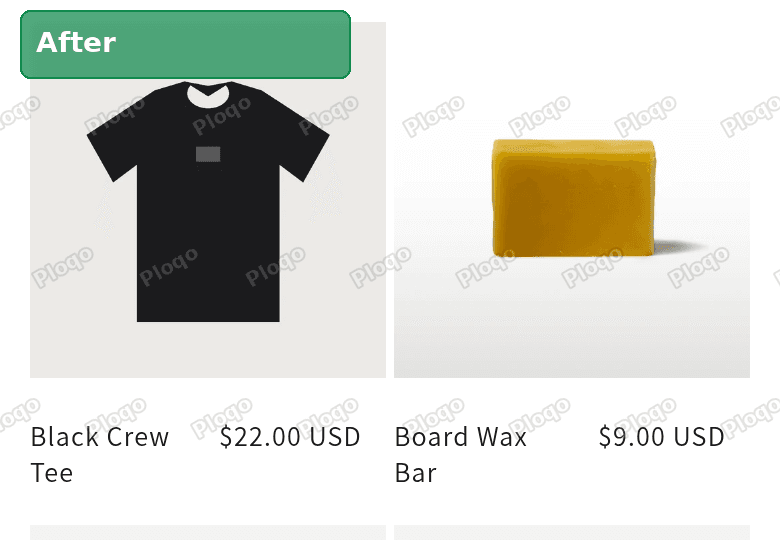
And here it is after the change. The name is on the left, the price is on the right, and both are 14px.
 Dawn collection page after the change, with the product name on the left and the price on the right at the same size
On my test store the name and price used to take up two lines, 48px of height under each photo. After the change they share one line of 18px. The grid gets shorter, so shoppers see more products before they scroll.
Why Dawn has no setting for this
Dawn is the free theme Shopify installs on new stores, and many other themes are built on it. Its collection pages are made of sections. A section is one part of the page, such as the collection banner at the top or the product grid below it.
The Product grid section has settings for the number of Columns, the image ratio, a second image on hover, the vendor name, product ratings and quick add. None of them move the price, and none of them change the text size of the product name or price.
So this change needs a little CSS. CSS is the code that controls how a page looks: sizes, colours, spacing and what sits next to what. Dawn gives every section a Custom CSS box in the theme editor. Code you paste there only affects that one section, and you never have to open the theme's code files.
Before you start
- Check your theme. The name of your current theme is on the top card of the Themes page, the screen shown in step 1 below. These steps are for Dawn and themes built on Dawn. Other themes use different names for the same parts of the page.
- Know the 500 character limit. Shopify only accepts up to 500 characters in a section's Custom CSS box. The code below is 487 characters, so it fits, but there is no room to add much more.
- Save any code already in the box. If someone has pasted code there before, copy it somewhere safe first. The steps below replace it.
How to put the price next to the title in Dawn
1. Open the theme editor
Go to Online Store in your Shopify admin, then click Edit theme on your current theme.
 Online Store > Themes page with the Edit theme button marked
2. Open a collection page
The theme editor opens on your home page. Click the page menu at the top of the screen, then pick Collections and choose one of your collections.
 Dawn theme editor page menu open, with Collections marked
Every collection uses the same template unless you made extra ones, so changing one collection page changes them all.
3. Click Product grid
In the list of sections on the left, click Product grid.
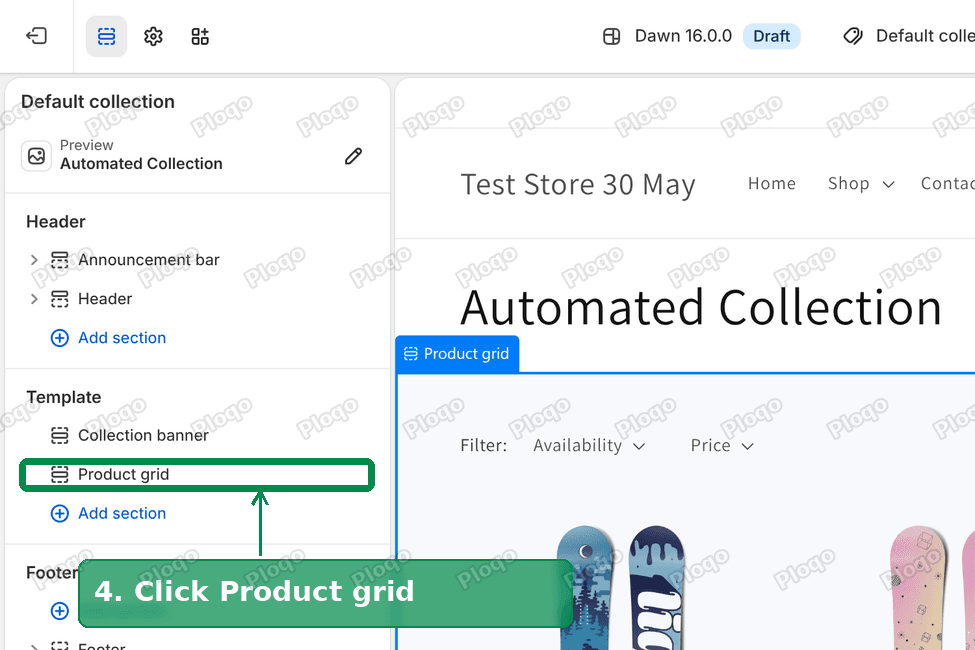 Dawn theme editor section list with Product grid marked
4. Open Custom CSS
The Product grid settings open in the sidebar. Scroll to the bottom and click Custom CSS.
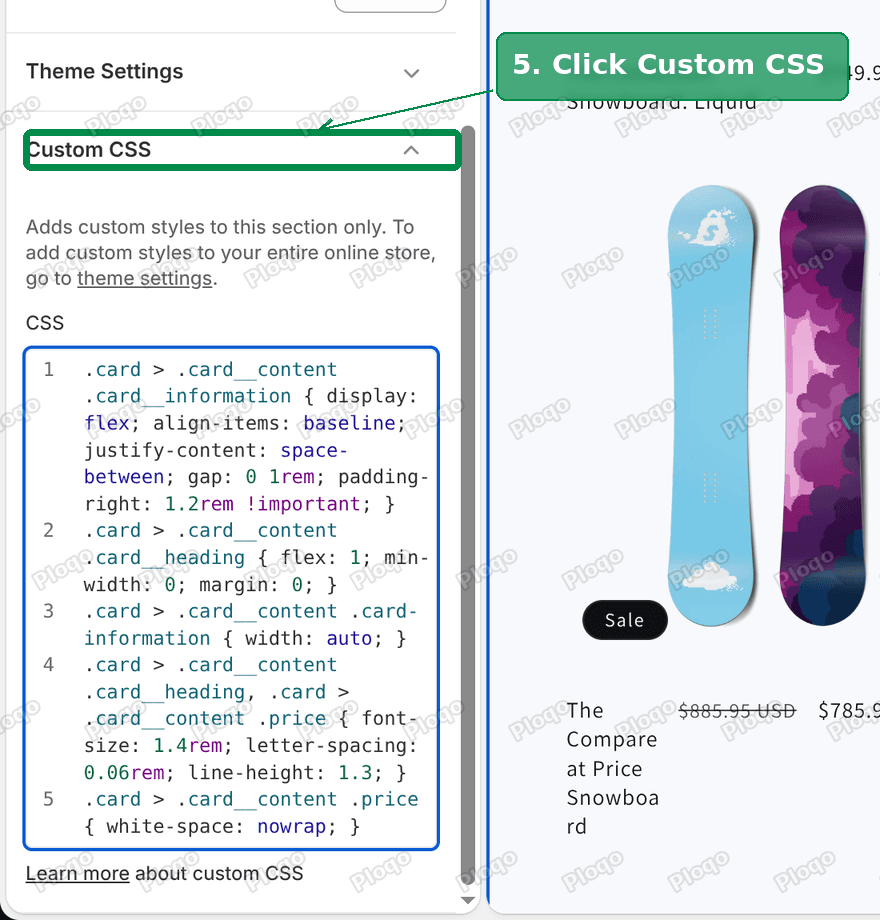 Product grid settings scrolled to the bottom, with Custom CSS marked
5. Paste the code
Delete anything already in the box, then paste this:
.card > .card__content .card__information { display: flex; align-items: baseline; justify-content: space-between; gap: 0 1rem; padding-right: 1.2rem !important; }
.card > .card__content .card__heading { flex: 1; min-width: 0; margin: 0; }
.card > .card__content .card-information { width: auto; }
.card > .card__content .card__heading, .card > .card__content .price { font-size: 1.4rem; letter-spacing: 0.06rem; line-height: 1.3; }
.card > .card__content .price { white-space: nowrap; }
The preview on the right updates as soon as the code is in, so you can check it before you save.
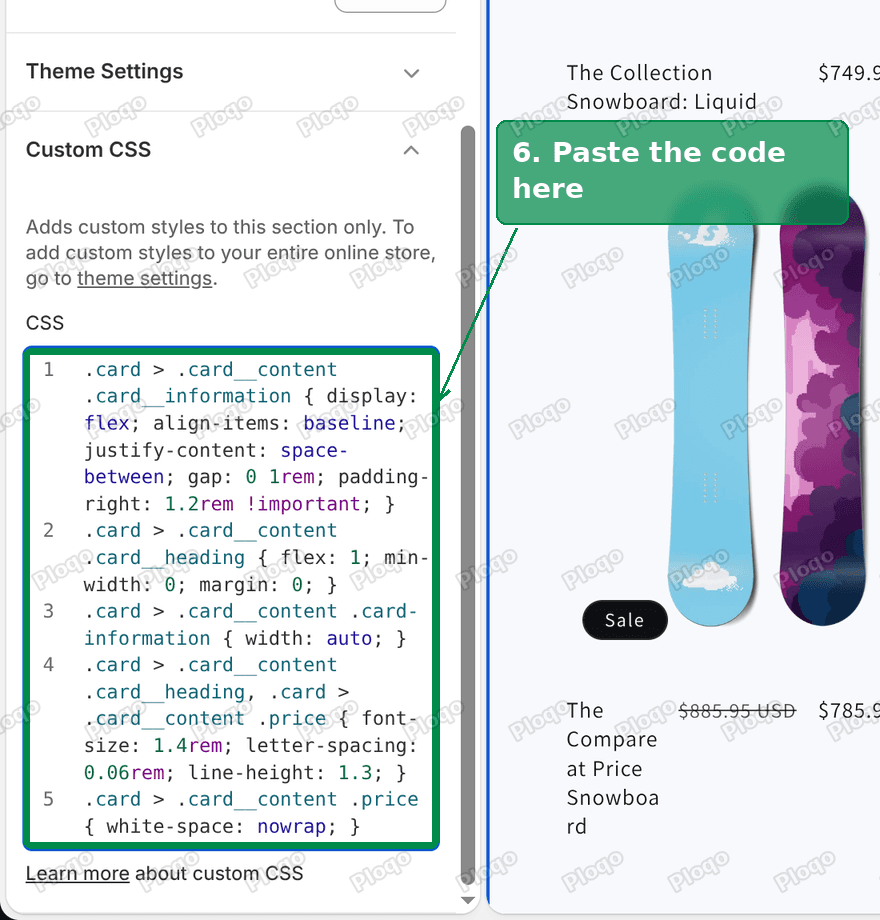 Custom CSS box with the code pasted in
6. Save
Click Save in the top right corner of the theme editor.
 Theme editor top bar with the Save button marked
Open the collection page on your live store and the new layout is there.
What each line of the code does
You do not need to understand the code to use it, but knowing what each line does makes it easier to adjust.
- Line 1 puts the product name and the price side by side on one row. It pushes the name to the left edge and the price to the right edge, with a small space between them. The
padding-rightpart keeps the price off the edge of the card. - Line 2 lets the product name take all the space the price does not need. A long name wraps onto a second line instead of pushing the price out of the card.
- Line 3 stops the price area from stretching across the full card width, which is what Dawn does by default.
- Line 4 sets the name and the price to the same size, 14px, with the same letter spacing and line height.
The product name uses your heading font and the price uses your body font. Dawn sets both to the same font (Assistant) out of the box, so on a default Dawn store they match. If you picked a different heading font in Theme settings > Typography, the name keeps that font.
- Line 5 keeps the price on one line, so "$19.00 USD" never breaks in the middle.
Why every line starts with .card > .card__content
Dawn prints each product name twice inside every card. One copy sits on top of the photo area and only shows when a product has no photo. The other copy sits under the photo, and that is the one shoppers see.
A selector is the part of the code that points at one element on the page. A short selector like .card__heading matches both copies. In the forum thread, the first code that was suggested did exactly that. It made the hidden copy show up on top of the merchant's photos, and the price still dropped below the name.
Starting every line with .card > .card__content points the code only at the copy under the photo. On my test store, 16 cards had the hidden copy, and none of them changed.
How to change the size
The size is set by 1.4rem in line 4. In Dawn, 1rem is 10px at the default text size, so 1.4rem is 14px.
- For 15px, change
1.4remto1.5rem. - For 13px, change it to
1.3rem.
Change the number in both places on line 4 at once, since it is one rule for both the name and the price. Keep it at 1.6rem or below. Dawn's cards are narrow, and a bigger size leaves less room for the name.
If your theme settings have a text size other than 100%, the result scales with it. Dawn's Theme settings > Typography has a font size scale for body text. At 110%, 1.4rem comes out at about 15px.
How it looks on a phone
Dawn shows two products per row on phones, so each card is much narrower than on a computer. The code still puts the price on the right. A product name that does not fit wraps onto a second line next to the price.
Here is the phone view before the change.
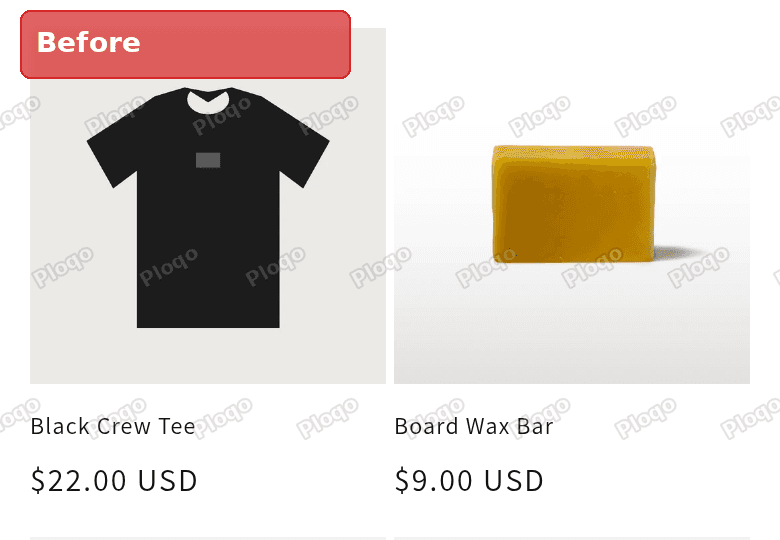 Dawn collection page on a phone before the change, with the price under each product name
And after the change, at a 390px wide phone screen.
 Dawn collection page on a phone after the change, with the price on the right and long names wrapping to two lines
"Black Crew Tee" and "Board Wax Bar" both wrap onto two lines because the price takes the right side of the card. That is fine for short names. If most of your product names are long, the Product grid section has a Mobile columns setting. Set it to 1 and each card gets the full width of the phone screen.
Sale prices and long names
A product on sale shows two prices, the crossed out old price and the new one. Both now sit on the right, so the product name gets less room.
On my test store, a sale product called "Cooling Gel Face Cream" wrapped onto two lines on a desktop screen. In the theme editor, a product with a much longer name ("The Compare at Price Snowboard") squeezed into a narrow column and broke over four lines. You can see it in the step 4 screenshot above, under the pink snowboard.
You have two ways around it:
- Fewer columns. Lower the Columns setting in the Product grid section. Dawn allows 1 to 6 products per row on desktop, and the default is 4. Fewer columns give each card more width.
- Shorter product names. Long names wrap on a grid with or without this change. A shorter name also reads better on a small card.
Where else the change shows up
Section Custom CSS only affects the section you paste it into. This code changes the product grid on collection pages, and nothing else.
Other sections that show product cards keep the old layout. The Featured collection section on your home page and the product recommendations at the bottom of a product page each have their own Custom CSS box. Paste the same code into each one where you want the same look.
If you want the same layout on the product page itself, where the title is much bigger, I wrote a separate guide on putting the price next to the title on a Dawn product page. If you only want a smaller price, see how to change the price font size on a collection page.
How to undo it
Follow steps 1 to 4 above to reach the Custom CSS box of the Product grid section. Delete the code and click Save. The cards go back to Dawn's normal layout straight away.
If you want a safety net before you start, use the Themes page from step 1. Click the three dots next to Edit theme on your current theme and pick Duplicate. That makes a copy you can go back to.
If it did not work
- Nothing changed at all. Check that you pasted the code into the Product grid section, not the Collection banner or Theme settings. Then check that you clicked Save.
- Shopify says the code is too long. There was already code in the box. Move the old code out first, or ask yourself whether you still need it. The box takes 500 characters in total.
- The price is still under the name. Your theme may be built on an older Dawn version or changed by a developer. Check the version number on your theme's card in Online Store > Themes. The code was tested on Dawn 16.0.0, and Dawn has used the same card names for many versions.
- Product names now show on top of the photos. You are using code with short selectors like
.card__headingon their own. Replace it with the code above, which only targets the name under the photo. - It works on the collection page but not the home page. The home page grid is a different section. Paste the code into the Featured collection section's Custom CSS too.
- The sizes look different from 14px. Your body font scale in Theme settings is not 100%. Lower the
1.4remnumber until it looks right.
Spending too long on manual Shopify busywork?
PinFlow turns your Shopify catalog into Pinterest pins and posts them on a schedule, automatically. Same idea as the rule above, let the system handle the repetitive part.
Get PinFlow on the Shopify App StoreMore Shopify fixes
More community-sourced Shopify guides, tested on a live store.
Themes & Storefront
Shopify Anchor Link: Button That Scrolls to a Section
Link a Shopify button to a section lower on the same page with an anchor link. Steps for the theme editor, no code files, plus the fix for a title hidden under the header.
Themes & Storefront
Shopify Social Media Icons: Add a Custom Icon and Link
Set your social links in Shopify theme settings, see why icons do not show, and swap in your own icon for a network the theme does not list.
Themes & Storefront
Sticky Add to Cart Button in Shopify Dawn, No App
Pin the Add to cart button and its delivery line to the bottom of the screen in Shopify Dawn. One free Custom Liquid block, no app, phone and desktop.