
Remove Archived Products From a Shopify Collection in Bulk
Archived products stay in Shopify collections. Remove them in bulk, keep them out with a status rule, or bulk hide products by archive, draft or sales channel.
By AjayCodeWiz · July 19, 2026 · 15 min read
The problem
A merchant asked about this on the Shopify Community, and it is a good example of a UI change breaking a workflow with nothing in the admin to flag it.
They had a collection they sort by hand. After Shopify's collections redesign, the collection view lost its status filter. Archived products still sit in the collection, still occupy numbered manual positions, and there is no longer any way to filter them out from inside the collection itself.
Their exact words: they had to click "next" roughly 400 times to reach the end of the collection and reorder products.
I reproduced it on a test store. Here is a collection where every single item is archived, and the collection view gives you nothing to hide them with.
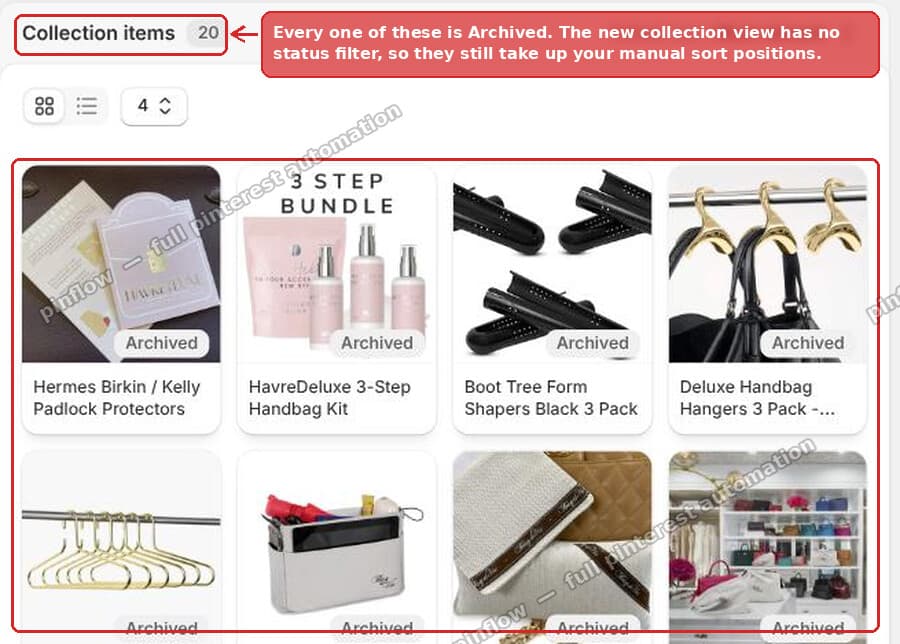 A Shopify collection where every product is archived, with no status filter available
There is no setting for this. The new collection view has no status filter.
Why archived products still clog the collection
Archiving a product hides it from your storefront and from the main product list in your admin. Customers cannot see it. That part works exactly as you expect.
But archiving does not remove the product from collections it already belongs to. Shopify's Help Center says it directly: archived products stay in collections and are still listed in the Collection items section of the admin, but customers cannot view them. In the admin today the Collection items count includes them, while the list itself opens with a status filter of Active, Draft, Unlisted, and Suspended, so the archived ones only appear once you add Archived to that filter. If you sort manually, each one keeps its position number. So positions 1 through 400 might be mostly products that no shopper will ever see.
That is the whole issue. The archived products are doing nothing for you except taking up slots in your manual sort order.
Once you frame it that way, the answer changes. You do not need to filter them out of the view. You need to get them out of the collection.
Nothing customer facing changes when you do. They were already hidden from shoppers.
First, check where the collection gets its products
Everything below depends on this, so check it before you start clicking. It takes about five seconds.
Open the collection in your admin. A Shopify collection gets its products from one or more sources, and the two that matter here are:
- Products you added by hand. You picked each product, using Browse or Add products. This is what older guides call a manual collection.
- Conditions. A rule such as "Tag includes summer" that Shopify matches against your catalog and keeps re-checking as products change. This is an automated collection. In the current admin the rules sit inside a Products source on the collection page.
A collection can contain items from more than one source, so check for both. Merchants often assume theirs is manual because they remember adding products, when in fact a tag rule has been filling it for months.
That one check decides the method. Products you added by hand need Method 1, a cleanup you perform. Products that come in through a rule get Method 2, a rule that does the work for every future product too.
Method 1: Remove them in bulk from the Products page
The collection view lost its status filter. The Products page did not. It still has both filters, and it can act on collection membership. So do the work from there instead.
Step 1. Filter to exactly the products you want gone
Go to Products. Add a filter for Collection and pick your collection. Then add a filter for Status and pick Archived.
 Shopify Products page filtered by collection and archived status
You are now looking at precisely the archived products inside that one collection, and nothing else. Check the count before you go further. It should match roughly what you expect.
Step 2. Select them and choose Remove from collection
Tick the checkbox in the table header row. That selects every product on the current page. If more than 50 products match your filters, open the "50 selected" drop-down and click Select all results, which selects every product that matches the filter, not only the ones on screen.
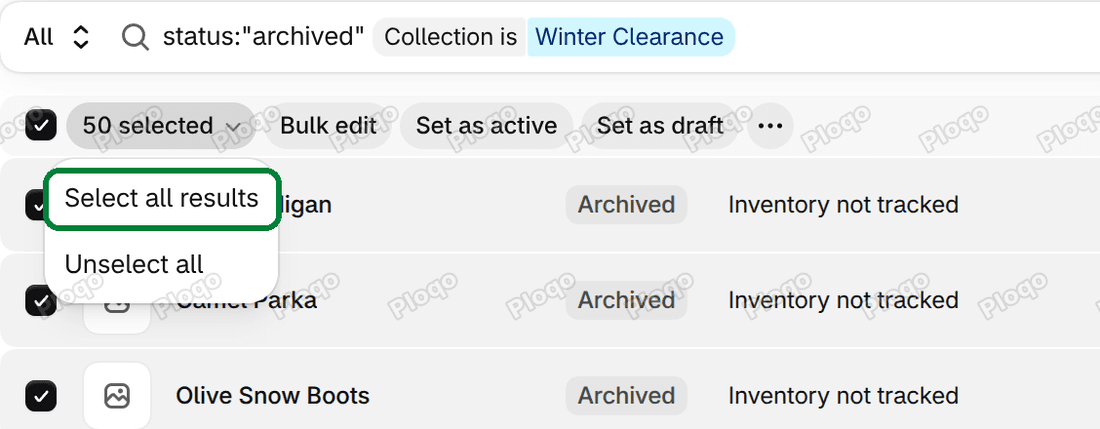 The Select all results option in the Shopify Products list after filtering by collection and Archived status
Then open the ... overflow menu in the bulk action bar and choose Remove from collection(s).
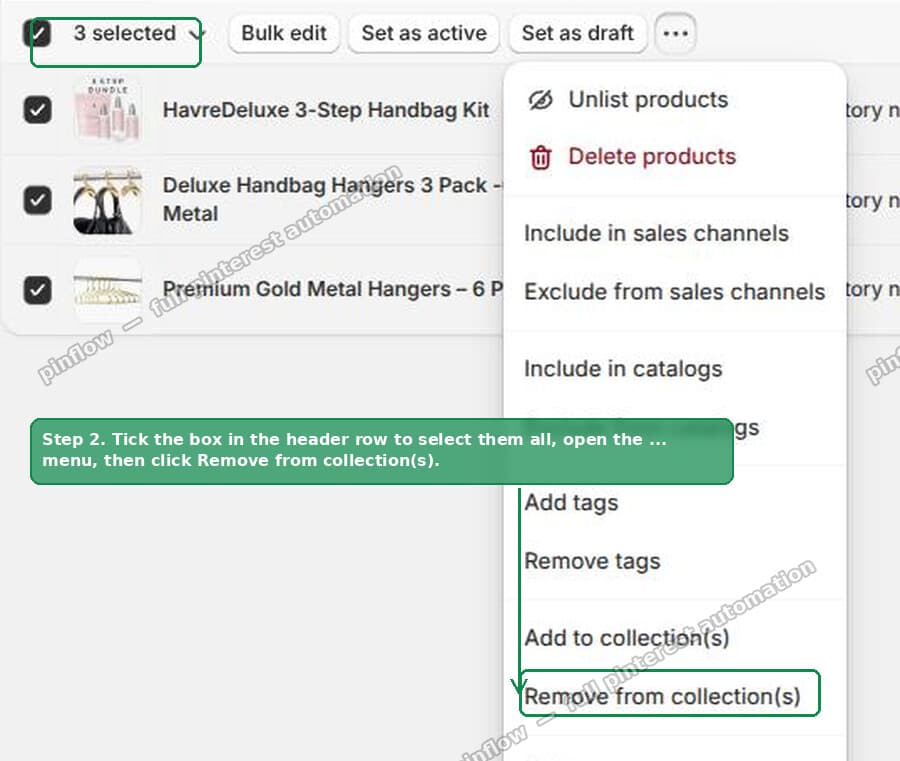 The Remove from collections bulk action in the Shopify admin
Shopify's Help Center notes that larger bulk changes take longer to finish, so give a big selection a minute before you check the result.
Step 3. Pick the right collection, then Save
The dialog lists all of your collections, not just the one you filtered by. Tick only the collection you are cleaning up, then Save.
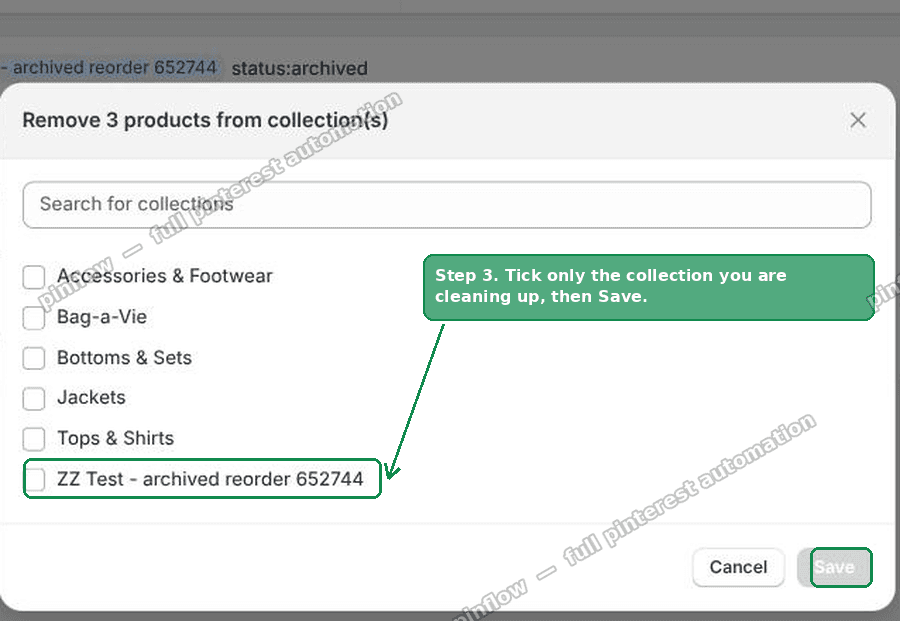 Choosing which collection to remove the products from
Slow down on this screen. It is the one place in this process where a mis-click costs you real work, because removing the wrong collection's products would wipe a manual sort order you may not be able to rebuild.
The result
The archived products leave the collection, and the manual order closes up behind them and renumbers from 1 with no skipped numbers.
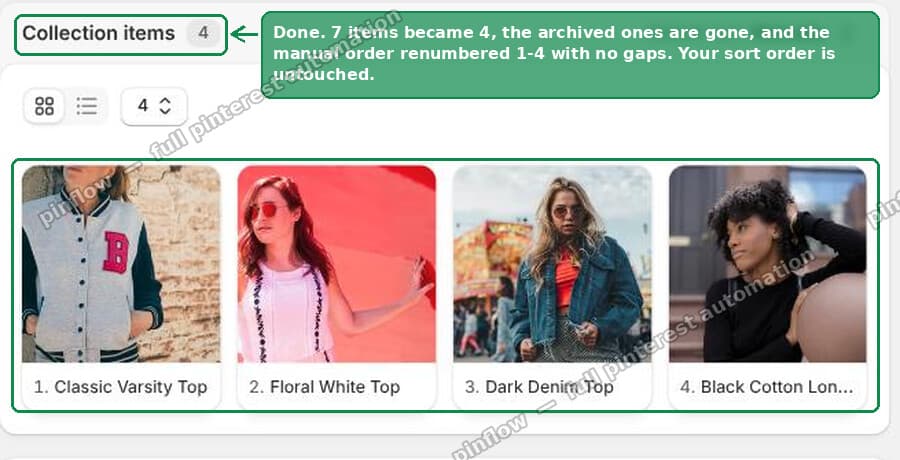 The collection after removal, with manual sort order intact and renumbered
On my test store the collection went from 7 items down to 4, renumbered 1 through 4. The sort order I had set for the remaining products was untouched. That last part is the bit people worry about, and it holds up.
Method 2: Let a status rule keep archived products out
Method 1 is a cleanup. It fixes today's mess but does not stop the next archived product from landing in the collection.
If your collection fills itself using conditions rather than manual selection, there is a much better answer. Open the collection and, in the Products source that holds your rules, click Add condition and set it to:
- Product status
- is not equal to
- Archived
Make sure the source is set to Match all conditions. With Match any condition, a status rule adds every product with a matching status, so the collection grows instead of shrinking. Shopify's own instructions say to use Match all conditions when you filter a collection by product status.
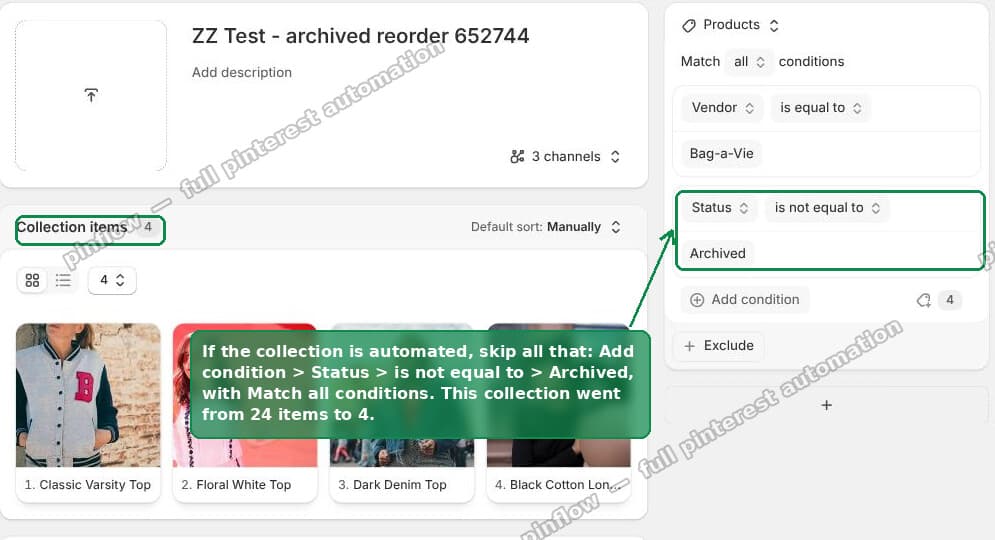 Adding a Status is not equal to Archived condition to a Shopify collection
On my test store this took a collection from 24 items to 4 the moment I saved it.
This method works differently from Method 1 because archived products never enter the collection in the first place. Anything you archive in future drops out on its own. There is no page-by-page clicking, no repeat cleanup, and the collection size does not matter. One rule handles 20 products or 20,000.
The catch is that conditions only apply to products the rule matched. Shopify states that a condition does not remove products you added by hand. If your collection has both, add the rule for the matched products and use Method 1 for the hand-added ones.
Which one should you use
Pick based on where the products came from, not how big the collection is.
| Your situation | Use |
|---|---|
| Products come in through conditions, any size | Method 2, the status condition |
| Products added by hand, small collection | Method 1, bulk remove |
| Products added by hand, thousands of items | Method 1 with Select all results, or consider rebuilding it with conditions |
| A mix of both | Method 2 for the rule, then Method 1 for the hand-added products |
That third row deserves a note. The merchant who asked this came back and said they had around 23,000 archived products, all added automatically by tag. Select all results can pick up all of them in one go, but a bulk change that size takes a long time, and the next archived product would land in the collection again.
The detail that matters is "added automatically by tag." That means the collection is already rule based, so Method 2 applies.
Add the status condition alongside the existing tag condition, with Match all conditions. All 23,000 archived products drop out without any clicking through pages. The tag rule keeps working exactly as before.
If you are dealing with a big collection, check for conditions before you start clicking. They change the answer entirely.
If removing archived products did not work
Each of these ties to one of the two methods above, with the check that rules it out.
The count did not change after adding the condition. Check the Match all conditions option on the Products source. On Match any condition, your status rule adds products instead of filtering them.
Some archived products are still in the collection after Method 2. Those were added by hand, and a condition does not remove products you added by hand. Run Method 1 on them: filter the Products page by the collection and Archived, select all, and remove them from the collection.
Products came back later. A condition is controlling membership. Check the collection for conditions and use Method 2.
You cannot find the status condition. Click Add condition inside a Products or Variants source, then pick Product status. Shopify does not offer the status condition in the Exclude section, so look for it under Add condition.
The Products page shows fewer archived products than the collection. Check that both filters are on, Collection and Status, and that the Collection filter names the right collection. A Status filter of Active or Draft instead of Archived gives a different count.
Your manual order looks scrambled. Removal renumbers to close up the empty positions, so numbers shift, but the relative order stays the same. If the actual sequence changed, check that the collection's sort is still set to Manually and not something like Best selling.
How to bulk hide products on Shopify
If you searched for a way to hide many products at once, archiving is only one of three ways, plus a fourth option, Unlisted, covered in the table below. Each of the three hides products from your online store, and each leaves something different behind. Shopify's troubleshooting page says to check two things when a product is missing from your online store: that its status is Active and that it is available to the Online Store. Changing either one hides it.
All three start the same way. Go to Products, add filters until the list shows only the products you want hidden, tick the header checkbox, and use Select all results if more than 50 match.
Archive them
Use this for products you have finished selling. In the bulk action menu, choose the archive option.
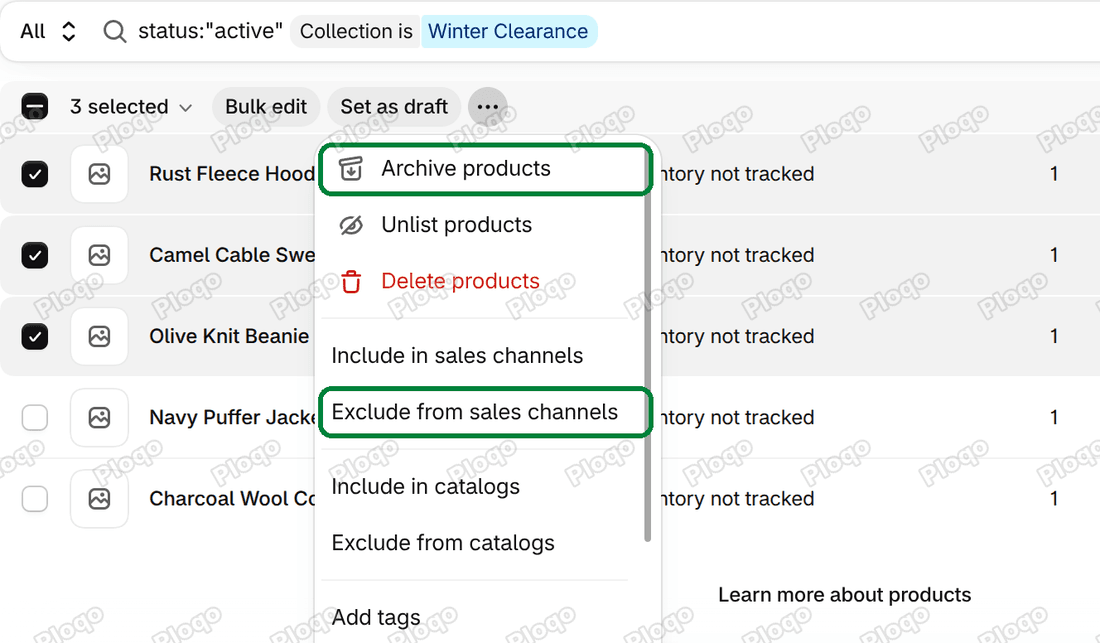 The bulk action menu on the Shopify Products list with Archive products, Unlist products and Exclude from sales channels
Archived products move to the Archived tab, leave your storefront, and stay in their collections. When you unarchive one later, Shopify sets it to Draft, not Active, so you need to set it to Active again before it goes back on sale.
Set them to Draft
Use this for products you are still preparing. Click Set as draft in the bulk action bar.
 The Set as draft button in the bulk action bar of the Shopify Products list, with several products selected
A Draft product is not Active, so it does not show on your online store. Unlike an archived product, it does not move to the Archived tab. You find it under the Draft view of the Products list.
Exclude them from the Online Store
Use this when the product should stay Active but leave your website, for example a product you only sell in person. In the bulk action menu, choose Exclude from sales channels, then pick Online Store. The Help Center still calls this action Make products unavailable.
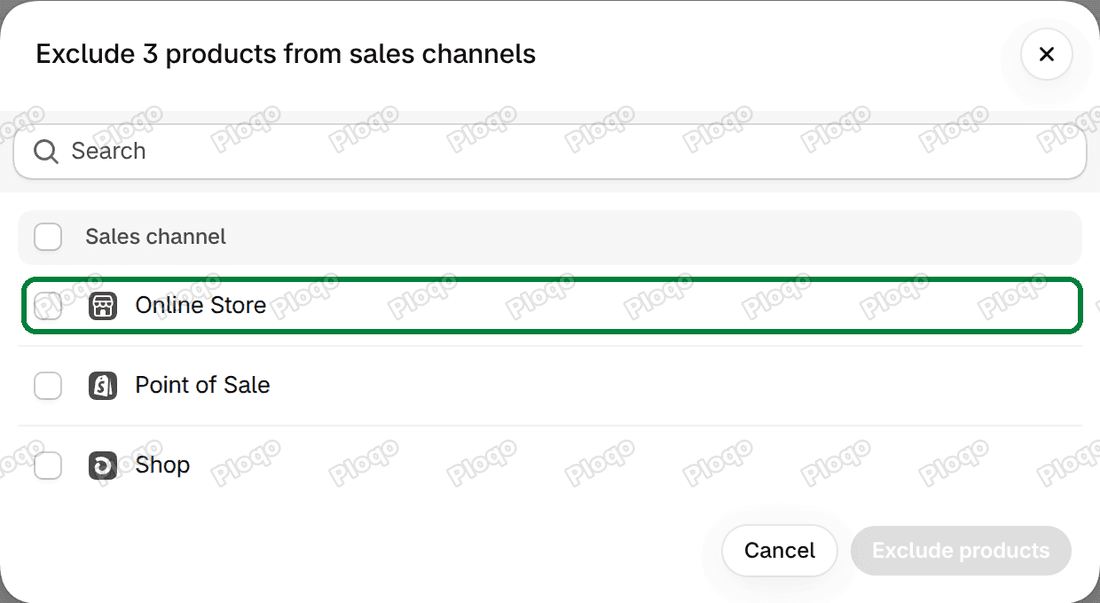 The Exclude from sales channels dialog in Shopify with the Online Store sales channel selected
A sales channel is a place you sell, such as your online store, a marketplace or the point of sale app. The product stays Active, keeps its status, and stays on any channel you did not pick. To find these products later, filter the Products list by Sales channel.
Which way to hide them
| You want to | Use | Where the products end up |
|---|---|---|
| Stop selling them for good, but keep the records | Archive | Archived tab, off the storefront, still in collections |
| Hide them while you finish the listing | Draft | Draft view, off the storefront |
| Keep selling them elsewhere, just not on your website | Exclude from sales channels | Still Active, off the Online Store channel |
| Keep them buyable by direct link only | Unlisted (Unlist products in the bulk menu) | Still sellable, out of collection pages and search |
Archiving does not take a product out of a collection, and Shopify does not document Draft or channel changes doing so either. If the collection's manual order is your concern, follow Method 1 or Method 2 above as well.
Hide every product from one brand
If a brand you stocked is discontinued, hide its whole range in one pass. Shopify stores this in the product's Vendor field, which it describes as the manufacturer, wholesaler, or other vendor. If your vendor values are brand names, this works per brand.
On the Products page, add the Vendors filter and pick the brand. Add the Status filter with Active, so you only touch products that are still on sale. Select all results, then archive them or exclude them from the Online Store, as described above.
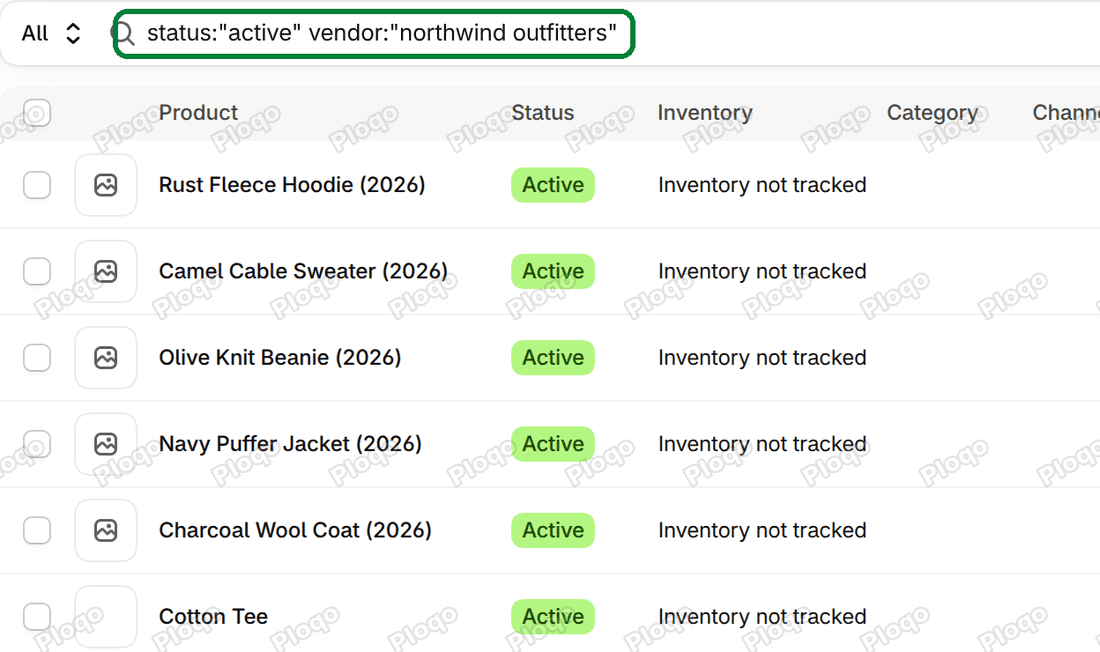 The Shopify Products list filtered by one vendor and Active status, ready for a bulk action
Collections built from conditions can also keep a brand out. Add a vendor condition set to is not equal to and the brand name, with Match all conditions. Every product from that vendor that the rules matched drops out, including products you add to your catalog later. Products you added to the collection by hand stay, so remove those with Method 1.
How to remove a product from a Shopify collection, archived or not
Everything above works for any product, not just archived ones. If you landed here because you simply want a product out of a collection, the route depends on how it got there.
For a product you added by hand, open the collection, hover over the product in the Collection items section, click the x next to it, and click Save. Shopify's Help Center confirms that removing an item takes it out of the collection without deleting the product from your store. For several at once, use the Products page method in Step 1 to Step 3 above and skip the Status filter. Filter by Collection only, tick the products you want gone, then use Remove from collection(s).
For a product that came in through a condition, Shopify documents the x only for products you added by hand. Either change the rule so it stops matching, or change the product so it no longer qualifies. A Products source also has an Exclude section that keeps products out by category, tag, type or vendor (for example, tag the product and exclude that tag) without changing the include rule.
That distinction matters more than it looks. If a product keeps reappearing in a collection, check the collection for conditions that match it.
For more on the rule side, see how to build smart collections from extra fields you add to your products. To move a product to the front instead of removing it, see how to pin a product to the top of a Shopify collection.
How to remove or hide a whole collection
Sometimes the collection itself is the thing to go. You have two options, and only one of them is permanent.
Delete it. Go to Products > Collections, open the collection, click the trash can icon at the top of the page, then confirm the delete. Shopify removes it permanently, and it also removes links to it from your online store menus. You can delete several collections at once with a bulk action from the collections list.
 The trash can icon at the top of a Shopify collection page, which deletes the collection
Hide it from your store. Open the collection, click Channels, clear Online Store in the Sales channels drop-down, and click Save. The collection stays in your admin and you can turn it back on later.
Hiding a collection does not hide the products in it. Shopify notes that changing a collection's availability does not change the availability of the products inside it, so each product keeps its own setting.
What happens when you archive a product on Shopify
Shopify's Help Center describes four effects:
- The product moves to the Archived tab of the Products page, so it disappears from the main product list
- It is hidden from your storefront
- It stays in every collection it already belonged to, listed under Collection items, but customers cannot view it there
- If you unarchive it, its status is set to Draft, not back to Active
The third point is the behaviour this whole article exists for. Archiving is about sales visibility, not collection membership, and merchants reasonably expect it to handle both.
You can still find an archived product at any time by opening the Archived view of the Products page or by filtering Status to Archived.
Archive vs delete
Archiving is reversible and deleting is not. Shopify states that a deleted product is permanently removed and cannot be restored.
Archive when you might sell it again, or when you need the product's details for reference. You can unarchive it at any time and set it to Active, and the product's details are still there.
Delete only when the product was a mistake, like a duplicate or a test entry.
For seasonal stock, archive. For a product you accidentally created twice, delete. When in doubt, archive, because you can always delete later but you cannot undo a delete.
Archived, draft, and unlisted are not the same thing
Merchants mix these up often, and it matters here because each status changes where a product shows up.
Active is a product that is ready to sell and visible on the channels you have made it available to.
Draft is a product you are still working on. It is not Active, so it does not show on your online store, and you find it under the Draft view of the Products list.
Archived is a product you are finished selling. Shopify hides it from your storefront and moves it out of your main product list, which is why it feels deleted when it is not.
Unlisted is narrower. The product can still be sold and reached by direct link, but it does not appear in collection pages, search results or product recommendations, and Shopify removes it from your sitemap. For more on that, see how to keep products out of Shopify search results.
So if your collection looks cluttered, archived products may not be your only problem. When you run the Method 1 filter, try Status set to Draft as well as Archived, and remove any drafts you find the same way. When you build the Method 2 rule, you can add a second condition, Product status is not equal to Draft, the same way.
Unlisted suits merchants who want a product to stay buyable but stop cluttering their storefront. It is worth knowing about before you reach for archive out of habit.
One last thing worth asking
Before you clean up thousands of archived products, ask whether they need to stay archived.
Archived is meant for products you are done selling. If you are archiving seasonal stock you plan to bring back next year, the Method 2 rule handles that on its own. Products drop out of the collection while archived. When you unarchive them they come back as Draft. Draft is not Archived, so they rejoin the collection straight away, but shoppers do not see them until you set them to Active. If you also added Product status is not equal to Draft, they return only once they are Active. You never touch the collection.
That is the real advantage of solving this with a rule instead of a cleanup. A cleanup fixes the collection once. A rule keeps it correct while your catalog changes underneath it.
Frequently asked questions
Does archiving a product remove it from a Shopify collection?
No. Archived products stay in their collections and are listed under Collection items in the admin, but customers cannot view them. To take them out, remove them from the Products page (Method 1) or add a Product status is not equal to Archived condition (Method 2).
How do I bulk hide products on Shopify?
Filter the Products list, tick the header checkbox, and use Select all results if more than 50 match. Then archive them, click Set as draft, choose Exclude from sales channels and pick Online Store, or use Unlist products.
What happens when you archive a product on Shopify?
It moves to the Archived tab, it is hidden from your storefront, and it stays in its collections. It is not deleted. If you unarchive it, Shopify sets it to Draft, so set it to Active to sell it again.
How do I filter archived products out of a collection?
The new collection view has no status filter. Filter the Products page by Collection and by Status set to Archived instead, then use Remove from collection(s). For a collection built from conditions, add Product status is not equal to Archived with Match all conditions.
Why did my status condition not remove archived products?
Either the source is set to Match any condition, which adds products instead of filtering them, or the archived products were added by hand. A condition does not remove products you added by hand, so remove those with Method 1.
How do I remove a collection in Shopify?
Open the collection, click the trash can icon at the top of the page, then confirm the delete. Deleting is permanent. To keep the collection but hide it, click Channels and clear Online Store instead.
Spending too long on manual Shopify busywork?
PinFlow turns your Shopify catalog into Pinterest pins and posts them on a schedule, automatically. Same idea as the rule above, let the system handle the repetitive part.
Get PinFlow on the Shopify App StoreMore Shopify fixes
More community-sourced Shopify guides, tested on a live store.
Collections & Products
Shopify Unit Pricing: Show a Price per Unit on Each Variant
Set a unit price on every variant and Dawn shows the price per 100 ml or per kg, and updates it when a shopper picks another size. No code needed.
Collections & Products
Shopify Related Products by Collection, Without an App
Shopify's related products show items that do not match, because the recommendation algorithm needs sales data a small catalog does not have. Drive the block off your collections and a hand-picked list, with one Custom Liquid section on Dawn.
Collections & Products
Shopify Variants: The Complete Guide
Variants are one product sold in several forms. How they work, the 2,048 and 3-option limits, and where each variant fix lives - images, swatches, sorting, hiding and the theme-specific bugs.