
Shopify Cart Progress Bar: Count Items, Not Just Money
Add a progress bar to the Shopify cart that counts items toward a full box, or money toward a reward. One Custom Liquid section, no app. Tested on Dawn and Spotlight.
By AjayCodeWiz · September 13, 2026 · 10 min read
The problem
A merchant asked about this on the Shopify Community. They sell wholesale, and they ship in boxes of a fixed size. They wanted the cart to say how many full boxes are in there, and how many more items would fill the next one.
Every tutorial they found did money. Spend another 20 and you get free shipping. None of them counted units.
That is the gap. A spend bar answers "how close am I to the discount". A quantity bar answers "how close am I to a full box", which is the question wholesale buyers actually ask.
I built both into one snippet and tested it on two themes. This walks through it.
Why most cart progress bars go stale
Here is the part that catches people out, and it has nothing to do with your maths.
You will almost certainly add your bar as a Custom Liquid section. That is a box in the theme editor where you paste code, and it is the right tool, because it means you never touch a theme file.
The catch is what happens next. When a shopper changes a quantity in the cart, your theme does not reload the page. It quietly re-renders a few of its own parts and leaves everything else exactly as it was. Your Custom Liquid section is not one of its own parts. So the bar draws the correct number once, on page load, and then sits there showing the old figure while the cart moves underneath it.
Nothing looks broken. The code is right. The number is just old.
There are two ways out.
The first is to put your bar inside a file the theme already re-renders. That works, and I have written up the free shipping version on Horizon, which needs no JavaScript at all for exactly this reason. The cost is that you are editing a theme file, and the file name is different on every theme.
The second is to keep the bar in a Custom Liquid section and have it re-read the cart itself. That is the approach below. It works on any theme, because it does not care what your theme's files are called.
Items or money: pick before you paste
The snippet does both. One line decides which.
Count items when your products ship in a fixed case, box or pack, and a buyer is filling that container. Wholesale, bulk food, print runs, anything sold by the tray.
Count money when you are pushing shoppers toward free shipping, a gift, or a discount tier. This is the familiar one.
You can also run both on one store, and switch between them on the customer. More on that further down.
Add the section
Go to Online Store > Themes and click Edit theme on your live theme. Some admins still label this button Customize.
In the theme editor, switch the preview at the top to your Cart page. This matters. Sections you add while the preview is on the home page land on the home page.
Then click Add section in the Template group and search for Custom Liquid.
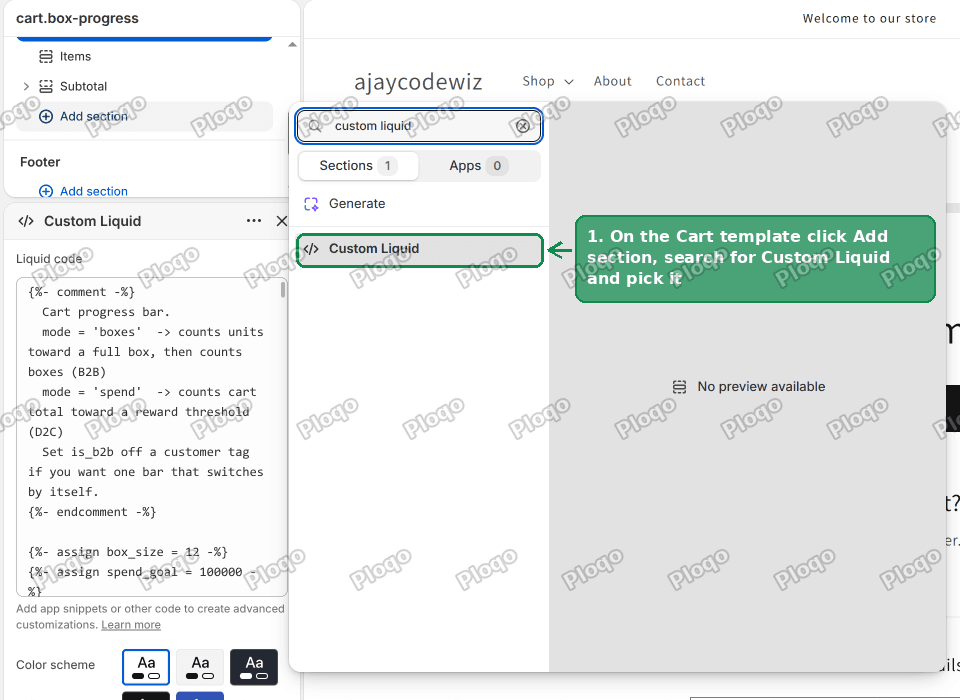 The Add section panel on the Shopify cart template with Custom Liquid found by search
The section appears with an empty Liquid code box. Paste the whole block below into it, then click Save at the top right.
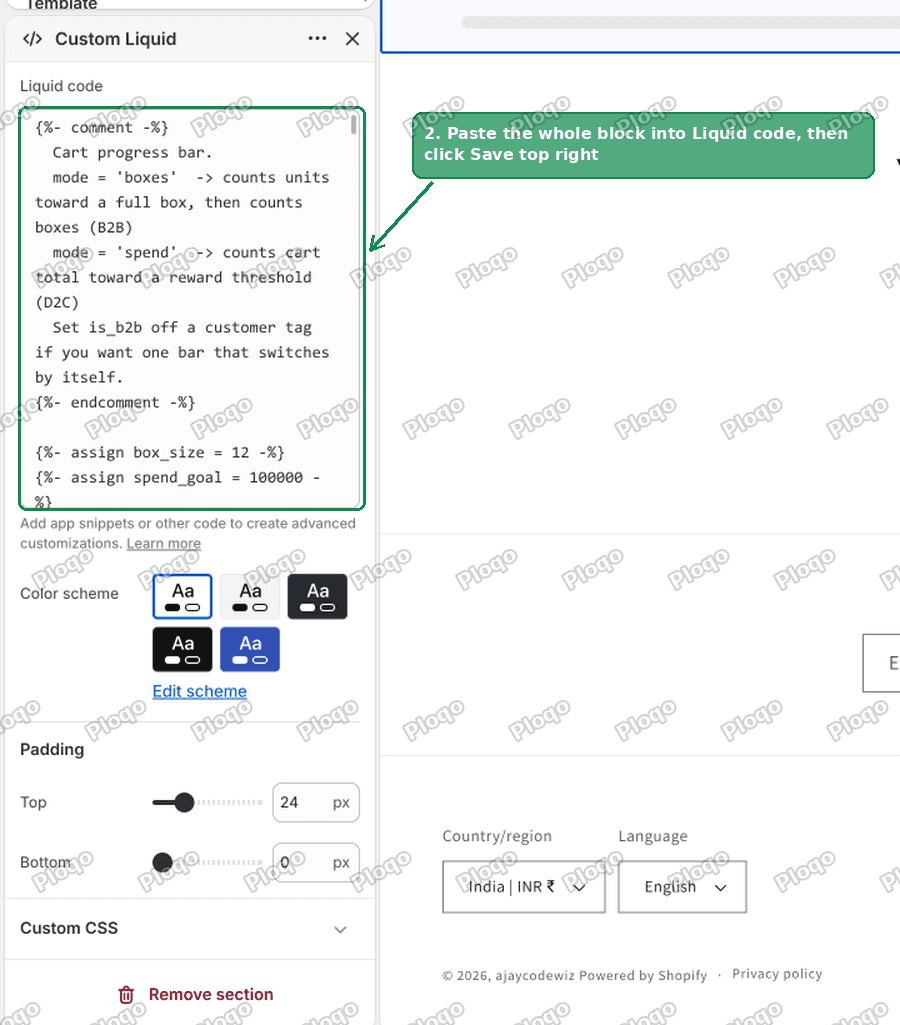 The Custom Liquid section settings with the progress bar code pasted into the Liquid code box
{%- assign box_size = 12 -%}
{%- assign spend_goal = 100000 -%}
{%- assign reward_name = 'free shipping' -%}

{%- assign mode = 'spend' -%}
{%- if customer and customer.tags contains 'wholesale' -%}
  {%- assign mode = 'boxes' -%}
{%- endif -%}

<div class="page-width">
  <div id="cart-progress" data-mode="{{ mode }}" data-box-size="{{ box_size }}"
       data-goal="{{ spend_goal }}" data-reward="{{ reward_name | escape }}"
       data-count="{{ cart.item_count }}" data-total="{{ cart.total_price }}"
       data-money-format="{{ shop.money_format | strip_html | escape }}">
    <p class="cp-line"><strong class="cp-head"></strong><span class="cp-msg"></span></p>
    <div class="cp-track"><div class="cp-fill"></div></div>
  </div>
</div>

<style>
  #cart-progress { margin: 2rem auto; max-width: 120rem; padding: 0 1.5rem; }
  #cart-progress .cp-line { margin: 0 0 .8rem; font-size: 1.5rem; }
  #cart-progress .cp-msg { opacity: .7; }
  #cart-progress .cp-track { display: block; height: 10px; border-radius: 999px;
    background: rgba(var(--color-foreground, 18 18 18), .1); overflow: hidden; }
  #cart-progress .cp-fill { display: block; height: 100%; width: 0; border-radius: 999px;
    background: rgb(var(--color-foreground, 18 18 18)); transition: width .3s ease; }
</style>

<script>
(function () {
  var el = document.getElementById('cart-progress');
  if (!el) return;
  var mode = el.getAttribute('data-mode');
  var size = parseInt(el.getAttribute('data-box-size'), 10) || 12;
  var goal = parseInt(el.getAttribute('data-goal'), 10) || 0;
  var reward = el.getAttribute('data-reward') || 'your reward';
  var fmt = el.getAttribute('data-money-format') || '${{amount}}';
  var headEl = el.querySelector('.cp-head'), msgEl = el.querySelector('.cp-msg'), fillEl = el.querySelector('.cp-fill');

  function money(c) {
    var n = (c / 100).toFixed(2).replace(/\B(?=(\d{3})+(?!\d))/g, ',');
    return fmt.replace(/\{\{\s*amount[^}]*\}\}/, n);
  }

  function render(cart) {
    var pct, head, msg;
    if (mode === 'boxes') {
      var count = cart.item_count, boxes = Math.floor(count / size), rem = count % size;
      pct = rem === 0 ? (count > 0 ? 100 : 0) : (rem / size) * 100;
      head = boxes + (boxes === 1 ? ' full box' : ' full boxes');
      msg = count === 0 ? ' - add ' + size + ' items to fill your first box'
          : rem === 0 ? ' - box complete'
          : ' - ' + (size - rem) + ' more to fill the next box';
    } else {
      var total = cart.total_price;
      pct = goal > 0 ? Math.min((total / goal) * 100, 100) : 0;
      head = total >= goal ? 'You have unlocked ' + reward : money(goal - total) + ' away';
      msg = total >= goal ? '' : ' - spend ' + money(goal) + ' to unlock ' + reward;
    }
    headEl.textContent = head; msgEl.textContent = msg; fillEl.style.width = pct + '%';
  }

  render({ item_count: +el.getAttribute('data-count') || 0, total_price: +el.getAttribute('data-total') || 0 });

  var pending = null;
  function refresh() {
    clearTimeout(pending);
    pending = setTimeout(function () {
      var root = (window.Shopify && Shopify.routes && Shopify.routes.root) || '/';
      fetch(root + 'cart.js', { headers: { Accept: 'application/json' } })
        .then(function (r) { return r.json(); }).then(render).catch(function () {});
    }, 120);
  }

  var W = /\/cart\/(add|change|update|clear)/;
  var _f = window.fetch;
  window.fetch = function () {
    var p = _f.apply(this, arguments);
    try { var a = arguments[0]; if (W.test(String((a && a.url) || a || ''))) p.then(refresh, function () {}); } catch (e) {}
    return p;
  };
  var _o = XMLHttpRequest.prototype.open;
  XMLHttpRequest.prototype.open = function (m, u) {
    try { if (W.test(String(u))) this.addEventListener('load', refresh); } catch (e) {}
    return _o.apply(this, arguments);
  };
  document.addEventListener('submit', function (e) {
    var f = e.target;
    if (f && f.getAttribute && /\/cart/.test(f.getAttribute('action') || '')) setTimeout(refresh, 400);
  }, true);
})();
</script>
That is the whole thing. No theme file opened, no app installed.
What it looks like counting boxes
With the box size set to 12, a cart of 20 items reads "1 full box, 4 more to fill the next box" and the bar sits at 67 percent.
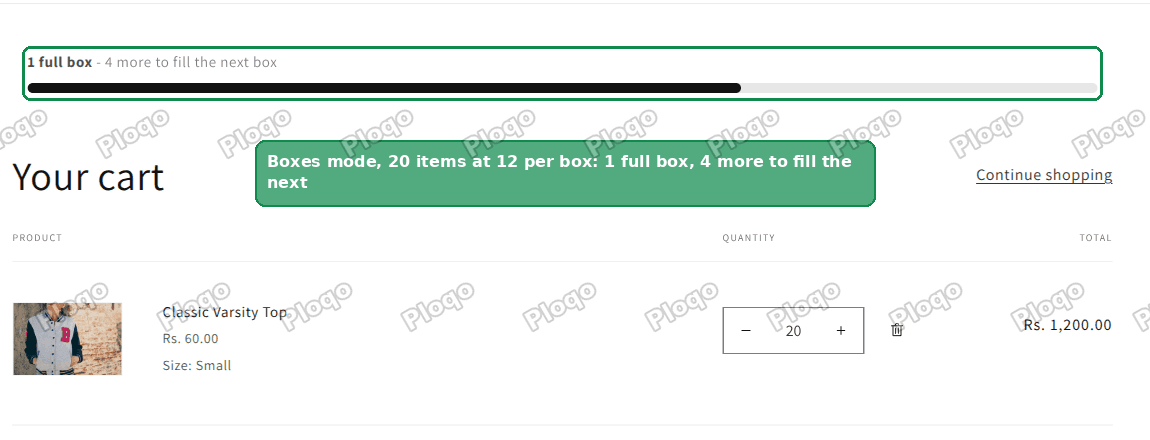 Shopify cart page showing a progress bar that reads 1 full box, 4 more to fill the next box
The numbers I saw while testing, all at a box size of 12:
- 8 items: 0 full boxes, 4 more to go, bar at 67 percent
- 20 items: 1 full box, 4 more to go, bar at 67 percent
- 24 items: 2 full boxes, box complete, bar at 100 percent
- 25 items: 2 full boxes, 11 more to go, bar back to 8 percent
That last one is the behaviour that makes a box bar useful. Crossing a box boundary resets the bar and starts counting the next one, which is exactly the nudge that gets someone from 25 up to 36.
What it looks like counting money
Same snippet, same section, one line different.
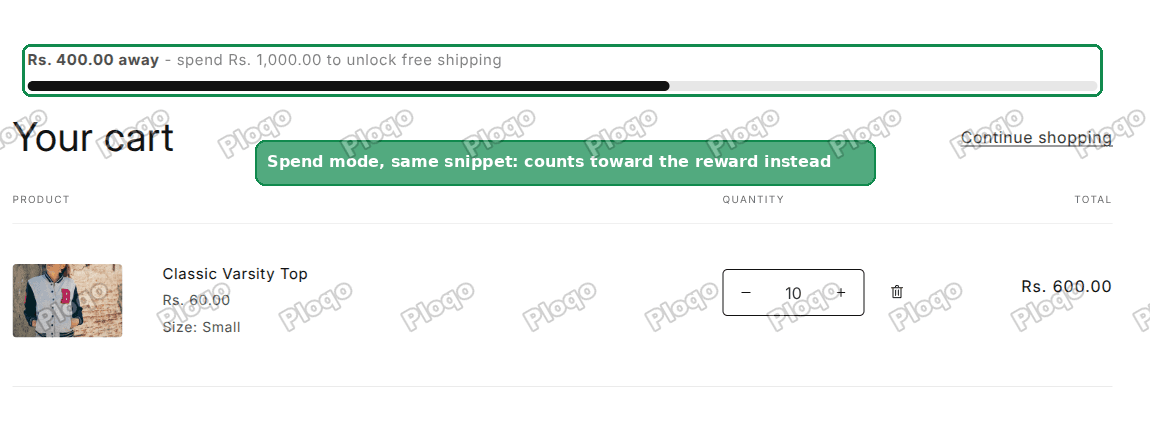 Shopify cart page showing a progress bar that reads 400 away, spend 1,000 to unlock free shipping
Against a goal of 1,000 the bar read 520.00 away at 48 percent, then 160.00 away at 84 percent, then flipped to the unlocked message at 100 percent and stopped there rather than overflowing.
The currency formatting is not hardcoded. The snippet reads your store's own money format, so the thousands separator and the symbol come out the way the rest of your storefront writes them.
Why the bar was invisible the first time
This one cost me a while, so it is worth knowing before it happens to you.
I pasted the section, loaded the cart, and got the text but no bar. The track was there. The coloured part that fills it was not. The code looked correct, and the browser even reported the width as 66 percent.
Dawn, and every theme built from Dawn, ships this rule in its stylesheet:
div:empty { display: none; }It hides any box on the page that has nothing inside it. That is a tidy-up rule, and normally it is helpful.
The filled part of a progress bar is an empty box. That is the entire design. It has no text in it, it is just a coloured rectangle whose width you change. So the theme hides it, and your bar renders as an empty grey track forever.
The fix is one line, and it is already in the snippet above:
#cart-progress .cp-fill { display: block; }If you have tried to build a progress bar on a Dawn-family theme before and given up because nothing appeared, this was probably why. It is also why copying a generic progress bar tutorial from a non-Shopify site tends not to work first time.
How do I change the box size?
The first line:
{%- assign box_size = 12 -%}Change 12 to whatever fills one of your boxes. The wording updates with it, so a size of 6 will say "add 6 items to fill your first box" on an empty cart.
How do I change the spend goal?
The second line:
{%- assign spend_goal = 100000 -%}That number is in cents, which trips people up. 100000 is 1,000.00 in your currency, not 100,000. A goal of 50.00 is 5000.
Change reward_name on the next line to whatever you are giving away. It appears in both messages, so "a free tote" reads as "spend 1,000.00 to unlock a free tote".
Can I show a different bar for wholesale customers?
Yes, and that is what this block is for:
{%- assign mode = 'spend' -%}
{%- if customer and customer.tags contains 'wholesale' -%}
  {%- assign mode = 'boxes' -%}
{%- endif -%}
In plain terms: everybody gets the money bar, unless the shopper is signed in and carries a wholesale tag on their customer record, in which case they get the box bar instead.
A tag is just a label you put on a customer in the admin. Change wholesale to whatever label your trade accounts already carry.
If you are on Shopify Plus with the real B2B features, customer.b2b? is the equivalent check and you can use that instead of a tag. I could not exercise that branch on my test store, which is on a standard plan, so treat that one line as the swap to make rather than something I watched work.
Why is my cart progress bar not updating?
Work down this list:
- The number only changes on refresh. The script is not running. Check the whole block went in, including the
<script>at the bottom. Pasting only the visible markup is the usual cause. - Nothing shows at all. The section is on the wrong template. Switch the preview to Cart, then look for Custom Liquid in the Template group, not the Header or Footer group.
- The bar shows but never fills. That is the empty-box rule above. Make sure the
display: blockline survived the paste. - It works on the cart page but not in the slide-out drawer. The section lives on the cart page. See the next answer.
Does this work in the cart drawer?
The section renders on the cart page, so that is where the bar appears.
Most themes open a slide-out drawer when you add something, and only reach the full cart page if the shopper clicks through. If your checkout flow runs mostly through the drawer, a bar on the cart page will be seen by fewer people than you expect.
Putting it inside the drawer means editing the theme file that draws the drawer, which is the first approach I described near the top. Worth knowing before you decide the bar is not working, when really it is just somewhere your shoppers rarely go.
Do I need an app for a cart progress bar?
No, and the snippet above is the proof. But apps make sense in two cases.
The first is if you want the bar in the drawer, the header and the cart without touching any theme file. Cart apps draw their own drawer, so they control all of it.
The second is if you want the bar tied to things this snippet does not read. Progress toward a specific product being in the cart, tiered rewards with three levels, or a bar that also shows product recommendations underneath.
Cart progress bar apps, if you prefer no code
- Hextom: Free Shipping Bar
- Kaching CartDrawer Cart Upsell
- Upcart - Cart Drawer Cart Upsell
Worth knowing before you install one: they are built around spend thresholds. A bar that counts units toward a repeating box is unusual, and most of these will get you close rather than exact.
Cart progress bar versus free shipping bar
These get used interchangeably and they are not quite the same thing.
A free shipping bar is usually a strip across the top of every page, announcing the threshold whether or not anything is in the cart. It is a marketing banner.
A cart progress bar sits in the cart, appears once there is something to measure, and moves as the cart changes. It is feedback rather than an announcement.
They work well together, and they work on their own. If what you want is the classic money bar inside a Horizon cart with no JavaScript at all, that version is written up separately. If you want the shipping rule itself set up first, start with how to offer free shipping on Shopify.
How to test it on your own store
Add something to the cart and change the quantity without reloading. The number should move on its own within a moment.
Then take the cart past a boundary. In box mode, go one item past a full box and check the bar drops back near zero and the box count goes up. In spend mode, go past the goal and check the message flips and the bar stops at full rather than running off the end.
I tested this on Dawn 15.5 and on Spotlight, and both behaved the same way, which is the point of keeping the bar out of theme files. Every state above updated from a quantity change with no page reload.
The one case this does not cover is a different box size per product. Twelve of one thing and six of another in the same cart needs a per-product field holding that product's box size, and the maths then has to walk the cart line by line rather than using a single total. That is a bigger build, and worth doing only if your catalogue really does ship that way.
Spending too long on manual Shopify busywork?
PinFlow turns your Shopify catalog into Pinterest pins and posts them on a schedule, automatically. Same idea as the bar above, let the system handle the repetitive part.
Get PinFlow on the Shopify App StoreMore Shopify fixes
More community-sourced Shopify guides, tested on a live store.
Themes & Storefront
Shopify AI Section: Fix a Price Badge Hidden Behind the Image
You built a section with Shopify's AI section generator, but the price badge on each card sits behind the photo. Here is the Custom Liquid fix that brings it to the front without regenerating anything. Tested on a Dawn store.
Themes & Storefront
Hide Shipping Calculated at Checkout on One Shopify Product
The line under Add to cart that says shipping is calculated at checkout shows on every product, gift cards included. Here is how to hide it on one product only, with the code, screenshots and the Eclipse theme steps.
Themes & Storefront
Shopify Dropdown Menu Behind Page Content (Z-Index Fix)
Your Shopify dropdown or mega menu opens, but the page title and products sit on top of its links and the menu closes before you can click. The fix is one Custom CSS rule in Theme settings. Tested on a Rebel store.