
Shopify Coming Soon Product: Add a Badge Without an App
Show a Coming soon badge on a Shopify product and stop it being bought, using one tag and no app. Tested on the Spotlight theme.
By AjayCodeWiz · August 14, 2026 · 9 min read
Add a coming soon badge to a Shopify product
A merchant asked this on the Shopify Community. They wanted to tease products before launch.
The idea is simple. Tag a product as coming soon in the admin. Then, when shoppers browse the store, that product shows a "Coming soon" label on its image. People can see it and get excited, but they cannot buy it yet.
Right now they were faking it. They marked those products as Sold out so they could not be added to the cart. It works, but it is not right. A sold-out label tells shoppers the product existed and ran out. A coming-soon product is the opposite. It has not launched yet.
I set this up on a test store running the free Spotlight theme. It takes three small changes and no app. Below is the full walkthrough, written for someone who has never touched theme code before.
Why marking it sold out is the wrong fix
Marking a product Sold out does two useful things at once. It disables the buy button, and it prints a "Sold out" badge. That is why so many stores reach for it.
But it sends the wrong message. "Sold out" means demand was high and stock is gone. It can even make a shopper feel they missed out. For a product that has not dropped yet, that is confusing.
It also fights your own inventory. To keep the item "sold out" you have to hold its stock at zero. The day you launch, you have to remember to switch it back on. Miss that, and your launch product looks unavailable on day one.
A coming-soon tag avoids all of that. The product stays in stock. Its real inventory is whatever you set. The tag alone controls the label and blocks the sale, and you remove the tag to go live.
The plan: one tag drives everything
Here is the whole approach in plain terms.
- You add a product tag called
coming-soon. - The theme checks each product for that tag.
- If the tag is there, the theme shows a "Coming soon" badge on the image and turns off the buy button.
- No tag, and the product behaves normally.
A tag is just a label you attach to a product in the admin. It does nothing on its own. We are going to teach the theme to react to it.
You will edit two theme files. Do not worry, every change is copy and paste, and I show you the exact text to find.
Before you start: which theme do you have
I tested this on Spotlight 16.0.0. The same code works on Shopify's other free themes that are built on the same base: Dawn, Craft, Taste, Refresh, Sense, and others in that family. They all share the two files below.
If you run a paid theme from a different developer, the file names will be similar but the exact lines may differ. The logic is the same: find where the theme prints the "Sold out" badge and the buy button, and add a tag check next to it.
One safety habit first. Before editing code, duplicate your theme so you have a backup. Go to Online Store > Themes, find your theme, click the ... button, and choose Duplicate. If anything goes wrong, you can fall back to the copy.
Step 1: Tag the product coming-soon
Open the product you want to tease.
- In your Shopify admin, go to Products and open the product.
- Scroll to the Tags field on the right.
- Type
coming-soonand press Enter. - Click Save.
That is the only admin change. You do not touch inventory or status. The product can stay Active and in stock.
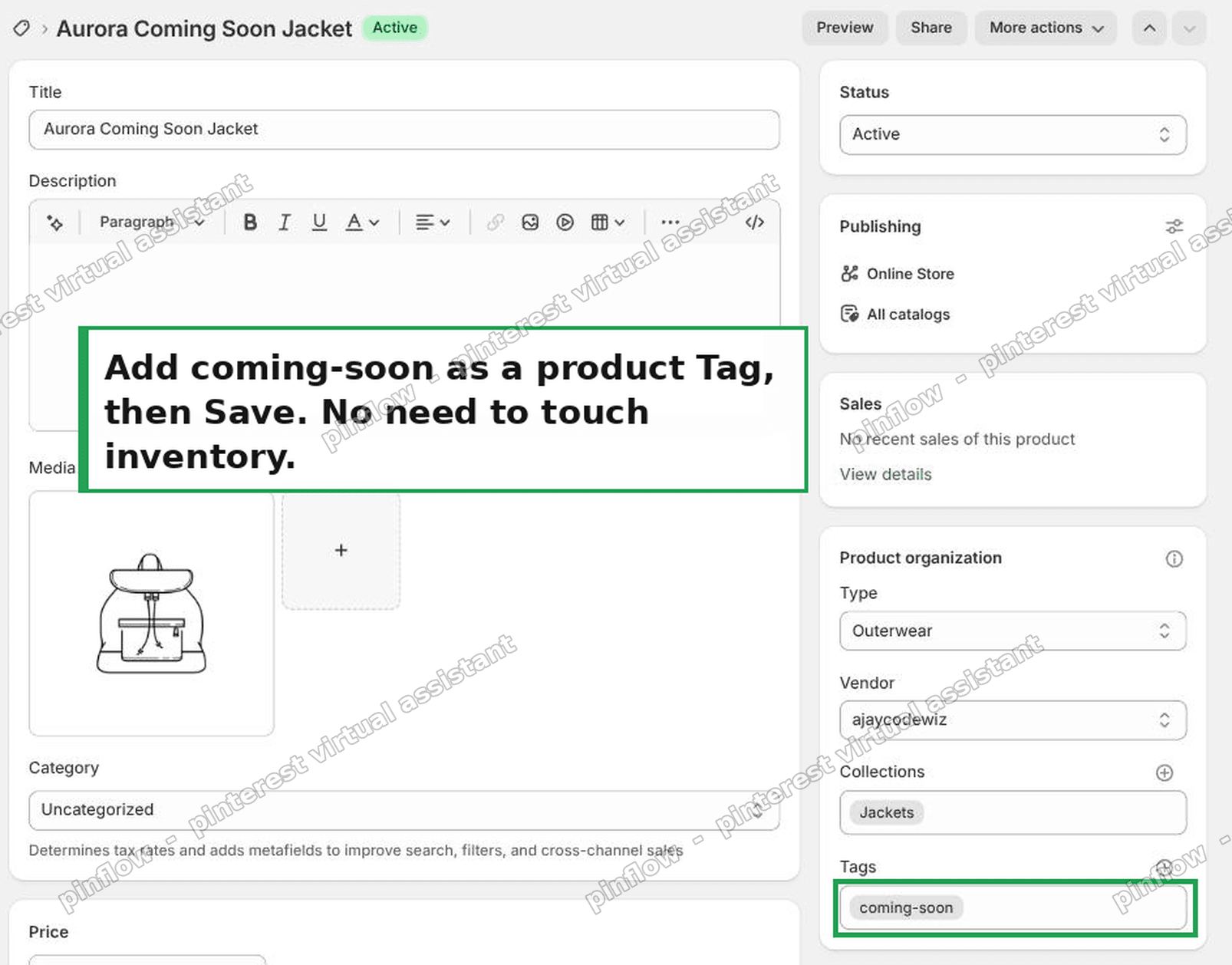 Add the coming-soon tag to a Shopify product
Use the exact spelling coming-soon, all lowercase, with the hyphen. The code we add looks for that precise text, so Coming Soon or comingsoon will not match.
Open the theme code editor
Both of the next steps happen in the code editor.
- Go to Online Store > Themes.
- Find your theme, click the ... button, and choose Edit code.
- On the left is a list of folders. Open the Snippets folder.
You will edit two files inside Snippets: card-product.liquid and buy-buttons.liquid.
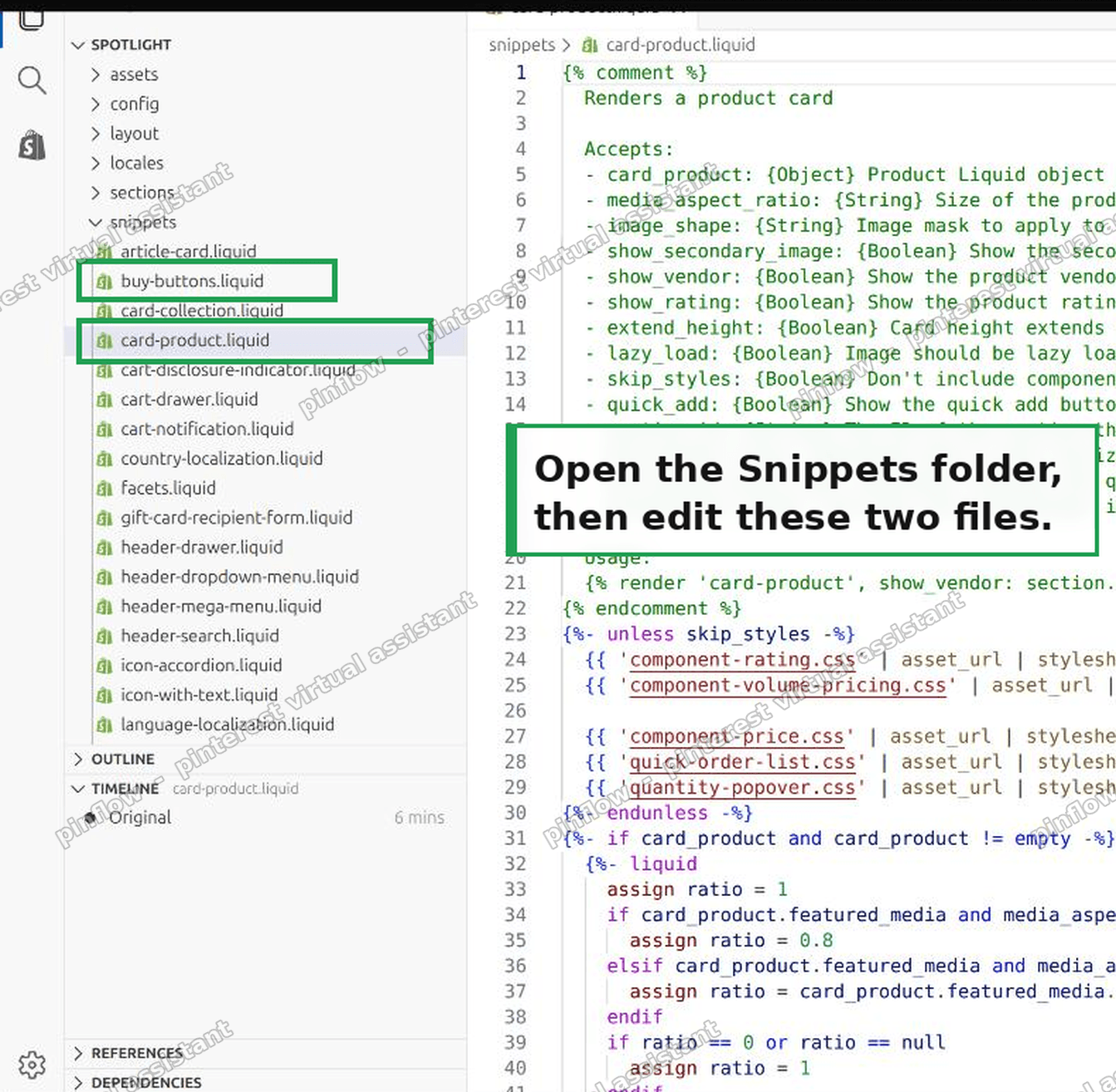 Edit card-product.liquid and buy-buttons.liquid inside the Snippets folder
Step 2: Show the badge on the product image
The file card-product.liquid draws each product card, including its badge. We will add the coming-soon badge above the existing sold-out one.
- Open
snippets/card-product.liquid. - Press Ctrl+F (Windows) or Cmd+F (Mac) to open the search box.
- Search for this line. It appears twice in the file:
{%- if card_product.available == false -%}- Replace it, in both places, with this:
{%- if card_product.tags contains 'coming-soon' -%}
  <span class="badge badge--bottom-left color-{{ settings.sold_out_badge_color_scheme }}">Coming soon</span>
{%- elsif card_product.available == false -%}
Click Save.
What this does: before the theme decides whether to show "Sold out", it first checks for the coming-soon tag. If the tag is there, it prints a "Coming soon" badge in the same spot and style as the sold-out one. If not, everything falls through to the normal behavior. That is why we keep {%- elsif card_product.available == false -%} on the end. Nothing else changes.
Step 3: Stop the product being bought
The badge is only half the job. A tagged product is still in stock, so its buy button still works. We fix that in buy-buttons.liquid.
There are three small edits here. Take them one at a time.
Edit A: hide the Buy it now button.
- Open
snippets/buy-buttons.liquid. - Near the top, find this block:
      if block.settings.show_dynamic_checkout and gift_card_recipient_feature_active == false
        assign show_dynamic_checkout = true
endif- Add these three lines directly under it:
      if product.tags contains 'coming-soon'
        assign show_dynamic_checkout = false
      endif
This one matters more than it looks. "Buy it now" and Shop Pay are express checkout buttons. Because your product is still in stock, Shopify keeps them active even when the main button is off. If you skip this edit, a shopper can still buy a coming-soon item through Buy it now. These three lines remove that button for tagged products.
Edit B: disable the Add to cart button.
- Find this line. It appears twice in the file:
{% if product.selected_or_first_available_variant.available == false- Replace both with these two lines:
{% if product.tags contains 'coming-soon'
              or product.selected_or_first_available_variant.available == false
This adds the tag to the condition that greys out the button.
Edit C: change the button text to "Coming soon".
- Find this line, which appears once:
{%- if product.selected_or_first_available_variant == null -%}- Replace it with:
{%- if product.tags contains 'coming-soon' -%}
                Coming soon
              {%- elsif product.selected_or_first_available_variant == null -%}
Click Save.
That is all the code. Three edits in this file, two in the last one.
The result
Any product carrying the coming-soon tag now behaves like a proper teaser.
On collection pages, search results, and any product grid, the item shows a "Coming soon" badge on its image. It sits in the same corner your theme uses for "Sold out", so it looks native.
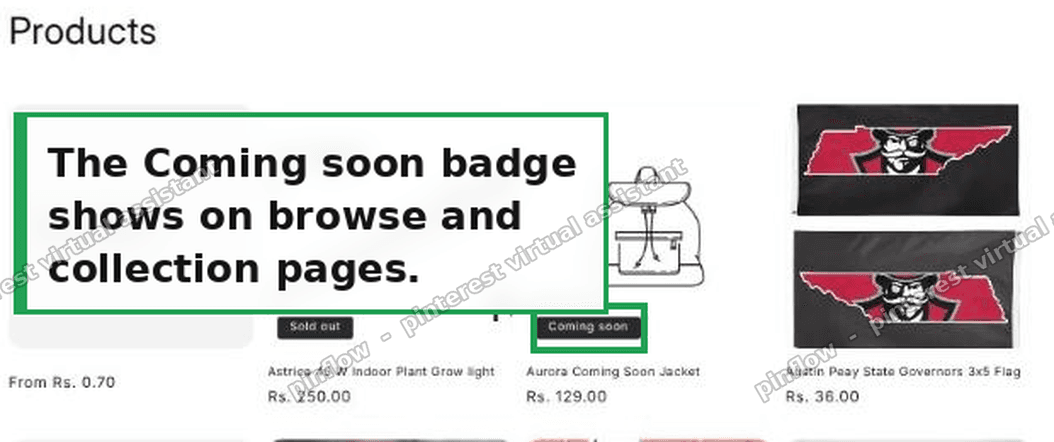 Coming soon badge on a Shopify collection page
On the product page, the buy button is greyed out and reads "Coming soon". The Buy it now button is gone. The product still shows its real price and stays in your catalog, so shoppers can browse it and build anticipation.
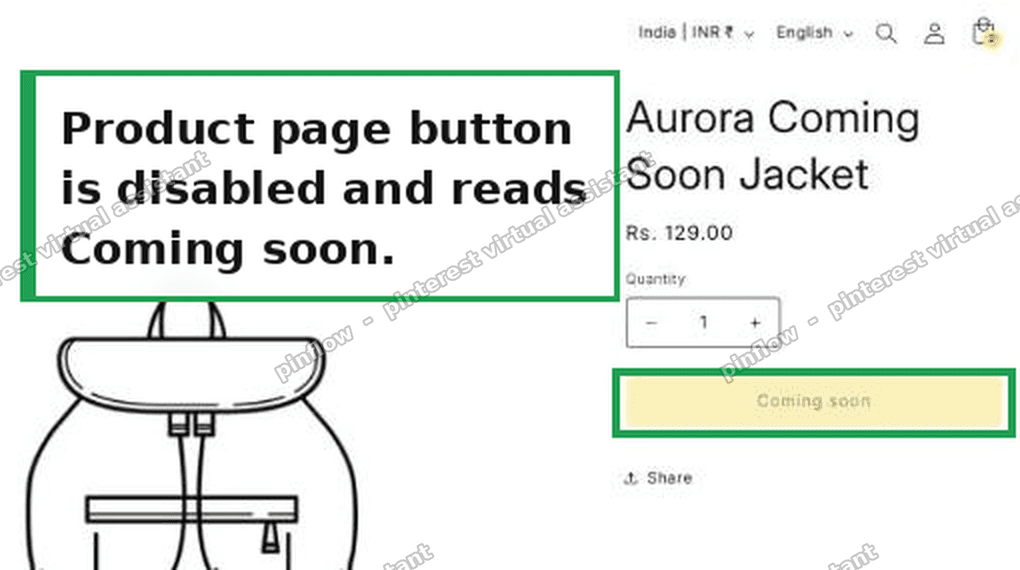 Coming soon button on a Shopify product page
On my test store the product had normal stock and a real price. The only thing marking it as coming soon was the tag. Remove the tag and Save, and it instantly becomes a normal, buyable product. That is your launch button.
The no-code option: coming soon apps
Not comfortable editing theme code? A few apps do this with clicks instead.
Popular ones include Preorder Now, PreProduct, and Coming Soon Product Page. They let you flag products as coming soon and often add an email capture so shoppers can ask to be notified at launch.
Apps are the right call if you also want a waitlist, launch-date countdown, or automatic switch-over. The tag method above is best when you just want a clean badge and a blocked buy button with no monthly fee. Both are valid. Pick the one that matches how much you need.
If your main goal is to collect interest before launch, pair either method with a back-in-stock or notify-me tool. We covered that here: set up back in stock notifications on Shopify.
Coming soon page vs coming soon product
This trips people up, so it is worth being clear.
"Coming soon" on Shopify can mean two very different things.
A coming soon page is a whole-store holding page. It is the password screen Shopify shows before you launch your store, so visitors see a single "opening soon" message instead of your shop. That is set under your online store password settings and it hides everything.
A coming soon product is one item inside a store that is already open and selling. The rest of the shop works normally. Only the tagged product shows the badge and blocks the sale. That is what this guide builds.
If you actually want to hide your entire store until launch, you do not need any of the code above. Turn on the store password in your admin instead. If you want individual teaser products in a live store, the tag method is what you are after.
Coming soon vs sold out vs pre-order
Three labels, three different meanings. Mixing them up frustrates shoppers.
- Coming soon: the product has not launched. It cannot be bought yet. Use it to build hype before a drop.
- Sold out: the product launched and its stock ran out. It could return or it could be gone for good.
- Pre-order: the product can be bought right now, but it ships later. Money changes hands today.
The method in this guide is for the first one. If you want customers to actually pay now and receive later, that is a pre-order, and it is a different setup. We wrote that up here: run a Shopify pre-order without an app.
If it did not work
A few things to check if the badge or button is not behaving.
The badge does not show. Check the tag spelling on the product. It must be exactly coming-soon, lowercase, hyphenated. Then confirm you saved card-product.liquid and that you replaced the line in both places, not just one.
Buy it now still appears. You missed Edit A, or you added it in the wrong file. The show_dynamic_checkout block lives in buy-buttons.liquid, near the top. Make sure the three lines sit right after the block that sets it to true.
A quick-add or plus button still adds the item. Some themes show a small add button on collection cards. If yours does and it still works, the same idea applies: find where that card button checks availability and add the tag check beside it. Most stores leave quick-add off, so this rarely comes up.
The button greyed out but still says Sold out. You missed Edit C, the text change. Re-open buy-buttons.liquid and add the "Coming soon" branch to the label.
Nothing changed at all. Confirm you are editing your live theme, not the duplicate backup. Themes are easy to mix up in the code editor.
Take the tag off when it launches
The best part of the tag method is the launch itself.
When the product is ready to sell, open it in the admin, remove the coming-soon tag, and Save. The badge disappears, the buy button comes back, and Buy it now returns. No theme edits, no inventory juggling, no re-publishing.
One tag in, one tag out. That is a launch you can run in five seconds from your phone.
Spending too long on manual Shopify busywork?
PinFlow turns your Shopify catalog into Pinterest pins and posts them on a schedule, automatically. Same idea as the trick above, let the system handle the repetitive part.
Get PinFlow on the Shopify App StoreMore Shopify fixes
More community-sourced Shopify guides, tested on a live store.
Themes & Storefront
Shopify AI Section: Fix a Price Badge Hidden Behind the Image
You built a section with Shopify's AI section generator, but the price badge on each card sits behind the photo. Here is the Custom Liquid fix that brings it to the front without regenerating anything. Tested on a Dawn store.
Themes & Storefront
Hide Shipping Calculated at Checkout on One Shopify Product
The line under Add to cart that says shipping is calculated at checkout shows on every product, gift cards included. Here is how to hide it on one product only, with the code, screenshots and the Eclipse theme steps.
Themes & Storefront
Shopify Dropdown Menu Behind Page Content (Z-Index Fix)
Your Shopify dropdown or mega menu opens, but the page title and products sit on top of its links and the menu closes before you can click. The fix is one Custom CSS rule in Theme settings. Tested on a Rebel store.