
Shopify Pre-Order Without an App: Message at Checkout
Run a Shopify pre-order and show a conditional pre-order message at checkout with no app and no Plus, by renaming the set's automatic discount.
By AjayCodeWiz · August 12, 2026 · 8 min read
Show a pre-order message at checkout without an app
A merchant asked this on the Shopify Community. They are launching a denim set: a jacket that is ready to ship, and jeans that are a pre-order until September. The jacket and jeans sell as a set at a bundle price.
They wanted one thing. When a customer buys the set, the checkout should say the order is now a pre-order because the jeans ship in September. When someone buys just the jacket, it should stay a normal ready-to-ship order with no pre-order message.
So the message has to be conditional. It appears only for the set, not for every order. And they did not want to pay for an app or move to Shopify Plus to do it.
This is very doable. I set it up on a test store and the whole thing takes about two minutes. The trick is to reuse something the set already has: its automatic discount.
Why this is normally hard
On a standard Shopify plan, the native checkout is locked. You cannot drop a custom text block into the checkout page and you cannot add "if the cart contains X, show this message" logic there. That control only opens up on Shopify Plus, through a feature called checkout extensibility.
That is why most answers to this question say the same two things. Either "you need Plus," or "add a note that shows on every product." A store-wide note is easy, but it is not what this merchant asked for. A pre-order warning that shows on every order, including plain jacket orders, is worse than no message. It confuses the people buying an in-stock item.
The paid route is a pre-order app. Those work, and for full pre-order handling they are the right tool. But this merchant only needed the message, and they had already built the set with a native automatic discount. So an app was overkill.
The prerequisite: the set already has an automatic discount
Here is the part that makes the free method work.
This merchant had already set up their denim set as a native "Buy X Get Y" automatic discount. Buy the jacket, get the jeans at the bundle price. That discount only applies when both items are in the cart. A jacket on its own does not trigger it. Two jackets do not trigger it. Only the real set does.
If you have not built that yet, do it first. It is the cleanest way to price a "1 of each" bundle on Shopify with no app. We wrote it up here: create an automatic bundle discount in Shopify.
Once that discount exists, you already have a piece of text that shows up in the cart and at checkout, and only when the set is present. That piece of text is the discount's name.
The fix: rename the discount to your pre-order message
Every automatic discount has a title. Shopify prints that title wherever the discount appears, which includes the cart and the checkout order summary. It shows only when the discount actually applies.
So you turn the title into your message.
- In your Shopify admin, go to Discounts.
- Open the automatic discount you created for the set.
- Change the Title to your message. For example:
Denim Set: pre-order - jeans ship in September. - Click Save.
That is the whole change. No code, no app, no Plus.
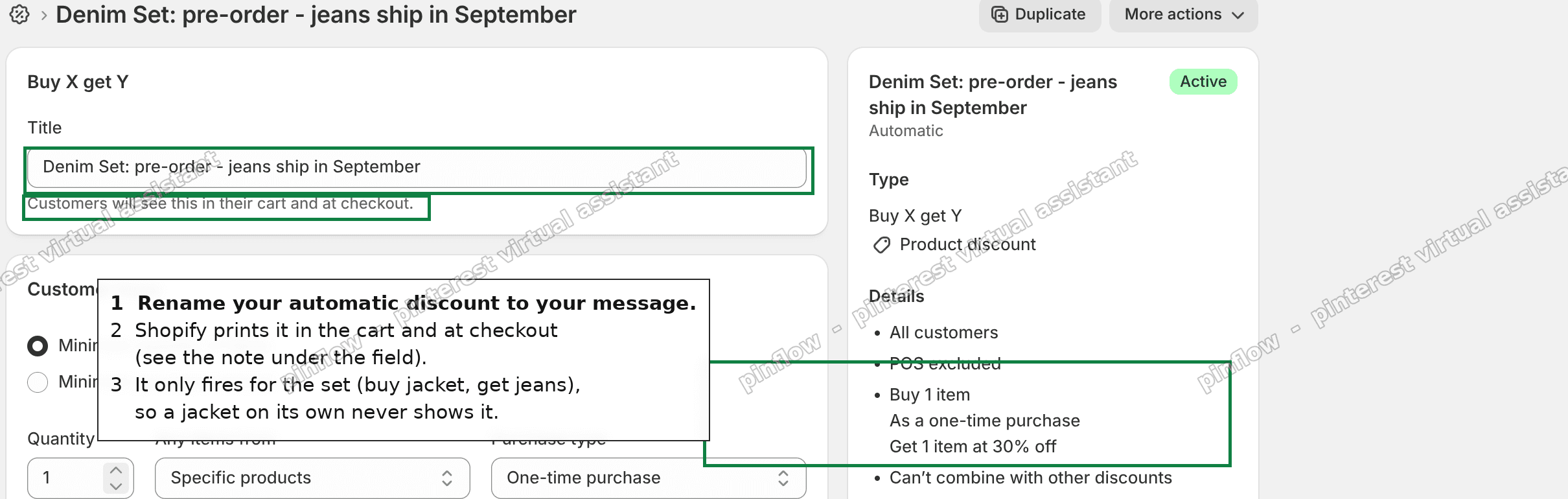 Rename the automatic discount to your pre-order message
Look at the note Shopify itself prints right under the title field: "Customers will see this in their cart and at checkout." That is Shopify confirming the behavior. The title is customer-facing text.
Because the discount only fires for the set, the result is exactly what the merchant wanted:
- Jacket on its own: no discount, no message, normal ready-to-ship order.
- Jacket and jeans together: the discount fires and your pre-order line appears in the cart and at checkout.
If you built your set through a bundle app instead of a native discount, the same idea works. Rename the bundle inside that app, since its name shows on the order the same way.
Add a bigger notice on the cart page
The discount title is short. It sits in the totals area next to the saving, so it reads as a small line, not a banner.
If you want a louder, more obvious notice before checkout, add one to the cart page. This is still no app and no Plus, and it is still conditional. It only needs a small block of Liquid, which is Shopify's template language.
In your theme, go to Online Store > Themes > Customize, open the Cart page, choose Add section, and add a Custom Liquid block. Paste this in and swap in your real product handles:
{% assign has_jacket = false %}
{% assign has_jeans = false %}
{% for item in cart.items %}
  {% if item.product.handle == 'your-jacket-handle' %}{% assign has_jacket = true %}{% endif %}
  {% if item.product.handle == 'your-jeans-handle' %}{% assign has_jeans = true %}{% endif %}
{% endfor %}
{% if has_jacket and has_jeans %}
  <p style="padding:12px;background:#fff4e5;border:1px solid #e0a900;border-radius:6px;">
    Pre-order: your denim set ships in September once the jeans arrive.
  </p>
{% endif %}
A product handle is the last part of the product's web address. For a product at yourstore.com/products/denim-jacket, the handle is denim-jacket. You can see it in the admin under the product's Search engine listing.
The block checks the cart for both products. It shows the banner only when both are present. So a shopper with just the jacket never sees it.
One limit to know. This banner lives on the cart page, not inside the checkout itself. The discount-title method above is still the one that reaches the actual checkout on a standard plan.
Running the pre-order itself without an app
The message is only half of a pre-order. The other half is letting people order the jeans while they are out of stock. You can do that natively too.
On the jeans product, open the variant and set inventory to Continue selling when out of stock. Now the item stays buyable at zero stock, which is the core of a pre-order. Add "(pre-order)" to the product title or description so it is clear on the product page.
That covers a basic pre-order with no app. What native Shopify does not do on its own:
- Charge a deposit now and the balance later.
- Show a dedicated "Pre-order" button instead of "Add to cart."
- Send automatic "your pre-order ships soon" update emails.
If you need those, that is where a pre-order app earns its fee. For the update emails specifically, there is a no-app route using Shopify Flow, which we covered in Shopify pre-order emails with Flow.
Can you show a message at checkout without Plus?
Not a free-form custom block inside the checkout page. That needs Shopify Plus and checkout extensibility.
But you have two conditional messages that work on any plan. The automatic discount title, which reaches the checkout order summary. And a cart-page notice, which shows just before checkout. Between them you can flag a pre-order clearly without Plus.
How do I show a message for only certain products?
Tie the message to something that only those products trigger. The discount title works because the discount is product-specific. The cart Liquid block works because it checks for specific product handles.
Avoid a store-wide checkout notice for this. It shows on every order and cannot tell a set apart from a single item. That is the exact problem the merchant was trying to avoid.
Do Shopify pre-orders need an app?
No, not for a basic one. "Continue selling when out of stock" plus a clear label and a pre-order message gets you a working pre-order with no app and no Plus.
You reach for an app when you need deposits, partial payments, a separate pre-order button, or automated status emails. For a small launch like a single denim set, the native setup is usually enough.
What to check if the message does not show
- The discount is not applying. The title only appears when the discount fires. Add the real set to a test cart and confirm the discount lands. If it does not, the discount conditions are wrong, not the message.
- You only added one item. By design, one item does not trigger the set discount, so no message shows. Add both.
- The cart banner does nothing. Check the product handles in the Liquid block. A wrong handle means the
ifnever matches. Copy each handle from the product's Search engine listing. - You are on Plus and want it inside checkout. Then skip the workaround and use a checkout UI extension, which can place a proper message block in the checkout itself.
Pre-order vs draft vs a normal out-of-stock item
These get mixed up, so quickly:
- A pre-order is an in-stock-later item you deliberately let people buy now, usually with "continue selling when out of stock" turned on.
- A draft product is hidden from the storefront entirely. Customers cannot buy it. That is not a pre-order.
- A normal out-of-stock item has "continue selling" off, so the storefront blocks the sale.
For this denim set, the jeans are a pre-order: buyable now, shipping in September, and clearly labelled so the buyer is not surprised.
The short version
You do not need an app or Shopify Plus to show a conditional pre-order message at checkout. If your set already runs on an automatic discount, rename that discount to your message. Shopify prints it in the cart and at checkout, and only when the set is in the cart. Add a Custom Liquid cart banner if you want a louder notice, and turn on "continue selling when out of stock" to accept the pre-orders themselves.
Spending too long on manual Shopify busywork?
PinFlow turns your Shopify catalog into Pinterest pins and posts them on a schedule, automatically. Same idea as the trick above, let the system handle the repetitive part.
Get PinFlow on the Shopify App StoreMore Shopify fixes
More community-sourced Shopify guides, tested on a live store.
Shopify Admin
How to Edit a Packing Slip on Shopify to Show Big Product Photos
Shopify's order page shows each item as a 40 pixel thumbnail with no way to enlarge it. Here is how to edit the packing slip template so every line prints that exact variant's photo at 1000 pixels, including the one-line fix Shopify's default template needs.
Shopify Admin
Shopify Shipping Zones: Fix Products Sold Out in One Country
Products show Sold out for customers in one country while your admin shows stock. The cause is a shipping profile with no zone for that country. How Shopify shipping zones and profiles decide what a customer can buy, and the six-click fix, with screenshots.
Shopify Admin
Shopify Translate: Fix Mixed Languages on Product Pages
A Swedish Shopify store showed English words on translated product pages. The titles were translated, so the English came from option names and theme text. How to fix each one in Translate & Adapt, with screenshots.