
Shopify Free Gift With Purchase: The Free Way, Tested
Shopify can make a gift free once it is in the cart, but it will not put it there. Here is the native setup, what it leaves the shopper to work out, and a cart block that fixes it. Tested on Dawn.
By AjayCodeWiz · September 10, 2026 · 9 min read
The problem
"Spend $50, get a free gift." Every store wants it. Shopify has no button called free gift.
It can be done for nothing, and I built it on a test store to find out exactly how far the free version gets you. The short answer: Shopify will make the gift free, but it will not add the gift to the cart for you. That one missing step is the whole reason merchants end up paying for an app.
Here is what I set up, what happened, and the cart block I wrote to finish the job.
Build it as Buy X Get Y
There is no free gift discount type. The one you want is Buy X Get Y, with the Y priced at 100% off. It is the same discount type behind an automatic bundle discount, pointed at a gift instead of a set.
In your admin, go to Discounts, then Create discount, then Buy X get Y. Choose Automatic discount so shoppers do not need a code.
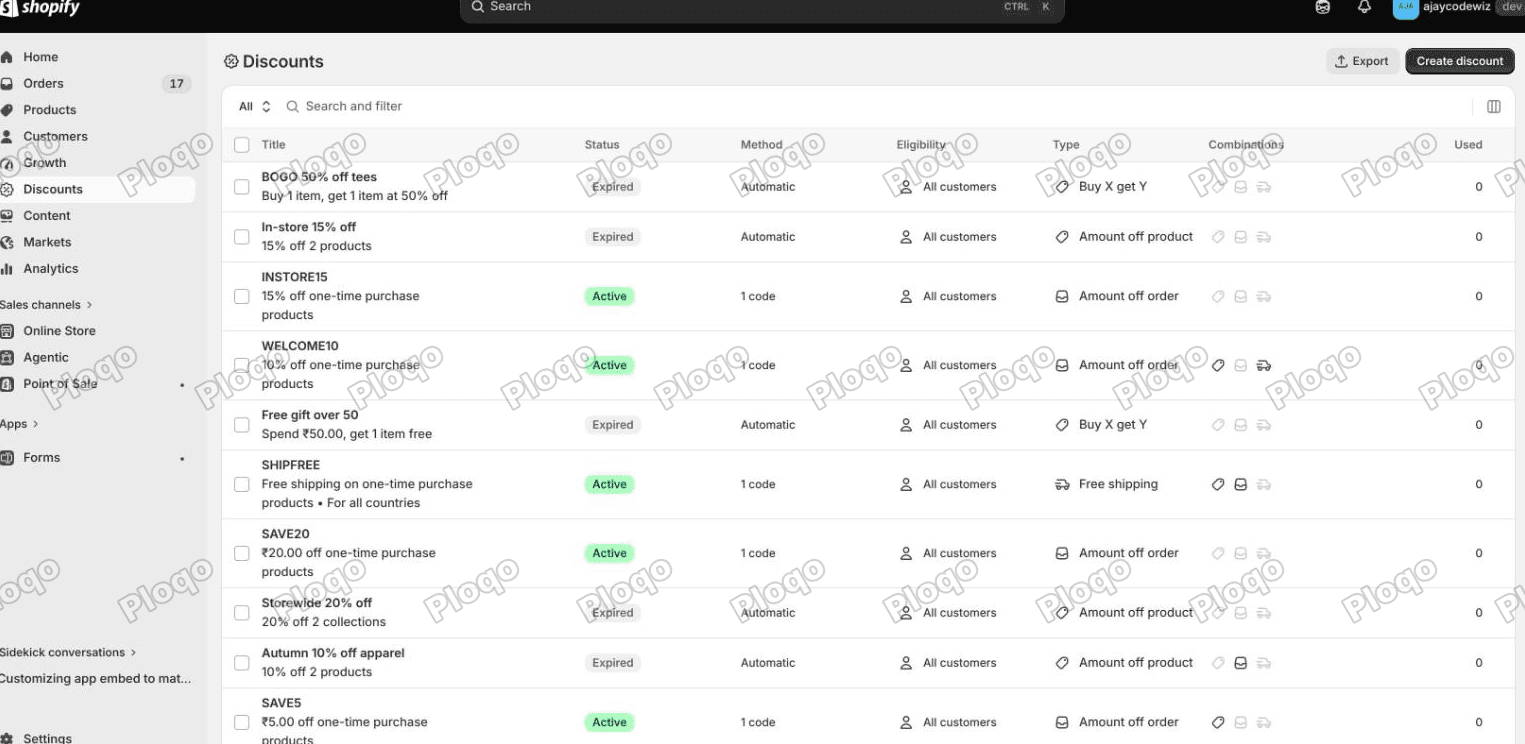 The Shopify Discounts page with the Create discount button, and existing discounts showing Automatic or code in the Method column
Fill it in like this:
- Customer buys: Minimum purchase amount, $50, from a collection
- Customer gets: quantity 1 of your gift product
- At a discounted value: Free
- Maximum number of uses per order: 1
That last one matters. Without it, a $150 cart earns three gifts.
I used a $10 Enamel Pin Set as the gift and set the threshold at $50.
Customer buys does not accept "any product"
Shopify will not let you say "spend $50 on anything". You have to point Customer buys at specific products or at a collection. The API is blunt about it and rejects the attempt with "Items in 'customer buys' must be defined". The admin just does not offer an all-products option.
So before you build the discount, make a collection that holds everything you want to count toward the threshold. An automated collection with a condition as loose as "price is greater than 0" will do it, and it keeps itself up to date as you add products.
This has a real consequence. Anything outside that collection does not count toward the spend. In my testing I had a $25 tote sitting outside the collection, so a $65 cart containing it only counted $40 of qualifying spend and the gift never triggered. If your threshold seems to be ignored, check the collection before you check the discount.
What Shopify does, and what it refuses to do
With the discount live, I built a qualifying cart: two cotton tees, $80. Comfortably over the $50 threshold.
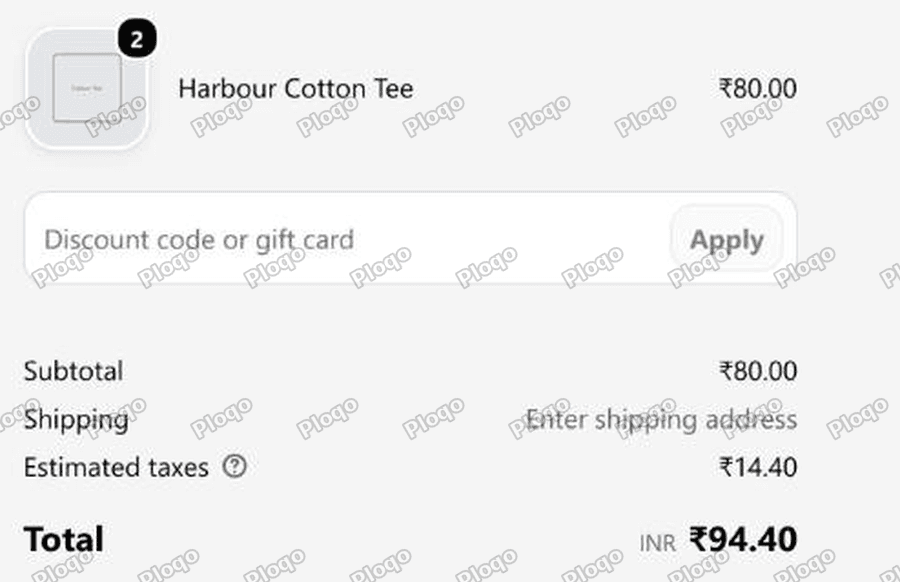 Shopify checkout with an 80 cart and no gift line item anywhere
No gift. No mention of a gift. Nothing.
The cart qualifies, but Shopify does not add anything to it. Buy X Get Y makes an item free once it is in the cart. It does not put the item in the cart.
So I added the pin set myself, the way a shopper would, and went back to checkout.
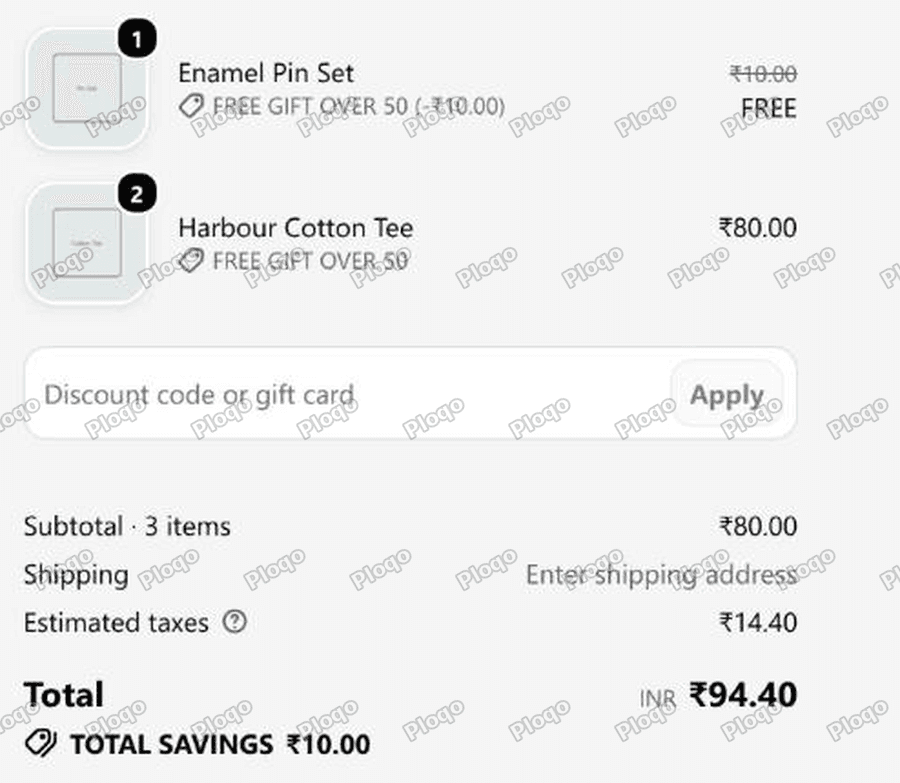 Checkout showing the Enamel Pin Set at 10 struck through and marked FREE, labelled FREE GIFT OVER 50, with total savings of 10
Now it works exactly as intended. The pin shows $10.00 struck through, the word FREE, and the label "FREE GIFT OVER 50 (-$10.00)". Total savings: $10.00.
The discount is not broken. It is doing precisely what it was designed to do. What it does not do is tell the shopper any of this exists. They will never navigate to the pin set on their own, so the promotion has no effect on your average order value, which was the entire point.
Telling the shopper, without an app
You need two things the native discount cannot give you:
- A message in the cart telling the shopper how close they are
- A button that adds the gift when they qualify
Both fit in one Custom Liquid section on the cart page. A Custom Liquid block is an empty box in the theme editor where you paste your own code. No theme file gets edited, and you can remove it by deleting the section.
Go to Online Store, then Customize, and switch the page dropdown at the top to Cart. Click Add section, choose Custom Liquid, and drag it to sit above the cart footer. Paste this in and press Save.
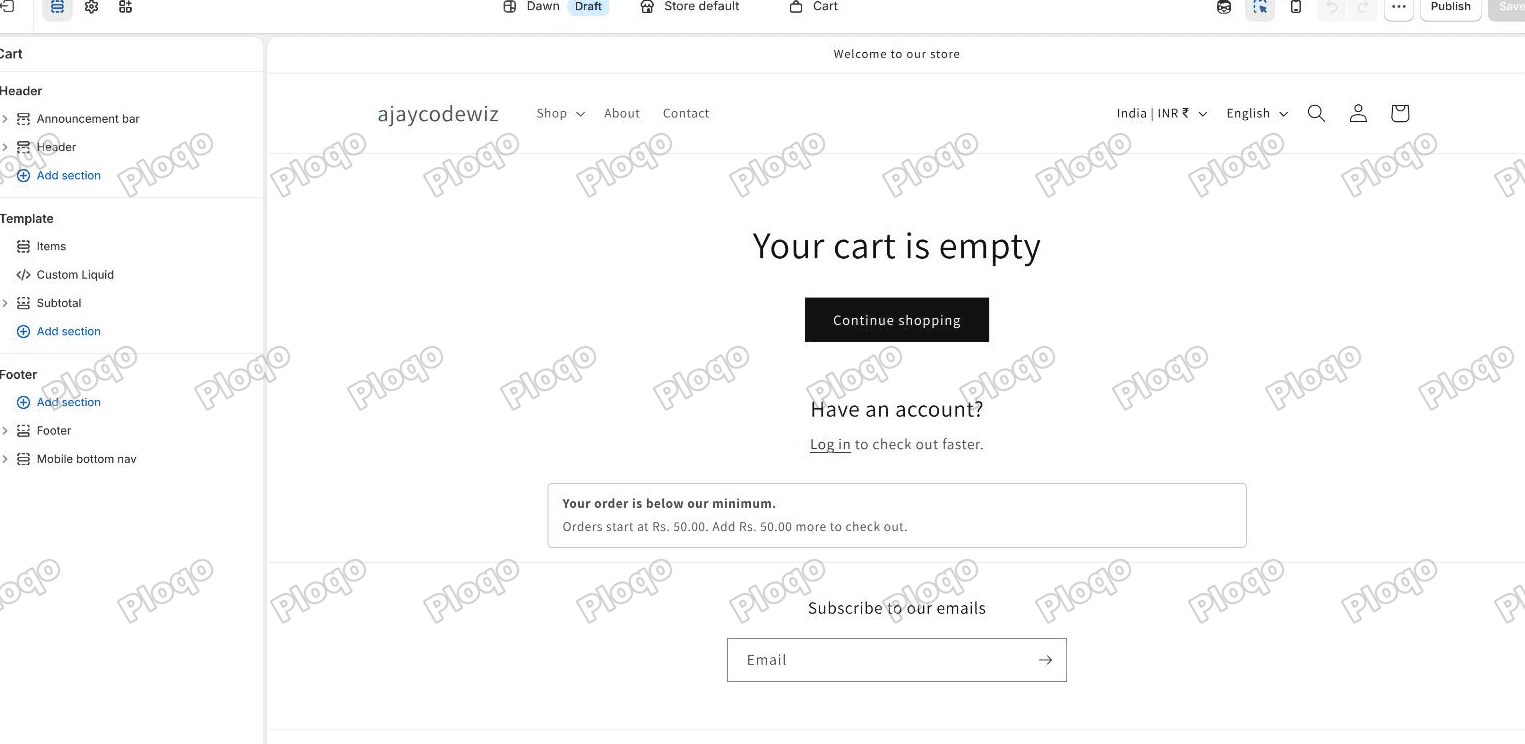 The Shopify theme editor on the Cart page, with the section list on the left showing a Custom Liquid section and the Add section link below it
{%- assign gift_variant_id = 47915308253361 -%}
{%- assign threshold = 5000 -%}

{%- assign gift_in_cart = false -%}
{%- assign qualifying = 0 -%}
{%- for item in cart.items -%}
  {%- if item.variant.id == gift_variant_id -%}
    {%- assign gift_in_cart = true -%}
  {%- else -%}
    {%- assign qualifying = qualifying | plus: item.final_line_price -%}
  {%- endif -%}
{%- endfor -%}

{%- if gift_in_cart == false -%}
  <div class="gift-bar">
    {%- if qualifying >= threshold -%}
      <p class="gift-bar__text">You have earned a free gift.</p>
      <button type="button" class="gift-bar__btn" id="AddFreeGift" data-id="{{ gift_variant_id }}">Add my free gift</button>
    {%- else -%}
      {%- assign remaining = threshold | minus: qualifying -%}
      <p class="gift-bar__text">Spend {{ remaining | money }} more to get a free gift.</p>
    {%- endif -%}
  </div>
  <style>
    .gift-bar { display: flex; align-items: center; justify-content: space-between; gap: 1rem;
      flex-wrap: wrap; margin: 0 auto 1.5rem; max-width: 74rem; padding: 1rem 1.5rem;
      border: 1px solid rgba(var(--color-foreground), 0.15); border-radius: 0.5rem; }
    .gift-bar__text { margin: 0; font-size: 1.5rem; }
    .gift-bar__btn { cursor: pointer; padding: 0.9rem 1.8rem; font-size: 1.4rem;
      border: 1px solid rgb(var(--color-button)); border-radius: 0.4rem;
      background: rgb(var(--color-button)); color: rgb(var(--color-button-text)); }
    .gift-bar__btn[disabled] { opacity: 0.5; cursor: default; }
  </style>
  <script>
    document.getElementById('AddFreeGift')?.addEventListener('click', function (event) {
      var button = event.currentTarget;
      button.disabled = true;
      fetch(window.Shopify.routes.root + 'cart/add.js', {
        method: 'POST',
        headers: { 'Content-Type': 'application/json' },
        body: JSON.stringify({ items: [{ id: Number(button.dataset.id), quantity: 1 }] })
      }).then(function () { window.location.reload(); });
    });
  </script>
{%- endif -%}
Two values at the top are yours to change:
gift_variant_idis the variant ID of the gift, not the product ID. Open the gift product in your admin and read the number at the end of the URL after/variants/. If the product has no options, click into the default variant to get it.thresholdis your spend target in cents. $50 is5000. $75 is7500. Shopify stores every price in cents, and comparing against $50 written as50would trigger the gift on a fifty cent cart.
The block counts the gift out of the qualifying total, so adding the free pin cannot itself keep you over the line.
What it looks like in the cart
I tested this on Dawn. With one $40 tee in the cart, ten dollars short:
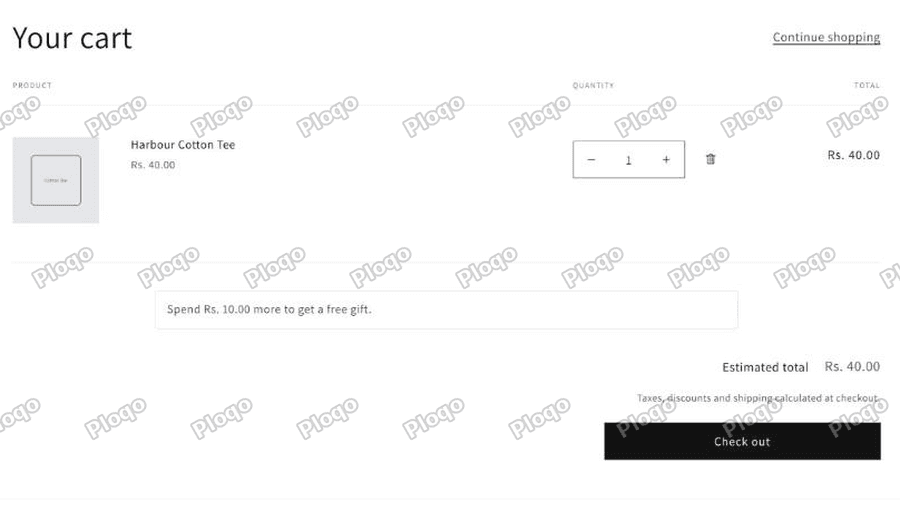 Dawn cart page showing a bar that reads Spend Rs. 10.00 more to get a free gift
The message does the arithmetic for the shopper and it uses your store's own currency formatting, so you do not hard code a symbol.
Raise the quantity to two, and the cart crosses $50:
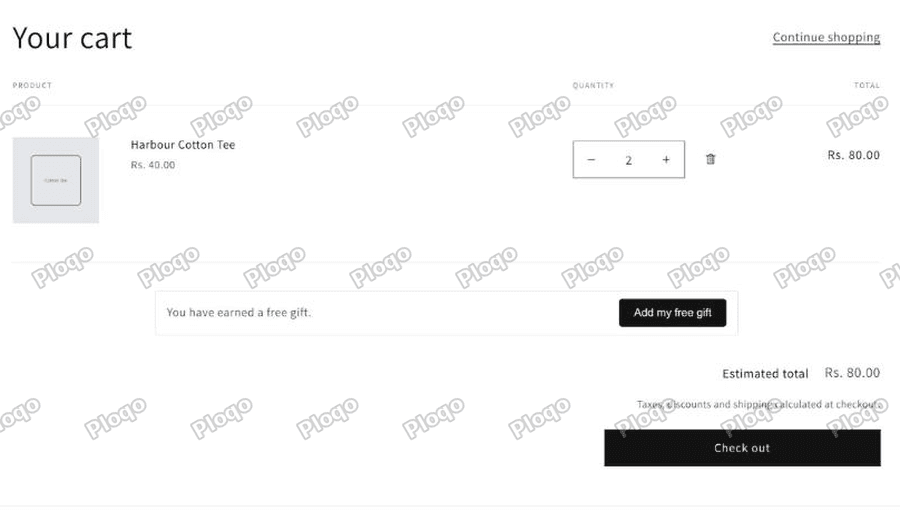 The same cart at 80, now showing You have earned a free gift with an Add my free gift button
Click the button:
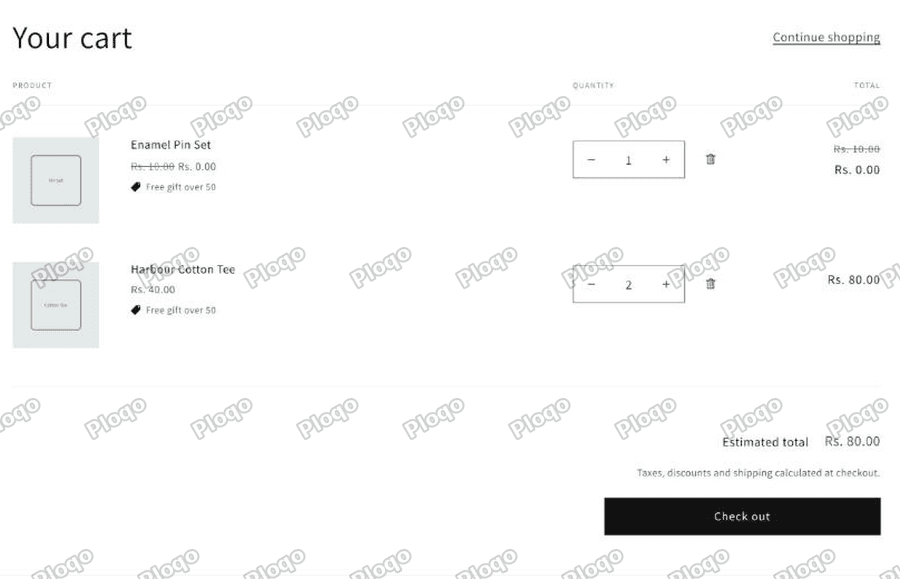 The cart with the Enamel Pin Set added, its price struck from 10.00 to 0.00 with a Free gift over 50 badge
The pin lands in the cart, the Buy X Get Y discount fires immediately, and Dawn renders the strike-through, the $0.00 line total and the badge "Free gift over 50". The bar disappears because the gift is now in the cart.
Estimated total stays at $80.00. The shopper paid nothing for the gift and saw that they paid nothing for it, which is the part the native setup could not do.
Why not just auto-add it without telling the shopper?
You could make the script run on page load instead of on a click. I would not, for three reasons.
An item appearing in someone's cart without them touching anything reads as a bug. Shoppers remove it, or worse, they stop trusting the cart.
Second, if they remove the gift, an auto-add script puts it straight back. Now you have a fight.
Third, the click is doing useful work for you. A shopper who chooses the gift has engaged with the offer.
If you do want it automatic, the button click handler is the piece to move into a load event. Add a guard so it never re-adds an item the shopper removed in the same session.
Free gift on a discount code instead of automatically
Same discount type, different trigger. In Create discount, pick Buy X get Y and choose Discount code instead of Automatic. Everything else is identical.
This is what you want for "use code TREAT for a free gift with any $50 order". The catch is the same as before: the code makes the gift free, it does not add it. And the cart block above cannot see the code, since a code is not applied until checkout. For a code-based gift, spell out both steps in your marketing copy: add the gift, then enter the code.
Automatic is the better shape for a gift threshold in almost every case.
Letting the shopper choose from several gifts
Buy X Get Y accepts more than one product in Customer gets. Add three, set the quantity to 1, and the shopper gets whichever one they add, free, but only one of them.
For the cart block, list the variant IDs and render a button for each. The logic is unchanged apart from checking whether any of the gift IDs is already in the cart.
If you want a proper "choose your gift" picker with images and a popup, that is where the free path ends and an app starts to earn its money.
Free gift apps, if you would rather not touch code
Search the App Store for "free gift" and you will find a crowded category. The ones that come up most often are BOGOS by Secomapp, Gift Box, and EasyGift. They all do the auto-add, the gift picker and the progress bar out of the box, and most have a free tier that caps orders per month.
Before you install one, be clear about what you are actually buying, because it is not the discount. The discount is free and native. You are paying for the cart experience: automatic adding, removing the gift when the cart drops below the threshold, a picker, and a progress bar. If the block above covers what you need, you do not need the app.
Common problems
The gift is not going free. Check the qualifying spend. Anything outside the collection you chose in Customer buys does not count. Also check whether another discount is already on the cart; by default two discounts refuse to run together, and one of them gets dropped, with nothing to say which. Discount combinations covers that.
Two gifts are being added. Set Maximum number of uses per order to 1 on the discount.
The cart shows the full price but checkout shows it free. Some themes do not render line-level discounts on the cart page. The order is correct either way, but the shopper cannot see it, which defeats the purpose. Dawn renders it properly, as the screenshot above shows.
The button does nothing. Almost always a wrong variant ID. It must be the variant, not the product, and it must be a number rather than a string.
The bar shows the wrong amount left. The threshold is in cents. Check that $50 is written as 5000.
The main points
- There is no free gift discount type. Build it as Buy X Get Y with the gift at 100% off.
- Customer buys will not accept "any product". Point it at a collection, and remember that anything outside that collection does not count toward the threshold.
- Set maximum uses per order to 1 or a big cart earns several gifts.
- Shopify makes the gift free but will not add it to the cart. That missing step is what free gift apps sell.
- One Custom Liquid section on the cart page closes it: a "spend $10 more" message, then an Add my free gift button once they qualify.
- Verified on Dawn: $40 cart shows the prompt, $80 cart shows the button, one click adds the pin at $0.00 with the discount badge attached.
Spending too long on manual Shopify busywork?
PinFlow turns your Shopify catalog into Pinterest pins and posts them on a schedule, automatically. Same idea as the cart block above, let the system handle the repetitive part.
Get PinFlow on the Shopify App StoreMore Shopify fixes
More community-sourced Shopify guides, tested on a live store.
Shopify Admin
Schedule a Black Friday Sale in Shopify (Auto Start and End)
Give the discount its own start and end date and put the sale banner in an Event rollout with the same dates. Both start at midnight and end after Cyber Monday.
Shopify Admin
Shopify Discount Limit: One Code for More Than 100 Products
Shopify stops you at 100 items when a discount applies to specific products. There is no setting to raise it, but you do not need one. Point the discount at a collection and one code covers thousands of products. Tested on a store, with the B2B route too.
Shopify Admin
Shopify Discount Types: Amount Off Products vs Order
Shopify has four discount types, and two of them work out a percentage in different ways. One rounds every single unit, the other rounds the order once. On low unit prices that difference is real money. Tested on a live store.