
Shopify Hide Price: Hide Product Prices With One CSS Rule
Shopify has no setting to hide prices. One Custom CSS rule removes them from every page, but the price stays in your store's data. Here is how to hide it for real.
By AjayCodeWiz · October 22, 2026 · 9 min read
The problem
You want to show your products without showing what they cost. Maybe you sell by enquiry, maybe you want visitors to call or email first, or maybe the store is a catalogue and the price is agreed per customer.
A merchant asked about this on the Shopify Community. She runs a store that does not sell online, and she wanted every price gone from the storefront. Her theme was Glamour, which is one of the style presets of the paid Reformation theme.
Shopify has no switch for it. Open the theme editor and look through every setting: you can change fonts, colours and layouts, but nothing says "do not show prices".
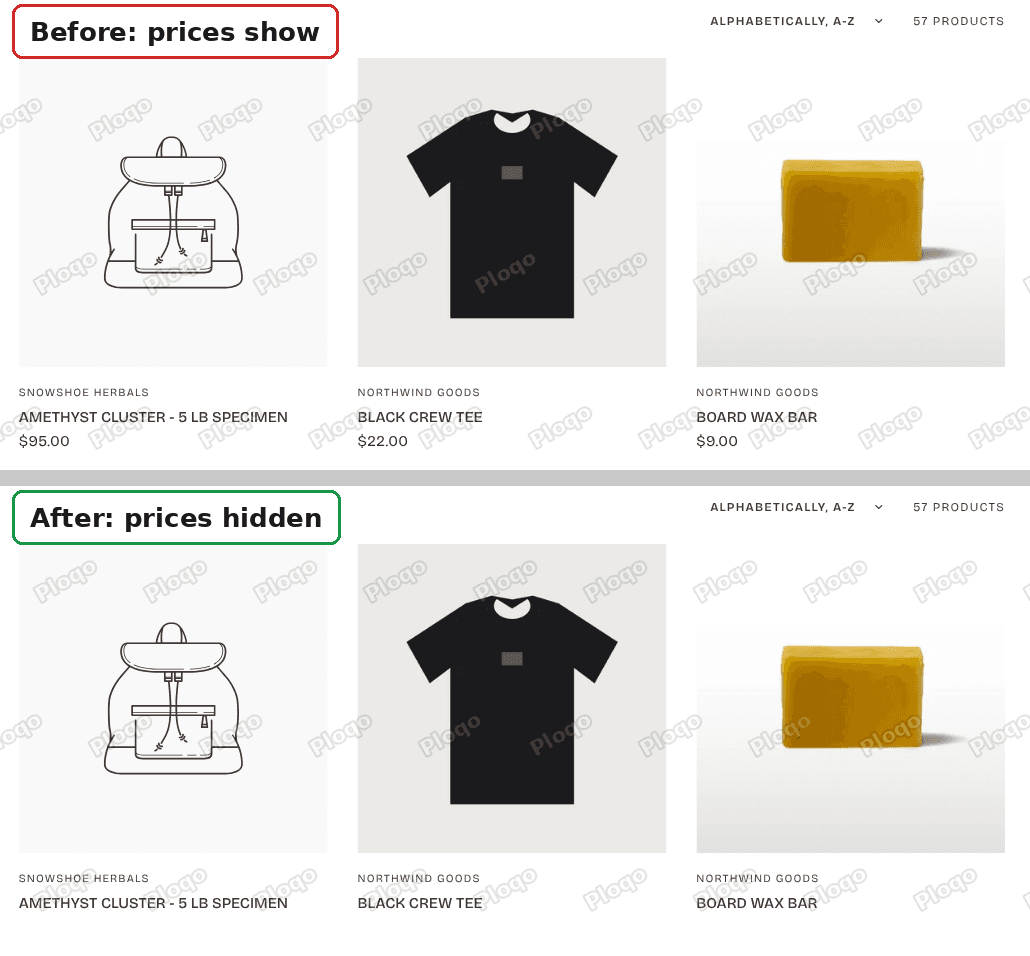 Collection page of a Glamour theme store, before and after the price rule: the price under each product name is gone
The fix is a few lines of CSS, which is the code that controls how a page looks. You paste it into a box Shopify already provides, and no theme file gets edited. The rest of this guide covers where to paste it, what it does not hide, and the second step you need if you also want the price out of your store's public data.
Why a theme setting does not exist
A price is printed by the theme in many places: the product card in a collection, the product page, search results, the sticky add to cart bar, related products. Each theme draws them with its own labels. Shopify does not offer one master switch because there is no single place that holds "the price display".
That is why the fix works on the page's look instead. You tell the browser that anything carrying a price label should not be drawn.
The rule that hides prices
This is the code I used. It hid the prices on a Glamour store and also on a Horizon store, which is the theme the merchant's second store ran.
.price,
product-price,
.compare-at-price {
  display: none !important;
}
Each line points at one kind of price:
.priceis the label most themes put on a price, including Glamour and the Reformation family.product-priceis the custom element newer themes such as Horizon use to wrap a price..compare-at-priceis the crossed out "was" price on a sale item.
display: none removes the element from the page, so it takes up no room and the layout closes up around it. !important tells the browser to win against any other rule that tries to show it again.
Where to paste it
The theme settings have one Custom CSS box that applies to the whole store. That is the right place, because a store-wide rule hides prices on every page type at once.
- From your Shopify admin, open Online Store > Themes.
- On your theme's card, click Edit theme.
 Online Store, Themes page with the Edit theme button on the Glamour theme card
- Click the gear icon at the top left of the editor. It opens Theme settings.
- Scroll to Custom CSS near the bottom of the list and open it.
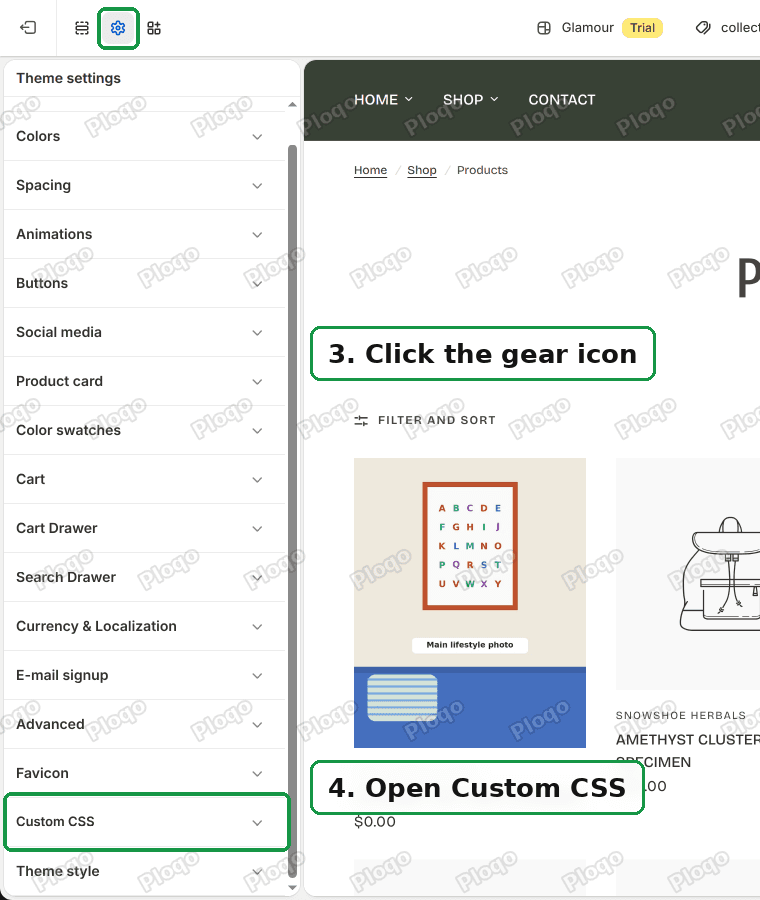 Theme settings gear icon at the top left, and Custom CSS near the bottom of the Theme settings list
- Paste the code into the box.
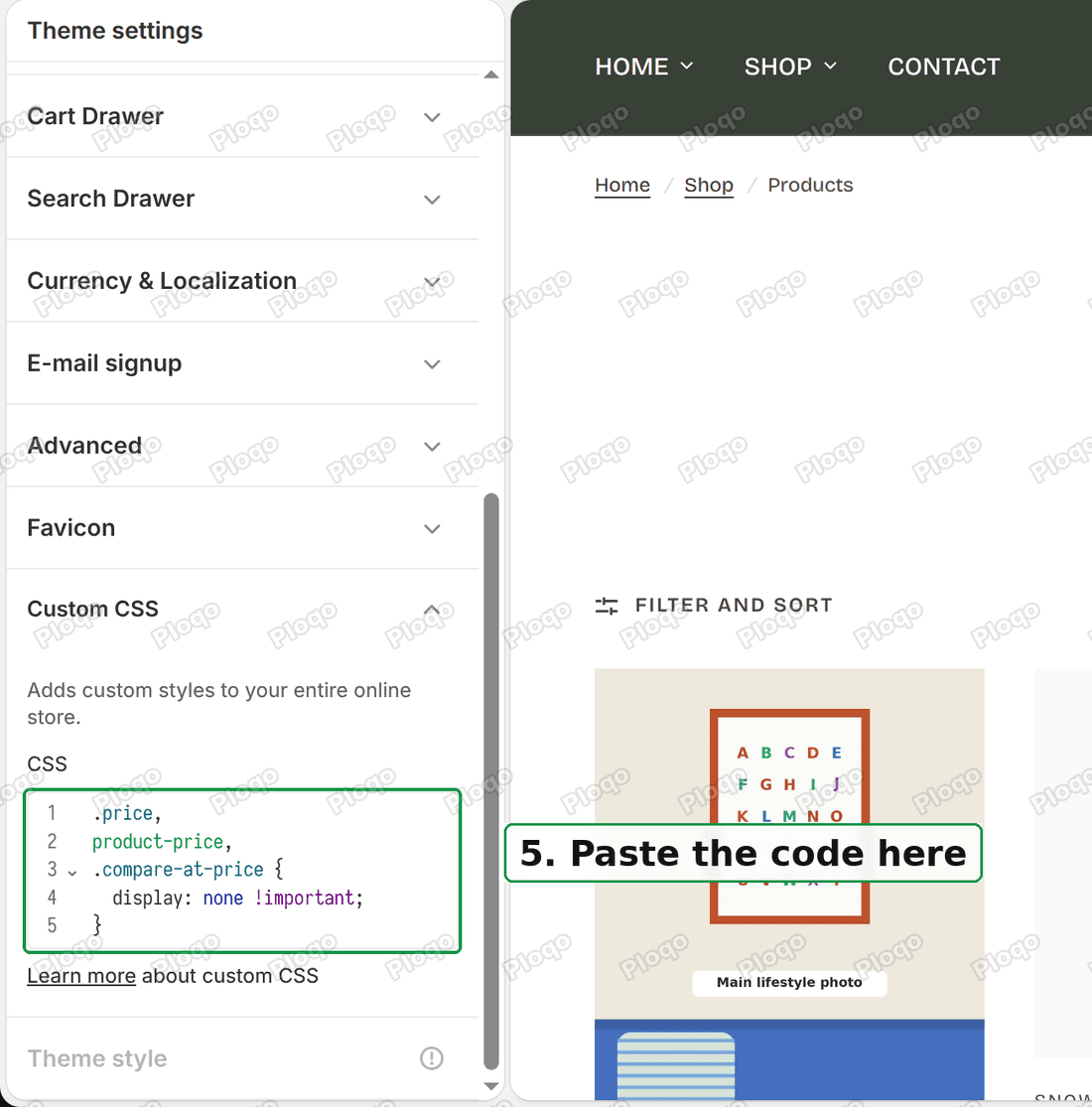 Custom CSS box in Theme settings with the three price rules pasted in
- Click Save.
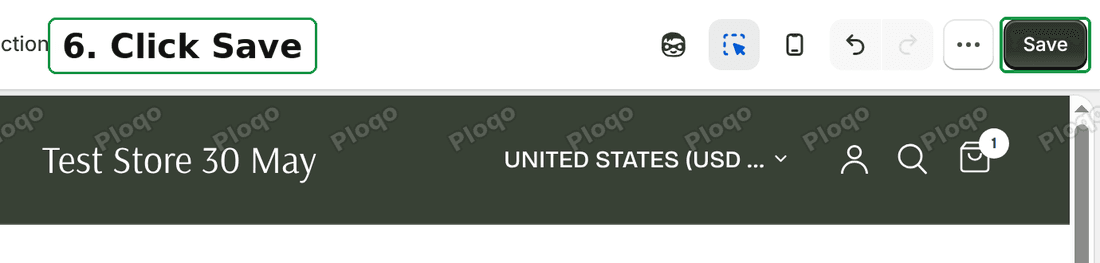 The Save button at the top right of the theme editor
Refresh a collection page, a product page and a search page. The prices are gone.
If the box already holds code, click at the end of it, press Enter, and paste below. Selecting everything first would replace what is there. On my Glamour test theme the box held a one-line rule for rounded product cards when I opened it, and I added mine under it.
What I saw on each page
I tested the rule on a Glamour store and on a Horizon 4.3.0 store. On Glamour it left 0 visible prices on the collection page, the product page and search results.
On Horizon I injected the rule into the theme editor preview and counted the visible prices on each page type.
| Page | Visible prices before | Visible prices after |
|---|---|---|
| Collection page | 26 | 0 |
| Product page | 2 | 0 |
| Search results | 23 | 0 |
The Horizon test is the reason the rule has three lines. With .price on its own, Horizon still showed the crossed out price on sale items, because it draws that one with a different label. Adding product-price and .compare-at-price cleared it.
Prices that stay visible
The rule hides what the theme draws as a product price. Two things on the Glamour store were still showing a number afterwards.
- The price filter on a collection page. The filter has a "highest price" label with a figure in it. If you filter by price, that figure is part of the filter, not a product price.
- The total on the cart drawer's checkout button. A shopper who adds a product still sees "Checkout" with the cart total on it, and the checkout page lists every price.
If the shop does not sell online, neither matters, because visitors have no way to buy. If you sell by enquiry but leave Add to cart switched on, a visitor can still reach checkout and see the price there. Hide the Product form block too, or remove the product from the Online Store as shown further down.
Hide prices on one page type only
The Custom CSS box in Theme settings reaches the whole store. Many sections in the theme editor also have their own Custom CSS box, and a rule there only applies inside that section. The guide on changing the price font size on a collection page shows where that box is and how to scope a rule to product cards.
Paste the same three lines into the section box of a Featured collection row, for example, and only that row loses its prices.
CSS hides the price, it does not remove it
After the rule worked, the merchant asked a follow-up: can the price be deleted from the product page, so that Google does not see it?
Another member of the thread answered that correctly. CSS only changes what a visitor sees. The price is still in the page and in the store's data.
I checked this on my test store. A product with a price of $22.00 returns its data at its own address when you add .js to the product link:
/products/black-crew-tee.jsThe answer starts with "price":2200, which is the price in cents. The same price appears in /products.json, the list of every published product. The product page I tested also carried the price in its structured data, which is a block of code in the page that search engines read to show prices in results. Many themes add it.
None of that is touched by the CSS rule. A hidden price is still a published price, and it can still turn up in a Google result, a price comparison feed or a script that reads your store.
Remove the price from public view for real
The only way to take a price out of public view is to take the product out of public view. Shopify does that through sales channels, which are the places a product is published: Online Store, Point of Sale, Shop.
Turning the Online Store channel off for a product removes it from your website and from the public data lists. The product stays in your admin with its price, and it stays available in any other channel you leave on.
- In your admin, open Products and click the product.
- In the right-hand column, click the small icon next to Publishing.
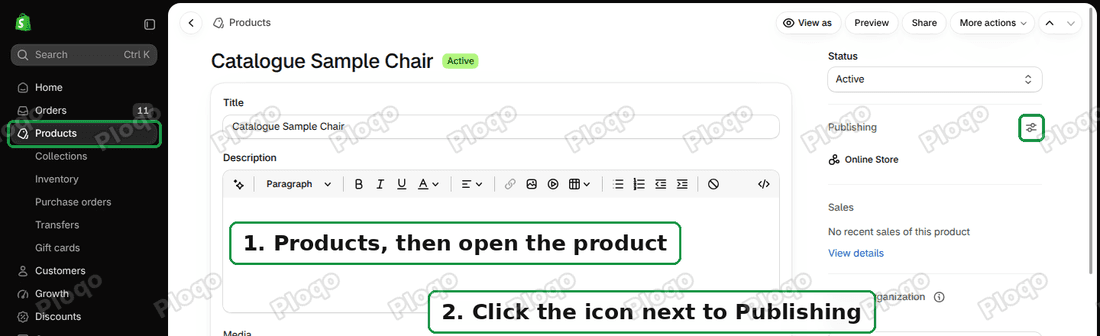 Product page in the Shopify admin with the Publishing card and its settings icon marked
- In the window that opens, switch Online Store off.
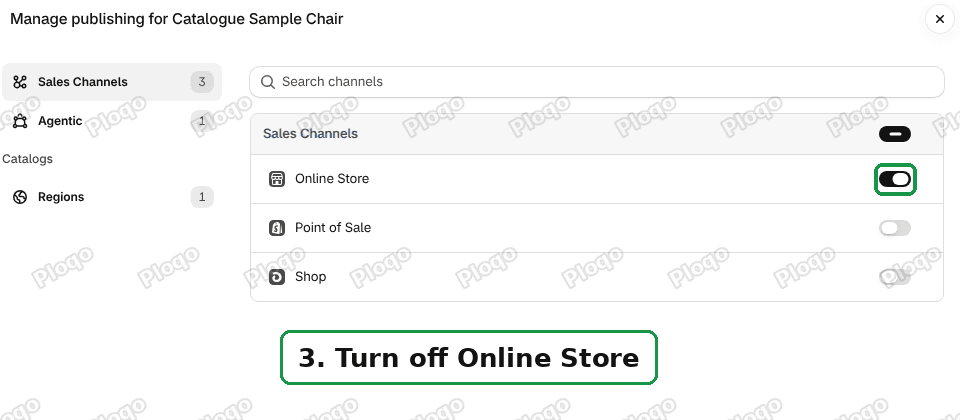 Manage publishing window with the Online Store switch marked
- Click Done, then click Save in the bar at the top.
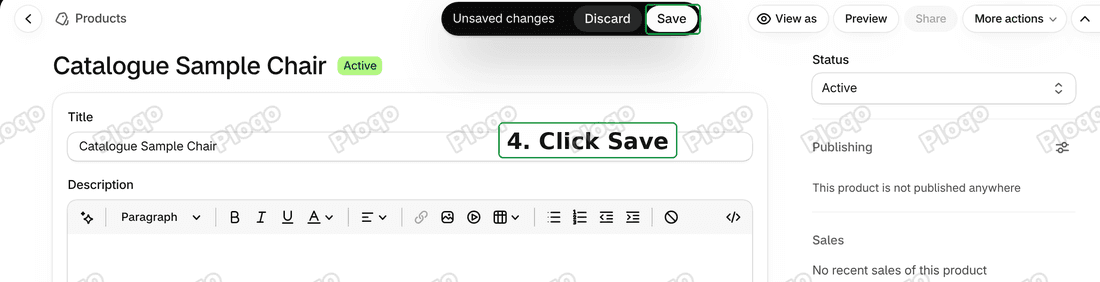 The Unsaved changes bar with the Save button marked, on a product page
The card then reads "This product is not published anywhere". I made a test product with a price of $149.00 and ran the same checks before and after.
| Address | Online Store on | Online Store off |
|---|---|---|
| The product page | loads | page not found |
/products/<name>.js | returns the price | page not found |
/products.json | lists the product | does not list it |
What you give up
A product that is not on the Online Store has no page. A visitor cannot open it, search finds nothing, and a link you shared earlier shows a not found page.
For a catalogue that does not sell online, build ordinary pages for the items instead: a photo, a description and an enquiry button or a contact link, with no price on them. Set those pages up first, check them, and only then remove the products from the Online Store. Add a redirect from each old product link to its new page so existing links keep working.
If you do sell some products online, apply this to the products you want hidden and leave the rest alone.
Show prices only to some customers
Hiding prices from every visitor is one case. Showing them to approved customers only is another, and the rule above cannot do it, because CSS applies to every visitor.
Shopify's B2B tools set a price per company, and Basic and Plus differ in what they include, which the guide to Shopify B2B on Basic and Plus covers. A rule that depends on whether a visitor is signed in needs code in the theme or an app. This guide does not cover it.
If nothing changes
- Check that you saved. The Save button in the editor stays grey until something changed. If it is grey after pasting, click inside the box and check the code is really there.
- Check which theme you edited. The Custom CSS box belongs to one theme. If you edited a draft and your live theme is a different one, the live store looks the same.
- Hard refresh the page. Your browser may still be holding the old stylesheet.
- A price still shows. Right click it, choose Inspect, and look at the label on the element. Add that label to the rule on its own line, followed by a comma.
- A price shows in one spot only. A price you typed yourself into a banner or a text block is plain text, not a price label, so edit that text by hand.
What you end up with
Three CSS lines in a box Shopify provides hide the price everywhere your theme draws it, and deleting the box's content brings the prices straight back. That covers what a visitor sees.
What a search engine or a script can read is a separate matter. For that, the product has to come off the Online Store, and the pages that replace it need to be ready first.
Spending too long on manual Shopify busywork?
PinFlow turns your Shopify catalog into Pinterest pins and posts them on a schedule, automatically. Same idea as the rule above, let the system handle the repetitive part.
Get PinFlow on the Shopify App StoreMore Shopify fixes
More community-sourced Shopify guides, tested on a live store.
Themes & Storefront
Shopify Anchor Link: Button That Scrolls to a Section
Link a Shopify button to a section lower on the same page with an anchor link. Steps for the theme editor, no code files, plus the fix for a title hidden under the header.
Themes & Storefront
Shopify Social Media Icons: Add a Custom Icon and Link
Set your social links in Shopify theme settings, see why icons do not show, and swap in your own icon for a network the theme does not list.
Themes & Storefront
Sticky Add to Cart Button in Shopify Dawn, No App
Pin the Add to cart button and its delivery line to the bottom of the screen in Shopify Dawn. One free Custom Liquid block, no app, phone and desktop.