
Hide Shipping Calculated at Checkout on One Shopify Product
The line under Add to cart that says shipping is calculated at checkout shows on every product, gift cards included. Here is how to hide it on one product only, with the code, screenshots and the Eclipse theme steps.
By AjayCodeWiz · October 4, 2026 · 8 min read
The problem
Under the Add to cart button, many Shopify themes show a short line such as "Shipping calculated at checkout." It is useful on a pair of boots. It is out of place on a gift card that is delivered by email.
A merchant on the Shopify Community asked about exactly this. Their store runs the Eclipse theme. The line under their gift card read "Shipping calculated at checkout. Free shipping on 2+ pairs." They wanted it gone from the gift card and left in place on every other product. They said they would also accept different wording on the gift card.
Shopify has no checkbox for this. The setting that controls the line is not per product. This article shows how to remove "shipping calculated at checkout" in Shopify for one product, using a few lines of code and your product's ID number.
Before and after
This is the merchant's gift card page before the change. The line sits right under Add to cart:
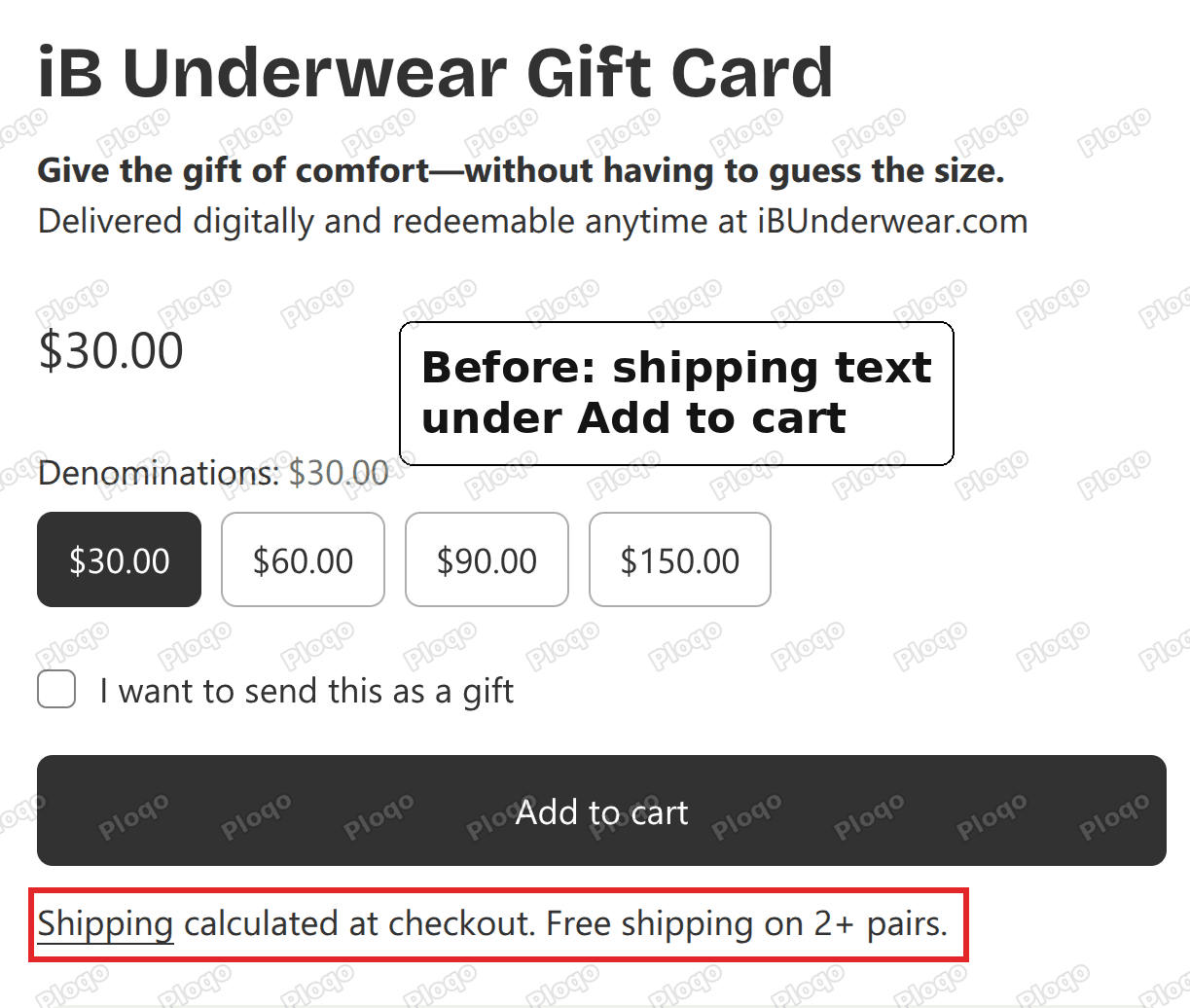 The iB Underwear gift card page with the line Shipping calculated at checkout under the Add to cart button
This is the same page after. The button is the last thing in the buy box and the line is gone:
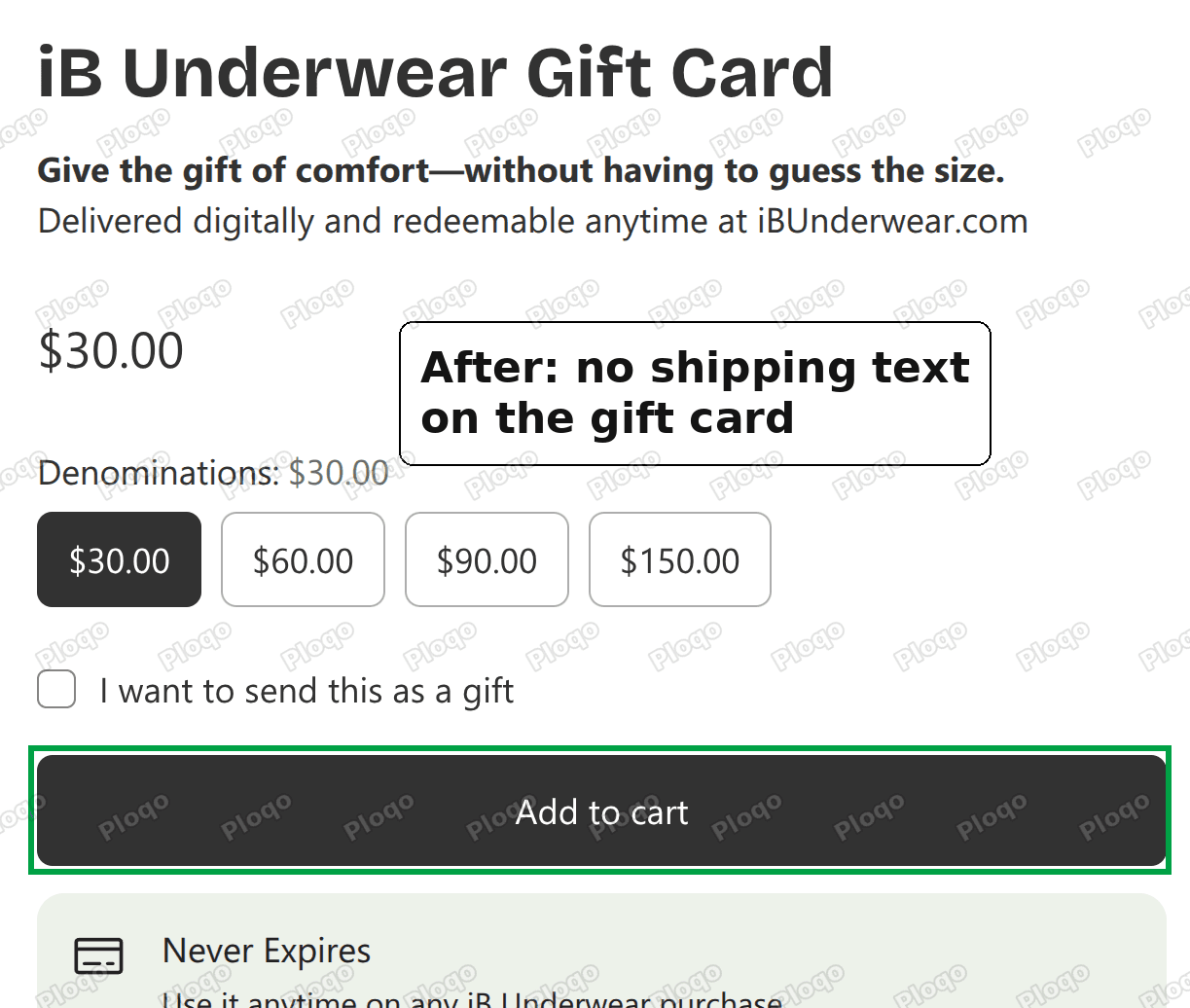 The same gift card page with the shipping line removed from under the Add to cart button
I tried the code on the merchant's real page in my own browser before posting it. Nothing was saved to their store. On the gift card page the line went from visible to hidden. On their boxer briefs page, which I opened in a second tab with the same code applied, the line was still shown.
Why you cannot just switch it off
The line is part of the product page layout in your theme. A theme is the set of files that controls how your store looks. In Eclipse, the line belongs to the same block as the Add to cart button, and every product page uses that block.
That is why the usual options do not fit a single product:
- The theme editor lets you change a setting for a page template, which affects every product that uses the template. It does not let you pick one product.
- Editing the theme text changes the wording everywhere. If you reword "Shipping calculated at checkout" in the theme's default content, every product page shows the new wording.
- Removing your shipping policy page is not worth it. It is a legal page, and you would lose it for the whole store.
What does work is a rule that says "hide this line, but only on the product with this ID". That rule is written in CSS, the code that controls how things look on a page. It does not change anything in your checkout.
Check that hiding the line is the right fix
Hiding the line does not change how Shopify charges for shipping. It only removes the words from the product page.
A gift card like the merchant's is set up so that its variants do not need shipping. A variant is one version of a product, such as one gift card amount. Because shipping is off for those variants, the checkout does not ask for a delivery address when only a gift card is in the cart.
If your product is physical, do not hide the line just to make the page look cleaner. Shoppers expect to see something about shipping before they pay.
How to hide the shipping line on one product
You need two things: your product's ID and a place to paste the code. The place is the Custom CSS box in the theme settings.
Step 1: Find your product ID
The product ID is the long number Shopify uses to identify the product. You can read it in the admin's web address.
- In your Shopify admin, go to Products.
- Click your gift card, or whichever product should lose the line.
- Look at the web address in your browser. It ends with a number, for example
.../products/8316607496381. Copy that number.
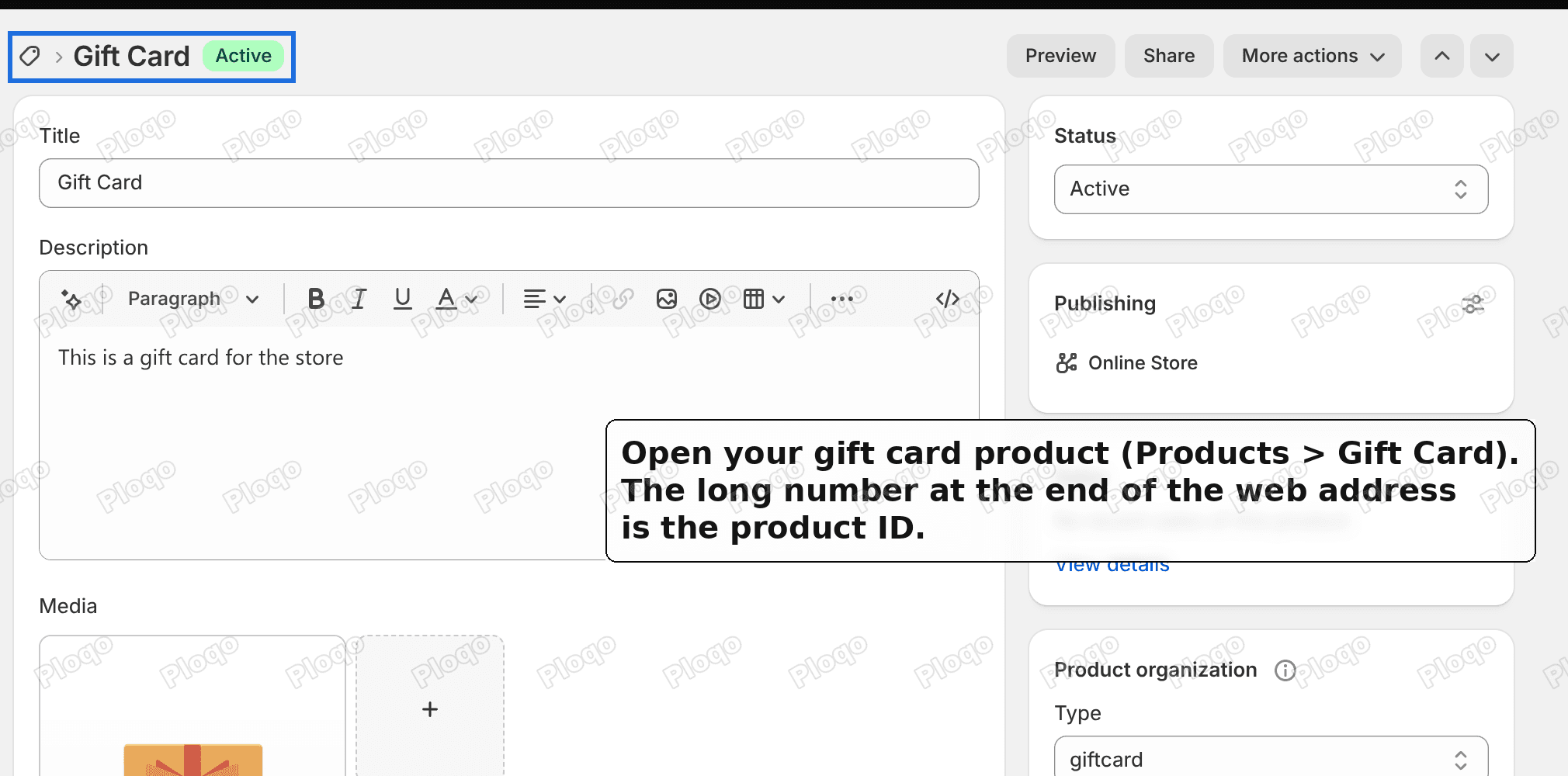 The admin page of a gift card product, with a note that the number at the end of the web address is the product ID
The product in this screenshot is from a test store, so your number will be different.
Step 2: Open the Custom CSS box
- Go to Online Store > Themes. The Themes page lists your current theme at the top, with an Edit theme button.
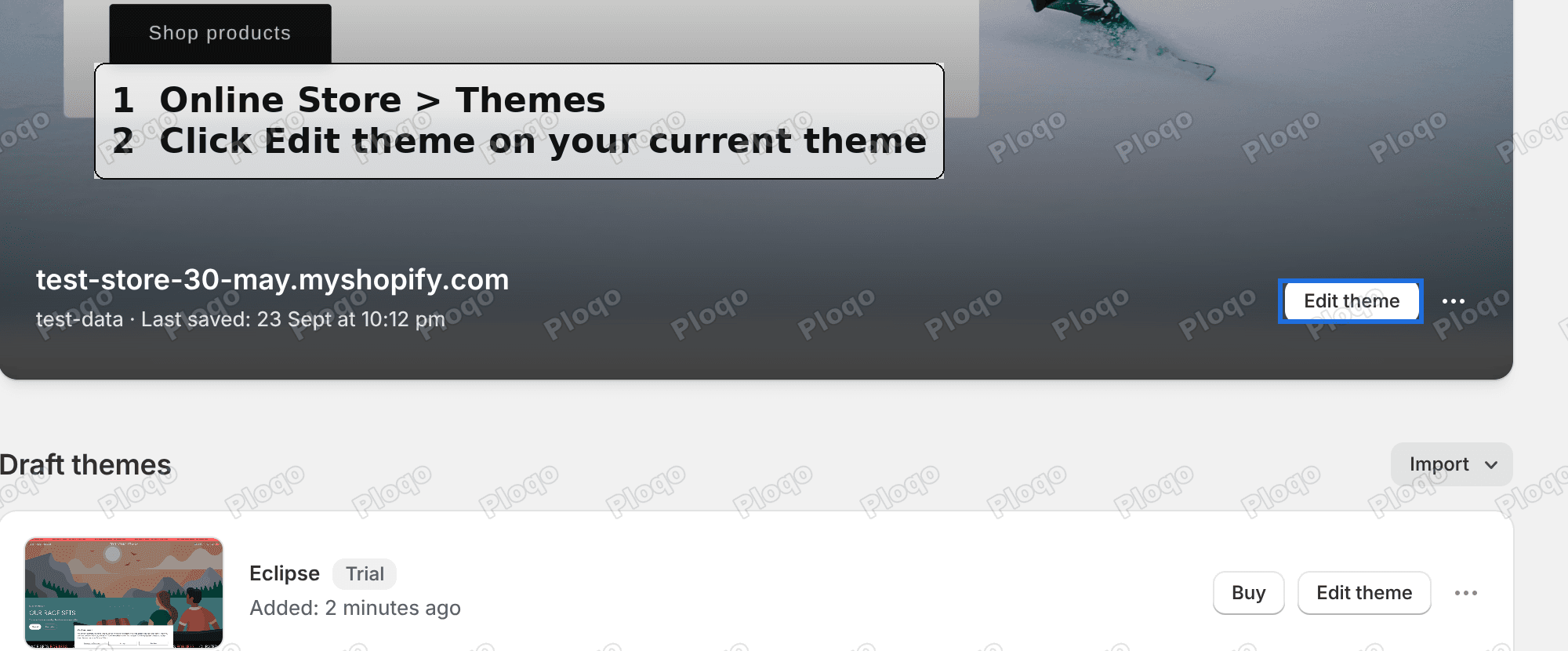 The Online Store Themes page with the Edit theme button on the current theme highlighted
-
Click Edit theme on your current theme.
-
In the editor, click the gear icon on the left. It opens Theme settings.
-
Scroll down the list and click Custom CSS.
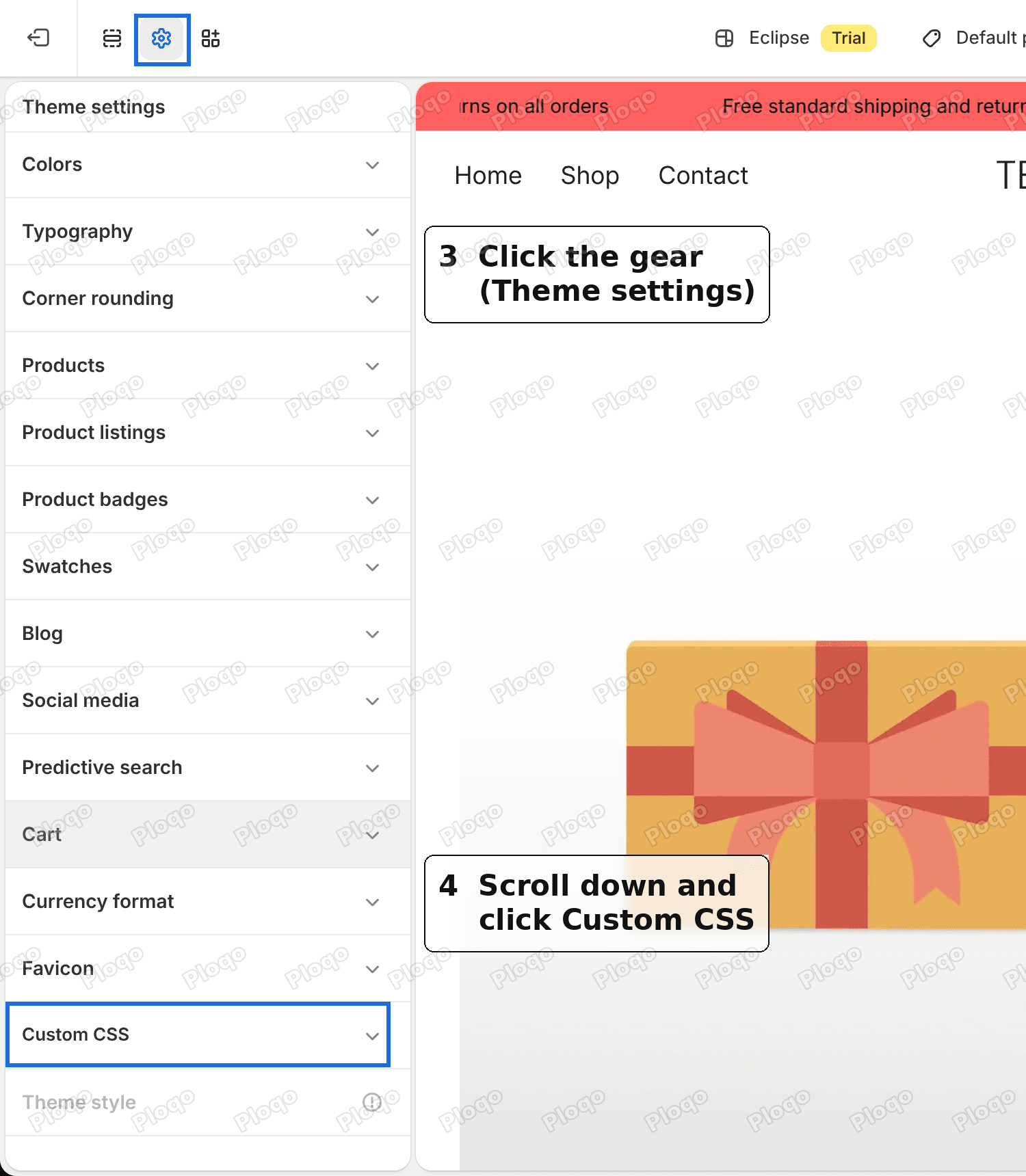 The Eclipse theme editor with the gear icon and the Custom CSS entry highlighted
Step 3: Paste the code
Paste this into the Custom CSS box. If the box already has code in it, paste this on a new line below it and leave the old code alone.
product-block-buy-buttons:has(input[name="product-id"][value="PASTE-YOUR-PRODUCT-ID-HERE"]) .product__policies { display: none; }Replace PASTE-YOUR-PRODUCT-ID-HERE with the number from step 1. Keep the quotation marks around it.
The screenshot shows the merchant's gift card ID. Yours will be different.
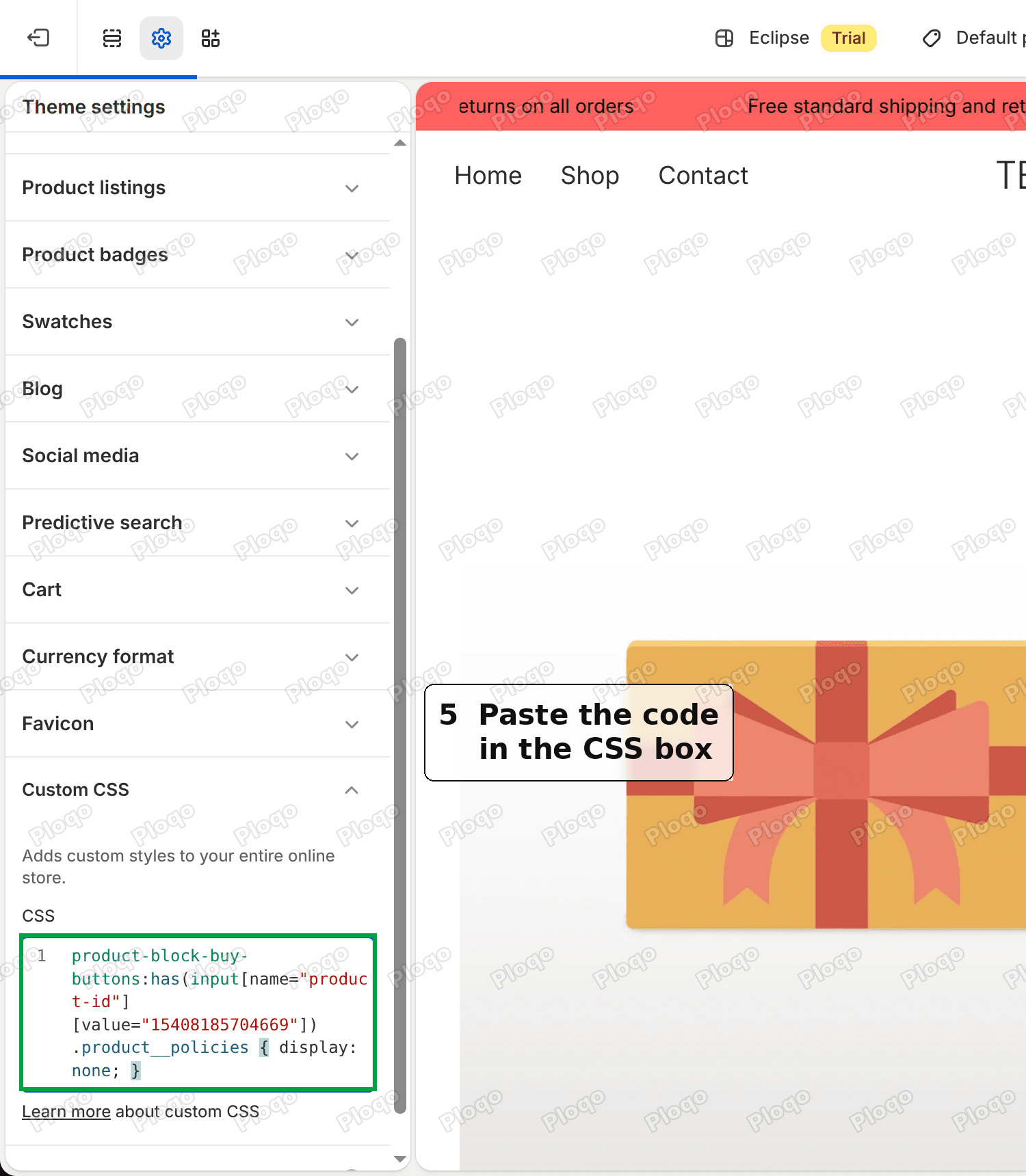 The Custom CSS box in the Eclipse theme settings with the code pasted in
Step 4: Save
Click Save in the top right corner of the editor.
 The Save button in the top right corner of the theme editor
Open your gift card page in a new tab and reload it. The line under Add to cart is gone. Open any other product and check that its shipping line is still there.
How the code works, in plain words
You do not need this to use the fix, but it helps if you want to change the code later.
The code has two halves. The first half finds the right page. Every product page has a hidden form field that holds the product's ID, and the code looks for the buy box that contains your ID. The second half, .product__policies, names the shipping line itself. The last part, display: none, tells the browser not to show it.
Because the code only matches your ID, no other product page is affected.
Hide the line on more than one product
Add a second block of the same code, or join two product IDs with a comma. This version hides the line on two products:
product-block-buy-buttons:has(input[name="product-id"][value="FIRST-ID"]) .product__policies,
product-block-buy-buttons:has(input[name="product-id"][value="SECOND-ID"]) .product__policies { display: none; }
I tried this form on the merchant's store with the gift card ID and the ID of a second product. The line was hidden on both.
If you have many digital products, such as ten gift card amounts that are each their own product, list each ID. Past a handful of products, a separate product template for digital items is a tidier setup, but it needs more theme work than this article covers.
What if you want different wording instead of no line
The merchant said they would accept different text on the gift card. CSS can hide the line, but it cannot reliably swap the words for different ones on a single product.
The options are:
- Hide the line, then add your own sentence in the product description. A gift card description that says "Delivered by email within minutes" does the job.
- Change the theme's default text. On the Themes page from step 2, click the three dots on your theme and choose Edit default theme content. This changes the wording on every product page, so it only fits if you want the same new text everywhere.
Troubleshooting: the line is still showing
Check the product ID. This is the most common cause. The code does nothing if the number does not match the product exactly. Copy it again from the admin address, with no spaces.
Check the quotation marks. If you pasted the code from a page that turns straight quotation marks into curly ones, the code stops working. Retype the quotation marks in the Custom CSS box.
Check that you saved. The Save button stays grey until the editor sees a change. If it is grey after you paste, type a space at the end of the code and delete it. The button turns black.
Check your theme. I tested this code on Eclipse, version 5.3.2. Other themes use different names for the shipping line, so the code will not match. If you use another theme, the idea is the same, but the part before .product__policies has to name your theme's buy box.
Reload the page. Open the product page in a private window to rule out your browser holding an older copy.
Undo it
Go back to the Custom CSS box from step 2, delete the line you added, and click Save. The shipping line comes back on the gift card straight away.
Related reading
If you use Eclipse, the same Custom CSS box is where the image zoom button fix goes. For a plain-language walkthrough of the box itself, see how to add custom CSS in Shopify.
Spending too long on manual Shopify busywork?
PinFlow turns your Shopify catalog into Pinterest pins and posts them on a schedule, automatically. Let the system handle the repetitive part of your marketing.
Get PinFlow on the Shopify App StoreMore Shopify fixes
More community-sourced Shopify guides, tested on a live store.
Themes & Storefront
Shopify AI Section: Fix a Price Badge Hidden Behind the Image
You built a section with Shopify's AI section generator, but the price badge on each card sits behind the photo. Here is the Custom Liquid fix that brings it to the front without regenerating anything. Tested on a Dawn store.
Themes & Storefront
Shopify Dropdown Menu Behind Page Content (Z-Index Fix)
Your Shopify dropdown or mega menu opens, but the page title and products sit on top of its links and the menu closes before you can click. The fix is one Custom CSS rule in Theme settings. Tested on a Rebel store.
Themes & Storefront
Shopify Sales Counter: Show "X Sold" on Product Pages
Shopify has no built-in sales counter. Here is how to show a sold count on your product page and collection pages in the Dawn theme, using one product field and three lines of theme code.