
How to Hide a Variant in Shopify Without Deleting It
A colour is temporarily unavailable and you want it off every product page without deleting it and rebuilding it later. Shopify can now unpublish a single variant. The fast way to do it, tested on a live store.
By AjayCodeWiz · September 3, 2026 · 10 min read
The problem, in the words a merchant would use
A merchant asked about this on the Shopify Community. They run a made to order business, so they do not track inventory at all. Every product is available with the same set of sizes and colours.
When one colour runs out at their supplier, they want that colour gone from the storefront for a while. Not deleted. Just hidden until they can make it again.
Their only method was to open each product and remove the colour by hand. With ten products that is ten edits, and every edit destroys variant data they will have to type back in later.
That is the job: hide a variant, do not delete it, put it back later.
Deleting the variant is the wrong tool
It is worth saying why, because deleting is the first thing most people reach for.
When you delete a variant you lose its price, its SKU, its barcode, its image link and its position in the option order. Recreating it means retyping all of that on every product.
Deleting also breaks history. Reports that referenced that variant lose their link to it. If a customer ever asks about an old order, the variant they bought is no longer there.
And there is a smaller annoyance worth knowing about. Removing an option value re-sorts the ones that are left. Merchants who spent time arranging their colours in a sensible order find that order scrambled when they add the colour back.
Shopify can now unpublish a single variant
This is the part that has changed recently and that most guides have not caught up with.
For years, publishing was a product-level thing. A product was either on your Online Store or it was not. Individual variants came along for the ride.
That is no longer true. You can now switch one variant off your Online Store and leave the rest of the product exactly as it is. Nothing is deleted. Inventory is not touched, which matters a lot if, like this merchant, you do not track inventory in the first place.
The setting is called publishing, and it lives on the variant.
The fast way to do it
The reason people give up on this is not the setting. It is finding the variants.
A product with 5 sizes and 5 colours has 25 rows. Ten of those products is 250 rows, and Shopify's bulk editor gives you no way to filter or sort by colour. Scrolling that list looking for every red row is miserable, and it is easy to miss one.
There is a control on the product page itself that solves this, and it is easy to miss.
Step 1: group the variants by the option you care about
Open the product and scroll down to the Variants card. Just under the option list there is a small Group by dropdown. It is set to your first option, usually Size.
Change it to Colour.
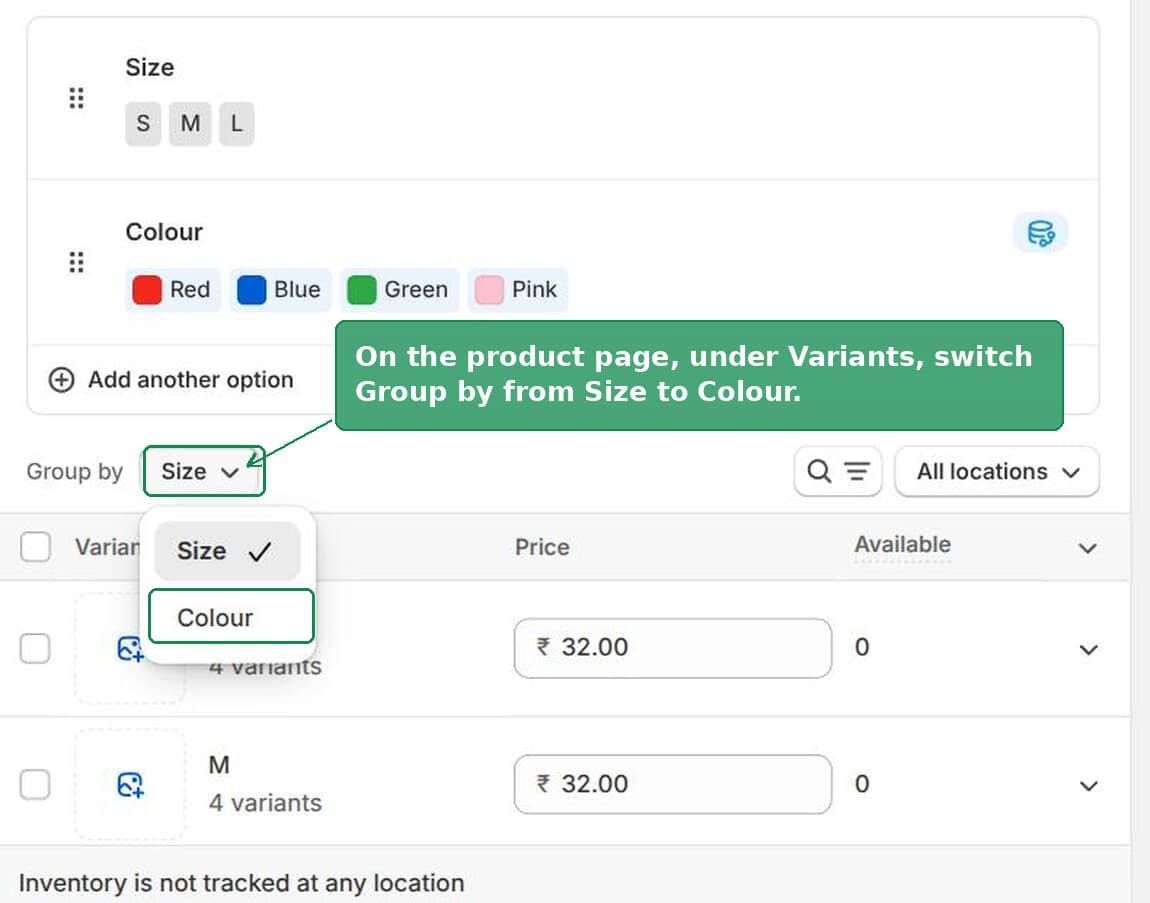 Group by dropdown on the Shopify product page switched from Size to Colour
The variant table redraws. Every colour is now a single row that says how many variants sit inside it. Red is one row instead of five.
Step 2: select the whole colour
Tick the checkbox on that row. That selects every size in that colour at once.
On my test product the Red row said "3 variants", and ticking it showed "3 selected" straight away.
Step 3: open Manage publishing
With the row still ticked, click the ... button next to Bulk edit and choose Manage publishing.
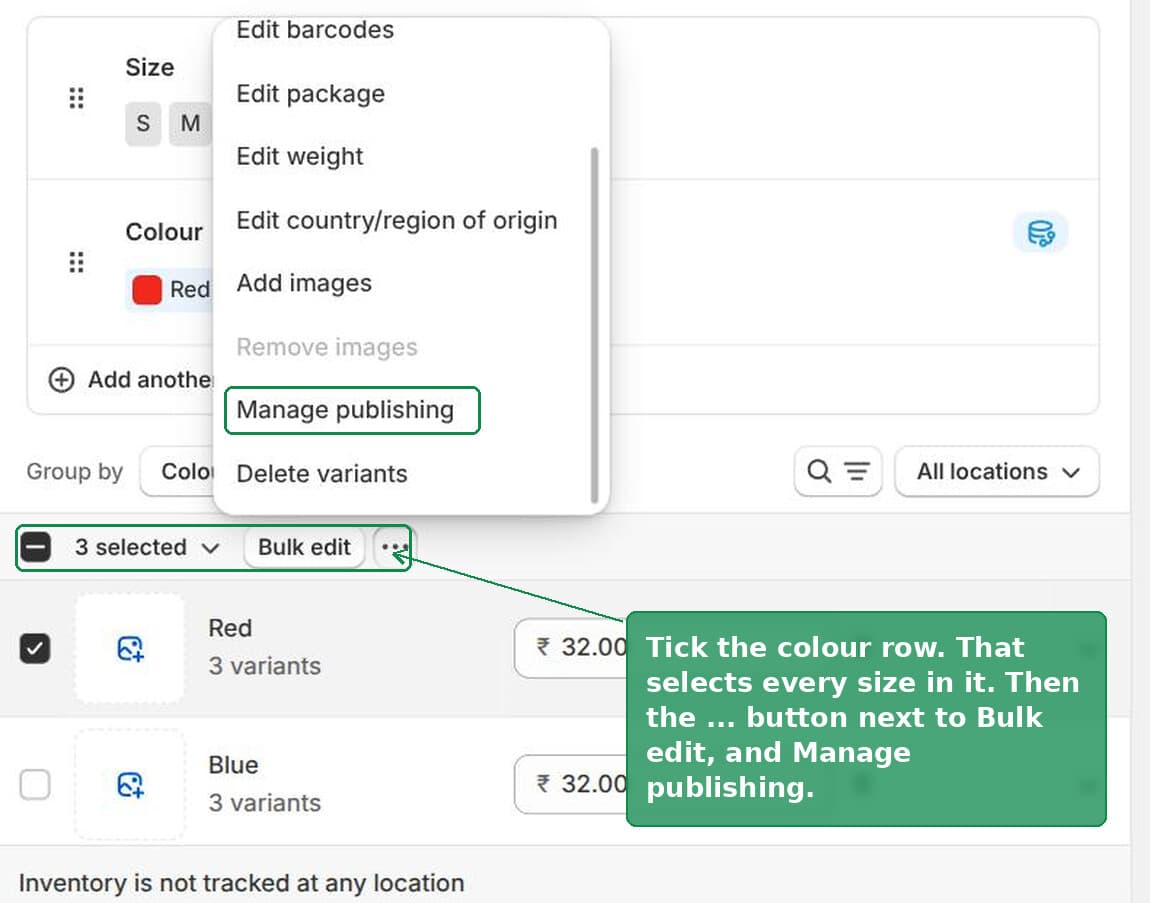 The Manage publishing option in the Shopify variant actions menu
Step 4: turn Online Store off
A dialog opens headed "Manage publishing for 3 variants". Every sales channel is listed with a toggle.
Turn Online Store off and click Done.
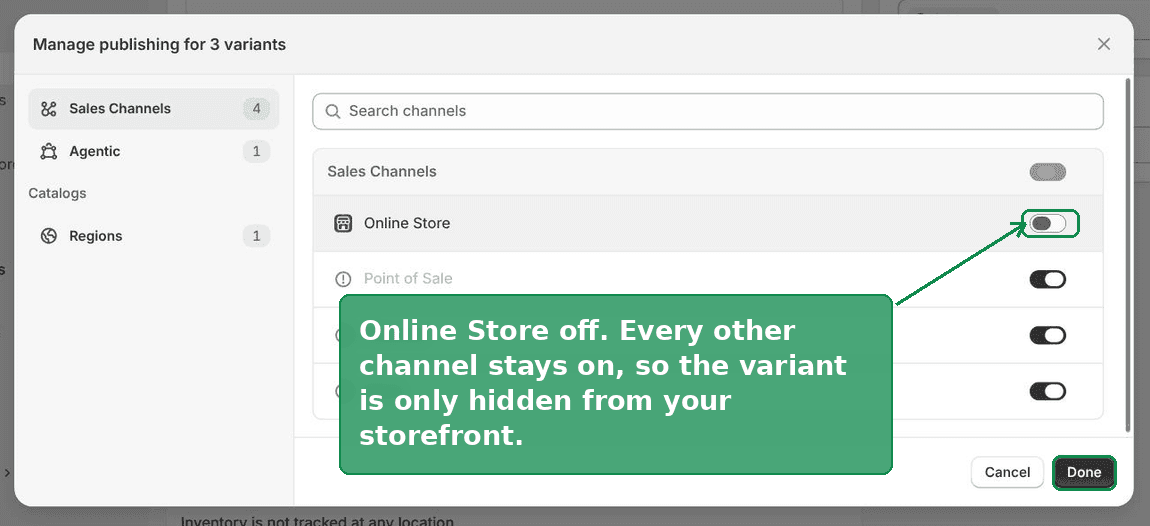 Manage publishing dialog with the Online Store toggle switched off
Leave the other channels alone unless you want the colour gone from those too. This is useful: you can hide a colour from your website while still selling it in person through Point of Sale.
Step 5: save
Click Save at the top of the product page. The change is not live until you do.
A new Publishing column then appears on the variant table. The colour you unpublished shows a channel count instead of the word "All".
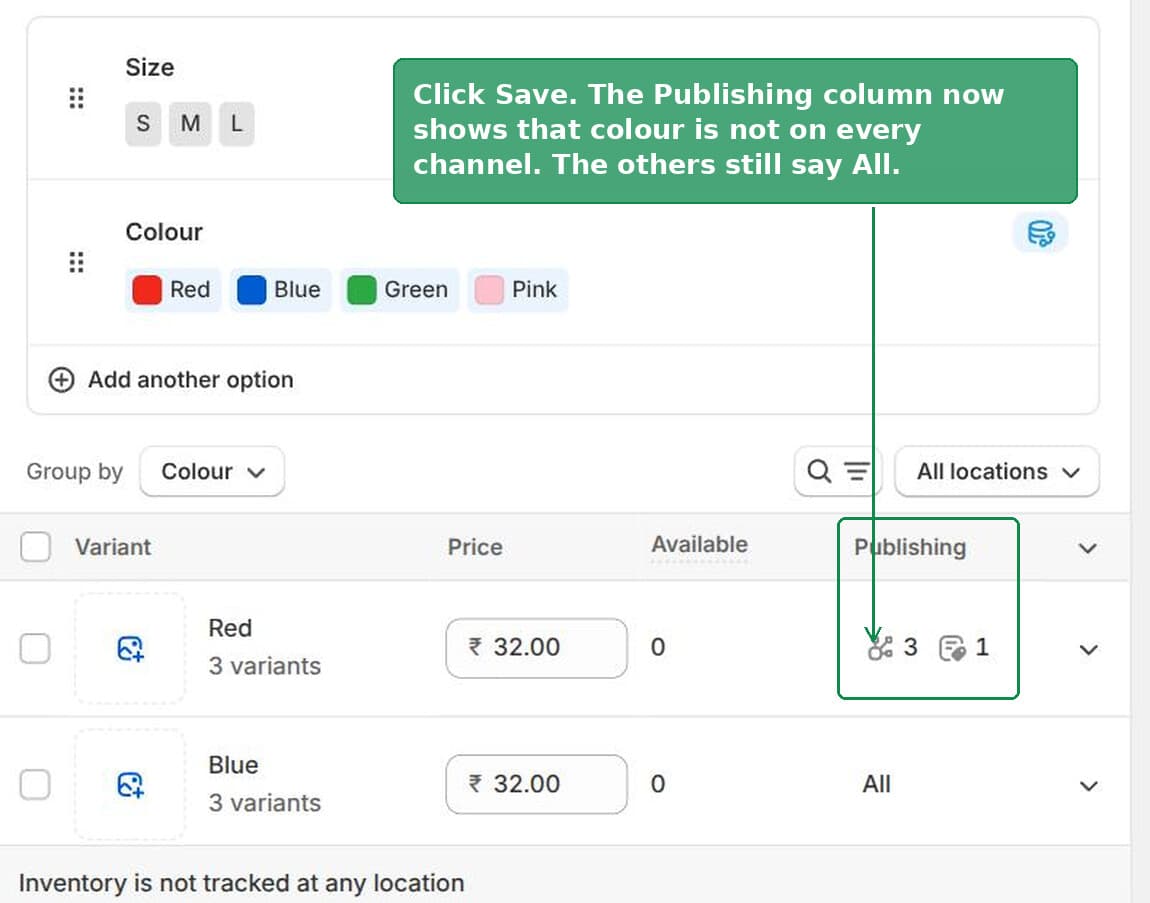 The Publishing column on the Shopify variant table showing one colour excluded
The product's Publishing card in the sidebar also changes. Instead of just "Online Store" it now reads "Online Store, excludes some variants". That is a useful reminder months later when you have forgotten what you did.
What it looks like on the storefront
Here is the product page before, with four colours.
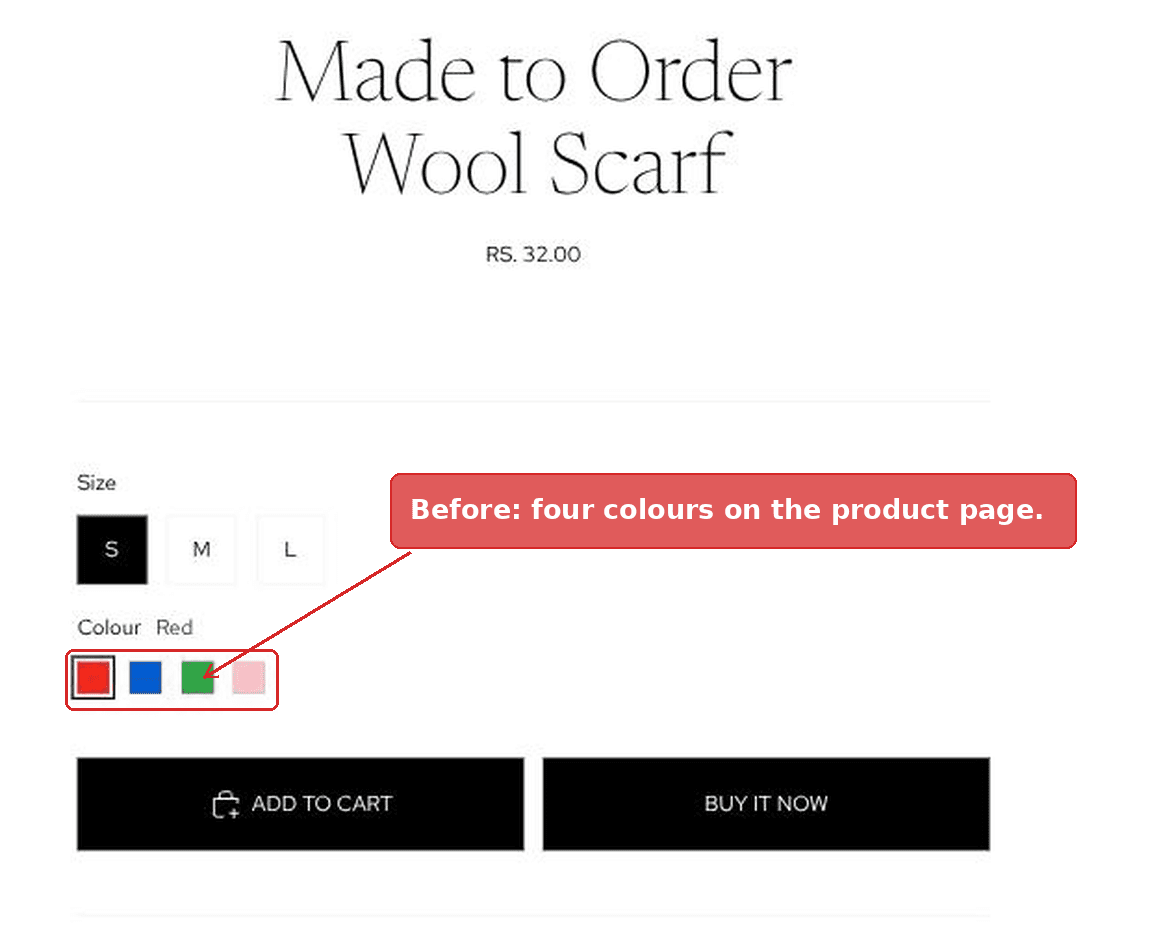 Shopify product page showing four colour swatches before the change
And after unpublishing the whole Red row.
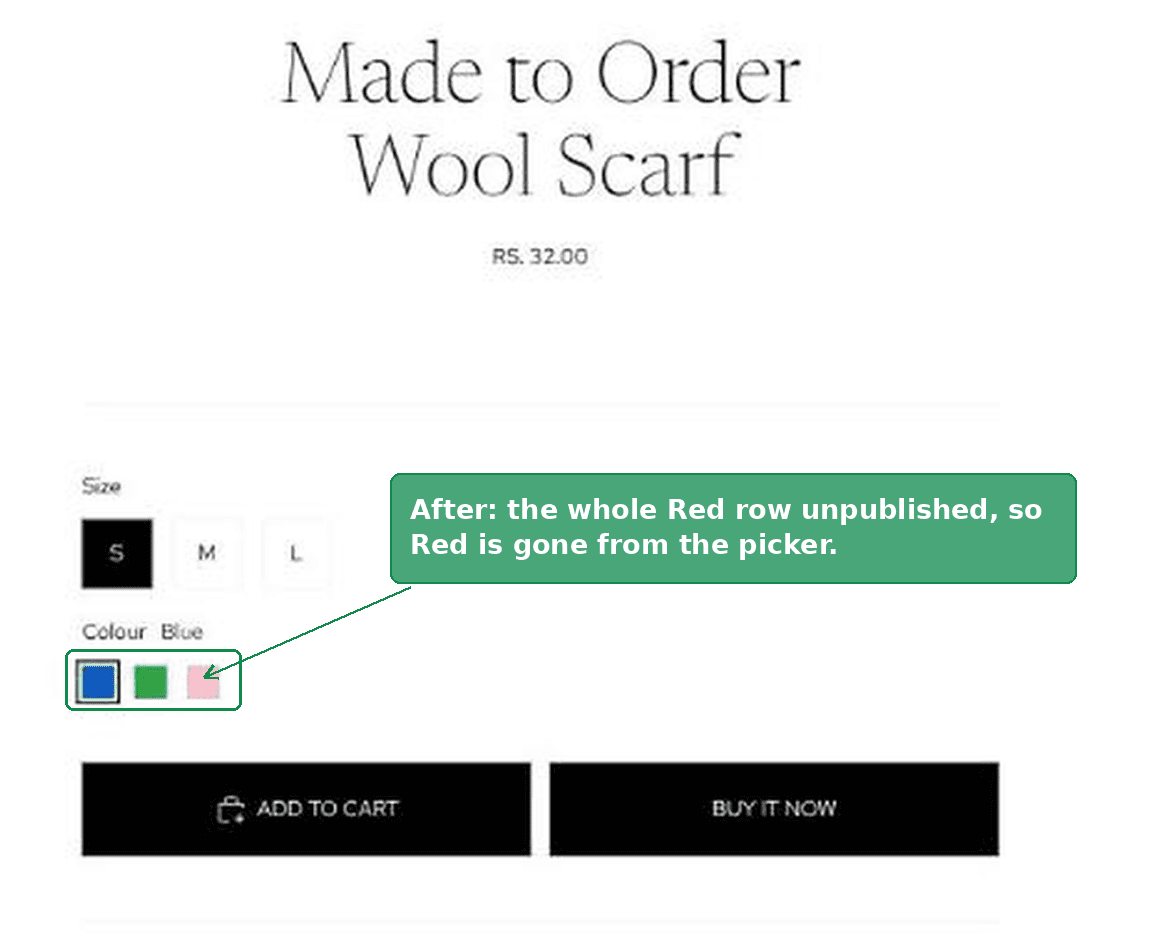 The same Shopify product page with the red swatch completely gone
Red is not greyed out. It is not crossed out. It is not in the picker at all. As far as the storefront is concerned that option value does not exist on this product.
That is the behaviour you want for a colour you cannot make right now. A struck-through swatch invites the shopper to click it and be disappointed. A missing swatch does not.
The mistake that makes it look broken
This is the single thing to get right, and it is where most people conclude the feature does not work.
You have to unpublish every size in that colour.
If you unpublish only some of them, the colour does not disappear. It moves to the end of the swatch row and gets a line through it, and it is still clickable on the sizes you left published.
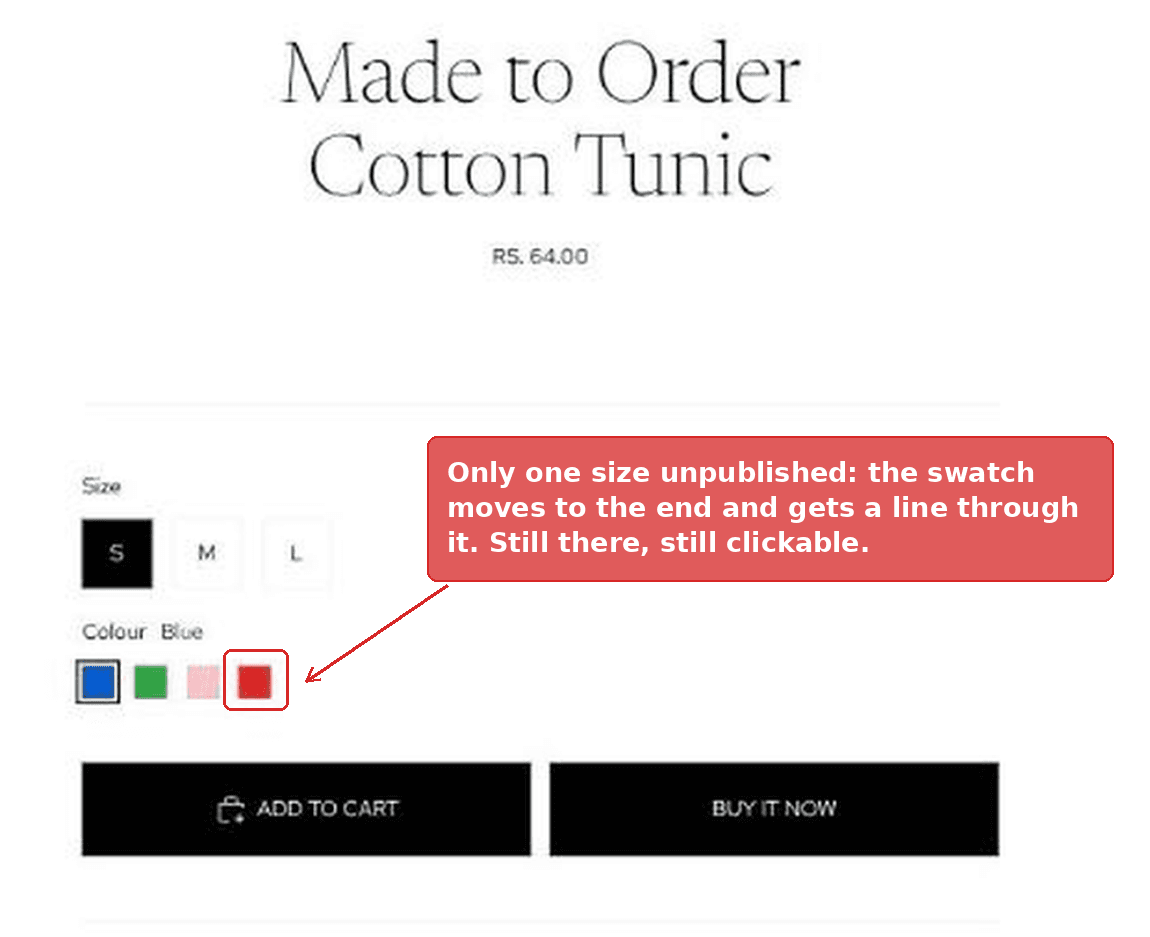 A red swatch struck through because only one size was unpublished
I tested both on a live store. Unpublishing all three sizes in Red removed Red from the picker completely. Unpublishing only the small left Red visible, struck through, and still selectable on medium and large.
The reason is how themes decide whether an option value is available. The theme looks at the variants it can actually see. If even one red variant is still published, red is still a real option, so the theme draws it and marks it partly unavailable.
Grouping by colour is what protects you from this. When the whole colour is one row, you cannot accidentally select four sizes out of five.
Putting the colour back
Exactly the same route. Group by Colour, tick the row, ..., Manage publishing, Online Store back on, Done, Save.
Nothing was deleted, so nothing has to be recreated. The price, SKU, barcode and image link are all still attached to those variants, and the colour returns in its original position in the option order.
This is the whole argument for unpublishing over deleting. It is reversible in about ten seconds.
One switch for every product at once
The method above is per product. For ten products that is fine. For a hundred it is not.
If you want a single place to control it, you can hide the colour in your theme instead. This is a display-only change, so read the caveats at the end of this section before you use it.
In the theme editor, open a product page, then go to Product information, then Details, then Add block, and choose Custom Liquid.
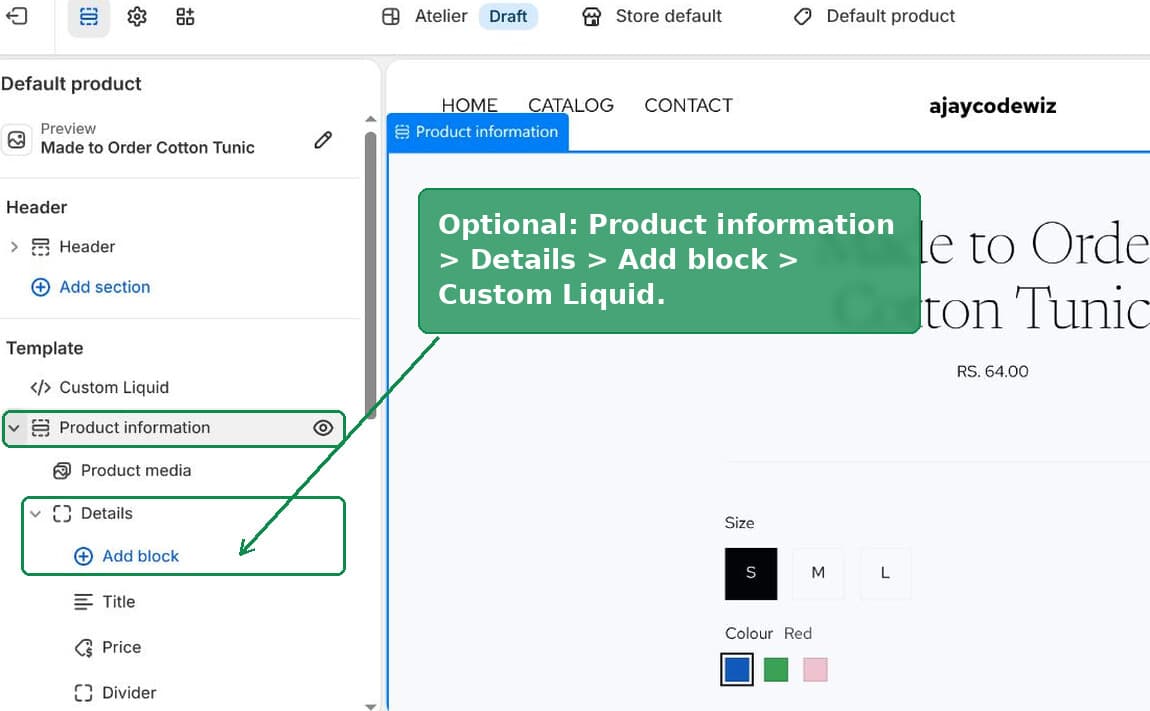 Adding a Custom Liquid block under Product information in the Shopify theme editor
Paste this into the block and put your colour names on the first line:
{% assign hidden_colours = 'Red' | split: ',' %}
<style>
{%- for c in hidden_colours %}{% assign c = c | strip %}
.variant-option__button-label:has(input[value="{{ c }}"]),
.variant-option__swatch:has(input[value="{{ c }}"]) { display: none !important; }
{%- endfor %}
</style>
<script>
(function () {
var hidden = {{ hidden_colours | json }}.map(function (c) { return c.trim(); });
function pick() {
document.querySelectorAll('.variant-option').forEach(function (fs) {
var inputs = Array.prototype.slice.call(fs.querySelectorAll('input[type=radio]'));
var on = inputs.filter(function (i) { return i.checked && hidden.indexOf(i.value) > -1; })[0];
if (!on) return;
var next = inputs.filter(function (i) { return hidden.indexOf(i.value) === -1; })[0];
if (next) next.closest('label').click();
});
}
document.addEventListener('DOMContentLoaded', pick);
pick();
})();
</script>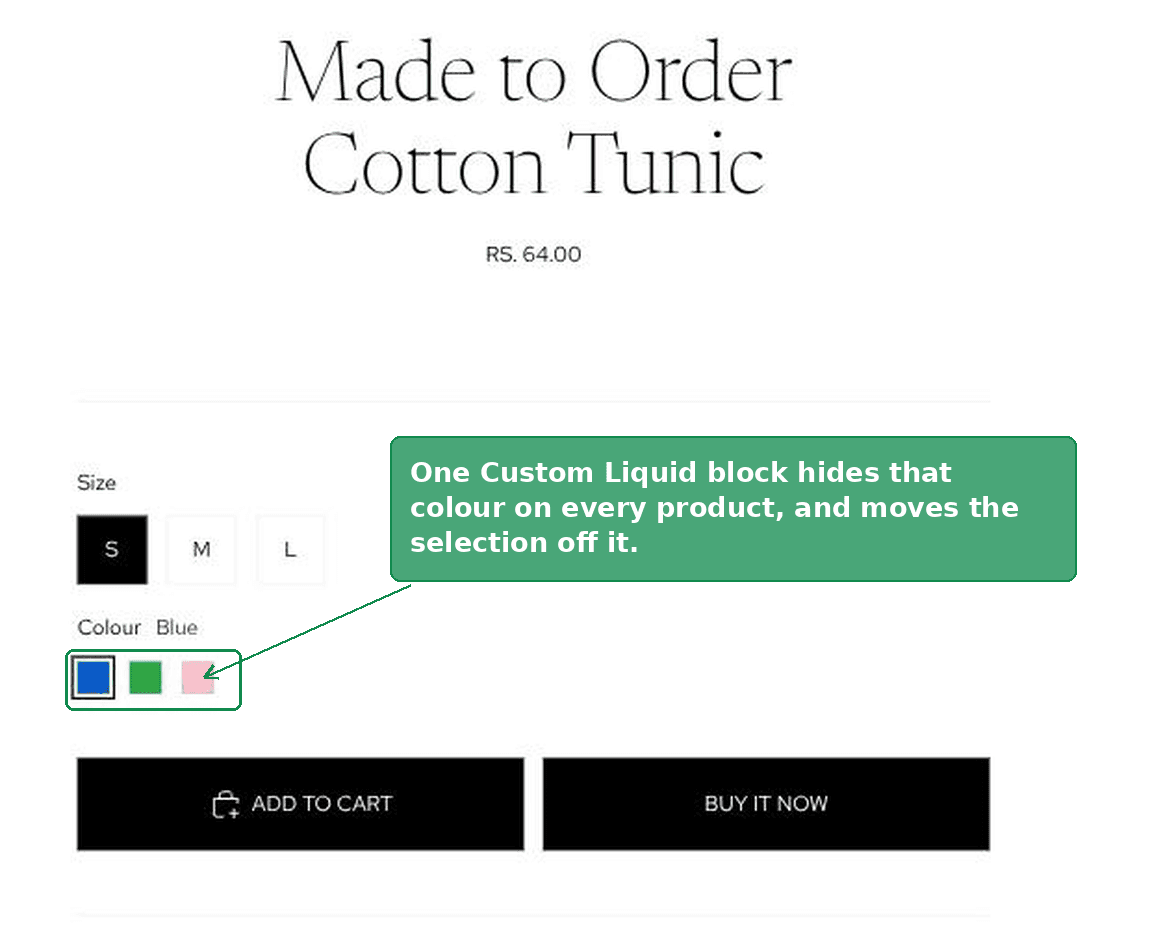 Shopify product page with a colour hidden by the Custom Liquid block
A few things worth knowing:
- One edit covers every product that uses that product template. Change
'Red'to'Red, Mustard'to hide more than one. - The second half matters. Without it, a product whose first colour is the hidden one still opens on that colour, with no swatch showing to explain it. The script moves the selection to the next visible colour instead.
- The colour name has to match your option value exactly, including capital letters and spaces.
- It hides, it does not block. Someone with an old link straight to that variant could still order it. Unpublishing actually blocks the sale. Use the theme block as a quick lever and unpublish when you want it properly gone.
Hiding a variant when it is out of stock instead
If your reason for hiding is stock rather than a temporary supply gap, that is a different job with a different answer. You do not want to unpublish anything by hand, you want it to happen automatically as stock hits zero.
That includes making sure your collection filters do not show sizes that are sold out, which is a separate quirk of how Shopify filters work. I covered that case in detail here: how to hide out of stock variants in Shopify.
The short version: unpublishing is for things you choose to hide, and stock-based hiding is for things that hide themselves.
Hiding the whole product instead of one variant
Sometimes the right answer is bigger. If every colour of a product is unavailable, hide the product rather than every variant inside it.
You have three ways to do that, and they are not the same:
- Set the status to Draft. The product disappears from the storefront and from search. It stays in your admin and keeps all its data. This is the usual choice for a temporary pause.
- Archive it. Also removes it from the storefront, but it moves out of your active product list too. Better for things you are not planning to sell again soon.
- Remove it from the Online Store channel. Keeps the status Active, but takes it off your website while leaving it available in other channels such as Point of Sale.
All three are reversible, and none of them deletes anything.
Doing it across a large catalogue
If you have a lot of products, the per-product route stops being reasonable.
Shopify's bulk editor does have a Sales channels column at the variant level, so you can edit publishing there. The catch is that it lists every variant in one flat table with no way to filter by option value, which is exactly the 250 row problem that started this.
For real scale, the Admin API can unpublish variants directly. Variant level publishing arrived in the 2026-07 version of the API, so a short script can clear one colour across an entire catalogue in a single run. That is a developer job, but it is a small one.
There are also apps built for this. If you go that route, check carefully whether the app hides by stock level or lets you pick the variant yourself. Most of that category is stock driven, which is no help at all on a made to order store where nothing is ever technically out of stock.
If bulk variant editing is your wider problem, this walkthrough covers the editor properly: how to bulk edit variants in Shopify.
Hide, delete, archive and deactivate are four different things
These get used interchangeably in forum posts and they are not the same. Getting them straight saves a lot of wasted effort.
- Hide a variant means unpublish it from a sales channel. The variant still exists with all its data. Reversible in seconds.
- Delete a variant removes it and its data permanently. Not reversible. Old orders lose their link to it.
- Archive a product hides the whole product and files it away. Reversible, product level only.
- Deactivate inventory at a location is about where stock is counted, not about whether anything is visible. It does not hide anything by itself.
The merchant who asked this question wanted the first one and was reaching for the second.
What to check if it did not work
- You did not click Save. The Manage publishing dialog stages the change; the Save button at the top of the product page commits it.
- You missed a size. Group by the colour again and confirm the row shows the count you expect. One published variant is enough to keep the colour visible.
- You are looking at a cached page. Shopify's storefront caches aggressively. Reload with a fresh query string on the end of the URL, or check in a private window.
- You unpublished the wrong channel. Confirm it was Online Store and not Point of Sale or a market catalog.
- Your theme is very old. Themes read the variants Shopify gives them, so this should work anywhere, but a heavily customised variant picker that builds its own option list from stored data can behave differently.
The short version
Do not delete a variant to hide it. Open the product, set Group by to the option you want, tick the whole row, then ... then Manage publishing, turn Online Store off, and Save.
Unpublish every variant in that group, or the theme will show the option struck through instead of hiding it.
To bring it back, do the same thing and turn the toggle on. Nothing was lost.
Spending too long on manual Shopify busywork?
PinFlow turns your Shopify catalog into Pinterest pins and posts them on a schedule, automatically. Set your storefront up once, then let the system handle the repetitive part.
Get PinFlow on the Shopify App StorePart of a complete guide
Shopify Variants: The Complete Guide
Variants are one product sold in several forms. How they work, the 2,048 and 3-option limits, and where each variant fix lives - images, swatches, sorting, hiding and the theme-specific bugs.
More Shopify fixes
More community-sourced Shopify guides, tested on a live store.
Collections & Products
Shopify Unit Pricing: Show a Price per Unit on Each Variant
Set a unit price on every variant and Dawn shows the price per 100 ml or per kg, and updates it when a shopper picks another size. No code needed.
Themes & Storefront
Square Size Buttons on Shopify Dawn (Custom CSS)
Dawn draws size options as round pills. Here is the Custom CSS that turns them into square boxes matching the Add to cart button, tested on Dawn 16.0.0.
Themes & Storefront
Remove the Variant ID From Your Shopify Product URL
Your product link keeps turning into /products/name?variant=43176780890281, before the customer has touched anything. One theme setting stops it, a second switch covers Dawn, and a short snippet cleans the links that already carry the ID.