
Sticky Add to Cart in Shopify Horizon: Turn On the Built-In Bar (No App)
Horizon has a sticky add to cart bar built in. Turn on one switch in Product information, then see why it hides on sold-out products and with Inbox chat.
By AjayCodeWiz · November 19, 2026 · 6 min read
How do you turn on the sticky add to cart bar in Shopify Horizon?
In the theme editor, open a product page, click the Product information section and, under Layout, turn on Sticky add to cart bar. Then click Save. No app and no code are needed. The bar slides up from the bottom of the screen once the main Add to cart button scrolls out of view.
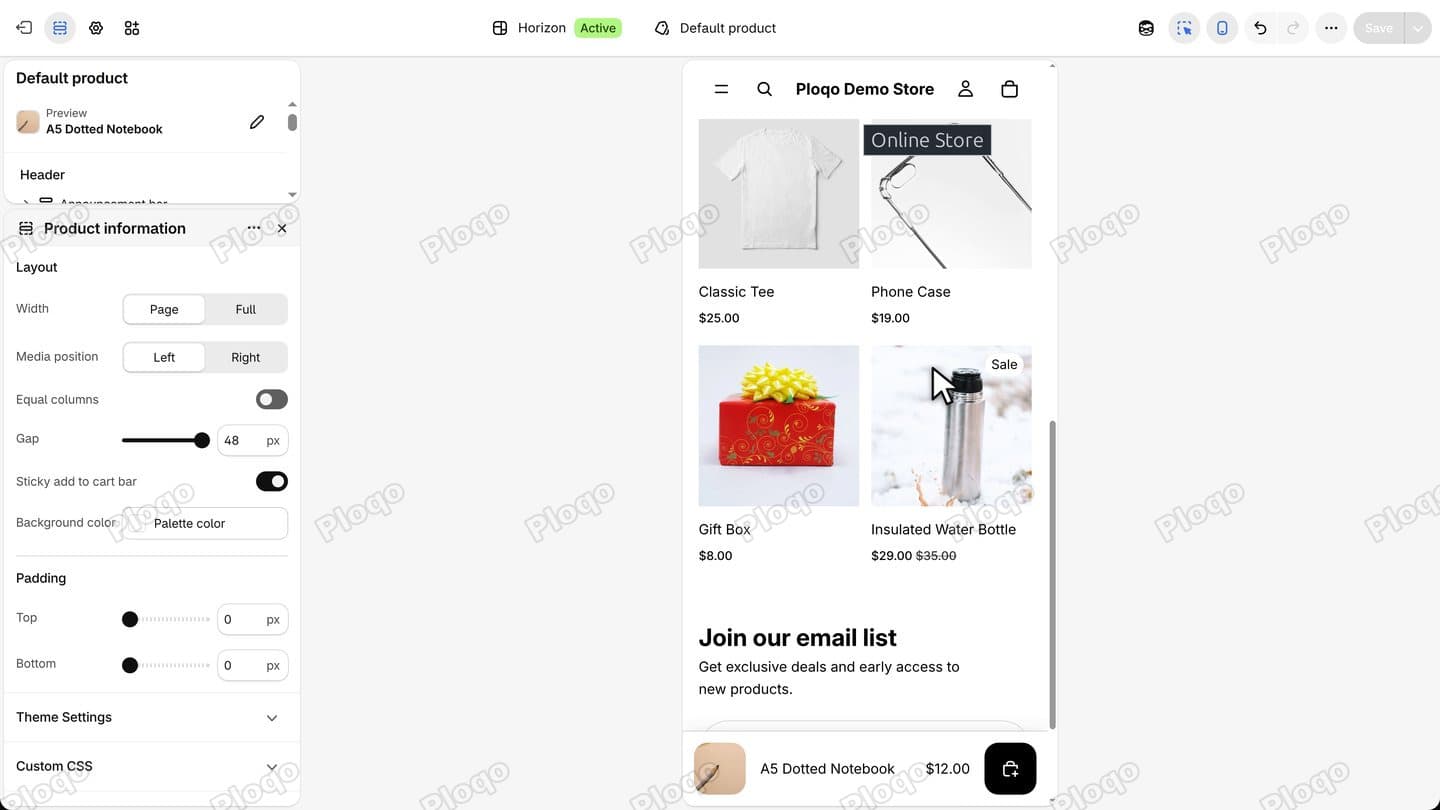 Horizon mobile preview of a product page with the built-in sticky add to cart bar at the bottom showing the product photo, name, price and cart button
Filmed on a development store on 19 November 2026 with Horizon 4.5.0. The bar was added in Horizon 3.2.0 (11 December 2025), so an older Horizon does not have the switch. On Dawn, see the sticky add to cart button on Dawn guide, or the compare-at price in a theme's own sticky bar.
Step 1: Open the theme editor
In the Shopify admin, click Online Store. Your live theme sits at the top of the page. On Horizon, click Edit theme.
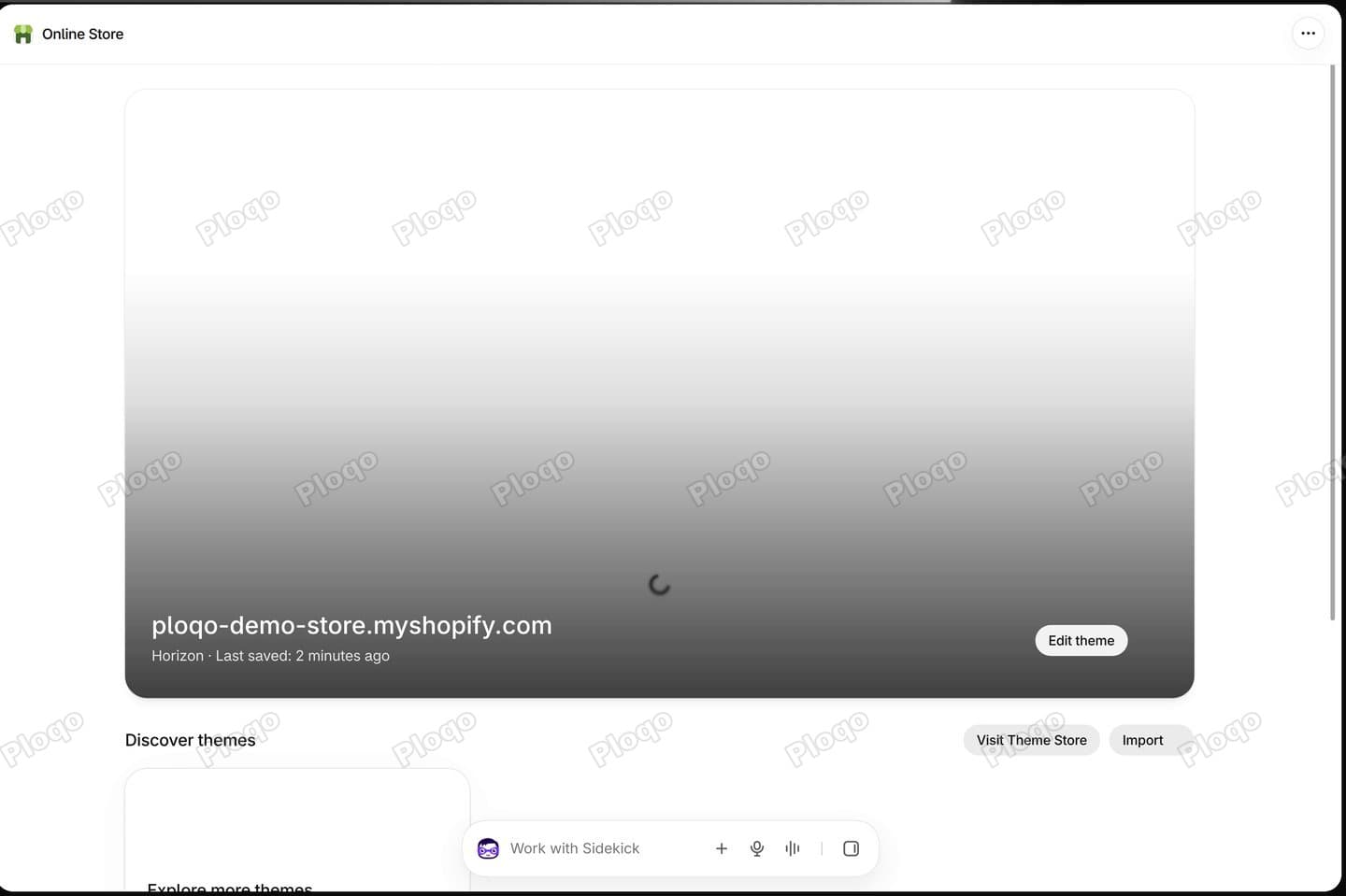 Online Store page in the Shopify admin with the live Horizon theme card and its Edit theme button
Step 2: Open a product page
At the top of the editor, the page picker shows Home page. Open it, click Products, then choose Default product. The preview now shows a product page, here the A5 Dotted Notebook.
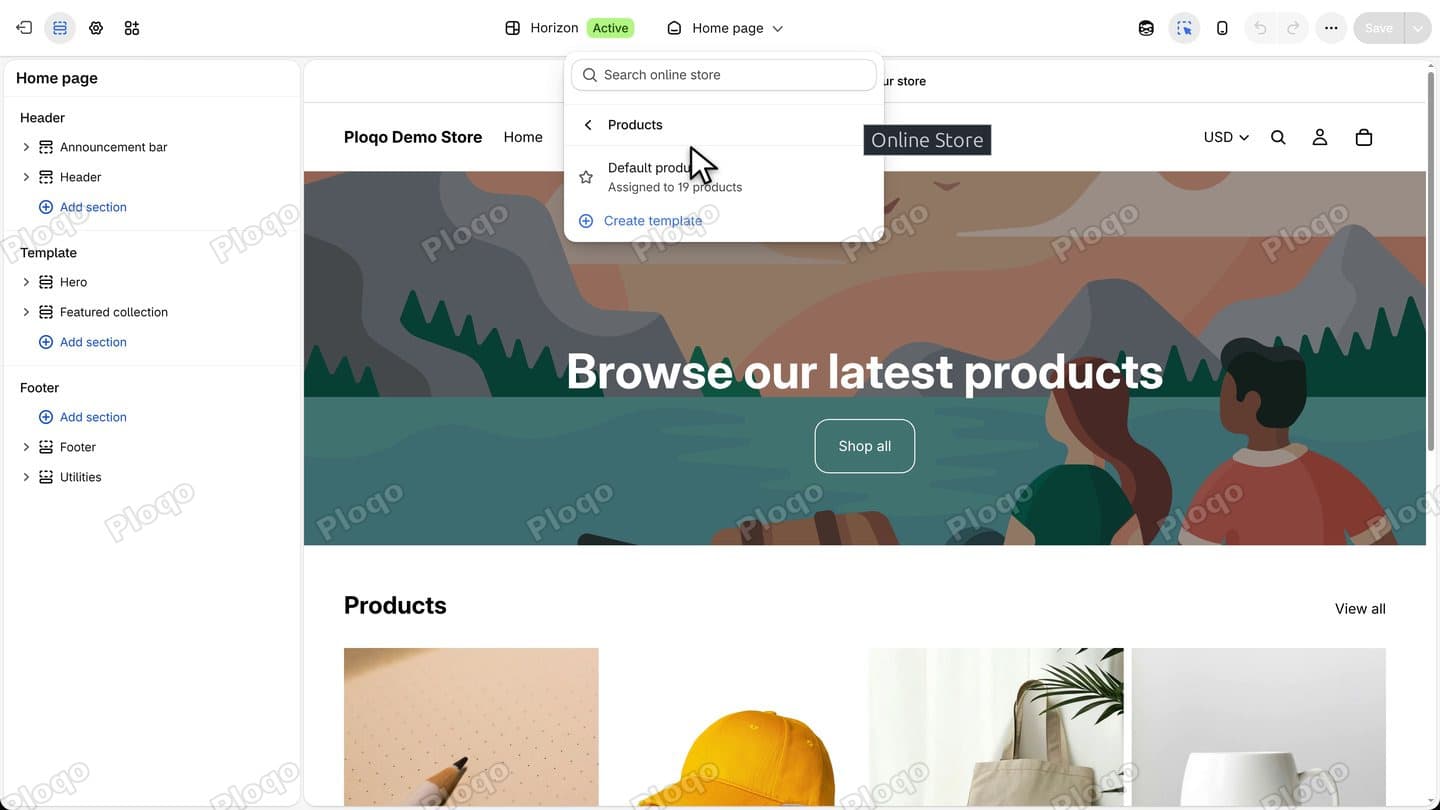 Theme editor page picker open on Products with the Default product template listed
Step 3: Click Product information
In the left panel, under Template, click Product information. The switch is on this section itself, not on one of the blocks inside it.
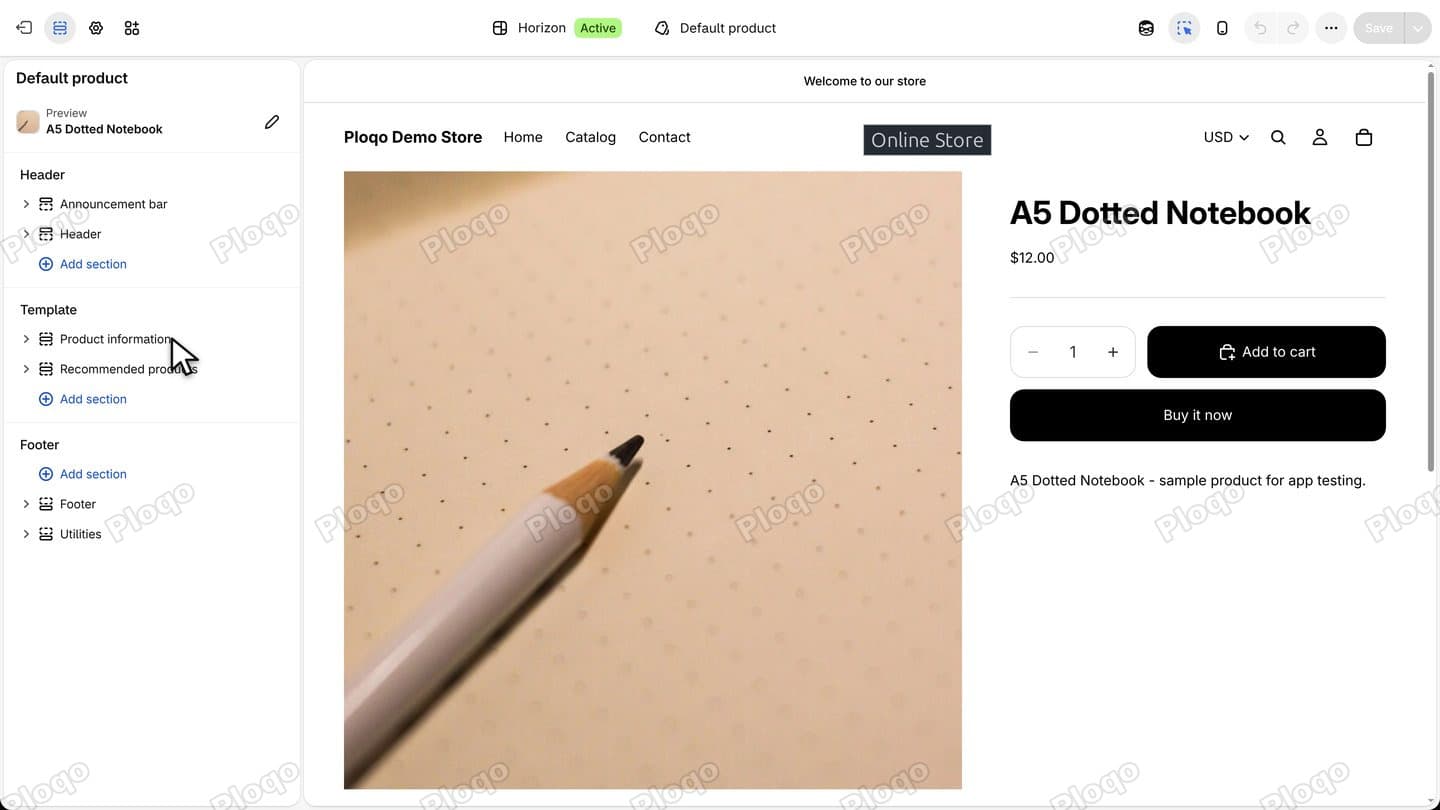 Left panel of the theme editor on the Default product template with the cursor on the Product information section
Step 4: Find Sticky add to cart bar
The section's settings open. Under Layout you see Width, Media position, Equal columns, the column spacing and Sticky add to cart bar. The setting is on by default in Horizon, so if yours is off, someone switched it off at some point. On the demo store it was off.
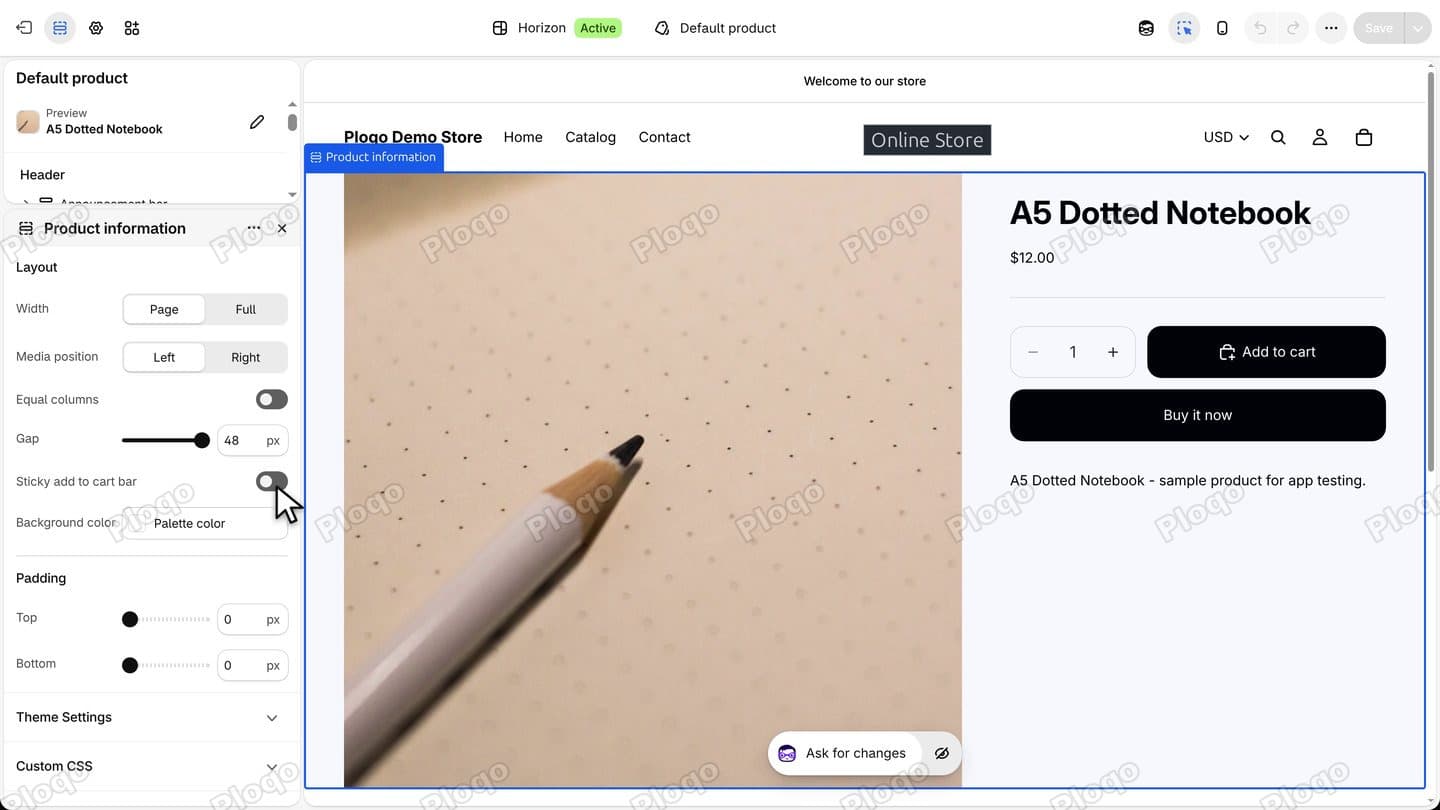 Product information settings with the Sticky add to cart bar switch turned off under Layout
Step 5: Turn it on and save
Click the switch, then click Save at the top right.
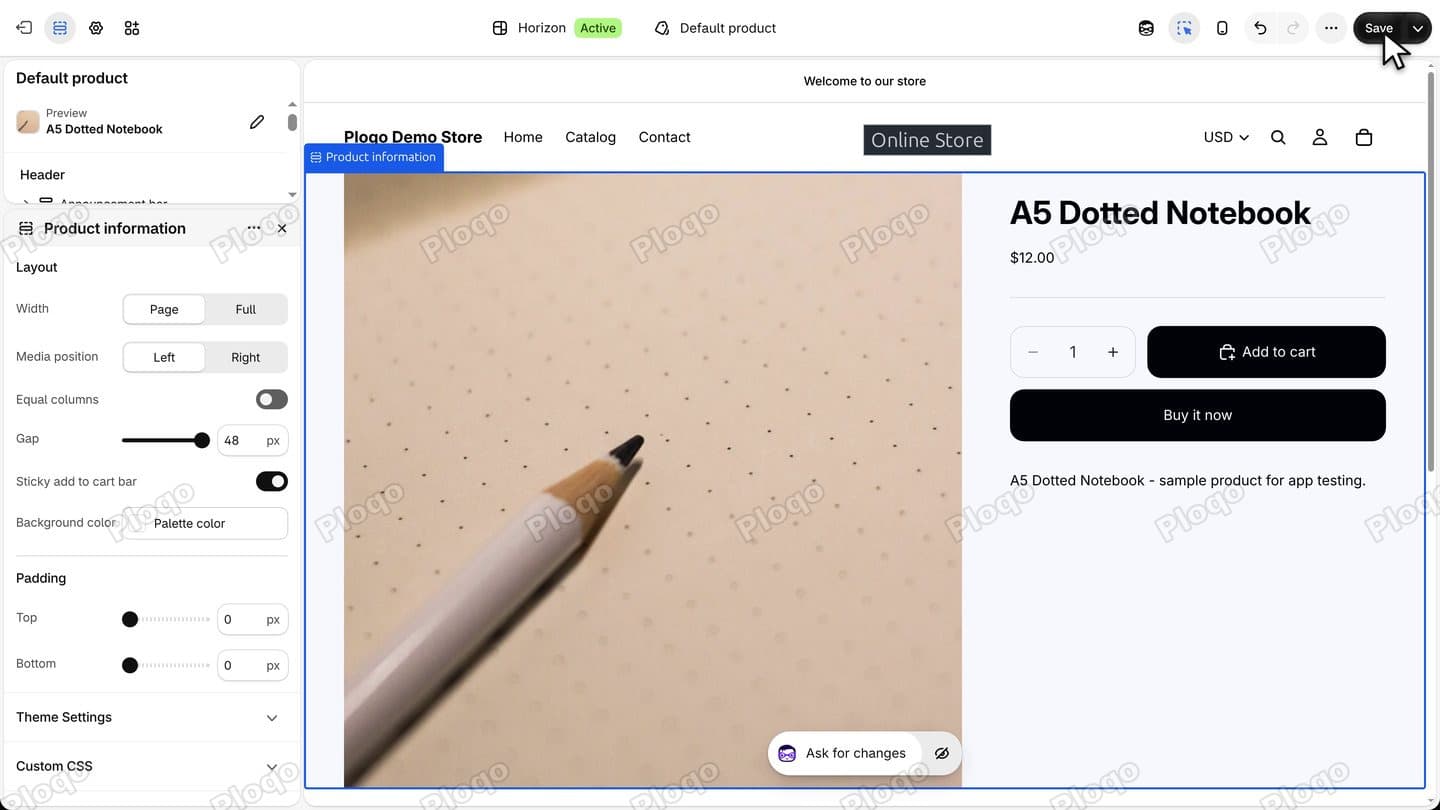 Theme editor with the Sticky add to cart bar switch on and the Save button active at the top right
The editor shows a Changes saved message.
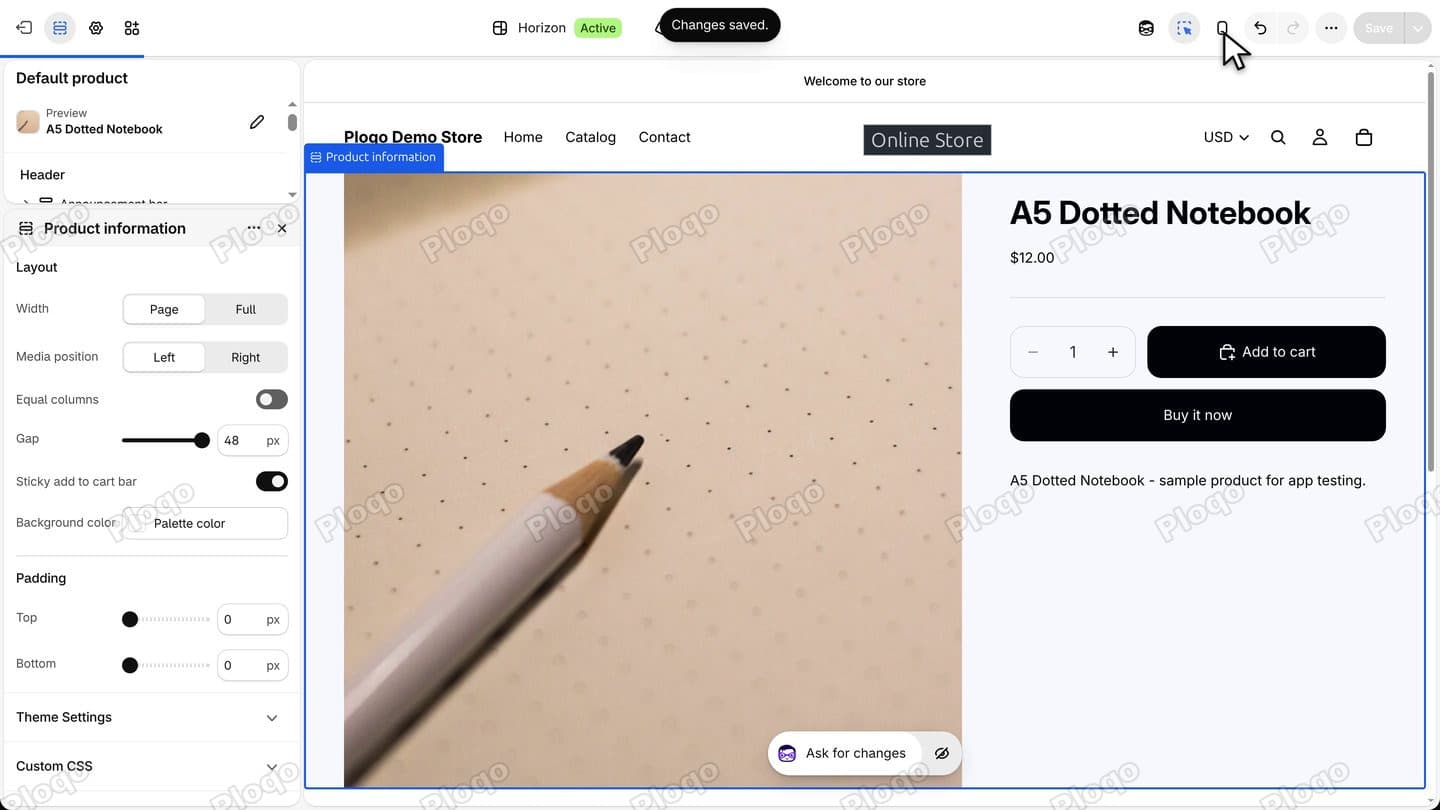 Theme editor top bar with a Changes saved message after clicking Save
Step 6: Check it in the mobile preview
Click the phone icon at the top of the editor to switch to the mobile preview. Right after the product opens, there is no bar, because the main Add to cart button is still on screen.
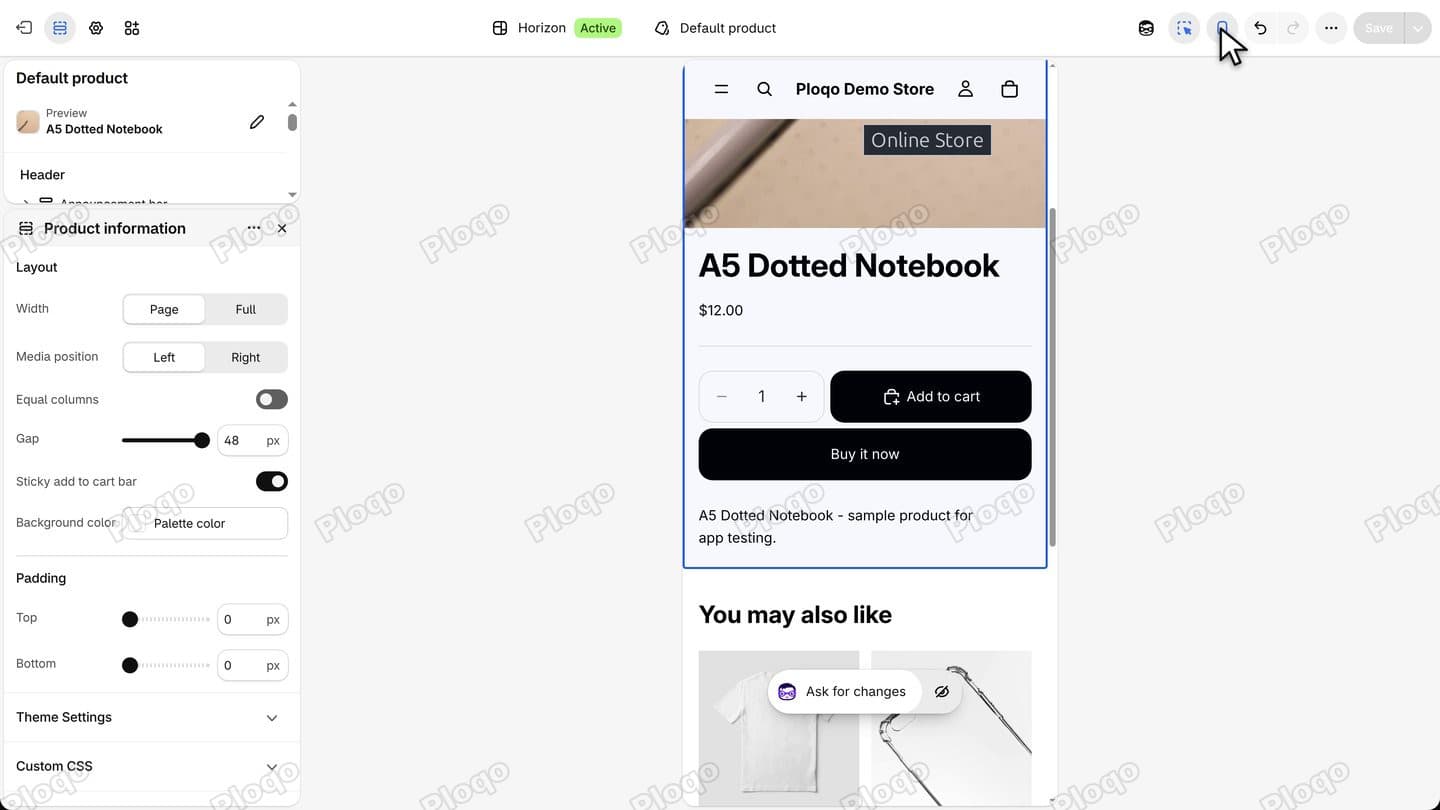 Mobile preview of the A5 Dotted Notebook product page with the main Add to cart button on screen and no bar yet
Scroll down in the preview. As the main button leaves the screen, the bar slides up from the bottom. Scroll back up and it hides again.
Mobile preview scrolled down the product page with the sticky bar at the bottom showing the notebook, the price $12.00 and a cart button
On a phone-sized screen the preview shows only a short stretch of the page where the bar can appear, so scroll slowly and stop when the main button has just left the screen.
Step 7: Read what the bar shows
The bar has the product photo, the title, the price and the Add to cart button, which is a cart icon on the right of a phone-sized bar. It shows the variant that is currently selected. It has no variant picker of its own.
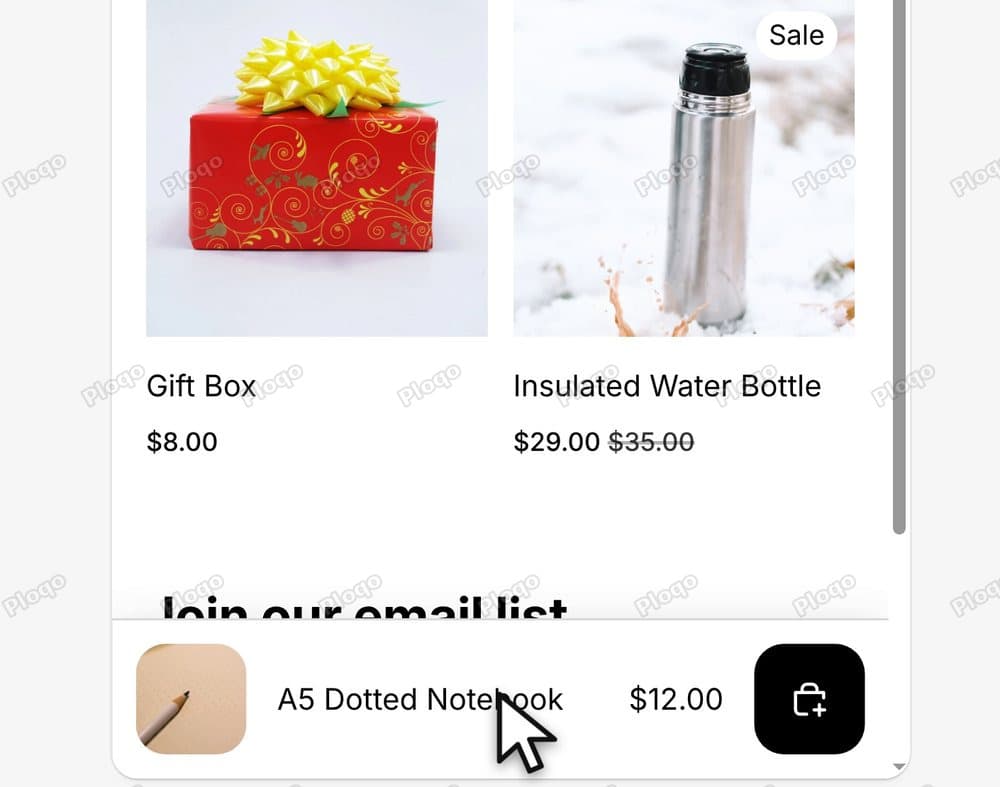 Close view of the sticky bar in the mobile preview with the notebook photo, its title, the price $12.00 and the cart icon button
Why you might not see the bar
Sticky on desktop is a different setting
In the same product page, the Details block has a setting called Sticky on desktop. It keeps the product details column in view while the photos scroll on a desktop screen. It is not the bar, and turning it on does not add one.
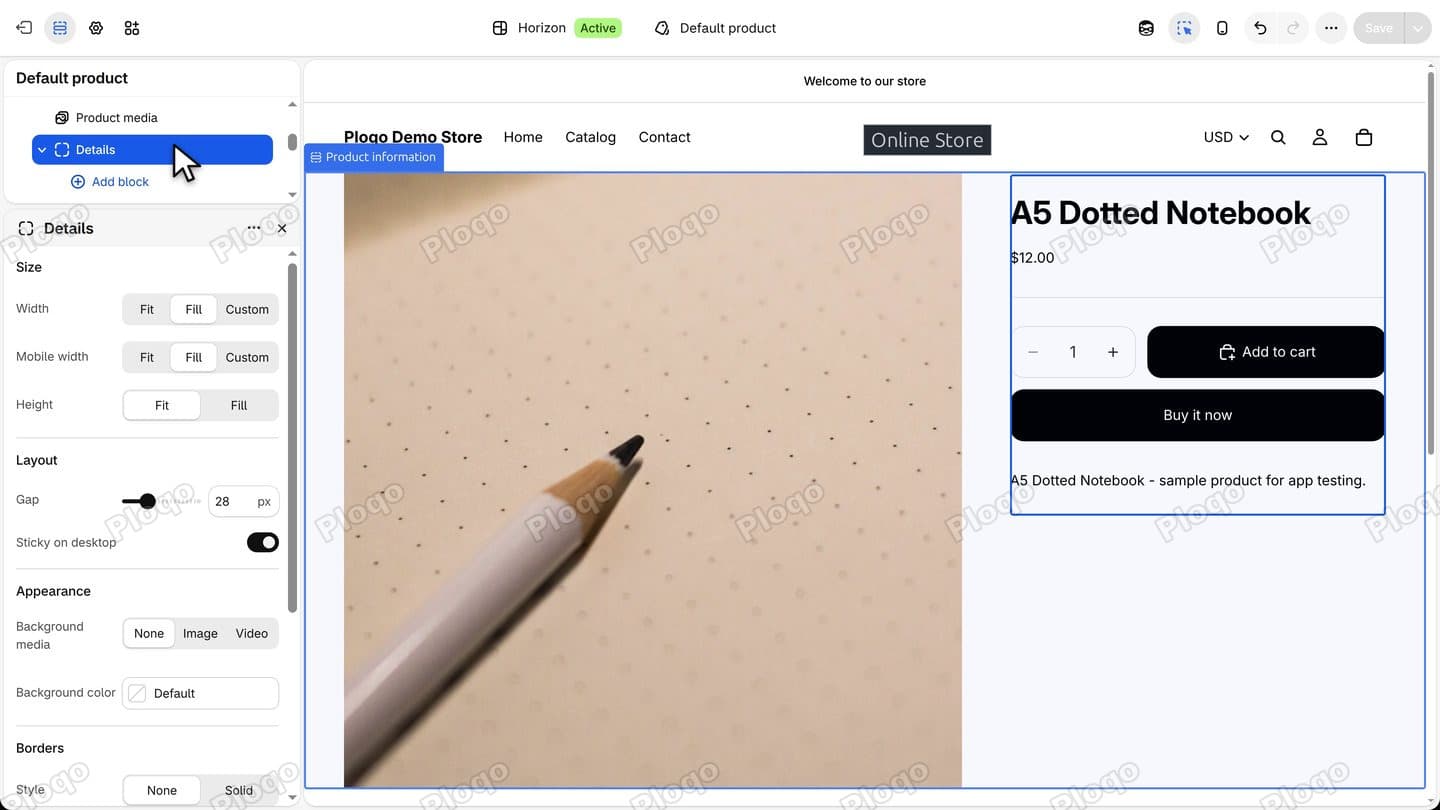 Details block settings under Layout with the Sticky on desktop switch turned on
On the live store on a desktop, that column keeps the Add to cart button in view. So on a short page, the bar only shows near the very bottom, when the footer is about to appear.
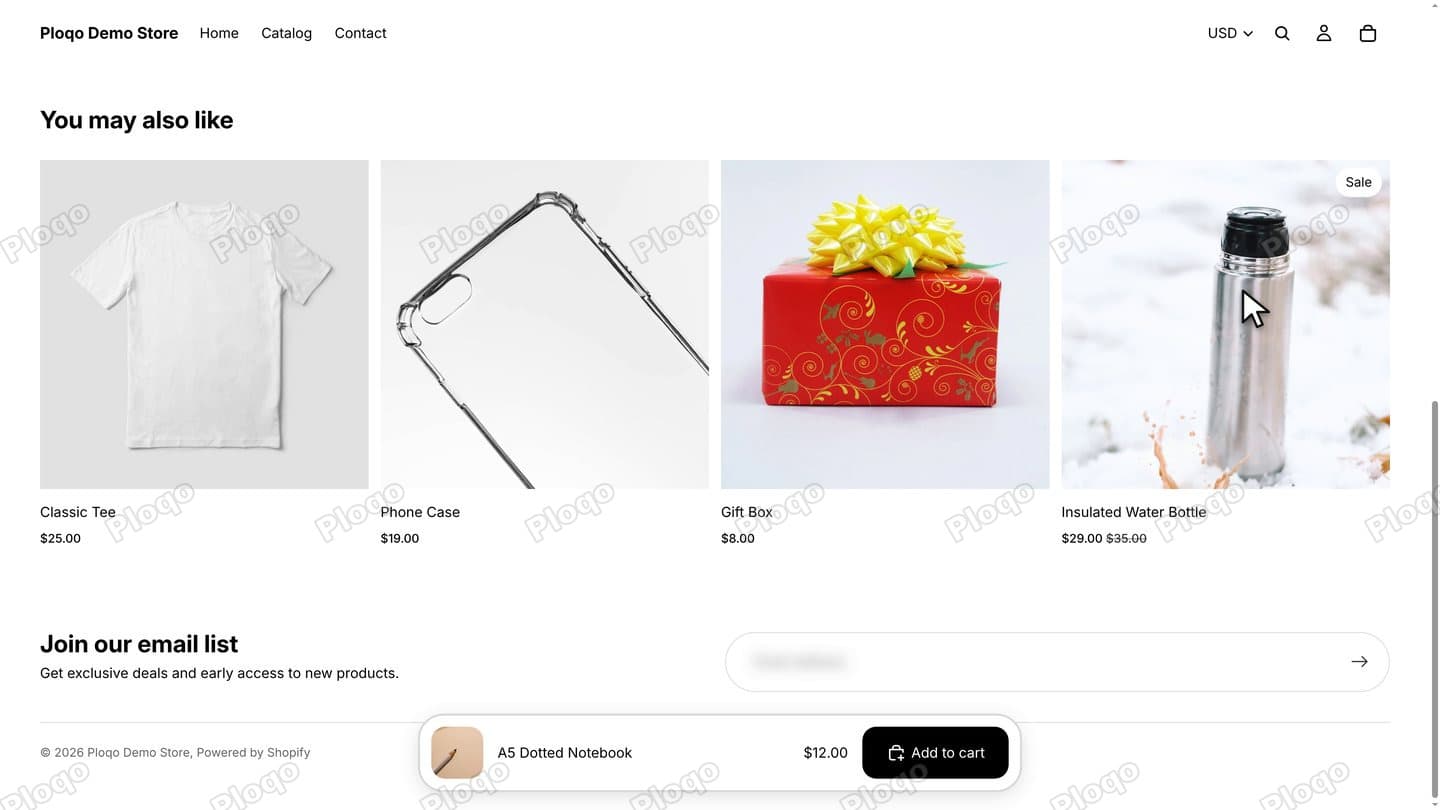 Live store on a desktop screen scrolled to the bottom with the sticky bar showing the notebook, $12.00 and Add to cart above the footer
Shopify Inbox chat hides the bar on purpose
Since Horizon 4.0.0, released on 15 June 2026, the bar stays hidden while Shopify Inbox chat is active on the page. The theme's own code says why: "When active, the sticky bar must stay hidden to avoid overlapping the chat UI." You can read it in the sticky-add-to-cart.js file of Shopify's Horizon repository.
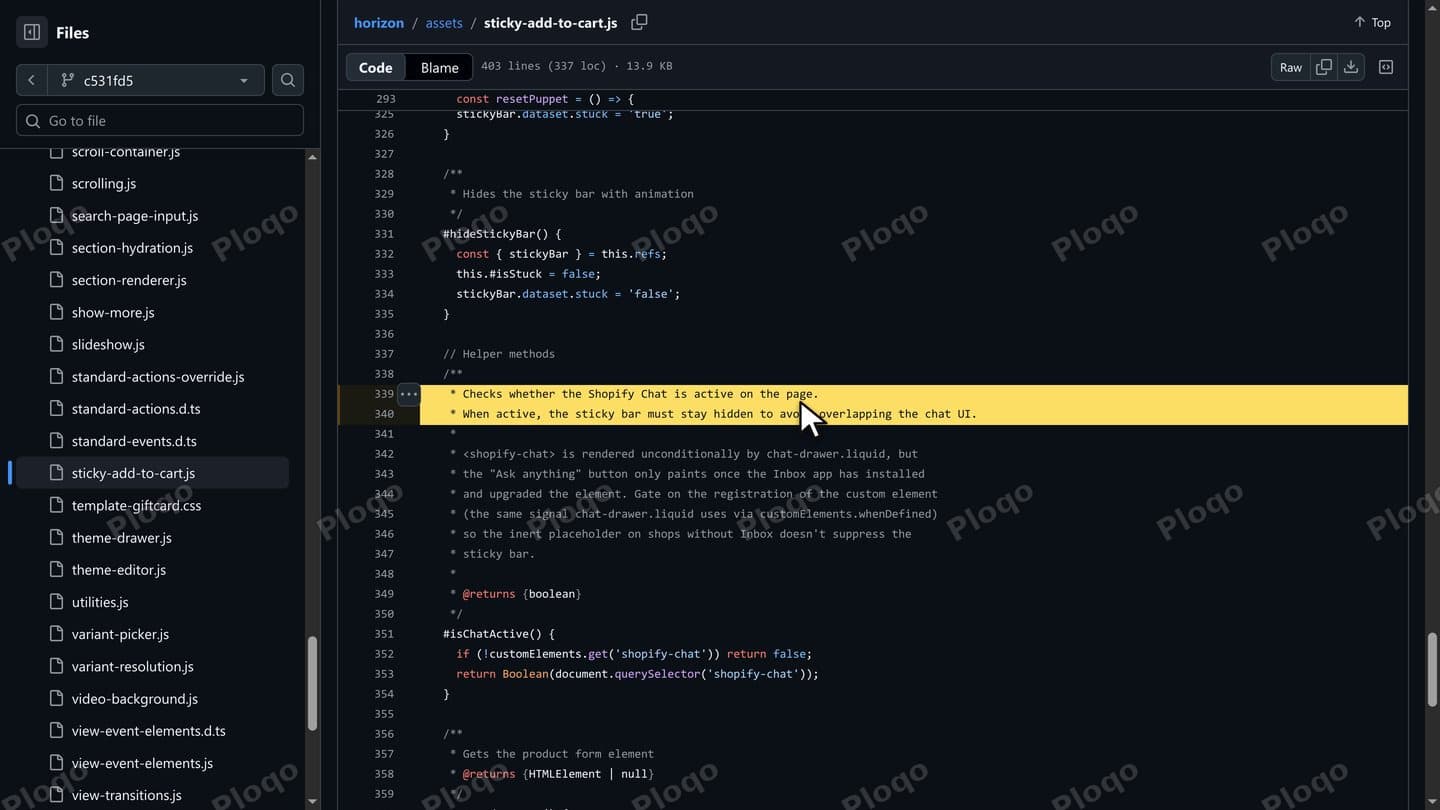 Horizon's sticky-add-to-cart.js file on GitHub with the comment about the sticky bar staying hidden while the chat is active highlighted
The chat is the Online store chat app embed, a piece an app adds to every page of your store, here the chat bubble or message bar. Shopify's help page, Customize Shopify Inbox chat settings and appearance, says to click Edit theme, select App embeds, then select Online store chat. If you would rather have the bar, turn that embed off.
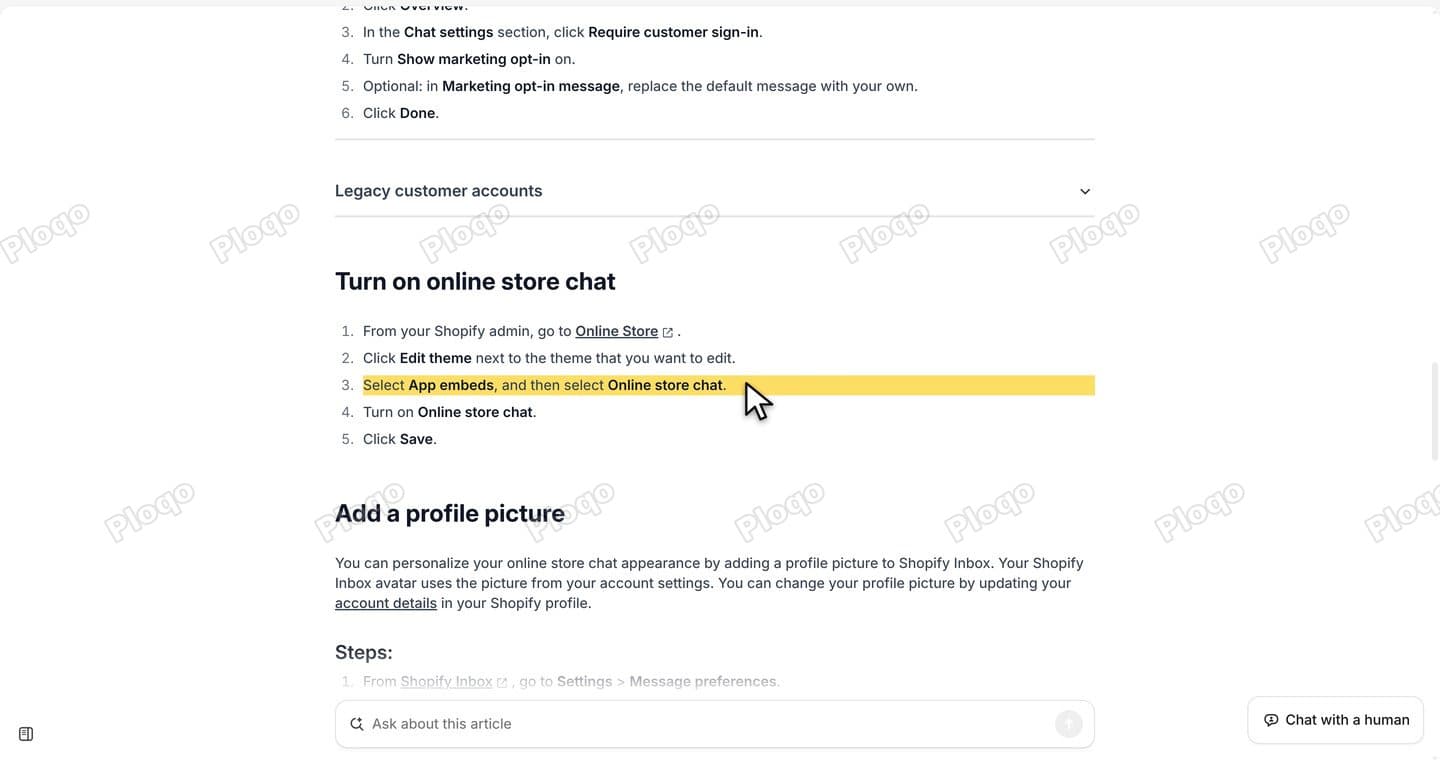 Shopify Help page on turning on online store chat with the step to select App embeds and then Online store chat highlighted
The check looks for Shopify's chat only. A chat bubble from another app, such as a WhatsApp button, is not detected and can sit on top of the bar's button. Move it with that app's own position setting.
Sold-out products never show it
On a sold-out product the bar never shows, even all the way down the page. Here the Wool Beanie has a grey Sold out button and the page has no bar.
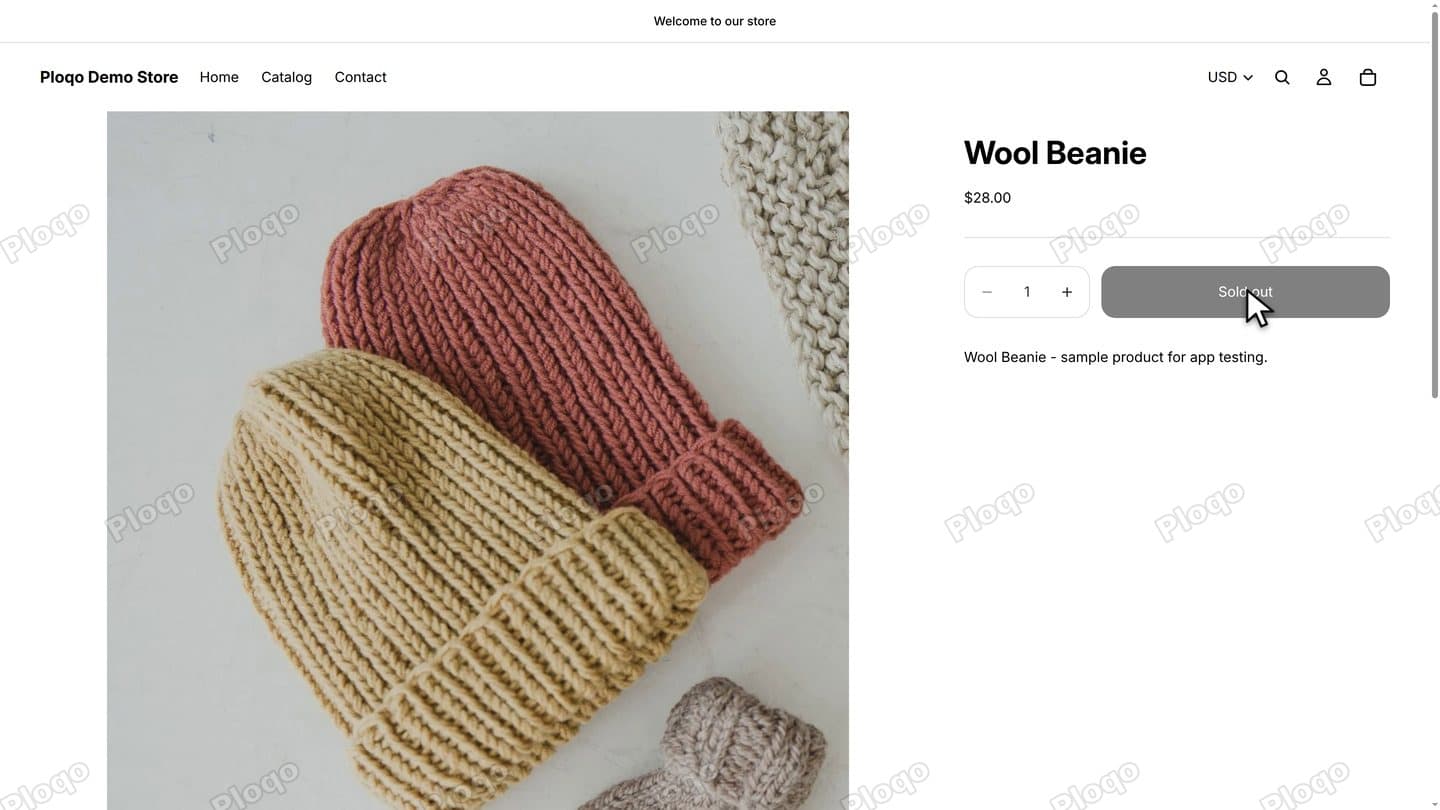 Wool Beanie product page on the live store with a grey Sold out button and no sticky bar
If the bar is still missing
- Check that Sticky add to cart bar is on in Product information and that you clicked Save.
- Check App embeds for Online store chat.
- Check the product's stock. A sold-out variant hides the bar.
- If an older code snippet or an app also adds a sticky bar, turn that one off first.
- The setting needs Horizon 3.2.0 or later.
Questions
Does Horizon have a sticky add to cart bar? Yes, since Horizon 3.2.0. It is the Sticky add to cart bar switch under Layout in the Product information section.
Product information settings under Layout with the Sticky add to cart bar switch turned off
Is the bar on by default? Yes. In Horizon's code the setting defaults to on, so a store where it is off had it switched off.
Theme editor with the Sticky add to cart bar switch on and the Save button active
Can I show the bar on mobile only? Not with the built-in setting. There is one switch for every screen width.
Mobile preview of the product page before scrolling, with no bar
Why does the bar only show at the bottom on desktop? The bar shows once the buy buttons leave the screen. With Sticky on desktop on in the Details block, those buttons stay in view on a desktop, so on a short page the bar appears only near the end.
Live store scrolled to the bottom on a desktop with the sticky bar above the footer
Why is the bar hidden when Shopify Inbox chat is on? From Horizon 4.0.0, the theme hides the bar while the chat is active, so the two do not overlap. Turn off the Online store chat app embed to get the bar back.
Horizon source comment saying the sticky bar must stay hidden while the chat is active
Can customers pick a variant in the bar? No. It shows the selected variant, the price and the Add to cart button.
More Shopify fixes
More community-sourced Shopify guides, tested on a live store.
Themes & Storefront
Hide Sold-Out Variants in Shopify Horizon: One Line of Custom CSS (No App)
Horizon crosses out a sold-out size or colour but keeps it on the page. Paste one rule into Theme settings, Custom CSS, and it is hidden. No app, no theme file edit.
Themes & Storefront
Shopify Predictive Search: Show Product Photos in Dawn
Shopify cannot search by photo, but Dawn can show a product picture beside each match as shoppers type. Here is the setting that turns it on.
Themes & Storefront
Copy a Section to Another Page in Shopify (Theme Editor, No App)
Right-click a section in the theme editor, pick Copy, switch page with the page picker, then right-click a section there and pick Paste after. No app needed.