
Shopify Sticky Add to Cart: Show the Compare-at Price
A sticky add to cart bar that shows only the sale price hides the discount. Check for a built-in bar, then add the crossed-out compare-at price.
By AjayCodeWiz · October 8, 2026 · 11 min read
What a sticky add to cart bar is
A sticky add to cart bar is a slim strip that appears at the top or bottom of a product page once the shopper scrolls past the main Add to cart button. It usually repeats the product name, the price and a button, so the shopper can buy without scrolling back up. "Sticky" means it stays fixed on the screen while the rest of the page moves.
The bar is a second copy of the buy area, and that is where the problem in this article comes from. The theme draws the main price block once, near the product title, and draws the bar's price separately. The two copies do not have to match. On some themes the main price shows both the sale price and the crossed-out original, while the sticky bar shows only the sale price.
A shopper who scrolls down and looks at the bar then sees a plain price with no sign of the discount. The reason to buy now is no longer on screen.
The question from the Shopify Community
A merchant on the Shopify Community runs the Roam theme, version 5.0.0. Roam's product page has a sticky bar with the product name, the price and a quantity box. The merchant wanted the compare-at price next to the main price in that bar.
The compare-at price is the "was" price you type into a product's pricing section in the Shopify admin. When it is higher than the selling price, the theme shows it crossed out next to the price, so the shopper can see the saving. If you have not set one up yet, the guide to the Shopify compare at price covers where it is entered and why it sometimes does not show.
I checked the merchant's own store preview. The product page showed the sale price with the crossed-out original, but the sticky bar printed only the sale price, Rs. 3,000.00 on the product I looked at. The prices are in rupees because my browser was in an Indian market.
After the fix in this article, the same bar shows the original Rs. 4,700.00 crossed out next to the price.
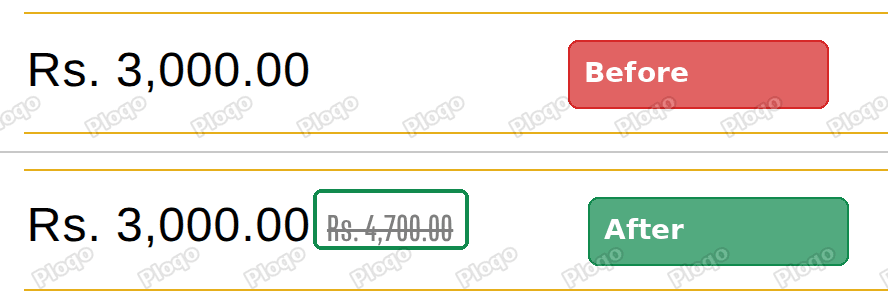 Roam sticky add to cart bar before the fix with only the price, and after the fix with the compare-at price crossed out next to it
First, check whether your theme has a sticky bar built in
Not every Shopify theme comes with a sticky add to cart bar, and the ones that do handle the price differently. Check your own theme before adding any code.
Shopify's newer free themes include one as a switch. On Horizon 4.3.0, open the theme editor on a product page and click the Product information section in the left sidebar. The switch is called Sticky add to cart bar. On my test store it was already on.
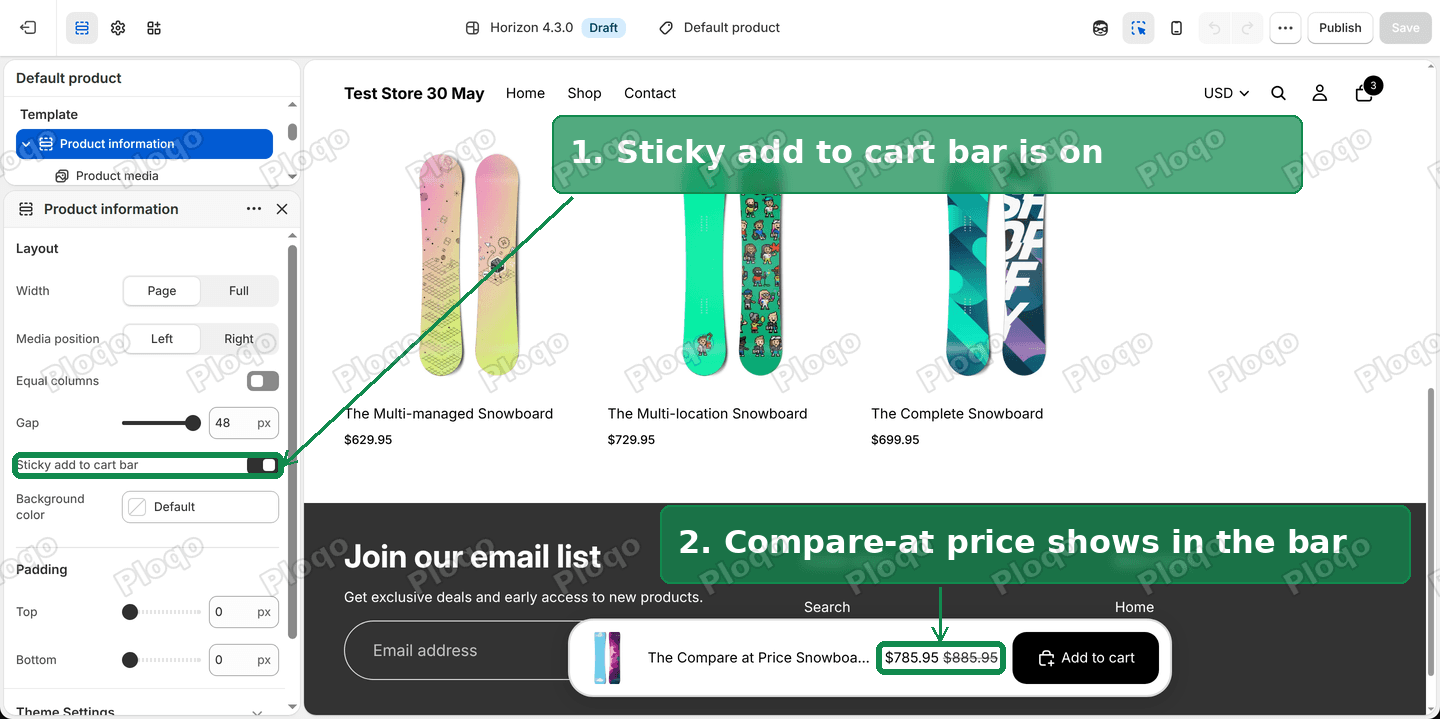 Horizon 4.3.0 theme editor with the Sticky add to cart bar switch turned on, and the bar at the bottom of the product preview showing $785.95 next to the crossed-out $885.95
On my test store, a snowboard on sale at $785.95 with a compare-at price of $885.95 shows both prices in Horizon's bar, with the original crossed out. Horizon's bar reuses the same price block as the main product area, so the compare-at price comes along without any extra work.
I found the same Sticky add to cart bar switch in the code of Fabric, Savor, Dwell and Atelier, which are built on Horizon. Dawn 16.0.0, Shopify's older reference theme, has no sticky bar in its code at all. On Dawn and the themes built on it, a sticky bar comes from an app or from custom code.
If you run Horizon or one of its family and the switch is off, turning it on is the whole fix. The rest of this article is for themes like Roam, where the bar exists but leaves the compare-at price out.
Why the compare-at price is missing from the bar
Every theme decides for itself what goes in its sticky bar. Roam's bar was written to show one number: the current price of the selected variant, multiplied by the quantity in the bar's quantity box. The compare-at price is stored on the same variant, but the bar's code never asks for it.
The bar also changes after the page has loaded. When the shopper picks another variant or changes the quantity, a script in the theme rewrites the bar's price. So a fix that only adds the crossed-out price once, when the page first opens, goes out of date the moment the shopper clicks the plus button.
The fix below handles both parts. It adds a crossed-out price next to the bar's price, and it watches the bar's price so it can update the crossed-out one every time the theme changes it.
Before you edit: duplicate your theme
This fix is a code edit. Make a copy of your theme first so you can go back if anything looks wrong.
In Online Store, click the ... button next to your theme and choose Duplicate. The copy appears under Draft themes. You can make the edit on the copy, preview it, and publish it once you are happy. The same menu has the Edit code option used in the next step.
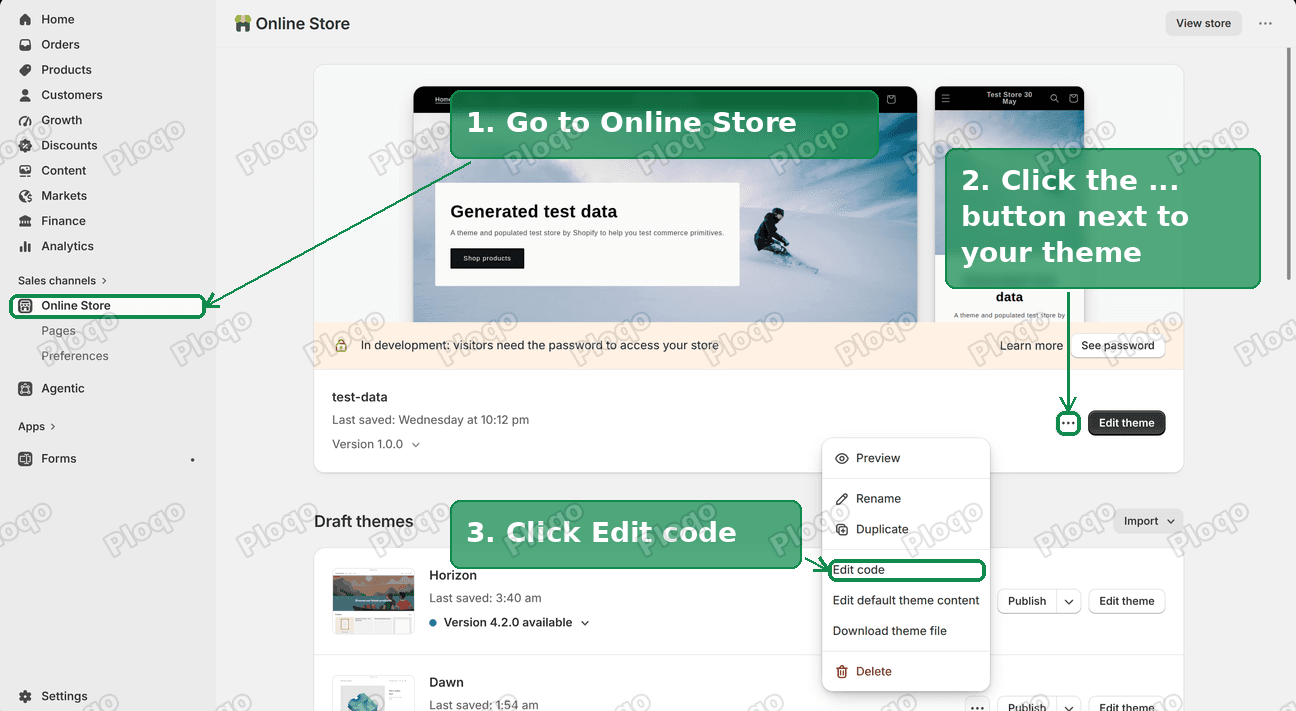 Shopify admin Online Store page with the ... menu open next to the theme, showing Duplicate and Edit code
How to add the compare-at price to Roam's sticky bar
The code goes in your theme's main layout file. It is called theme.liquid, and it is the file that wraps every page of the store. Liquid is the code Shopify themes are written in, and code placed in this file loads on every page. On pages without a sticky bar the code finds nothing to change and stops.
1. Open the code editor
From your Shopify admin, go to Online Store. Click the ... button next to your theme, then click Edit code. This opens the theme's code editor, with every theme file listed down the left side. The screenshot above shows all three clicks.
2. Open theme.liquid
In the file list on the left, open the Layout folder and click theme.liquid.
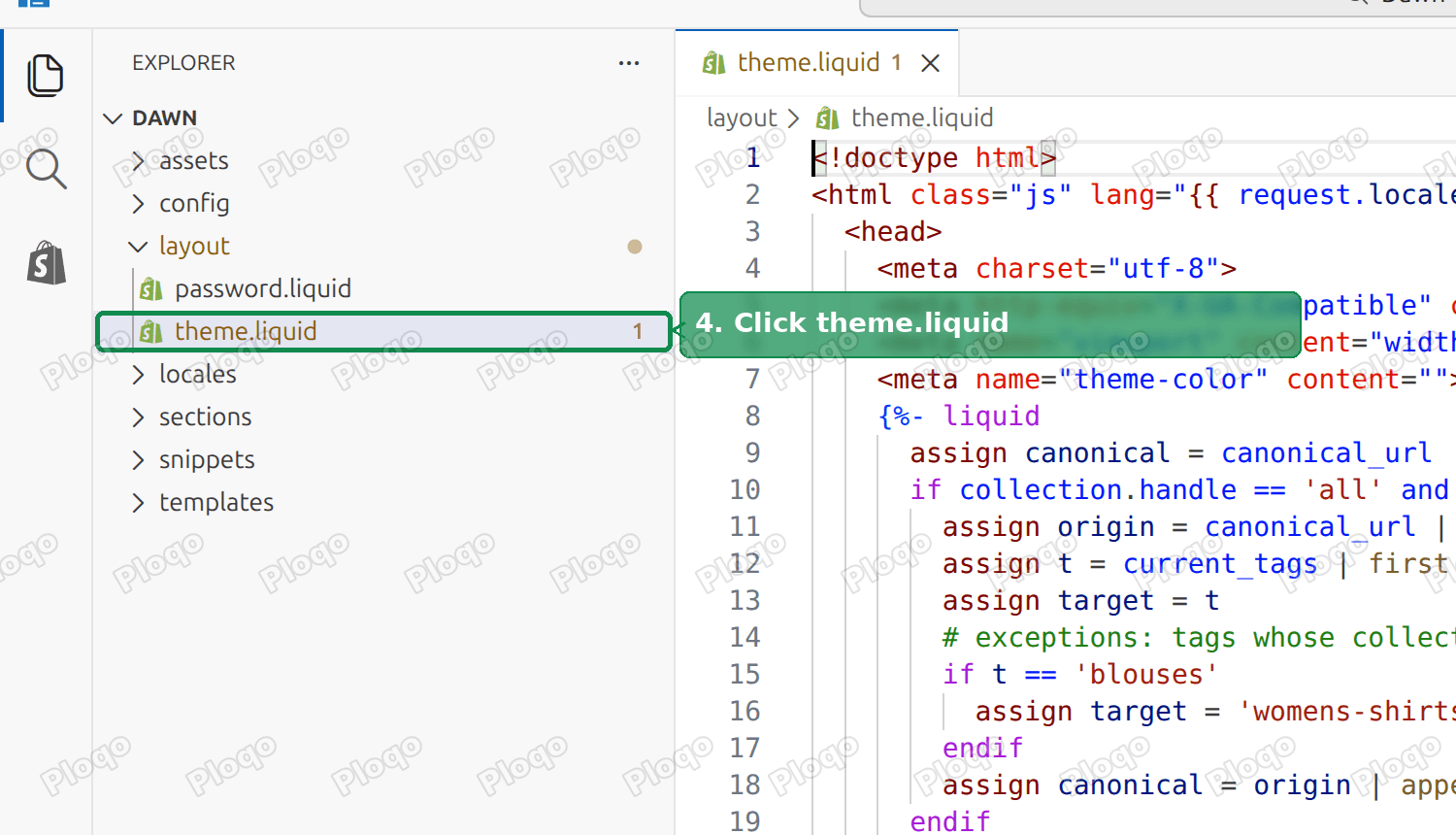 Theme code editor with the Layout folder open and theme.liquid highlighted
3. Paste the code above the closing body tag
Scroll to the very bottom of the file. The last two lines are </body> and </html>. Click at the start of the </body> line, press Enter to make an empty line above it, and paste this code on that empty line:
<style>
.sticky-compare-price {
margin-left: 8px;
font-size: 0.8em;
font-weight: 400;
opacity: 0.6;
text-decoration: line-through;
}
</style>
<script>
document.addEventListener('DOMContentLoaded', function () {
var price = document.querySelector('[data-product-menu-button-addtocart-price]');
var json = document.querySelector('script[id^="ProductJson-"]');
if (!price || !json) return;
var variants = JSON.parse(json.textContent).product.variants;
var compare = document.createElement('s');
compare.className = 'sticky-compare-price';
price.insertAdjacentElement('afterend', compare);
function update() {
var field = document.querySelector('form[action*="/cart/add"] [name="id"]');
var qtyInput = document.querySelector('[data-product-menu] input.quantity-input');
var qty = qtyInput ? parseInt(qtyInput.value, 10) || 1 : 1;
var variant = variants.find(function (v) { return field && String(v.id) === String(field.value); });
if (variant && variant.compare_at_price > variant.price) {
compare.textContent = Shopify.formatMoney(variant.compare_at_price * qty, window.theme.moneyFormat);
compare.style.display = '';
} else {
compare.style.display = 'none';
}
}
new MutationObserver(update).observe(price, { childList: true, characterData: true, subtree: true });
update();
});
</script> Bottom of theme.liquid in the code editor with the closing body tag highlighted, where the code is pasted above it
4. Save
Click Save in the top right corner of the code editor.
 Theme code editor toolbar with the Save button highlighted
5. Check it on a product page
Open a product that has a compare-at price and scroll down until the sticky bar appears. The crossed-out price now sits next to the bar's price. Change the quantity in the bar and both numbers go up together: at a quantity of 2, the bar shows double the price next to double the compare-at price.
What the code does, in plain words
You do not need to understand the code to use it, but knowing its parts helps if something goes wrong later.
- The style part makes the new price smaller, lighter and crossed out, with a small space before it. Change
0.8emto make it bigger or smaller, oropacity: 0.6to make it darker or lighter. - The first lines of the script find two things on the page: the price inside Roam's sticky bar, and the product data that Roam includes on every product page. That product data lists each variant with its price and its compare-at price.
- The
updatepart reads which variant is selected and how many are in the bar's quantity box. If that variant's compare-at price is higher than its price, it writes the compare-at price, times the quantity, into the crossed-out slot. If not, it hides the slot, so a product without a discount shows no crossed-out price. - The last lines tell the browser to run
updateagain every time Roam changes the bar's price. Roam changes that price whenever the variant or the quantity changes, so the crossed-out price follows along.
The price is written with your store's own money format, the same one the theme uses for every other price. A store selling in euros or pounds gets the same symbol and decimal style as the rest of the page.
Test these cases before you publish
Preview the duplicated theme and run through these checks on a few products:
- A product on sale. The crossed-out price appears, and it matches the "was" price shown near the product title.
- A product with no compare-at price. Nothing crossed out appears in the bar.
- A different quantity. Raise the quantity in the bar. The crossed-out price grows at the same rate as the main price.
- A product with several variants, where only some are on sale. Switch between a sale variant and a full-price one. The crossed-out price should appear and disappear with the variant.
On the merchant's store I tested a product with a single variant and a quantity change. Check the variant case on your own store, since it depends on how your products are set up.
The crossed-out price in the bar should always match the one in the main price block. If the two ever disagree, a shopper sees two different "was" prices for the same product, which looks like a mistake and undermines the discount.
Using this on a theme other than Roam
The idea works on any theme with a sticky bar, but three names in the code are Roam's own:
data-product-menu-button-addtocart-priceis the label Roam puts on the price inside its sticky bar.ProductJson-is the start of the name Roam gives its block of product data.data-product-menuwithinput.quantity-inputis the quantity box in Roam's sticky bar.
Another theme uses different names for the same parts. If the code finds nothing with these names, it stops at the line if (!price || !json) return; and nothing on the page changes, so it is safe to try. To adapt it, you or a developer need the names your theme gives to the bar's price, its product data and its quantity box. Your theme developer's support team can usually tell you these, and the Shopify theme detector guide shows how to confirm which theme and version you run before asking.
If your theme's bar has no quantity box, the quantity line falls back to 1 and the code still works.
Sticky bar from an app, a theme switch or code
There are three ways a Shopify store ends up with a sticky add to cart bar, and each one decides who controls the price display.
A built-in theme switch, as on Horizon. The bar is part of the theme, it follows the theme's colours and fonts, and in Horizon's case it already shows the compare-at price. There is nothing to maintain.
A bar that ships with a paid theme, as on Roam. The theme author chose what goes in it. If the compare-at price is missing, code like the one above adds it. It is also worth asking the theme's support team whether a newer version of the theme adds it.
An app. Sticky bar apps add their own bar on top of the theme, with their own settings for what it shows. If you use one, look for a compare-at or "show original price" option in the app's settings. The code in this article only targets the theme's own bar, not a bar added by an app.
Other ways to show the discount near the buy button
A crossed-out price is one way to show a saving. If the sticky bar is cramped on phones, or your theme has no bar at all, these do a similar job:
- A sale badge that says how much the shopper saves, covered in show the amount saved on Shopify sale badges.
- A percentage off badge, covered in Shopify sale badge percentage.
- A discount line in the main price area, covered in show a discount on the Shopify product page.
If the crossed-out price does not show
The bar still shows only the price. Check the product has a compare-at price that is higher than its price. A compare-at price equal to or lower than the price is treated as no discount, and the code hides the crossed-out slot on purpose.
Nothing changed at all. Make sure you edited the theme you are previewing. The code editor's top bar shows the theme name. Then check the code sits above </body> and not inside another <script> or <style> block higher up in the file.
It worked, then stopped after a theme update. Updating to a newer theme version can give you a fresh theme.liquid without your edits. Keep a copy of the code and paste it into the new version, and check the three names above still exist in it.
The crossed-out price shows the wrong amount. Compare it with the price block near the product title. If they differ, check the variant's compare-at price in the product's pricing section, and make sure every variant has its own compare-at price filled in. The compare at price guide shows how to fill it in for every variant at once.
The crossed-out price wraps onto a second line on phones. The bar has limited room on small screens. Lower font-size: 0.8em to 0.7em, or reduce margin-left: 8px to 4px.
How to remove it again
Open theme.liquid in the code editor, delete everything from the opening <style> line to the closing </script> line you pasted, and click Save. The sticky bar goes back to showing only the price.
Spending too long on manual Shopify busywork?
PinFlow turns your Shopify catalog into Pinterest pins and posts them on a schedule, automatically, sale prices included.
Get PinFlow on the Shopify App StoreMore Shopify fixes
More community-sourced Shopify guides, tested on a live store.
Themes & Storefront
Shopify Anchor Link: Button That Scrolls to a Section
Link a Shopify button to a section lower on the same page with an anchor link. Steps for the theme editor, no code files, plus the fix for a title hidden under the header.
Themes & Storefront
Shopify Social Media Icons: Add a Custom Icon and Link
Set your social links in Shopify theme settings, see why icons do not show, and swap in your own icon for a network the theme does not list.
Themes & Storefront
Sticky Add to Cart Button in Shopify Dawn, No App
Pin the Add to cart button and its delivery line to the bottom of the screen in Shopify Dawn. One free Custom Liquid block, no app, phone and desktop.