
Hide Sold-Out Variants in Shopify Horizon: One Line of Custom CSS (No App)
Horizon crosses out a sold-out size or colour but keeps it on the page. Paste one rule into Theme settings, Custom CSS, and it is hidden. No app, no theme file edit.
By AjayCodeWiz · November 20, 2026 · 6 min read
How do you hide sold-out variants in Shopify Horizon?
Horizon has no setting for it. It crosses out a sold-out size or colour and leaves it clickable. To hide it, open the theme editor, click the gear for Theme settings, open Custom CSS at the bottom, paste one rule and click Save. No app and no edit of the theme's code files are needed.
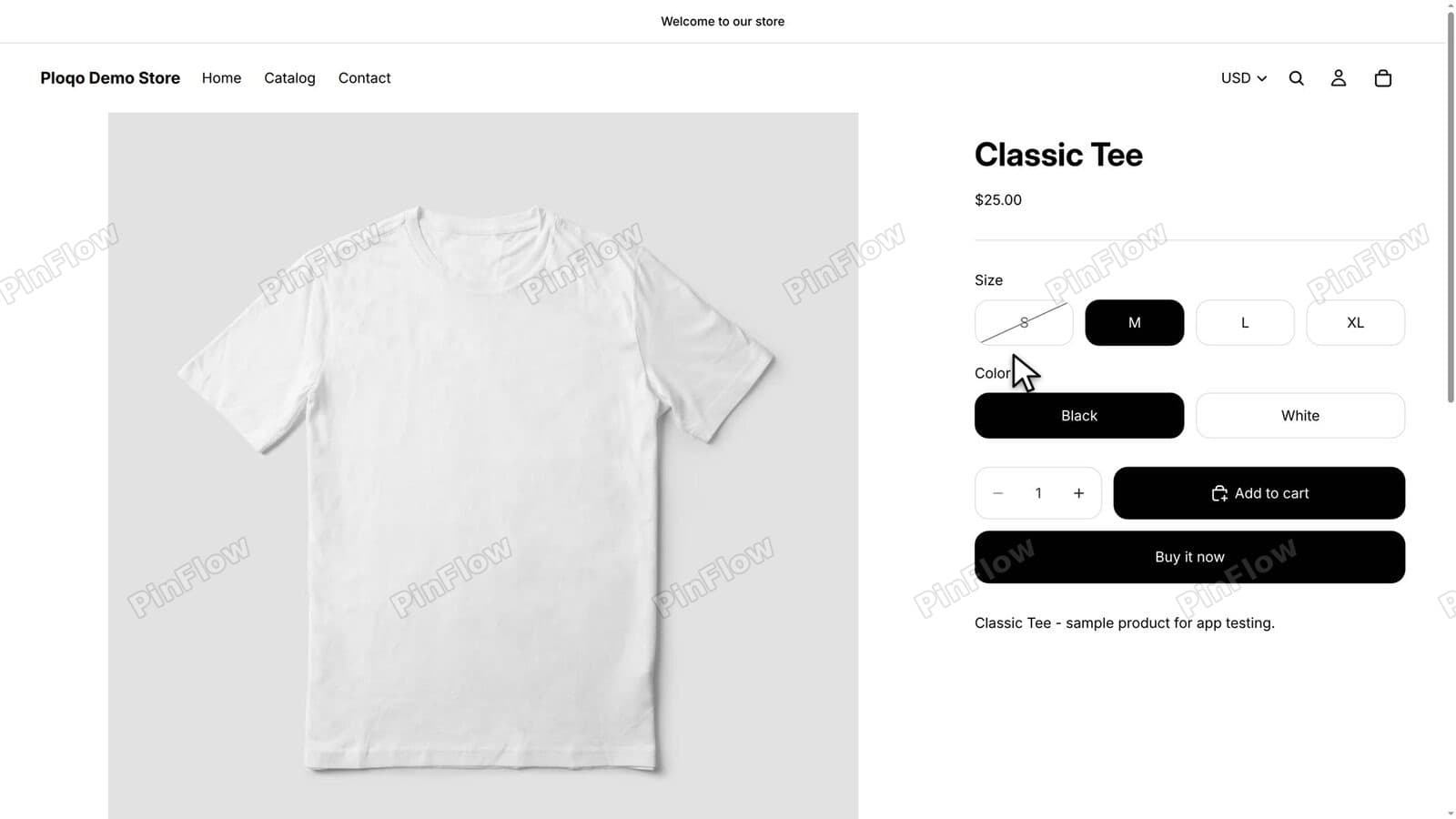 Classic Tee product page on Horizon with the S size button crossed out and the other sizes available
Filmed on a development store on 19 November 2026 with Horizon 4.5.0 and the Buttons style of the Variant picker. On the demo store, size S has no stock in either colour, and XL has none in White. The class name in the rule belongs to Horizon's Variant picker, so this guide is for Horizon.
The rule
Copy this line:
.variant-option__button-label:has(input[data-option-available="false"]) { display: none; }Horizon draws each size or colour as a button. When a value is sold out, Horizon marks its button as unavailable. The rule finds every button with that mark and hides it. It is 90 characters long.
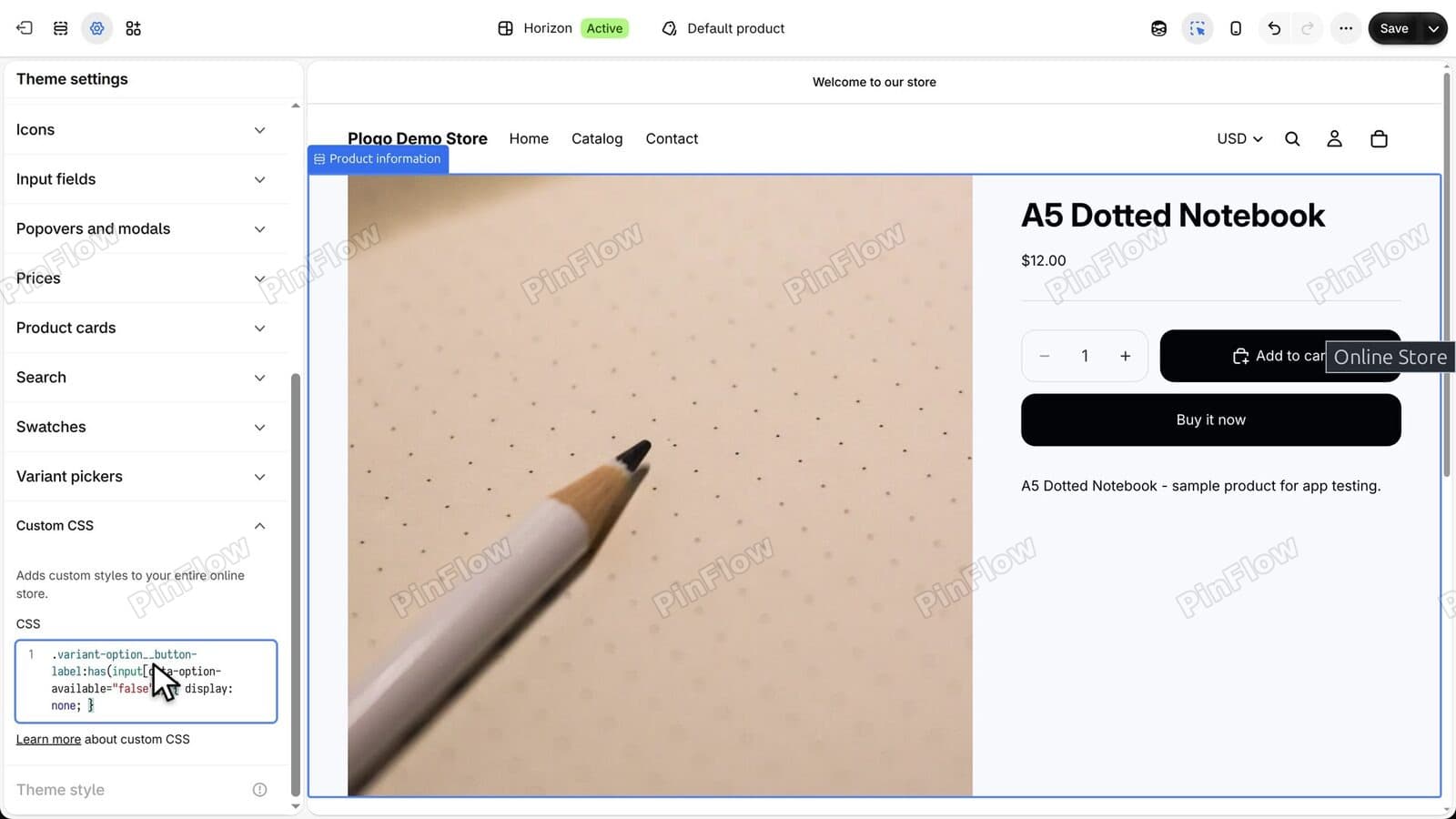 Custom CSS box in Theme settings holding the pasted rule, with the Save button dark at the top right
Step 1: See what Horizon does with a sold-out size
On the product page, a sold-out size such as S has a line through it. It stays on the page, so shoppers can still see it.
You can still click it. The size is selected, and the only sign of a problem is the button below, which now reads Sold out and is grey.
 Classic Tee with the S size selected and the colours crossed out, and the add to cart button grey and reading Sold out
Step 2: Open the theme editor on a product page
In the Shopify admin, click Online Store. On the live Horizon theme, click Edit theme.
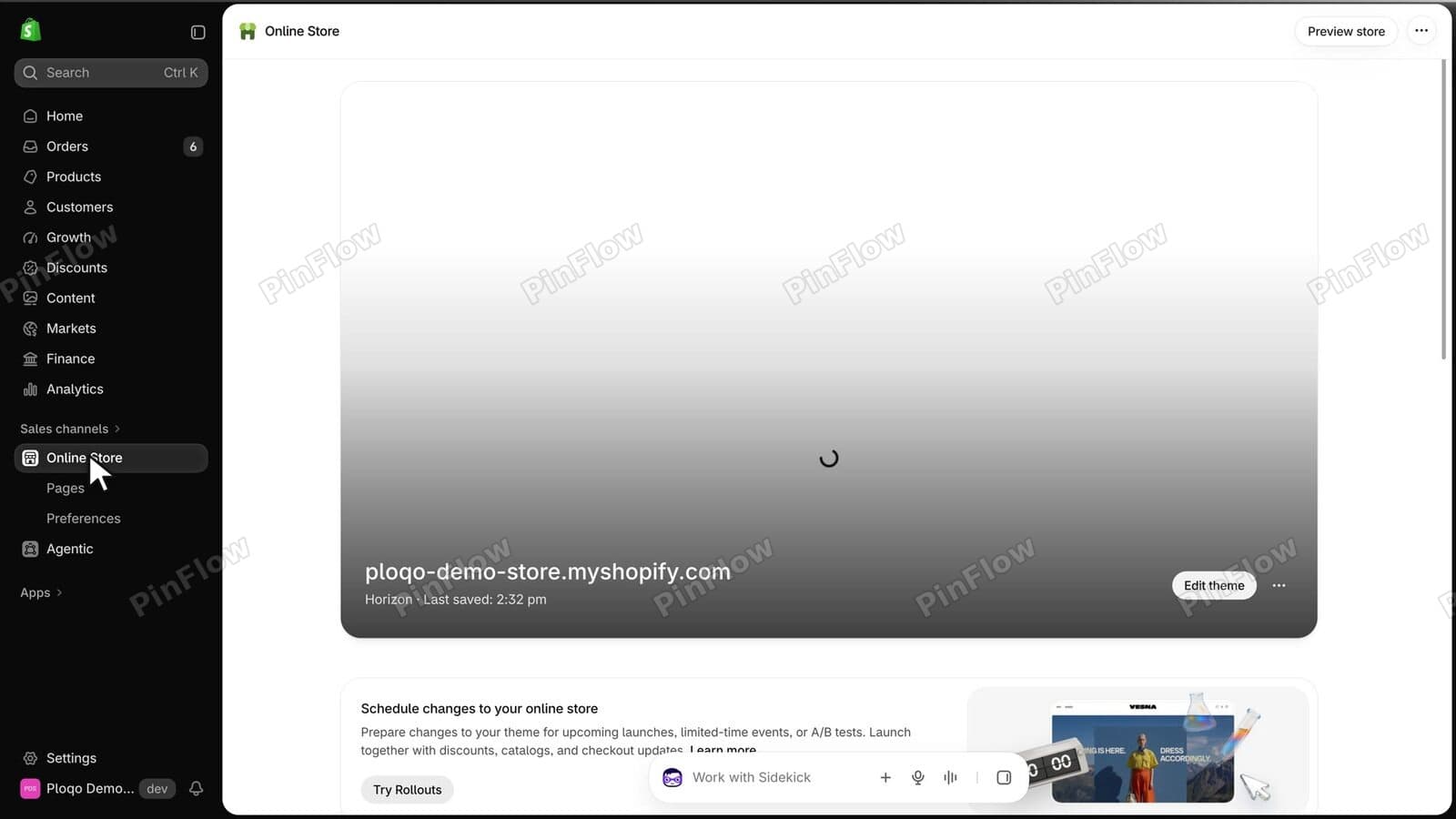 Online Store page in the Shopify admin with the live Horizon theme and its Edit theme button
At the top of the editor, open the page picker, click Products, then choose Default product.
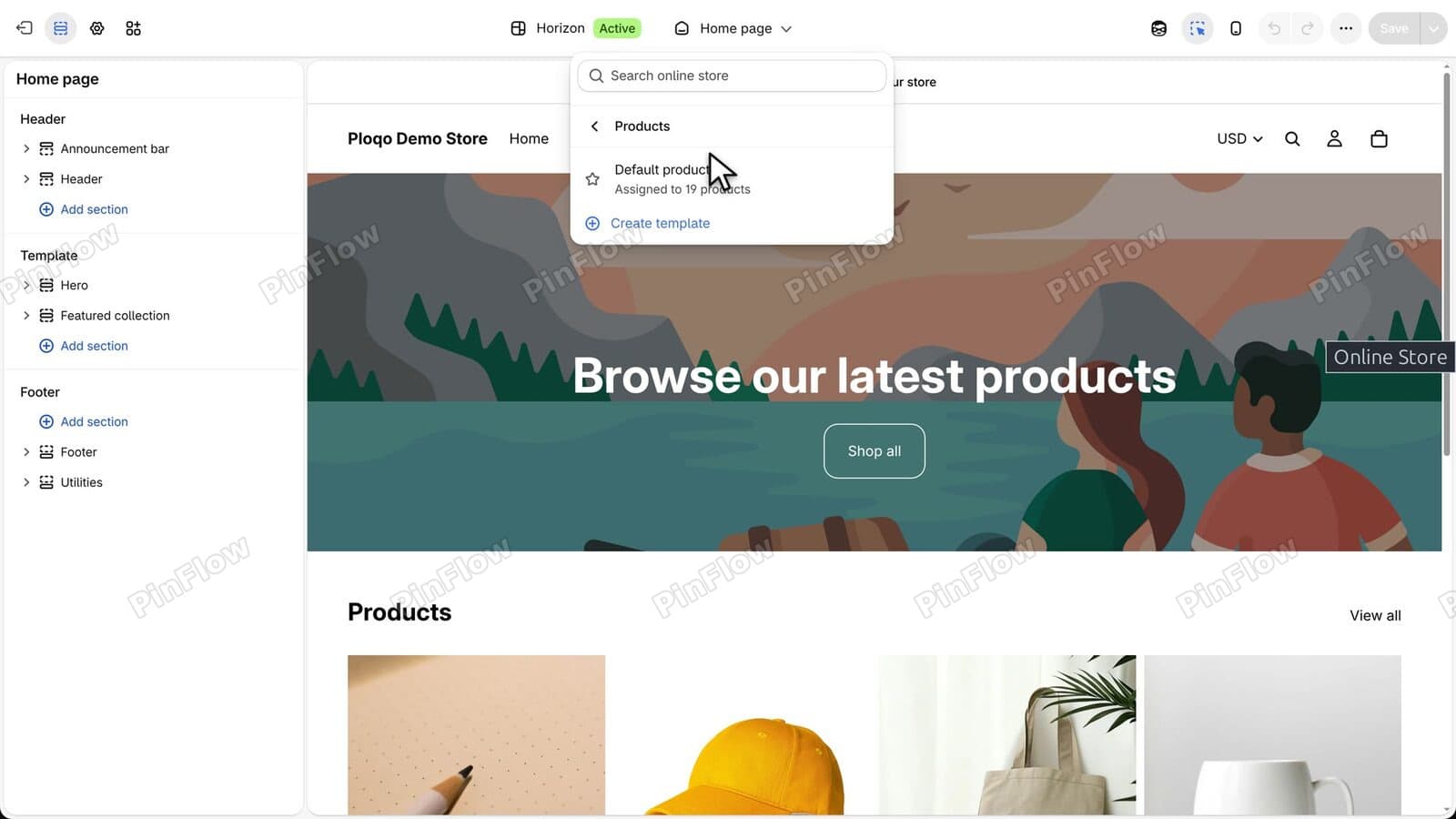 Theme editor page picker open on Products with the Default product template listed
Step 3: Check that no setting hides sold-out options
In the left panel, open Product information, then Details, and click the Variant picker block. Its settings change how the buttons look: the Style (Dropdowns or Buttons), Swatches, the text colour, the variant style and the alignment. None of them hides a sold-out option.
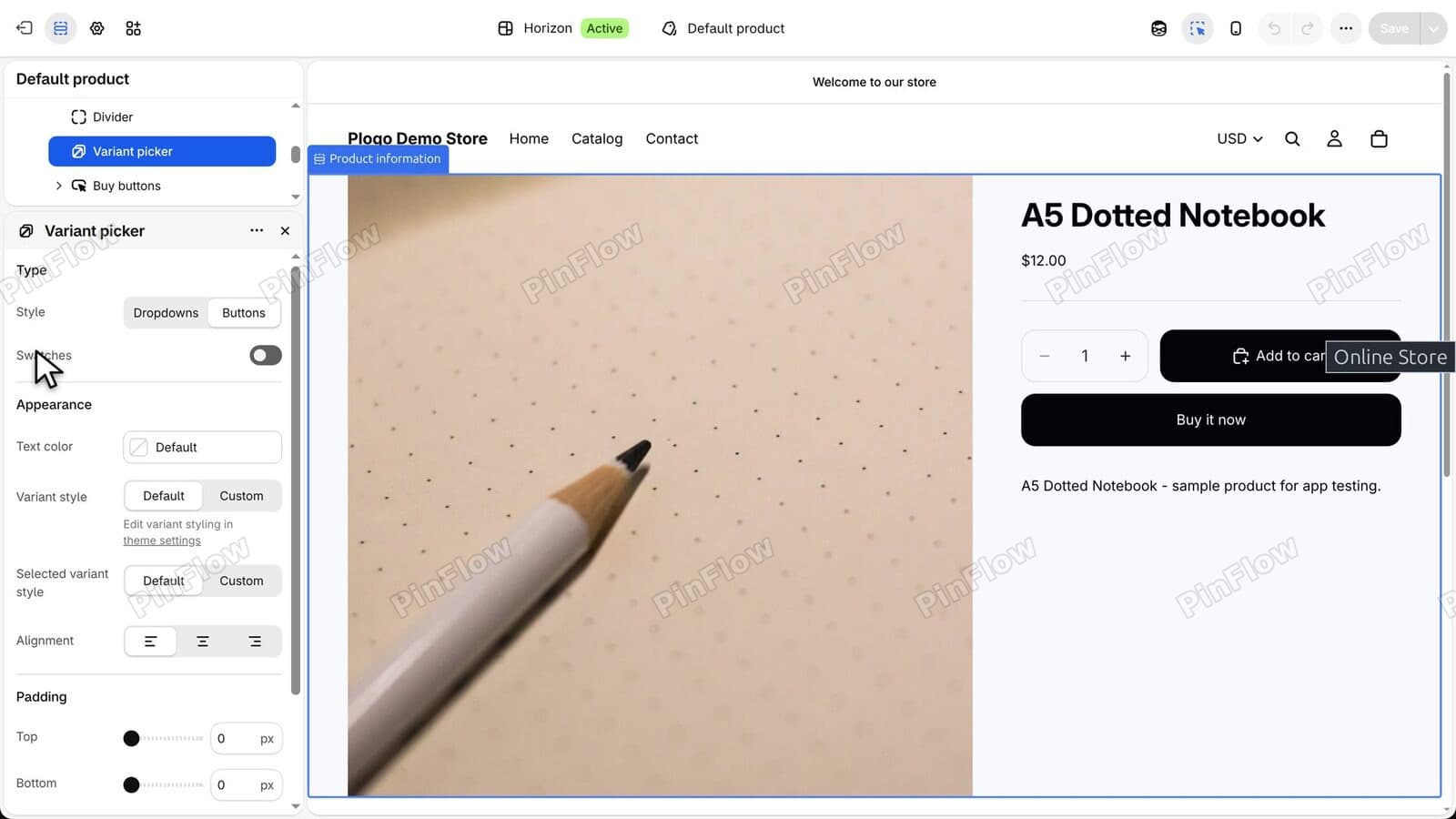 Variant picker block settings in the theme editor showing Style, Swatches, Text color, Variant style and Alignment
Theme settings, the gear icon at the top left of the editor, has a Variant pickers group too. It holds colours, border thickness, corner radius and width, and nothing about sold-out options.
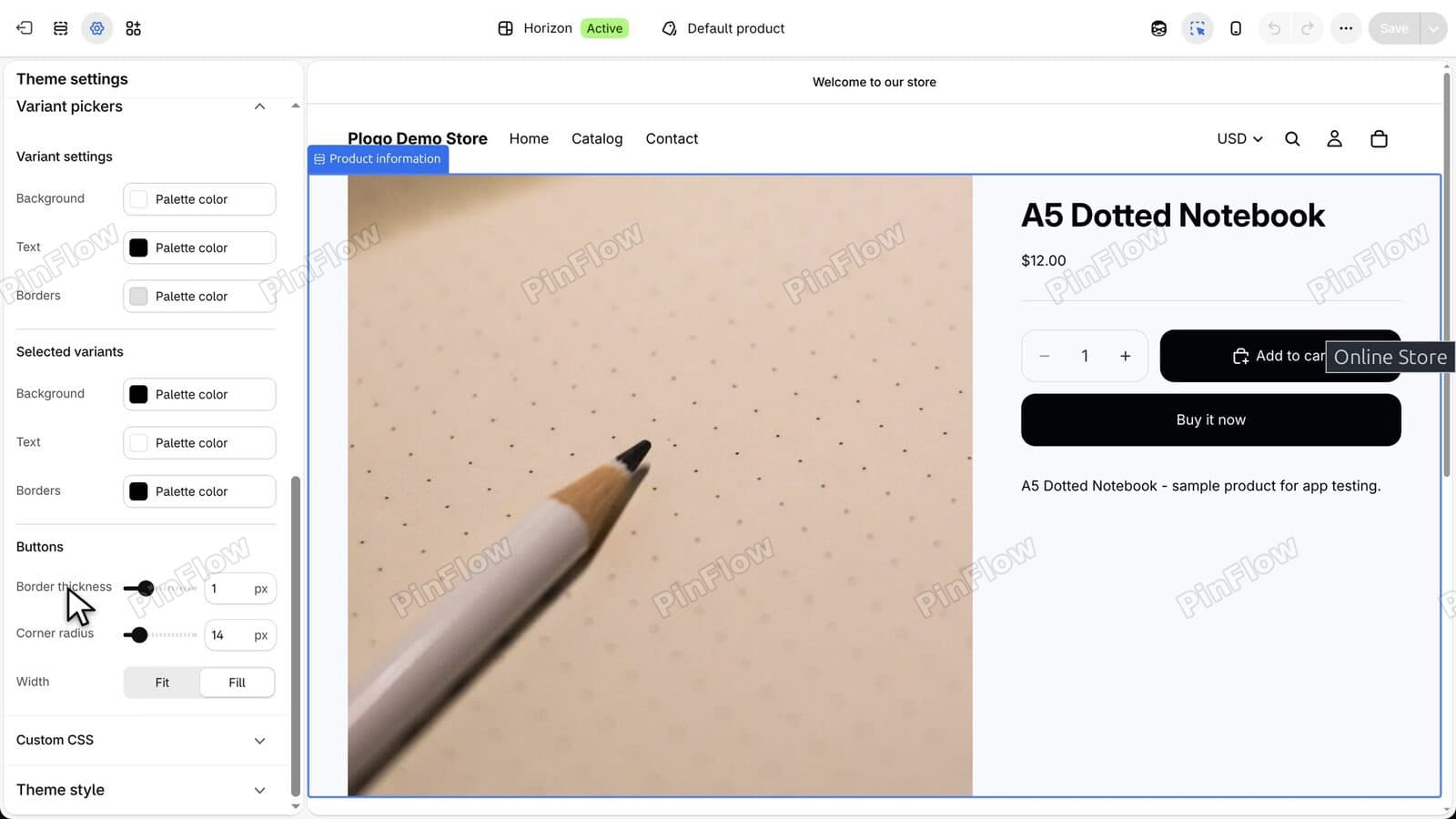 Theme settings with the Variant pickers group open showing colour, border thickness and corner radius settings
Step 4: Paste the rule into Custom CSS
Scroll to the bottom of the Theme settings list and open Custom CSS. The box is empty and shows an example rule in grey. Click into it.
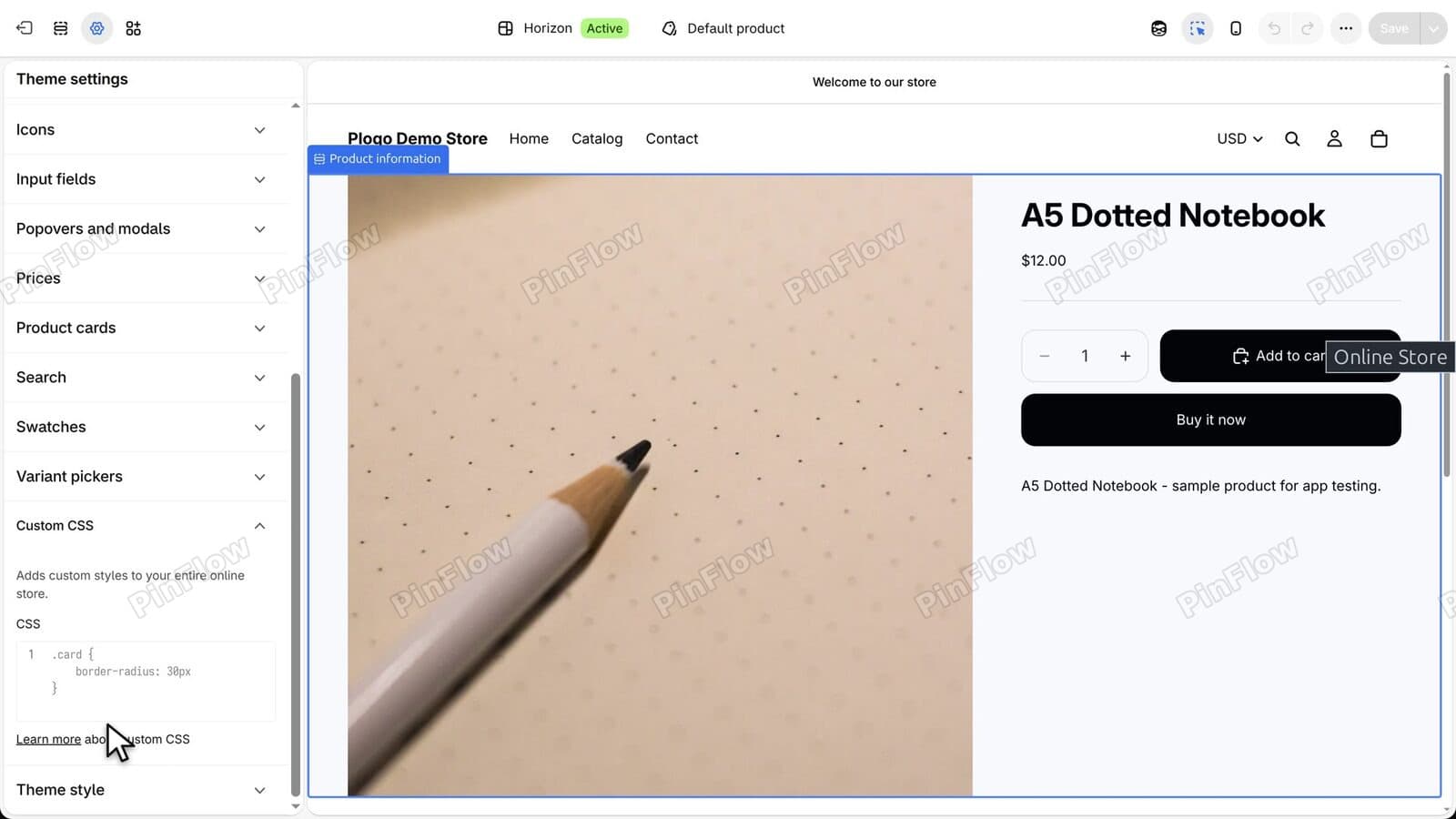 Theme settings with the Custom CSS group open and an empty box showing a grey example rule
Paste the rule from above.
Custom CSS box in Theme settings holding the pasted rule, and the Save button now dark at the top right
Step 5: Save and check for an error
Click Save at the top right. The editor shows Changes saved, the Save button goes grey and no error appears under the box.
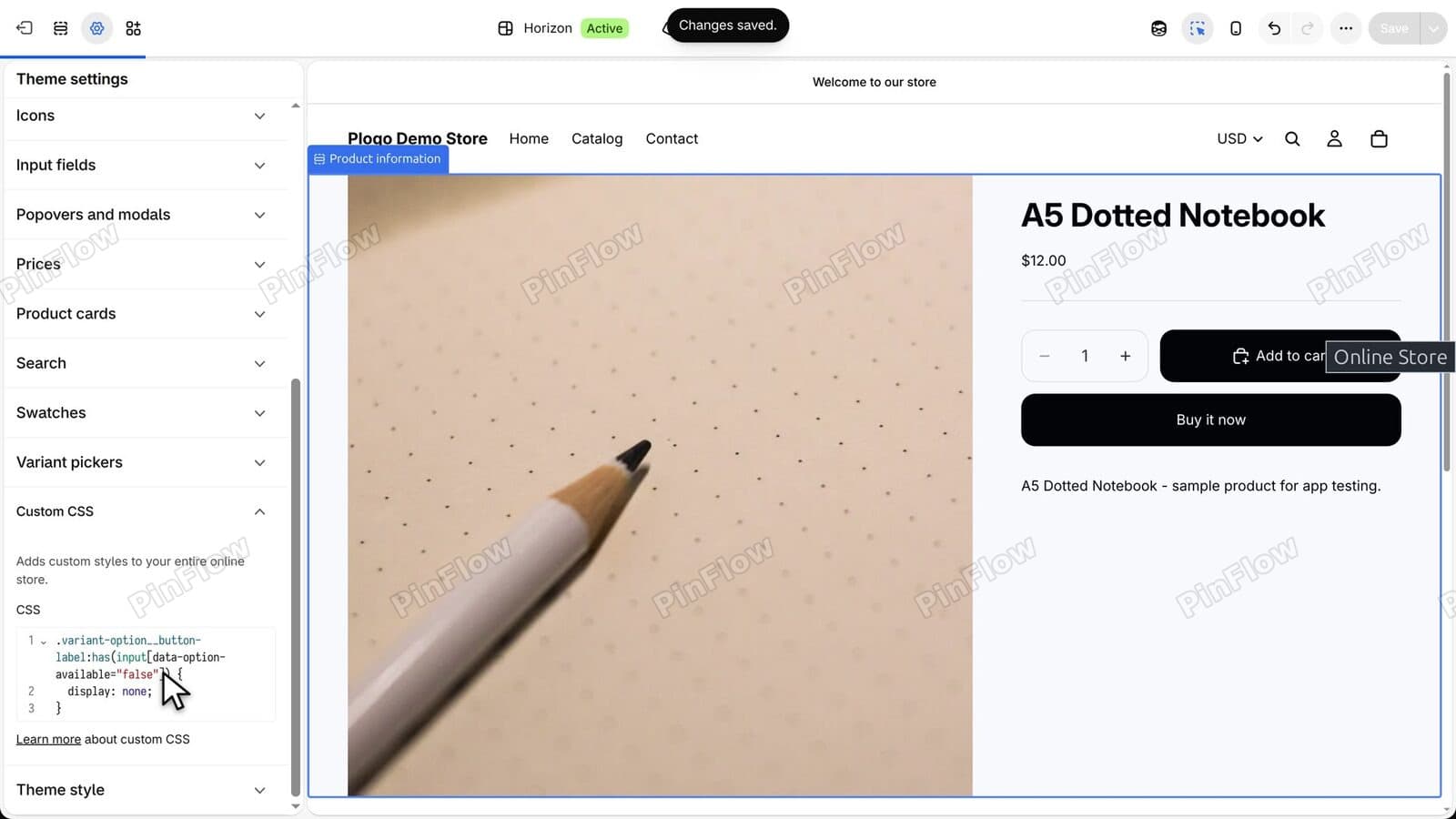 Theme editor top bar with a Changes saved message after saving the Custom CSS rule
Theme-wide Custom CSS holds up to 1,500 characters, and this rule uses 90. Shopify's help page, Add custom CSS, states the limit.
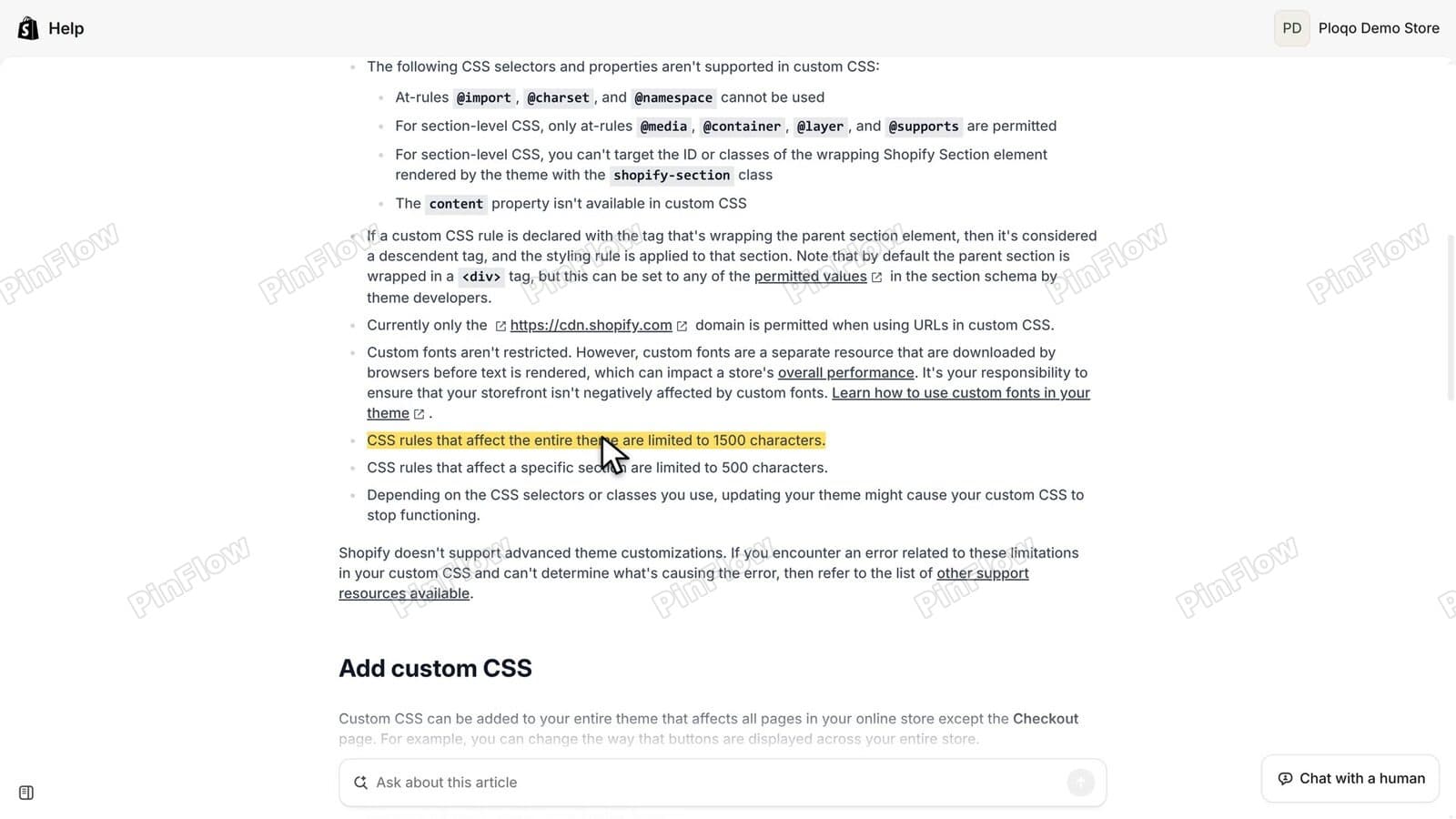 Shopify Help page on adding custom CSS with the sentence about the 1500 character limit highlighted
Step 6: Check the product on your store
Open the product on your live store. The Size row now shows M, L and XL. S is gone, because S is sold out in both colours.
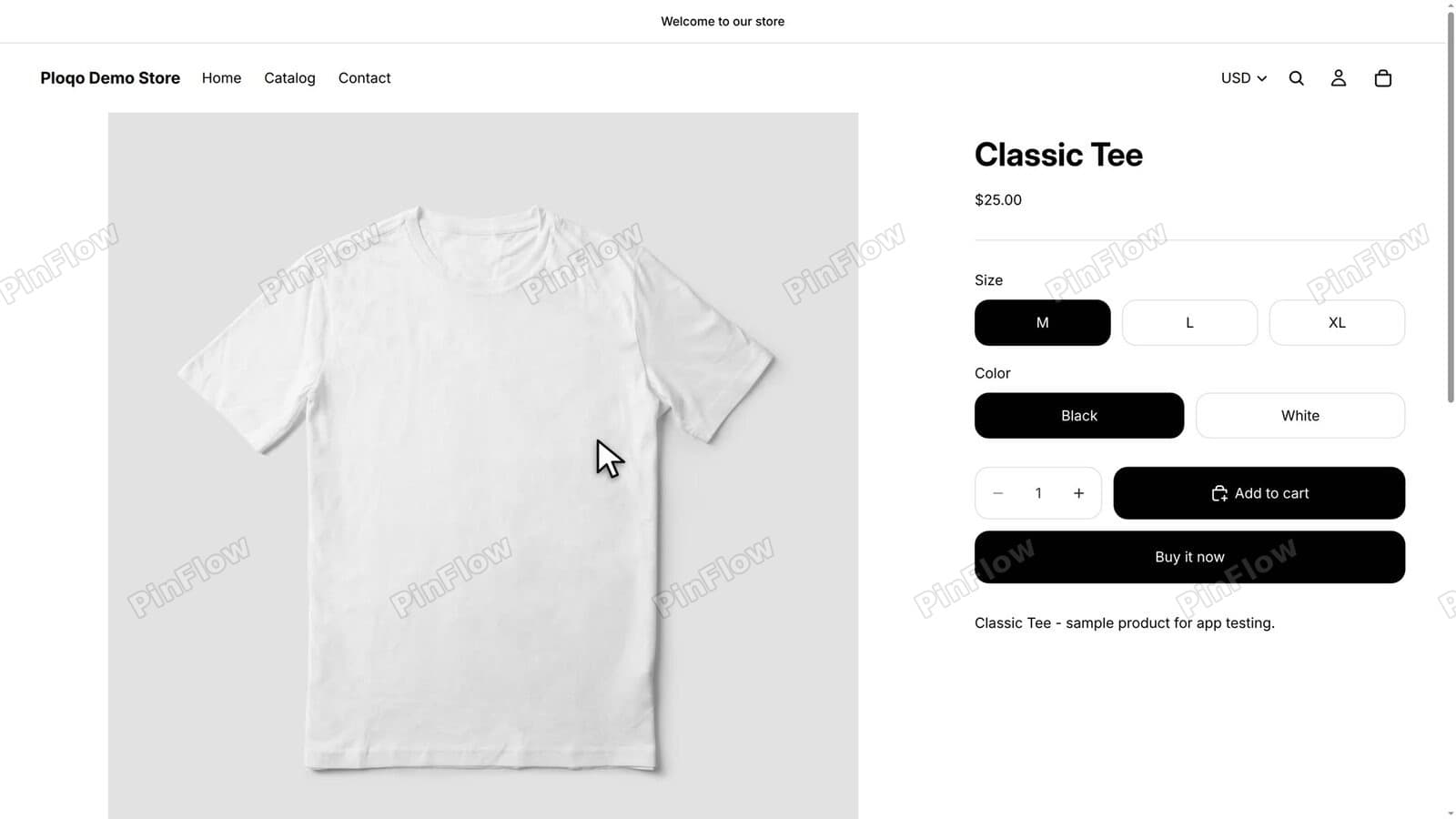 Classic Tee Size row after saving the rule showing M, L and XL with no S button
Click XL. The Color row shows only Black. White is sold out in XL, so it is hidden for that size.
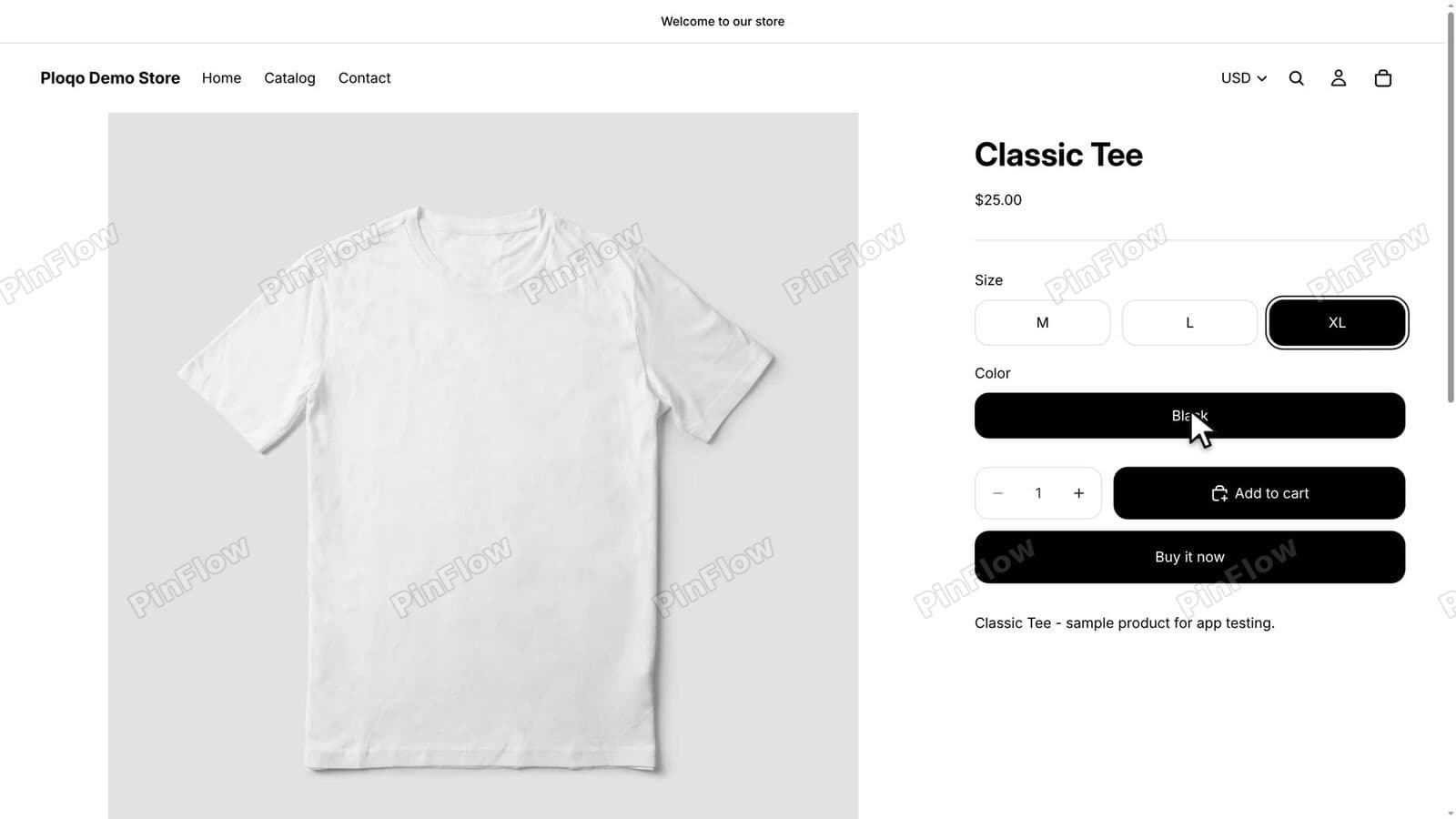 Classic Tee with XL selected and only the Black colour button in the Color row
Click M and White comes back, because White still has stock in M.
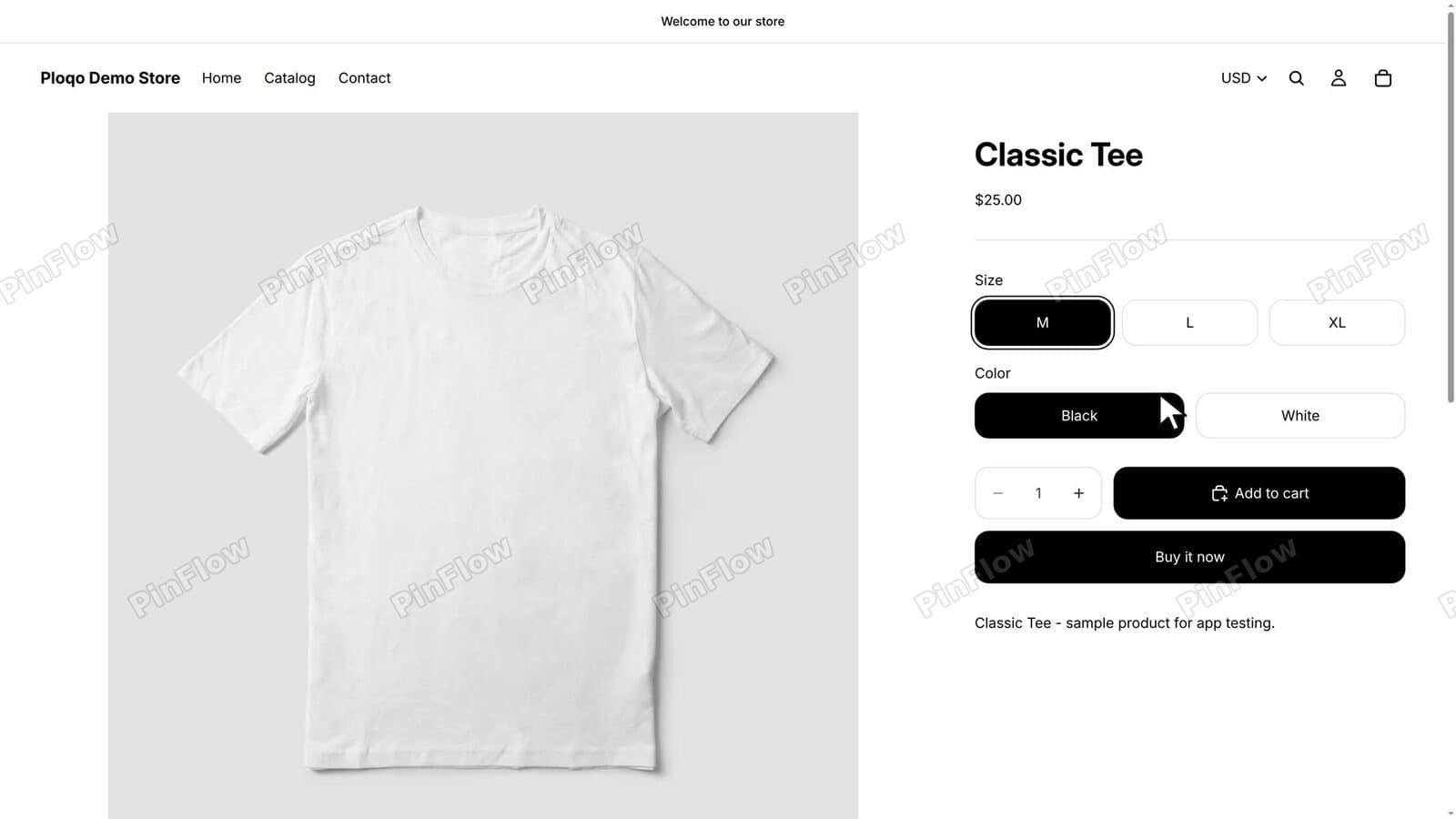 Classic Tee with M selected and both Black and White in the Color row
Why a colour can disappear and come back
Horizon checks options in the order they appear. Size comes first here, so each colour is checked against the size you picked. To change that, reorder the options.
A way with no code: take one variant off the Online Store
The rule hides a size that has run out. To stop selling a size on purpose and keep its stock, use variant publishing, which Shopify added in May 2026.
In the admin, open the Running Shoe and click size 11, which has 17 in stock. Under its name is a button reading All channels.
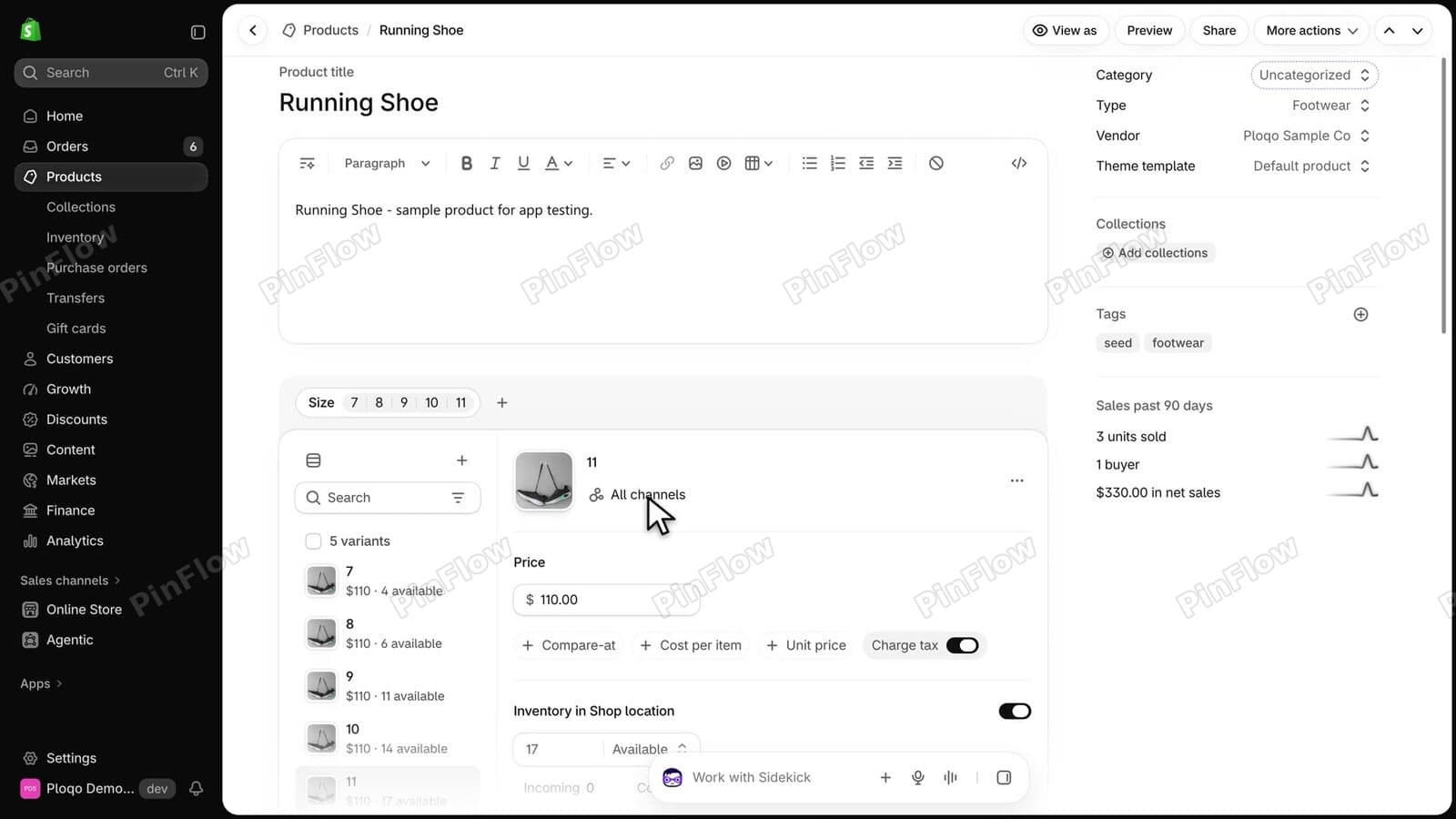 Running Shoe product page in the admin with size 11 selected, 17 in stock, and an All channels button under its name
Click it. A window titled Manage publishing for 1 variant lists Online Store, Shop and Point of Sale, all on.
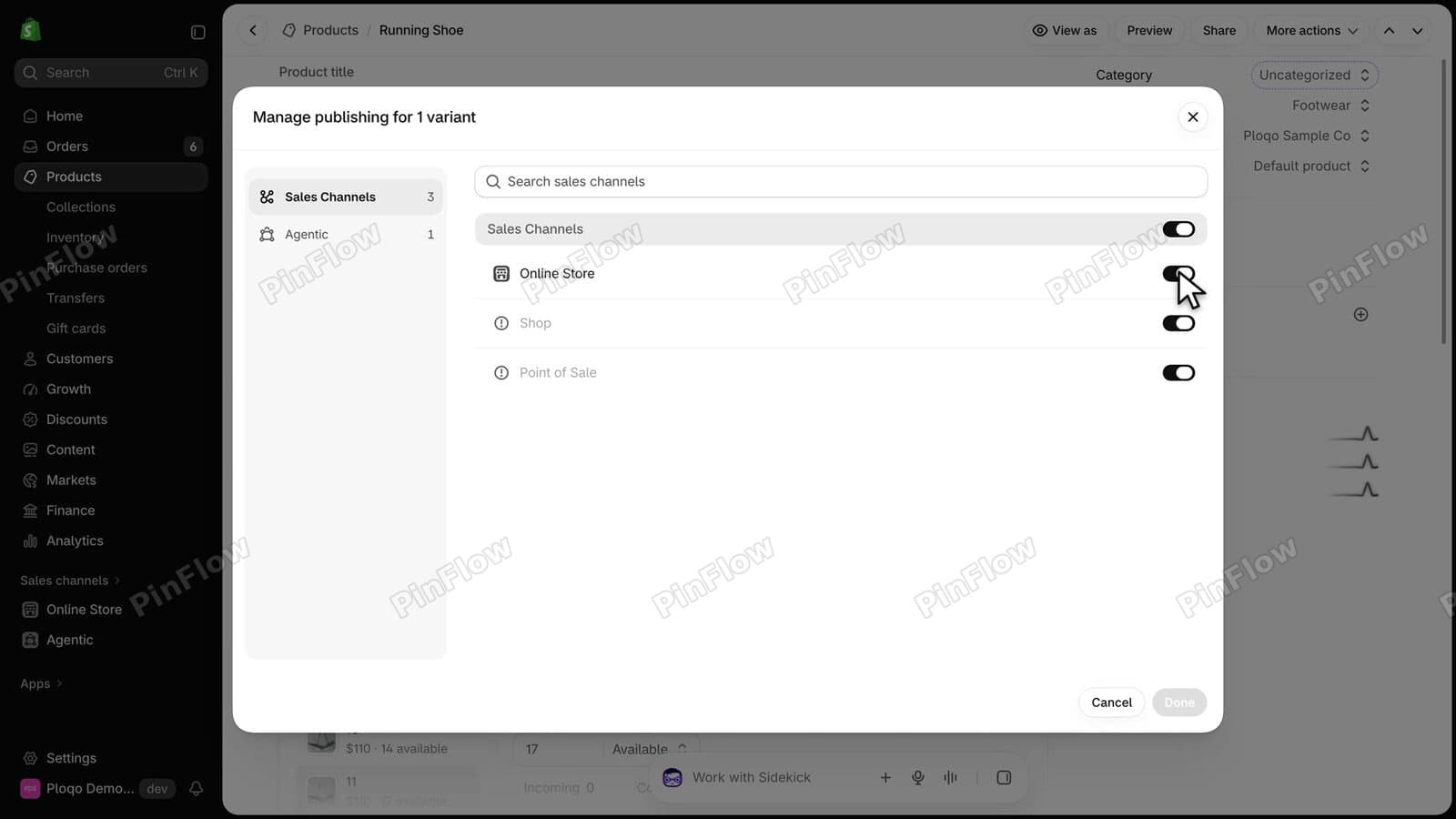 Manage publishing for 1 variant window with the Online Store, Shop and Point of Sale switches all on
Switch Online Store off and click Done.
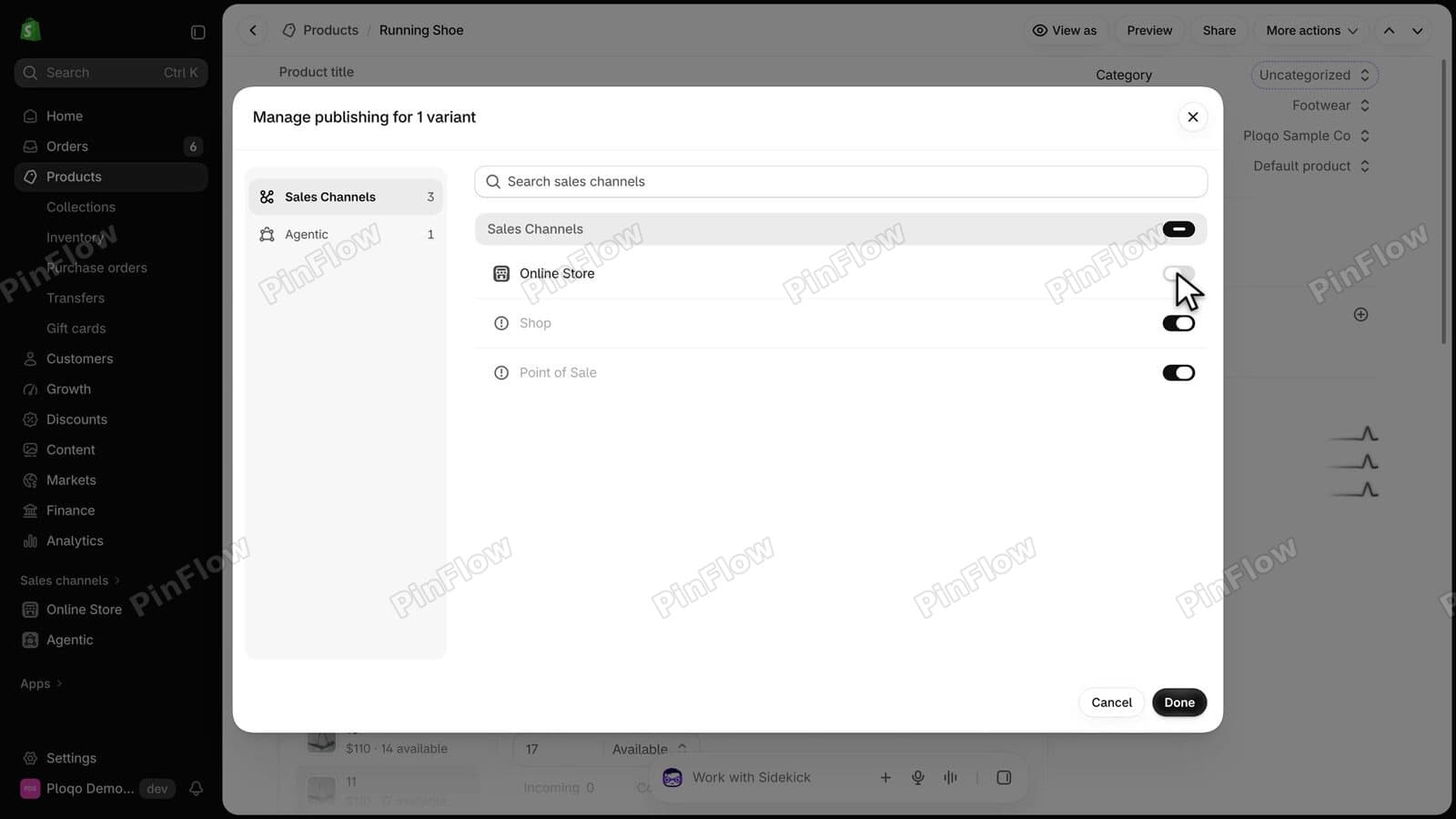 Manage publishing for 1 variant window with the Online Store switch off and the Done button dark
Then click Save on the product page. The button under size 11 now reads Shop, +1, and the stock is still 17.
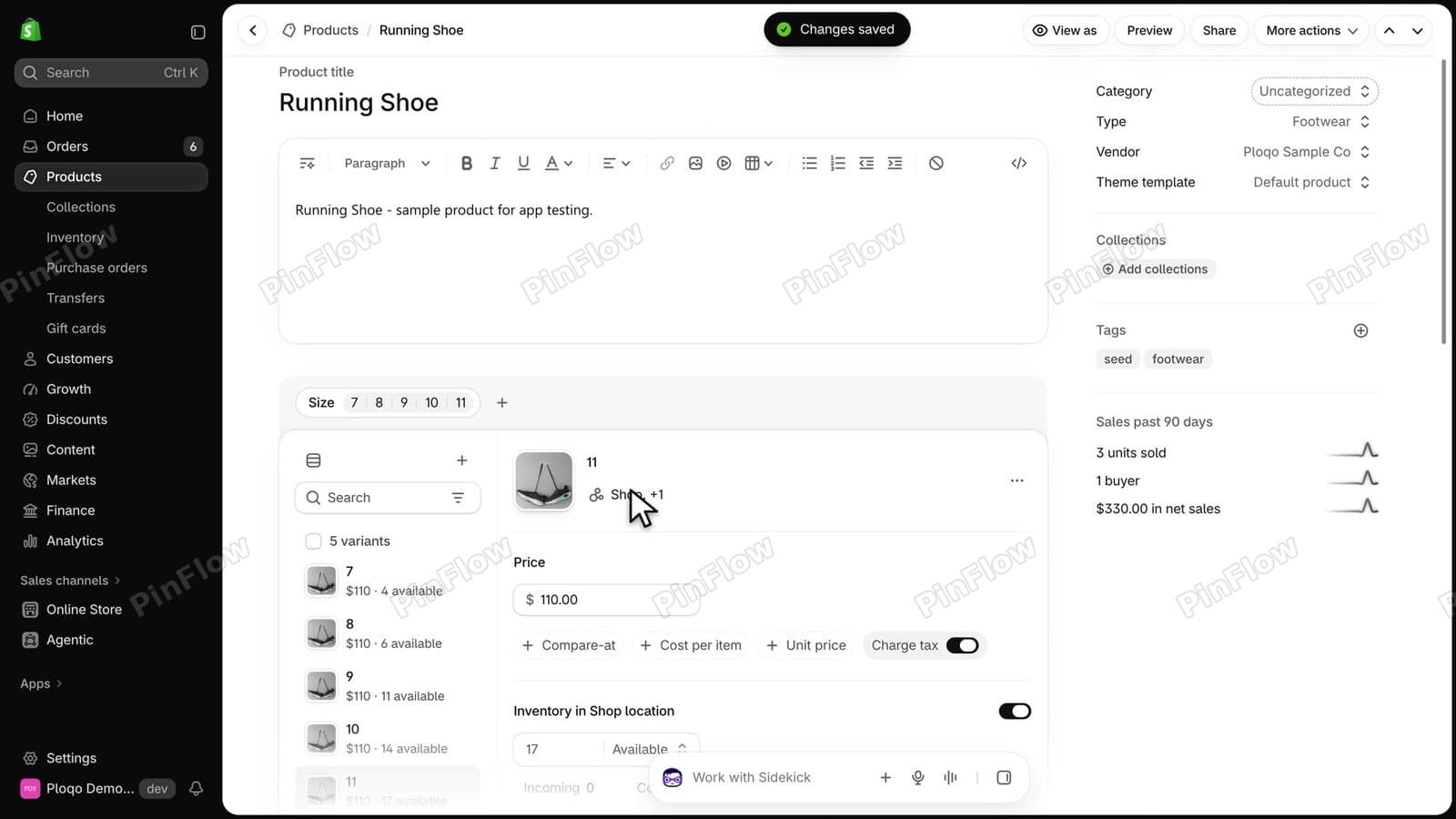 Running Shoe product page in the admin after saving, with size 11 now showing Shop, +1 under its name
On the store, the Running Shoe shows sizes 7, 8, 9 and 10. Size 11 is off the page.
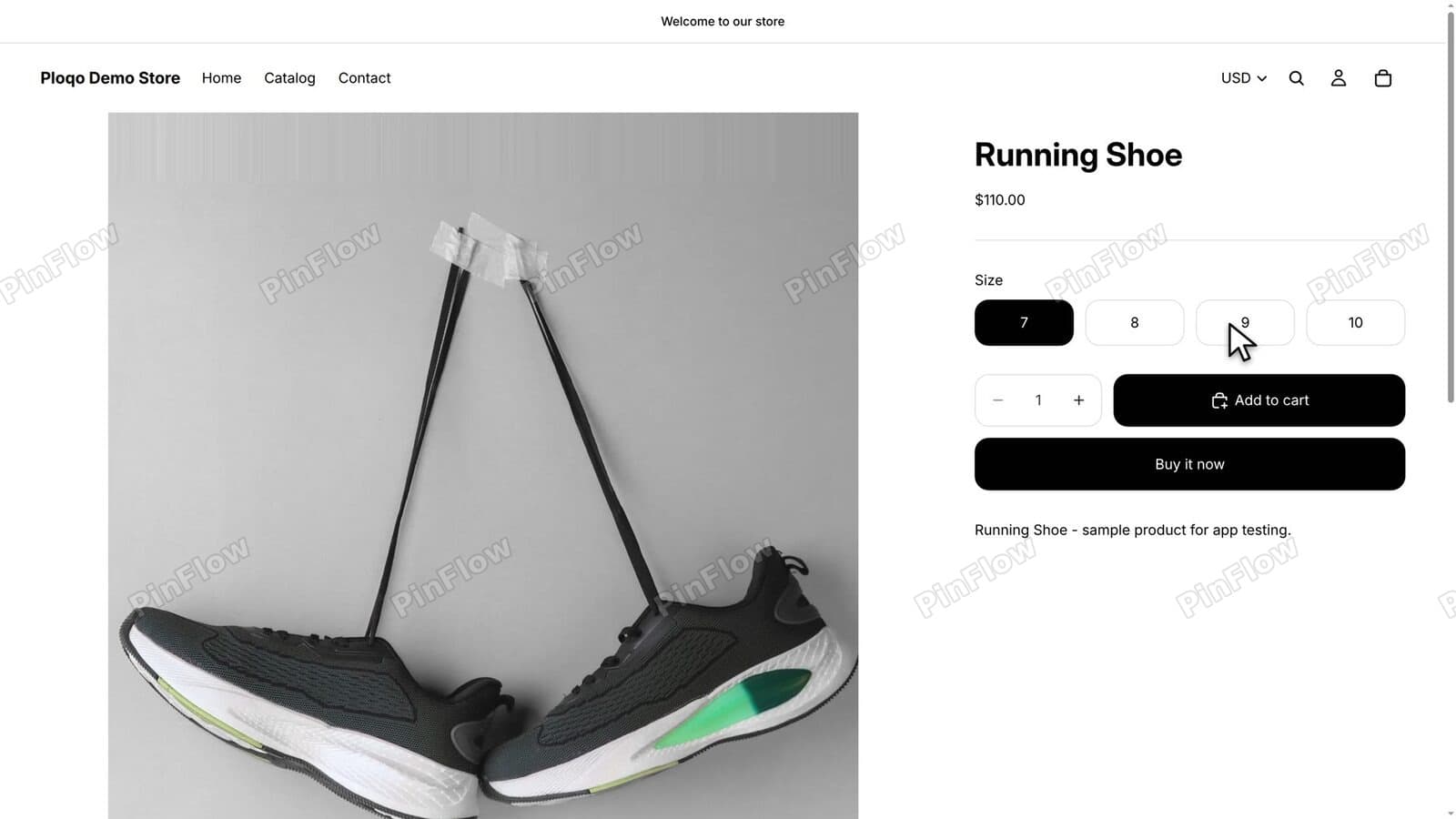 Running Shoe product page on the live store with only sizes 7, 8, 9 and 10 in the Size row
Shopify's changelog entry Product Variant Publishing, dated 7 May 2026, describes it as "keeping the variant and its history in your admin while hiding it from storefronts on the channels you choose".
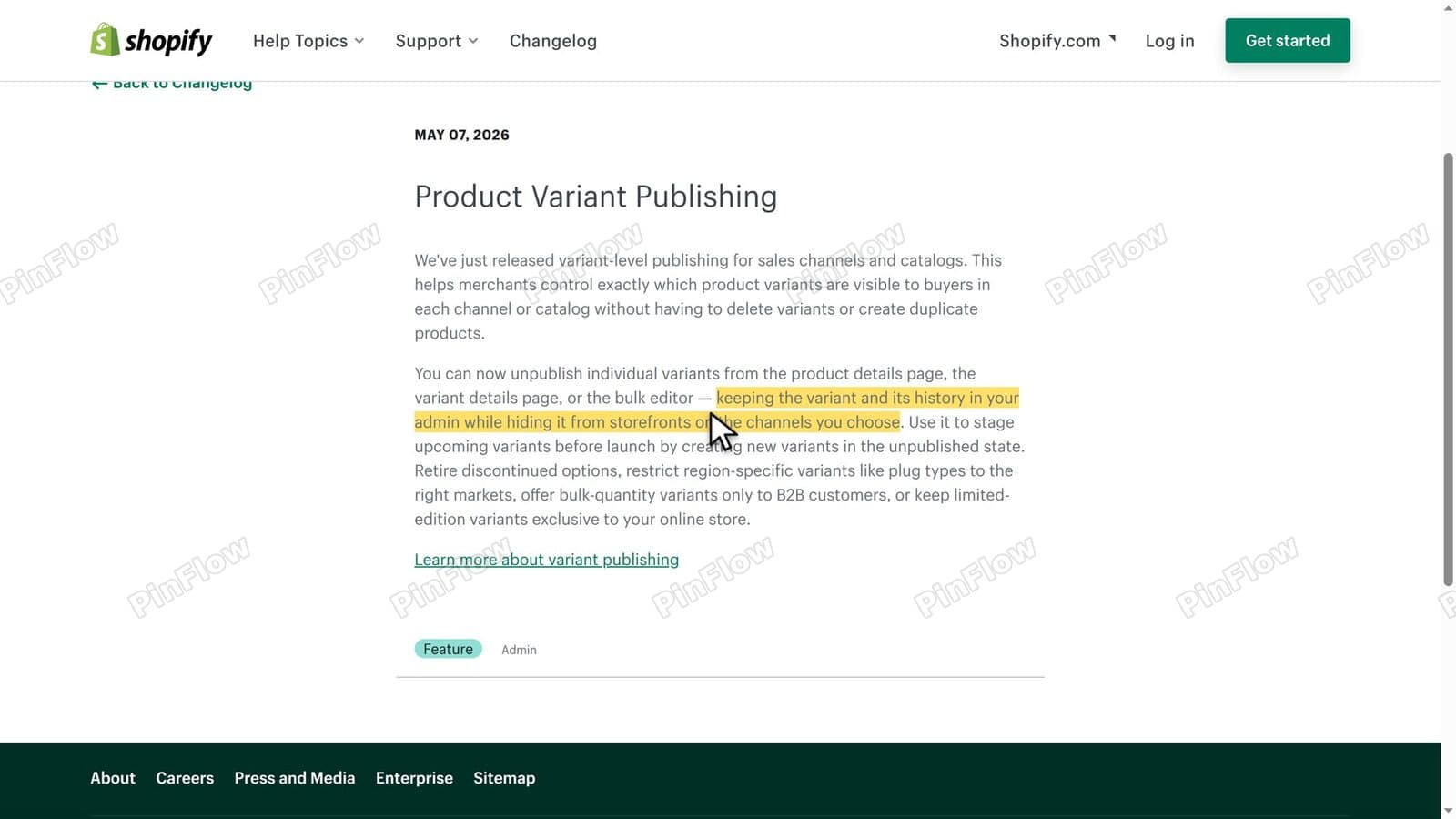 Shopify changelog entry Product Variant Publishing dated May 07 2026 with the sentence about hiding a variant from storefronts highlighted
This route is manual, so publish the size again after a restock. Shopify's help page Publish variants to sales channels covers the details. On a product with two options, a value such as a colour leaves the page only when every variant with that value is unpublished. If you unpublish every variant of a product, the whole product disappears from that channel.
Good to know
Dropdowns style
With the Dropdowns style, Horizon lists "S - Unavailable" in the menu, and the rule does not hide it. Switch the Variant picker block's Style to Buttons.
Variant picker block settings with the Style choice between Dropdowns and Buttons
Keep sold-out sizes visible
To hide only a value that has no variant, for example a colour a size never came in, use this rule instead. Sold-out values stay on the page, crossed out.
.variant-option__button-label:has(input[data-option-available="false"]:not([data-variant-id])) { display: none; }Classic Tee with the S size selected and the colours crossed out and still on the page
Continue selling and where the rule applies
If Continue selling when out of stock is on for a variant, Horizon never crosses it out, so the rule never hides it. The theme-wide Custom CSS box covers every product template and the quick add picker on collection pages. A section's own Custom CSS box holds 500 characters and applies to that section only.
Theme settings Custom CSS box holding the pasted rule
Collections and other jobs
This guide covers the buttons on a product page. For a collection, see hiding out-of-stock products. For a dropdown, see hiding unavailable variants. For one variant, see hiding a variant without deleting it.
Questions
Does Horizon have a setting to hide sold-out variants? No. The Variant picker block and the Variant pickers group in Theme settings only change how the buttons look. Horizon crosses out a sold-out option and keeps it on the page.
Variant picker block settings with Style, Swatches, Text color, Variant style and Alignment and no option for sold-out values
Where do I paste the CSS? In the theme editor, click the gear for Theme settings, scroll to the bottom and open Custom CSS. Then click Save.
Custom CSS box in Theme settings holding the pasted rule
Why does a colour disappear under one size and come back under another? Horizon checks each option against the ones before it. A colour that is sold out in XL is hidden when XL is selected and shows again when M is selected.
Classic Tee with XL selected and White hidden in the Color row
Does the rule work with the Dropdowns style? No. A dropdown shows "S - Unavailable" in its list, and the rule does not touch it. Switch the Variant picker block's Style to Buttons.
Variant picker block settings with the Style choice between Dropdowns and Buttons
Is there a limit on Custom CSS? Yes. Theme-wide Custom CSS holds 1,500 characters and a section's holds 500. This rule is 90 characters.
Shopify Help page on adding custom CSS with the 1500 character sentence highlighted
How do I hide one variant with no code? Open the product, click the variant, click its channels button, switch Online Store off, click Done and Save. The stock stays in the admin.
Running Shoe on the live store showing sizes 7 to 10 after size 11 was taken off the Online Store
The one-line rule came up in threads on the Shopify Community (topics 661170 and 621419), and the option-order advice in topic 661227.
Part of a complete guide
Shopify Variants: The Complete Guide
Variants are one product sold in several forms. How they work, the 2,048 and 3-option limits, and where each variant fix lives - images, swatches, sorting, hiding and the theme-specific bugs.
More Shopify fixes
More community-sourced Shopify guides, tested on a live store.
Collections & Products
Shopify Unit Pricing: Show a Price per Unit on Each Variant
Set a unit price on every variant and Dawn shows the price per 100 ml or per kg, and updates it when a shopper picks another size. No code needed.
Themes & Storefront
Square Size Buttons on Shopify Dawn (Custom CSS)
Dawn draws size options as round pills. Here is the Custom CSS that turns them into square boxes matching the Add to cart button, tested on Dawn 16.0.0.
Themes & Storefront
Remove the Variant ID From Your Shopify Product URL
Your product link keeps turning into /products/name?variant=43176780890281, before the customer has touched anything. One theme setting stops it, a second switch covers Dawn, and a short snippet cleans the links that already carry the ID.