
Shopify Image Banner on Mobile: Remove the Extra Space
Dawn's image banner leaves 40px of empty space on phones. One Custom CSS block in the banner's own settings removes it without touching desktop.
By AjayCodeWiz · October 16, 2026 · 9 min read
The problem: big empty bands around the banner text on phones
The Image banner is the large picture with a heading and a button that most Shopify stores put at the top of the home page. On a computer the text sits on top of the picture. On a phone, Dawn can move the text into a coloured box under the picture instead, so the words do not cover the photo.
That box comes with a lot of padding. Padding is the empty space between the edge of a box and the things inside it. On a phone the result looks like this: the picture, then a tall empty band, then the heading, then the button, then another tall empty band before the next section starts.
A merchant running Dawn 15.4.1 asked about this on the Shopify Community. She had already set her banner image to a smaller height. That made the empty space look even bigger, because the picture shrank and the padding did not. She had also set the padding to 0, and nothing changed.
I rebuilt her banner on a test store running the same Dawn version, at a 390px wide phone screen. I measured 40px of empty space between the bottom of the picture and the heading, and another 40px between the button and the bottom of the box. After the fix below, those two spaces measured 10px and 15px.
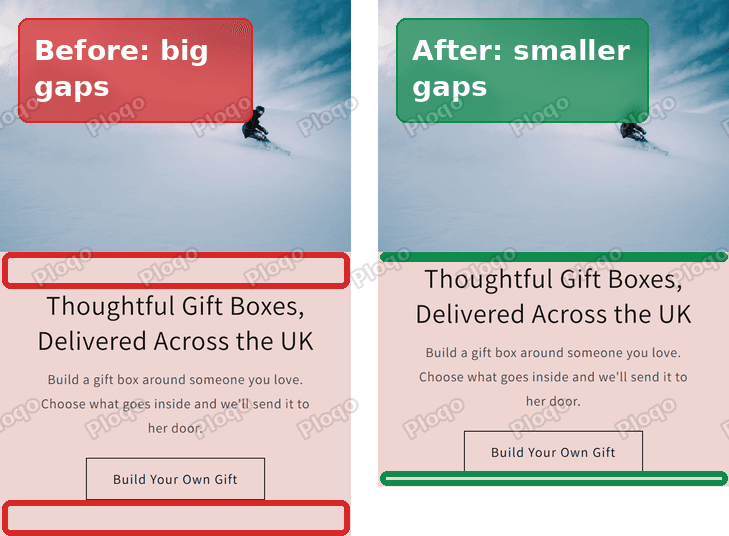 Dawn image banner on mobile before and after the fix, with the empty space above the heading and below the button marked
The left phone shows the two empty bands marked in red. The right phone is the same banner after the change. The heading, the text and the button keep their own spacing. Only the space at the top and bottom of the box gets smaller.
Why the padding setting does not change it
Dawn's Image banner section has no padding sliders of its own. Its settings cover the image, the height, the overlay, where the text sits on desktop, the colour scheme and a short Mobile layout group. None of them controls the space inside the text box.
The space comes from the theme's own stylesheet, the file of design rules that ships with Dawn. On phones, when the text sits under the picture, Dawn gives the text box 4rem of padding at the top and 4rem at the bottom. In Dawn, 1rem is 10px, so that is the 40px I measured.
Because the space is set in the theme's code and not in a setting, the only way to change it is a small piece of CSS. CSS is the language that controls how things look on a web page. You do not need to open the code editor for it. The banner has a Custom CSS box right in its settings.
Check your banner layout first
The fix in this article is for the layout where the text sits under the picture on phones. Dawn controls that with one toggle.
Open the banner's settings in the theme editor and scroll to the Mobile layout group. It has three settings: Stack images, Alignment and Container.
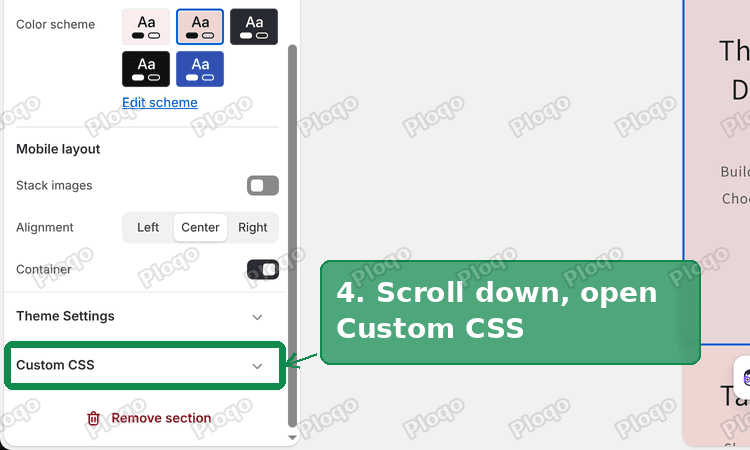 Dawn Image banner settings with the Mobile layout group, the Container toggle and Custom CSS at the bottom
- Container on: the heading, text and button sit in a coloured box under the picture. This is the layout with the two empty bands, and the fix below is for it.
- Container off: the text sits on top of the picture on phones, the same way it does on desktop. There is no box under the picture, so there are no empty bands to remove.
If your banner looks like the left phone in the first screenshot, Container is on and you are in the right place.
How to remove the extra space in Dawn's image banner on mobile
These are the steps from my answer on the forum, with the screenshots I posted there. Each one is a single click.
1. From your Shopify admin, go to Online Store > Themes.
2. Click Edit theme on your current theme.
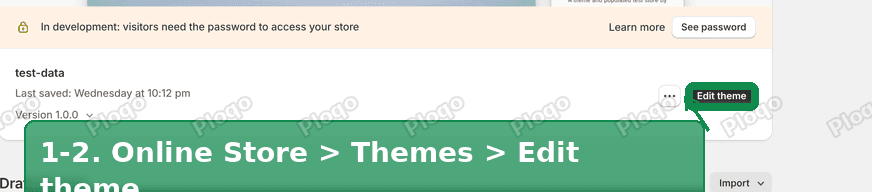 Shopify admin Online Store, Themes page with the Edit theme button marked
The theme editor opens on your home page.
3. In the left sidebar, click Image banner.
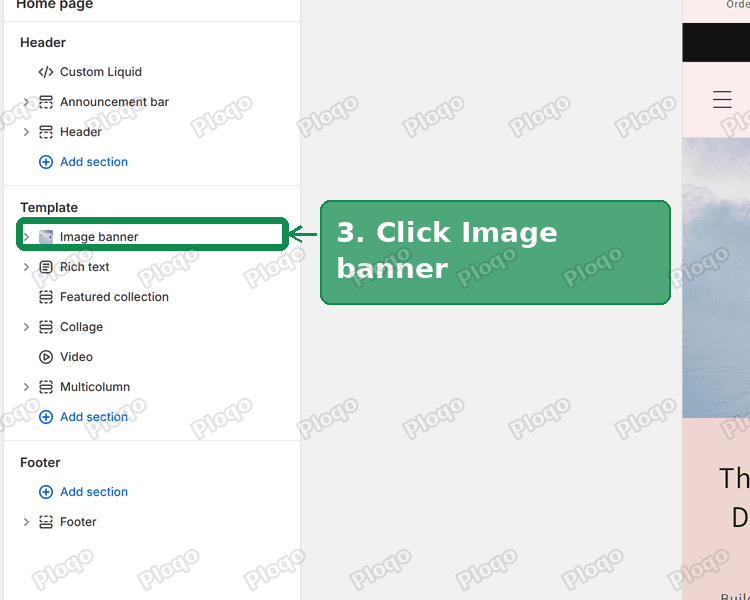 Dawn theme editor sidebar with the Image banner section marked under Template
If your home page has more than one Image banner, click the one you want to change. The fix only applies to the banner you paste it into.
4. Scroll right down the settings and expand Custom CSS.
Bottom of the Image banner settings with the Custom CSS row marked, below Mobile layout and Theme Settings
Custom CSS sits below Mobile layout and Theme Settings, just above Remove section. Click the row to open the box.
5. Paste this code into the box.
@media screen and (max-width: 749px) {
.banner__box {
padding-top: 1rem;
padding-bottom: 1.5rem;
}
}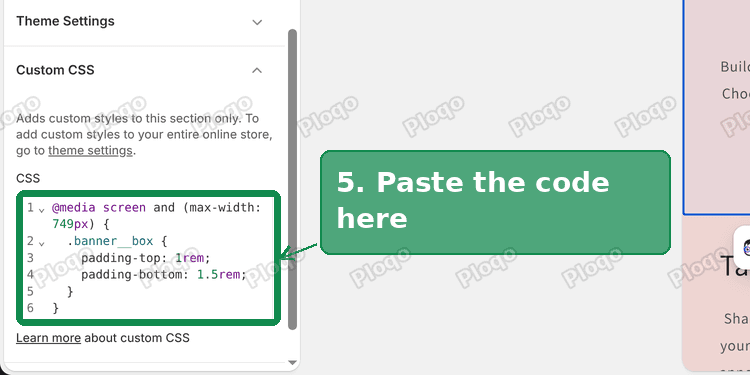 The CSS pasted into the Image banner Custom CSS box in the Dawn theme editor
If the box already holds some code, click at the end of it, press Enter and paste the new code underneath. Do not delete what is there.
6. Click Save.
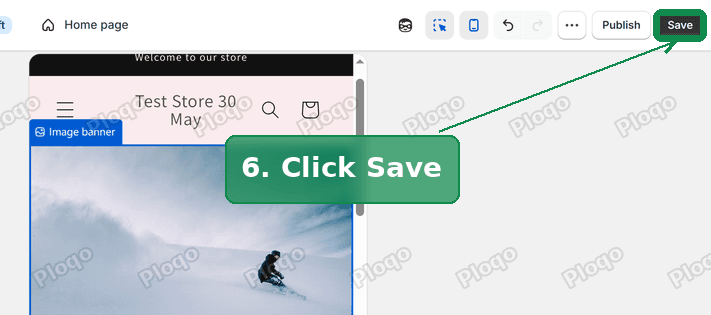 The Save button at the top right of the Shopify theme editor marked
Now open your store on a phone, or switch the editor preview to mobile with the phone icon at the top. The empty band under the picture and the one under the button are both smaller.
The merchant replied on the thread within a few hours of trying it: "That's perfect, thank you so much."
What each line of the code does
You do not need to understand CSS to use this, but knowing what each line does makes it easy to adjust.
@media screen and (max-width: 749px)means "only on screens 749px wide or less". Dawn switches to its desktop layout at 750px, so this line keeps the change to phones..banner__boxpoints at the text box under the picture. Code that points at one part of the page like this is called a selector.padding-top: 1remsets the space between the picture and the heading to 10px.padding-bottom: 1.5remsets the space between the button and the bottom of the box to 15px.
The bottom value is a little larger than the top one, so the button keeps some room before the next section starts.
Make the spacing tighter or looser
The two numbers are the only things to change.
| What you want | Change |
|---|---|
| Less space between the picture and the heading | lower 1rem, for example to 0.5rem (5px) |
| Heading right against the picture | set padding-top to 0 |
| Less space under the button | lower 1.5rem, for example to 0.5rem |
| Bring some space back | raise either number, up to Dawn's original 4rem |
Change one number, click Save, and check the phone preview. Small steps work better than big ones here, because 1rem is already 10px.
Why Custom CSS on the section, not in the theme code
Another answer on the same thread gave the same idea a different way: open the code editor, find theme.liquid, the main file of the theme's code (Liquid is the code Shopify themes are written in), and paste the CSS there, with !important added to every line. That also works. It has three downsides that the section's Custom CSS box avoids.
- It changes every Image banner on the store. Code in theme.liquid applies to every page. The Custom CSS box on a section only applies to that one section, so a banner on another page keeps its own look.
- It means editing theme files. A typo in theme.liquid can break the whole storefront. A typo in a section's Custom CSS box only affects that section.
- It needs
!importantto win. The section's Custom CSS is applied to that section directly, so the code above works without it.
If you want the same change on several banners, paste the code into each banner's Custom CSS box. It takes a minute per banner and keeps every change visible in the editor, where you or a future developer can find it.
Does this change the desktop banner?
No. The @media line limits the code to screens 749px wide or less. On a computer the text sits on top of the picture, and Dawn uses its own desktop padding there.
If you also want less space on desktop, that is a separate rule, because Dawn draws the desktop text box over the picture with its own padding. The cleanest option there is usually the banner's Height setting, which you will find near the top of the section's settings. It has four options: Adapt to first image, Small, Medium and Large.
To read more about writing CSS that only changes the phone layout, see how to change the Shopify mobile view only.
Other spacing on a mobile banner that this does not touch
The code above changes the space at the top and bottom of the text box. Three other kinds of space on a phone banner come from somewhere else.
Space between the heading, the text and the button. Dawn sets these separately, with 1rem between each item and 1.5rem above the paragraph text. The fix above leaves them as they are, which is why the heading and the button still look evenly spaced in the after screenshot.
Space at the sides of the text. On phones Dawn gives the box 3.5rem of padding on the left and right. The code only touches the top and bottom, so long headings still wrap the same way they did before.
A picture that looks too tall or too short. That is the image and the Height setting, not padding. If your picture loses its subject on phones, the post on Shopify mobile banner size covers the slot sizes Dawn uses and how to serve a different picture to phones.
How to add an image banner in Shopify
If you are starting from a home page with no banner, add one from the same theme editor.
- Go to Online Store > Themes and click Edit theme.
- In the left sidebar, under Template, click Add section.
- Pick Image banner from the list.
- Click Image 1 in the banner's settings and upload or select your picture.
- Click Save.
Dawn theme editor sidebar showing the Add section link under Template, below the Image banner and other sections
The Add section link sits at the bottom of the Template group, as in the screenshot above. A new banner arrives with a sample heading, text and button. Click each one in the sidebar to change the words or the button link.
Once it is in place, set Container under Mobile layout to choose whether the text sits under the picture on phones. If it does, the Custom CSS steps above apply to the new banner too.
If it did not work
Nothing changed after Save. Check the phone view, not the desktop view. The code only applies on screens 749px wide or less. In the editor, switch the preview to mobile with the phone icon at the top.
It changed a different banner. Your page has more than one Image banner, and the code went into another one. Open the other banner, cut the code out of its Custom CSS box, then paste it into the right one.
The box under the picture is not there at all. Container is off under Mobile layout, so the text sits on top of the picture and there is no box to tighten. Turn Container on if you want the text under the picture.
Your theme is not Dawn. The selector .banner__box comes from Dawn. Craft and Studio, two other free Shopify themes, ship the same Image banner code with the same 4rem padding, so the steps work there too. Newer themes like Horizon build banners differently, and the code will not match anything there. Your theme's name and version are on the current theme card, the same card you clicked Edit theme on in step 2.
You want to undo it. Open the banner, delete the code from its Custom CSS box and click Save. The banner goes back to Dawn's original spacing.
Summary
- Dawn adds 40px of padding at the top and bottom of the text box under a phone banner.
- The section has no setting for it, so a padding value set elsewhere does not reach it.
- Paste the CSS above into the banner's own Custom CSS box and click Save.
- Change
1remand1.5remto tune the two spaces. Desktop and other banners stay as they were.
Spending too long on manual Shopify busywork?
PinFlow turns your Shopify catalog into Pinterest pins and posts them on a schedule, automatically. Same idea as the rule above, let the system handle the repetitive part.
Get PinFlow on the Shopify App StoreMore Shopify fixes
More community-sourced Shopify guides, tested on a live store.
Themes & Storefront
Shopify Anchor Link: Button That Scrolls to a Section
Link a Shopify button to a section lower on the same page with an anchor link. Steps for the theme editor, no code files, plus the fix for a title hidden under the header.
Themes & Storefront
Shopify Social Media Icons: Add a Custom Icon and Link
Set your social links in Shopify theme settings, see why icons do not show, and swap in your own icon for a network the theme does not list.
Themes & Storefront
Sticky Add to Cart Button in Shopify Dawn, No App
Pin the Add to cart button and its delivery line to the bottom of the screen in Shopify Dawn. One free Custom Liquid block, no app, phone and desktop.