
Shopify Import Products CSV: Update, Not Just Add
A Shopify product CSV can update products you already have, not only create new ones. The one checkbox that decides it, what the file cannot change, and why the bulk editor stopped taking a pasted barcode column.
By AjayCodeWiz · September 11, 2026 · 9 min read
The problem
You have a spreadsheet. One column is a list of barcodes, in the right order, for products already in your store.
You want those barcodes in Shopify. Not typed one at a time. Pasted, the way you have always done it.
Until recently you could. Open the bulk editor, add the column, paste, save. A merchant on the Shopify Community described exactly this and was blunt about losing it: they can still paste into SKU, but the Barcode column will no longer take a pasted list.
They are right, and it is not a bug in their browser. The Barcode column changed shape, and no amount of clicking will bring the paste back.
The good news is that the CSV route still takes a whole column in one go, and it does something most people do not realise: a product CSV can update products you already have. It is not only for loading a new catalogue.
Why the paste stopped working
I opened the bulk editor on a test store with the SKU and Barcodes columns showing, and the difference is structural.
SKU is still a plain text cell. It is an ordinary input box. A pasted column drops straight in, row after row.
Barcodes is no longer a cell at all. It is a button that opens a small popup, with a field for the barcode and a dropdown for the barcode type, plus an "Add barcode" link underneath.
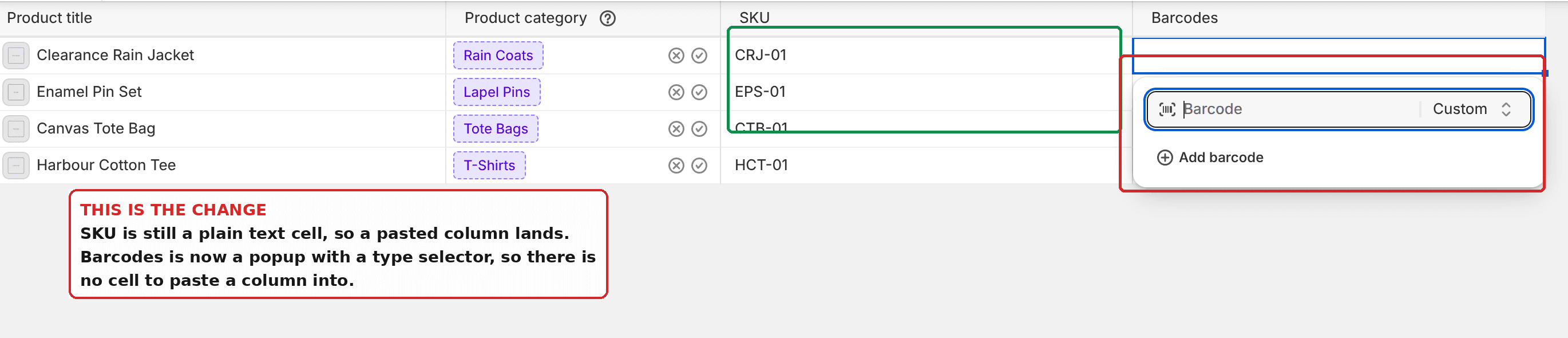 In the Shopify bulk editor the SKU column is a text cell while the Barcodes column opens a popup
That is the whole explanation. A paste needs somewhere to land. A popup that holds one barcode at a time, with a type attached to it, is not somewhere a column of 400 values can land.
The reason for the change is that a variant can now hold more than one barcode, up to twenty, each with its own type. That is genuinely useful if you sell an item that carries both a UPC and an EAN. It also means the field could not stay a single text box.
So the bulk editor is still excellent for SKU, price, quantity and the rest. For barcodes in bulk, you need the CSV.
The CSV can update, not just create
This is the part that surprises people.
Most merchants meet the product CSV once, when they move a catalogue in from somewhere else, and file it mentally under "import new products". So when they need to change something on products they already have, they do not think of it.
Shopify says otherwise, in the export dialog itself:
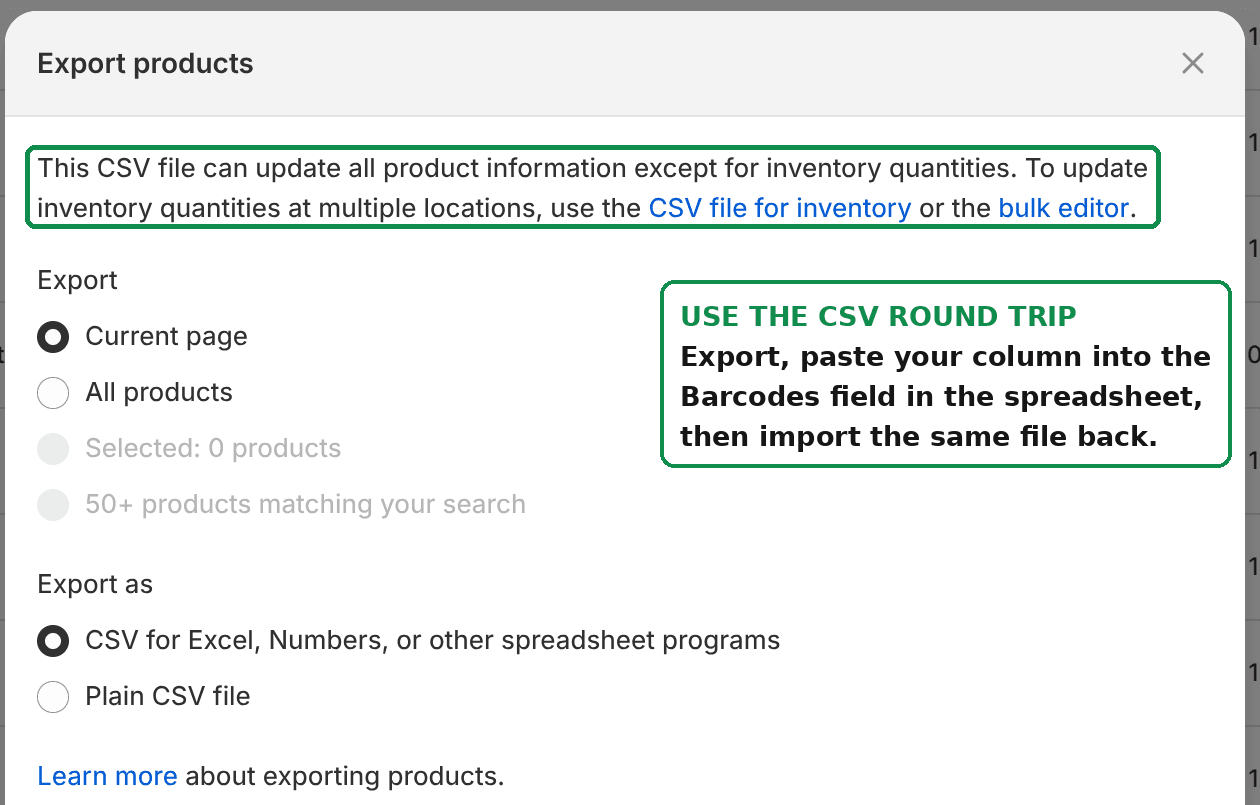 The Shopify product export dialog explaining that the CSV can update product information
"This CSV file can update all product information except for inventory quantities."
That single sentence is the feature. Export what you have, change a column in a spreadsheet, import the same file back, and Shopify writes your changes onto the existing products.
How to update products with a CSV
Here is the round trip, in the order that avoids trouble.
- Go to Products and click Export.
- Choose All products, and CSV for Excel, Numbers, or other spreadsheet programs. Pick the plain CSV option only if you are feeding it to another program.
- Open the exported file in your spreadsheet.
- Find the column you want to change and paste your values into it. For this job, that is the Barcodes column.
- Save the file as CSV. Do not change the header row and do not reorder the columns.
- Back in Products, click Import, choose Upload a Shopify-formatted CSV file, and pick your file.
- Tick Overwrite products with matching handles.
- Upload and preview, then confirm.
Step 7 is the one that matters, and it is covered next.
The checkbox that decides everything
Overwrite products with matching handles is the difference between an import that works and an import that does nothing, and says nothing.
Shopify's documentation is explicit about both directions.
With it ticked: "when the handle in the import CSV file matches an existing handle in your products list, the values in the CSV file overwrite the values in the matching columns in the existing product list."
With it unticked: "the products that match an existing handle are ignored during CSV import."
Read that second one again, because it explains the most common complaint about product CSVs. The import reports success. Nothing changed. The file was fine. The box was not ticked, so every row that matched an existing product was skipped.
Products already in your store whose handles are not in the file are left alone either way. An import is not a replacement of your catalogue.
Why you should export first, not build the file by hand
It is tempting to open a blank spreadsheet, type three column headers, and import that. Resist it.
Column names change. The barcode column is a live example: it used to be a single per-variant field, and now it holds a list of barcodes with types. If you hand-build a file using a column name you remember from a tutorial, the import will either reject the file or ignore that column.
Exporting first gives you the exact headers your store expects today, in the exact order, with your real handles already filled in. You are then only pasting values into a file that is already correct.
It also protects the handle. The handle is what Shopify matches on, and it is easy to mangle by hand.
What a product CSV cannot change
Two limits worth knowing before you plan a big update.
Inventory quantities. The export dialog says it plainly: the product CSV updates everything except inventory quantities. For stock levels at multiple locations there is a separate inventory CSV, reached from the Inventory page, or the bulk editor.
File size. "Your product CSV can't exceed 15 MB." A large catalogue with many variants will pass that, and the fix is simply to split the file and import the parts one after another.
Does importing a CSV delete products?
No. Importing only touches products whose handles appear in the file.
Anything else in your store is untouched. There is no "sync" behaviour where products missing from the file are removed, which is what people usually fear when they hear the word overwrite.
What overwrite means here is narrower than it sounds: for the rows in your file, the values in your columns replace the values on the matching products.
Can I still paste into the bulk editor at all?
Yes, for the columns that are still plain cells. SKU is one of them, which is why the merchant noticed the difference so sharply: the same paste, two columns apart, behaves differently.
If you are entering barcodes by scanner rather than from a spreadsheet, the bulk editor is still workable, and we covered the keyboard loop for that in Shopify Barcode Generator. That approach suits receiving stock. It does not help when the values already exist in a worksheet, which is when the CSV wins.
For everything else about the bulk editor, see How to Bulk Edit Product Variants in Shopify.
If the import did not work
Run through these in order.
Nothing changed at all. The overwrite checkbox was not ticked. This is the cause most of the time.
Some products updated, others did not. The handles did not match. Handles are case sensitive and must be exact. Compare a failed row against the export.
The file was rejected. Either it is over 15 MB, or the header row was edited. Re-export and start again rather than repairing it.
A column was ignored. The header name does not match what Shopify expects. Again, this is what exporting first prevents.
You get a results email listing errors. Read it. Shopify names the row and the reason, which is faster than guessing.
Handle, SKU and barcode are three different things
These get mixed up constantly, and mixing them up is what breaks imports.
The handle is the product's URL slug, like harbour-cotton-tee. It is Shopify's identifier for matching during an import. It is not visible to customers as a label and it is not a stock code.
The SKU is your own internal stock code. Shopify never requires it, never validates it, and does not use it to match rows during a product import.
The barcode is the number under the printed bars, usually a UPC or an EAN issued to you. Shopify stores it as text and does not check whether it is a real registered number.
So: match on handle, keep the SKU for yourself, and put the barcode in the barcode column.
Tested on
Shopify admin, September 2026, on a development store. The bulk editor was opened with the SKU and Barcodes columns visible to confirm that SKU renders as a text input while Barcodes renders as a popup dialog. The export dialog wording was read from the admin. The overwrite and file size behaviour is quoted from Shopify's own documentation, linked above.
Spending too long on manual Shopify busywork?
PinFlow turns your Shopify catalog into Pinterest pins and posts them on a schedule, automatically. Same idea as the rule above, let the system handle the repetitive part.
Get PinFlow on the Shopify App StoreMore Shopify fixes
More community-sourced Shopify guides, tested on a live store.
Shopify Admin
Shopify New Admin (2026): Where Search, Sidekick and Settings Went
Shopify's new admin moved search, alerts, the store switcher and Settings into the black sidebar, and Sidekick to a bar at the bottom. Where each one is now.
Shopify Admin
How to Use the New Shopify Admin (2026): Every Main Screen
A tour of the new Shopify admin: the black sidebar, search and Ctrl K, Home, Orders, Products, Settings and Sidekick, with where to click on each screen.
Shopify Admin
Schedule a Black Friday Sale in Shopify (Auto Start and End)
Give the discount its own start and end date and put the sale banner in an Event rollout with the same dates. Both start at midnight and end after Cyber Monday.