
Pinterest Pin Description Character Limit: What Actually Fits
The Pinterest pin description character limit is 500, and the title limit is 100. Mobile cuts both sooner. Here is what fits and how to make AI respect it.
Updated September 8, 2026 · 7 min read
Watch the walkthrough
Seven minutes on the whole problem: what the limits are, the two habits that make a description read as machine written, and the one prompt box in PinFlow that controls every word.
What the character limits actually are
A Pinterest pin title holds up to 100 characters and a description up to 500. Those are the ceilings, and they are not the numbers to aim for.
The pin below uses most of both. On a desktop it looks fine. On a phone the title is cut with an ellipsis long before 100 characters, so the half you wrote for the shopper never gets read.
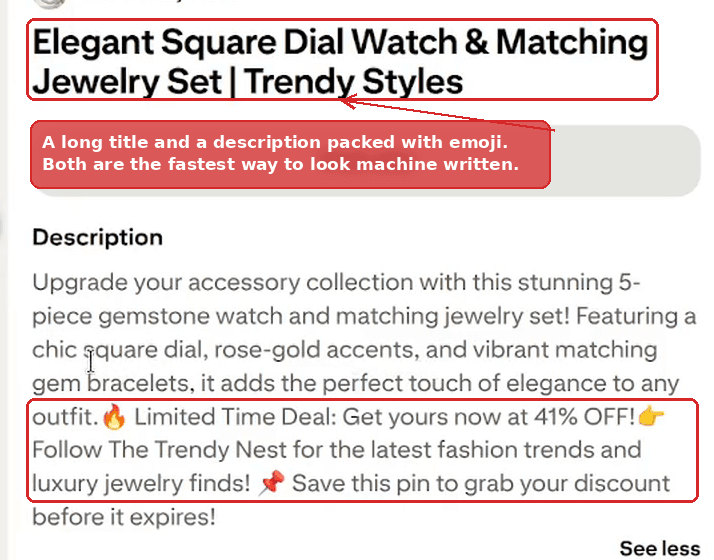 A live Pinterest pin with a long title and a description ending in fire, pointing hand and pin emoji
Look at the tail of that description. Three emoji and a discount shout in the last two lines. That, plus em dashes, is what makes a description read as machine written. Most people cannot type an em dash on a keyboard, so a stray one is a strong signal that ChatGPT wrote the sentence. PinFlow replaces em dashes with a colon in the title, the description and the overlay text before you ever see them.
Emoji are not automatically wrong. Some audiences respond to them. The problem is density, and a wall of them at the end of every description.
The words on the picture are a separate field
The text baked into the image is not the description. It is its own field, and it is the one people actually read, because a pin is looked at before it is read.
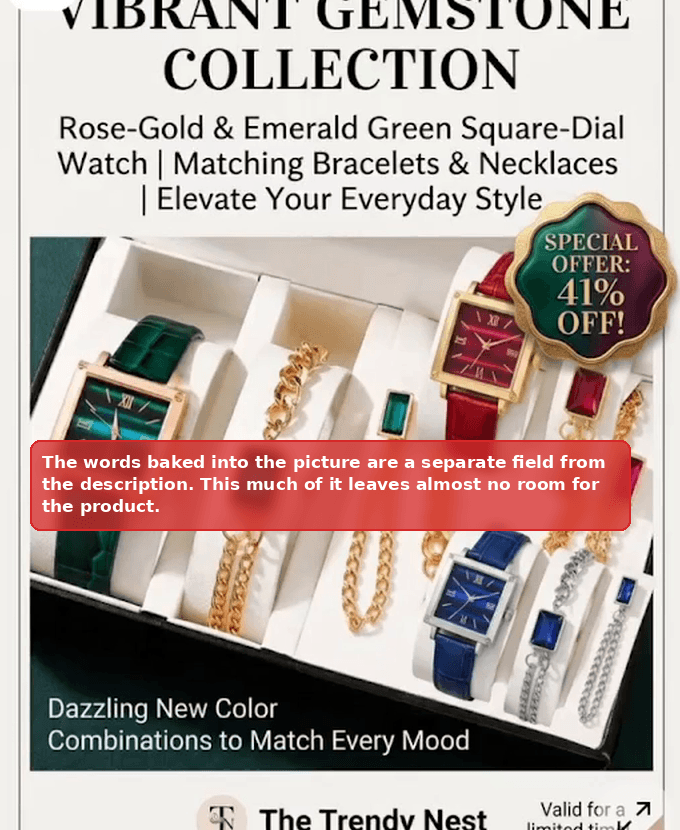 A Pinterest pin whose image carries four lines of headline text above the product photo
Four lines of headline on the picture leaves very little room for the thing you are selling. Three to five words is the working range.
Where the writing gets controlled
Everything above is set in one place: the AI Generation panel on the Pin Studio page.
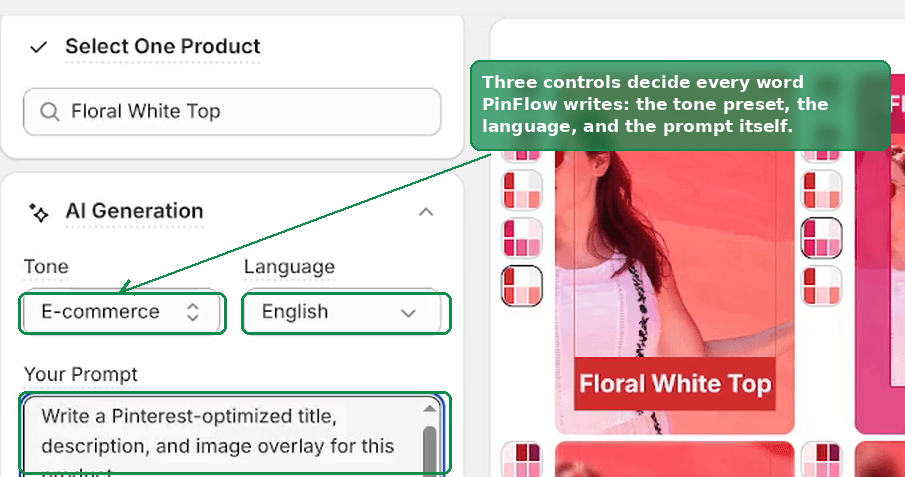 The AI Generation panel in Pin Studio, with the Tone select, the Language select and the prompt box outlined
Three controls, and that is the whole surface: a tone preset, a language, and the prompt itself. Whatever you type in the prompt box becomes the rules the model writes under.
Two buttons sit under it. Test Prompt regenerates the pins in front of you so you can see the effect immediately. Reset puts the preset back, which is the one to reach for after you have edited a prompt into a mess.
Five presets, and which one to pick
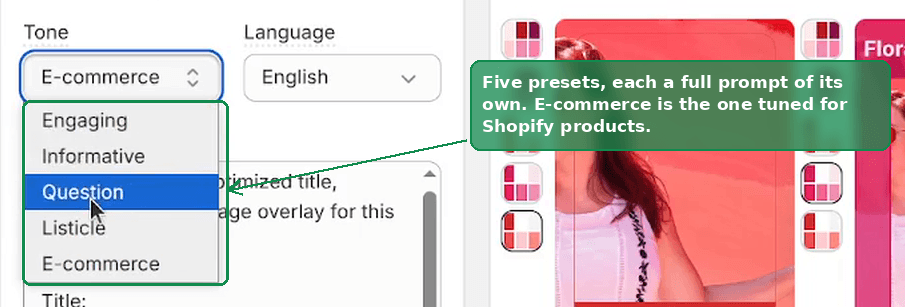 The Tone dropdown open, showing Engaging, Informative, Question, Listicle and E-commerce
Each preset is a full prompt, not a label. E-commerce is the one to use on a Shopify store, and it is the most heavily tuned:
- Title under 50 characters, so nothing truncates on a phone
- Product type plus one strong descriptor, rather than a sentence
- Two or three sentences in the description, covering a benefit and what makes the product different
- Social proof and a call to action
- Three to five hashtags at the end
- A three to five word punchy overlay for the image
Question opens with a question, Listicle counts items, Informative stays plain and professional, Engaging is warm and conversational. They are worth trying, but on a product catalogue E-commerce is the one that keeps titles short.
The four pieces of text on every pin
Open any pin and you get four generated fields.
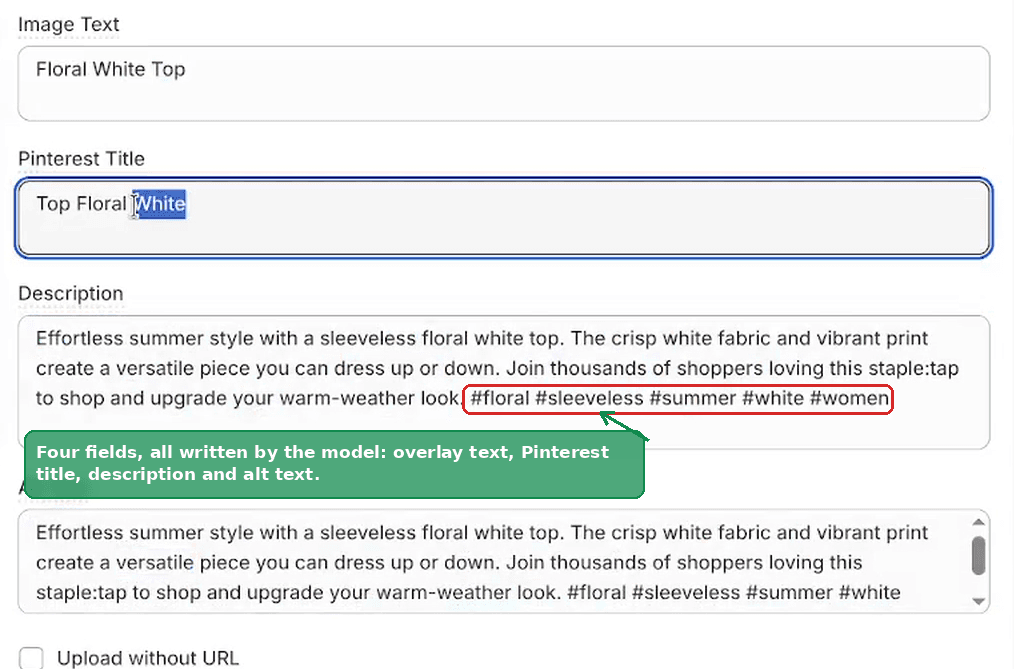 The Pin Details panel showing Image Text, Pinterest Title, Description and Alt Text, with the hashtags at the end of the description outlined
- Image Text is the overlay burned into the picture
- Pinterest Title is the headline under the pin
- Description is the part Pinterest reads for search
- Alt Text describes the image, and by default it repeats the description, because a description written for search already reads well as alt text
All four are editable. Type over any of them and the preview updates as you change it, so you can fix a word without regenerating the pin. The outbound URL and the board sit under them; the board is matched to the product for you.
Turning hashtags off
The hashtags outlined above come from one line of the prompt. Delete that line, or replace it with an instruction not to use them, and they stop.
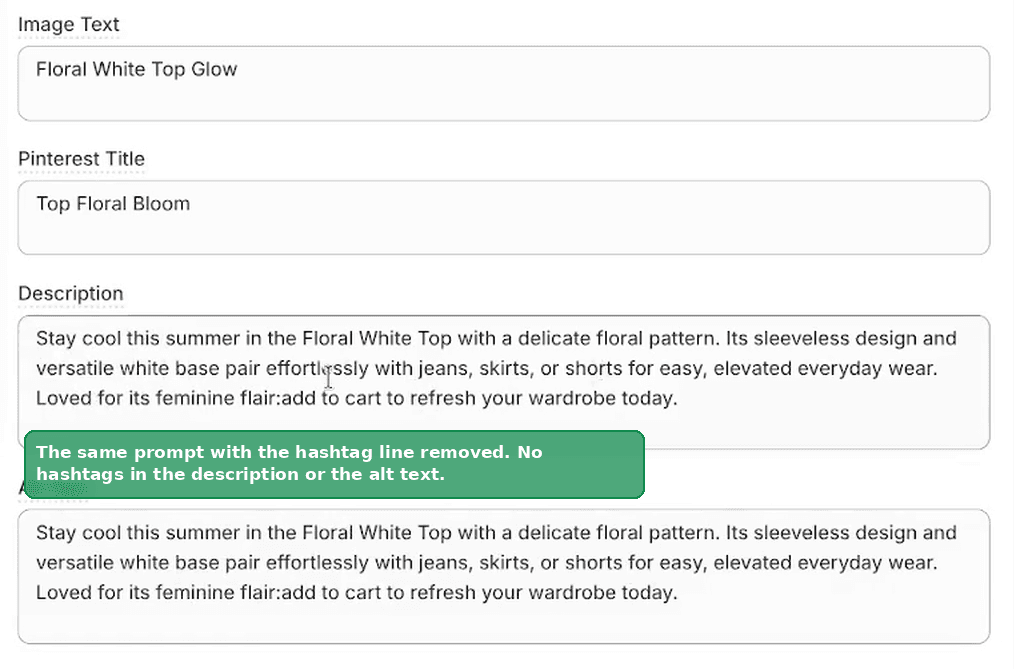 The same Pin Details panel with no hashtags anywhere in the description or the alt text
Writing do not include hashtags is enough. So is include only one hashtag. The
prompt is read as instructions, not matched as keywords, so plain English works.
The same trick applies to anything else in the preset. If you do not want a call to action, say so.
Changing the words on the picture
The overlay length is a line in the prompt too.
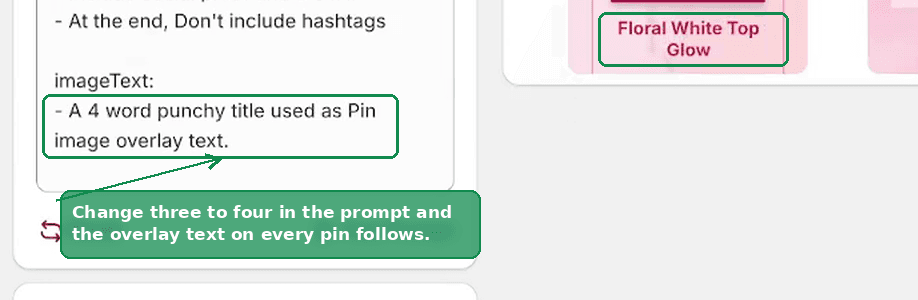 The prompt asking for a four word punchy title, and a pin whose overlay reads Floral White Top Glow
Change three to four, hit Test Prompt, and every pin in the preview comes back with a four word overlay. That is the fastest way to see whether your product names fit the space before you commit to a batch.
Writing in 40 languages
PinFlow generates in 40 languages. If your store sells through Shopify Markets in a language other than English, set it here and every field follows.
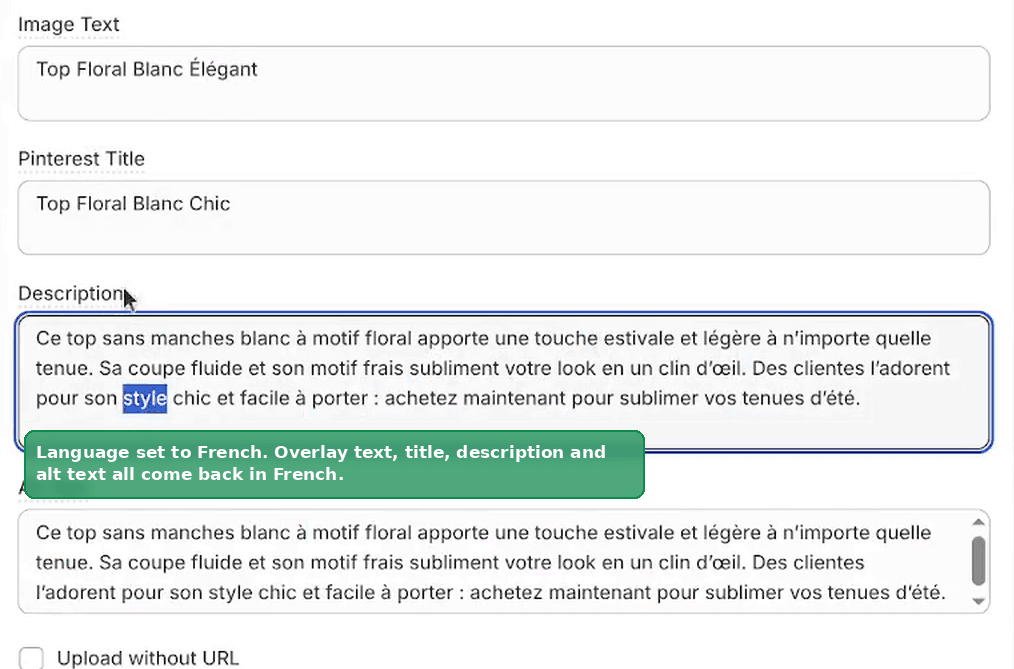 The Pin Details panel with the image text, title, description and alt text all in French
That is the same product as the earlier screenshots, with the language set to French. The overlay on the picture, the title, the description and the alt text all come back in French together. There is nothing to translate afterwards.
Once the prompt and the language are right, hit Save. Every pin generated from then on uses these settings, including the ones the scheduler creates on its own.
Numbers worth writing down
- Title: aim for under 50 characters, not the 100 Pinterest allows. Anything longer is at risk of being cut on a phone.
- Description: two or three sentences. You have 500 characters. Using all of them is not a goal.
- Overlay text: three to five words. The picture is the point.
- Hashtags: three to five, or none. Both are defensible. What reads badly is ten.
- No em dashes. PinFlow removes them; if you write your own copy, do the same.
Related
Not using PinFlow yet?
PinFlow turns your Shopify catalog into Pinterest pins and posts them on a schedule, automatically. Install it and follow this guide to get your first month of pins live.
Get PinFlow on the Shopify App StoreRelated articles
Pin Studio
Upload Your Own Pin Image Instead of a Template
PinFlow used to stamp its own frame, text and graphics on every pin. Two new options skip that: a frameless template, and your own Canva uploads.
Pin Studio
Pin Studio: Design Your Pinterest Pins
Pick the templates, colours, fonts and AI wording that every generated pin inherits, and build a single pin by hand when you want one.
Scheduling & Autopilot
How to Post on Pinterest Without Getting Banned
Pinterest wants a pin every day, but a 50 product store runs dry in weeks. Here is what Pinterest flags when you repeat, and how to repeat safely.