
How Often to Post on Pinterest: Setting Your Schedule
How many pins a day, in which time zone, between which hours, and how much randomness so your account never posts on a robotic timetable.
Updated September 6, 2026 · 7 min read
Watch the walkthrough
Under four minutes on every setting on this page, with the preview updating live as each one changes.
What this page decides
The Scheduling page decides when your approved pins go out: how many a day, in whose time zone, between which hours, and how much natural variation sits on top of all of it.
The panel on the right is a live preview of the resulting schedule. Change any setting on the left and the dates and times on the right rewrite themselves immediately, so you can see the effect before you save.
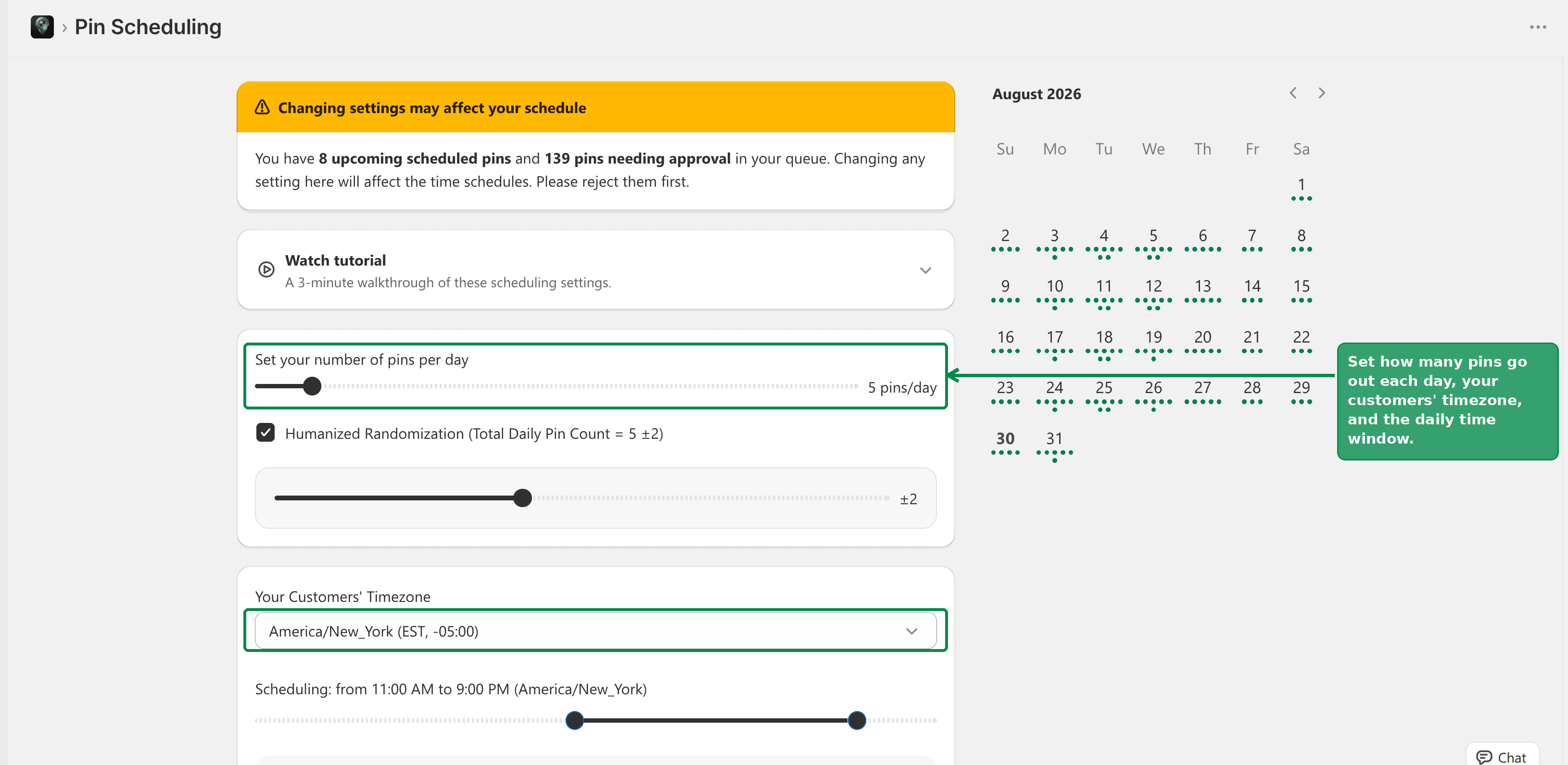 The PinFlow scheduling page with the settings on the left and the live time slot preview on the right
Warning
Change these settings before you approve pins, not after. Pins already sitting in your queue were given times under the old settings, and changing the rules disturbs them. If you have pins waiting, PinFlow warns you at the top of the page with a count. Reject those first, change the settings, then generate again.
Pins per day
The slider at the top sets your base number of pins a day. Raise it and the preview immediately shows more pins on each date. Lower it and the days thin out.
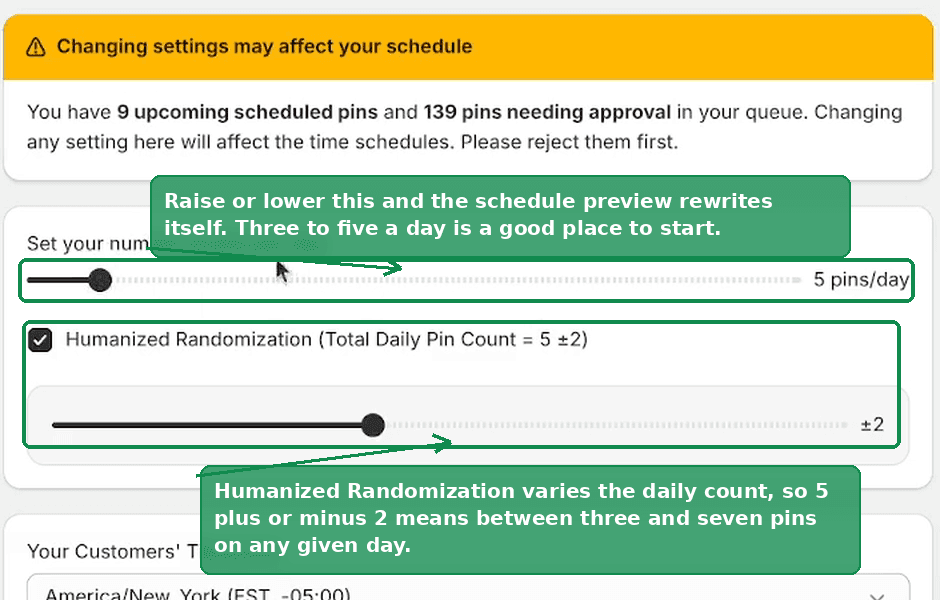 The warning banner about pins already in the queue, the pins per day slider, and the Humanized Randomization control
Three to five a day is a sensible place to start. It is enough to look active, it makes your queue last much longer, and it is a realistic amount to actually review. You can always turn it up once you can see which pins earn clicks.
Note
The slider goes up to 50 pins a day. If you need more than that, ask us in chat or at [email protected] and we will raise it for your store.
Vary the daily count
Underneath is Humanized Randomization, which varies how many pins go out each day rather than posting the same number every single day.
At five pins a day with a variation of plus or minus 2, you get somewhere between three and seven pins on any given day. Some days four, some days six. Over a week it averages out to what you asked for, but no two days look identical.
Real accounts do not post exactly five things every day forever. This is what stops yours from looking like it does.
The default of plus or minus 2 is a good setting for most stores. Leave it.
Your customers' time zone
Your Customers' Timezone is the time zone every slot on this page is expressed in.
Set it to where your customers are, not where you are. A store selling to the US that schedules in Indian time will post at the wrong end of the day for everyone who might buy. If most of your traffic is American, America/New_York is a reasonable default.
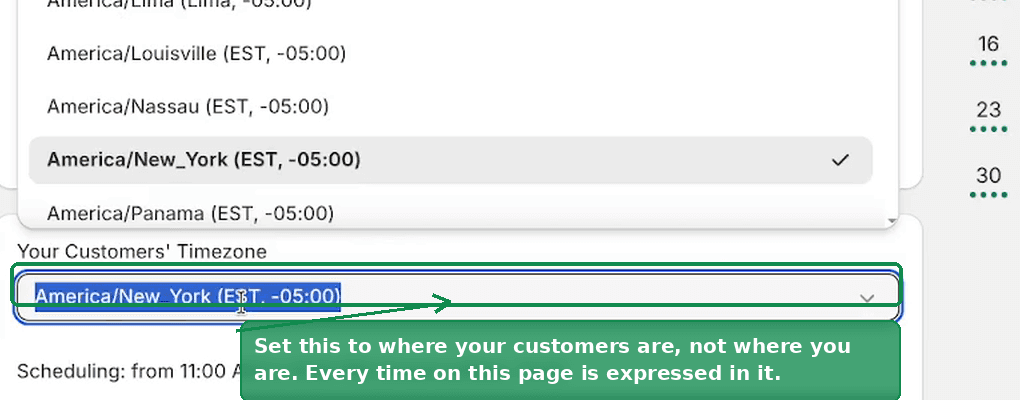 The Your Customers' Timezone picker with the time zone list open
This one catches people out, so check it carefully. Every time shown on this page and in your calendar is in the zone you pick here.
The posting window
Scheduling: from ... to ... sets the earliest and latest a pin can go out. Every slot lands somewhere between the two.
Set it to, say, 5:30 AM and 8:30 PM and no pin will ever be scheduled outside that range. The range is in your customers' time zone, so it means the hours your customers are awake, not yours.
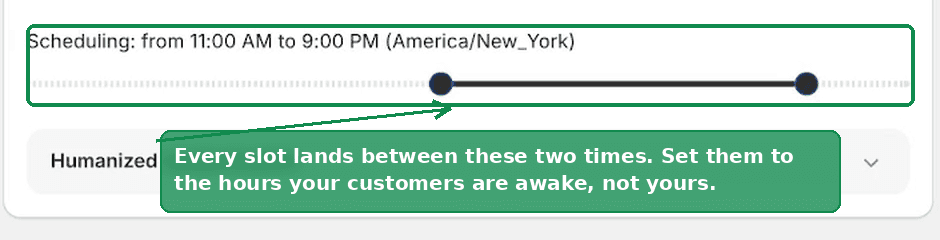 The scheduling window slider, showing the earliest and latest a pin can post
Humanized randomization on the times
Fixed times are the clearest signal that an account is automated. Something posting at exactly 8:00 AM, 12:00 PM and 6:00 PM every day for a month is obviously not a person.
Humanized randomization shifts the start and end of your window so the times move around. Instead of the same three times daily you get 6:58 AM one day, 7:30 AM the next, 8:00 AM after that.
Open the section to see the flex controls for the start and end of the window. The defaults add a sensible amount of drift.
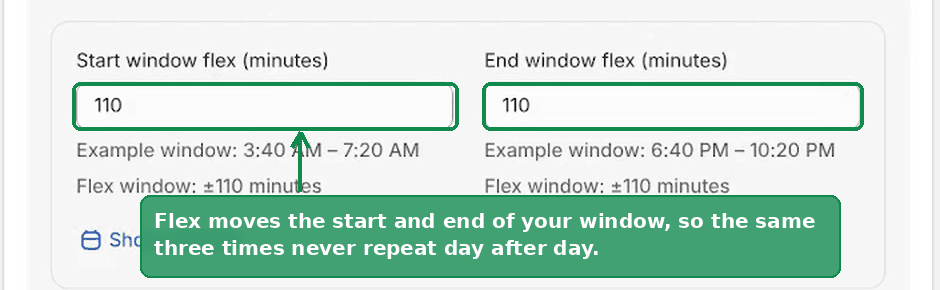 Start and end window flex in minutes, each showing the example window it produces
Floating minutes
Use floating minutes adds a small random offset to each individual slot, by default plus or minus 5 minutes. You can tune it between 0 and 15.
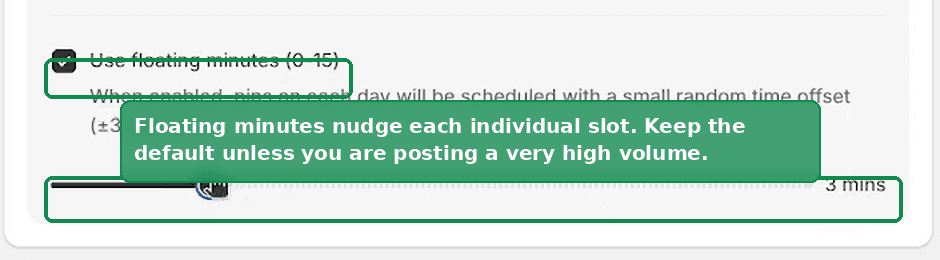 The Use floating minutes checkbox and the slider setting how many minutes of drift to add
This is the fine-grained version of the same idea. The window flex moves the whole day around, floating minutes nudges each pin within it.
We suggest keeping the defaults. If you are posting a high volume, 40 to 70 pins a day, increasing the randomization helps keep the times from clustering, because there are far more pins competing for the same window.
Save, then generate
None of this affects anything until you save. Shopify's save bar appears at the top of the screen as soon as your settings differ from what is stored, with Save and Discard.
Save first, then generate your pins so the new schedule is the one they are built against. Generation happens in Settings, on the Status tab: Generate until <date> now builds the whole batch in one run.
Related
- The Content Calendar for approving the pins these slots get filled with.
- The Settings Page for generating a batch of pins and for Autopilot.
- Pin Studio: Design Your Pinterest Pins for what the pins look like.
Not using PinFlow yet?
PinFlow turns your Shopify catalog into Pinterest pins and posts them on a schedule, automatically. Install it and follow this guide to get your first month of pins live.
Get PinFlow on the Shopify App StoreRelated articles
Scheduling & Autopilot
How to Post on Pinterest Without Getting Banned
Pinterest wants a pin every day, but a 50 product store runs dry in weeks. Here is what Pinterest flags when you repeat, and how to repeat safely.
Pin Studio
Upload Your Own Pin Image Instead of a Template
PinFlow used to stamp its own frame, text and graphics on every pin. Two new options skip that: a frameless template, and your own Canva uploads.
Pin Studio
Pinterest Pin Description Character Limit: What Actually Fits
The Pinterest pin description character limit is 500, and the title limit is 100. Mobile cuts both sooner. Here is what fits and how to make AI respect it.