
The Barcodes Page: Missing Barcodes, Duplicates and Undo
See every variant with no barcode, find two variants that share one and replace it, and clear the barcodes your last run added.
By AjayCodeWiz · Updated October 30, 2026 · 5 min read
What the Barcodes page is for
Barcodes, under Ploqo Labels in your admin's left menu, lists the barcodes across your whole store. It shows which variants have no barcode, which barcodes sit on more than one variant, and what your last run changed. Home's Without a barcode and Duplicate barcodes figures open it too. The video above starts at this chapter.
The three views
At the top are three views, each with its count:
- No barcode: every variant with an empty Barcode field.
- Duplicates: barcodes that are on two or more variants.
- All: every variant in your store with its barcode, or "No barcode".
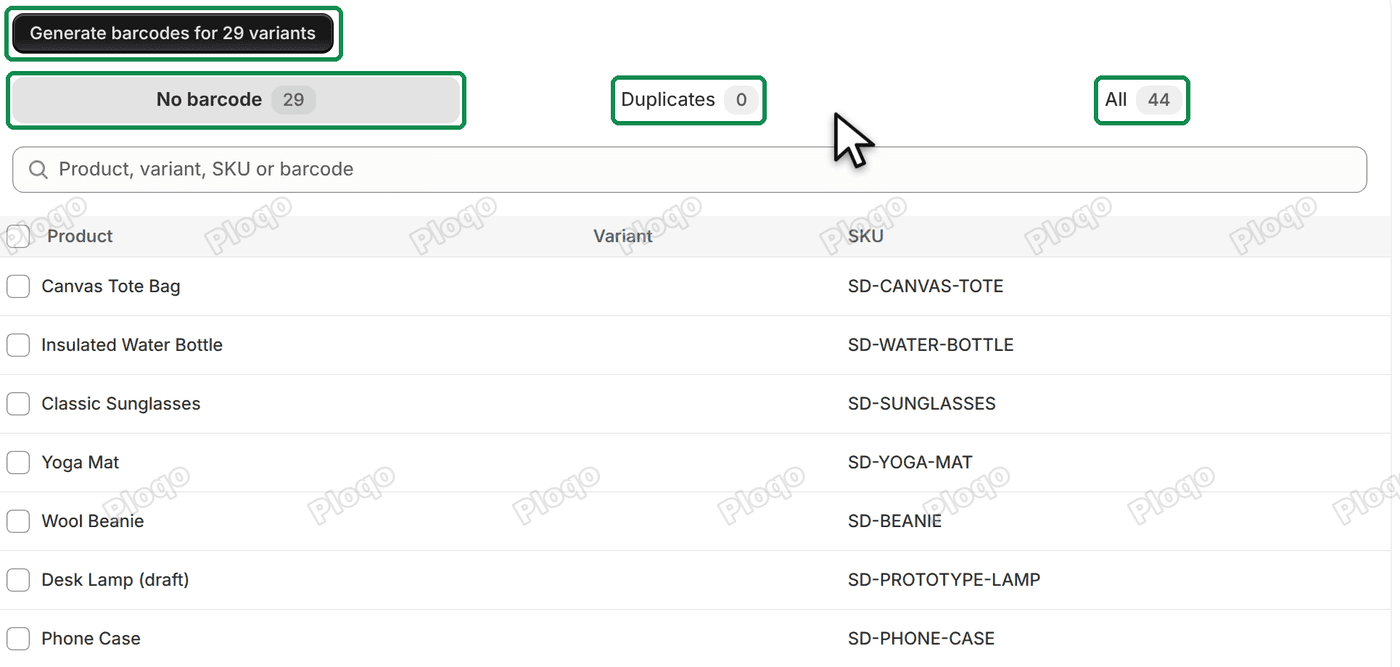 The Barcodes page on the No barcode view: the Generate barcodes for 29 variants button, the views No barcode 29, Duplicates 0 and All 44, the filter field and the list of variants
The Filter variants field narrows the list by product, variant, SKU or barcode. Type "hoodie", for example, to see only the hoodie variants. The filter stays when you switch views, so clear it to see the whole list again.
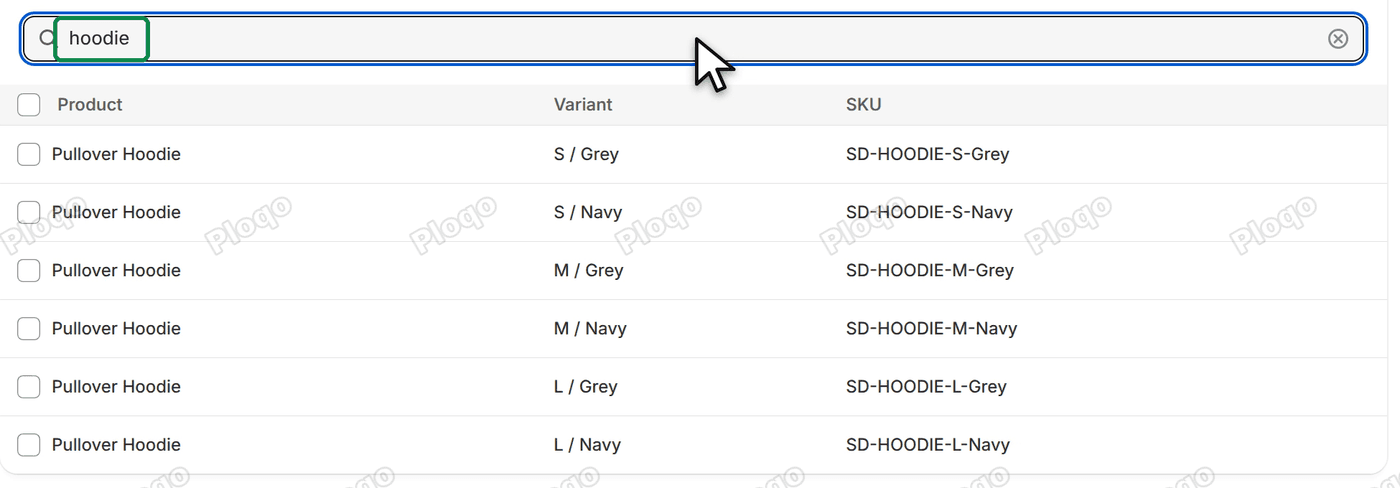 The No barcode view filtered by hoodie, listing six Pullover Hoodie variants
Fill the missing barcodes
On No barcode, Generate barcodes for 29 variants (with your count) gives every listed variant a new barcode, up to 3,000 at a time. To fill only some, tick their rows and click Generate barcodes for 6 selected in the bar that appears.
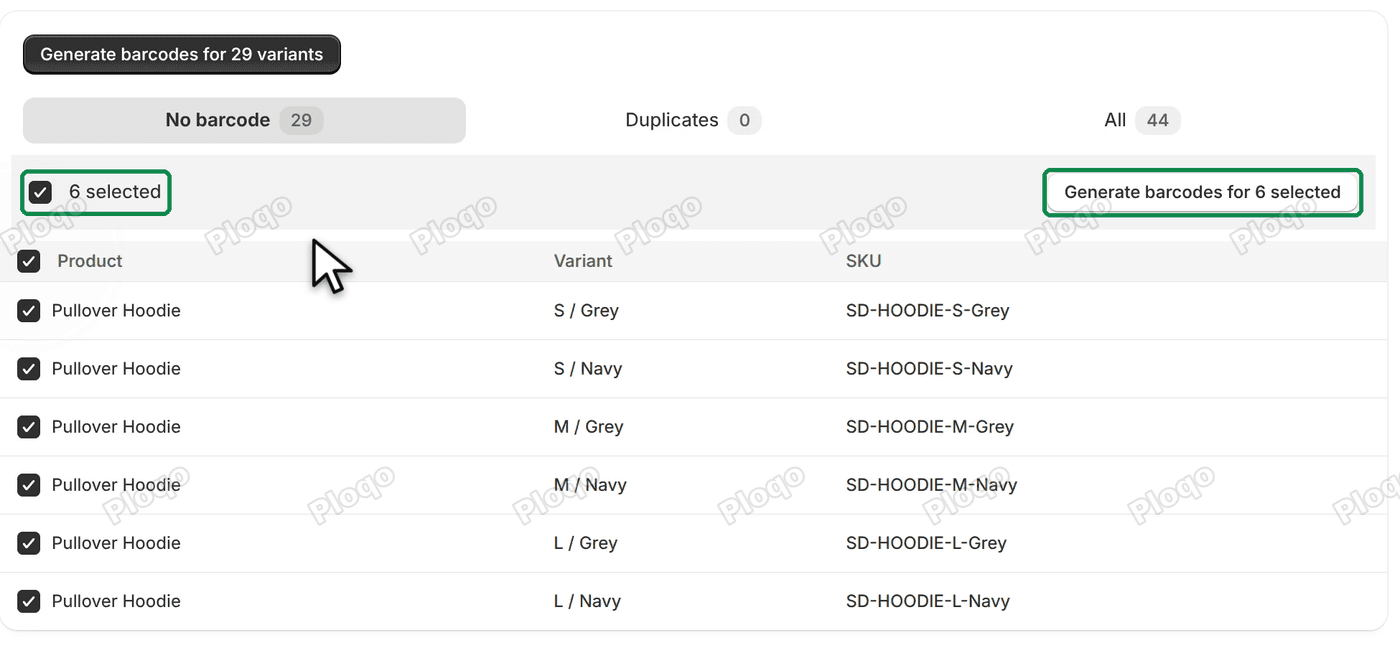 Six Pullover Hoodie rows ticked, with 6 selected and the Generate barcodes for 6 selected button
Both open the Generate box, where you choose the format. Generate barcodes explains each format and what happens during a run. When every variant has a barcode, the view says "Every variant has a barcode."
Fix a shared barcode
Two variants with the same barcode scan as one product, so a till or a stock count can pick the wrong one. It often happens after a CSV import or a copy and paste in the bulk editor. Home counts these under Duplicate barcodes.
The Duplicates view shows each shared barcode as a group, headed with how many variants have it, for example "On 2 variants". Each row has a Replace button.
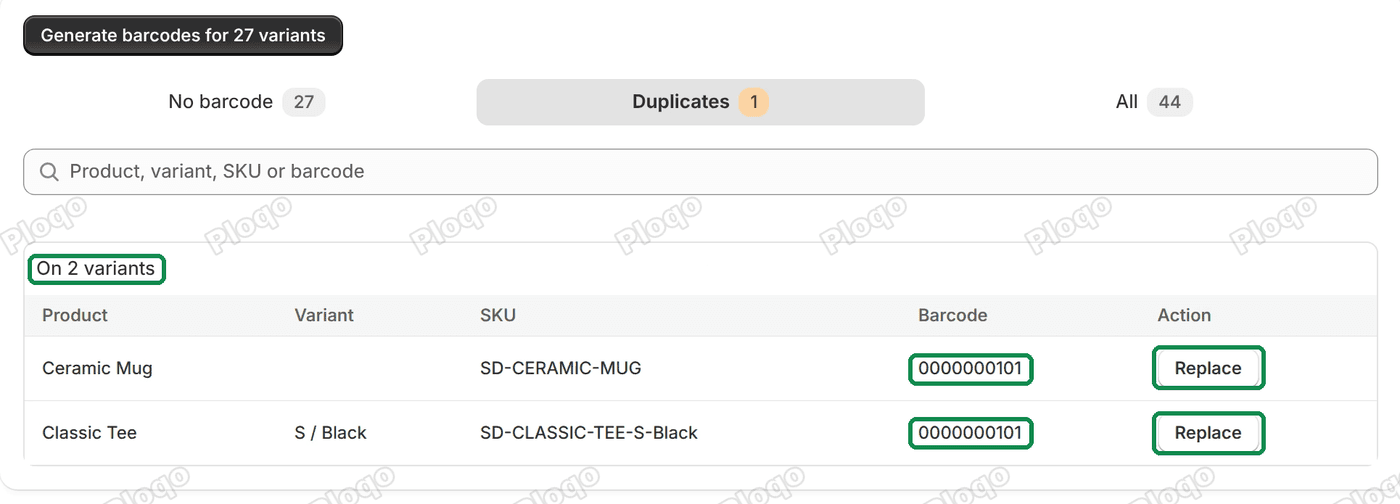 The Duplicates view: one group On 2 variants, a Ceramic Mug and a Classic Tee S / Black both with the barcode 0000000101, each with a Replace button
Click Replace on the variant that should get a new number. The box is headed Replace barcode and names the variant and its barcode, for example "Ceramic Mug (0000000101) gets a new barcode." Choose the format and prefix as for any run, then click Replace 1 barcode.
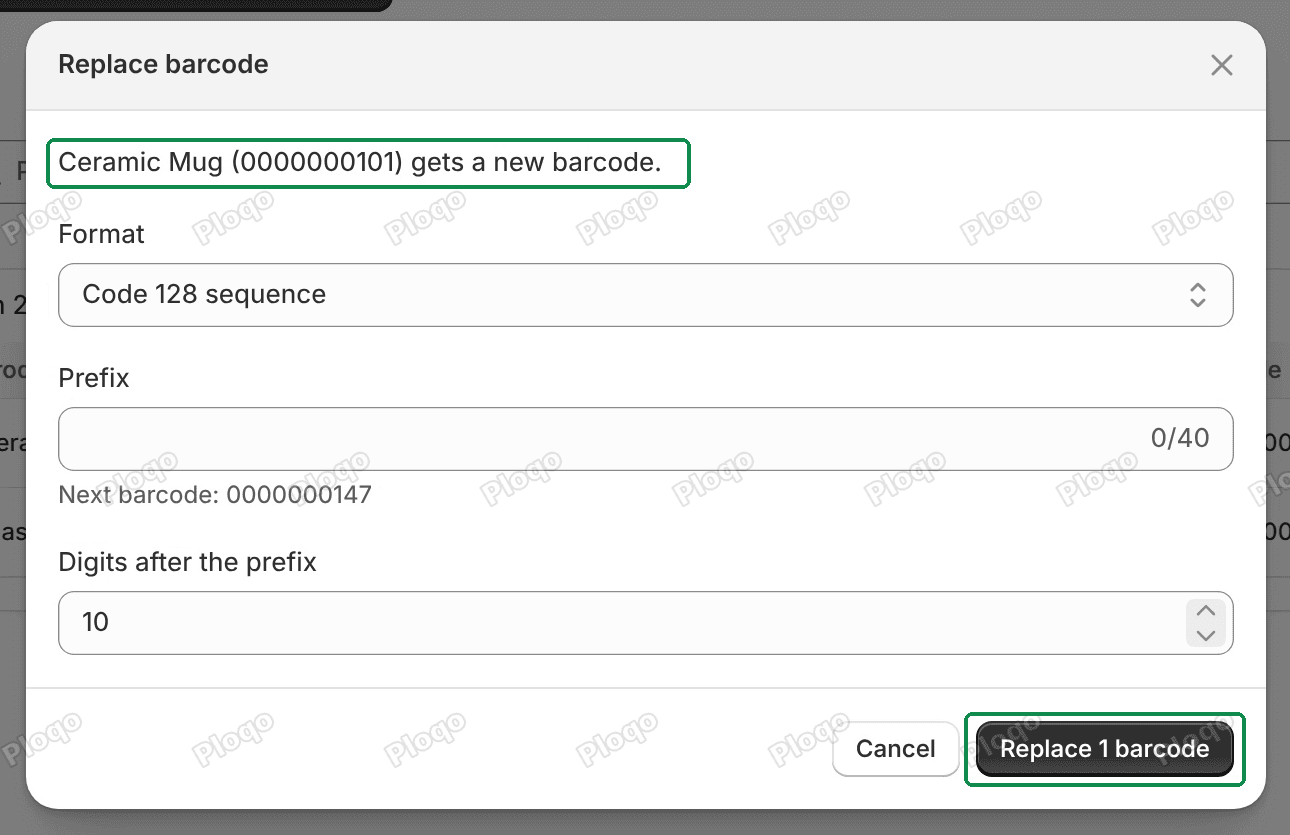 The Replace barcode box: Ceramic Mug (0000000101) gets a new barcode, the Format, Prefix and Digits after the prefix fields and the Replace 1 barcode button
The other variant keeps its barcode. When no barcode is shared any more, the view says "No two variants share a barcode." The line above the views now reads "Changed", with a button to undo the change.
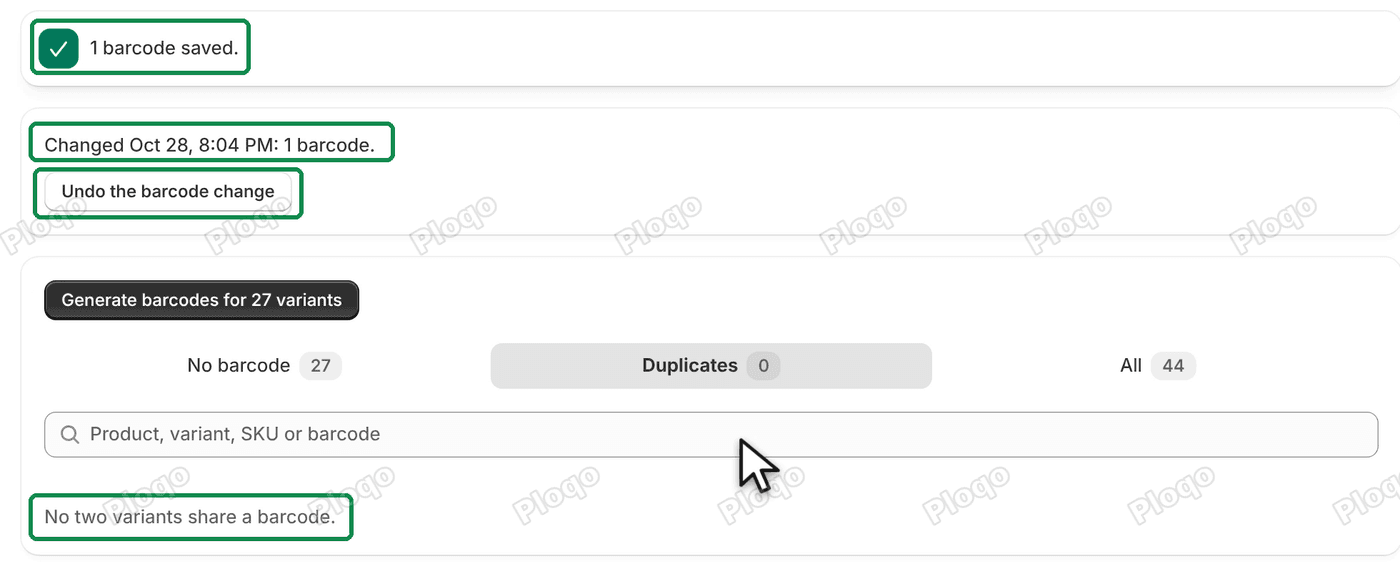 After Replace: 1 barcode saved., the line Changed Oct 28, 8:04 PM: 1 barcode. and the Undo the barcode change button
Before you replace, decide which variant keeps the number. If one of them has the barcode printed on its packaging, keep that one and replace the other.
Clear the last run
The page keeps a record of your last run, so you can take it back. Above the list, a line says when it ran and how many barcodes it added, for example "Added Oct 28, 7:57 PM: 6 barcodes.", with a button Clear the 6 new barcodes.
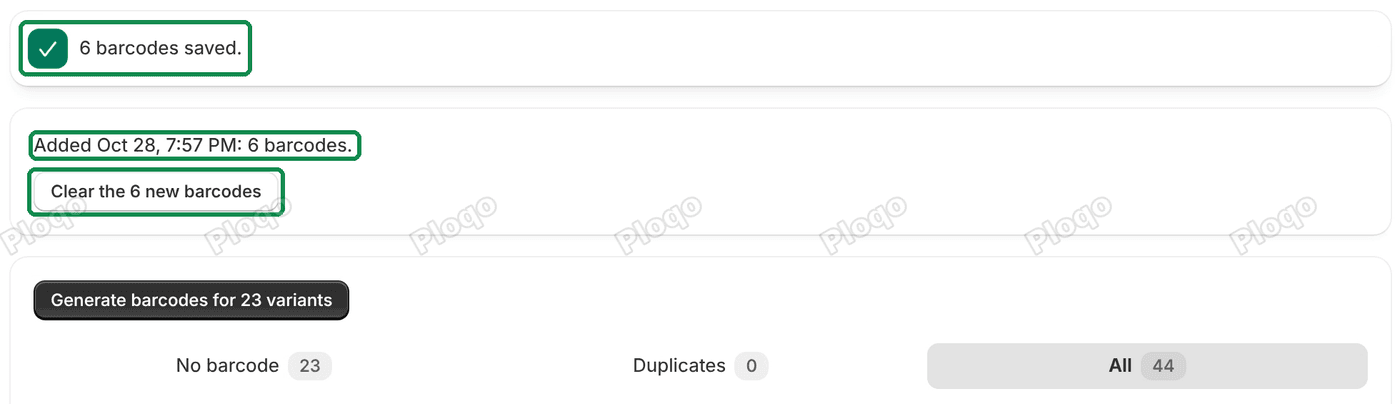 After a run: the banner 6 barcodes saved., the line Added Oct 28, 7:57 PM: 6 barcodes. and the Clear the 6 new barcodes button
Click it. The box lists every barcode the run added, all ticked: "Tick the barcodes to clear. The others stay, and you can clear them later."
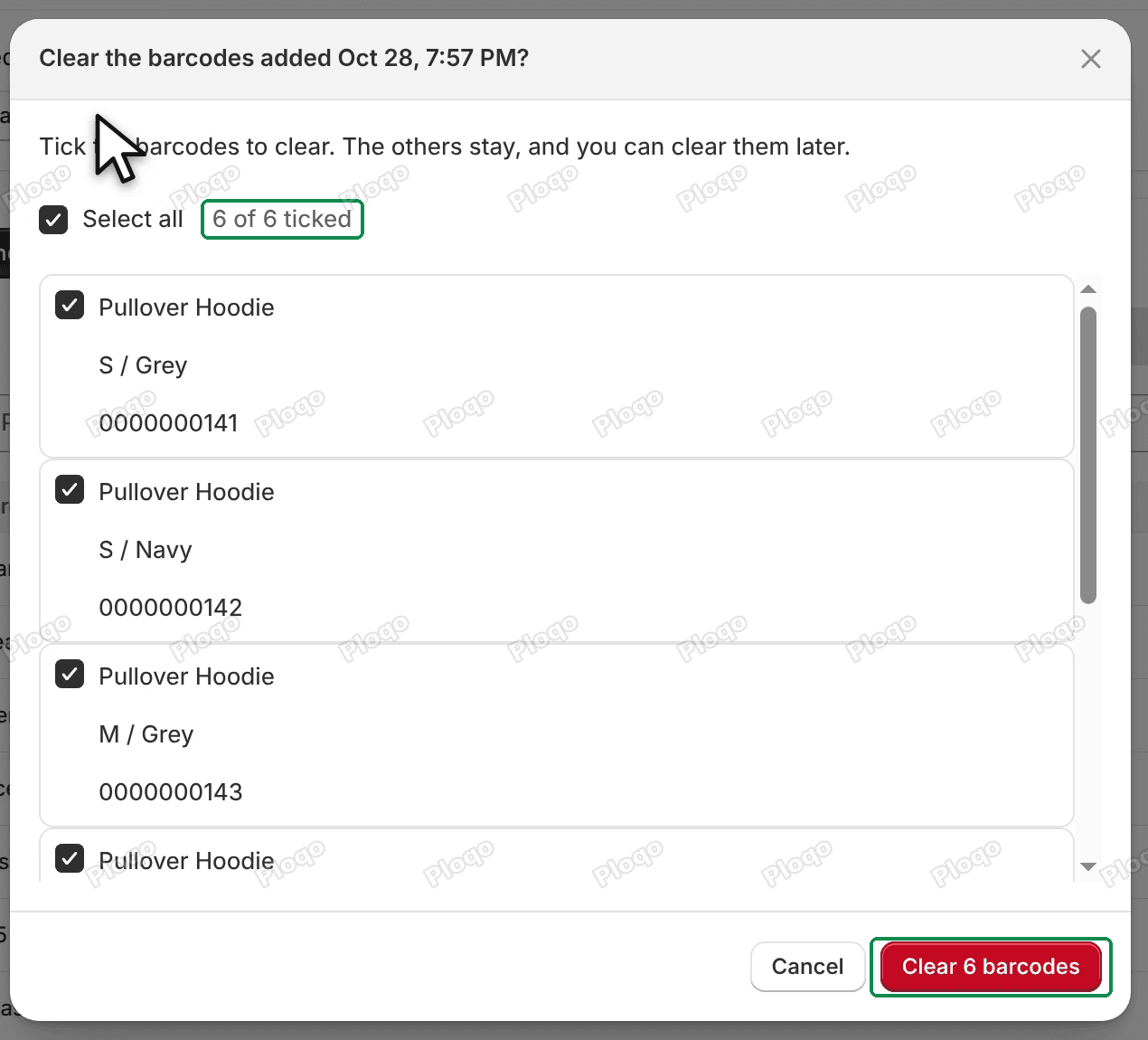 The Clear the barcodes added Oct 28, 7:57 PM? box with Select all, 6 of 6 ticked, one row per variant and the Clear 6 barcodes button
Untick any you want to keep, then click Clear 6 barcodes (with your count). Those variants are back to no barcode. The line then counts what is left, for example "Added Oct 28, 7:57 PM: 2 barcodes.", and you can clear those later.
 After clearing four: 4 barcodes cleared., the line Added Oct 28, 7:57 PM: 2 barcodes. and the Clear the 2 new barcodes button
When the last run replaced barcodes (with Replace or Replace their barcodes), the line starts with "Changed" and the button reads, for example, Undo the 3 barcode changes, which puts each variant's old barcode back.
A few things to know:
- Only the last run is kept. A new run replaces the record, so clear a run before you start the next one if you might want to take it back.
- The app leaves a barcode alone if you changed it since. If you edited a variant's barcode in Shopify after the run, its row is greyed out with "Changed since, left as it is."
- Barcodes you've printed stay printed. Clearing a barcode removes it from the variant, not from labels you already stuck on your stock.
If the page says something else
- "Shopify didn't answer. Try again." The app couldn't read your variants. Click Try again.
- "Other changes wait until this finishes." A run is still writing. Wait for its banner.
- "These barcodes changed in another tab. Reload to see them." You ran or cleared barcodes in another tab. Click Reload.
All Ploqo Labels guides·Shopify EU product identifiers, explained
More Ploqo Labels guides
Getting Started
Get Started with Ploqo Labels: Print Your First Labels
Open the app, add products to the Print page, choose how many labels each variant needs and print with a ready-made template. No template to make first.
Printing Labels
Label Templates and Sizes: Rolls, Sheets and Your Own Size
Customize a ready-made template, pick your roll or sheet size or your own, and choose what each line prints, how the price looks and what the barcode holds.
Printing Labels
Print Labels from Your Shopify Products List
Tick products in your Products list and choose Print labels from the Actions menu, or from More actions on a product's page. The Print page opens with them.
Barcodes
Generate Barcodes for Variants: Code 128, EAN-13 and UPC-A
Give variants with no barcode a new one: a Code 128 sequence, or EAN-13 or UPC-A from your GS1 prefix. Each is checked against every barcode in your store.