
Generate Barcodes for Variants: Code 128, EAN-13 and UPC-A
Give variants with no barcode a new one: a Code 128 sequence, or EAN-13 or UPC-A from your GS1 prefix. Each is checked against every barcode in your store.
By AjayCodeWiz · Updated October 30, 2026 · 6 min read
What Generate barcodes does
A variant with no barcode prints a label with no bars. Generate barcodes gives those variants a unique number in the format you choose and saves it in the variant's own Barcode field in Shopify. Your POS, your scanner and other apps read it there, and it stays if you remove the app. The video above starts at this chapter.
Where to start a run
You can open the Generate box from three places.
The Print page. When some rows have no barcode, a banner says so, for example "15 variants have no barcode, so their labels print with no bars." Its Generate barcodes button covers the variants on the page that have no barcode.
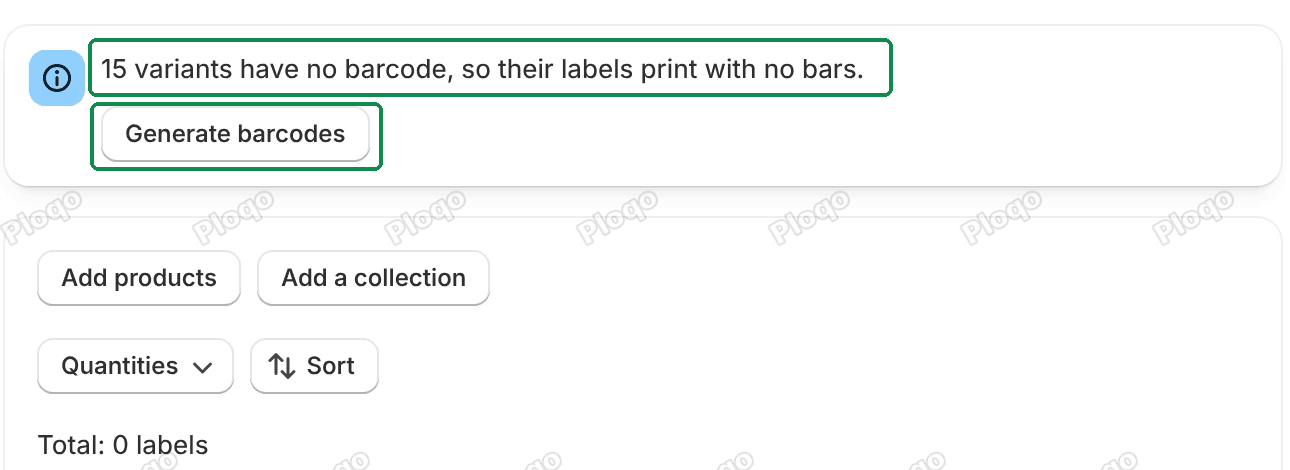 The Print page banner 15 variants have no barcode, so their labels print with no bars, with its Generate barcodes button
The Barcodes page, every variant. On the No barcode view, Generate barcodes for 29 variants (with your own count) covers every variant in your store with no barcode, up to 3,000 at a time.
 The Barcodes page with the Generate barcodes for 29 variants button above the No barcode, Duplicates and All views
The Barcodes page, some variants. Tick rows, and the bar above the list shows Generate barcodes for 6 selected (with your count).
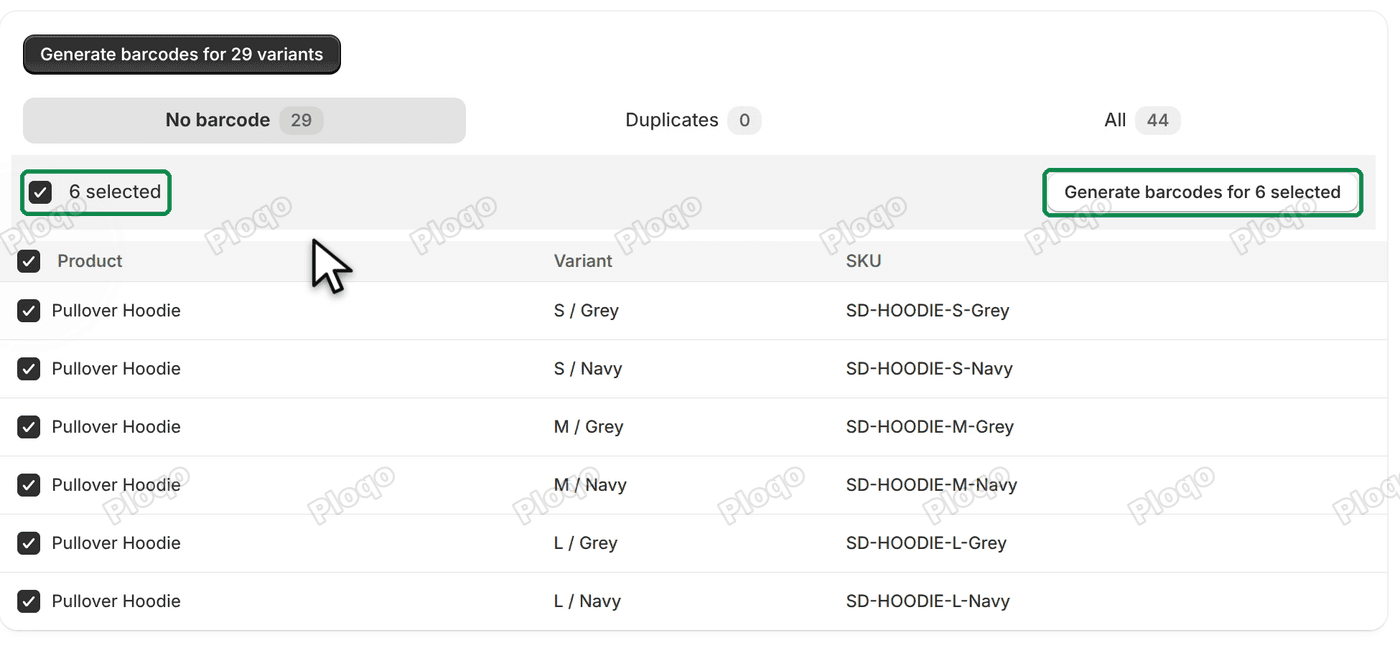 Six Pullover Hoodie rows ticked on the Barcodes page, with 6 selected and the Generate barcodes for 6 selected button
The Barcodes page guide covers its views and filter.
Choose a format
The box is headed Generate barcodes. Its Format list has four choices.
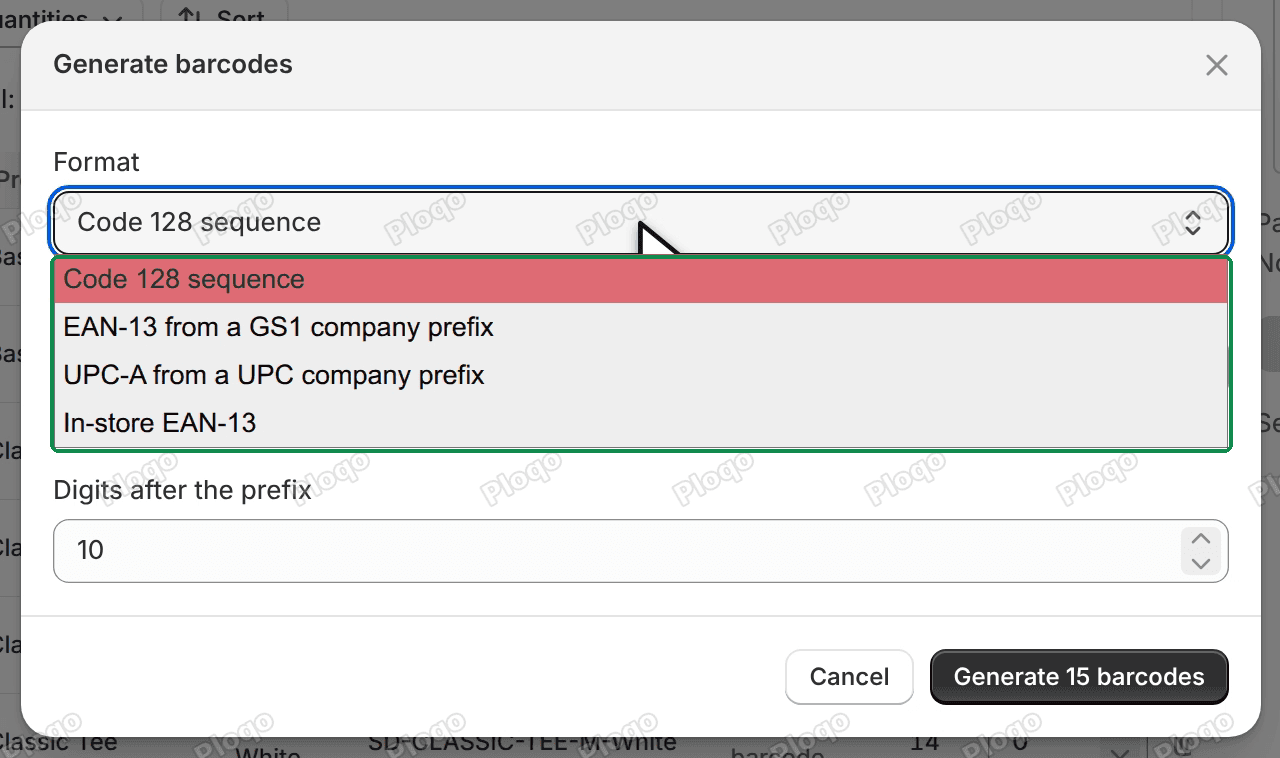 The Generate barcodes box with the Format list open: Code 128 sequence, EAN-13 from a GS1 company prefix, UPC-A from a UPC company prefix and In-store EAN-13
Code 128 sequence
The next numbers in a plain sequence, such as 0000000096, 0000000097 and so on. Barcode scanners read Code 128, and it needs no registration, so it suits barcodes you only scan in your own shop: stock counts, your own till, picking orders.
- Prefix: optional letters, digits or keyboard symbols in front of every number, such as your shop's initials. No space at either end.
- Digits after the prefix: how long the number part is, from 1 to 15. The default is 10, padded with zeros.
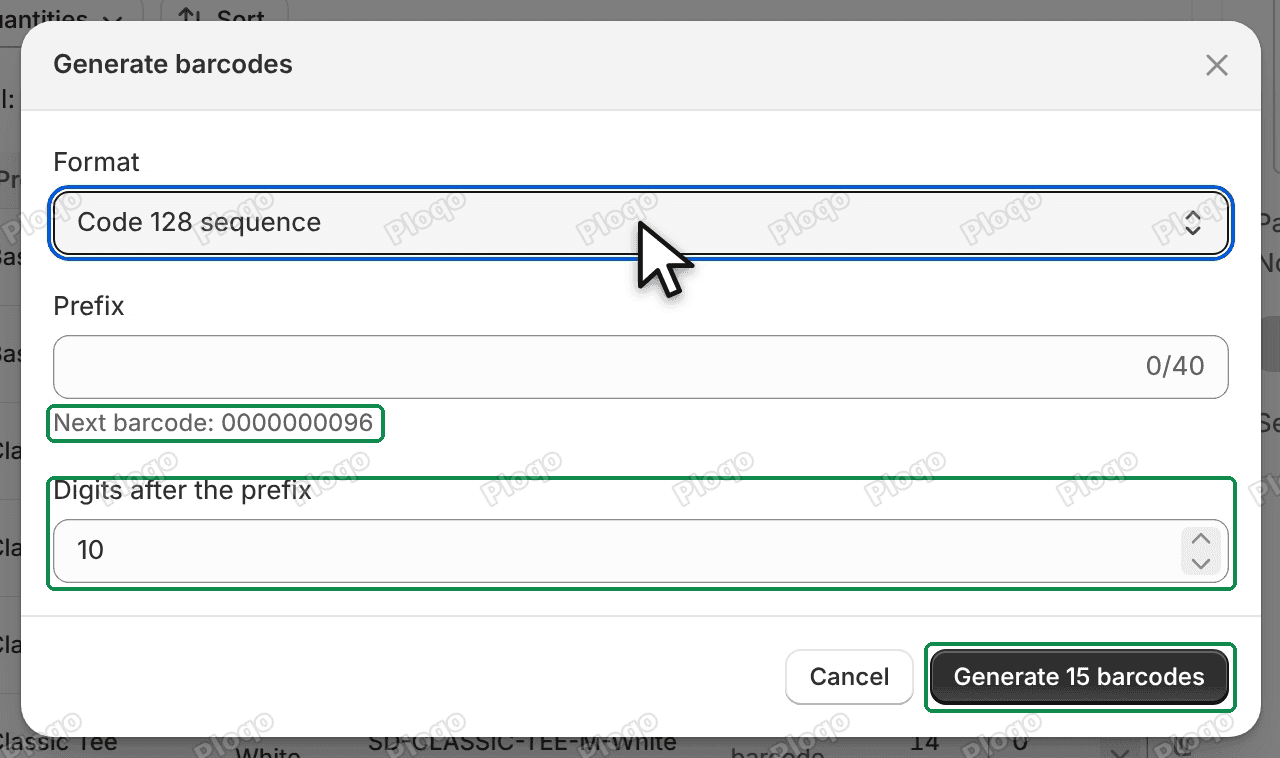 The Generate barcodes box with Format Code 128 sequence, an empty Prefix, Next barcode: 0000000096, Digits after the prefix 10 and the Generate 15 barcodes button
EAN-13 from a GS1 company prefix
Real EAN-13 product numbers, the 13-digit barcodes on retail packaging. They come from a GS1 company prefix: 6 to 12 digits your business licenses from GS1, the organisation that issues product barcodes. Type your prefix, and the app numbers your items after it and adds the check digit. Marketplaces such as Amazon and Google Shopping ask for these numbers, and so does EU customs for many parcels: see EU product identifiers.
UPC-A from a UPC company prefix
The same, as 12-digit UPC-A numbers, the format used mostly in the US and Canada. Type your UPC company prefix (6 to 10 digits).
In-store EAN-13
13-digit numbers starting with 200 to 299, which GS1 keeps for use inside one shop. Type an In-store prefix from 200 to 299. The box then warns: "Amazon, Google Shopping and EU customs don't accept in-store numbers as product barcodes. Use them only on your own shelves and tills."
Use them only for goods you sell in your own shop. Never use them as a product's barcode for a marketplace or for shipping abroad: another shop can use the same number for something else.
Check the next number, then generate
Under the prefix, Next barcode shows the first number this run will use. The box remembers your last format and prefix and carries on from the last number it used.
If some ticked variants already have a barcode, the box says so, for example "2 of the selected variants already have a barcode and keep it." They keep it unless you tick Replace their barcodes. Apart from Replace on the Duplicates view, that tick is the only way the app replaces a barcode.
The button counts what will happen, for example Generate 15 barcodes. Click it.
What happens during a run
- "Checking every barcode in your store…": the app reads every barcode on every variant in your store, so a new number is never one already in use, even one you typed or imported.
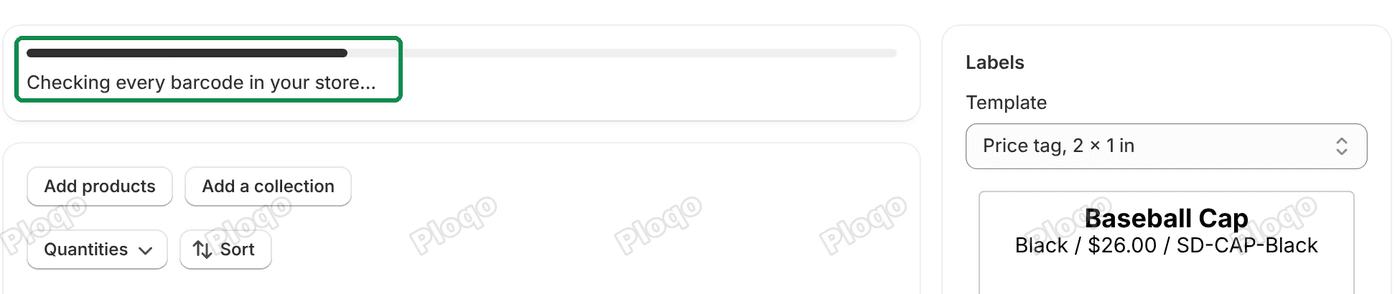 The progress bar with Checking every barcode in your store… at the top of the Print page
- "15 of 15 written": it saves each barcode on its variant.
- It reads each variant back from Shopify. A barcode counts as saved only when Shopify shows the new value.
- A green banner says "15 barcodes saved." The rows now show the new numbers, and the label preview has bars.
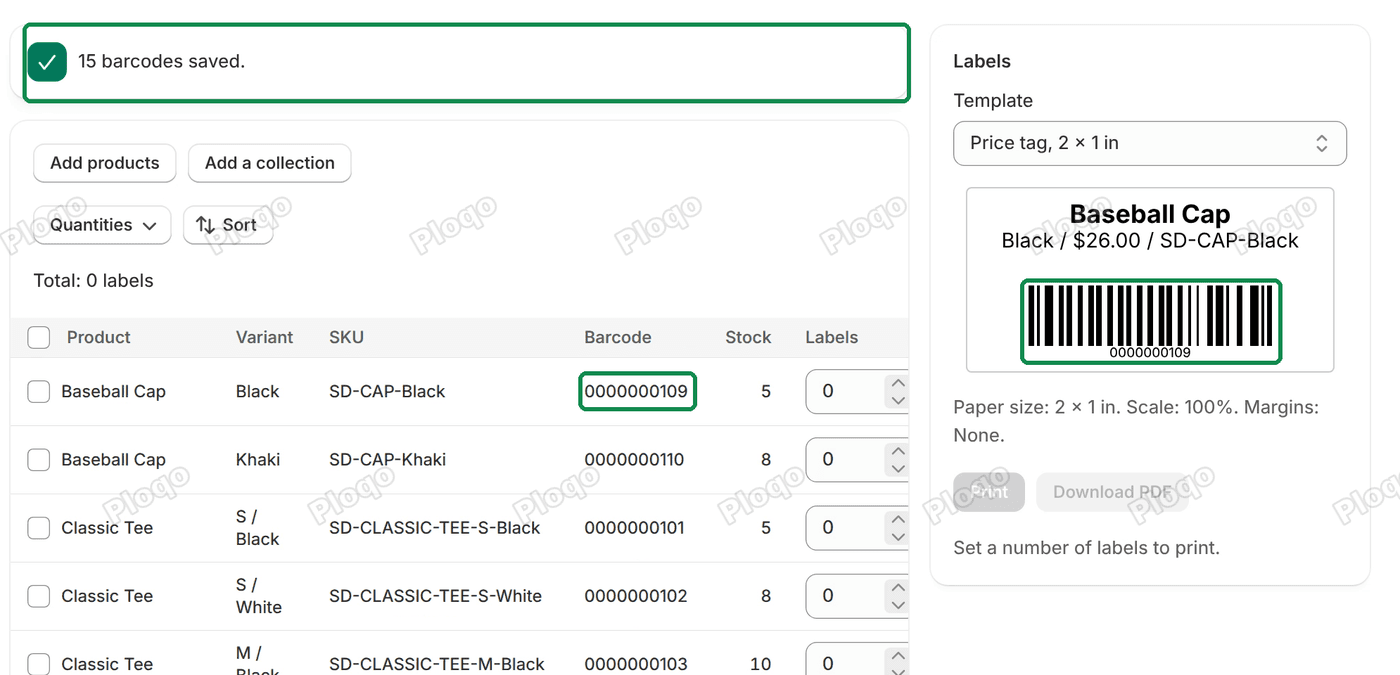 The Print page after the run: the banner 15 barcodes saved., rows showing their new barcodes, and the label preview with bars
If a barcode wasn't saved, for example because Shopify didn't answer, the banner says how many weren't saved, lists the variants, and has a Retry button. If another variant got the same number in the meantime, the app overwrites nothing and offers Show duplicates.
If you change your mind, the Barcodes page keeps your last run and can clear it. See clear the last run.
If Generate is off
- "A GS1 company prefix is 6 to 12 digits." or "A UPC company prefix is 6 to 10 digits." Check the prefix against your GS1 certificate.
- "In-store numbers start with 200 to 299." An in-store prefix must be in that range.
- "This prefix has no room for 15 barcodes more. Choose another prefix." A long prefix leaves few digits for item numbers. An EAN-13 prefix of 10 digits, for example, leaves two digits for the item number, so room for fewer than 100 items. Use another prefix you license, or generate for fewer variants.
- "Generate is off until your variants are read." The app couldn't read your store. Click Try again.
Common questions
Can I use the barcodes on Amazon or Google Shopping? Only EAN-13 or UPC-A numbers from your own GS1 company prefix. Code 128 sequences and in-store numbers are for use inside your shop.
Does a generated barcode replace my SKU? No. The app writes only the Barcode field. Your SKU stays as it is.
Can I print labels without generating barcodes? Yes. A template can print the SKU as the bars instead (Encodes > SKU), or no bars at all. See templates and sizes.
All Ploqo Labels guides·Shopify EU product identifiers, explained
More Ploqo Labels guides
Getting Started
Get Started with Ploqo Labels: Print Your First Labels
Open the app, add products to the Print page, choose how many labels each variant needs and print with a ready-made template. No template to make first.
Printing Labels
Label Templates and Sizes: Rolls, Sheets and Your Own Size
Customize a ready-made template, pick your roll or sheet size or your own, and choose what each line prints, how the price looks and what the barcode holds.
Printing Labels
Print Labels from Your Shopify Products List
Tick products in your Products list and choose Print labels from the Actions menu, or from More actions on a product's page. The Print page opens with them.
Barcodes
The Barcodes Page: Missing Barcodes, Duplicates and Undo
See every variant with no barcode, find two variants that share one and replace it, and clear the barcodes your last run added.