
Get Started with Ploqo Labels: Print Your First Labels
Open the app, add products to the Print page, choose how many labels each variant needs and print with a ready-made template. No template to make first.
By AjayCodeWiz · Updated October 30, 2026 · 7 min read
What Ploqo Labels does
Ploqo Labels prints price tags and barcode labels for your products, sized to your own label roll or sheet. It also gives variants with no barcode a new one, checked against every barcode in your store.
You can print the first time you open the app: a ready-made price tag is already chosen. The video above walks through the whole app, and this guide is the written version of its first six chapters. Labels are built in your browser, so the names, prices and barcodes on them never pass through our server.
Open the app
Install Ploqo Labels from the Shopify App Store. It opens in your Shopify admin, and later you find it under Apps in the left menu, with three pages under its name: Print, Templates and Barcodes.
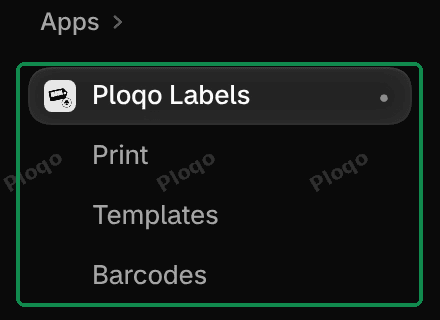 The Shopify admin menu with Ploqo Labels under Apps and its three pages: Print, Templates and Barcodes
Home shows three figures: how many variants are Without a barcode, how many Duplicate barcodes your store has (one barcode on more than one variant), and how many Templates you've saved. Each figure opens its page when you click it.
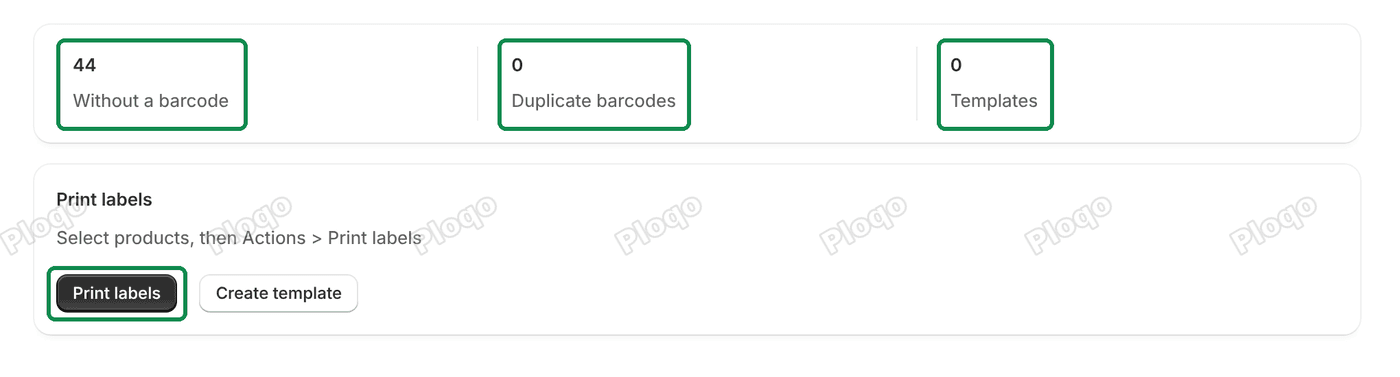 Home with the three figures Without a barcode, Duplicate barcodes and Templates, and the Print labels card with its Print labels and Create template buttons
Under the figures, the Print labels card has two buttons. Print labels opens the Print page. Create template starts a label design of your own, covered in templates and sizes.
Add products to the Print page
Click Print labels. The page starts empty: "Add products or a collection to print their labels."
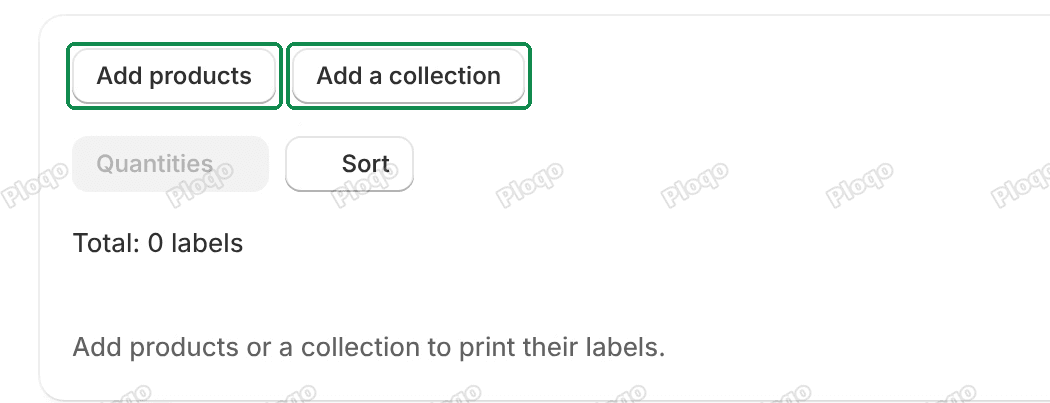 The empty Print page with the Add products and Add a collection buttons, the Quantities and Sort buttons, and Total: 0 labels
- Add products opens Shopify's own product picker. Tick whole products, or open a product and tick only some of its variants, then click Add.
- Add a collection opens Shopify's collection picker and adds every product in the collection you choose.
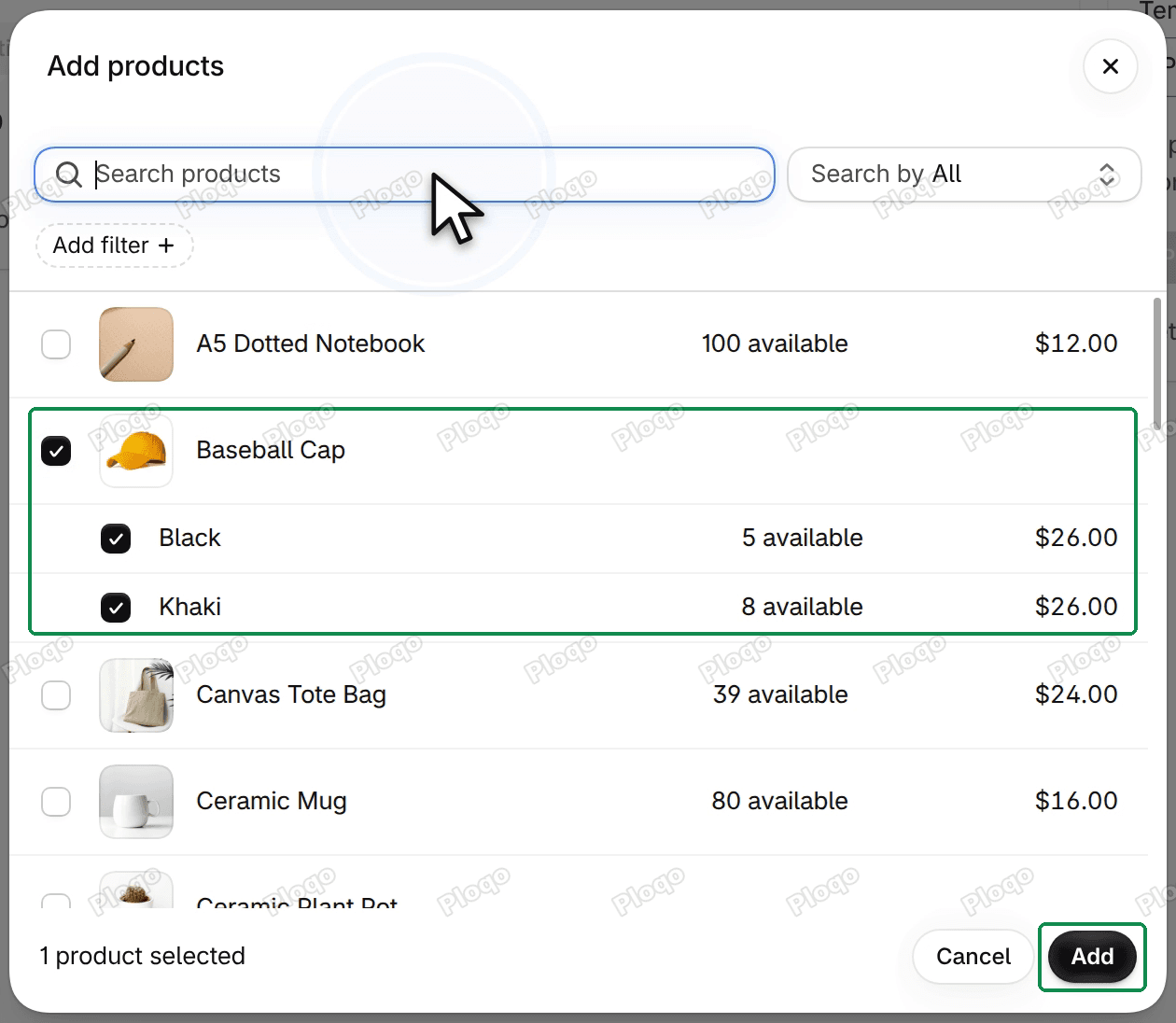 Shopify's product picker over the Print page, with Baseball Cap and both its variants ticked and the Add button
Each variant gets its own row, with its product, variant, SKU, barcode and stock. The bin icon on a row takes it off this page only; nothing changes in your store. Most days you'll start from your Products list instead: see print labels from your Products list.
Every row starts at 0
The Labels field on every row starts at 0, also on rows you add later, so a click on Print never sends hundreds of labels you didn't want. Until you set a number, Print and Download PDF are off, with the reason next to them: "Set a number of labels to print."
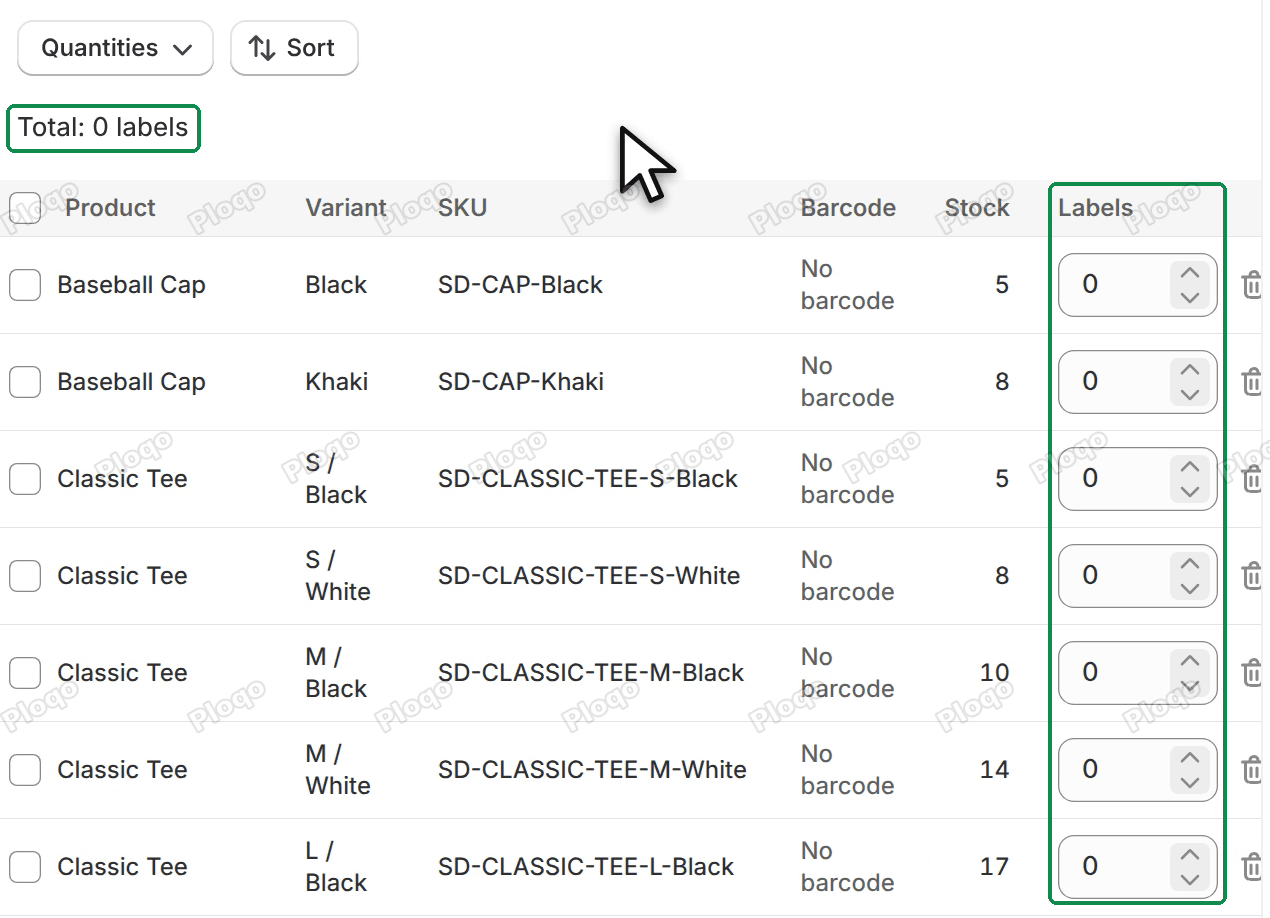 Print page rows with every Labels field at 0 and the line Total: 0 labels above the table
Type a number on any row, or set many rows at once with the Quantities menu:
- Set all to… gives every row the same number. Type it in the box and click Set.
- Match stock sets each row to the stock you have of that variant, so you get one label per item. A variant whose stock isn't tracked, or is below zero, gets 0.
- Reset to 0 puts every row back to 0.
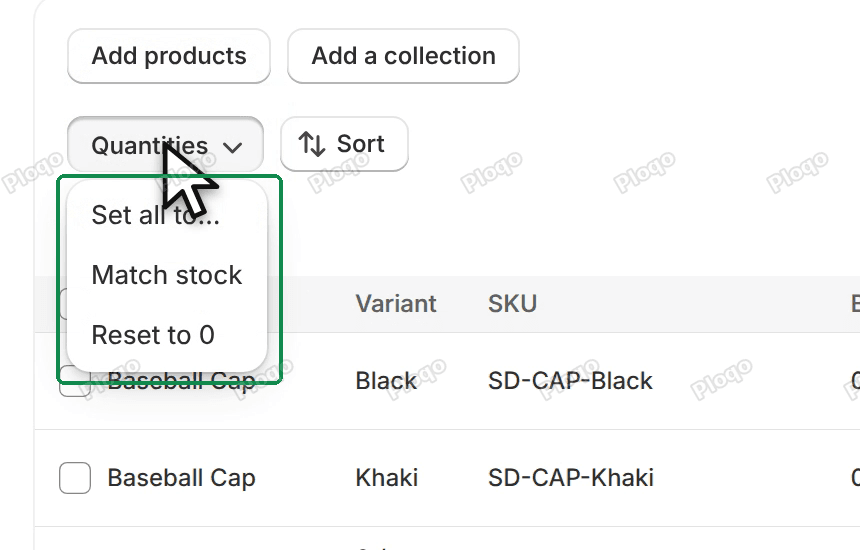 The Quantities menu open with Set all to…, Match stock and Reset to 0
Each choice shows a short message with an Undo button, in case you picked the wrong one.
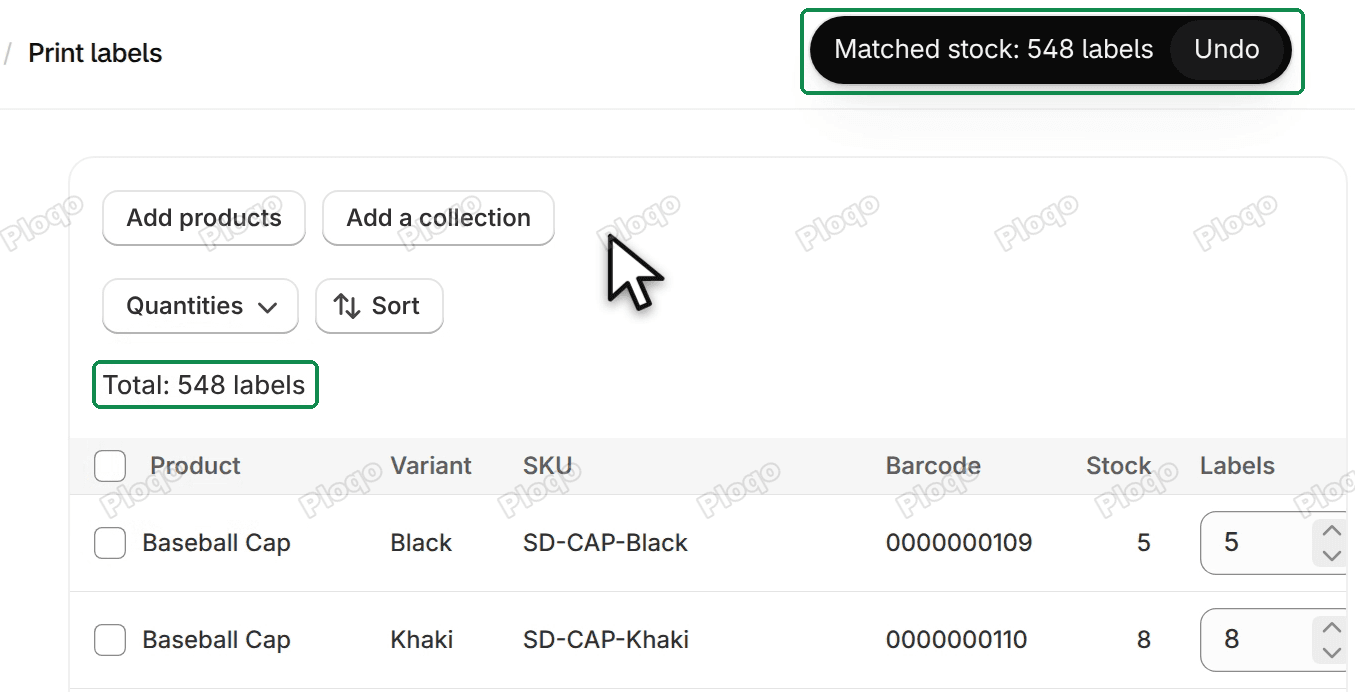 The message Matched stock: 548 labels with its Undo button, above the rows set to their stock
To change only some rows, tick them. A bar appears with Set quantity…, which sets only the ticked rows, and Remove, which takes them off the page. Total counts every label the job will print.
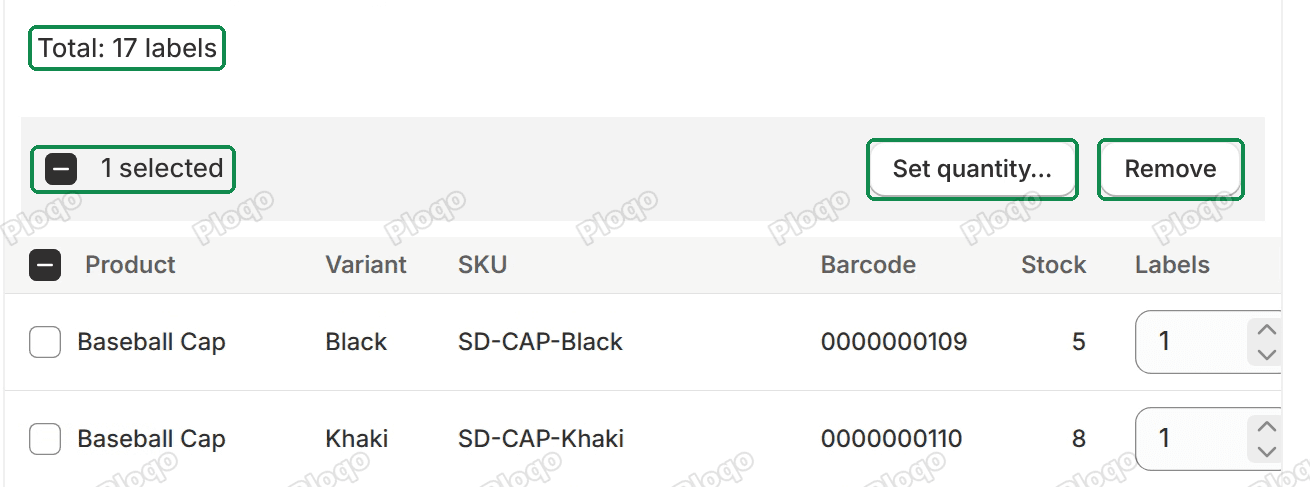 One row ticked: the bar with 1 selected, Set quantity… and Remove, and Total: 17 labels above the table
To change the print order, click the Product, SKU or Barcode column heading, and click it again to reverse it. The Sort button does the same and can also put the rows back in the order you added them.
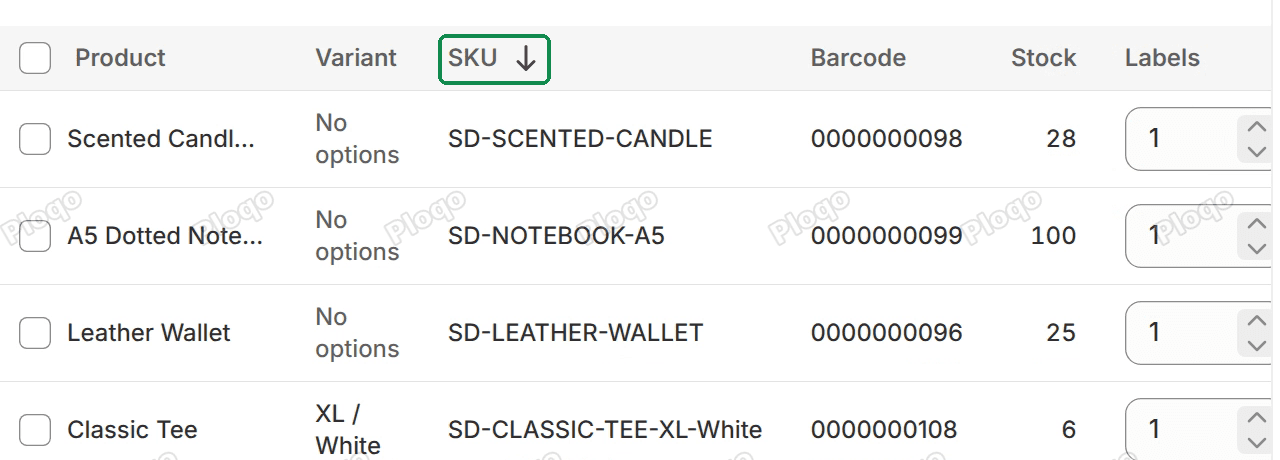 The rows sorted by SKU, with the sort arrow on the SKU column heading
Check the flags before you print
The Print page tells you about a label that won't come out as you'd expect, before you print it.
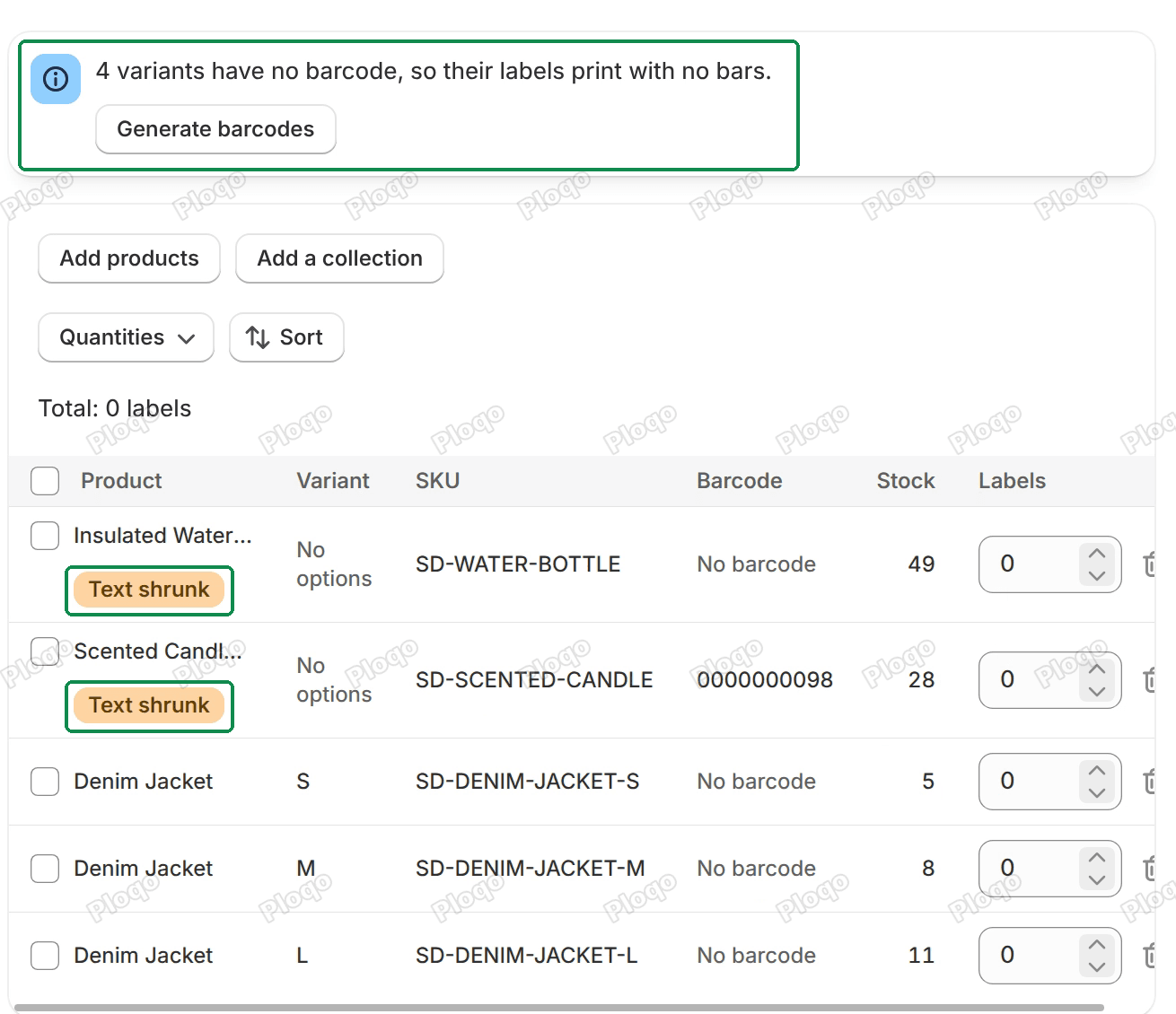 The Print page with the banner 4 variants have no barcode, so their labels print with no bars, the Generate barcodes button, and Text shrunk flags on two rows
- No barcode. The Barcode cell says "No barcode", and a banner counts these variants. Its Generate barcodes button gives them one: see generate barcodes.
- Text shrunk. A name too long for its line wraps, then shrinks to fit.
- Text cut. Even at its smallest size the text doesn't fit, so it ends in "…". Use a shorter name, a larger label, or more lines in the template.
- Thin bars. The label is so small that a scanner may not read the bars. It still prints. Use a wider label.
- Barcode too wide. The barcode doesn't fit across the label, so it prints without bars.
Step through the labels
The Labels card on the right shows a preview of one label. Under it, the arrows step through every label in the order they print, with a line such as "Label 3 of 18 · Leather Wallet ×1". Any flag for the label you're looking at shows under the preview too.
The Template list above the preview changes the design for the whole job. With no saved template, "Price tag, 2 x 1 in" is chosen; once you save one, Print opens with your default template. The list also has a sale tag, "Sale price, 2 x 1 in", which prints the compare-at price crossed out beside the price.
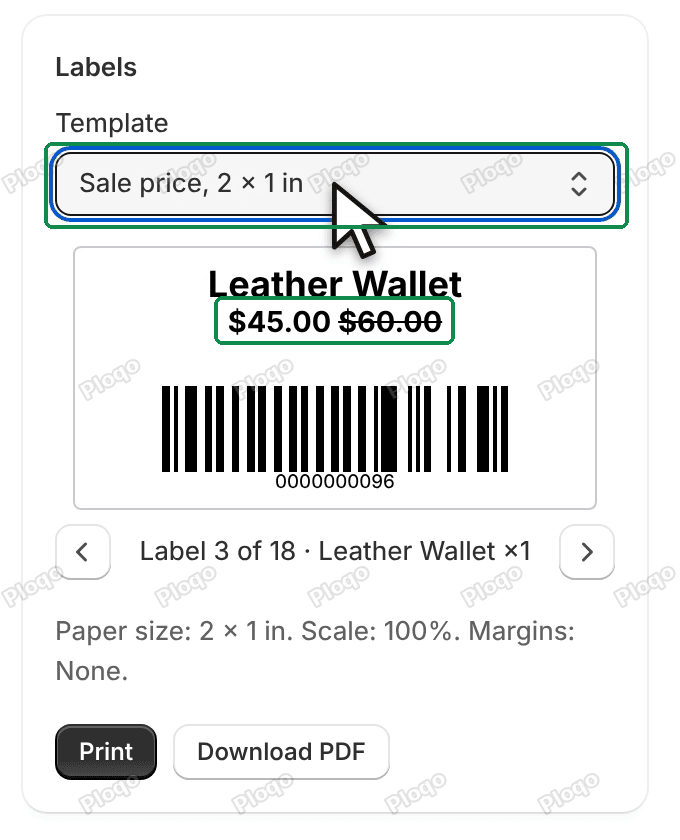 The Sale price, 2 x 1 in template: a Leather Wallet label with 45.00 and the old price 60.00 crossed out
Print or download a PDF
Under the preview is a line with the print settings for this template, for example "Paper size: 2 x 1 in. Scale: 100%. Margins: None." Use those settings in the print window, so each label lands in the right place.
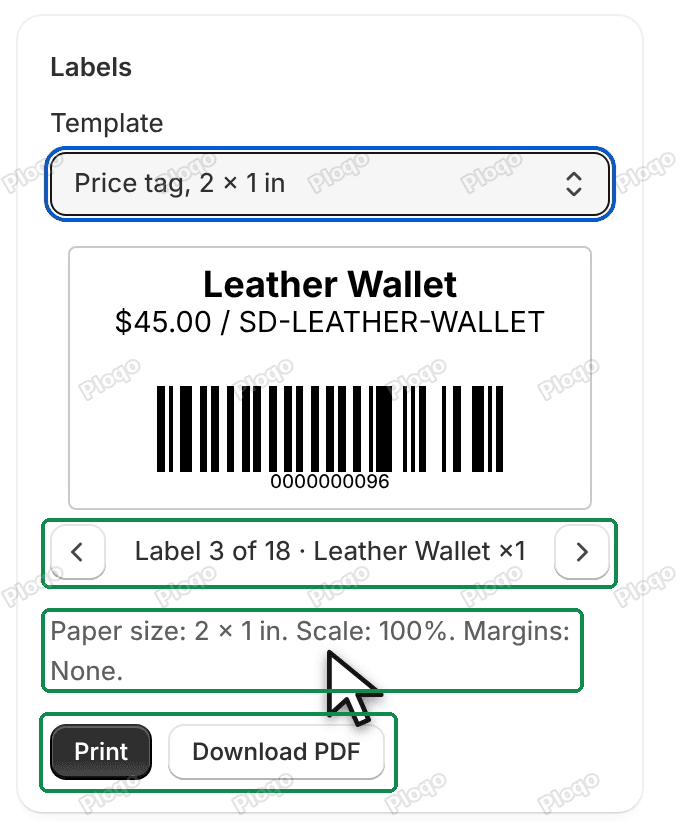 The Labels card: the preview of a Leather Wallet label with bars, the arrows and Label 3 of 18, the Paper size line, and the Print and Download PDF buttons
- Print opens your browser's print window. Choose your label printer, then check the paper size, scale and margins against the line above the buttons.
- Download PDF makes the same pages as a PDF file in your browser, so you can print it later or from another computer.
On a roll template, each label is one page at the label's own size.
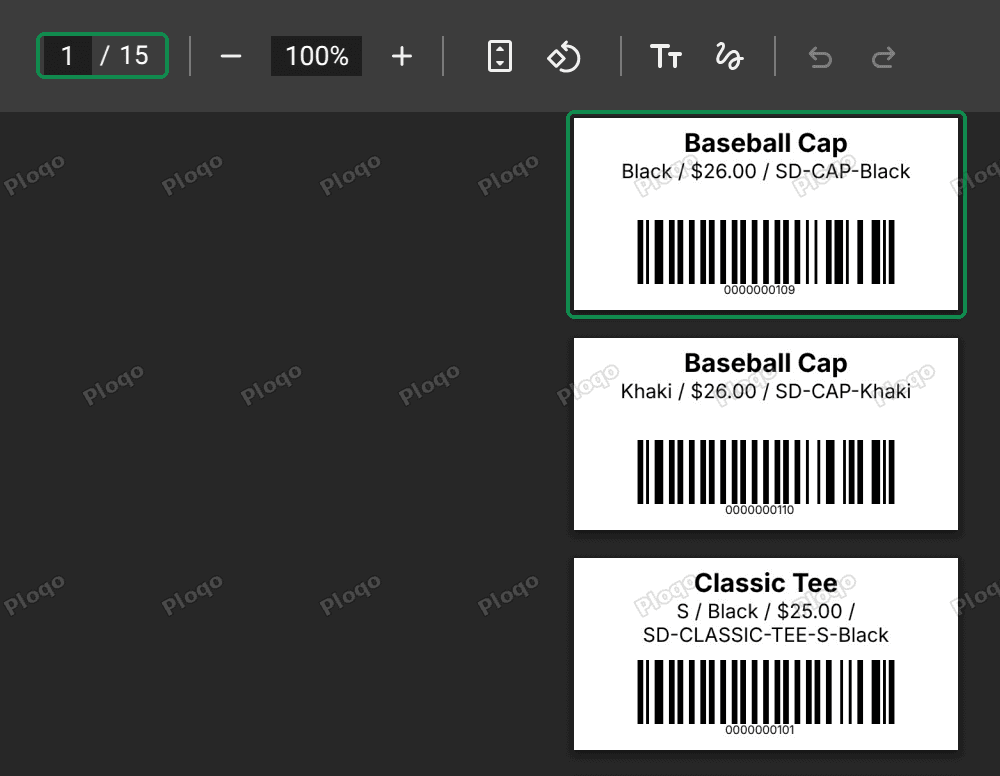 The downloaded roll PDF in the browser: one 2 x 1 in page per label, each with a product name, price and barcode
A sheet template also has a Start at label field: type the first empty spot on a sheet you've already used, and the labels start there. The field says how the spots are counted, for example "From 1 to 30, left to right."
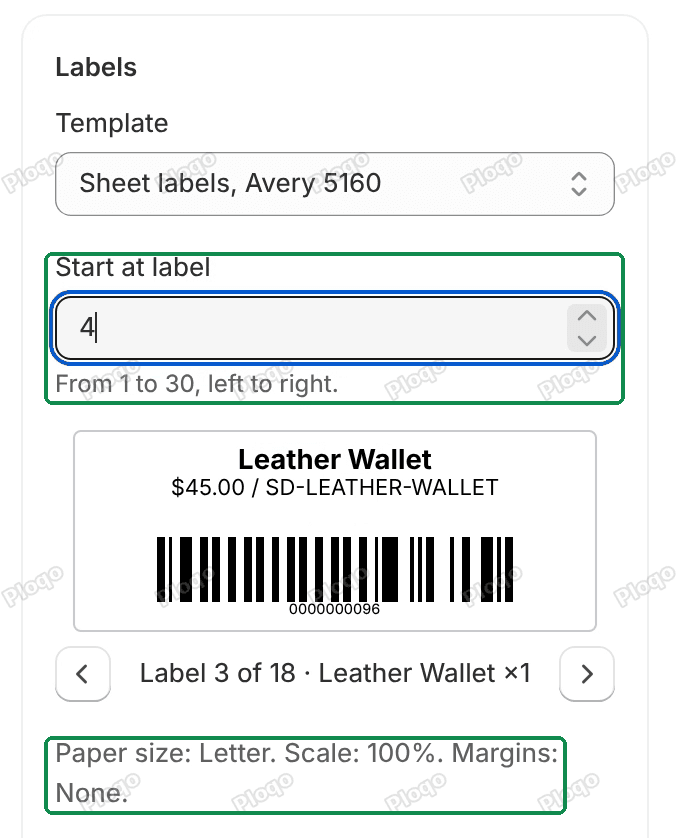 The Labels card on Sheet labels, Avery 5160, with Start at label 4 and From 1 to 30, left to right, and the paper size Letter
The pages are then Letter or A4, with each label in its place on the sheet.
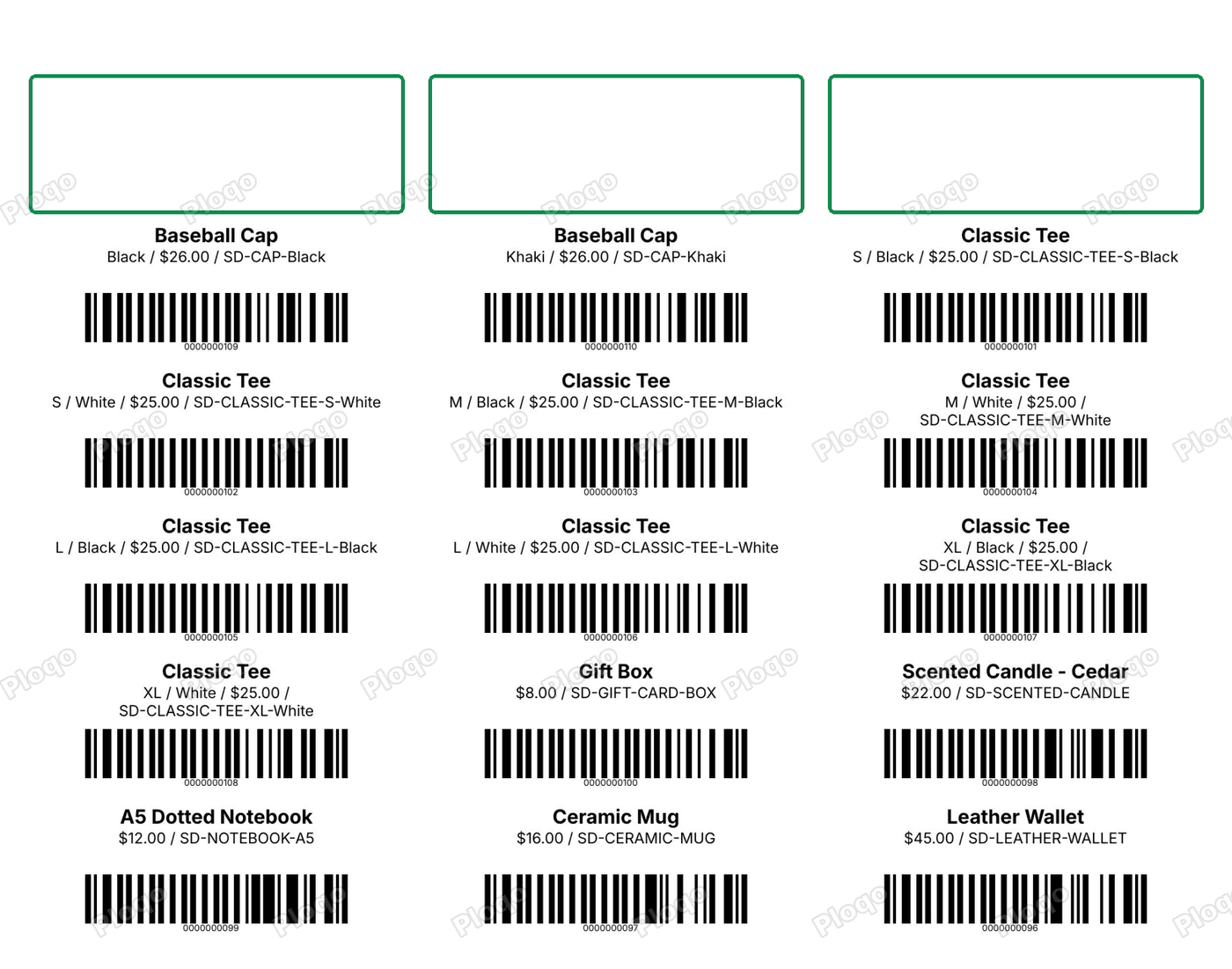 The sheet PDF: Avery 5160 labels three across, with the first three spots left blank
A job prints at most 3,000 labels. For more, print the rest in a second job.
Get help from the developer
Every page of the app has a Chat button at the bottom right. It opens a chat with the developer: type your question and click Send. The reply shows in the same window.
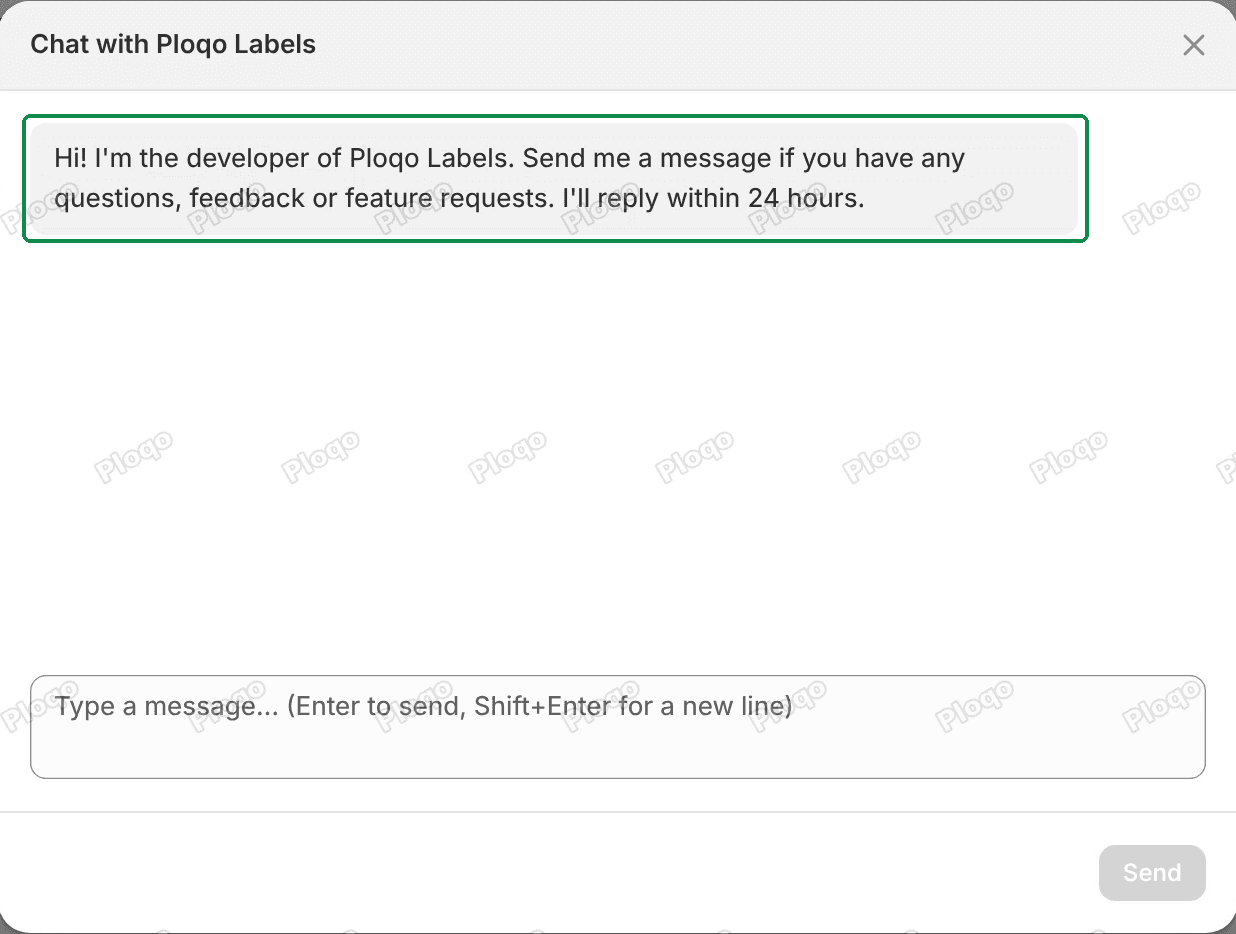 The Chat with Ploqo Labels window with the developer's welcome message, the message box and the Send button
Common questions
Does Ploqo Labels cost anything? No. There is no paid plan and no limit on how many labels you print, other than 3,000 in one job.
Which printers does it work with? The labels print through your browser's print window, so any printer your computer can print to. The template's Printer resolution should match your printer, so the bars are drawn to its dots. See templates and sizes.
Does it print from POS or from purchase orders? Not in this version. You print from the app's Print page, which you can open from your Products list.
Does the app change my products? Only when you ask it to generate barcodes. It then writes each new barcode to the variant's own Barcode field and nothing else. Printing writes nothing to your store.
All Ploqo Labels guides·Shopify EU product identifiers, explained
More Ploqo Labels guides
Printing Labels
Label Templates and Sizes: Rolls, Sheets and Your Own Size
Customize a ready-made template, pick your roll or sheet size or your own, and choose what each line prints, how the price looks and what the barcode holds.
Printing Labels
Print Labels from Your Shopify Products List
Tick products in your Products list and choose Print labels from the Actions menu, or from More actions on a product's page. The Print page opens with them.
Barcodes
Generate Barcodes for Variants: Code 128, EAN-13 and UPC-A
Give variants with no barcode a new one: a Code 128 sequence, or EAN-13 or UPC-A from your GS1 prefix. Each is checked against every barcode in your store.
Barcodes
The Barcodes Page: Missing Barcodes, Duplicates and Undo
See every variant with no barcode, find two variants that share one and replace it, and clear the barcodes your last run added.