
Print Labels from Your Shopify Products List
Tick products in your Products list and choose Print labels from the Actions menu, or from More actions on a product's page. The Print page opens with them.
By AjayCodeWiz · Updated October 30, 2026 · 4 min read
Start from the products you're labelling
You don't have to open the app first. Ploqo Labels adds a Print labels action to your Shopify Products list and to each product's own page, which opens the app's Print page with exactly the products you picked. The video above starts at this chapter.
From the Products list
- In your Shopify admin, go to Products.
- Tick the products you want labels for. A bar appears above the list.
- Click the ... button in that bar (Shopify's Actions menu). Under Apps, choose Print labels.
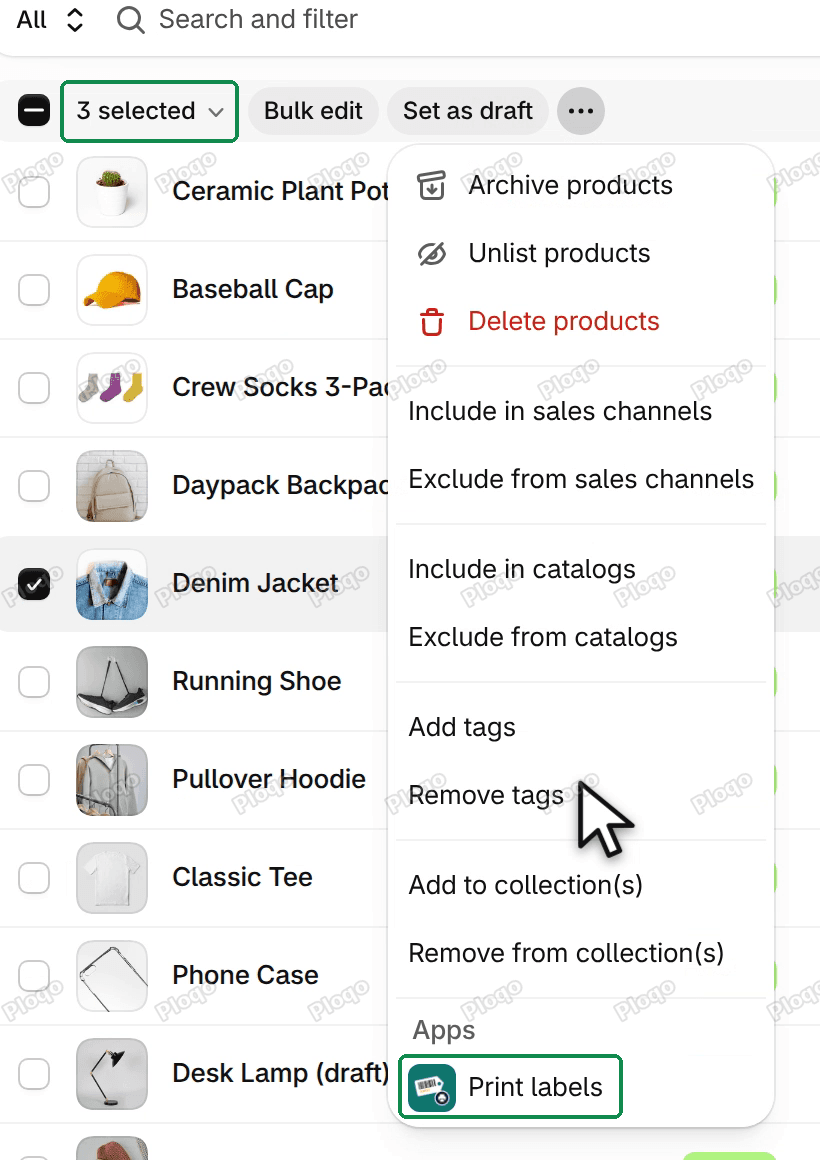 The Products list with three products ticked and the Actions menu open, with Print labels under Apps at the bottom
A box opens over the list, headed Print labels, with the number of products you ticked, for example "3 products selected."
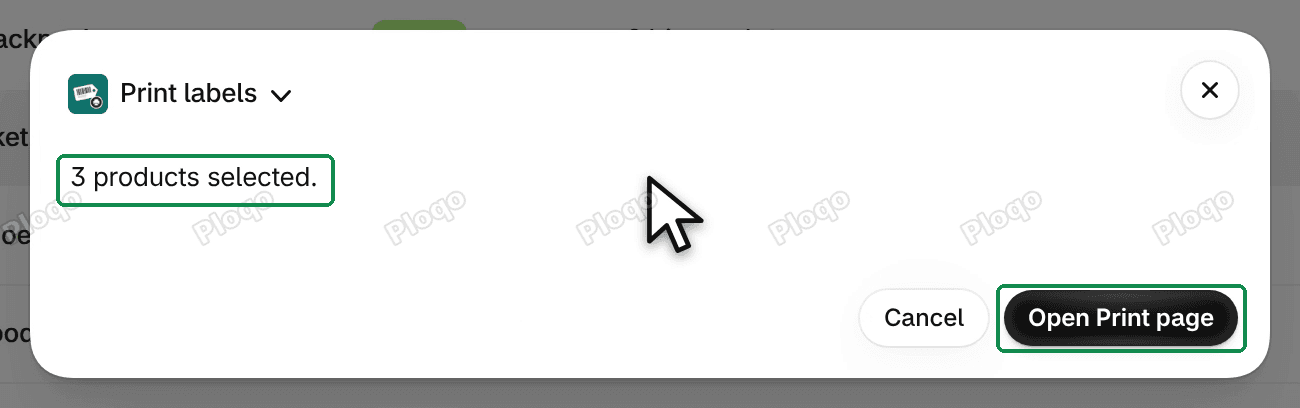 The Print labels box over the Products list: 3 products selected, with the Cancel and Open Print page buttons
Click Open Print page. The Print page opens in a new tab, and the box closes in the first one, so your Products list stays where you left it. Cancel closes the box without opening anything. The box reads nothing from your products and sends nothing anywhere: it only passes the products you ticked to the Print page.
The Print page in its new tab
Every variant of each ticked product has its own row. As always, every row starts at 0 labels, and the Template is your default template (or "Price tag, 2 x 1 in" if you haven't saved one).
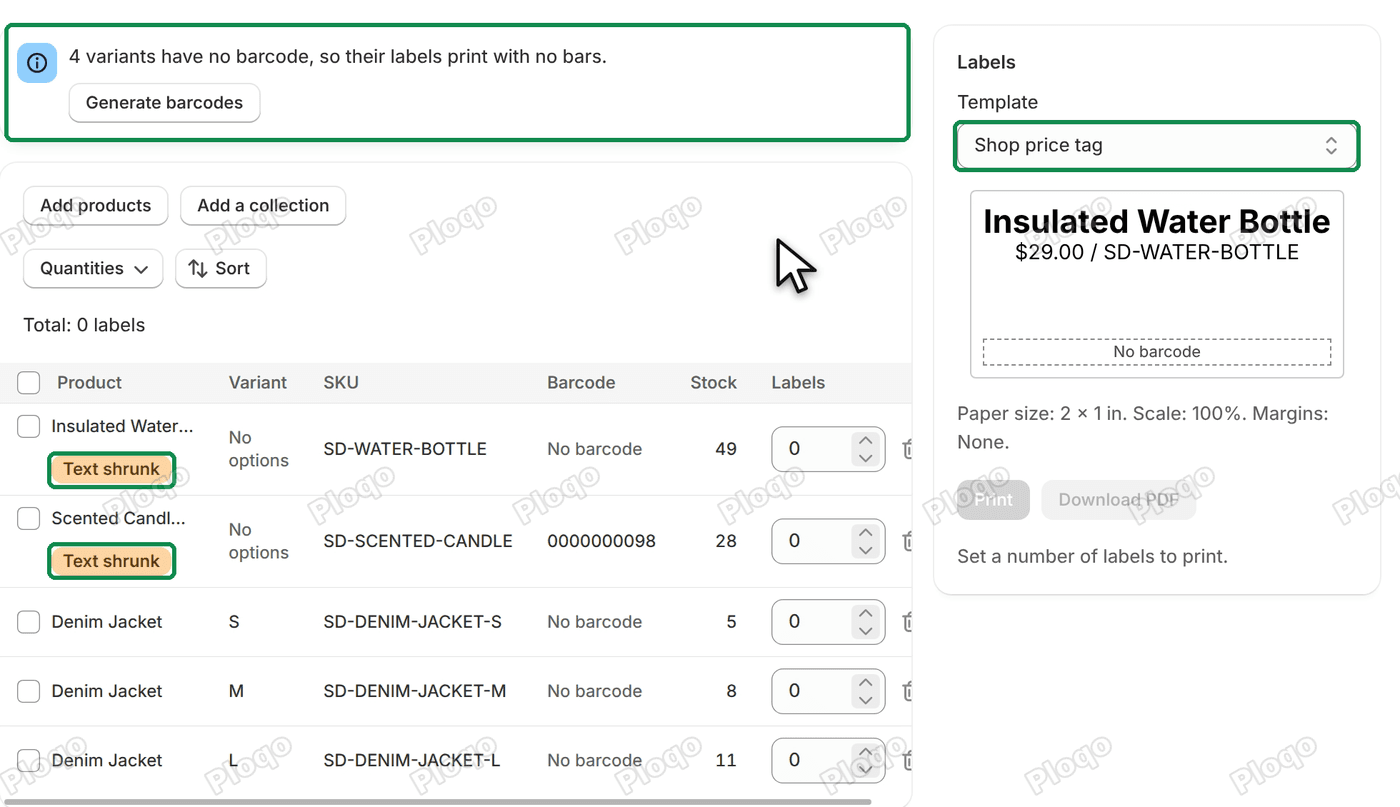 The Print page opened from the Products list: the banner 4 variants have no barcode, rows with Text shrunk flags, the template Shop price tag and the label preview
From here it works as it does when you open it from the app:
- set the numbers with the Quantities menu or on each row;
- look at the flags, such as No barcode and Text shrunk, before printing;
- click Generate barcodes in the banner if some variants have no barcode yet;
- then Print or Download PDF.
Get started covers each of these.
Add more products on the Print page
The Print page keeps its Add products and Add a collection buttons, for products you forgot to tick or a whole collection. New rows join the ones already there, also at 0.
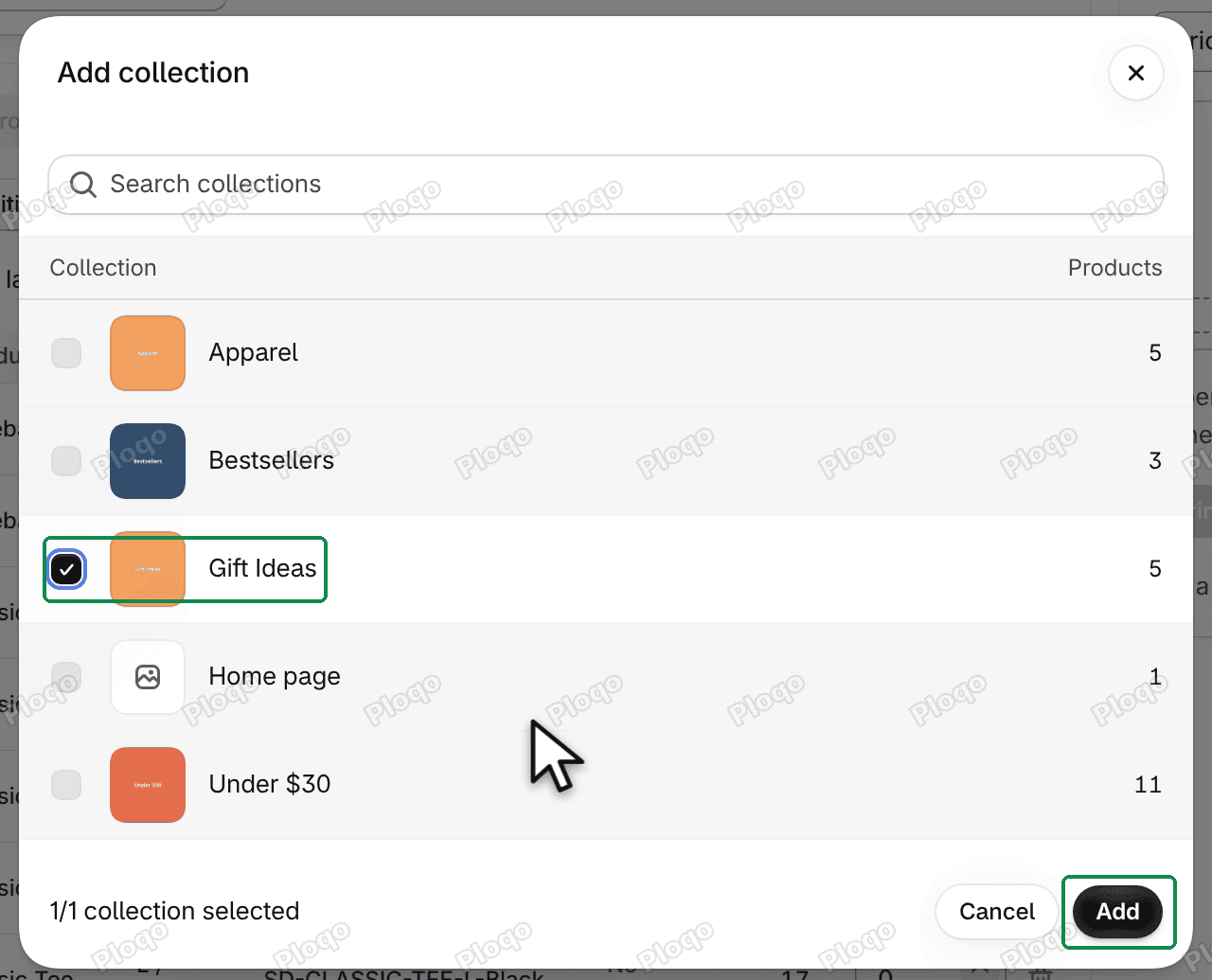 Shopify's collection picker over the Print page, with the Gift Ideas collection ticked and the Add button
To take a row off, click its bin icon, or tick rows and click Remove. That only changes this page, never your store.
From a product's own page
To print labels for one product, open it in your admin, click More actions at the top, and choose Print labels.
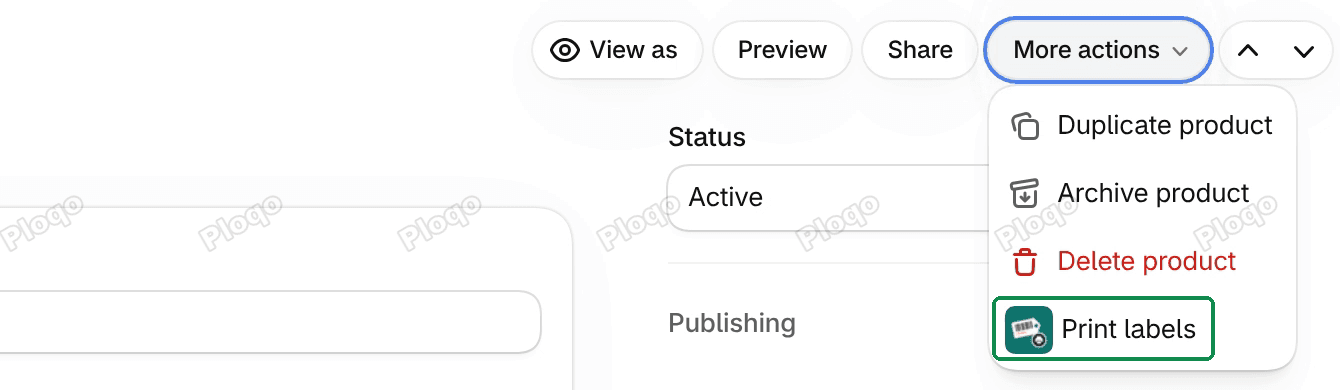 A product page with the More actions menu open: Duplicate product, Archive product, Delete product and Print labels
The same box opens with "1 product selected."
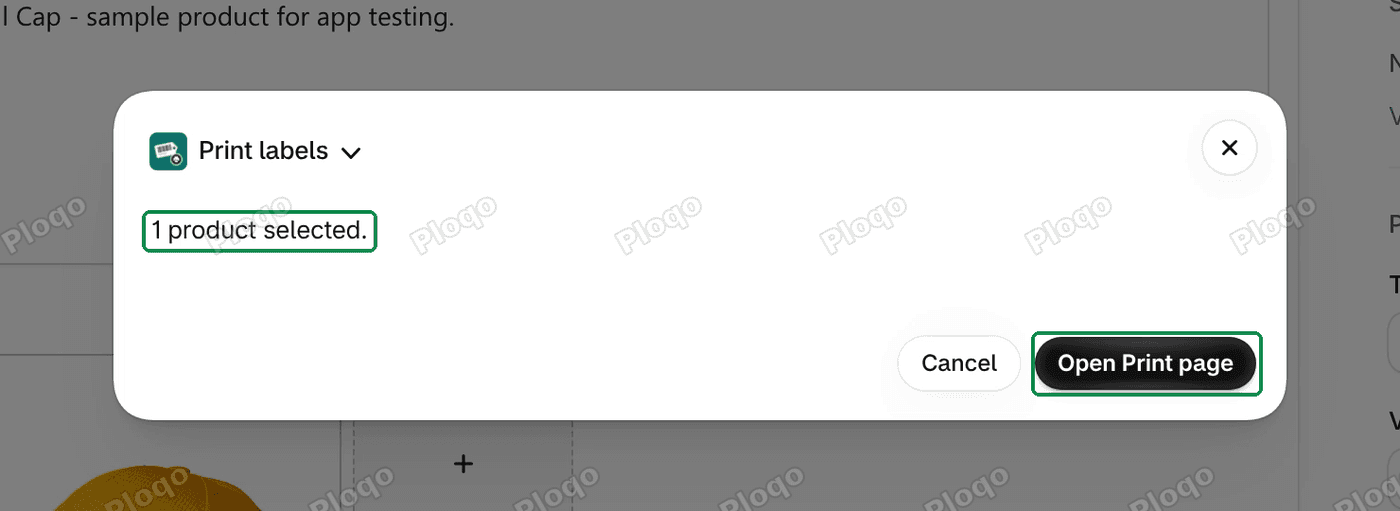 The Print labels box over a product page: 1 product selected, with the Open Print page button
Click Open Print page, and the Print page opens in a new tab with that product's variants.
If you can't find Print labels
- No Print labels in the Products list menu. The menu shows once at least one product is ticked. Tick a product first, then open the ... button in the bar above the list.
- Only some variants are needed. Tick the product in the list, then remove the rows you don't need on the Print page. Or open the Print page from the app and use Add products, where Shopify's picker lets you tick single variants.
All Ploqo Labels guides·Shopify EU product identifiers, explained
More Ploqo Labels guides
Getting Started
Get Started with Ploqo Labels: Print Your First Labels
Open the app, add products to the Print page, choose how many labels each variant needs and print with a ready-made template. No template to make first.
Printing Labels
Label Templates and Sizes: Rolls, Sheets and Your Own Size
Customize a ready-made template, pick your roll or sheet size or your own, and choose what each line prints, how the price looks and what the barcode holds.
Barcodes
Generate Barcodes for Variants: Code 128, EAN-13 and UPC-A
Give variants with no barcode a new one: a Code 128 sequence, or EAN-13 or UPC-A from your GS1 prefix. Each is checked against every barcode in your store.
Barcodes
The Barcodes Page: Missing Barcodes, Duplicates and Undo
See every variant with no barcode, find two variants that share one and replace it, and clear the barcodes your last run added.