
Label Templates and Sizes: Rolls, Sheets and Your Own Size
Customize a ready-made template, pick your roll or sheet size or your own, and choose what each line prints, how the price looks and what the barcode holds.
By AjayCodeWiz · Updated October 30, 2026 · 7 min read
What a template is
A template is a label size plus what goes on the label: up to four lines of text, the price and the barcode. You pick one on the Print page, in the Template list, and it applies to every label in that job.
You don't need a template of your own to print: eight ready-made ones work as they are. For a different size or layout, copy one and change the copy. The video above starts at the chapter on templates.
Ready-made templates
Open Templates under Ploqo Labels in the left menu. The page has two parts: Your templates, empty at first, and Ready-made.
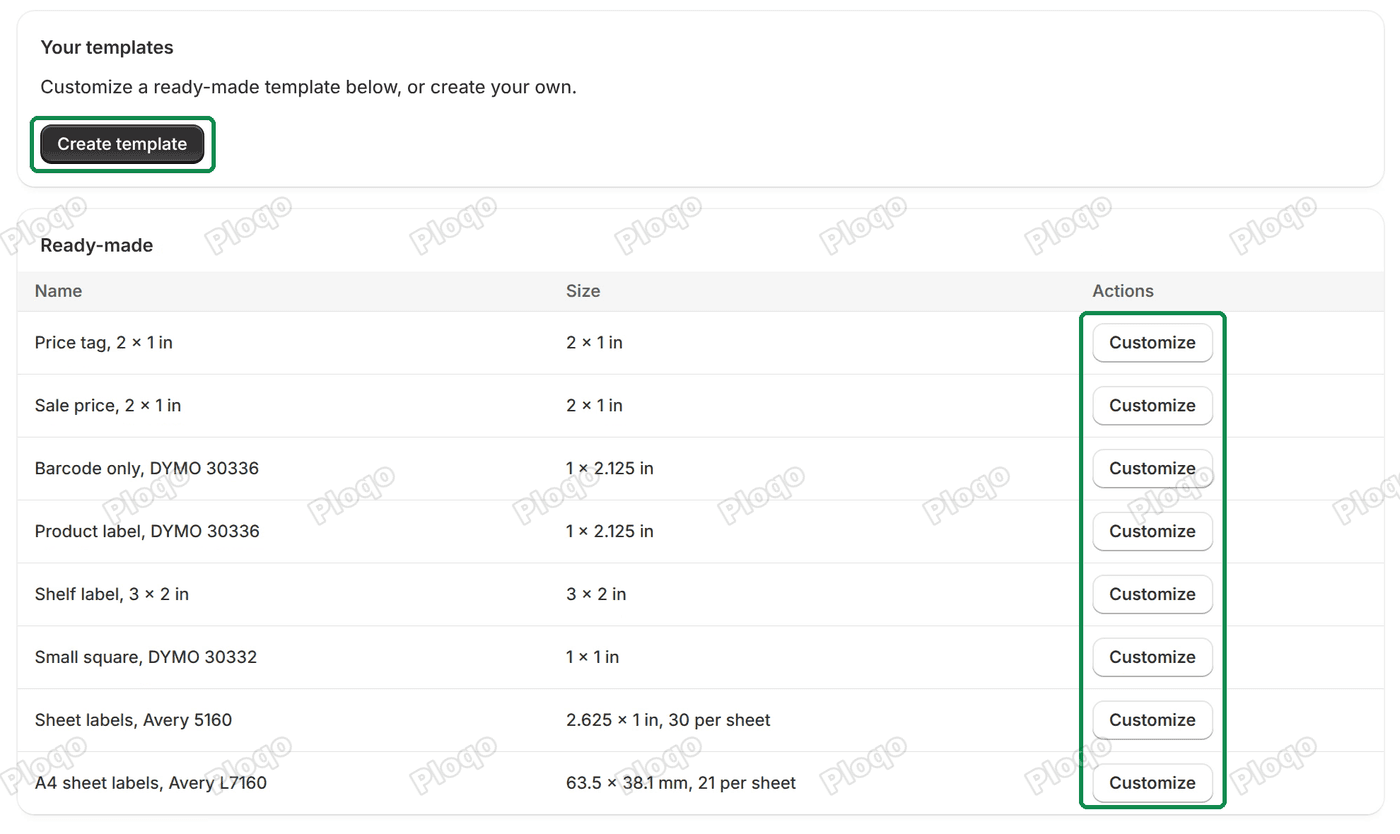 The Templates page: Your templates empty with the Create template button, and the eight ready-made templates, each with its size and a Customize button
The ready-made templates are:
- Price tag, 2 x 1 in: the product title, then the variant, price and SKU, and the barcode.
- Sale price, 2 x 1 in: the same, with the compare-at price crossed out beside the price.
- Barcode only, DYMO 30336: bars and the number under them, no text lines.
- Product label, DYMO 30336: the title and price above the barcode.
- Shelf label, 3 x 2 in: a large price, with the title, variant and SKU.
- Small square, DYMO 30332: the price and the barcode on a 1 x 1 in label.
- Sheet labels, Avery 5160: 30 labels on a Letter sheet.
- A4 sheet labels, Avery L7160: 21 labels on an A4 sheet.
Click Customize on any of them to open a copy in the editor, with a Save template button at the top. Nothing is saved until you click it, and the ready-made one stays as it was. Create template starts from an empty editor instead. A template you save is your own copy: an update of the app never changes it.
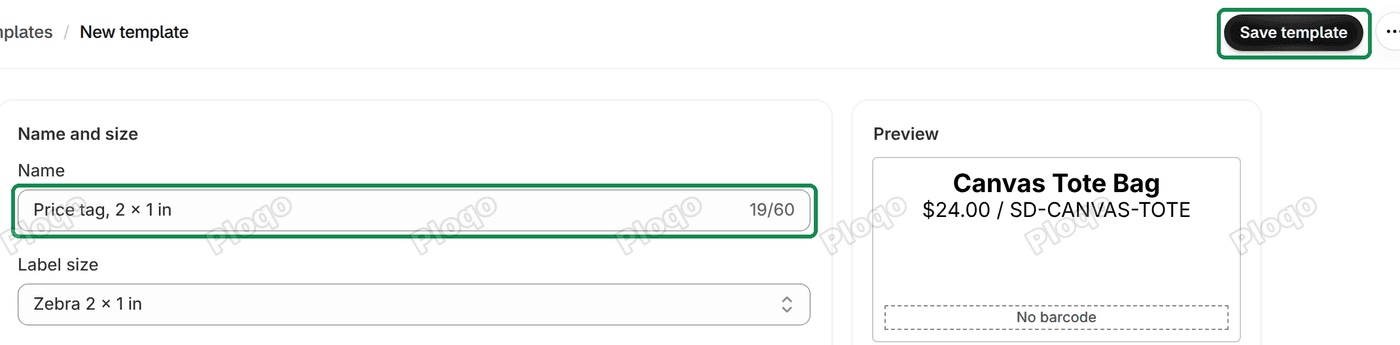 The editor opened from Customize: the Save template button, and the Name and size card filled in from Price tag, 2 x 1 in
Choose the label size
The editor's first card is Name and size. Give the template a name, then open Label size. The list has three groups:
- Rolls: DYMO, Zebra, Rollo and Brother label sizes, such as "Zebra 2 x 1 in" or "DYMO 30336 Multipurpose, 1 x 2-1/8 in".
- Sheets: Avery sheets for office printers, such as "Avery 5160 / 8160, 1 x 2-5/8 in, 30 per sheet", and an A4 sheet of 24.
- Your own size: Custom roll or Custom sheet, for a label that isn't in the list.
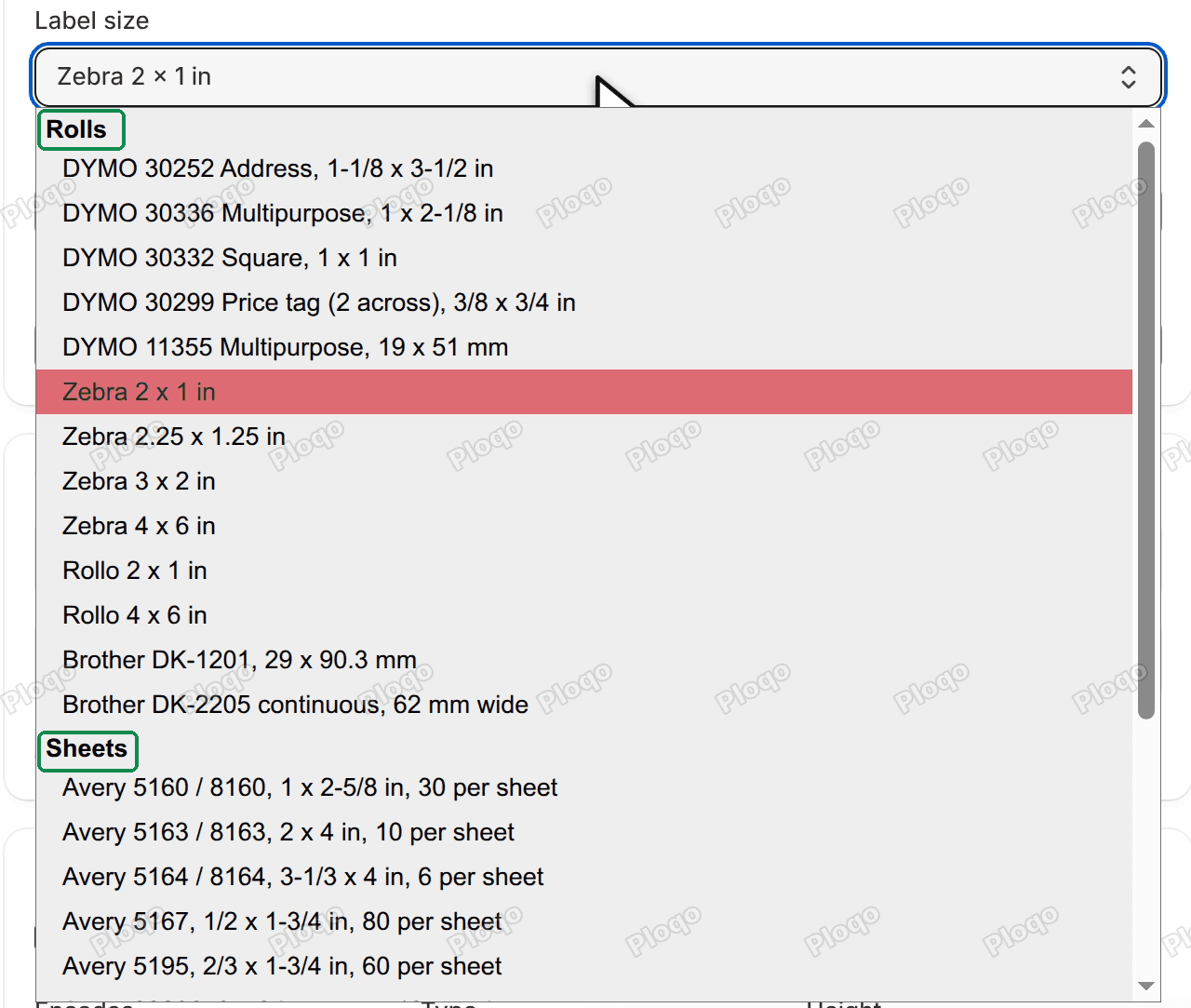 The Label size list open on the Rolls group, with DYMO, Zebra, Rollo and Brother sizes, then the Sheets group with Avery sizes
After you pick a size, its numbers show: Unit (mm or in), Width and Height. Change any of them to match your labels. A continuous roll, such as Brother DK-2205, asks for the Length of one label instead of its height.
A sheet also shows Page (Letter or A4), Rows, Columns, the top and left margins, and the space between labels across and down. If the labels would run off the page, the editor says so.
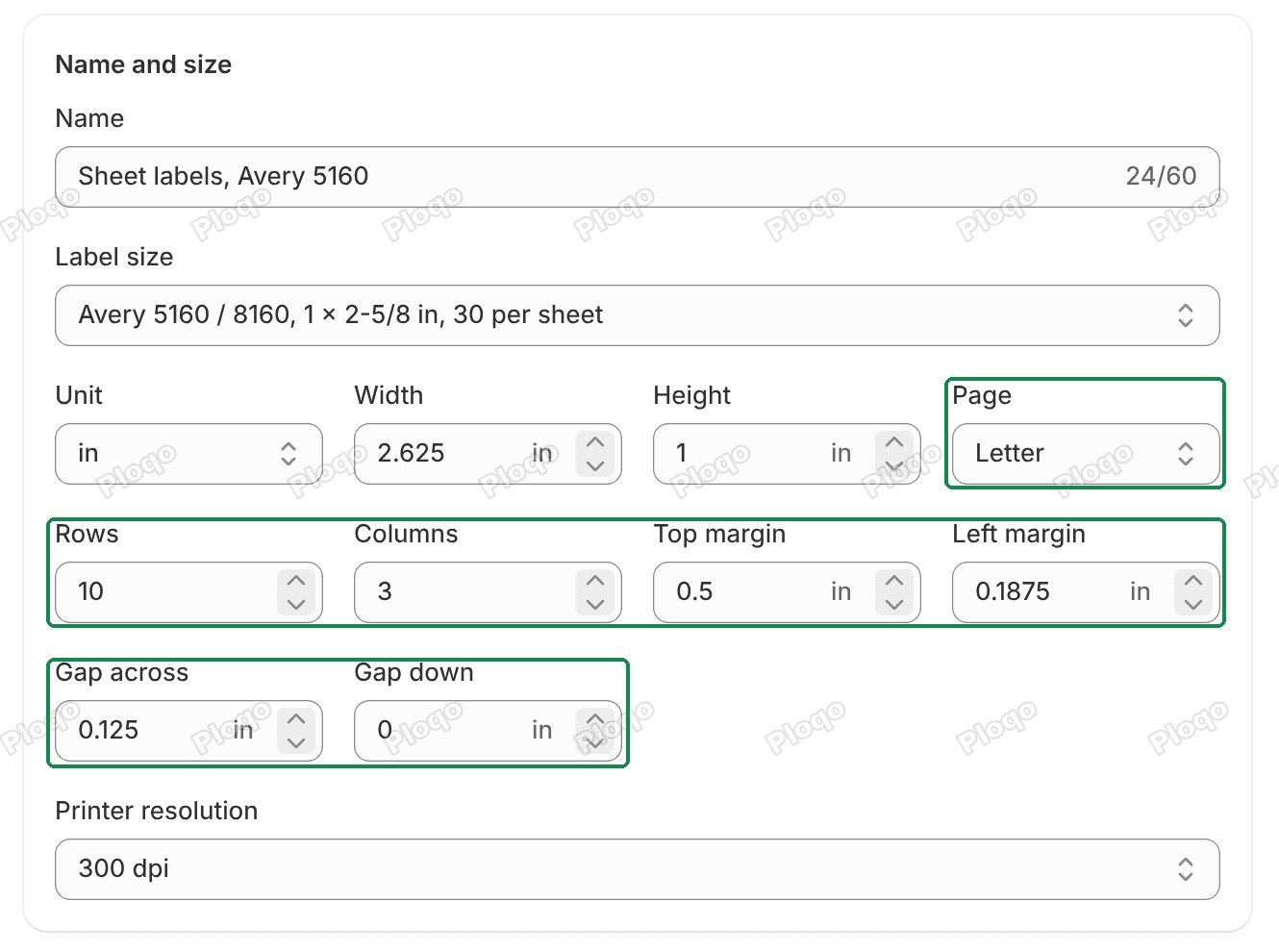 The size fields of the Avery 5160 sheet: Unit, Width, Height, Page, Rows, Columns, the margins and the spacing
Match the printer resolution
Printer resolution is how many dots your printer prints per inch: 203, 300 or 600 dpi. It's on the printer's box or spec sheet. The app draws each bar a whole number of printer dots wide, so set this to match your printer and the bars come out sharp enough to scan.
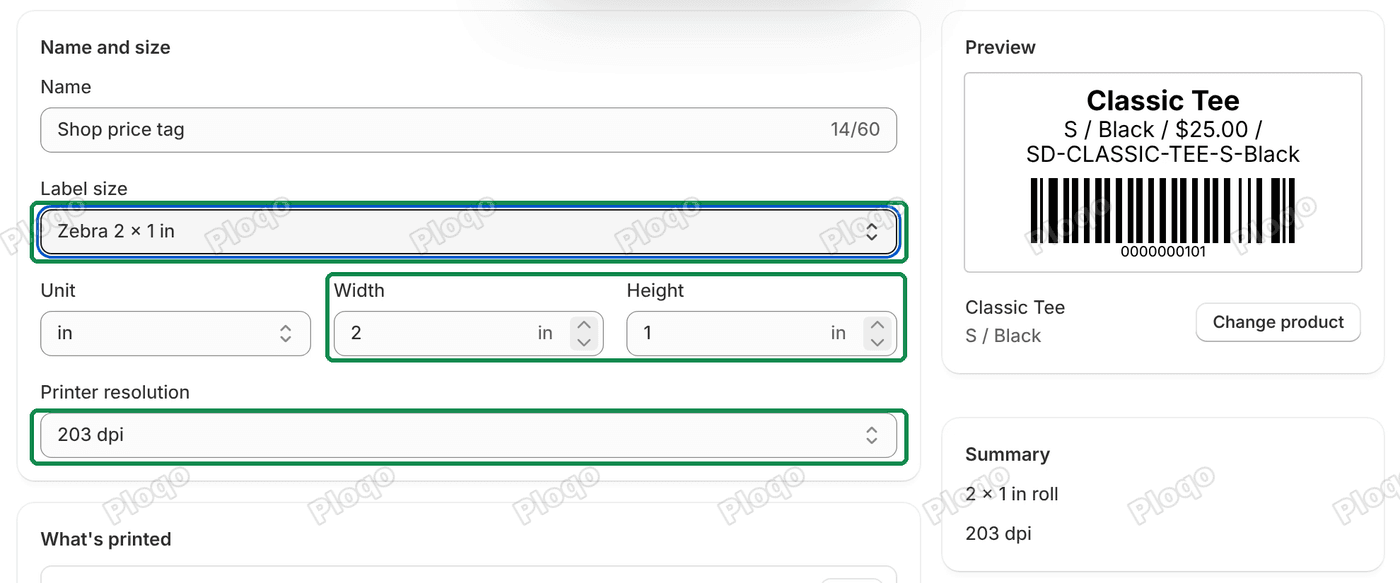 The Name and size card with the name Shop price tag, Label size Zebra 2 x 1 in, Unit, Width, Height, Printer resolution 203 dpi, and the preview beside it
A new template starts at 300 dpi for DYMO, Brother and every sheet size, and 203 dpi for the others. Many small thermal label printers print at 203 dpi, and office laser and inkjet printers at 300 or more.
The Preview draws the label with one of your own products. Click Change product to check a long name or a product with a barcode. The Summary below it reads, for example, "2 x 1 in roll" and "203 dpi".
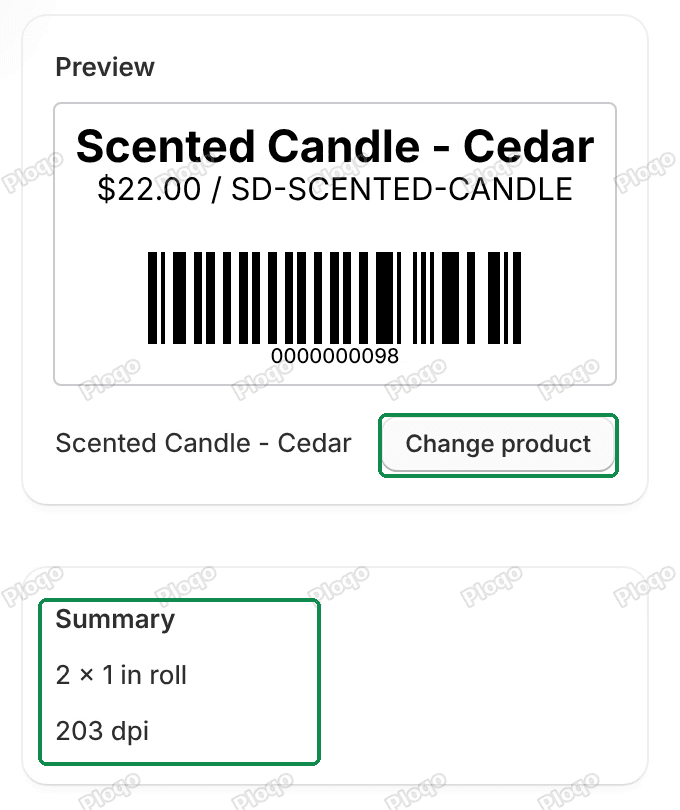 The Preview of a Scented Candle - Cedar label with bars, the Change product button, and the Summary 2 x 1 in roll, 203 dpi
Choose what each line prints
The What's printed card lists the template's lines, for example "1 · Product title". Click Edit on a line to open its settings:
- Fields: what the line prints. Choose from Product title, Variant title, Option 1 to 3, SKU, Price, Compare-at price, Vendor, Product type and Custom text, your own words. Add field puts more than one on a line, joined by the Separator.
- Font, Size, Bold and Align.
- Max lines and Smallest size: how a long text fits. It wraps onto up to Max lines, then shrinks down to the Smallest size. If it still doesn't fit, it ends in "…".
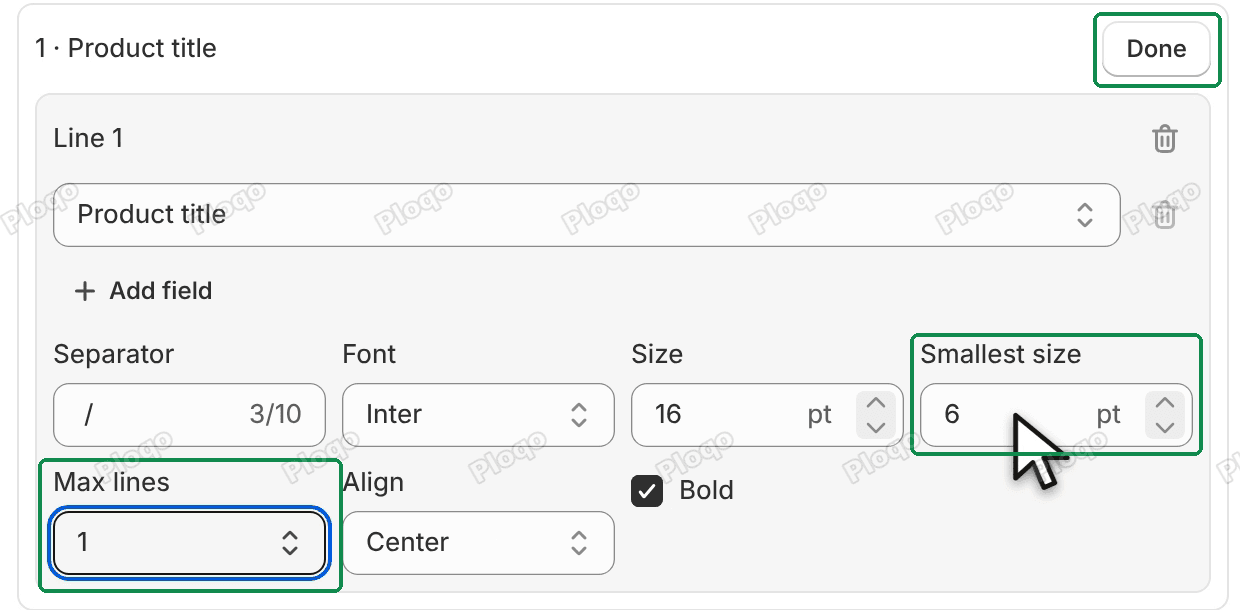 Line 1 open: the field list, Separator, Font, Size, Smallest size, Max lines, Align and Bold, with the Done button
Click Done to close the line. Add line adds another, up to four, and the bin icon in an open line removes it.
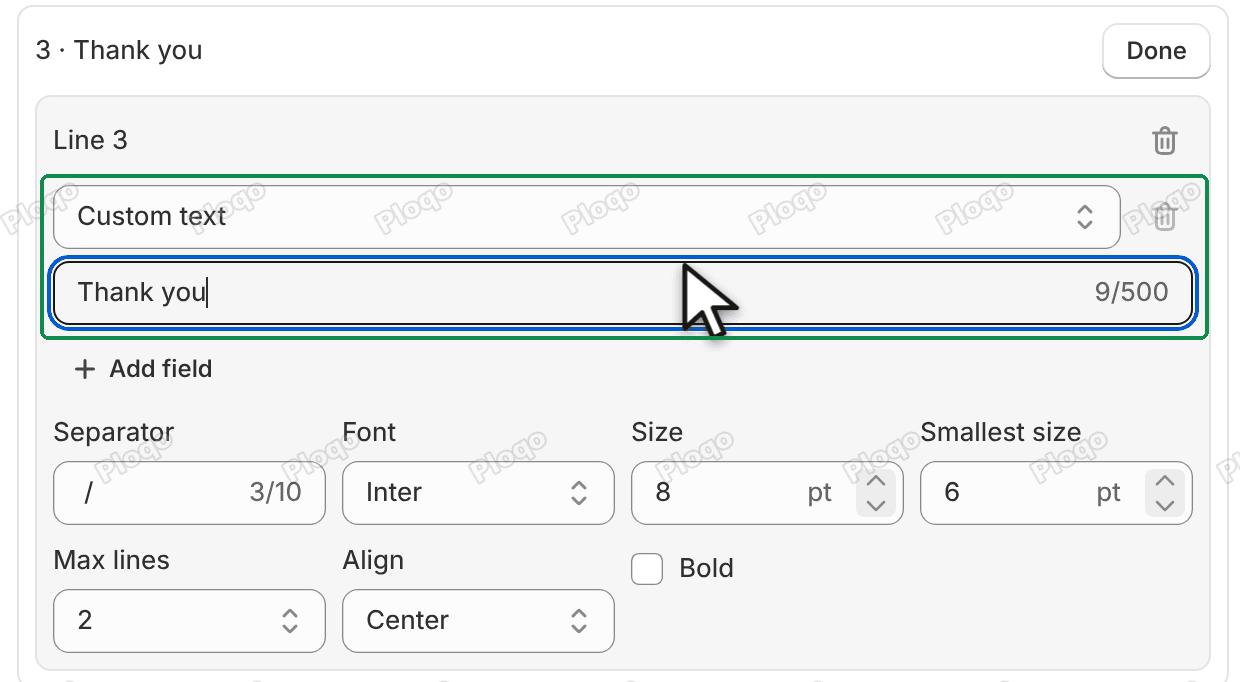 Line 3 set to Custom text, with the words Thank you typed in the field under it and the Add field button below
When text has to shrink or is cut, the Print page marks the row "Text shrunk" or "Text cut" before you print, so a label never loses words without you knowing. Get started lists every flag.
Set the barcode and the price
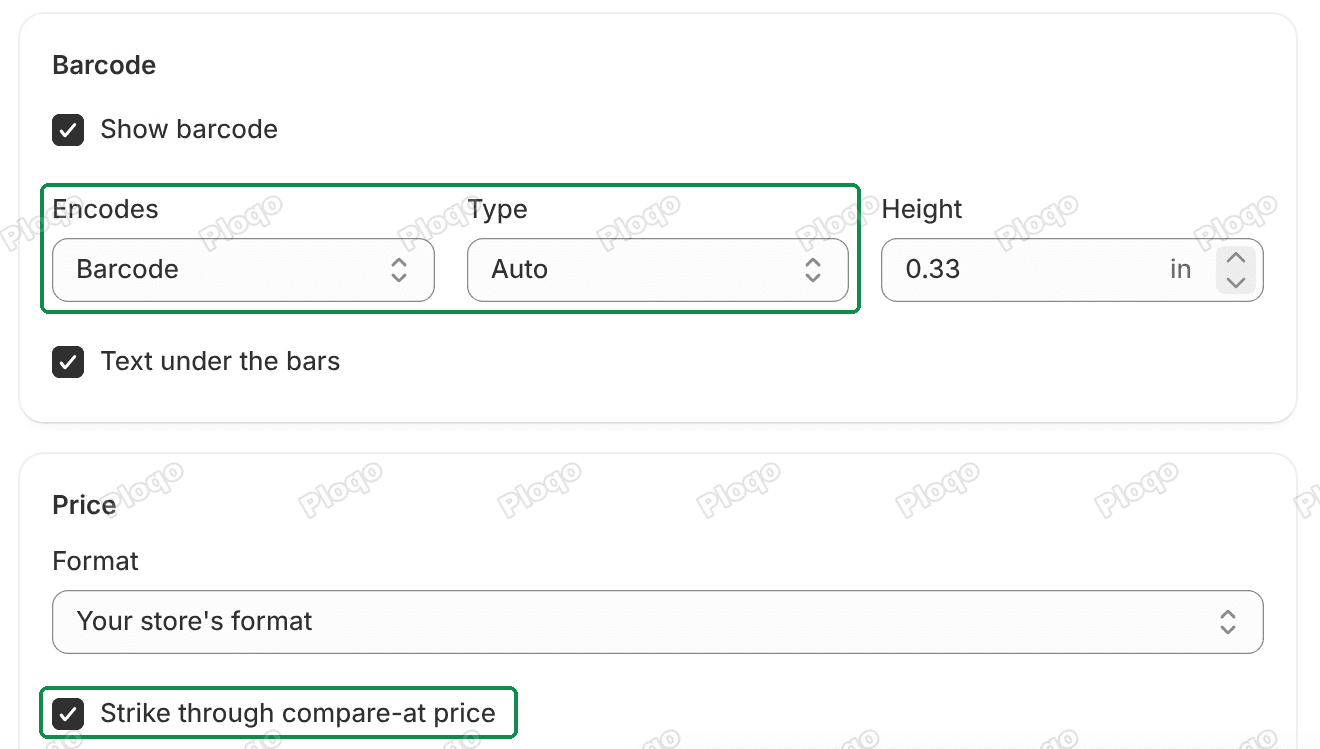 The Barcode card with Show barcode, Encodes, Type Auto, Height and Text under the bars, and the Price card with Format Your store's format and Strike through compare-at price
In the Barcode card:
- Show barcode turns the bars on or off.
- Encodes is what the bars hold: the variant's Barcode, or its SKU. A variant with no barcode can get one with generate barcodes.
- Type is the kind of barcode. Leave it on Auto and it picks from the number: EAN-13 for a valid 13-digit number, UPC-A for a valid 12-digit one, and Code 128 for anything else. You can also set Code 128, EAN-13 or UPC-A yourself.
- Height of the bars, and Text under the bars to print the number under them.
In the Price card, Format is Your store's format (as your store shows prices) or Custom, where you choose the decimals and where the currency symbol goes. Strike through compare-at price crosses out the compare-at price on a sale tag.
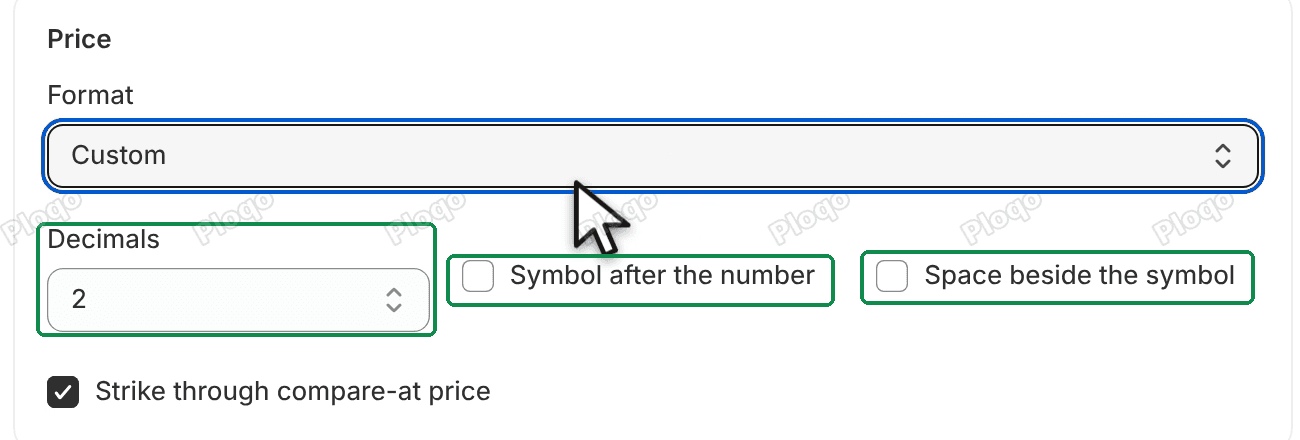 The Price card on Custom: Decimals 2, Symbol after the number, Space beside the symbol and Strike through compare-at price
If a label is too small for its barcode, the preview says "Bars this thin may not scan. Use a wider label." The label still prints, and the Print page marks the row "Thin bars".
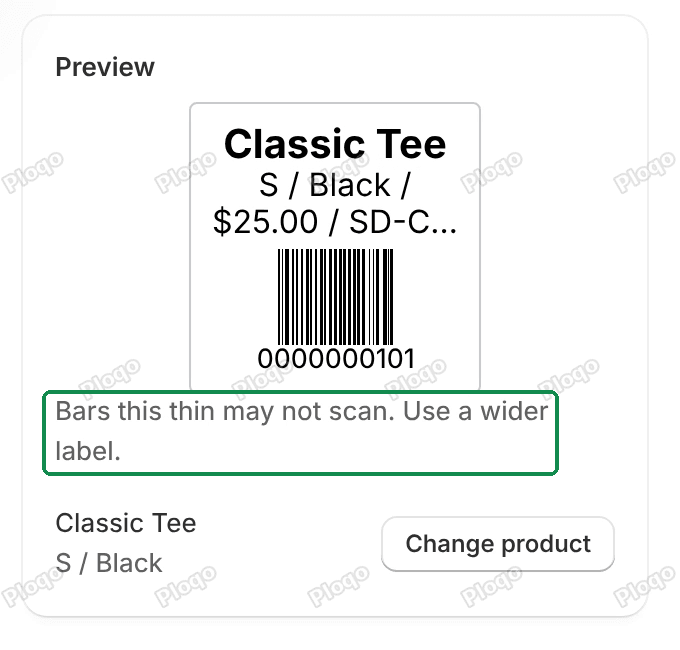 The preview of a small square label with the line Bars this thin may not scan. Use a wider label.
Save, set the default, duplicate and delete
Click Save in the bar at the top (a copy you haven't changed yet has Save template instead). The template now shows under Your templates.
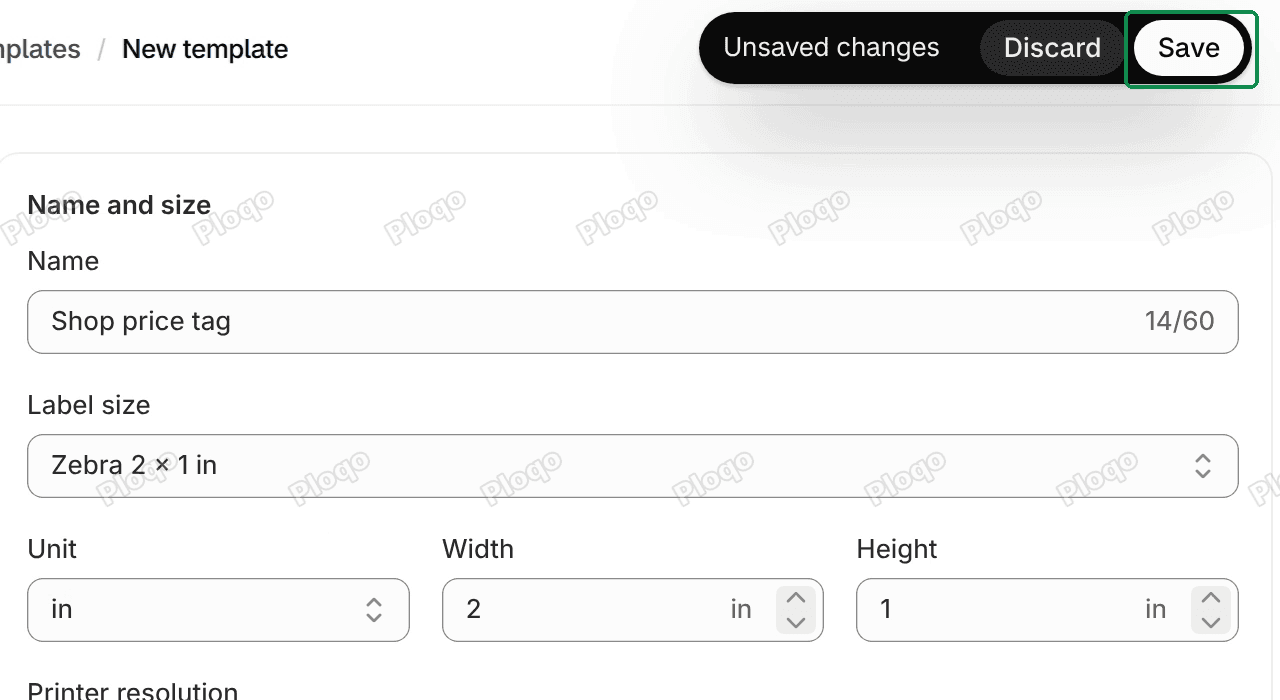 The bar at the top of the editor with Unsaved changes, Discard and Save, above the Name and size card
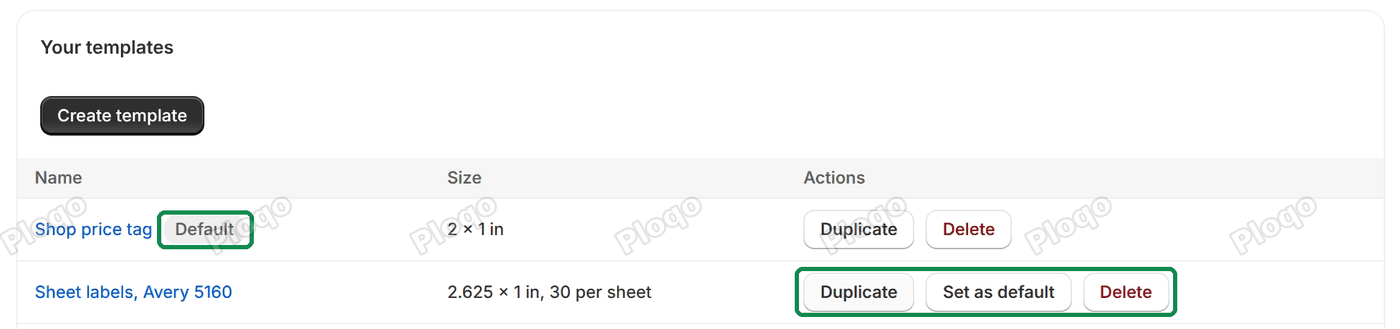 Your templates: Shop price tag marked Default with Duplicate and Delete, and Sheet labels, Avery 5160 with Duplicate, Set as default and Delete
- Default. The first template you save becomes the default, which the Print page opens with. Set as default on another row moves it there.
- Duplicate makes a copy named with " copy" at the end, to try a change without touching the original.
- Delete asks first. Labels you already printed with it stay as they are. If you delete the default, the next template in the list becomes the default.
Click a template's name to open it in the editor again. A store can keep up to 50 templates.
Templates are saved inside your Shopify store, not on our server. If two browser tabs edit the same template, the second save stops with "This template changed in another tab. Reload to see it." and changes nothing.
All Ploqo Labels guides·Shopify EU product identifiers, explained
More Ploqo Labels guides
Getting Started
Get Started with Ploqo Labels: Print Your First Labels
Open the app, add products to the Print page, choose how many labels each variant needs and print with a ready-made template. No template to make first.
Printing Labels
Print Labels from Your Shopify Products List
Tick products in your Products list and choose Print labels from the Actions menu, or from More actions on a product's page. The Print page opens with them.
Barcodes
Generate Barcodes for Variants: Code 128, EAN-13 and UPC-A
Give variants with no barcode a new one: a Code 128 sequence, or EAN-13 or UPC-A from your GS1 prefix. Each is checked against every barcode in your store.
Barcodes
The Barcodes Page: Missing Barcodes, Duplicates and Undo
See every variant with no barcode, find two variants that share one and replace it, and clear the barcodes your last run added.