
The Settings Page: Pinterest, Boards, Autopilot and Limits
Connect Pinterest, choose the boards your pins post to, keep the queue topped up automatically, set URL limits, and pause everything when you need to.
Updated September 6, 2026 · 8 min read
Watch the walkthrough
Under two minutes on the whole settings page. The tabs have been reorganised a little since it was recorded, so where the video and this article disagree, trust the article.
Six tabs
Settings is the control centre. It has six tabs, and this article walks through them in order: Status, Pinterest, Boards, Autopilot, URL Limits and Plan.
Status
The Status tab is where you generate pins and where you stop everything.
Pins are currently generated until a date, at the top, tells you how far ahead your queue is covered. This is the number to check whenever you wonder whether PinFlow is still working.
Two buttons sit under it.
- Generate until <date> now builds a batch out to that date in one run. This is the bulk generator, and it is the fast way to fill a month of calendar in one go rather than making pins one at a time in Pin Studio.
- Generate next batch earlier brings the next automatic batch forward instead of waiting for the current one to run down.
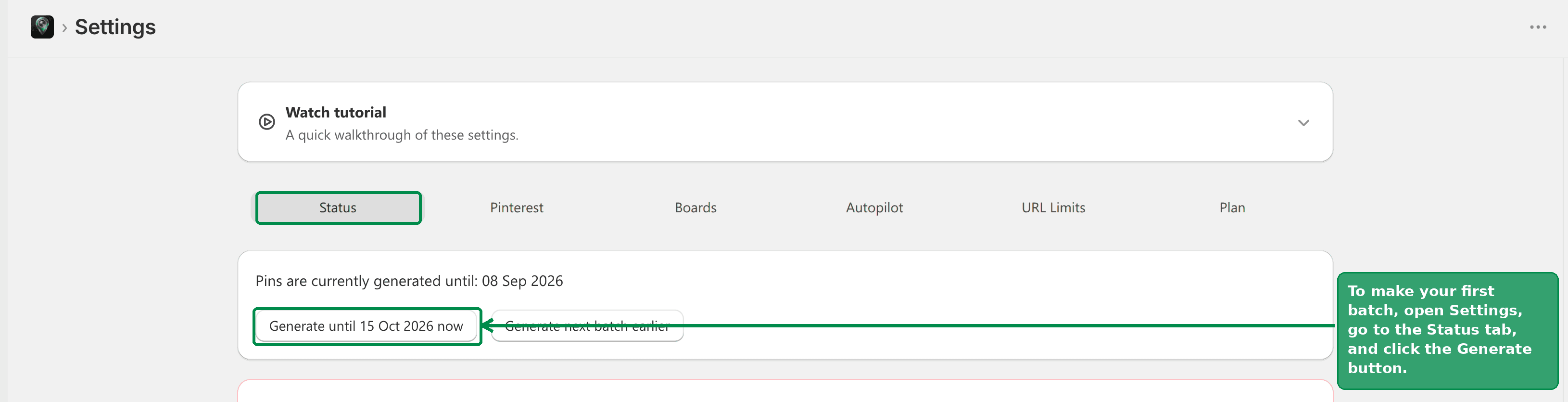 The Status tab showing how far ahead pins are generated, with the Generate until button
Pausing everything
Also on the Status tab is Pause Pins Upload, a global stop. Use it if something looks wrong, if your Pinterest account is behaving oddly, or if you just want to stop posting for a while. Resume Upload starts it again.
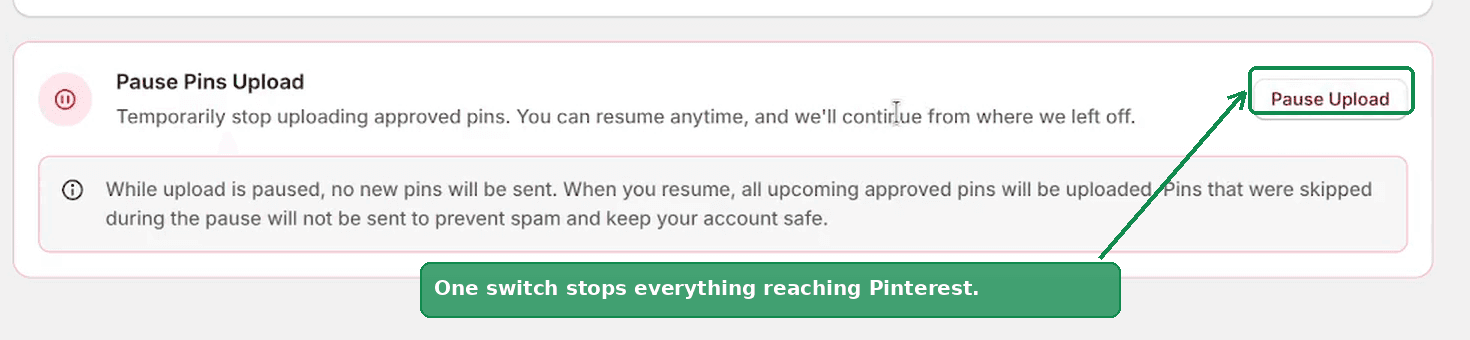 The Pause Pins Upload card with the Pause Upload button and a note on what happens to missed pins
Important
While you are paused, pins whose scheduled time passes are marked as missed and are not published when you resume. That is deliberate. Without it, resuming after a week off would dump a week of pins onto Pinterest at once, which is exactly the behaviour that gets accounts flagged.
This tab is the connection to your Pinterest account.
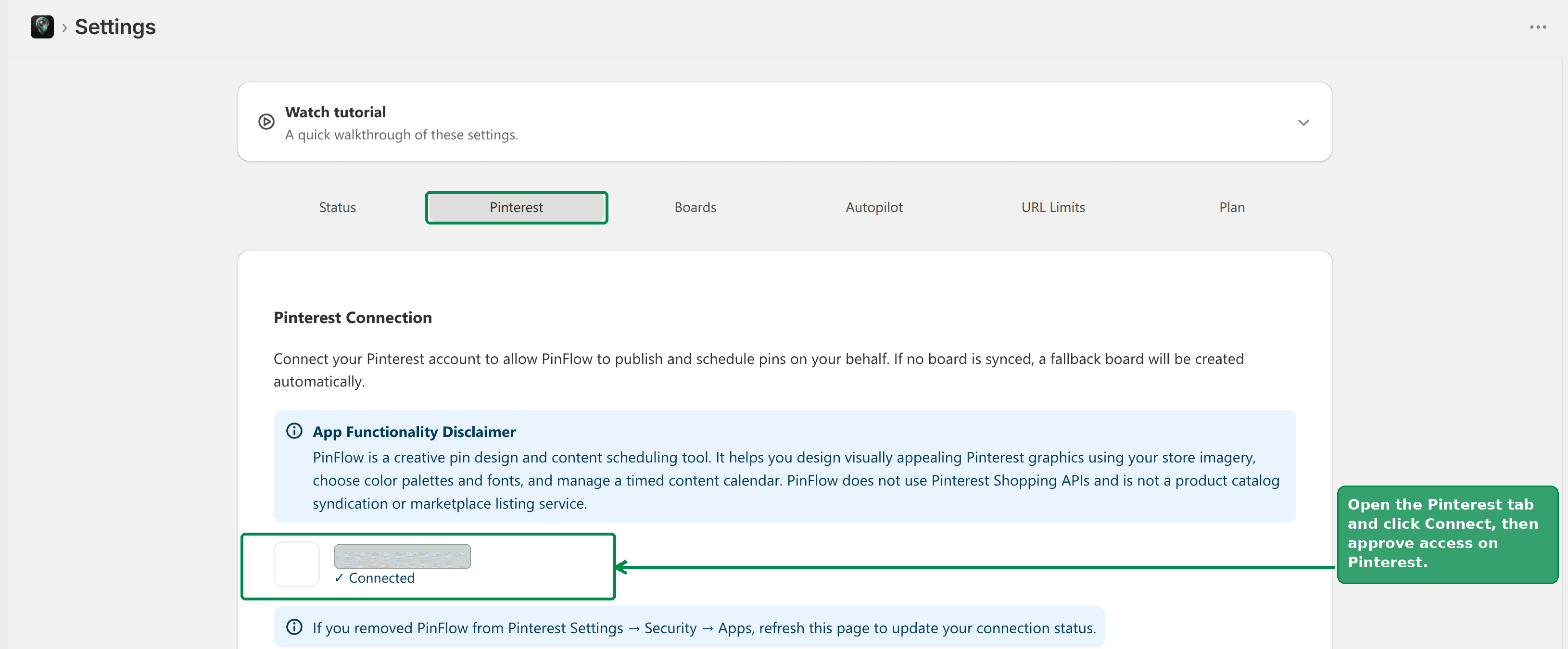 The Settings tabs, with the Pinterest tab open and the account connected
Connect Pinterest Account starts the authorisation, and Disconnect Pinterest ends it.
There is also Clear pins and restart generation, which throws away the pins PinFlow has generated and starts over. Reach for it when you have changed your templates, palette or product selection substantially and would rather regenerate than edit what is already queued. It asks for confirmation first, because scheduled pins are affected.
Boards
This is where you choose which Pinterest boards your pins post to.
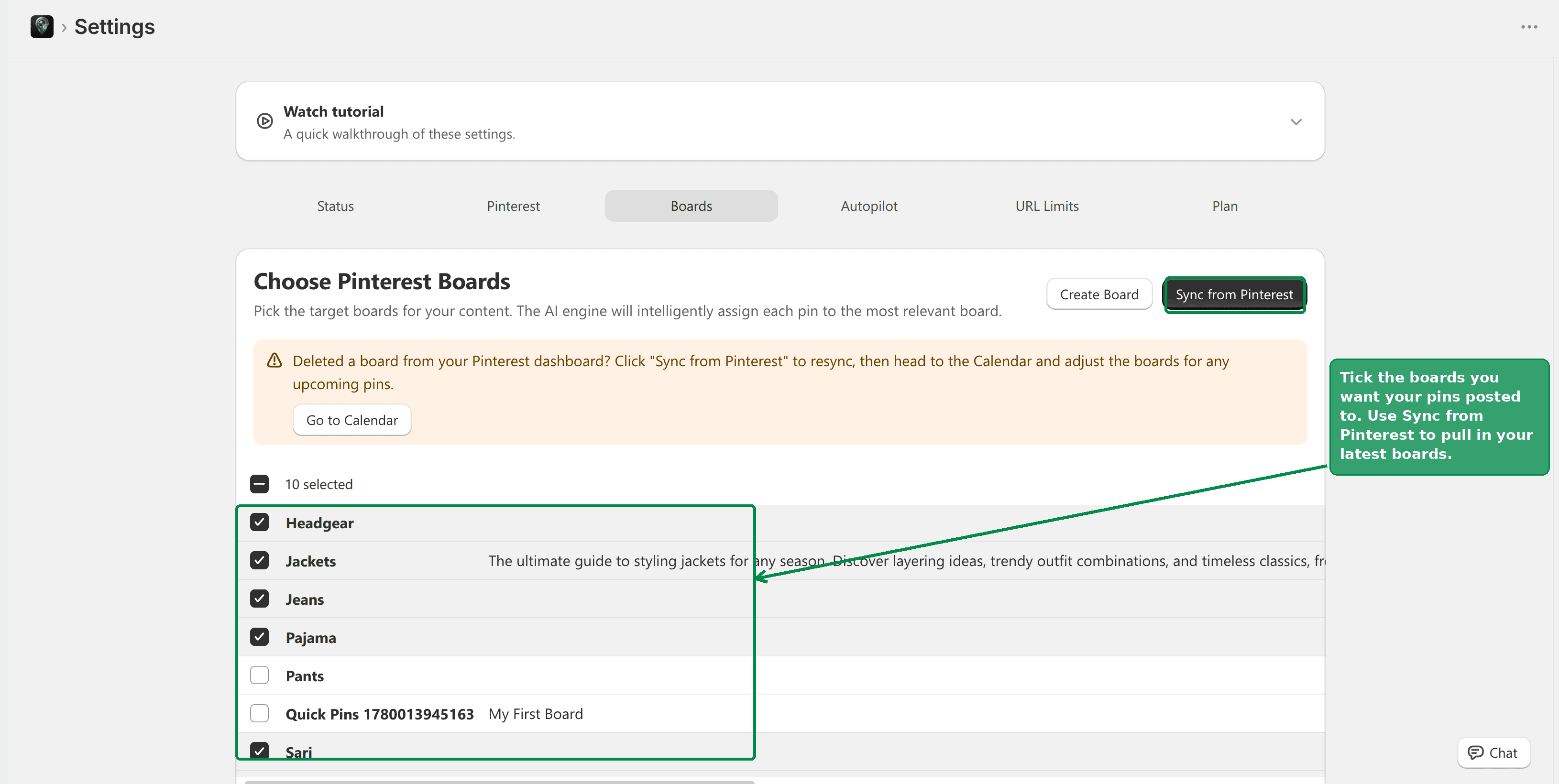 Choosing which Pinterest boards your pins post to
Sync from Pinterest pulls in the boards that already exist on your account. Run it whenever you create or delete a board on Pinterest, so PinFlow's list matches reality.
Create Board makes a new board from inside PinFlow, giving it a name and a description. It is created on your real Pinterest account, so there is no need to go over there and back.
Then tick the boards you want to use. Each pin is assigned to whichever of your selected boards best matches the product.
Tip
The board matching is only as good as the choice you give it. With two boards, most pins land in the same one whatever they are. Ten specific boards produce far better assignments than one general one.
Warning
If you delete a board on Pinterest, come back and hit Sync from Pinterest, then check the upcoming pins in your Calendar. Pins still pointing at the deleted board need reassigning.
Autopilot
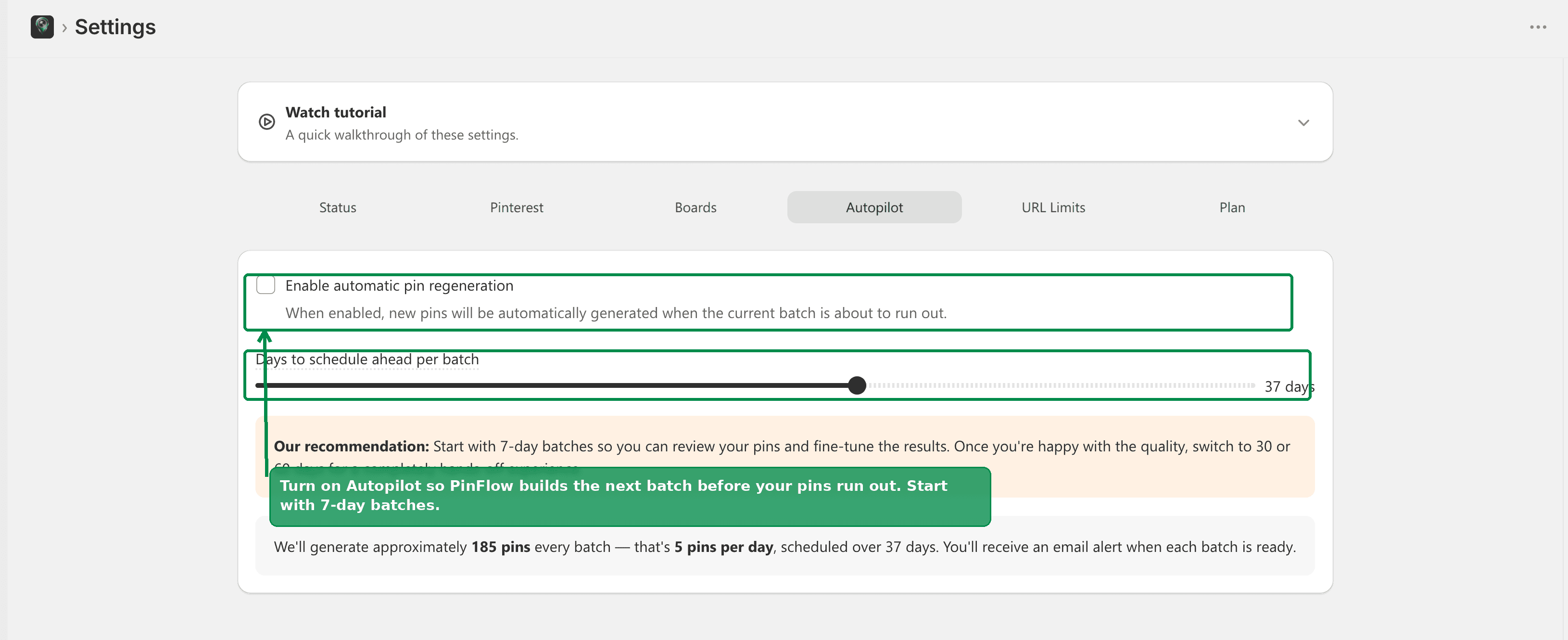 The Autopilot setting
Enable automatic pin regeneration is on by default, and it is the setting that means you never wake up to an empty queue. Before your current batch runs out, PinFlow generates the next one and emails you to say it has.
Leave this on. It is the difference between PinFlow running by itself and PinFlow needing you to remember it exists.
URL Limits
Pinterest does not like the same link being pinned over and over in a short period. This tab caps how often any one product page can be pinned.
Monthly pin limit per URL is how many pins can be created from the same URL in a month. It resets at the start of each month.
Lifetime pin limit per URL is the total that can ever be created from that URL. Once it is reached, no more pins are made from that page, in this month or any future one.
Both accept a value from 1 to 300.
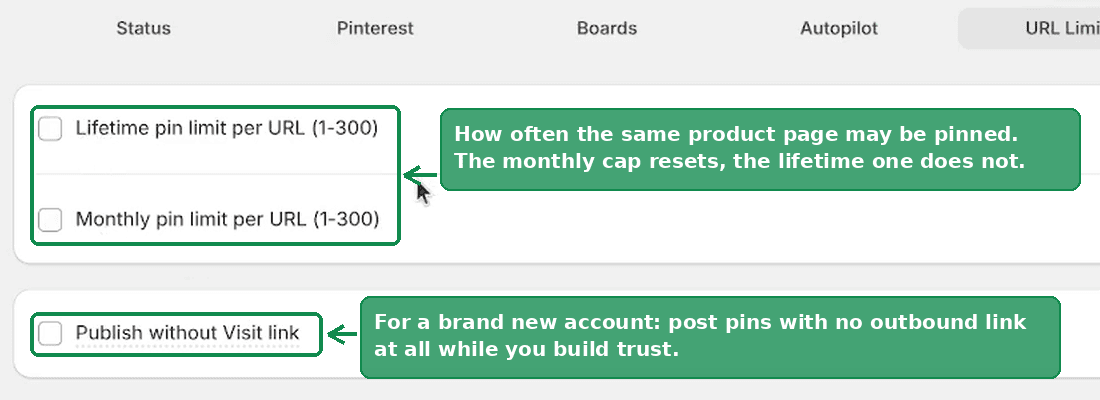 The URL Limits tab with the lifetime and monthly per-URL caps and the Publish without Visit link option
Publish without Visit link posts pins with no outbound link at all. This is a tactic for brand new stores and new Pinterest accounts: post genuinely useful pins for a while to build trust before you start sending traffic anywhere. Existing pins are not affected. Turn it off once your account is established.
Plan
Your current plan, and where you change it. Change Plan hands you over to Shopify's own plan picker, so billing changes happen on Shopify's side and are prorated automatically.
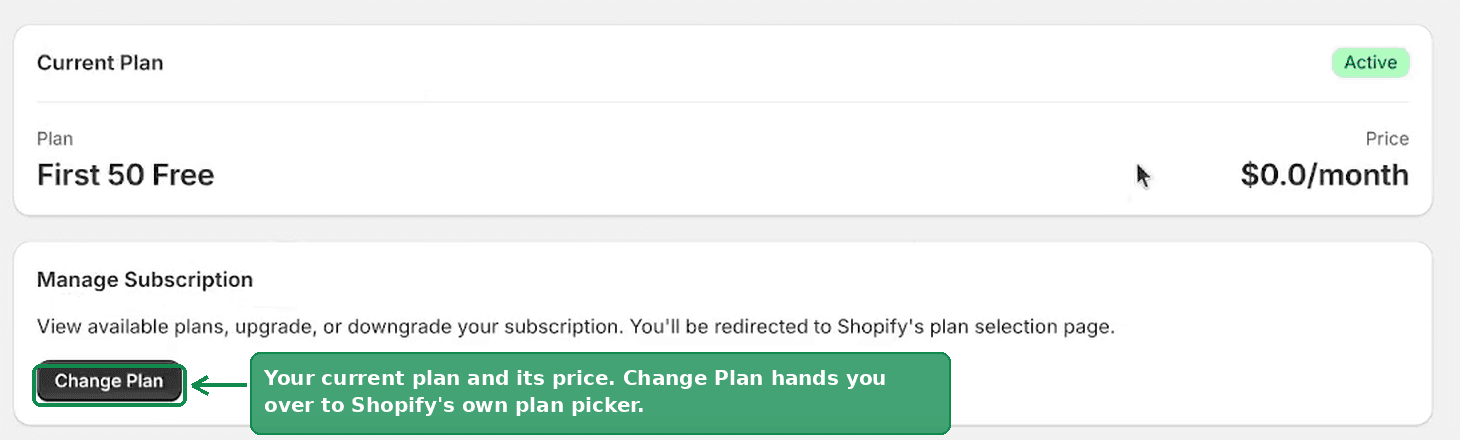 The Plan tab showing the current plan, its price, and the Change Plan button
Bulk generation, start to finish
Putting the pieces together, the order that works is:
- Products, to decide which products are in play.
- Pin Studio, to set the templates, palette, fonts and AI wording.
- Scheduling, to set pins per day, time zone and posting window.
- Settings and the Status tab, to generate the batch.
- Calendar, to approve what came out.
Then leave Autopilot on and it repeats step 4 for you.
Related
Not using PinFlow yet?
PinFlow turns your Shopify catalog into Pinterest pins and posts them on a schedule, automatically. Install it and follow this guide to get your first month of pins live.
Get PinFlow on the Shopify App StoreRelated articles
Pin Studio
Upload Your Own Pin Image Instead of a Template
PinFlow used to stamp its own frame, text and graphics on every pin. Two new options skip that: a frameless template, and your own Canva uploads.
Pin Studio
Pinterest Pin Description Character Limit: What Actually Fits
The Pinterest pin description character limit is 500, and the title limit is 100. Mobile cuts both sooner. Here is what fits and how to make AI respect it.
Scheduling & Autopilot
How to Post on Pinterest Without Getting Banned
Pinterest wants a pin every day, but a 50 product store runs dry in weeks. Here is what Pinterest flags when you repeat, and how to repeat safely.