
Choosing Which Products Become Pinterest Pins
Pin your whole catalog, or narrow it to a collection, a tag, what is in stock, or what you added recently. Whatever you save here is what PinFlow pins.
Updated September 6, 2026 · 5 min read
Watch the walkthrough
Two minutes, covering everything on this page. The written version below goes into a bit more detail on when to use each filter.
What the Products page decides
PinFlow builds pins out of your Shopify products. The Products page is the one place that decides which products it is allowed to use.
Everything downstream follows from this choice. Pin Studio previews a product from this set, the bulk generator draws from this set, and the pins waiting in your calendar all come from this set. Narrow it and your queue gets smaller and more focused. Widen it and you get more pins covering more of your catalog.
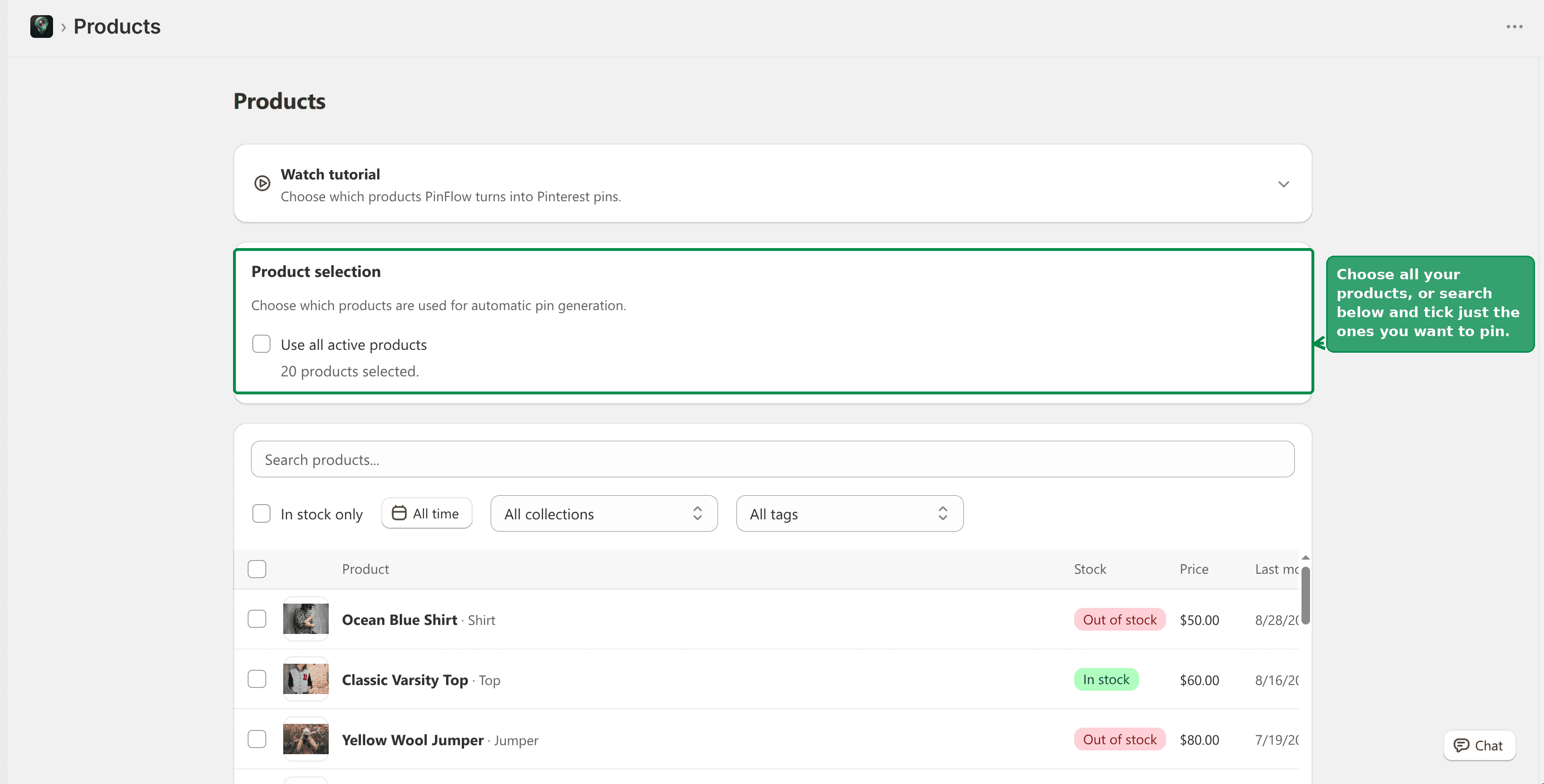 The PinFlow Products page showing the product selection card
Option 1: use every active product
At the top of the page is a single checkbox, Use all active products.
Leave it ticked and PinFlow uses your entire active catalog. New products you add to Shopify later are picked up automatically, with nothing to change here.
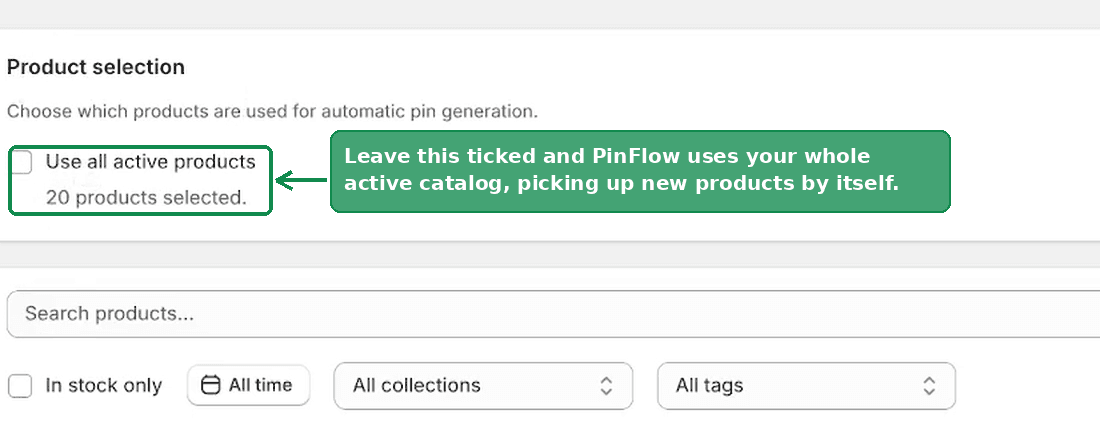 The Product selection card with Use all active products ticked and a count of selected products
This is the right default for most stores, and it is what we recommend starting with. A bigger pool of products means more distinct pins, and Pinterest rewards posting something new far more than it rewards posting your best product again.
Tip
If you are not sure, leave this ticked. You can always narrow it later, and narrowing does not delete pins that were already generated.
Option 2: pick the products yourself
Untick Use all active products and a product table appears underneath, with a checkbox on every row. Tick the products you want and leave the rest alone.
The count under the checkbox tells you where you stand, for example "12 products selected".
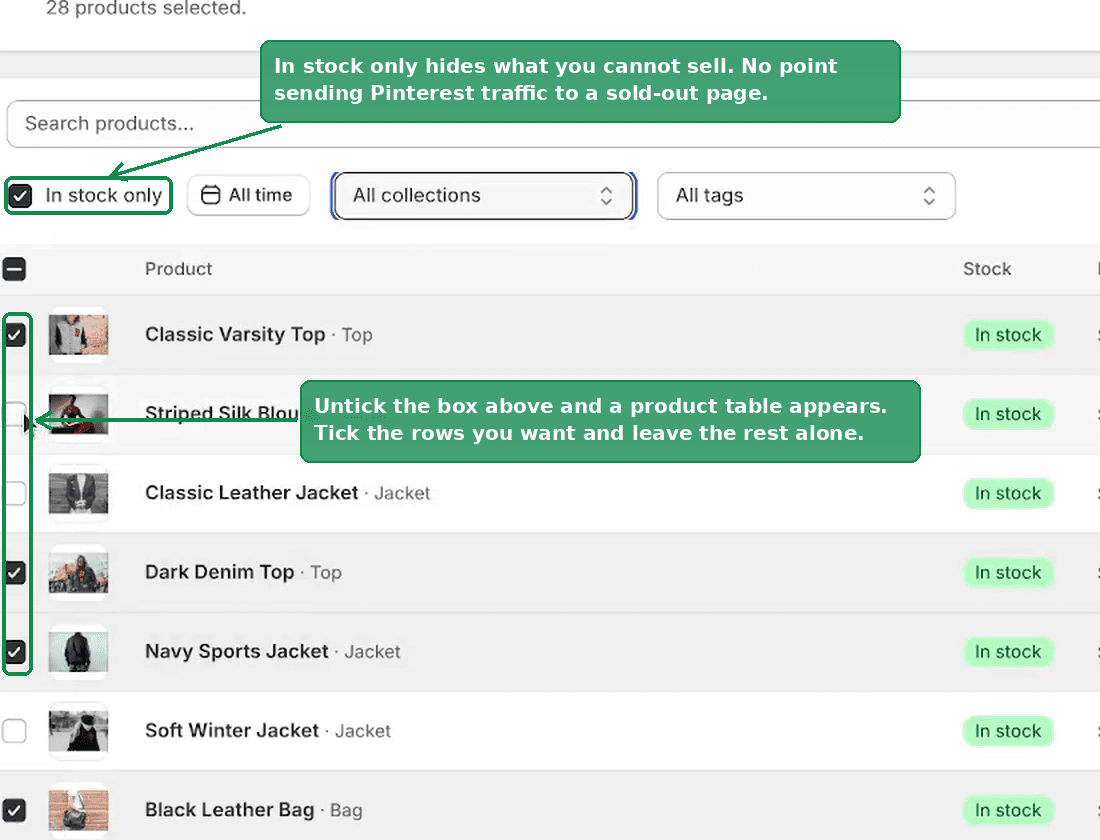 The product table with In stock only ticked and several products selected
Search
The search box at the top of the table matches on product title. Useful when you know exactly which few products you want and do not want to scroll.
In stock only
Tick In stock only to hide products with no inventory. Worth doing before a big selection pass. There is no point sending Pinterest traffic to a product page that cannot be bought, and a sold-out pin still keeps circulating on Pinterest for months.
Collection
The All collections dropdown filters the table to one Shopify collection. This is the quickest way to pin a category rather than a whole store: choose the collection, tick everything in the filtered table, and save.
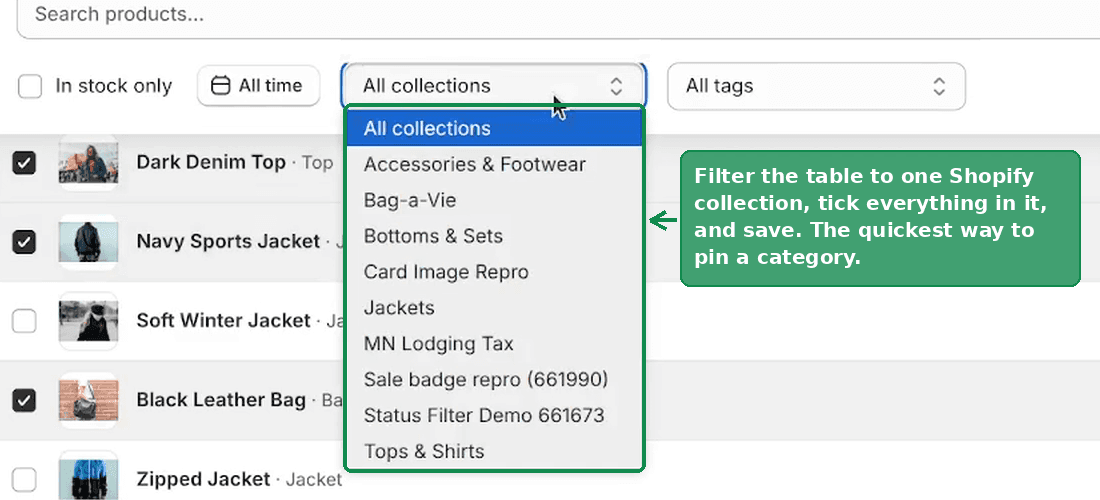 The All collections dropdown open, listing the store's Shopify collections
Tag
The All tags dropdown does the same thing with product tags. If you already tag products for merchandising, that tagging carries over here for free. A "bestseller" or "evergreen" tag makes a good pinning set.
Date added
The date filter narrows the table by when a product was added, with presets for Last 7 days, Last 30 days, Last 90 days, Last 365 Days and a Custom range.
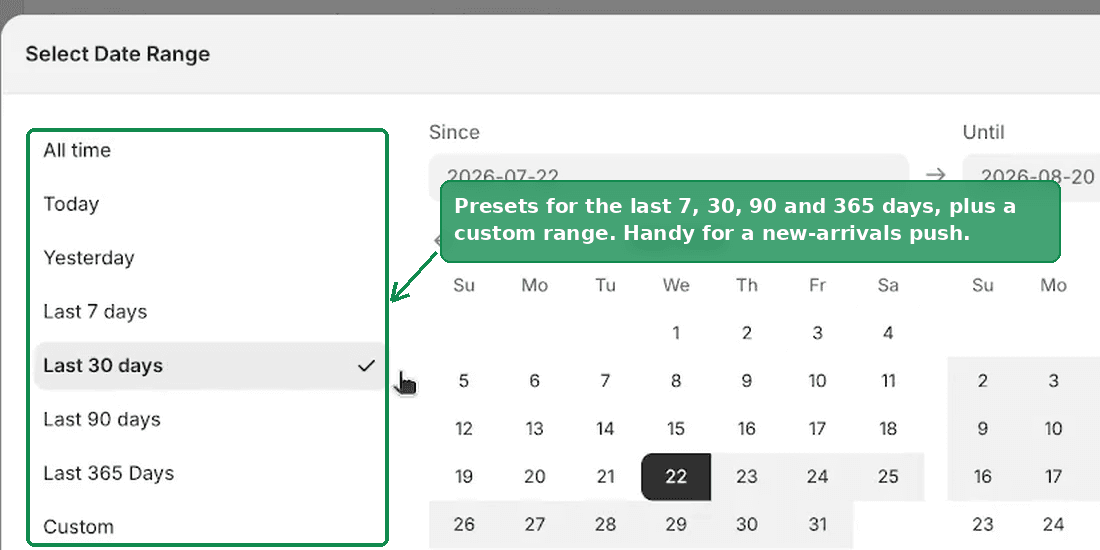 The Select Date Range dialog with presets for the last 7, 30, 90 and 365 days
Handy for a new-arrivals push: filter to the last 30 days, tick what appears, and your pins cover only the products you are actively promoting.
Note
These are filters on the table, not a saved rule. They change what you can see and tick right now. What gets saved is the specific products you ticked, so a product added next month will not join the set on its own. That only happens with Use all active products.
Save
Filters change the view. Nothing takes effect until you save.
When your selection differs from what is stored, Shopify's save bar slides in at the top of the screen. Save commits it and Discard puts it back.
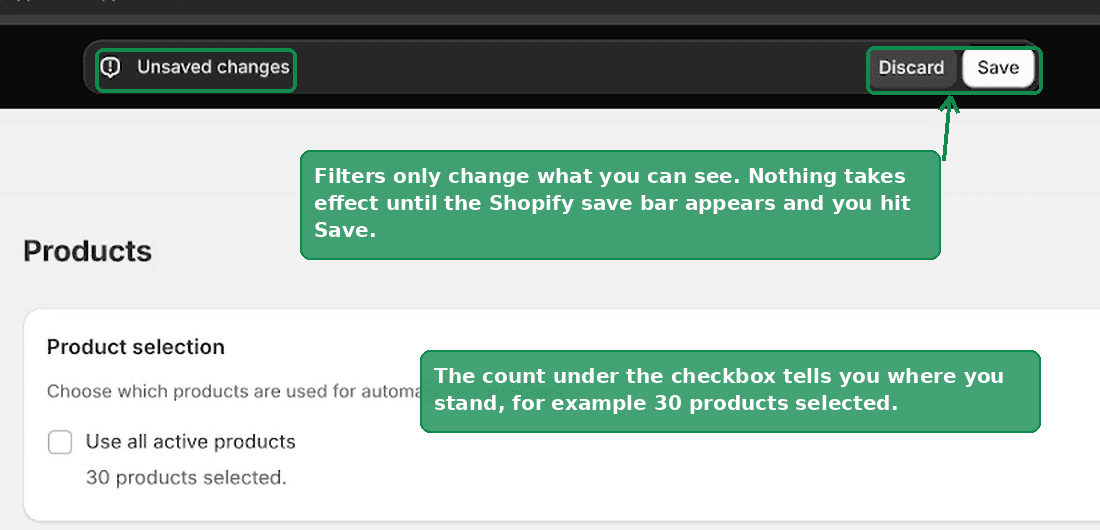 The Shopify save bar showing Unsaved changes with Discard and Save buttons
From then on, pins are generated only from the products you saved.
Which option should you choose?
| Your situation | What to pick |
|---|---|
| Under a few hundred products | Use all active products |
| Large catalog, only some worth pinning | Pick your own, filter by collection or tag |
| Seasonal or limited-run stock | Pick your own, and revisit when the season turns |
| Testing PinFlow before committing | Pick a handful you know convert |
Warning
If you narrow the selection hard, check your queue afterwards. Fewer products means fewer possible pins, and a very small set can leave gaps in the calendar. The Content Calendar shows you exactly what is scheduled, and its Fill Empty Slots button covers any dates that came out empty.
Related
- Pin Studio: Design Your Pinterest Pins for how the products you picked get turned into pin designs.
- The Content Calendar for reviewing and approving what was generated.
- How to Post Fresh Pins Consistently With Only 50 Shopify Products if your catalog is small.
Not using PinFlow yet?
PinFlow turns your Shopify catalog into Pinterest pins and posts them on a schedule, automatically. Install it and follow this guide to get your first month of pins live.
Get PinFlow on the Shopify App StoreRelated articles
Pin Studio
Upload Your Own Pin Image Instead of a Template
PinFlow used to stamp its own frame, text and graphics on every pin. Two new options skip that: a frameless template, and your own Canva uploads.
Pin Studio
Pinterest Pin Description Character Limit: What Actually Fits
The Pinterest pin description character limit is 500, and the title limit is 100. Mobile cuts both sooner. Here is what fits and how to make AI respect it.
Scheduling & Autopilot
How to Post on Pinterest Without Getting Banned
Pinterest wants a pin every day, but a 50 product store runs dry in weeks. Here is what Pinterest flags when you repeat, and how to repeat safely.