
Shopify BOGO: Buy One Get One, Free and Tested
BOGO is not its own discount type. It is Buy X Get Y pointed at the same product, and the percentage decides whether the second one is free or half price. Tested at checkout.
By AjayCodeWiz · September 10, 2026 · 8 min read
The problem
BOGO is the oldest promotion in retail. Buy one, get one free. Buy one, get one half price.
Shopify's Discounts page does not have a BOGO option, so merchants assume they need an app. Search the App Store for BOGO and you will find plenty of them, several charging monthly.
You do not need one for a straightforward BOGO. It is built in, it is free, and it takes about two minutes. I set one up on a test store and pushed a real cart through checkout to confirm the numbers.
BOGO is Buy X Get Y
The discount type you want is Buy X get Y. What makes it a BOGO rather than a bundle is a small thing: you put the same product in both the "buys" and the "gets" side.
- Same product in X and Y = BOGO
- Different products in X and Y = a bundle
That is the whole trick. Everything else is the percentage.
Setting it up
Go to Discounts → Create discount → Buy X get Y. Choose Automatic discount so shoppers do not need a code.
The Discounts page is the list of every offer on your store. Create discount is top right.
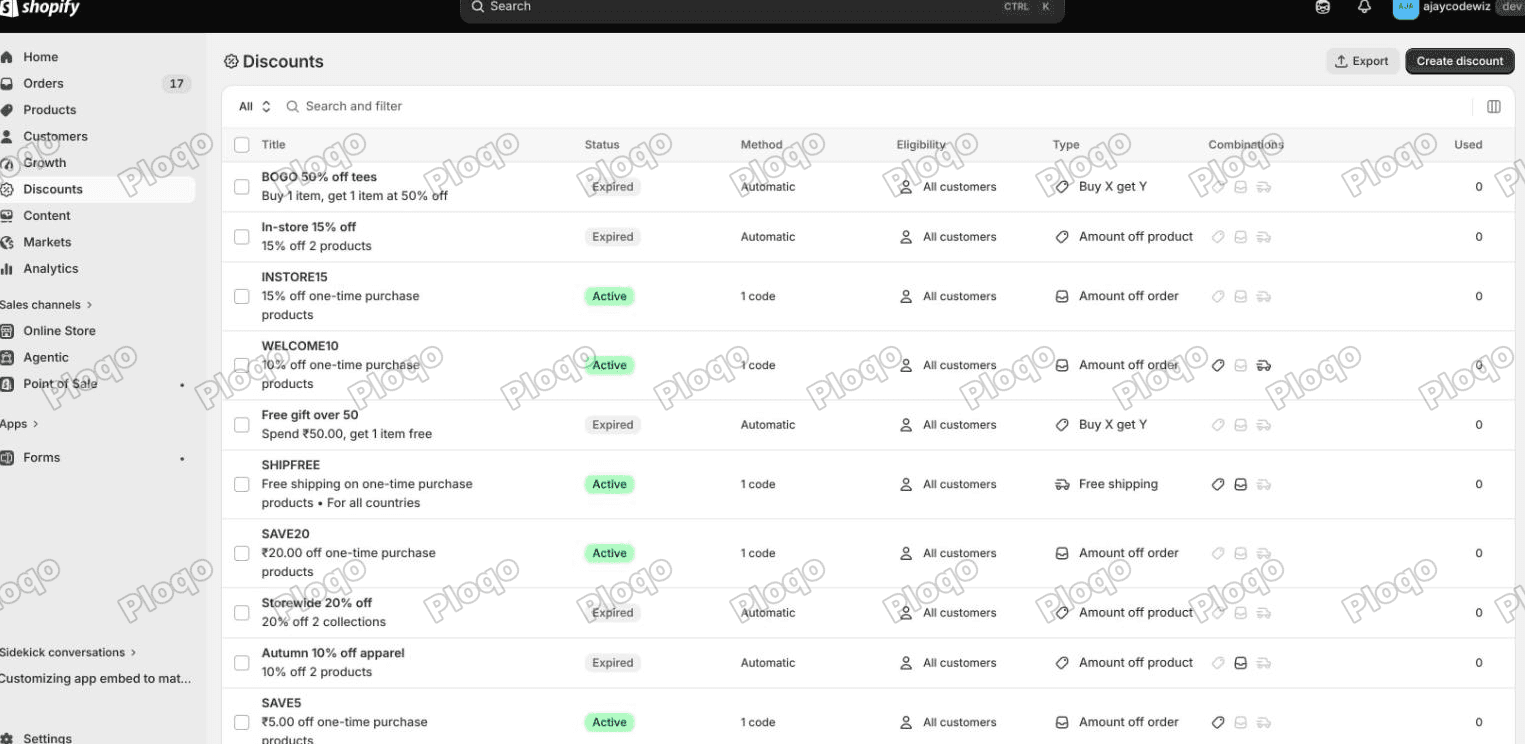 The Discounts page in the Shopify admin, with the Create discount button top right and a list showing each discount's method and type
Customer buys
- Choose Minimum quantity of items and set it to 1
- Add the product (or collection) the promotion covers
Customer gets
- Quantity 1
- Add the same product or collection
- At a discounted value, choose Percentage and set it
The percentage is the whole promotion:
| You want | Set the percentage to |
|---|---|
| Buy one, get one free | 100% |
| Buy one, get one half price | 50% |
| Buy one, get one 25% off | 25% |
Maximum number of uses per order
Set this to 1.
Skip it and a shopper who adds six tees gets three of them discounted, because Shopify applies the rule as many times as the cart allows. That is occasionally what you want. It is usually a surprise.
What it looks like at checkout
I built "buy one tee, get one at 50% off" and put two tees in a cart. Both cost Rs. 40.00.
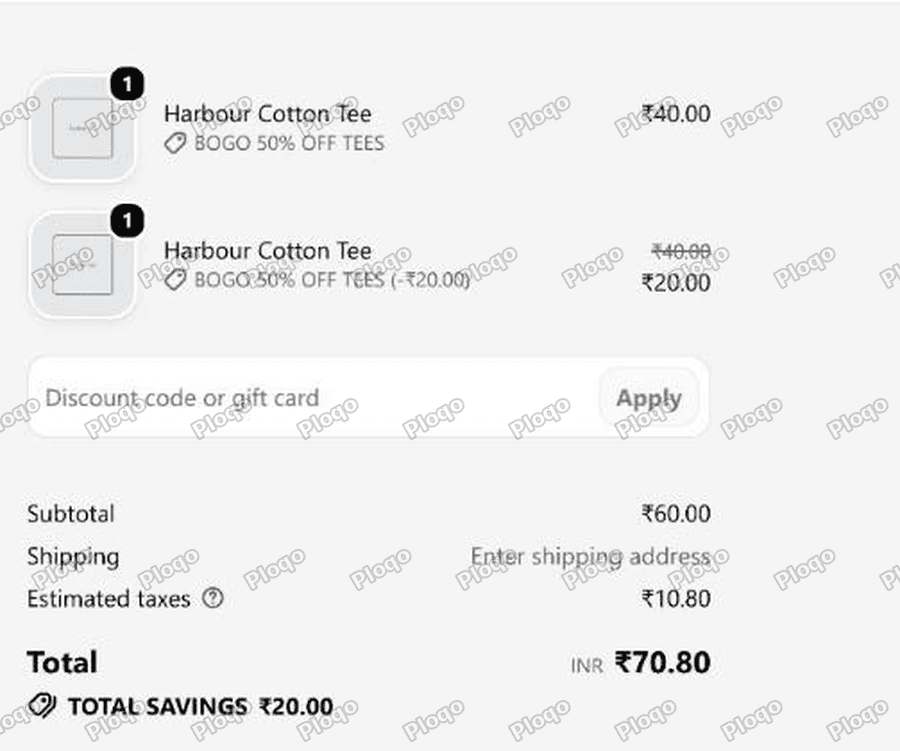 Shopify checkout showing the cotton tee twice, once at 40.00 labelled BOGO 50% OFF TEES and once reduced from 40.00 to 20.00, with a subtotal of 60.00 and total savings of 20.00
- First tee: Rs. 40.00, labelled "BOGO 50% OFF TEES"
- Second tee: Rs. 40.00 struck through, Rs. 20.00, labelled "BOGO 50% OFF TEES (-Rs. 20.00)"
- Subtotal Rs. 60.00, total savings Rs. 20.00
Notice what Shopify did to the display. The cart had one line with a quantity of two. Checkout split it into two rows so the shopper can see which unit paid full price and which was discounted.
That is a good default and worth knowing about, because it means BOGO reads clearly to the customer without you doing anything. It also means your order will show two lines where you might have expected one.
Buy one get one free
Same setup, percentage set to 100% instead of 50%. The second unit shows as FREE rather than a reduced figure.
One thing to decide before you launch: with 100% off, a shopper who adds only one item gets no discount and no explanation. The promotion needs two in the cart to do anything. A line on the product page saying "buy one get one free" earns its place here, and that is showing a discount on the product page.
Buy 2 get 1 free, and other shapes
The same discount type covers the whole family. Change the numbers:
| Promotion | Customer buys | Customer gets |
|---|---|---|
| Buy one get one free | 1 | 1 at 100% |
| Buy one get one half price | 1 | 1 at 50% |
| Buy 2 get 1 free | 2 | 1 at 100% |
| Buy 3 get 2 half price | 3 | 2 at 50% |
For "buy 2 get 1 free" the shopper needs three in the cart, not two. The "buys" quantity is items they pay for; the "gets" quantity is on top.
Across a collection instead of one product
Put a collection in both sides rather than a product and you get "buy any tee, get any tee half price".
Shopify discounts the cheapest eligible item, which is the sane default and also the one to think about. A shopper mixing a Rs. 90 item and a Rs. 40 item gets the Rs. 40 one discounted. If your collection spans a wide price range, that is either fine or expensive, depending on your margins.
To keep the promotion sane, either scope the collection tightly or use a collection built from a tag so you control exactly what qualifies.
Mixing BOGO with other discounts
By default a BOGO refuses to run alongside anything else, so a shopper with a code will find one of the two dropped, with no message saying which.
If you want the BOGO to stack with, say, a free shipping code, you have to tick the boxes on both discounts, not just one. That mechanism is discount combinations, and the "both sides" rule is the part most people miss.
For a BOGO specifically, think hard before allowing it. A 50%-off-second-item promotion stacked with a 20% code is a bigger giveaway than most margins survive.
BOGO after Shopify Scripts
If you have been running BOGO through Shopify Scripts, that path has been retired, and merchants have been rebuilding these offers on the native discount engine.
The good news is that the plain shapes above all migrate directly, with no code and no app. Buy X Get Y covers buy-one-get-one, buy-2-get-1, tiered variants and collection-wide versions.
What does not migrate as cleanly is anything conditional: a BOGO that depends on the customer, the cart total, or a rule Shopify does not model. That is what Shopify Functions are for now, and a Function needs an app to deploy it. If you were running a custom Script, budget for a Function rather than hoping a checkbox covers it.
When you do need an app
Native Buy X Get Y covers the promotion. What it does not do is the shop window:
- Telling the shopper on the product page that a BOGO exists
- Adding the second item to the cart for them
- A picker when the free item can be one of several
- A progress message like "add one more to get 50% off"
Those are presentation, and that is what BOGO apps are really selling. The discount underneath is the same free native one.
Before you pay for an app, be clear which of those you actually need. The product page notice is a Custom Liquid block. A Custom Liquid block is an empty box in the theme editor where you paste your own code. The rest is fiddly and an app may be worth it.
Common problems
Too many items are being discounted. Set Maximum number of uses per order to 1.
Nothing is discounted. Check the cart actually has enough items. Buy 1 get 1 needs two in the cart, and buy 2 get 1 needs three.
The wrong item is discounted. With a collection on both sides, Shopify picks the cheapest eligible item. Narrow the collection.
It stopped working when a customer used a code. Two discounts do not combine by default. One is dropped, without a message.
The customer expected the free item to appear on its own. It does not. Buy X Get Y makes an item cheap once it is in the cart; it never adds anything. Gifts behave the same way, covered in free gift with purchase.
One line became two at checkout. That is deliberate, so the shopper can see which unit was discounted.
Does BOGO work in store?
A Buy X Get Y automatic discount can apply at a till, but only if you turn it on and only on the paid POS tier.
Open the discount, find Eligibility, and tick Apply on POS Pro locations. The Details panel on the right then changes from "POS excluded" to "POS Pro included". Left alone, an automatic discount you built for the website will not fire in the shop, which is often exactly what you want for an online-only promotion.
The full map of which POS control does what is in Shopify POS discount code.
Seeing what it cost you
Once the promotion has run, the number you want is not "how many BOGOs" but "how much did I give away".
On the discount page, the Performance panel shows uses. For the money, follow View the sales by discount report, which breaks orders down by discount and gives you the total discounted amount.
Two things to watch when you read it. A BOGO discounts the cheapest eligible item, so on a wide collection your average giveaway will be lower than the headline percentage suggests. And if you allowed the BOGO to combine with anything else, the report attributes each discount separately, so you have to add them up to see what an order really cost you.
Set an end date on the discount when you create it. A BOGO left running past the campaign is the most expensive kind of forgotten setting, and the Active dates section takes ten seconds.
The main points
- BOGO is not a discount type. It is Buy X get Y with the same product on both sides.
- The percentage decides the flavour: 100% for free, 50% for half price.
- Set maximum uses per order to 1 or a big cart earns several.
- Verified at checkout: two Rs. 40.00 tees came out as Rs. 40.00 + Rs. 20.00, subtotal Rs. 60.00, savings Rs. 20.00.
- Checkout splits one line into two so the discounted unit is visible.
- On a collection, Shopify discounts the cheapest eligible item.
- It will not combine with other discounts unless both sides allow it, and it will never add the second item to the cart for the shopper.
Spending too long on manual Shopify busywork?
PinFlow turns your Shopify catalog into Pinterest pins and posts them on a schedule, automatically. Same idea as the discount above, let the system handle the repetitive part.
Get PinFlow on the Shopify App StoreMore Shopify fixes
More community-sourced Shopify guides, tested on a live store.
Shopify Admin
Schedule a Black Friday Sale in Shopify (Auto Start and End)
Give the discount its own start and end date and put the sale banner in an Event rollout with the same dates. Both start at midnight and end after Cyber Monday.
Shopify Admin
Shopify Discount Limit: One Code for More Than 100 Products
Shopify stops you at 100 items when a discount applies to specific products. There is no setting to raise it, but you do not need one. Point the discount at a collection and one code covers thousands of products. Tested on a store, with the B2B route too.
Shopify Admin
Shopify Discount Types: Amount Off Products vs Order
Shopify has four discount types, and two of them work out a percentage in different ways. One rounds every single unit, the other rounds the order once. On low unit prices that difference is real money. Tested on a live store.