
Removing Ploqo Labels: What Stays and What Goes
The barcodes the app wrote stay on your variants, because they are yours. Templates are app data that Shopify keeps for a while after you uninstall.
By AjayCodeWiz · Updated October 30, 2026 · 3 min read
How to uninstall
Open Settings at the bottom left of your Shopify admin, then Apps. Click the three dots next to Ploqo Labels and choose Uninstall. Shopify asks you to pick a reason before the Uninstall button works.
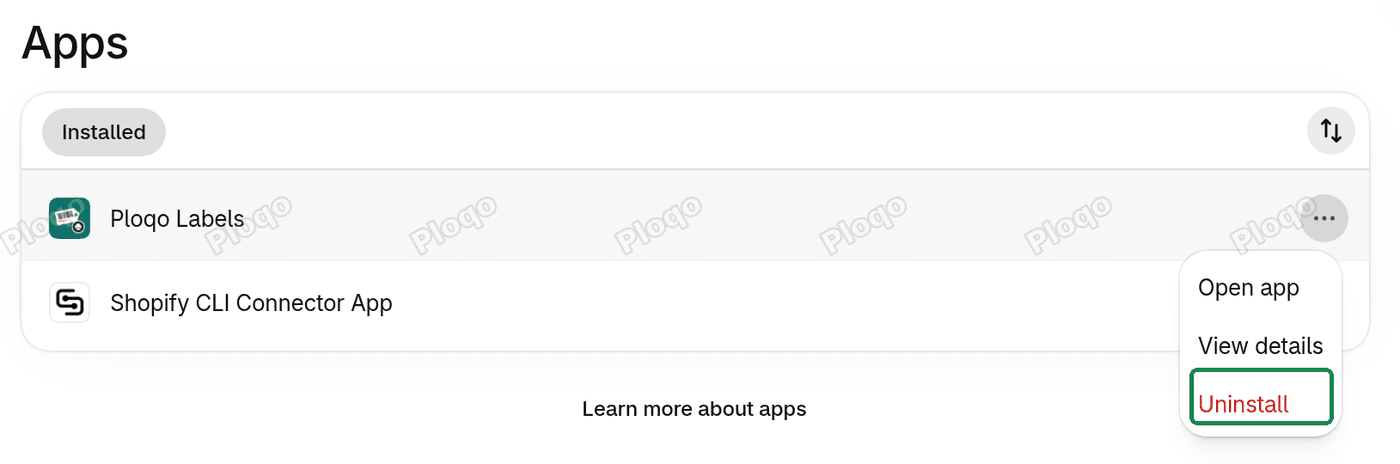 Settings > Apps in the Shopify admin, with the three-dot menu next to Ploqo Labels open on Uninstall
The app has no billing and sends no email, so there is nothing to cancel.
What stays
Every barcode the app wrote. Barcodes are saved in each variant's own Barcode field, the same field you can type in yourself. They are part of your products, so they stay after the app is gone, and your POS, scanner and other apps keep reading them.
To remove some first, use Clear the last run on the app's Barcodes page before you uninstall (see the Barcodes page), or edit the variants in Shopify.
 The Barcodes page line Added Oct 28, 7:57 PM: 6 barcodes. with the Clear the 6 new barcodes button
Labels and PDFs you already printed or downloaded stay too: they were made in your browser. The app writes nothing else on your products or variants.
What goes
- The Print labels action in your Products list and under More actions on product pages.
- The app's pages: Home, Print, Templates and Barcodes.
- Your templates, the barcode counter and the record of the last run. These are app data saved inside your Shopify store, not on our server. Shopify keeps app data for an unspecified time after an uninstall, then deletes it. Once the app is uninstalled, it can't reach your store, so it can't read or remove that data.
- What our server holds. The app keeps very little: your store's address, the connection to your store, and any chat messages you sent. The connection is deleted at once. Shopify tells the app to delete a store's data 48 hours after it is uninstalled, and the app then deletes the rest, chat messages included. No product data was ever on our server: labels are built in your browser.
The privacy policy has the full list.
Reinstalling later
Install Ploqo Labels again from the Shopify App Store and open it. The barcodes on your variants are all there, because they never left.
Your templates may come back too. When we reinstalled the app on a test store about a minute and a half after uninstalling, the templates, the counter and the last run came back unchanged. After a longer time away they may be gone, because Shopify deletes app data at some point. Then the app starts as on a new store: the eight ready-made templates work at once, and you can save your own again. Home's Templates figure shows which it is.
 Home's figures: 27 without a barcode, 0 duplicate barcodes and 2 templates
The barcode counter also starts again if its record is gone. That never repeats a number: every run checks the new numbers against every barcode in your store before it writes one.
Before you go
If something didn't work for your store, the developer would like to hear about it: open the app and use the Chat button at the bottom right of any page.
All Ploqo Labels guides·Shopify EU product identifiers, explained
More Ploqo Labels guides
Getting Started
Get Started with Ploqo Labels: Print Your First Labels
Open the app, add products to the Print page, choose how many labels each variant needs and print with a ready-made template. No template to make first.
Printing Labels
Label Templates and Sizes: Rolls, Sheets and Your Own Size
Customize a ready-made template, pick your roll or sheet size or your own, and choose what each line prints, how the price looks and what the barcode holds.
Printing Labels
Print Labels from Your Shopify Products List
Tick products in your Products list and choose Print labels from the Actions menu, or from More actions on a product's page. The Print page opens with them.
Barcodes
Generate Barcodes for Variants: Code 128, EAN-13 and UPC-A
Give variants with no barcode a new one: a Code 128 sequence, or EAN-13 or UPC-A from your GS1 prefix. Each is checked against every barcode in your store.