
Free Shopify Email Signature Generator
Build a professional email signature. Include your store logo, customer support links, and promo codes. Copy the HTML and paste it into Gmail, Outlook, Thunderbird, or Shopify Email. You need no signup.
How to Create a Free Email Signature
What is an Email Signature?
An email signature is the branded block at the bottom of every message you send. It includes your name, title, contact details, logo, and social links. It also includes optional calls to action. It appears automatically on new emails and replies. This means customers, suppliers, and partners always know who they are talking to. They always know how to reach your store.
 Email signature example in Gmail showing name, photos, social icons, and a shop CTA
A good Shopify email signature turns routine support replies into mini marketing touchpoints. You can add track-order links, returns info, promo codes, and social proof. You do this without typing the same details every time.
Why Shopify Merchants Need a Professional Email Signature
Every email you send is a branding opportunity. You might be replying to a customer asking "Where is my order?". You might be negotiating with a supplier. You might be following up with a wholesale buyer. A polished email signature builds trust. It keeps your store top of mind.
Generic signature generators miss what ecommerce merchants actually need. You need quick access to order tracking, returns policies, and promotional offers. These must be embedded directly in every reply.
Our Free Shopify Email Signature Generator is built specifically for store owners and support teams. Fill in your details. Preview the signature live. Copy the email-safe HTML in one click. You need no account. You need no credit card. You need no design skills.
Key Benefits for Shopify Stores
- Reduce WISMO tickets: Add "Track My Order" and "Easy Returns" buttons. Customers can self-serve before they reply.
- Consistent branding: Include your store logo, accent color, and store URL on every email.
- Drive repeat sales: Add a promo line like "Get 15% off with code SHOP15" to every customer interaction.
- Social proof: Link to your Instagram, Pinterest, TikTok, and Facebook profiles from every message.
Features
- Live preview: See your signature update in real time as you type.
- Copy signature: Get one-click rich HTML copy for Gmail and Outlook.
- Copy HTML: Get raw table-based HTML. Use it for Shopify notification templates, Thunderbird, or advanced editing.
- Copy plain text: Get a fallback for clients that strip HTML formatting.
- Shopify-specific fields: Include your store name, support email, track-order URL, returns policy URL, and promo line.
- Auto-filled URLs: Enter your store URL. We suggest
/apps/trackorderand/pages/returnspaths automatically. - Three layout styles: Choose from Classic, Compact, and With CTAs (track order + returns buttons).
- Custom accent color: Match your Shopify theme or brand palette perfectly.
- 100% free, no signup: All processing happens directly in your browser. We never store your data.
How to Use Your Email Signature
- Fill in your store and contact details in the form on the left.
- Choose a layout style and accent color.
- Click Copy signature for Gmail and Outlook. Click Copy HTML for Shopify notifications, Thunderbird, and raw HTML.
- Paste the result into your email client:
- Gmail: Settings → See all settings → General → Signature (steps below)
- Outlook: Settings → Account → Signatures (steps below)
- Thunderbird: Account Settings → Signature (steps below) - use Copy HTML
- Shopify: Settings → Notifications → Customer notifications (steps below) - use Copy HTML
Gmail: Settings → General → Signature
Steps:
- In the top right corner, click the gear icon (Settings).
 Gmail quick settings panel with See all settings button
 - Click the See all settings button.
- Make sure you are on the General tab. This is usually the default.
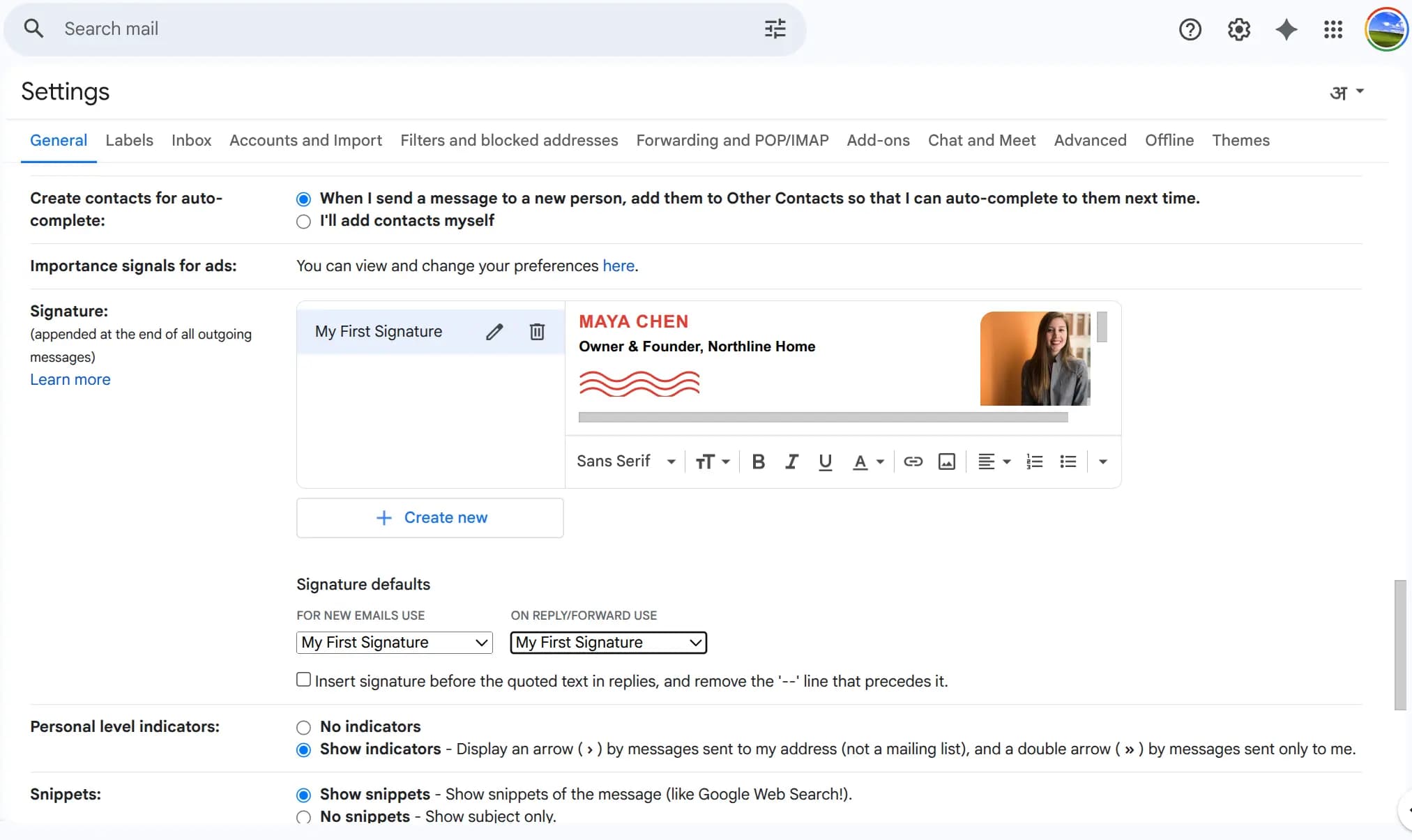 Gmail General tab with Signature section
 - Scroll down almost to the bottom of that long page. You will eventually see a section labeled Signature.
- Click the + Create new button.
- Give your signature a name (like "Shopify Store"). Click Create.
- A text box will appear. Click Copy signature on the generator. Then paste it into this box. Formatting, links, and images stay intact.
- Important: Just below the text box, look for Signature defaults. Use the dropdown menus to choose your new signature for "FOR NEW EMAILS USE" and "ON REPLY/FORWARD USE".
- Scroll to the very bottom of the page and click Save Changes.
Note: CSS animations (e.g., rotating logo frames on the Meet template) preview in the browser only. Gmail does not support animated signatures. Use an animated GIF for motion in an email.
Outlook: Settings → Account → Signatures
- Click Copy signature on the generator (same as Gmail).
- In Outlook, open Settings → Account → Signatures.
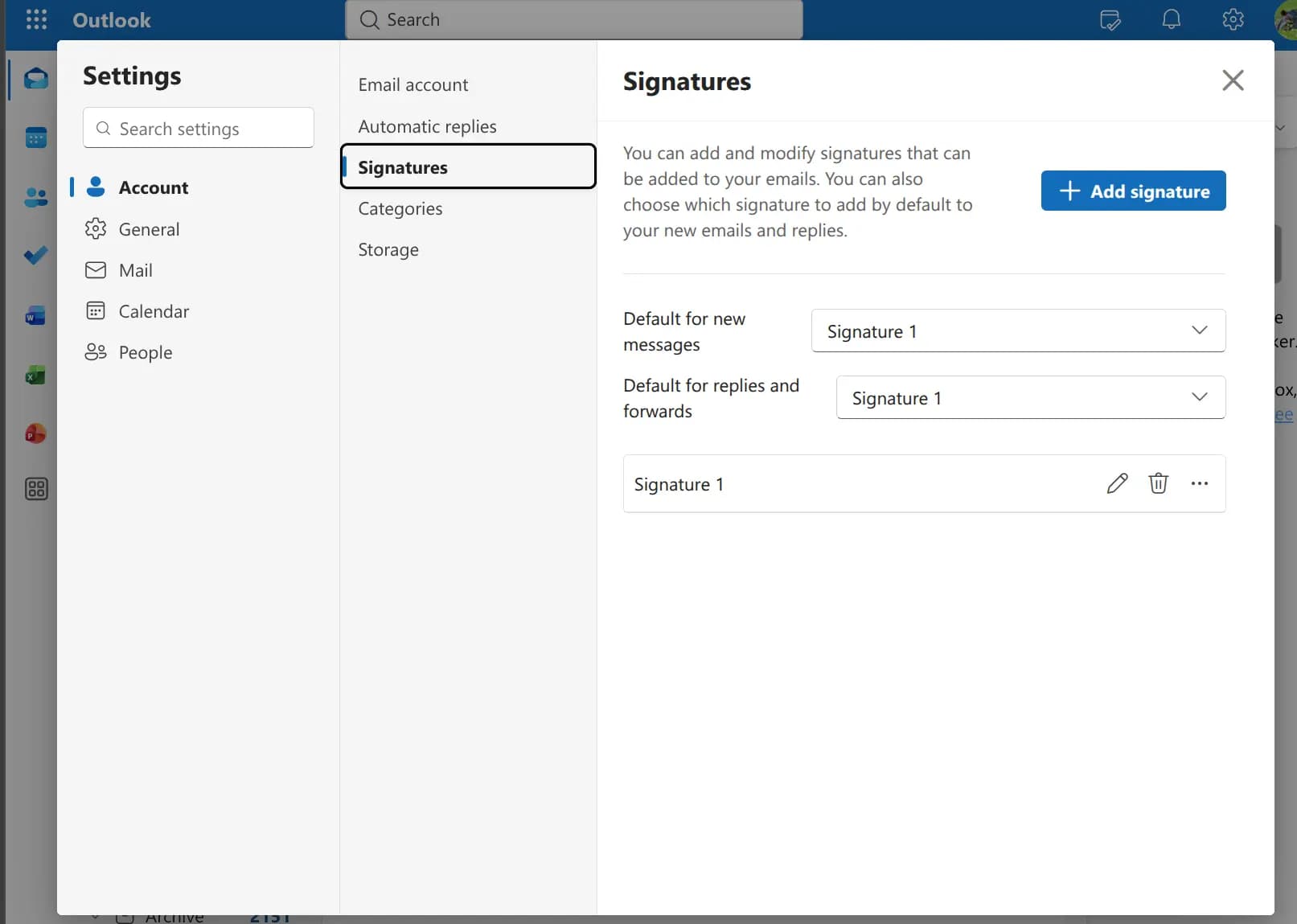 Outlook web settings with Account and Signatures selected
 - Click Add signature.
- Give it a name. Paste your signature. Check Set default for new messages and Set default for replies and forwards. Click Save.
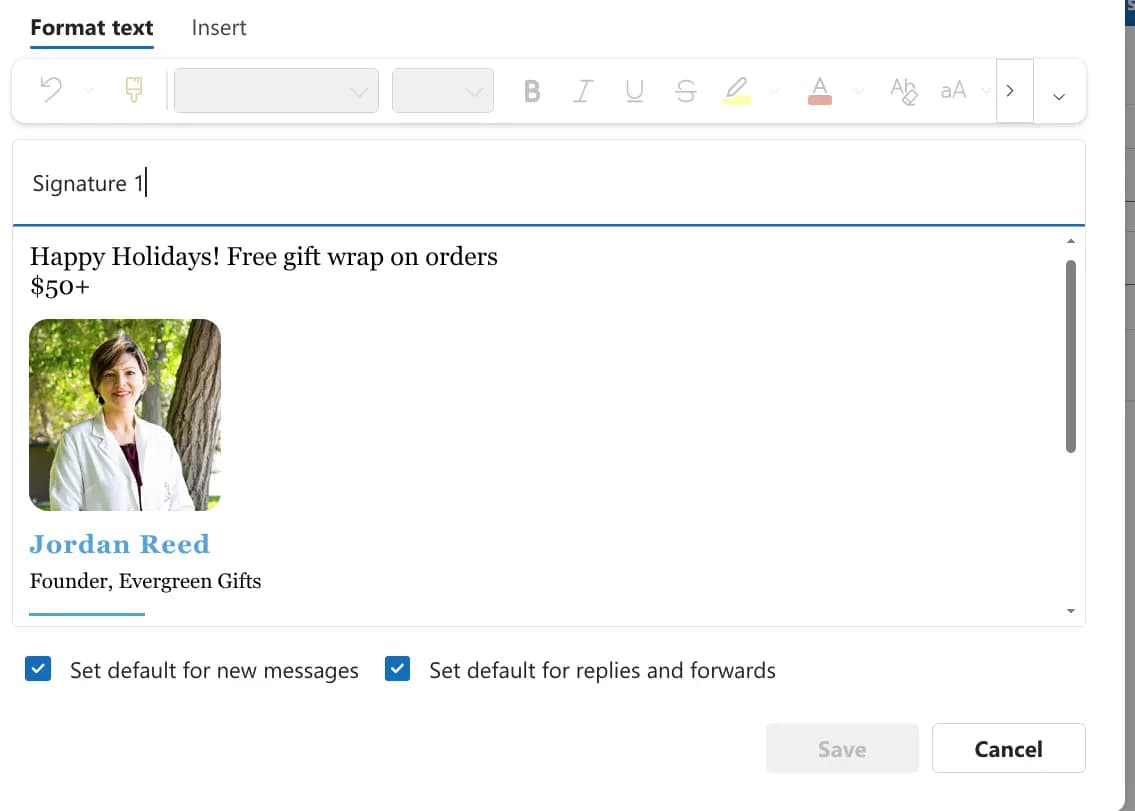 Outlook signature editor with pasted signature and default options
Note: Outlook sometimes wraps text poorly. For a tighter layout, try Thunderbird or Copy HTML in another client.
Thunderbird: Account Settings → Signature
Thunderbird pastes raw HTML directly into its signature field. Use Copy HTML, not Copy signature.
- Click Copy HTML on the generator.
- In Thunderbird, open the menu (☰) → Account Settings.
- In the left panel, select the email account you want.
 Thunderbird Account Settings with Signature text, Use HTML, and attach-from-file options - source: Thunderbird
 - In Signature text, check Use HTML. Then paste your signature HTML.
- Click OK to save. On some versions, closing the Account Settings tab saves automatically.
- Compose a new message to preview. Your signature appears below a
--divider.
Replies and forwards: With the same account selected, open Composition & Addressing in the left panel. Check Compose messages in HTML format and Include signature for replies. To ensure your signature appears correctly, change the reply style to "Start my reply above the quote". Set the signature to place "below my reply (above the quote)".
Tip: Thunderbird handles table layouts well. This is a good choice when Outlook wraps lines poorly. Logo and photo URLs must be public
https://links.
Shopify: Customer notification templates
Add your signature to order emails, invoices, and other Shopify notifications.
- Open a template to edit. The fastest route is to go to
https://admin.shopify.com/store/YOUR_STORE_HANDLE/email_templates/order_confirmation/edit(replaceYOUR_STORE_HANDLEwith your store slug). Shopify order confirmation email template editor
 - Or open Settings → Notifications → Customer notifications. Then click each template you want to update (order confirmation, order invoice, and so on).
 Shopify customer notifications list in admin
 - Click Copy HTML on the generator.
- In the template editor, press Ctrl+F (Mac: Cmd+F) and search for
</body>. - Paste your signature HTML just above the
</body>tag. Click Save. - Click Preview or Send test email to check the result.
 Shopify email template preview modal
Don't like the result? Click Revert to default on the template to undo your changes.
 Revert to default button on a Shopify email template
Klaviyo: If Klaviyo sends your store emails, follow Klaviyo's template docs instead. Stuck in admin? Ask Sidekick (Shopify's AI assistant) for help finding notification templates.
Tips for Best Results
- Host images on a CDN: Use Shopify Files or another public
https://URL for your logo and profile photo. - Use absolute URLs: Both Copy signature and Copy HTML rewrite PinFlow-hosted icons and example assets to full
https://URLs. Your own photos must already be on a public HTTPS host. - Use the "With CTAs" style for support teams: Track Order and Returns buttons cut down on repetitive customer inquiries.
- Keep promo lines short: One line with a clear discount code works best in email footers.
- Test before rolling out: Send yourself a test email. Confirm the signature renders correctly in your client.
Frequently Asked Questions
Will Gmail strip my signature styles?
Our HTML uses table layouts and inline styles. This is the standard approach for email signatures. Gmail preserves most inline styling. If something looks off, try the plain-text copy as a fallback.
Why aren't my logo or images showing in Gmail?
Gmail treats signature images differently in the editor versus sent mail:
- Use hosted HTTPS URLs - paste a Shopify Files or CDN link for logos and photos.
- Avoid relative paths - images must load from a public domain (e.g.
https://yourstore.com/...) - Social icons are self-hosted - PinFlow serves PNG icons from our domain. They appear after you copy on a deployed site.
Always send yourself a test email to confirm.
Can I use this for my whole support team?
Yes. Fill in the example. Customize it for each team member (name, title, email). Then share the copied HTML. The store-level fields (logo, track order URL, returns URL) stay the same.
Is my data stored anywhere?
No. Everything runs directly in your browser. We do not upload, store, or sell your information.
More FREE Marketing & Branding tools
Social posts, email signatures, buyer personas, and campaign tracking.
Free Business Card Maker
Design professional business cards with custom templates and your logo. Live preview and instant PDF download. Free, no signup.
Free Gift Certificate Template Maker
Create a printable gift certificate with your business name, logo, amount, and a unique code. Pick from 6 occasion templates, custom colors, and fonts, then download a PNG, SVG, or print-ready PDF. Free, no signup.
Free Gift Tag Template Maker
Design printable gift tags for any occasion. Pick from 20 templates, add To, From, and a message, choose a shape (including a classic punch-hole swing tag) and real-unit size, then download PNG, PDF, or SVG. Bulk-print a personalized sheet from a recipient list. Free, no signup, no watermark.
Free Coupon Template Maker
Create a printable coupon with your business name, logo, discount, headline, and promo code. Pick from 8 coupon templates, add a scannable QR code or barcode, choose size presets, then download a PNG or print-ready PDF. Free, no signup.
Free Bulk Discount Code Generator
Generate thousands of unique, random discount codes in bulk and export a CSV. Set a prefix, length, and character set, attach a percentage, fixed amount, or free shipping rule, and download a Matrixify-ready discounts.csv for Shopify. Free, no signup.
Free Thank You Card Template Maker
Design a printable thank you card for orders. Pick from 20 templates, write your message, add a discount code and a scannable QR, choose a real-unit insert size, then download PNG, PDF, or SVG. Bulk-print a personalized sheet from a customer list. Free, no signup, no watermark.
Free Table Tent Template Maker
Design printable table tents, tent cards, and name tents. Pick a half-fold or tri-fold style, a finished size, and a template, then add a menu special, table number, place card, or scan-to QR. Download a true-size PNG, PDF, or SVG, or bulk-print a tiled sheet. Free, no signup, no watermark.
Free Event Ticket Maker
Design printable event tickets for concerts, galas, sports, conferences, fundraisers, and parties. Pick a template, add your event, date, venue, seat, and price, add a tear-off stub with a matching number, then download a true-size PNG, PDF, or SVG, or a numbered sheet. Free, no signup, no watermark.
Free Raffle Ticket Generator
Make printable numbered raffle tickets for fundraisers, churches, schools, sports 50/50, and holiday draws. Add your prize, drawing date, and price, pick a themed template, and each ticket gets a fill-in Name and Phone counterfoil with a matching number. Draw a winner, then download a true-size PNG, PDF, or SVG, or a numbered sheet. Free, no signup, no watermark.
Free Instagram Post Generator & Creator
Turn 1 product into 1000s of unique Instagram post designs. Select from 36 templates, 28 color palettes, custom fonts, and batch download perfectly sized 1080×1350px posts as ZIP. Built for Shopify merchants. Free, no signup.
Free AI Buyer Persona Generator
Create detailed buyer personas for your Shopify store with AI. Answer guided questions about your customers and get a complete persona with demographics, shopping behavior, and marketing recommendations. Free, no signup.
Free UTM Link Builder & Campaign URL Generator
Free Google Analytics campaign tagging tool — build trackable UTM campaign URLs for your Shopify store. Set utm_source, utm_campaign, and utm_medium with smart ecommerce presets, real-time tracking URL preview, and GA4 campaign tracking support. No signup.