
Free Image Resizer & Optimizer
Resize, rotate, flip, compress, and convert images. Use them for your Shopify store, Pinterest pins, and social media. Fix sideways phone photos instantly. You need no signup. Your images never leave your browser.
The Ultimate Guide to Website Image Sizes in 2026
Properly sized images are critical. They improve mobile page speed. They boost SEO rankings. They create a professional shopping experience. Our free image resizer tool makes it effortless to adapt your visuals for any platform.
More people browse the internet on mobile devices than desktop computers today. Getting the right image size for your Shopify store and social media is absolutely essential. Oversized images cause slow page load times. This directly hurts your SEO ranking and frustrates potential customers. On the flip side, undersized images look pixelated. They appear unprofessional on high-resolution displays.
Our free online image resizer solves this problem. It features one-click presets tailored specifically for ecommerce merchants and content creators. You might optimize a hero banner. You might craft a background image. You might format product photography. Our tool ensures your dimensions are picture-perfect. Generic tools fall short. We include every dimension you need. Create 2048×2048 square product photos. Create 2560×1400 hero banners. Create 1000×1500 Pinterest pins.
How Does Our Free Image Resizer Work?
Adjusting your digital images to fit various applications has never been easier. Follow these simple steps:
- Upload your images: Drag and drop up to 10 images at once. Your files are processed entirely in your browser. This ensures complete privacy.
- Select your target size: Choose from our comprehensive list of social media presets. Try the Instagram Story size at 1080×1920. Or, enter your own custom dimensions.
- Choose a resize mode: Decide whether you want to Fit the image to prevent cropping. Alternatively, Fill the space to eliminate borders.
- Adjust compression & format: Select a modern format like WebP or AVIF. Use the quality slider. Find the perfect balance between visual fidelity and file size.
- Download instantly: Preview your changes in real-time. Download your optimized images with a single click.
Why Image Optimization is Crucial for SEO and User Experience
- Page Speed & Core Web Vitals: Every extra megabyte of image data adds to your page load time. Search engines use loading speed as a major ranking factor. They specifically look at the Largest Contentful Paint (LCP) metric. For optimal performance, aim to keep your product photos under 300KB.
- Responsive Mobile Design: Your website will be viewed on screens of all sizes. Choosing the right aspect ratios ensures your content looks great everywhere. It prevents horizontal scrolling or awkward zooming. Square product images adapt beautifully to mobile grids.
- Perceived Brand Value: Uniformly sized, crisp images give your store a polished, trustworthy appearance. High-resolution images allow for deep zooming. This requires a minimum of 800×800 pixels. Great images give customers the confidence to make a purchase.
- 100% Secure & Private: Avoid other cloud-based image resizer tools. Your sensitive product photos and brand assets are never uploaded to a third-party server here. Everything is processed locally right in your browser.
Best Image Sizes for Different Website Elements
Different sections of your website require different dimensions. Here is a quick reference guide:
- Background Images: These fill the entire screen. You need a high resolution. Aim for 2560 × 1400 pixels (16:9 ratio). Try to keep the file size under 20MB.
- Hero Images: These sit at the top of your landing pages. A good rule of thumb is between 1280 to 2500 pixels wide and 720 to 900 pixels tall.
- Blog Headers: Consistency is key here. Standardize on an aspect ratio like 3:2. Recommended dimensions are 1200 × 800 pixels.
- Logos: Depending on your brand, a square (1:1) or rectangular (4:1) format works best. A standard square logo should be at least 100 × 100 pixels.
Recommended Shopify Image Sizes (2026)
| Image Type | Dimensions | Ratio | Max Size |
|---|---|---|---|
| Product Image (Square) | 2048 × 2048 | 1:1 | ≤ 300KB |
| Collection Banner | 1200 × 600 | 2:1 | ≤ 500KB |
| Hero / Slideshow | 2560 × 1400 | 16:9 | ≤ 10MB |
| Blog Header | 1200 × 800 | 3:2 | ≤ 3MB |
| Logo | 100 × 100 | 1:1 | ≤ 1MB |
| Background Image | 2560 × 1440 | 16:9 | ≤ 20MB |
Pro Tip: Modern platforms support uploads up to 20MB. However, it is almost always a good idea for the rendered size of your images to be much smaller. This maximizes performance.
Choosing the Right Image File Format & Format Conversion
As a Shopify merchant, you source product photos from various places. You get them from suppliers. You get them from professional photographers. You take them direct from your smartphone. Our image resizer acts as a fully-featured format converter. It runs directly in your browser. You might need to convert a transparent PNG to a lightweight JPEG. You might upload an iPhone HEIC photo and export it as a next-gen WebP. It gets done instantly without uploading files to an external server.
- WebP: The gold standard for modern web performance. Google developed WebP. It offers lossless compression. It often reduces file size by more than 30% compared to traditional formats. This dramatically improves SEO.
- AVIF: A next-generation format offering superior compression. It results in the smallest file sizes possible while maintaining high visual quality.
- JPEG (JPG): The universal standard for complex photographs. It uses lossy compression. It strikes a strong balance between reasonable file sizes and image fidelity.
- PNG: Best suited for logos, graphics, and images requiring a transparent background. Its lossless nature preserves perfect detail. However, file sizes are generally much larger. Reduce massive PNG files into web-optimized WebP or JPEG formats. This dramatically improves your Shopify store's page speed.
- SVG: A vector format perfect for logos and icons. It scales infinitely without any quality loss.
- Native HEIC Support: A major pain point for mobile-first creators is Apple's HEIC format. It is not universally supported. Just drop your iPhone
.heicor.heifphotos right into our tool. We decode them instantly in the browser. We prepare them for web-friendly exporting.
Shopify Merchant Tip: Do not upload raw iPhone HEIC photos directly to your store. Avoid massive PNGs unless transparency is absolutely required. Use our tool to batch-convert your mobile lifestyle shots. Turn them into highly compressed WebP files before uploading to Shopify. This ensures lightning-fast load times. You might even choose to keep your original dimensions without resizing. Running your photo through our tool's efficient WebP/AVIF re-encoding will still significantly reduce its footprint!
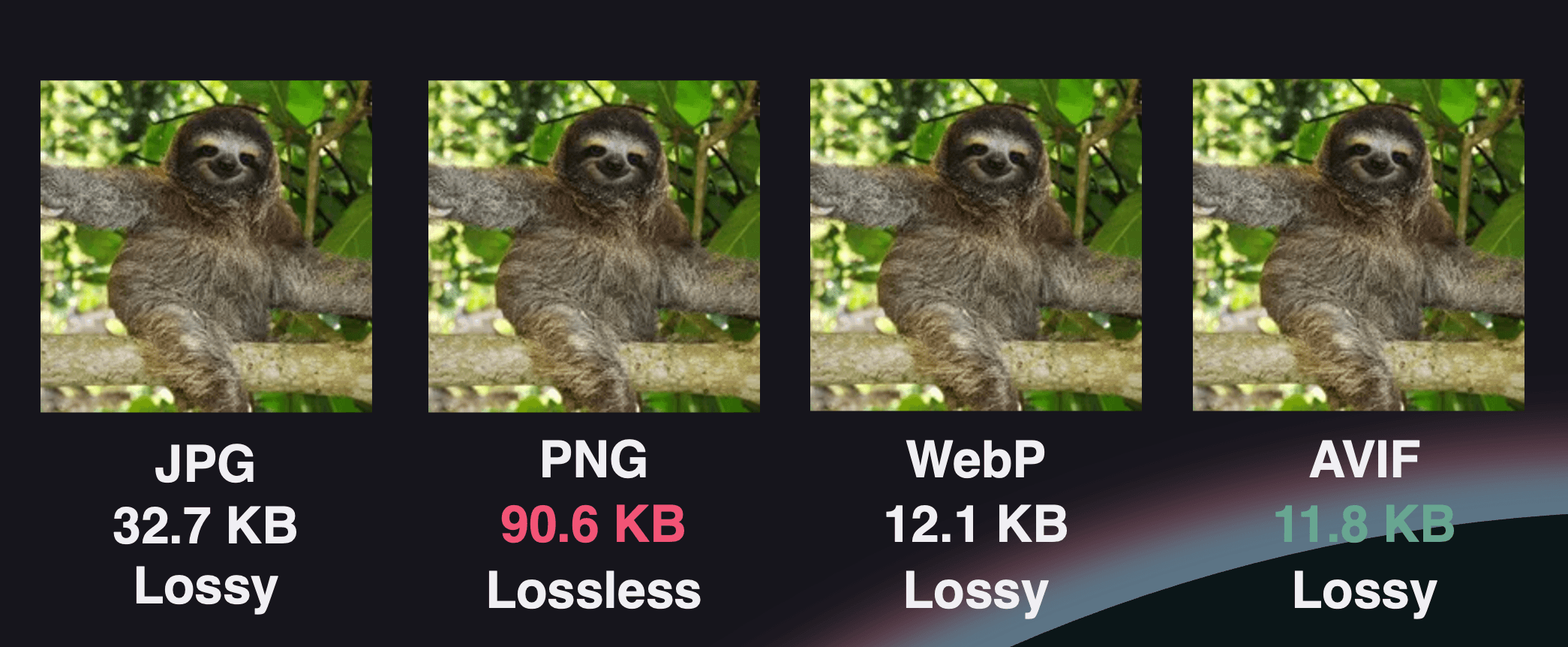 Identical photograph hosted in JPG, PNG, WebP, and AVIF
Format comparison showing the difference in file sizes
Identical photograph hosted in JPG, PNG, WebP, and AVIF
Format comparison showing the difference in file sizes
Understanding Image Resizing Modes
When scaling an image's dimensions, you must understand how different rendering methods affect the final result:
- Fit (Fit inside, no crop): Scales the image to fit entirely within the specified dimensions. The original aspect ratio is perfectly maintained. Mismatched ratios create empty space. This space is automatically padded (letterboxing). Use our Empty Space Color setting. Pick the exact background color for this padding to match your website design.
- Fill (Cover & crop overflow): Scales the image so it completely covers the target dimensions. Any parts of the image that overflow the new box are neatly trimmed.
- Stretch (Force to exact size): Forces the image to exactly match the target dimensions. It alters width and height independently. Use this carefully. It can cause severe distortion.
Shopify Merchant Tip: Do you have a mix of portrait and landscape photos? Use the Fit mode to resize them all. Turn them into uniform 2048×2048 squares for your Shopify catalog. Use the Empty Space Color setting. Set the padded background to match your store's exact hex color. This maintains a seamless, professional product grid without cropping out any vital product details.
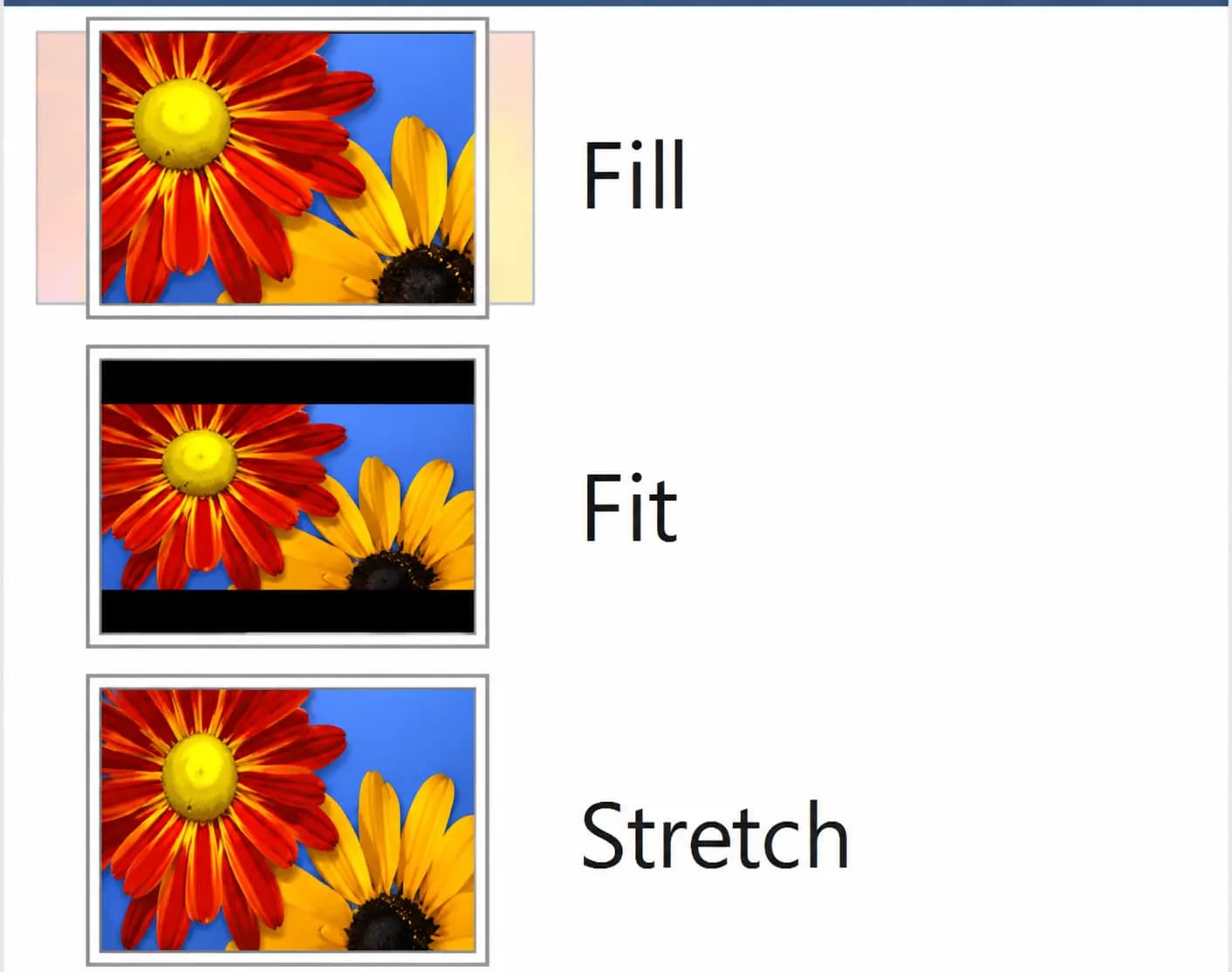 Visual comparison showing Fill, Fit, and Stretch resize modes
Visual guide to how different resize modes affect your image
Visual comparison showing Fill, Fit, and Stretch resize modes
Visual guide to how different resize modes affect your image
Perfect Product Grids with Auto-Trim Whitespace
Ecommerce stores face a big challenge. Maintaining a consistent, professional appearance across collection pages is hard when sourcing products from multiple suppliers. Often, supplier photos come with varying amounts of white or transparent borders. If you simply resize these images as-is, the actual products appear as different sizes on your grid. This makes your store look totally disorganized.
Our exclusive Auto-Trim Whitespace feature solves this instantly. Before resizing, our tool automatically scans the pixels of your image. It strips away all excess white or transparent space. It tightly crops the photo down to the core product.
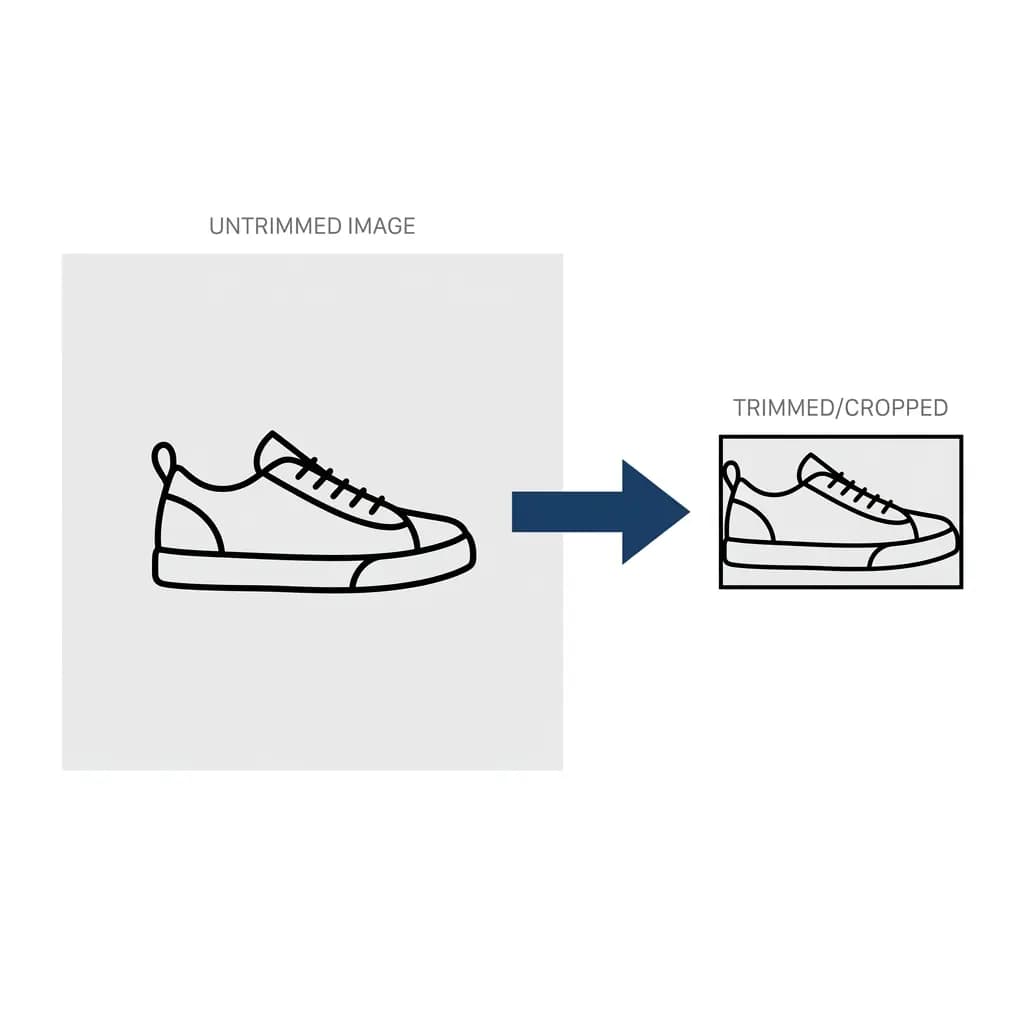 Visual illustration of trimming excess whitespace from a product image
Visual guide to how Auto-Trim removes empty space to focus on your product
Visual illustration of trimming excess whitespace from a product image
Visual guide to how Auto-Trim removes empty space to focus on your product
- Standardize Scale: Ensure the product itself fills the maximum available space. This eliminates tiny-looking items on your collection pages.
- Automated Efficiency: Skip manual cropping. Toggle this feature on. We will intelligently trim batches of up to 10 images at once.
- Seamless Integration: Auto-Trim works beautifully with the "Fit" resize mode. Trim the excess borders first. Then perfectly center the product inside a clean 2048×2048 Shopify square with a custom background color!
Protect & Brand Your Assets with Watermarks
Protecting original product photography from theft is a top priority for Shopify merchants and digital creators. Our free tool includes a powerful built-in watermarking engine. It helps you secure and brand your images before publishing them online.
- Text Watermarks: Quickly add copyright notices, your store name, or your website URL. Customize the font size, opacity, color, and position. Ensure it looks completely professional.
- Text Backgrounds: Ensure your text watermark remains readable even over visually complex photos. Apply a custom solid background color directly behind the text.
- Image / Logo Watermarks: Upload your own PNG logo with a transparent background. Seamlessly overlay it onto your product catalog photos. This reinforces brand identity on Pinterest, Google Images, and social media.
- Batch Watermarking: Apply the exact same watermark settings across multiple images simultaneously. This saves you hours of tedious manual editing.
Shopify Merchant Tip: You might invest in custom lifestyle photography or unique product renders. Add a subtle logo watermark in the corner. This prevents competitors or dropshippers from scraping and reusing your hard work on their own stores.
Fix Image Orientation Instantly with Rotate & Flip
You might upload a product photo only to see it appear sideways or upside-down on your Shopify store. You are not alone. This is one of the most common and frustrating issues ecommerce merchants face. It happens because modern smartphones embed EXIF orientation data in photos. Not every platform, browser, or image editing tool reads that metadata correctly. The result is a perfectly good product shot that displays rotated 90° in your collection grid. This makes your store look very unprofessional.
Our free image resizer includes a powerful Rotate & Flip toolset. It permanently bakes the correct orientation directly into the image pixels. Stop relying on EXIF tags that might be ignored. You might need a quick 90° correction. You might need fine-grained rotation at any angle from 0° to 360°. It is all done in one click before your final export.
How Rotation Works
Use the precision rotation slider to dial in any angle exactly between 0° and 360°. Or, tap one of the quick preset buttons (0°, 90°, 180°, 270°) for the most common corrections.
How Flipping Works
Toggle horizontal or vertical flipping with a single button press. Horizontal flip mirrors the image along the Y-axis. The left becomes the right. Vertical flip mirrors along the X-axis. The top becomes the bottom. This is essential for creating mirrored product layouts. It fixes selfie-mode photos. It produces symmetrical design compositions for Pinterest pins and social media banners.
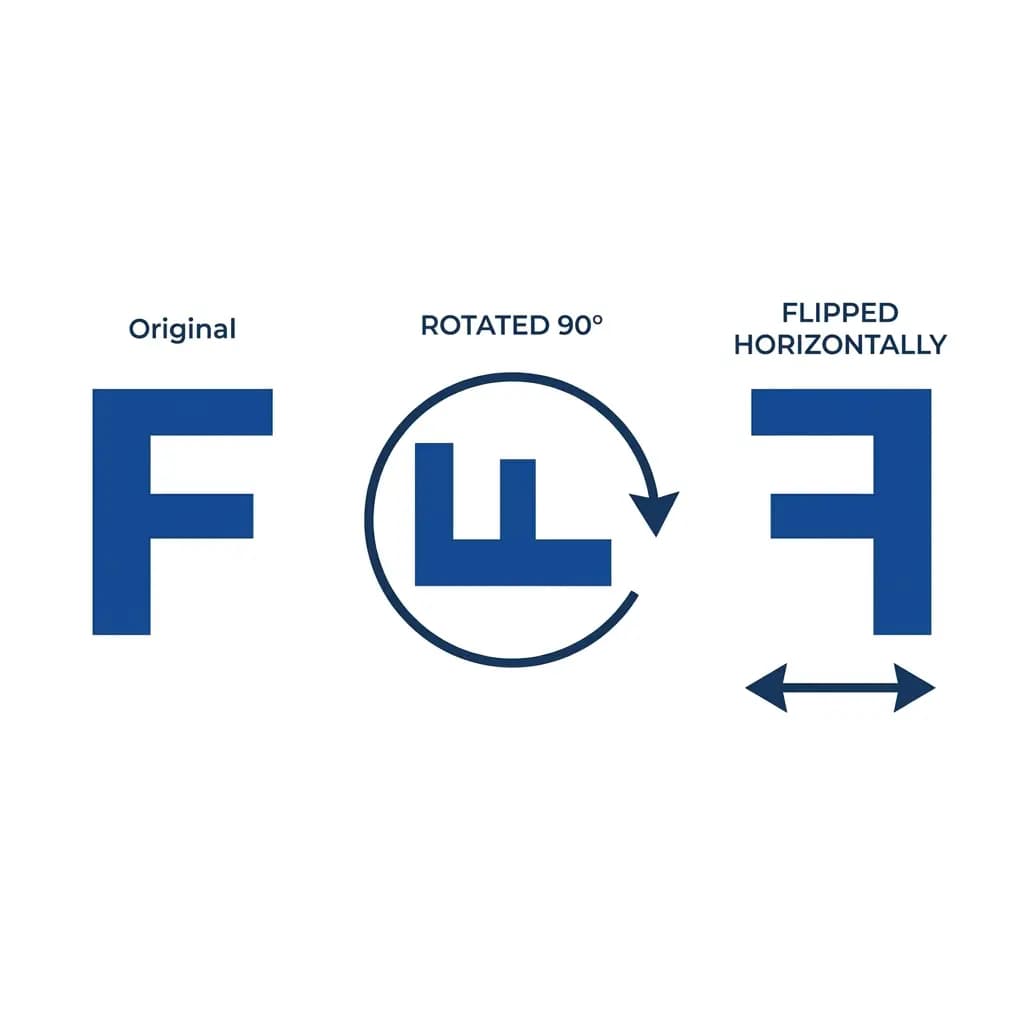 Visual illustration of image rotation and horizontal flipping
Visual guide to how rotating and flipping affects your image orientation
Visual illustration of image rotation and horizontal flipping
Visual guide to how rotating and flipping affects your image orientation
- Fix Sideways Phone Photos: Correct the #1 product photography headache. A photo taken in portrait mode on an iPhone or Android often displays sideways on your Shopify store. It can be permanently fixed with a single 90° rotation.
- Fine-Grained Angle Control: Straighten slightly tilted flat-lay shots. Adjust angled product compositions. Create creative diagonal layouts. Do it all with 1-degree precision via the rotation slider.
- Batch Transform: Apply the exact same rotation and flip settings across your entire batch of up to 10 images simultaneously. This is a massive time-saver for merchants processing bulk supplier photography.
- Non-Destructive Pipeline: Transforms are applied after whitespace auto-trimming but before final resizing. This means the target dimensions you specify always refer to the rotated output. This prevents unexpected cropping or distortion.
- Combine with Other Features: Rotate your image, then watermark it, then export as WebP. Do it all in one seamless workflow. Every feature in our tool works together in a predictable processing pipeline.
Shopify Merchant Tip: Before uploading a new batch of product photos from your phone, run them through our tool. Apply a 0° rotation. The images might look correct on your phone already. However, applying a canvas-level rotation ensures the orientation is permanently embedded in the pixel data rather than relying on EXIF metadata. This guarantees that Shopify, Pinterest, Google Shopping, and every other platform will display your photos exactly as intended. There are no surprises.
Frequently Asked Questions
How does this image resizer work?
Simply drag and drop your photos (up to 10 at once). Choose a preset or enter your custom dimensions. Adjust your compression quality. Click "Resize." The entire optimization process happens securely in your browser. No files are ever uploaded to an external server. You can then download your optimized graphics individually. You can also download them all together as a single ZIP file.
How much does it cost to use the image resizer?
This online image resizer is a 100% free utility tool. There are absolutely no costs. There are no watermarks. There are no credit limits. There are no accounts required. You can resize as many images as you need for your ecommerce store, social media campaigns, or personal blogs.
Does resizing images affect their quality?
Yes, changing dimensions can impact quality. However, if you start with a high-resolution image and scale it down, the quality loss is usually imperceptible. Scaling an image up forces the creation of new pixels. This may result in blurriness. Our tool uses advanced interpolation techniques. It gives you a quality slider to control exactly how much compression is applied to lossy formats like JPEG and WebP.
What is the difference between image size and resolution?
Image size typically refers to the physical dimensions of the image on a screen (measured in pixels width by height). It can also refer to the file storage size (measured in KB or MB). Image resolution refers to the density of the details held within the image. This is often measured in Pixels Per Inch (PPI). An image can have small physical dimensions but a very high resolution.
How does image size affect my website's load time and SEO?
The larger the file size (in MB), the longer it takes a browser to download and render the image. Slow-loading pages lead to higher bounce rates. This negatively impacts your Search Engine Optimization (SEO). Google specifically monitors the "Largest Contentful Paint" (LCP) metric. Properly compress and resize your visuals. You guarantee a snappy user experience that search engines love.
What size should my Shopify product images be?
For the best mobile and desktop experience, Shopify recommends square product images at 2048×2048 pixels. This uniform ratio looks great in collection grids. It is large enough to allow for crystal-clear zoom functionality. Proper zooming requires a minimum of 800×800 pixels.
Worth knowing: the file size you upload is not what decides how large the photo looks on your product page. That is your theme's column split, and uploading a smaller file will not shrink it. If your product photo is taking over the page, here is how to make the product image smaller on a Shopify product page.
What is the ideal Pinterest pin size?
The recommended Pinterest pin size is 1000×1500 pixels. This is a 2:3 aspect ratio. This is the "standard pin" format that performs best in the Pinterest feed. For infographic-style pins, you can go taller at 1000×2100. After resizing, use our Pinterest Pin Generator or Pinterest Infographic Generator. Add templates, text overlays, and brand colors easily.
Are my images safe and private?
Yes, your images are completely safe. Our tool relies on the HTML5 Canvas API. All rendering and compression happens locally on your own computer. We never transmit or save your files on our servers.
Can I watermark my product images before uploading to Shopify?
Yes! Our free tool includes a fully featured watermarking engine. You can add custom text or upload a transparent PNG logo to brand your images. It supports adjusting the size, position, and opacity. It even allows adding custom background colors to text watermarks. This ensures they remain legible on busy product photography. Best of all, you can apply your watermark to up to 10 images simultaneously in a single click.
Can I convert iPhone HEIC photos to JPEG or WebP?
Absolutely. Our tool supports native decoding of Apple's HEIC and HEIF image formats. Upload photos taken directly from your iPhone. Resize them and instantly convert them to universally supported formats like JPEG, PNG, WebP, or AVIF. You do not need any third-party software.
Can I rotate or flip my product images before uploading to Shopify?
Yes! Our tool includes a full Rotate & Flip panel. You can rotate images to any angle from 0° to 360° using a precision slider. Use quick presets for 90°, 180°, and 270° corrections. You can also flip images horizontally or vertically with a single click. All transforms are permanently baked into the pixel data using the Canvas API. The orientation is guaranteed to display correctly on Shopify, Pinterest, Google Shopping, and every other platform.
More FREE Product & Catalog tools
Barcodes, QR codes, image optimisation, and AI-readiness for your product catalog.
Free QR Code Generator
Instantly create free, downloadable QR codes for links, phone numbers, texts, and SMS messages without any email signups.
Free WiFi QR Code Generator
Make a WiFi QR code guests scan to join your network. Handles WPA and WPA2, open and hidden networks, and passwords with special characters. No signup.
Free vCard QR Code Generator
Make a QR code that saves your name, phone, email, company and website to a phone in one tap. Handles names and companies with commas or semicolons. No signup.
Free SMS QR Code Generator
Make a QR code that opens a text message with the number and a pre-written message filled in. Works on iPhone and Android. No signup, no watermark.
Free WhatsApp QR Code Generator
Make a QR code that opens a WhatsApp chat with your number and an optional pre-written message. Built on a wa.me click-to-chat link. No signup.
Free Business Card QR Code Generator
Make a QR code for your business card that saves your name, title, company, phone, email and website to a phone as a contact in one tap. No signup.
Free Barcode & Label Generator
Create professional barcode labels with templates for retail, shipping, jewelry, and more. Supports EAN-13, UPC, CODE128 formats. Free, no signup.
Free Address Label Template Maker
Make an Avery-compatible address label sheet. Pick a product number (5160, 5167, L7160, and more), type one address or mail-merge a list, then download a print-ready PDF, PNG, or SVG at true size. Free, no signup, no watermark.
Free Name Tag Generator
Make printable name tags and event badges on an Avery sheet. Pick a size (5395, 5390, 5392, 5384, or A4), type one badge or mail-merge a roster, color-code by department, add a scan-to-connect QR, then download a true-size PDF, PNG, or SVG. Free, no signup, no watermark.
Free Price Tag Template Maker
Design printable price tags and shelf labels with a built-in barcode or QR code. Retail and boutique sale templates, real-unit sizes, bulk sheet printing, and PNG/PDF/SVG export. Free, no signup, no watermark.
Free Hang Tag Template Maker
Design printable hang tags (swing tags) with a real punch hole, a built-in barcode or QR code, and real-unit sizing. Apparel, price-sale, and specialty templates, a car parking-permit mirror-slot shape, bulk mail-merge sheets, and PNG/PDF/SVG export. Free, no signup, no watermark.
Free Luggage Tag Template Maker
Design a two-sided printable luggage tag: a name front and an "if found, please return to" contact back, laid out side by side for one-print, cut, and fold. 14 templates (travel, corporate, wedding, kids, medical ID, boarding pass), a reinforced grommet shape, a return QR, real-unit sizing, and bulk family/team sheets. Free, no signup, no watermark.
Free Candle Labels Maker & Warning Label Generator
Design custom candle labels and print an ASTM F-2058 candle warning label carrying all three cautionary statements and all three pictograms. Measure your jar and the tool computes the wrap size (pi x diameter + overlap) and the dual-unit net weight. 6 label types, 14 templates, bulk scent sheets, true-size PDF, transparent PNG and SVG. Free, no signup, no watermark.
Free Soap Label Maker & Custom Soap Labels
Design custom soap labels and build an INCI ingredient list in correct descending order, with saponified oil names (olive oil -> Sodium Olivate) and a true-soap vs cosmetic toggle. Bar, round, oval, belly-band and bottle shapes, 14 templates, dual-unit net weight (oz/g and fl oz/mL), bulk sheets, true-size PDF, transparent PNG and SVG. Free, no signup, no watermark.
Free Care Label Template Maker & Generator
Design a sew-in garment care label with the correct ISO 3758 / ASTM D5489 care symbols, FTC-compliant care text, fibre-content composition, and RN / size / origin fields. Pick a fibre preset, override any axis, and the symbols and text always match. 12 templates, real-unit sizing, bilingual EU option, bulk size-run sheets, true-size PDF, transparent PNG and SVG. Free, no signup, no watermark.
Free Warranty Card Template Maker & Generator
Design a printable warranty card or certificate with the product, warranty period, coverage, and support details, plus a scan-to-register QR. Batch a whole run of cards each with a unique serial and a per-card register QR that pre-fills the serial on your registration page. 12 templates, 16 themes, real insert sizes, fill-in ruled lines, true-size PDF, PNG and SVG, plus Letter and A4 bulk sheets. Free, no signup, no watermark.
Free Nutrition Label Maker & Generator
Create a pixel-accurate FDA Nutrition Facts or Supplement Facts label. Pick from 20+ formats, type your amounts, and get auto %DV and FDA rounding. Download a print-ready PNG or PDF, or copy embed HTML. Free, no signup, no watermark.
Free Size Chart Maker & Generator
Build a branded product size chart. Pick from 13 category presets, edit the table inline, toggle cm and inch, and style it. Copy a self-contained HTML embed for your product page or download a PNG. Free, no signup, no watermark.
Free SKU Generator
Create consistent, human-readable SKU codes for your product catalog. Build a SKU format, bulk-generate from a product list or a size and color variation matrix, and export a CSV. Free, no signup.
Free Price List Template Maker
Build a polished price list one-pager. Paste or import your products, group them into sections, pick from 20 templates, and download a print-ready PNG, PDF, or CSV. Free, no signup, no watermark.
Free Rate Sheet Template Maker
Build a professional service rate sheet one-pager. List services with a rate and a per-service unit like /hr or /project, group them into sections, pick from 20 templates, and download a print-ready PNG, PDF, or CSV. Free, no signup, no watermark.
Free Line Sheet Maker
Build a wholesale line sheet template with product photos, wholesale and MSRP prices, colors, sizes, and MOQ. Pick a grid, list, or lookbook layout and download a print-ready PDF, PNG, or CSV. Free, no signup, no watermark.
Free Meta Description Generator
Write, measure, and preview meta titles and descriptions with a live Google SERP snippet. Pixel-accurate truncation, character and pixel counters, copy-ready meta tags, and bulk CSV export. Free, no signup.
Free llms.txt Generator & Validator
Generate and validate llms.txt files for your ecommerce store. Make your Shopify or Etsy store AI-ready for ChatGPT, Gemini, and Claude. Free, no signup.